The PushEngage MCP server is available now on every PushEngage plan, including Free.
It’s a free, open-source connector that lets AI assistants work inside your PushEngage account through the Model Context Protocol (MCP). Ask Claude, Cursor, Codex, or another MCP client to send a notification, build an audience, run an A/B test, or pull last month’s click rate. The server does it in your account, with the same segments, analytics, and plan limits as the dashboard.
It’s built for the retention and lifecycle teams at mid-market and enterprise eCommerce brands, and for the developers and agencies who work with them. It runs on your own computer with npx. You sign in through your browser, so there are no API keys to paste anywhere. It covers 27 tools across seven areas of your account, from sending and scheduling to audiences, campaign reporting, analytics, and site settings.
Get it here: PushEngage MCP server. Setup takes three steps, once per computer.
Why we built the PushEngage MCP server
Many teams already work inside an AI assistant for part of the day. Developers and agencies often have several MCP servers connected already. We wanted PushEngage to be something that assistant can actually operate, not just talk about.
One sentence instead of five screens
The dashboard is still where you build anything by hand. But plenty of everyday jobs are small: schedule tomorrow’s push, check which triggered campaigns are active, change the default notification expiry. When one sentence is faster than five screens, the assistant does the clicking and tells you what it did.
Same account, same rules, same limits
Everything runs against your real sites, segments, and audience groups. Nothing is copied into a separate tool or a second subscriber list. Your plan’s limits apply, and the assistant can only do what your plan and your PushEngage login allow, the same as you can in the dashboard.
Local and open source, so you can read every line
The server runs as a process on your own machine, started by your MCP client through npx. There is no hosted or remote PushEngage MCP endpoint. The code is MIT licensed and on GitHub, published on npm as @pushengage/mcp, and listed on the official MCP Registry as io.github.awesomemotive/pushengage-mcp.
Browser sign-in, no API keys
You approve access on the PushEngage authorize page. The assistant never sees your password, and there’s no API key to paste into a chat.
Everything the PushEngage MCP server can do
The server exposes 27 tools across seven areas of your account. You don’t call tools by name. You describe the job, and the assistant picks the tool. When it needs a detail, like which audience group you mean, it asks.
| Area | What your assistant can do | Good to know |
|---|---|---|
| Sending | Send now, schedule for later, schedule in each subscriber’s local timezone, set up recurring sends, save drafts, and run A/B tests that pick the winner by click rate. List past, scheduled, and draft notifications with their stats. | Sends go to all subscribers or to saved audience groups. Scheduling and audience groups need Business or above; A/B tests and timezone sends need Premium or above. |
| Audiences | List and create URL-based segments, audience groups (country, device, segment, engagement, dates, and custom attributes), and custom subscriber attributes. | Up to 50 custom attributes per site. |
| Campaigns and automations | List drip, triggered (cart and browse abandonment, price drop, and more), and RSS campaigns, plus workflows, with their analytics. | Read-only. Build and edit them in the dashboard or the Workflows builder. |
| Analytics | Lifetime totals for subscribers, sends, views, clicks, and goals, plus day, week, or month trends with click rate and unsubscribes. | Goal numbers need goal tracking, on Premium and above. |
| Site settings | Read and update site name, timezone, geolocation, default UTM parameters, fallback notification, notification expiry, and service worker settings. | Updates merge over your current values, so a partial change leaves the rest alone. |
| Chat widgets | List your chat widgets with their status, channels, devices, business hours, and page targeting. | Read-only. The chat widget supports 21 channels plus custom links. |
| Account and sites | Sign in, check status, sign out, list your sites, and choose the one to work on. | Name a different site in a request to work on it without switching. |
Here’s every tool, area by area, in plain language.
Sending notifications (3 tools)
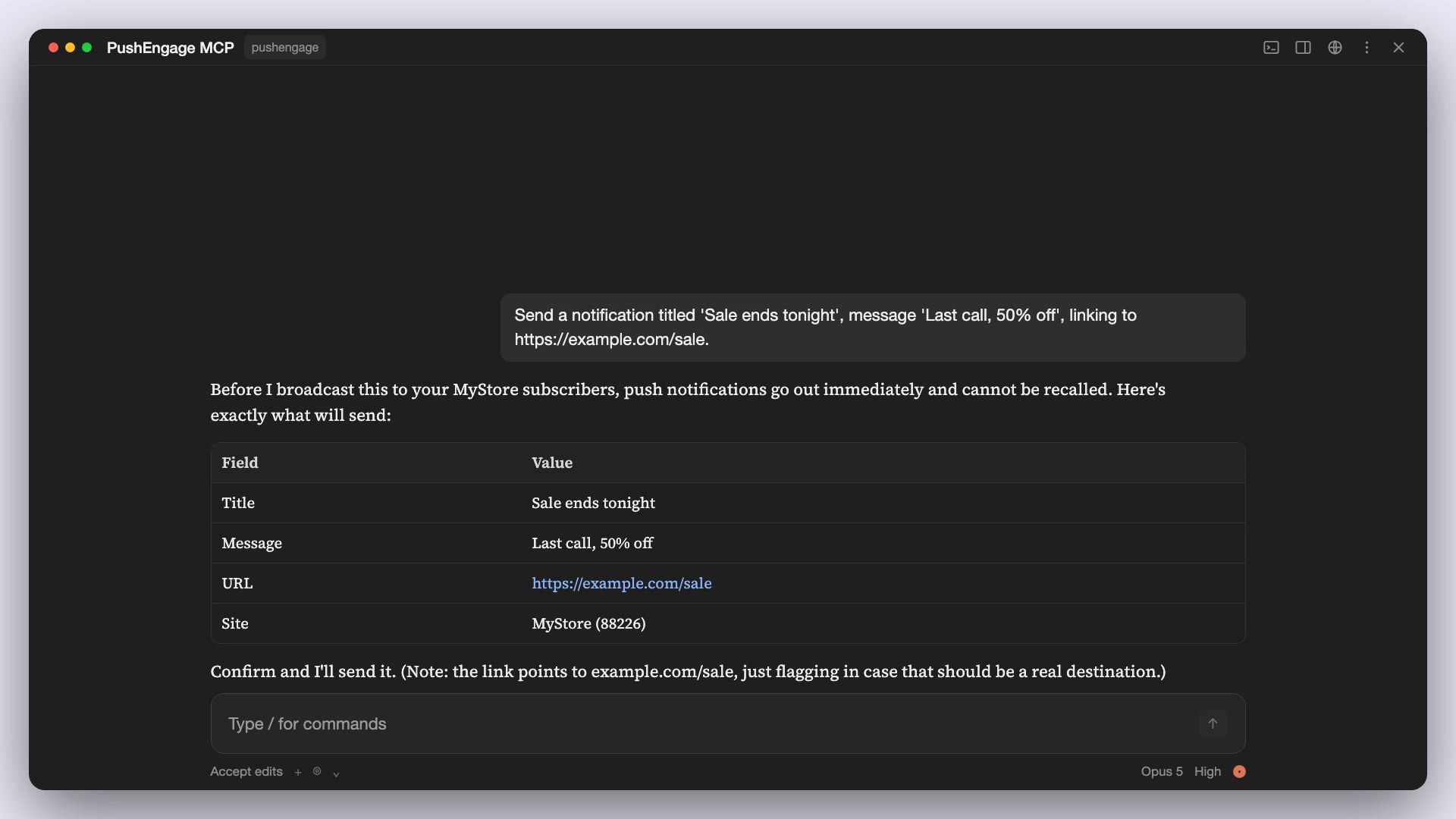
pushengage_send_notificationsends or schedules a notification. One tool covers three delivery modes: send now, a one-shot schedule (optionally in each subscriber’s local timezone), and recurring. It goes to all subscribers unless you name saved audience groups.pushengage_send_ab_notificationsends an A/B notification with two variants. Turn on intelligent A/B testing and it samples each variant, picks the winner by click rate after a delay you set, and rolls the winner out to the rest.pushengage_list_notificationslists sent, scheduled, and draft notifications, newest first. Filter by status, sent-date range, or tags, and ask for analytics to get rolled-up A/B and timezone-send stats.
If you want to review a notification in the dashboard before it goes out, ask the assistant to save it as a draft first.
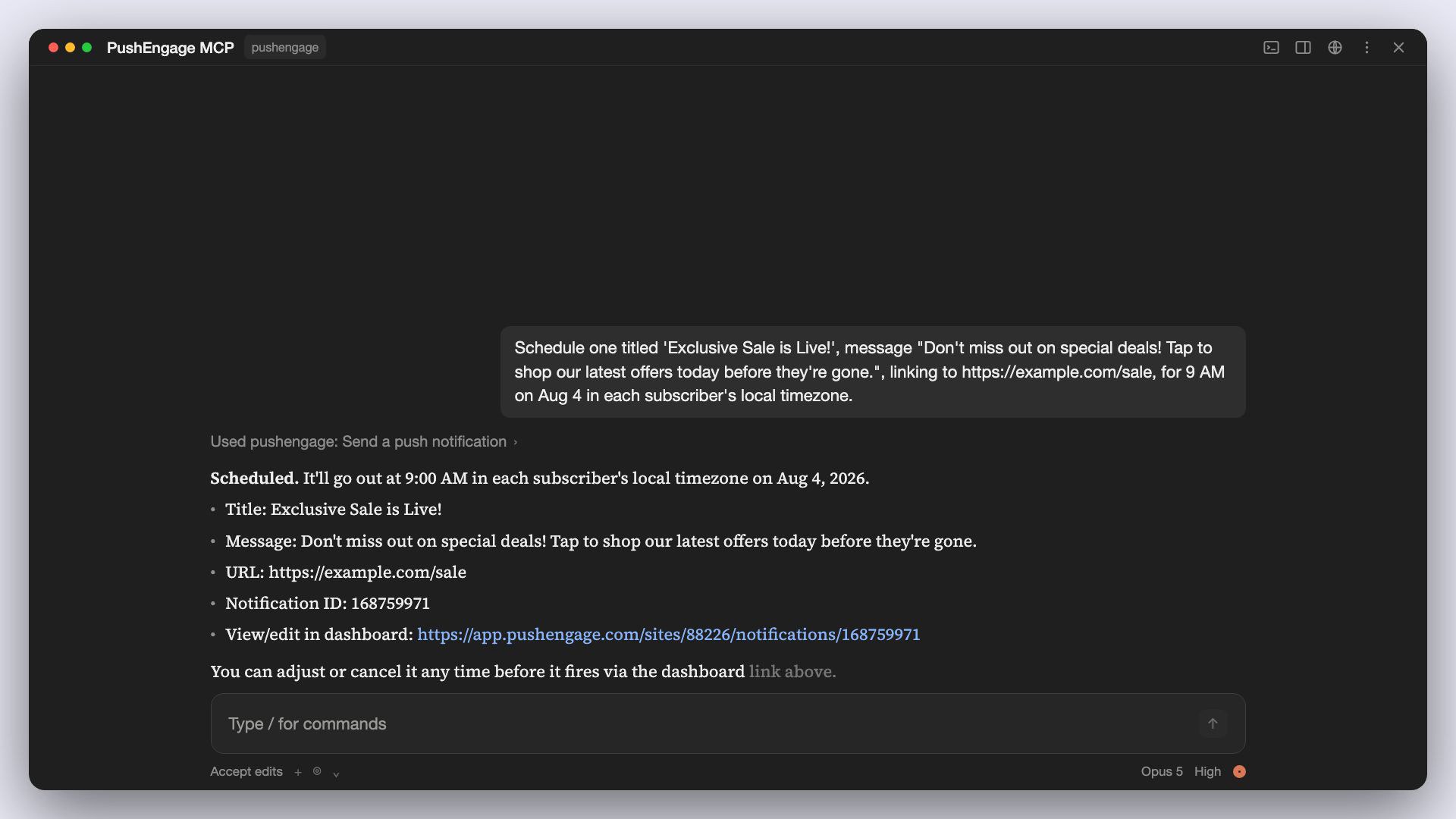
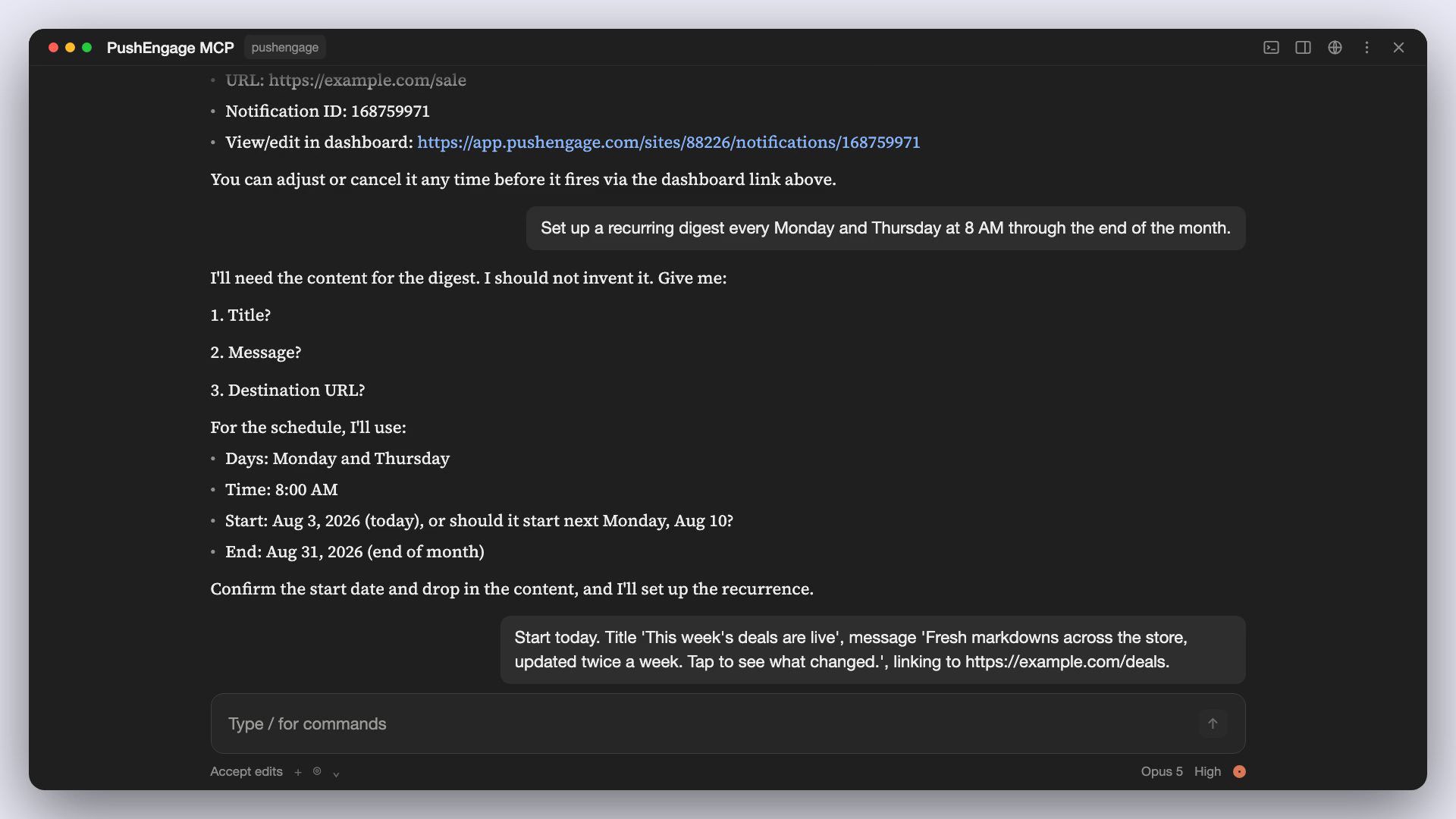
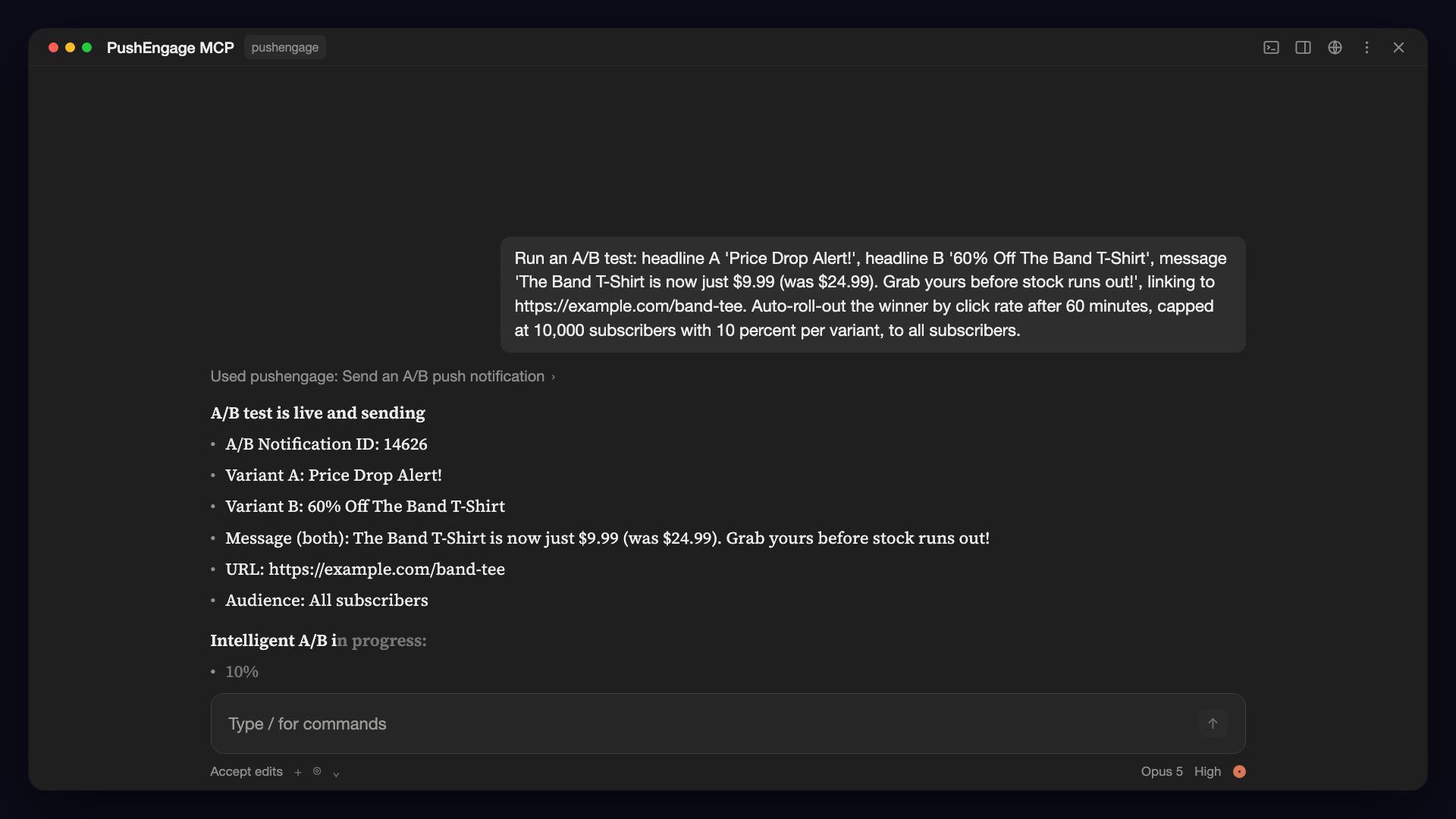
A note on copy: the MCP server doesn’t write your notifications for you. If you leave out the title or message, the assistant asks for it. If you want AI-drafted copy inside PushEngage, that’s AI Copywriter, a separate paid add-on on Business, Premium, and Growth, and included on Enterprise.
Audiences (6 tools)
pushengage_list_segmentsandpushengage_create_segmentlist and create URL-rule based subscriber segments, like everyone who visits a page with /sale in the URL.pushengage_list_audience_groupsandpushengage_create_audience_grouplist and create saved targeting groups built from device, country, segment, engagement, dates, and attributes. The send tools target these groups by name.pushengage_list_attributesandpushengage_create_attributelist and create the custom subscriber attribute keys you use in audience-group rules, up to 50 per site.
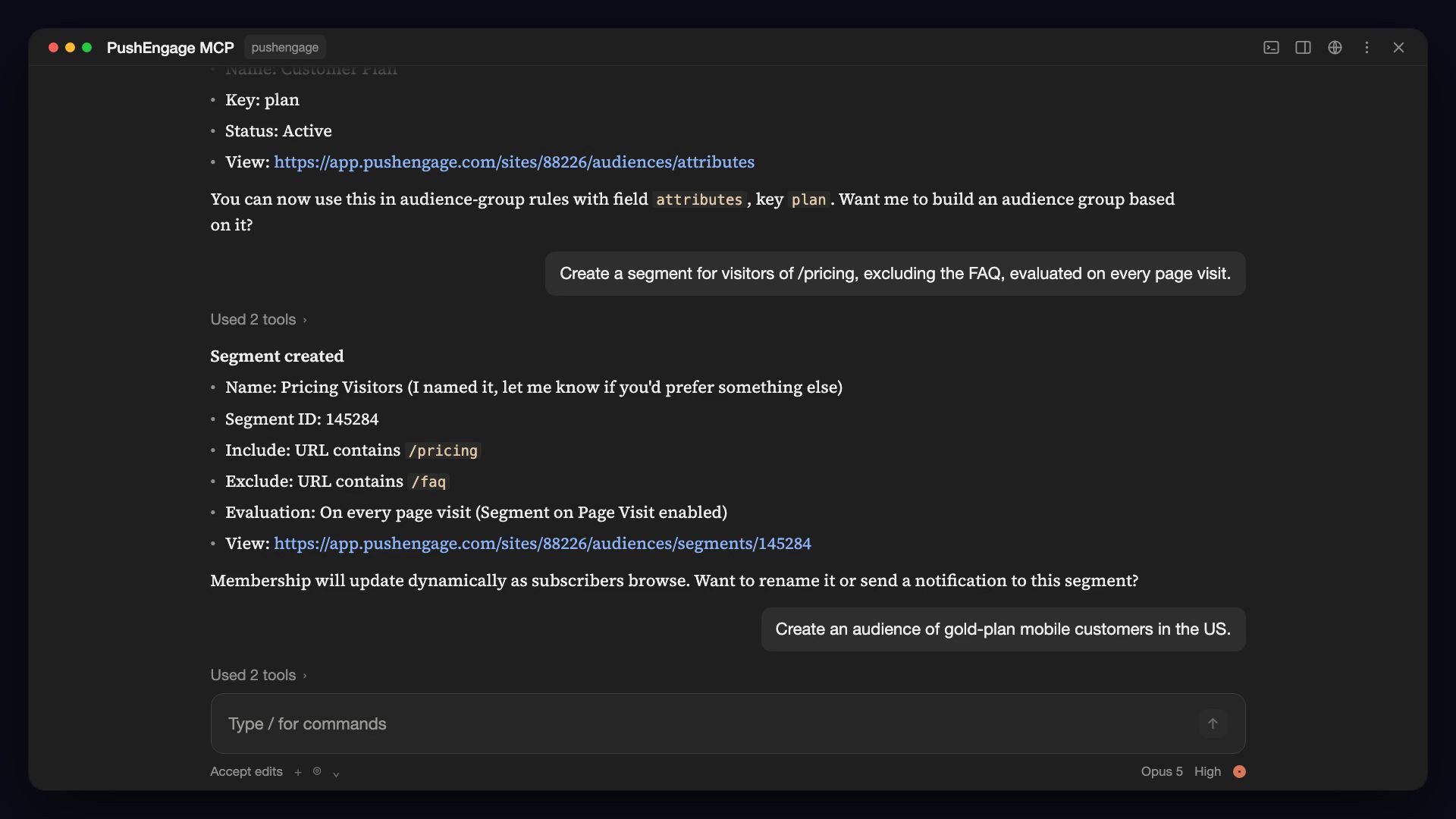
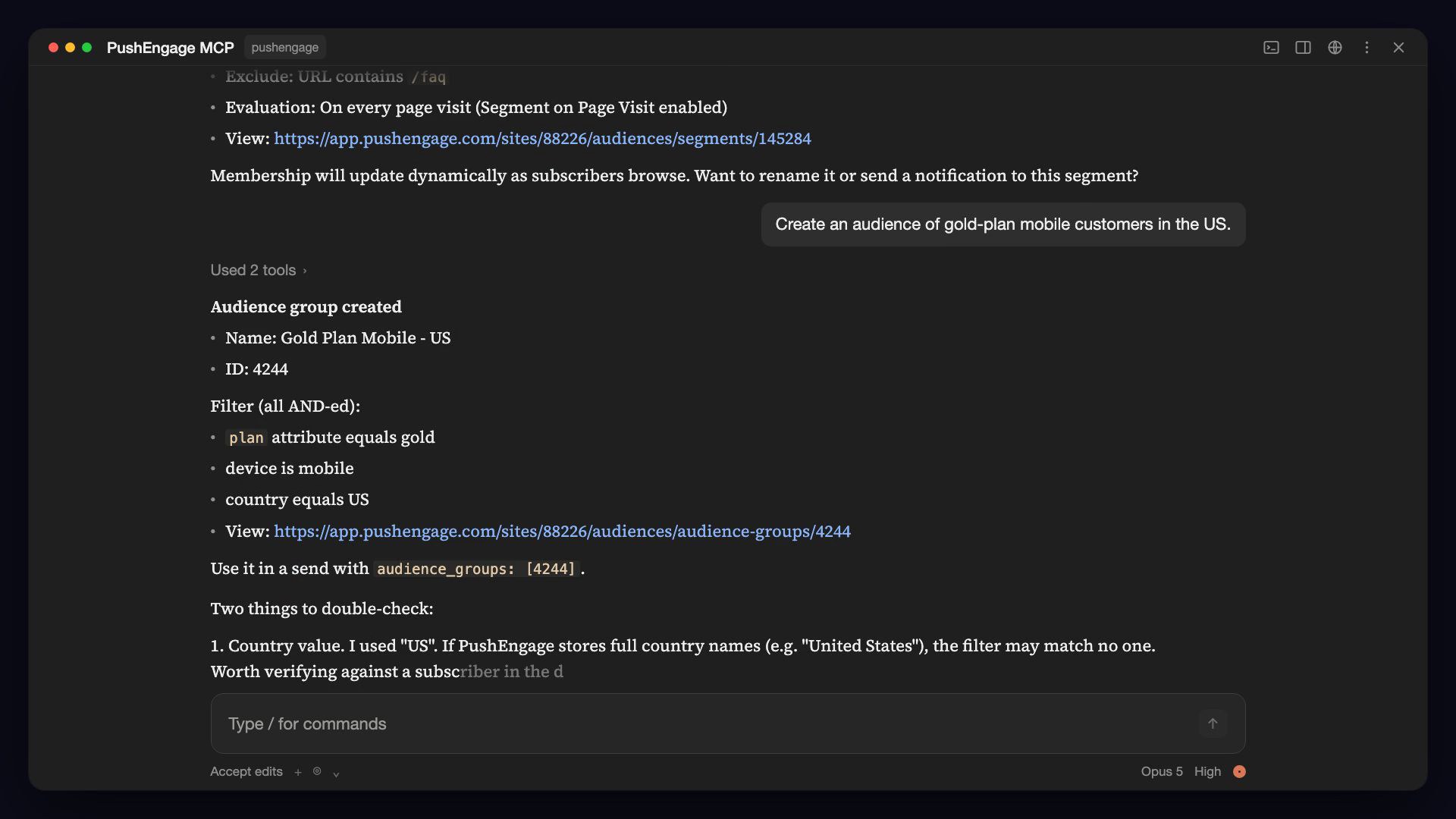
For a deeper look, read how to build push notification segments with an AI assistant.
Campaigns and automations (4 tools, read-only)
pushengage_list_drip_campaignslists your drip autoresponders. Filter by status, and ask for per-campaign stats.pushengage_list_triggered_campaignslists triggered campaigns: cart abandonment, browse abandonment, price drop, and more. Filter by status, with optional analytics.pushengage_list_rss_campaignslists your RSS auto push campaigns. Filter by status.pushengage_list_workflowslists your workflow automations. Filter by status, and ask for analytics to see how many subscribers entered, are active, completed, or failed, plus goal stats.
These four are reporting tools. Triggered campaigns, drips, RSS campaigns, and workflows are built and edited in the dashboard and the Workflows builder. Your assistant can list them and report on them. To turn that into a routine, see how to audit drips and workflows with AI.

Analytics (2 tools)
pushengage_get_analytics_summaryreturns lifetime totals: subscribers, notifications sent, views, clicks, and goal count and value.pushengage_get_analytics_timeseriesreturns day, week, or month buckets over a date range, with subscribers, sends, views, clicks, click rate, and unsubscribes.
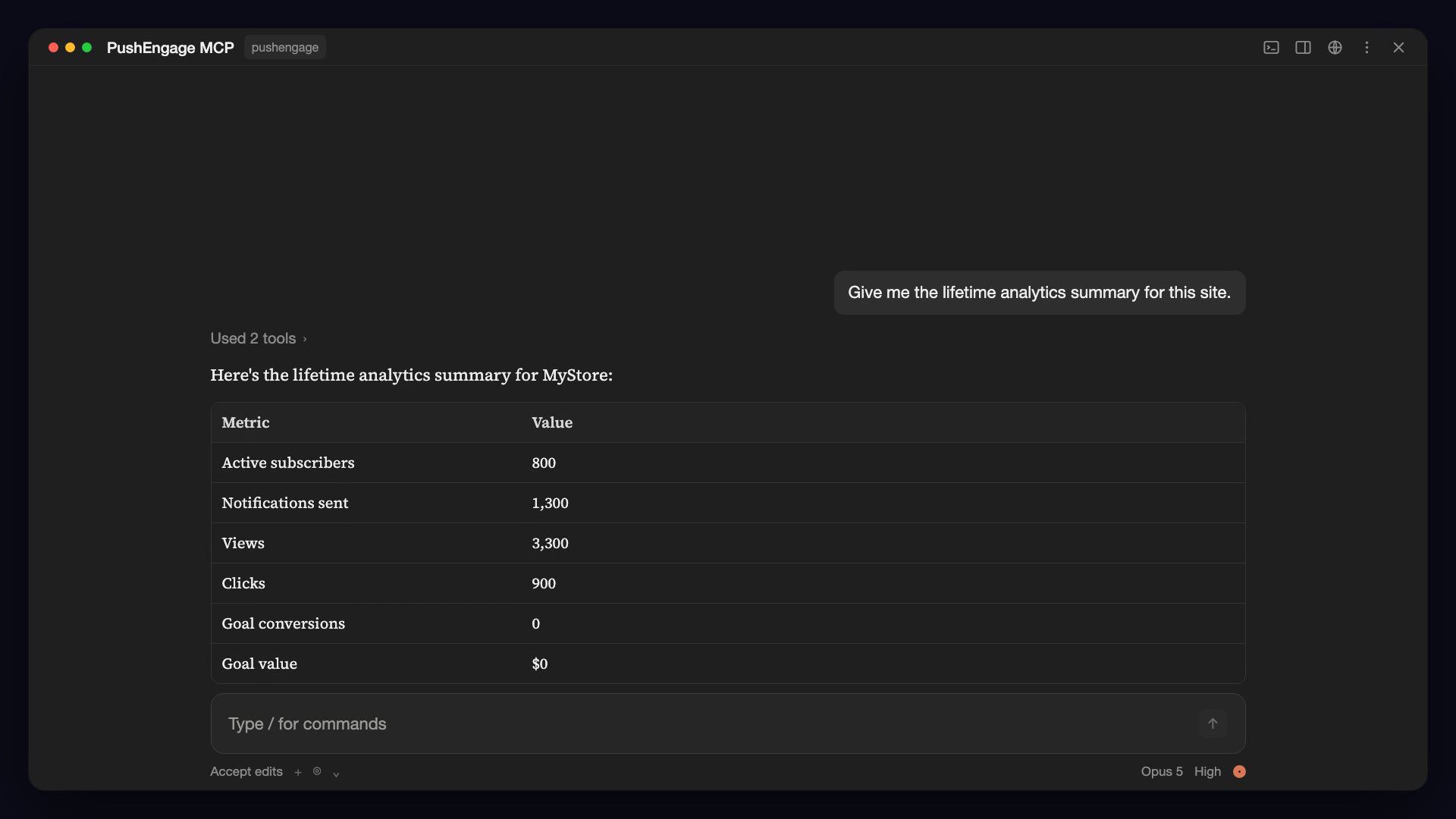
More on this in push analytics in plain English with an AI assistant.
Site settings (6 tools)
pushengage_get_site_detailsandpushengage_update_site_detailsread and change the site name, URL, timezone, geolocation, and the “Powered By PushEngage” branding toggle.pushengage_get_campaign_defaultsandpushengage_update_campaign_defaultsread and change UTM parameters, the fallback notification, fallback attributes, and default notification expiry.pushengage_get_service_worker_settingsandpushengage_update_service_worker_settingsread and change service worker registration, sub-folder support, and the worker file path.
Updates merge over your current values, so “set my default expiry to 7 days” changes only the expiry. See managing PushEngage site settings with AI.
Chat widgets (1 tool, read-only)
pushengage_list_chat_widgetslists the on-site widget that surfaces WhatsApp, Messenger, and other channels. It shows each widget’s status, channels, devices, business-hours restriction, and targeting.
Walkthrough: check your chat widgets from an AI assistant.
Account and sites (5 tools)
pushengage_auth_loginopens your browser to PushEngage and stores the token when you authorize.pushengage_auth_statusshows whether you’re signed in, which site is selected, and when your token expires.pushengage_auth_logoutdeletes the locally stored token.pushengage_list_siteslists the PushEngage sites you can access.pushengage_select_sitesets the current site the other tools act on. The choice is remembered across restarts.
Use cases by industry
Every scenario below uses tools the MCP server has today. Type the prompts as written or in your own words.
eCommerce and DTC retail
For eCommerce retention teams, the daily work is carts, browse sessions, price changes, and the sale calendar.
- Morning check on recovery campaigns. “Which triggered campaigns are active right now, and how is each one performing?” The assistant lists your cart abandonment, browse abandonment, price-drop, and back-in-stock campaigns with their analytics. You fix anything that looks off in the dashboard. (These campaign types are on the Growth plan.)
- A sale send that lands at the right local hour. “Create a segment called Sale browsers for anyone who visits a page with /sale in the URL, then an audience group from that segment.” Then: “Schedule a 20%-off push to the Sale browsers audience group for 7 pm in each subscriber’s own timezone.” The segment and audience group are created, and the send is scheduled per subscriber timezone. If you haven’t given it the title, message, and URL, the assistant asks. (Audience groups need Business and above; timezone sends need Premium and above.)
- A headline test before a launch. “A/B test two headlines for Friday’s launch on 20% of subscribers, then send the winner to everyone else after two hours.” The assistant runs an intelligent A/B test and rolls out the winner by click rate (Premium and above).
Marketplaces and multi-brand retail
When you run several storefronts, the hard part is keeping track of which site you’re working on.
- A cross-brand subscriber check. “Show my PushEngage sites.” Then: “For each site, give me the lifetime analytics summary.” You get subscribers, sends, views, clicks, and goals per brand.
- Work on another brand without switching. “Show the active triggered campaigns on site 12345.” Naming a different site in the request works on it without changing your current selection.
- Consistent defaults across stores. “Show the campaign defaults for each of my sites, then set the default notification expiry to 7 days on the ones that differ.” The assistant reads each site’s UTM parameters, fallback notification, and expiry, then updates only the expiry.
Publishers and media
Publishers live on repeat traffic, so the jobs are about scheduled sends, RSS, and watching unsubscribes.
- A weekly roundup. “Send a ‘New this week’ push every Monday at 9 am until the end of December.” The assistant sets up a recurring send (scheduling needs Business and above). If you haven’t given it the message and URL, it asks.
- RSS health check. “List my active RSS auto push campaigns.” You see your RSS campaigns, filtered by status.
- Spot fatigue early. “How did click rate and unsubscribes change week by week over the last 90 days?” The assistant pulls weekly buckets so you can see whether more sends are costing you subscribers.
SaaS and online services
For SaaS teams, push brings users back into the product. The MCP server makes the targeting and the reporting quick.
- Target evaluators. “Create a segment for visitors of /pricing.” Then: “Create an audience group from that segment and send it a notification titled ‘Questions about plans?’ linking to our pricing FAQ.” Sends target saved audience groups, which need Business and above.
- Re-engage quiet users. “Build an audience group of US subscribers who haven’t clicked a notification in 30 days, then send them a win-back offer.” Audience groups need Business and above.
- Onboarding reporting. “Which workflows are live, and how many subscribers completed each one and reached its goal?” The assistant reports entered, active, completed, and failed counts, plus goal stats.
Online education
Course businesses run on reminders and enrollment pages.
- Class reminders. “Set up a recurring reminder every Tuesday and Thursday at 6 PM through the end of the month: title ‘Live class starts in an hour’, linking to our class page.” If a detail is missing, like the message, the assistant asks before it sets up the schedule. (Scheduling needs Business and above.)
- Target course browsers. “Create a segment called Course browsers for anyone who visits a page with /courses in the URL.”
- Check the welcome sequence. “List my active drip campaigns with their sent, seen, and clicked stats.” You get sent, seen, and clicked numbers for each drip campaign.
Nonprofits and fundraising
Appeals depend on timing and on knowing which sends reached their goal.
- An appeal at a reasonable hour everywhere. “Schedule a push titled ‘Help us hit our goal by midnight’ for 10 AM tomorrow in each subscriber’s local timezone.” (Premium and above.)
- Reach donation-page visitors. “Create a segment for visitors of /donate.” Then add it to an audience group for a targeted appeal (audience groups need Business and above).
- Report on goals. “What’s my lifetime goal count and goal value?” The analytics summary includes goal count and value when goal tracking is set up (Premium and above).
Agencies managing many clients
Agencies get a lot out of it, because the same checks repeat across every client account.
- One assistant, several client accounts. Register the server twice, once per client, each with its own token file (setup is below). Then: “Using pushengage-client-a, give me last month’s sends, clicks, and click rate.” The agency guide and the multi-client setup guide walk through it.
- Settings audit before a launch. “Show the service worker settings and campaign defaults for this site.” You confirm registration, sub-folder support, worker path, UTM parameters, and expiry in one reply.
- Monthly reporting. “List every notification sent last month with analytics, including A/B and timezone-send stats.” You get a starting point for the client report.
How to set up the PushEngage MCP server
Three steps, once per computer: add one entry to your MCP client, sign in through your browser, then pick a site. For a slower, screen-by-screen version, read the PushEngage MCP setup guide. The full reference lives in our AI agents docs.
Requirements
- A PushEngage account (free or paid) with at least one site.
- Node.js 18 or newer. Your assistant runs the server through
npx. - An MCP-capable client that runs local servers over stdio, such as Claude Desktop, Claude Code, Cursor, or any other.
There’s nothing to install globally. npx fetches the server whenever your assistant starts it.
Claude Desktop (one-click bundle)
The easiest path on Claude Desktop is the MCP Bundle:
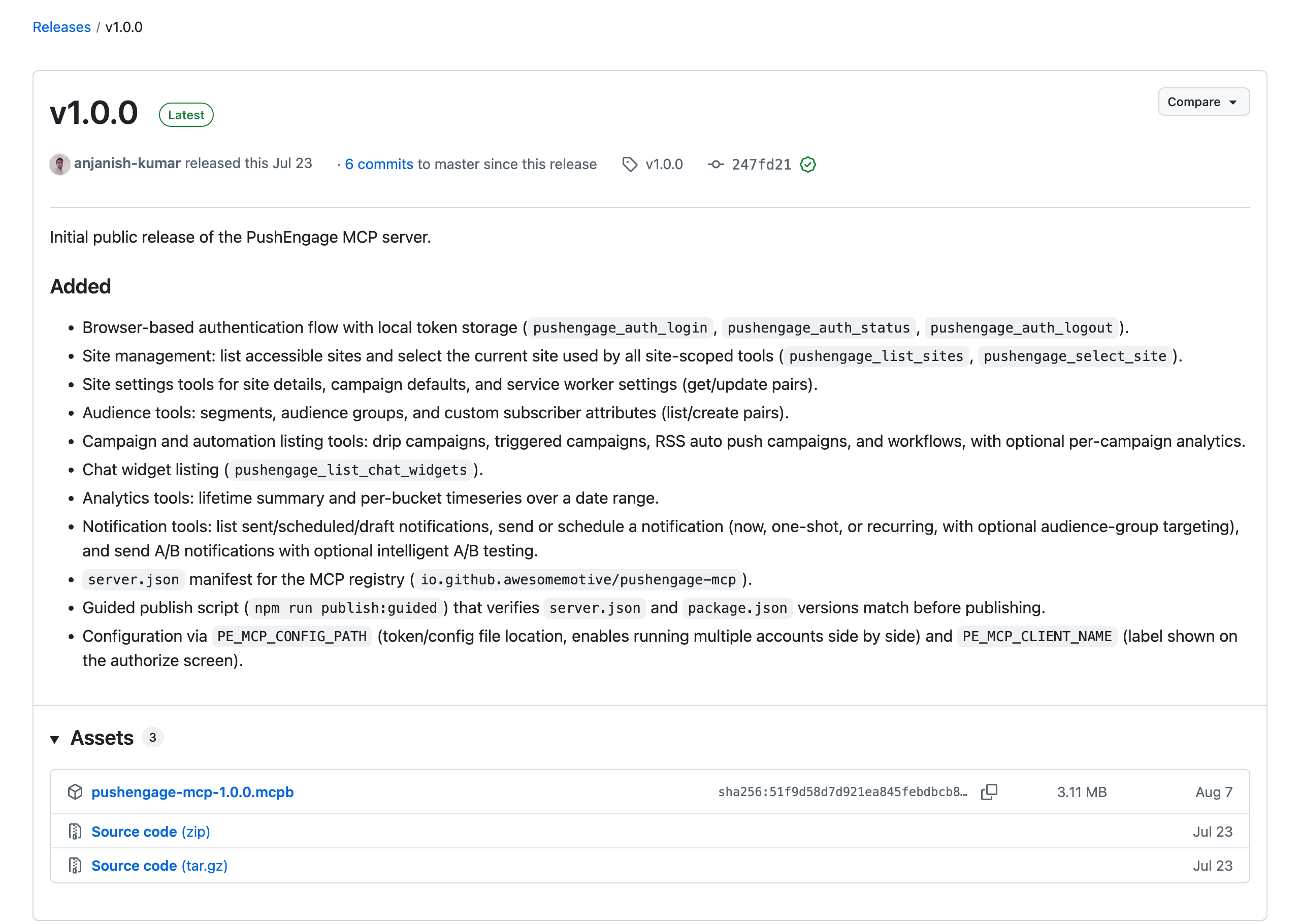
- Download the latest
pushengage-mcp-<version>.mcpbfile from the GitHub releases page. - Open it with Claude Desktop (double-click it, or drag it onto the window) and click Install.
Everything is bundled, so there’s no JSON to edit. The install dialog optionally lets you set the label shown on the PushEngage authorize screen and a custom token file path, which is useful for running more than one account.
Claude Desktop (manual config)
Edit ~/Library/Application Support/Claude/claude_desktop_config.json (macOS) or the equivalent on your platform:
{
  "mcpServers": {
    "pushengage": {
      "command": "npx",
      "args": ["-y", "@pushengage/mcp"]
    }
  }
}
Restart Claude Desktop. The “pushengage” server should appear in your tool list.
Claude Code
Run this in your terminal:
claude mcp add pushengage -- npx -y @pushengage/mcpOr install the PushEngage Agent Skills plugin (covered below), which configures the MCP server for you automatically.
Cursor
Use the one-click Add to Cursor button in the docs. Or edit ~/.cursor/mcp.json (or open the command palette, then Cursor Settings, then MCP, then Add new global MCP server):
{
  "mcpServers": {
    "pushengage": {
      "command": "npx",
      "args": ["-y", "@pushengage/mcp"]
    }
  }
}
Codex
Codex runs local MCP servers in the Codex CLI and IDE extension. Run this in your terminal:
codex mcp add pushengage -- npx -y @pushengage/mcpOr add it to ~/.codex/config.toml:
[mcp_servers.pushengage]
command = "npx"
args = ["-y", "@pushengage/mcp"]
VS Code with Copilot
Use the one-click Install in VS Code button in the docs. Or run MCP: Add Server from the command palette, or add this to .vscode/mcp.json in your workspace:
{
  "servers": {
    "pushengage": {
      "type": "stdio",
      "command": "npx",
      "args": ["-y", "@pushengage/mcp"]
    }
  }
}
Gemini CLI
Add this to ~/.gemini/settings.json:
{
  "mcpServers": {
    "pushengage": {
      "command": "npx",
      "args": ["-y", "@pushengage/mcp"]
    }
  }
}
Windsurf
Add this to ~/.codeium/windsurf/mcp_config.json:
{
  "mcpServers": {
    "pushengage": {
      "command": "npx",
      "args": ["-y", "@pushengage/mcp"]
    }
  }
}
Warp
Go to Settings, then AI, then MCP Servers, click + Add, and paste:
{
  "pushengage": {
    "command": "npx",
    "args": ["-y", "@pushengage/mcp"]
  }
}
OpenCode
Add this to opencode.json:
{
  "$schema": "https://opencode.ai/config.json",
  "mcp": {
    "pushengage": {
      "type": "local",
      "command": ["npx", "-y", "@pushengage/mcp"],
      "enabled": true
    }
  }
}
Devin
Open Settings, then Connections, then MCP Servers, click Add a custom MCP, and paste:
{
  "mcpServers": {
    "pushengage": {
      "command": "npx",
      "args": ["-y", "@pushengage/mcp"]
    }
  }
}
Any other stdio MCP client
Any client that speaks MCP over stdio works. Configure it to run:
npx -y @pushengage/mcpUsing ChatGPT? ChatGPT chat only connects to remote MCP servers, so it can’t run this one. Codex (CLI or IDE extension) runs local servers. Use the Codex steps above.
Let your agent set itself up
Our docs are built to be read by AI agents as well as people. Every docs page has a markdown version (add .md to the URL). llms.txt indexes every page, and llms-full.txt holds the entire documentation in one file. To onboard a coding agent, paste a prompt like this:
Read https://www.pushengage.com/api/ai-agents.md and set up the PushEngage MCP server and Agent Skills in this project.First run: sign in, authorize, pick a site
Authentication happens in your browser, so your credentials never touch the assistant.
- Ask: “Log me into PushEngage.” The server opens a browser tab to the PushEngage authorize page.
- Click Authorize. The tab confirms success, and an access token is saved on your computer.
- Ask: “Show my PushEngage sites,” then “Use site 12345” (with your own site ID) to pick the site to work with. The selection is remembered across restarts.
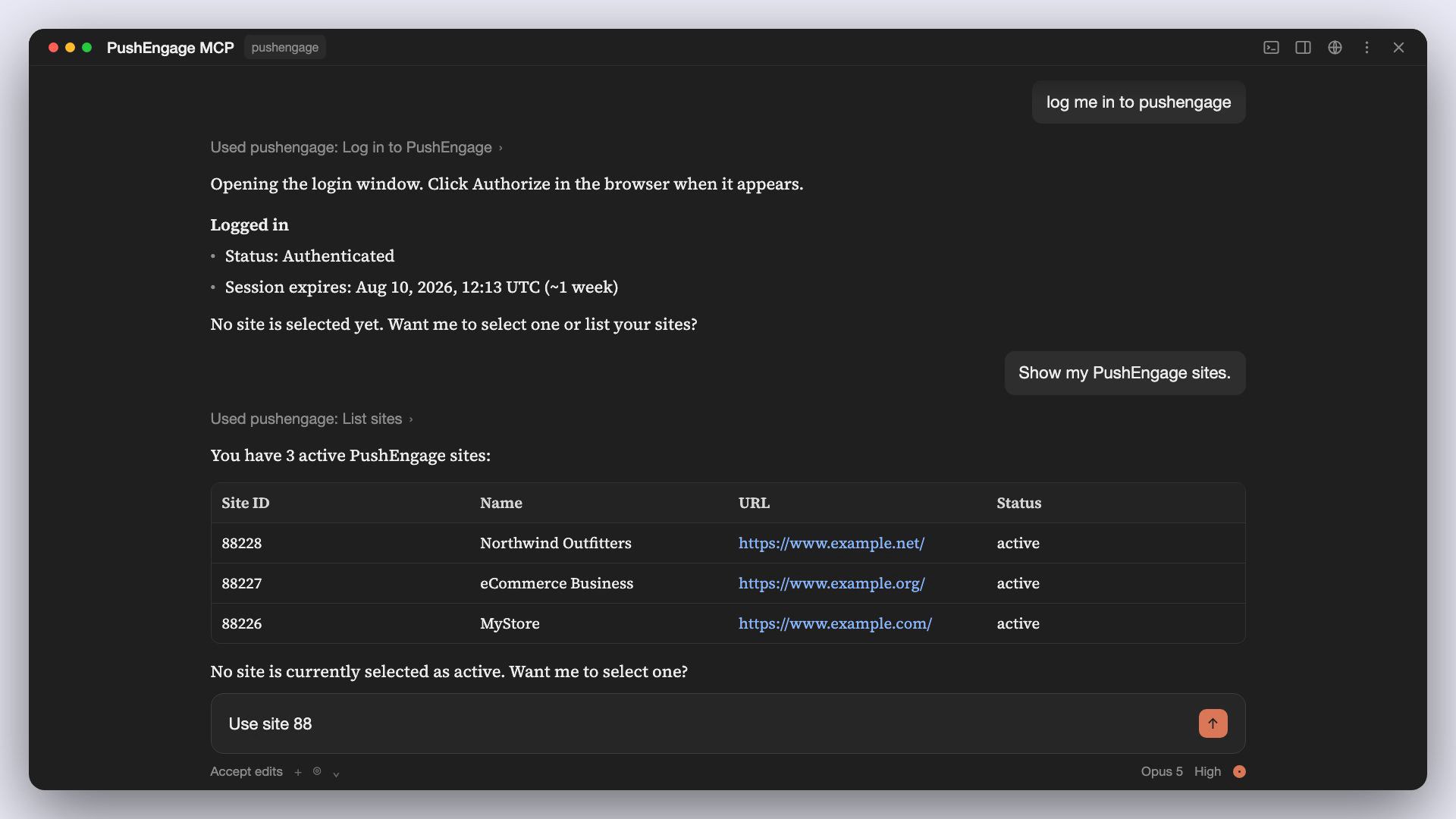
From then on, every site-scoped tool acts on your current site unless you name another one. Describe what you want: a send, a segment, a report. If you’re new to this, the PushEngage MCP beginner’s guide is a good next read.
Running multiple PushEngage accounts
Agencies and teams with more than one account can register the server under two names, each with its own token file, so the tokens don’t collide. Two environment variables control this:
| Setting | Default | What it does |
|---|---|---|
PE_MCP_CONFIG_PATH | ~/.pushengage/mcp.json | Where the token is stored. Set a different path per account. It must be an absolute path, used exactly as given, with no ~ expansion. |
PE_MCP_CLIENT_NAME | AI assistant | The label shown on the authorize screen as the requesting app, for example "Claude Desktop". |
{
  "mcpServers": {
    "pushengage-client-a": {
      "command": "npx",
      "args": ["-y", "@pushengage/mcp"],
      "env": {
        "PE_MCP_CONFIG_PATH": "/Users/you/.pushengage/mcp-client-a.json",
        "PE_MCP_CLIENT_NAME": "Claude Desktop (Client A)"
      }
    },
    "pushengage-client-b": {
      "command": "npx",
      "args": ["-y", "@pushengage/mcp"],
      "env": {
        "PE_MCP_CONFIG_PATH": "/Users/you/.pushengage/mcp-client-b.json",
        "PE_MCP_CLIENT_NAME": "Claude Desktop (Client B)"
      }
    }
  }
}
Ask the assistant to log in under each server name separately. Each one authorizes against whichever PushEngage account you choose in the browser.
Security and token storage
- Browser sign-in. You approve access on the PushEngage authorize page. The assistant never sees your PushEngage password.
- Token kept out of URLs. The dashboard hands the token to the server in a POST request, so it never appears in a URL, your browser history, or an access log.
- Stored on your computer. The token is saved at
~/.pushengage/mcp.jsonwith0600permissions, readable only by your user account. PushEngage sets its expiry, andpushengage_auth_statusshows it. - Easy to revoke. Ask the assistant to log you out, or end all sessions in PushEngage under Settings, then Security.
- Runs locally. No hosted endpoint holds your token. The server is a process on your machine.
Troubleshooting
The server won’t connect (“Connection closed”). If npx -y @pushengage/mcp runs fine in a terminal but your client shows the server as disconnected, or logs something like MCP error -32000: Connection closed, it’s almost always a PATH problem. Clients launched from the Dock or Finder don’t load your shell’s startup files, so if Node came from a version manager (nvm, fnm, volta), the client can’t find npx. Run which npx in your terminal, then point the client at that absolute path and pass the same folder as PATH:
{
  "mcpServers": {
    "pushengage": {
      "command": "/absolute/path/from/which-npx",
      "args": ["-y", "@pushengage/mcp"],
      "env": {
        "PATH": "/absolute/folder/containing/that/npx:/usr/bin:/bin:/usr/sbin:/sbin"
      }
    }
  }
}
Restart the client after editing. If which npx prints something under /usr/local/bin or /opt/homebrew/bin, your Node install isn’t version-manager based, so check the client’s own MCP logs for the real error.
AUTH_EXPIRED. Your token expired. Ask the assistant to log you in again.
NO_SITE_SELECTED. Ask the assistant to list your sites, then tell it which one to use before running a site-scoped request.
The browser doesn’t open. This happens in headless or remote sessions, such as over SSH. The authorize URL is printed in the terminal running the server. Open it manually.
Something else. Every error the server returns starts with a [CODE] tag and a plain-language explanation. Share that with support if you need help.
Common prompts to try
Each of these maps to a tool the server has today. Plan limits apply as noted.
Send and schedule
- “Send a notification titled ‘Sale ends tonight’, message ‘Last call, 50% off’, linking to https://example.com/sale.”
- “Schedule that for 9 AM in each subscriber’s local timezone.” (Premium and above)
- “Schedule a push for 8 PM tomorrow to my Cart visitors audience group.” (Business and above)
- “Set up a recurring digest every Monday and Thursday at 8 AM through the end of the month.” (Business and above)
- “Send a ‘New this week’ push every Monday at 9 am until the end of December.” (Business and above)
- “Save this as a draft so I can review it in the dashboard.”
- “Run an A/B test of two headlines and auto-roll-out the winner by click rate.” (Premium and above)
- “Show my scheduled notifications.”
- “List the notifications I sent last week, with stats.”
- “List my notifications tagged ‘black-friday’ with A/B and timezone-send stats.”
Audiences
- “Create a segment for visitors of /pricing.”
- “Create a segment called Sale browsers for anyone who visits a page with /sale in the URL.”
- “List my segments.”
- “Build an audience of gold-plan customers in the US and send only to them.” (Business and above)
- “Create an audience group of mobile subscribers in the US.” (Business and above)
- “Build an audience group of US subscribers who haven’t clicked a notification in 30 days.” (Business and above)
- “List my audience groups.”
- “Create a custom attribute called plan.”
- “Which custom attributes does this site have?”
Analytics
- “How many subscribers do I have, and what was my click rate over the last 30 days?”
- “Give me the lifetime analytics summary for this site.”
- “How did click rate and unsubscribes change week by week over the last 90 days?”
- “Show daily sends, views, and clicks for the last two weeks.”
- “Show monthly subscriber growth this year.”
- “What’s my lifetime goal count and value?” (needs goal tracking, Premium and above)
Campaign reporting
- “Which triggered campaigns are active right now, and how is each one performing?”
- “Which cart-abandonment triggers do I have?”
- “List my active drip campaigns with their sent, seen, and clicked stats.”
- “List my RSS auto push campaigns.”
- “Which workflows are live, and how many subscribers completed each one and reached its goal?”
- “Which workflows have failed entries?”
Site settings
- “Set my default notification expiry to 7 days.”
- “Change my site timezone to Asia/Kolkata and turn on geolocation.”
- “What are my default UTM parameters?”
- “Set the default utm_source to pushengage.”
- “Show my fallback notification.”
- “Show my service worker settings.”
- “Is sub-folder support turned on for the service worker?”
Chat widgets
- “List my chat widgets.”
- “Which channels does each chat widget show?”
- “Which chat widgets are restricted to business hours?”
- “Which devices and pages is my main chat widget targeted to?”
Account
- “Log me into PushEngage.”
- “Am I logged in, and which site is selected?”
- “When does my token expire?”
- “Show my PushEngage sites.”
- “Use site 12345.”
- “Log me out of PushEngage.”
For more on sends, read how to send push notifications from an AI assistant.
Agent Skills for app developers
The MCP server operates your account. PushEngage Agent Skills do a different job: they teach an AI coding agent to integrate and debug the PushEngage push-notification SDK in iOS, Android, Flutter, and React Native apps.
The skills follow two open standards, Agent Skills (SKILL.md) and the Agent Plugins format, so they work with any agent that supports either one, including Claude Code, Cursor, Codex, Copilot, Windsurf, and VS Code. The pack ships six skills:
| Skill | What it does |
|---|---|
pushengage | Entry skill. Detects your platform and routes to the right one. |
pushengage-ios | iOS integration and debugging. |
pushengage-android | Android integration and debugging. |
pushengage-flutter | Flutter integration and debugging. |
pushengage-react-native | React Native integration and debugging. |
pushengage-debug | Shared diagnostic skill for broken integrations. |
You need a PushEngage account with an app configured in the dashboard, and an AI coding agent that supports Agent Skills (Claude Code is recommended).
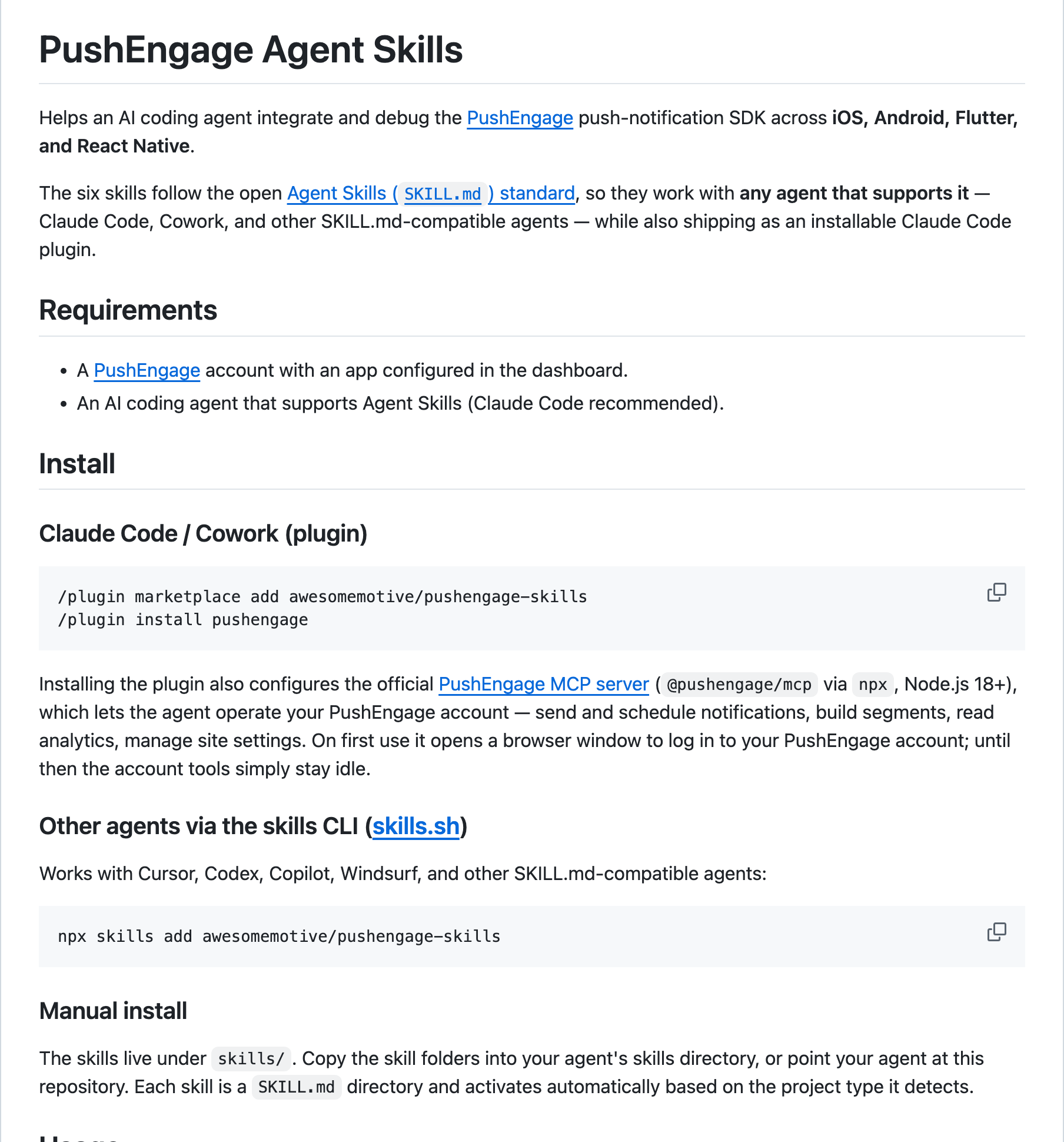
Claude Code or Cowork (plugin):
/plugin marketplace add awesomemotive/pushengage-skills
/plugin install pushengage
Installing the plugin also configures the PushEngage MCP server, so the same agent can operate your PushEngage account too. On first use it opens a browser window to log in. Until then, the account tools stay idle.
Cursor, Codex, Copilot, Windsurf, and other SKILL.md-compatible agents (skills CLI):
npx skills add awesomemotive/pushengage-skillsManual: the skills live under skills/ in the repository. Copy the skill folders into your agent’s skills directory, or point your agent at the repository. Each skill activates automatically based on the project type it detects.
After installing, just talk to your agent:
- “Help me integrate PushEngage into this app.” runs the full integration flow.
- “PushEngage notifications aren’t arriving on my iPhone.” runs the diagnostic flow.
- “Audit my PushEngage setup.” runs the static audit.
The plugin detects your platform and hands off to the matching integration or debug skill.
Frequently asked questions
Do I need to be a developer to use it?
No. Setup is one copied config entry and a browser sign-in, and after that everything happens in plain language. You do need Node.js 18 or newer on your computer, because your assistant starts the server with npx. The setup docs have copy-paste steps for each client.
Which AI assistants work with it?
Any MCP client that runs local servers over stdio. Our docs cover 10 clients: Claude Desktop, Claude Code, Cursor, Codex, VS Code with Copilot, Gemini CLI, Windsurf, Warp, OpenCode, and Devin.
Does it work with ChatGPT?
Not in ChatGPT chat. ChatGPT chat connects to remote MCP servers, and the PushEngage MCP server runs only as a local process on your computer. OpenAI’s Codex, in the Codex CLI and IDE extension, does run local MCP servers, and the Codex setup steps are above.
Is there a hosted or remote MCP endpoint?
No. The server runs locally on the same computer as your assistant, started with npx -y @pushengage/mcp. There’s no URL to connect to and no hosted PushEngage endpoint that holds your token.
Which PushEngage plans include the MCP server?
Every plan, including Free, at no extra cost. Your plan still decides what the assistant can do, exactly as in the dashboard:
- Free: send campaigns, create segments, and ask about analytics for 1 site or app, with up to 200 subscribers and 30 campaigns in total.
- Business: unlimited campaigns, scheduling, and audience groups.
- Premium: A/B tests that roll out the winner, sends in each subscriber’s timezone, and goal and revenue tracking you can ask about.
- Growth: cart, browse, price-drop, and back-in-stock campaigns your assistant can report on, plus campaigns triggered by custom events.
AI Copywriter is separate from the MCP server. It’s a paid add-on on Business, Premium, and Growth ($10 buys 5,000 AI credits, valid for a year), and included on Enterprise.
Is my data safe, and where is the login token stored?
Yes. You sign in through your browser, so the assistant never sees your password, and the token is stored at ~/.pushengage/mcp.json, readable only by your user account. To revoke it, ask the assistant to log you out, or end all sessions under Settings, then Security. Details are in the security section above.
Can an agency manage several PushEngage accounts?
Yes. Add the server to your client twice under different names, each with its own token file set through PE_MCP_CONFIG_PATH, and sign in to each account once. The agency guide walks through it.
Set it up once. Then just ask.
The PushEngage MCP server is open source, runs on your own computer, and works on every PushEngage plan, including Free. Add one entry to your MCP client, sign in through your browser, pick a site, and start asking.
If you’d rather work from a browser tab or from WordPress, PushEngage has those covered too: the browser extension for Chrome and Firefox and the WordPress Abilities API integration.
Set up the PushEngage MCP server or compare plans. You pay only for active subscribers, and paid plans carry a 14-day money-back guarantee: if PushEngage isn’t the best fit, we refund 100%.


