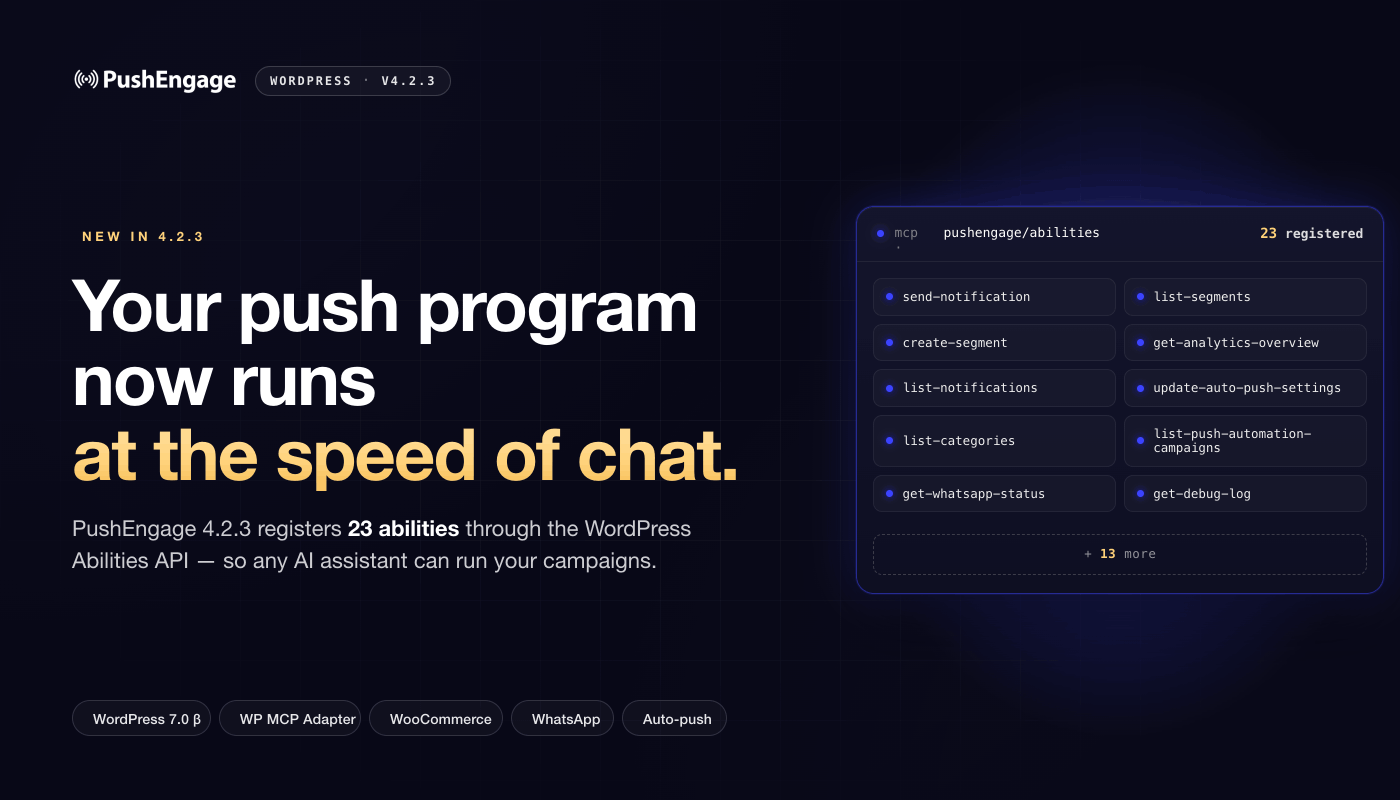
WordPress 7.0 introduces the Abilities API — a standard layer that lets plugins declare, in a machine-readable format, what they can do for an AI assistant. It is the WordPress ecosystem’s answer to the question every software stack is being asked right now: how do you let an LLM drive your application without bolting on a custom integration per assistant?
PushEngage 4.2.3 ships against that standard. 23 abilities, registered through the new Abilities API, drop-in compatible with the WP MCP Adapter, verified against the WordPress 7.0 beta. We are one of the first retention plugins out the gate on the new model.
That matters for one practical reason: when WP 7.0 ships stable and your AI assistant connects to your WordPress site, PushEngage is already in the tool list. No waiting on a custom integration. No second auth surface. The retention layer is part of the WordPress-native AI stack from day one.
This post walks through what’s in 4.2.3, the 23 abilities grouped by what they actually do, four prompts you can run with your WordPress-connected assistant today, the permission model the Abilities API inherits from WordPress, and how to turn it on.
What’s in PushEngage 4.2.3
The release ships three things. First, 23 abilities registered through the WordPress Abilities API — the new standard layer in WordPress core that lets a plugin declare what it can do in a machine-readable, MCP-compatible format. Each ability is a single, well-described capability (send a notification, list segments, pull a date-ranged analytics report) that an AI assistant can discover and call. Second, drop-in compatibility with the WP MCP Adapter, the community-maintained plugin that bridges registered abilities to the MCP protocol your AI assistant speaks. Third, verification against the WordPress 7.0 beta, so the PushEngage plugin keeps working the day 7.0 ships stable.
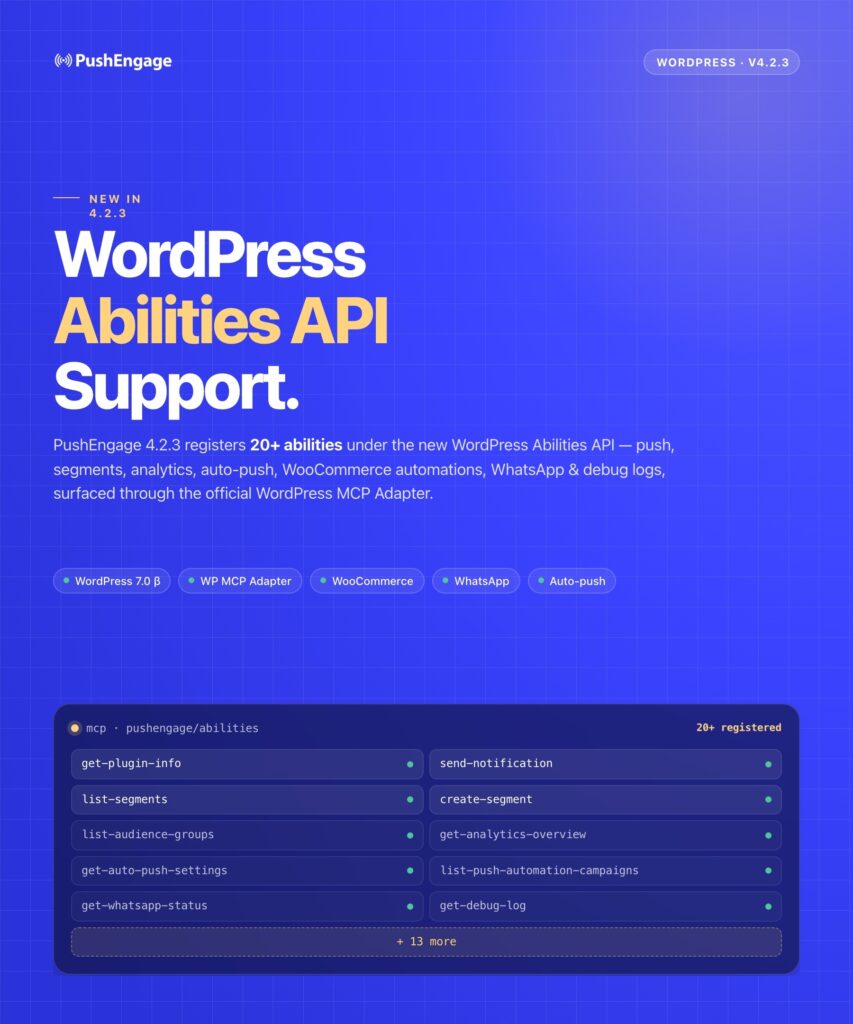
For a WordPress admin with an MCP-capable assistant already connected: a campaign described in plain English calls a PushEngage ability directly through the WordPress admin layer. No custom integration. No new auth model. No second dashboard. This is also a milestone for the WordPress ecosystem. The Abilities API is one of the more consequential additions to core in years, and we expect a wave of plugins to register against it through the rest of 2026. Being early gives you immediate utility today, and signals where retention tooling sits in the WP-native AI stack going forward.
The 23 abilities, grouped by what they actually do
Ability names are not how a retention manager thinks. Here are the 23 abilities translated into six groups that match the work you actually do in PushEngage.
| Group | What it covers | Abilities |
|---|---|---|
| Send push notifications (4) | Fire a notification, look up the result, list past sends, check the site’s connection status. | send-notification, get-notification, list-notifications, get-connection-status |
| Build and target segments (4) | List segments and audience groups, create a new segment, add subscribers to a segment. | list-segments, list-audience-groups, create-segment, add-subscribers-to-segment |
| Read your analytics (3) | Pull aggregate sends-views-clicks, run a date-ranged report grouped by day, week, or month, fetch subscriber-list health metrics. | get-notifications-summary, get-analytics-overview, get-subscriber-analytics |
| Configure auto-push (5) | Read and update which post types auto-push, manage category-to-segment mappings, list categories, inspect attribute mappings to WordPress user meta. | get-auto-push-settings, update-auto-push-settings, list-categories, list-category-segment-mappings, get-attribute-mappings |
| Run WooCommerce and WhatsApp automations (4) | List push-automation campaigns, enable or configure them, list WhatsApp automation campaigns, check WhatsApp credential status. (Available when WooCommerce is active; WhatsApp status also requires valid WhatsApp credentials.) | list-push-automation-campaigns, update-push-automation-campaign, list-whatsapp-automation-campaigns, get-whatsapp-status |
| Diagnose and verify (3) | Pull plugin version and key settings, read WordPress, PHP, and server environment, fetch debug log files. | get-plugin-info, get-site-environment, get-debug-log |
Four of those groups cover channels: web push, the WooCommerce automation surface, WhatsApp, and the auto-push pipeline that drives content notifications from your posts. The same four-channel coverage PushEngage has shipped for years — now agent-controllable from one chat window, sitting on top of WordPress’s own permission system.
What you can actually ask your assistant to do
Four prompts to try this week with your WordPress-connected assistant. Each one names the work, the abilities the assistant calls, and what comes back.
1. Send a flash-sale push to your engaged-shoppers segment.
“Find my engaged-shoppers segment, then send everyone in it a push notification titled ‘Flash sale ends midnight’ that links to https://yourstore.com/flash-sale with the sale-hero image.”
The assistant calls list-segments to find the segment ID, then send-notification with your title, message, URL, and image. The destructive flag on send-notification means the assistant confirms before firing, so you stay in the loop on every send.
2. Pull the last 30 days of recovered revenue, by week.
“Show me a week-by-week analytics report for the last 30 days, and tell me which campaigns drove the most clicks.”
The assistant calls get-analytics-overview with the date range and group_by: week, then list-notifications to map sends to titles. You get the breakdown in chat, with no dashboard switch.
3. Pause your WooCommerce browse-abandonment automation until Tuesday.
“Disable my browse-abandonment campaign for the next four days. Turn it back on Tuesday morning.”
The assistant calls list-push-automation-campaigns, finds the browse-abandonment campaign, and runs update-push-automation-campaign with enabled: false. On Tuesday morning, you ask it to re-enable. The same abilities cover your cart-recovery, post-purchase, and back-in-stock flows. Those templates ship as ready automations, not as blank canvases you have to architect from scratch. If you want to refresh how those templates are configured first, the PushEngage Workflows announcement covers the visual builder behind them.
4. Build a new segment for shoppers who hit /pricing in the last 7 days.
“Create a new segment called ‘pricing-page-visitors-7d’ that captures anyone who visited /pricing in the last seven days.”
The assistant calls create-segment with the segment name and criteria. You can layer the new segment into a campaign in the same chat.
The permission model: inherited from WordPress, not invented
Three rules cover every ability, and all three lean on WordPress, not a side-channel auth system PushEngage built.
First, every ability requires the manage_options capability — the same WordPress permission gate that protects your admin dashboard. The assistant is authenticated against a WordPress user via an application password (the standard WP mechanism since 5.6). An assistant connected as an admin can run the abilities. An assistant connected as a contributor cannot. The Abilities API’s permission_callback hook is how each ability declares its requirement, and PushEngage uses it consistently across all 23.
Second, only one ability is marked destructive: send-notification. Any MCP-aware assistant interprets the destructive flag as “confirm before running.” A send request surfaces in chat as an action waiting on your OK, not a silent fire. Settings updates and segment creates are non-destructive; the assistant runs them without prompting on every change, which is what you want for the small configuration work that happens during a campaign.
Third, get-debug-log returns admin-grade content (URLs and request payloads) and is gated to the same admin permission as the rest. Your assistant has the same access as the human admin running it, and no more. This is the Abilities API doing its job. Plugin authors don’t reinvent auth — they declare capability requirements, and WordPress’s existing user/role/capability system handles the rest. The result is a permission model an admin doesn’t have to learn from scratch.
How to turn it on (under 5 minutes)
- Update the PushEngage WordPress plugin to 4.2.3 from your WordPress admin. Auto-updates take care of this for most sites; check the Plugins page to confirm. (If the plugin is new to your stack, our walkthrough on how to install the PushEngage WordPress plugin covers the basics.)
- Install the WP MCP Adapter from the WordPress plugin directory and activate it. The adapter is the community-maintained bridge that translates registered abilities into the MCP protocol your assistant speaks.
- Connect your AI assistant to your WordPress site per its own MCP-setup docs. Every major MCP-capable assistant has documentation for this; the connection uses a WordPress application password tied to your admin user — the same Application Passwords feature WordPress has shipped since 5.6, now repurposed as your assistant’s credential.
That’s the path. No engineering ticket. No custom code in your theme. No new auth surface. The five-minute install model the PushEngage plugin has always shipped with now extends to your assistant connection.
WooCommerce abilities register only when WooCommerce is active. WhatsApp abilities register when WooCommerce is active and WhatsApp credentials are valid. If you don’t see those abilities in your assistant’s tool list, check those two prerequisites first. The deeper WooCommerce abandoned-cart recovery flows that the WooCommerce abilities tune expect a live WooCommerce install behind them. For broader auto-push behavior, our older guide on how to automate your browser push campaigns is still the right reference.
What’s coming next
The 23 abilities in 4.2.3 cover the high-frequency work: sending, segmenting, reading analytics, tuning automations. The next releases extend in two directions, both anchored in the WordPress ecosystem.
More PushEngage surface area. Chat Widget abilities are arriving so your live-chat configuration can be inspected and tuned from chat alongside push. More granular per-notification analytics will let your assistant break down a single send by segment, geo, and device without you joining tables by hand. App-push parity with the web-push surface is on the roadmap, so the same prompts work whether the campaign is firing to browsers or to mobile apps.
Deeper WordPress alignment. As the Abilities API matures in WP 7.0 and beyond, we’ll register against new capability hooks the WordPress core team ships. As the WP MCP Adapter adds features, PushEngage will be compatible at release. The bet is that the WordPress-native AI stack will be the boring, reliable way most non-headless WP sites run agent workflows — and we’re building toward that surface.
Releases like 4.2.3 are interesting twice. They are interesting for what they do today — letting a WordPress admin run a Friday afternoon push from chat without waiting on a ticket — and they are interesting for what they signal about where retention tooling is moving inside the WordPress ecosystem. The abilities are available on every PushEngage plan. If running retention work through chat is about to push your subscriber list or campaign volume past your current limits, see what each PushEngage plan includes.


