Run push campaigns
from your AI assistant.
Ask Claude, Cursor, or another MCP client to send a notification, build an audience, run an A/B test, or pull last month’s click rate. The PushEngage MCP server does it in your account, with the same segments, analytics, and plan limits as the dashboard.
Included on every plan, including Free Runs on your computer with npx Browser sign-in, no API keys
Trusted by 75,000+ businesses








The short answer
What is the PushEngage MCP server?
The PushEngage MCP server is a free, open-source connector that lets AI assistants work inside your PushEngage account through the Model Context Protocol (MCP). You describe the campaign in plain language, and the assistant sends, schedules, targets, and reports on it for you.
Ask instead of click
The dashboard is still where you build anything by hand. When one sentence is faster than five screens, the assistant does the clicking and tells you what it did.
Same account, same rules
Everything runs against your real sites, segments, and audience groups, and your plan’s limits apply. Nothing is copied into a separate tool or a second subscriber list.
Useful to the whole team
Marketers send and schedule. Retention leads check how campaigns and workflows are performing. Developers and agencies use it alongside the other MCP servers they already run.
Example prompts
What can you ask your assistant to do?
Each of these maps to tools the MCP server has today. Type them as written or in your own words; the assistant asks when it needs a detail, like which audience group you mean.
“Schedule a 20%-off push to my Cart visitors audience group for 7 pm in each subscriber’s own timezone.”
“Create a segment called Sale browsers for anyone who visits a page with /sale in the URL.”
“Build an audience group of US subscribers who haven’t clicked a notification in 30 days, then send them a win-back offer.”
“A/B test two headlines for Friday’s launch on 20% of subscribers, then send the winner to everyone else after two hours.”
“Send a “New this week” push every Monday at 9 am until the end of December.”
“How did click rate and unsubscribes change week by week over the last 90 days?”
“Which triggered campaigns are active right now, and how is each one performing?”
“Which workflows are live, and how many subscribers completed each one and reached its goal?”
Triggered campaigns and workflows are built and edited in the dashboard and the Workflows builder. Your assistant can list them and report on them.
Setup
How do you set up the MCP server?
Three steps, once per computer. You need a PushEngage account (the free plan works), Node.js 18 or newer, and an MCP client that runs local servers.
Add one entry to your MCP client
Paste this into your client’s MCP settings. There is nothing else to install: npx fetches the server whenever your assistant starts it.
On Claude Code, one command does it:
claude mcp add pushengage — npx -y @pushengage/mcpOn Claude Desktop you can also install the one-click bundle from the GitHub releases page.
Sign in through your browser
Ask your assistant: Log me into PushEngage. A browser tab opens on the PushEngage authorize page. Click Authorize and you are done.
Your password never passes through the assistant, and the access token is saved on your own computer.
Pick a site, then just ask
Ask Show my PushEngage sites, then choose the one to work on. The choice is remembered across restarts.
From then on, describe what you want: a send, a segment, a report. Ask to save a draft first if you want to review a notification in the dashboard before it goes out.
Coverage
What can the MCP server reach in your account?
27 tools across seven areas of your PushEngage account. These are the jobs they cover.
| Area | What your assistant can do | Good to know |
|---|---|---|
| Sending | Send now, schedule for later, schedule in each subscriber’s local timezone, set up recurring sends, save drafts, and run A/B tests that pick the winner by click rate. List past, scheduled, and draft notifications with their stats. | Sends go to all subscribers or to saved audience groups. A/B tests and timezone sends need Premium or above. |
| Audiences | List and create URL-based segments, audience groups (country, device, segment, engagement, dates, and custom attributes), and custom subscriber attributes. | Up to 50 custom attributes per site. |
| Campaigns and automations | List drip, triggered (cart and browse abandonment, price drop, and more), and RSS campaigns, plus workflows, with their analytics. | Read-only. Build and edit them in the dashboard or the Workflows builder. |
| Analytics | Lifetime totals for subscribers, sends, views, clicks, and goals, plus day, week, or month trends with click rate and unsubscribes. | Goal numbers need goal tracking, on Premium and above. |
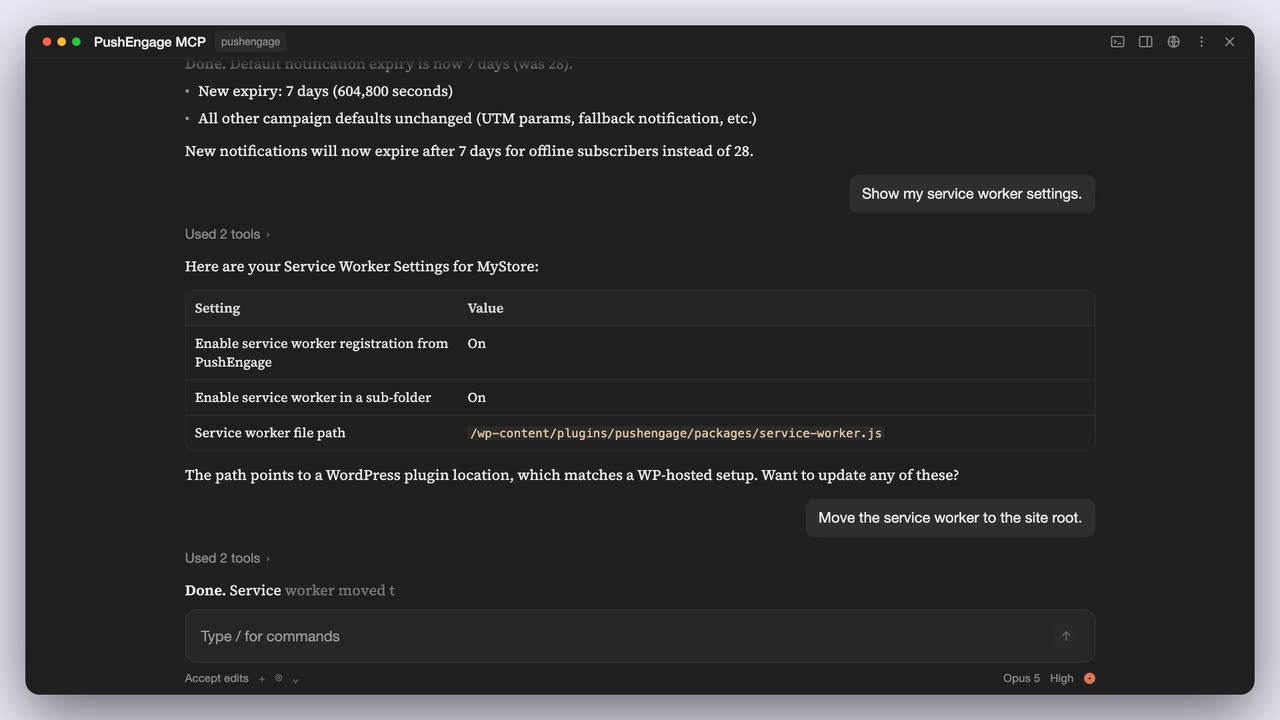
| Site settings | Read and update site name, timezone, geolocation, default UTM parameters, fallback notification, notification expiry, and service worker settings. | Updates merge over your current values, so a partial change leaves the rest alone. |
| Chat widgets | List your chat widgets with their status, channels, devices, business hours, and page targeting. | Read-only. The chat widget supports 21 channels plus custom links. |
| Account and sites | Sign in, check status, sign out, list your sites, and choose the one to work on. | Name a different site in a request to work on it without switching. |
Every tool, with its options, is listed in the pushengage-mcp README on GitHub.
Security
Is it safe to connect an AI assistant to PushEngage?
The server is built so your assistant never handles your password, and so you can see exactly what it does.
Browser sign-in
You approve access on the PushEngage authorize page. The assistant never sees your password, and there is no API key to paste into a chat.
Token kept out of URLs
The dashboard hands the token to the server in a POST request, so it never appears in a URL, your browser history, or an access log.
Stored on your computer
The token is saved at ~/.pushengage/mcp.json, readable only by your user account. Ask the assistant to log you out, or end all sessions in PushEngage under Settings, then Security.
Runs locally
The server runs as a process on your own machine, started by your MCP client through npx. There is no hosted or remote PushEngage MCP endpoint.
Your plan’s limits apply
The assistant can only do what your plan and your PushEngage login allow, the same as you can in the dashboard.
Open source, MIT licensed
Read every line on GitHub. It is published on npm as @pushengage/mcp and listed on the official MCP Registry as io.github.awesomemotive/pushengage-mcp.
At a glance
The MCP server in four numbers.
Plans
Which PushEngage plans include the MCP server?
All of them, including Free. Your plan decides what the assistant can do, exactly as it does in the dashboard.
Free
Send campaigns, create segments, and ask about analytics for 1 site or app, with up to 200 subscribers and 30 campaigns in total. No card needed.
Business
Unlimited campaigns, scheduling, and audience groups with geo and URL targeting, so your prompts can target saved groups.
Premium
A/B tests that roll out the winner, sends in each subscriber’s timezone, and goal and revenue tracking you can ask about.
Growth
Cart, browse, price-drop, and back-in-stock campaigns your assistant can report on, plus campaigns triggered by custom events.
Pay only for active subscribers. Prices and limits for every plan, plus a calculator for your list size, are on the pricing page. Paid plans carry a 14-day money-back guarantee.
See plansMore AI in PushEngage
What other AI tools work with PushEngage?
The MCP server is for running your account from a chat. These cover writing copy, sending from a browser tab, adding the SDK to an app, and working from WordPress.
Browser extension for Chrome and Firefox
Reads the page you are on, writes notification drafts with AI in the tone you pick, fills every UTM field, and sends or schedules the push. Works with every plan.
See the extensionAI Copywriter
Drafts notification titles and messages in the tone and language you choose. A paid add-on on Business, Premium, and Growth ($10 buys 5,000 AI credits, valid for a year), and included on Enterprise.
Meet the AI CopywriterAgent Skills for app developers
Teach an AI coding agent to add the PushEngage SDK to iOS, Android, Flutter, and React Native apps, and to debug a broken setup. Install them with one command: npx skills add awesomemotive/pushengage-skills
Read the Agent Skills docsWordPress Abilities API
The PushEngage WordPress plugin registers abilities with the WordPress Abilities API, so AI assistants connected to your WordPress site can read PushEngage data and send notifications from there.
Read the announcementGuides
Want a step-by-step walkthrough first?
Set up the MCP server
Client-by-client setup for Claude, Cursor, and other agentic tools, with the first prompts to try.
Setup guideSend pushes from your assistant
Writing, scheduling, and targeting a notification in plain language, start to finish.
Read the guideAsk for analytics in plain English
The questions that turn subscriber and click numbers into a weekly report.
Read the guideRun several client accounts
How agencies keep one token per client and report across accounts from one assistant.
For agenciesFAQ
Questions about the MCP server.
What is the PushEngage MCP server?
It is a free, open-source Model Context Protocol (MCP) server that connects AI assistants to your PushEngage account. Once it is connected, you can ask the assistant to send or schedule notifications, run A/B tests, build segments and audience groups, read analytics, and change site settings in plain language.
Do I need to be a developer to use it?
No. Setup is one copied config entry and a browser sign-in, and after that everything happens in plain language. You do need Node.js 18 or newer on your computer, because your assistant starts the server with npx. The setup docs have copy-paste steps for each client.
Which AI assistants work with it?
Any MCP client that runs local servers over stdio. Our setup docs cover Claude Desktop, Claude Code, Cursor, Codex, VS Code with Copilot, Gemini CLI, Windsurf, Warp, OpenCode, and Devin.
Does it work with ChatGPT?
Not in ChatGPT chat. ChatGPT chat connects to remote MCP servers, and the PushEngage MCP server runs only as a local process on your computer. OpenAI’s Codex, in the Codex CLI and IDE extension, does run local MCP servers, and the Codex setup steps are in our docs.
Is there a hosted or remote MCP endpoint?
No. The server runs locally on the same computer as your assistant, started with npx -y @pushengage/mcp. There is no URL to connect to and no hosted PushEngage endpoint that holds your token.
Which PushEngage plans include the MCP server?
Every plan, including Free. Your plan limits still apply: A/B tests and sends in each subscriber’s timezone need Premium or above, for example. AI Copywriter is separate from the MCP server: it is a paid add-on on Business, Premium, and Growth and included on Enterprise. See pricing.
Is my data safe, and where is the login token stored?
You sign in through your browser, so the assistant never sees your password. The token reaches the server in a POST request, never in a URL, and is stored at ~/.pushengage/mcp.json with permissions that only your user account can read. To revoke it, ask the assistant to log you out, or end all sessions in PushEngage under Settings, then Security.
Can an agency manage several PushEngage accounts?
Yes. Add the server to your client twice under different names, each with its own token file set through the PE_MCP_CONFIG_PATH setting, and sign in to each account once. The agency guide walks through it.