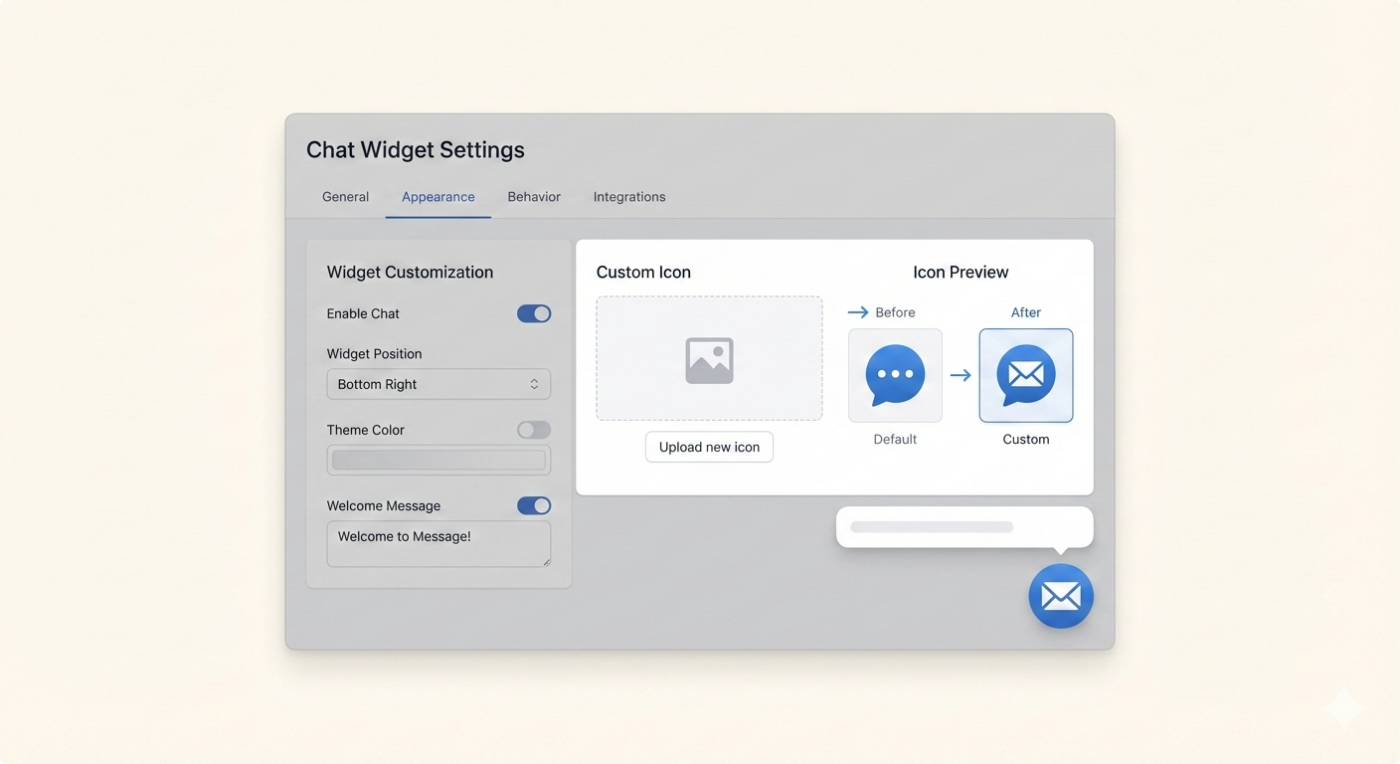
When visitors land on your website, they make snap judgments—often in less than a second.
One of the first UI elements they notice? Your chat widget.
If that widget uses a generic icon, it can feel out of place. Like an afterthought. Or worse, like a third-party tool bolted onto an otherwise polished site.
That’s why PushEngage now lets you upload custom icons for chat widgets—so your chat feels intentional, branded, and trustworthy from the very first glance.
In this guide, we’ll walk through why custom chat icons matter, best practices for using them, and how to add one to your PushEngage chat widget.
Send Multichannel Messages Today!
Push and WhatsApp messaging are super effective, low-cost marketing tools to help you grow your repeat traffic, engagement, and sales on autopilot.
- Why Chat Widget Branding Matters
- What Is a Custom Chat Widget Icon?
- Benefits of Using a Custom Icon for Your Chat Widget
- When You Should Use a Custom Chat Icon
- How to Set Up a Custom Widget Icon
- Common Mistakes to Avoid
- How Custom Chat Icons Improve Trust and Engagement
- Best Practices for Designing a Chat Widget Icon
- What to do After You Add a Custom Icon for Your Chat Widget
Why Chat Widget Branding Matters
Chat widgets aren’t just support tools anymore.
They’re used for:
- Sales conversations
- Product onboarding
- High-intent questions
- Pre-purchase reassurance
And yet, many websites still use default chat icons that look identical across hundreds of sites.
That creates friction.
When users see a generic icon, they subconsciously ask:
- Is this part of the site?
- Is this safe to use?
- Who am I actually chatting with?
A branded chat icon answers those questions instantly — without a single word.
What Is a Custom Chat Widget Icon?
A custom chat widget icon is a branded image—usually your logo, mark, or symbol—that replaces the default chat icon.
Instead of a generic speech bubble, your chat widget:
- Reflects your brand identity
- Matches your site’s visual language
- Feels native across pages and devices
This icon appears wherever your chat widget is visible:
- Desktop and mobile views
- Floating widgets
- Scroll and hover states
It’s a small change with a surprisingly big impact.
Benefits of Using a Custom Icon for Your Chat Widget
1. Make Your Chat Instantly Recognizable
Your users already recognize your logo.
Using it in your chat widget makes the interaction feel familiar—even before the conversation starts.
This reduces hesitation and increases the likelihood that users will click.
2. Reinforce Brand Identity Everywhere
Your website, emails, and push notifications are branded—your chat should be too.
A custom icon ensures visual consistency across:
- Marketing pages
- Product dashboards
- Support and documentation
That consistency builds confidence.
3. Increase Trust at Critical Moments
Chat is often triggered on high-intent pages like:
- Pricing
- Checkout
- Feature comparisons
A branded icon reassures users that they’re talking directly to your team—not a third-party bot.
4. Look Native, Not Like a Plugin
Default chat icons can make even great tools feel “tacked on.”
Custom icons help your chat widget blend seamlessly into your site—without disrupting the experience.
5. Stand Out Without Being Distracting
This isn’t about flashy design.
It’s about subtle differentiation that makes your site feel more polished and intentional.
When You Should Use a Custom Chat Icon
While every site benefits from branding, custom chat icons are especially effective for:
- SaaS and product websites
Make chat feel like part of the product experience. - E-commerce stores
Build trust during checkout and product discovery. - Support-heavy pages
Reduce friction when users need help fast. - High-intent landing pages
Reinforce credibility when it matters most.
How to Set Up a Custom Widget Icon
This section walks you step-by-step through the actual setup inside PushEngage. Simply log into your PushEngage dashboard and head over to Chat Widgets » Manage Widgets. And create a new chat widget.
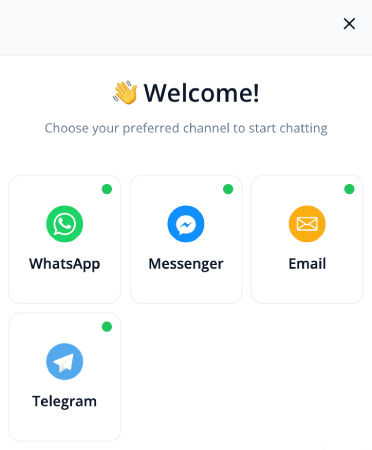
Once you select the channels, head over to the Appearance tab and under Widget Icon, click on Custom:
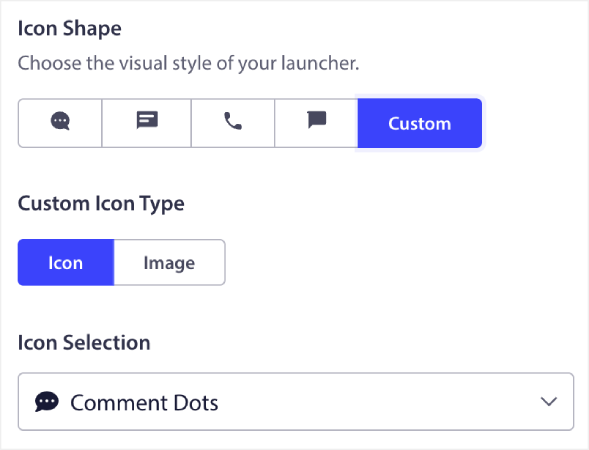
You can either add a different icons from a list of pre-designed icons, or you can use a custom image for your chat icon.
It’s really that simple!
Common Mistakes to Avoid
Even small UI elements can go wrong if overdone. Avoid these pitfalls:
- Using icons with too much detail
- Uploading low-resolution images
- Poor contrast with the background
- Inconsistent branding across pages
- Over-styling that draws attention away from content
Remember: the goal is clarity and trust, not decoration.
How Custom Chat Icons Improve Trust and Engagement
Visual consistency is a powerful credibility signal.
When users see a chat widget that:
- Matches the site’s branding
- Looks intentional
- Feels native
They’re more likely to engage.
That means:
- Faster conversations
- Higher-quality leads
- Better support experiences
All from a simple visual upgrade.
Best Practices for Designing a Chat Widget Icon
To get the best results, keep these tips in mind:
Keep It Simple
Your icon will be small. Avoid text or detailed graphics.
Use a Recognizable Mark
A logo symbol or brand mark works better than a full logo with text.
Maintain Strong Contrast
Ensure the icon stands out clearly on both light and dark backgrounds.
Stick to Square or Circular Formats
These adapt best across devices and screen sizes.
Stay Consistent With Your UI
Your chat icon should feel like it belongs alongside your other UI elements.
What to do After You Add a Custom Icon for Your Chat Widget
Custom chat icons might seem like a small detail—but details shape perception.
By replacing generic icons with your own brand mark, you:
- Increase trust
- Improve engagement
- Make chat feel intentional
Not convinced? Check out these amazing resources on push notification campaigns:
- How to Increase Hotel Sales in Low Season
- How to Do Multichannel Marketing for Hotels in 2026
- How to Convert Subscribers To Buyers Using Web Push Notifications
- How to Notify Subscribers of New WordPress Posts
- How to Send Back-in-Stock Notifications to Get More Sales
- How to Clean Up Push Notifications Subscriber Lists (Easy)
- How to Automatically Send RSS Push Notifications
- How to Use Push Notifications to Promote a News Site
- How to Use Cross Selling Push Notifications to 2x Your Sales
- How to Use Browse Abandonment Push Notifications (4 Steps)


