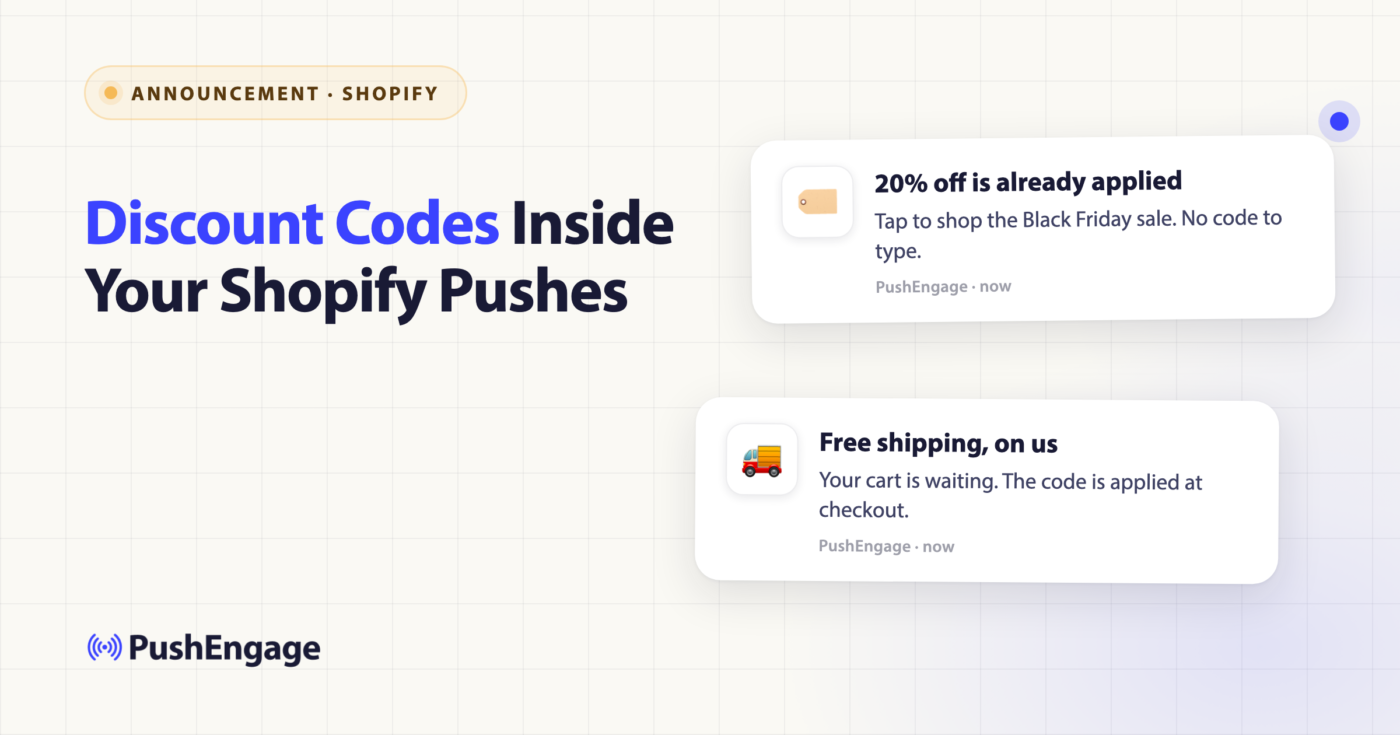
Every sale has the same leak. A shopper sees your offer, taps through to the store, and then has to remember, copy, or retype the code at checkout. Some of them never get that far.
Today we’re closing that gap for Shopify stores. You can now attach a Shopify discount code to any push notification you send from PushEngage. When a subscriber taps it, the code is already applied and they land on the page you picked.
Here’s the feature in action:
What’s new
Shopify discount codes now live inside the PushEngage app in your Shopify admin, in both one-off broadcasts and drip campaign steps.
- Pick an existing code. Search your active Shopify discount codes and select one.
- Or create one on the spot. Click “Create new code” and set it up without leaving PushEngage: percentage off, fixed amount off, or free shipping, with start and end dates, a minimum purchase, usage limits, and “Combines with” rules.
- Use it in broadcasts and drips. A Black Friday announcement can carry an early-access code, and a welcome or win-back drip step can carry its own offer.
How it works
There’s no custom checkout code involved. PushEngage turns the notification’s link into Shopify’s own discount link, in this format:
https://{your-store}/discount/{CODE}?redirect={page}Shopify applies the code when the subscriber lands, then redirects them to the page you chose: a product, a collection, or your sale page. The discount stays applied through checkout, so nobody has to type “BFCM20” into a box.
Your UTM tracking keeps working on the landing page, so campaign attribution carries through to your analytics.
How to add a discount code to a push notification
- Open PushEngage from Apps in your Shopify admin, and start a new broadcast or edit a drip step.
- In the discount code option, search for an active code, or click “Create new code.”
- If you’re creating a code, choose percentage off, fixed amount off, or free shipping, then set the dates, minimum purchase, usage limits, and what it combines with.
- Pick the page subscribers should land on, and send or schedule the notification.
For a full walkthrough of the broadcast composer, see Push Broadcasts for Shopify. For automated sequences, see Drip Campaigns for Shopify.
Need a more specific discount?
Some offers need Shopify’s full discount builder: discounts limited to specific products, collections, or customers, or Buy X Get Y deals. The create dialog links you straight to Shopify Admin » Discounts for those. Build the discount there, come back, and select it in PushEngage like any other code.
Built-in safeguards
A dead offer is worse than no offer, so PushEngage checks your codes before they go out:
- Expired codes show a red Expired tag, so you don’t pick one by accident.
- Deleted codes: you’ll get a warning if a code no longer exists in Shopify.
- Long links: you’ll get a warning if the discount link runs over the URL length limit.
Three ways to use it this sale season
Black Friday is Friday, November 27, and Cyber Monday follows on November 30. A few places where a pre-applied code earns its spot:
- Early access for subscribers. Send your push list a code that works before the public sale starts. It rewards the people who opted in.
- Free shipping in your welcome drip. Add a free-shipping code to a welcome drip step, so new subscribers have a reason to place a first order during the sale.
- A last-call code on Cyber Monday evening. Pair a short end date with a “final hours” message so the urgency is real.
Get started
Discount codes are live now in the PushEngage app for Shopify. If you already have it installed, open PushEngage from your Shopify admin and add a code to your next broadcast.
New to PushEngage? Install PushEngage from the Shopify App Store and send your first discounted push before the sale weekend.


