Base44 can now send push notifications on its own, but only to people who install your app from the App Store or Google Play. Everyone who opens your app in a browser, or from a Home Screen shortcut, gets nothing.
Web push covers that gap. In this guide, you’ll add web push notifications to a Base44 app with PushEngage. The install is two small pieces of code, Base44’s AI chat can place both for you, and you don’t need a store listing or a developer account.
Here’s what we’ll cover:
- What Base44’s built-in push does and who it reaches
- What you need before you start
- How to install PushEngage on a Base44 app, step by step
- How to get push working on iPhone and iPad
- How to fix the most common setup problems
Send Multichannel Messages Today!
Push and WhatsApp messaging are super effective, low-cost marketing tools to help you grow your repeat traffic, engagement, and sales on autopilot.
- Base44 Push Notifications: Built-In Push vs. Web Push
- What You Need Before You Start
- How to Set Up PushEngage on Base44 (Step by Step)
- Web Push on iPhone and iPad
- Which Browsers and Devices Are Covered
- What You Can Send Once It’s Running
- Troubleshooting Your Base44 Install
- Base44 Push Notifications FAQ
- Start Sending Push Notifications From Your Base44 App
Base44 Push Notifications: Built-In Push vs. Web Push
There are two kinds of push you can use with a Base44 app, and they reach different people.
Base44’s built-in push is for store apps. If you generate App Store or Google Play files, you can turn on push notifications, upload your Apple push key and Firebase details, and send notifications from your app’s backend. Base44’s documentation is clear about the limits:
- You need a Builder plan or higher.
- Each notification uses integration credits.
- It only reaches people who installed your app from the App Store or Google Play. It does not reach people using your app in a browser or from a Home Screen shortcut.
Web push is for everyone else. It works in the browser on desktop and Android, and on iPhone and iPad once someone adds your app to their Home Screen. That’s what PushEngage adds.
| Base44 built-in push | PushEngage web push | |
|---|---|---|
| Who it reaches | People who installed your store app | People using your app in a browser or from the Home Screen |
| What you need | Builder plan or higher, Apple Developer account, Firebase project, store approval | A published Base44 app and a PushEngage account |
| How you send | One person at a time, from your app’s backend | Broadcasts, automated workflows, and segments from a dashboard |
| Cost model | Integration credits per notification | Based on active subscribers, not per message |
You can use both side by side: Base44’s built-in push for store installs, and PushEngage for browser and Home Screen users.
Two things PushEngage does not do on Base44:
- PushEngage app push can’t be added to a Base44 store app. It needs the PushEngage SDK inside the native app, and Base44 doesn’t give you access to that layer.
- Web push doesn’t run inside the store app itself. Base44’s store apps show your published app in a web view, and web views don’t support web push on iOS or Android. We haven’t tested PushEngage inside a Base44 store app, but this is standard behavior on both platforms. Your store users are covered by Base44’s built-in push instead.
One more thing to clear up: the Set up browser notifications setting in your Base44 account is for alerts to you, the builder, when the AI finishes a task. It has nothing to do with notifications to your app’s users.
What You Need Before You Start
Check these four things first. Most failed installs come from skipping one of them.
- Your app is public. If your Base44 app requires a login to open, it answers every address with a “not authorized” error, including the service worker file. Web push can’t install on an app like that.
- Your app is published. The install only works on your published app, not in the editor preview.
- You’ve settled on your domain. Push subscribers are tied to the exact address they subscribed on. If you plan to move from
yourapp.base44.appto a custom domain, connect the custom domain first. Otherwise your subscribers will have to subscribe again after the move. - You have a PushEngage account. Create one here. The free plan covers 1 site, up to 200 subscribers, and 30 campaigns, which is enough to test the full setup.
How to Set Up PushEngage on Base44 (Step by Step)
The install has two parts: the PushEngage installation code in the <head> of your app, and a service-worker.js file served from the root of your app. The whole thing takes about 10 minutes.
Step 1: Get Your Installation Code and Service Worker File
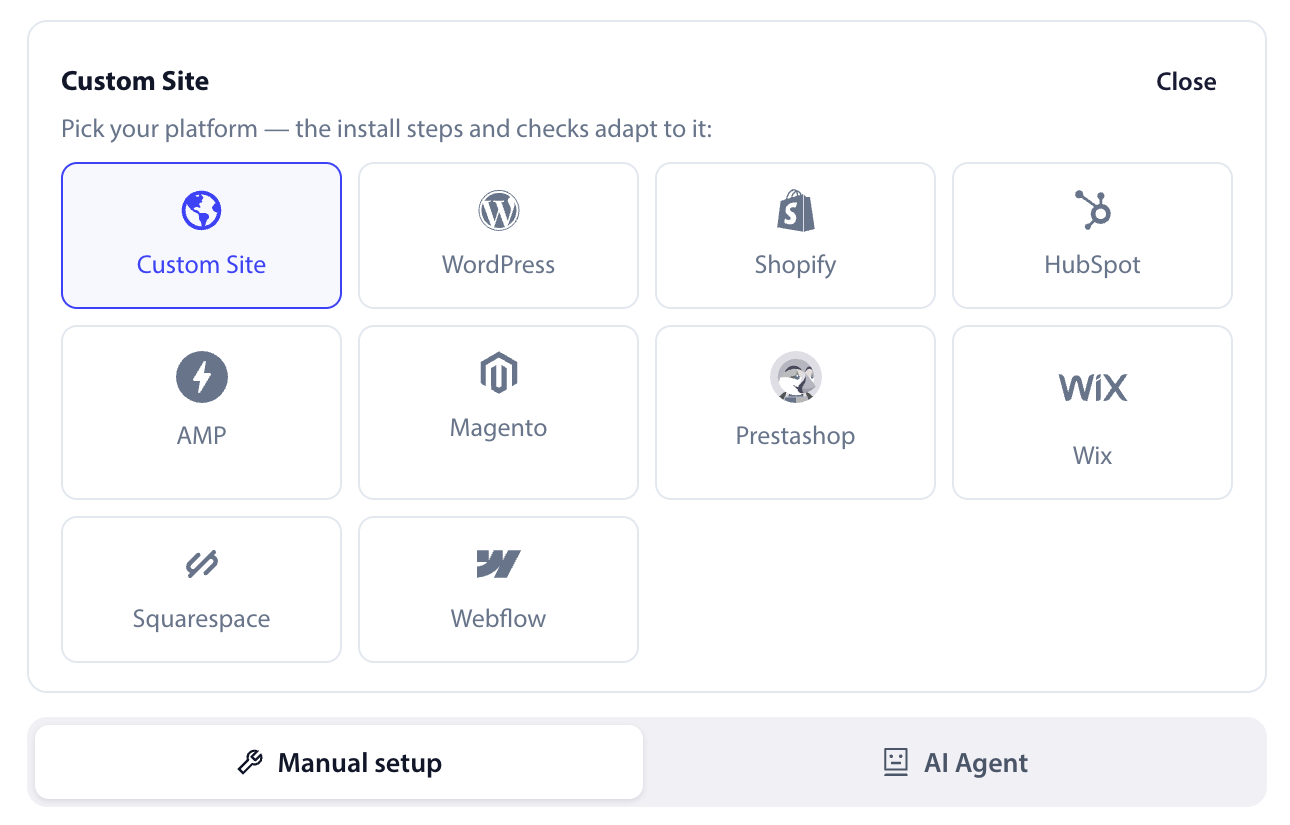
In your PushEngage dashboard, add your Base44 app’s address as your site. Then go to Site Settings » Installation and pick Custom Site as your platform.
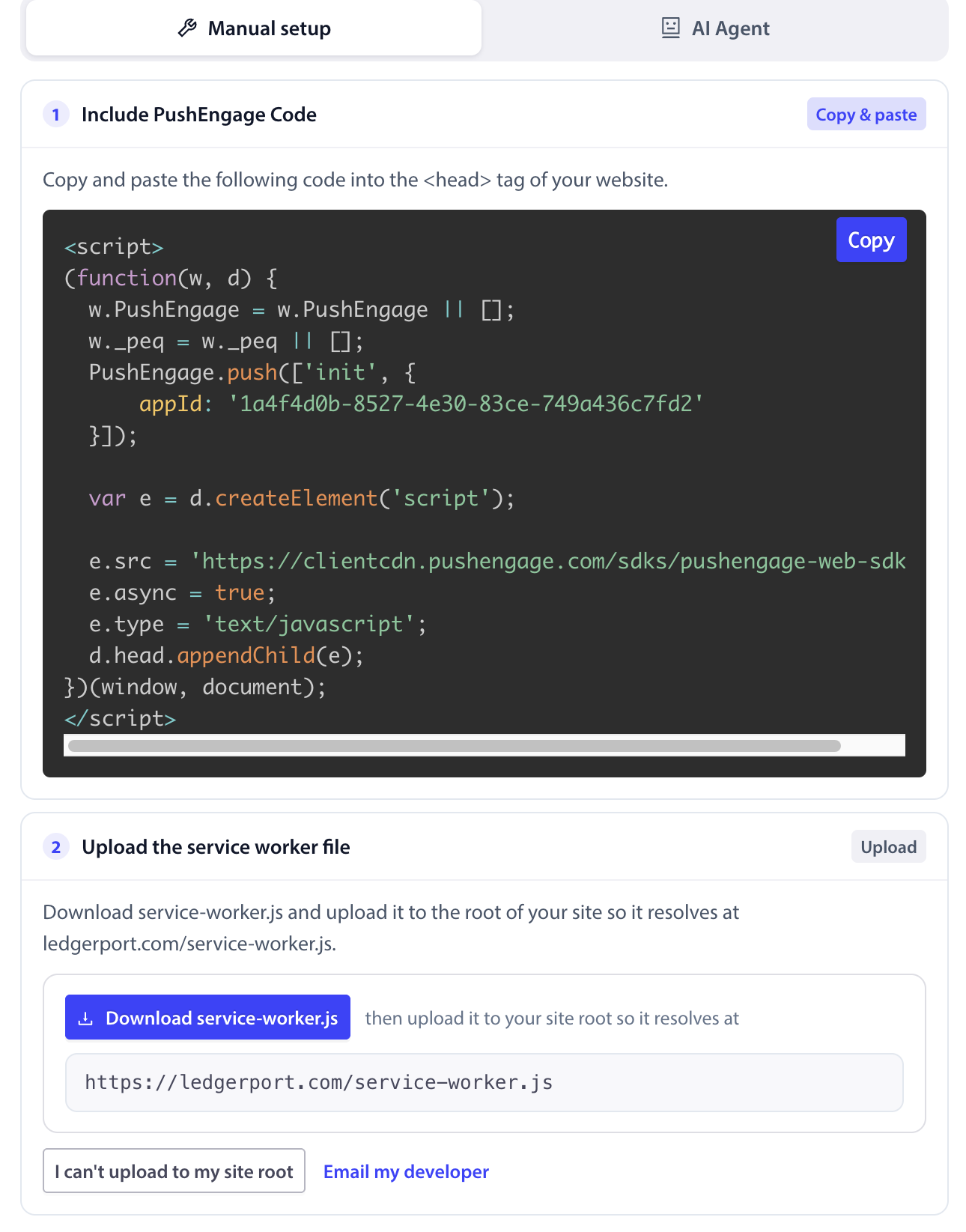
On the Manual setup tab you’ll see two steps:
- Include PushEngage Code. Click Copy to copy the installation code.
- Upload the service worker file. Click Download service-worker.js. The file contains a single line that loads PushEngage’s service worker, so you can open it in any text editor and copy its contents.
Step 2: Ask Base44’s AI Chat to Add Both
Base44’s own documentation recommends adding third-party code through the AI chat, so that’s what we’ll do. Open your app in the Base44 editor and paste this prompt into the AI chat, with your own code in place of the placeholders:
Add PushEngage web push notifications to my app. Do only these two things and keep everything else as it is:

1. Add this code inside the <head> of index.html exactly as it is:
[paste your PushEngage installation code here]

2. Create a file named service-worker.js in the public folder with exactly this content, so it is served at /service-worker.js:
[paste the contents of your service-worker.js file here]
Prefer to do it by hand? Open index.html in the Code tab of your Base44 dashboard, paste the installation code inside the <head>, and add service-worker.js to the public folder.
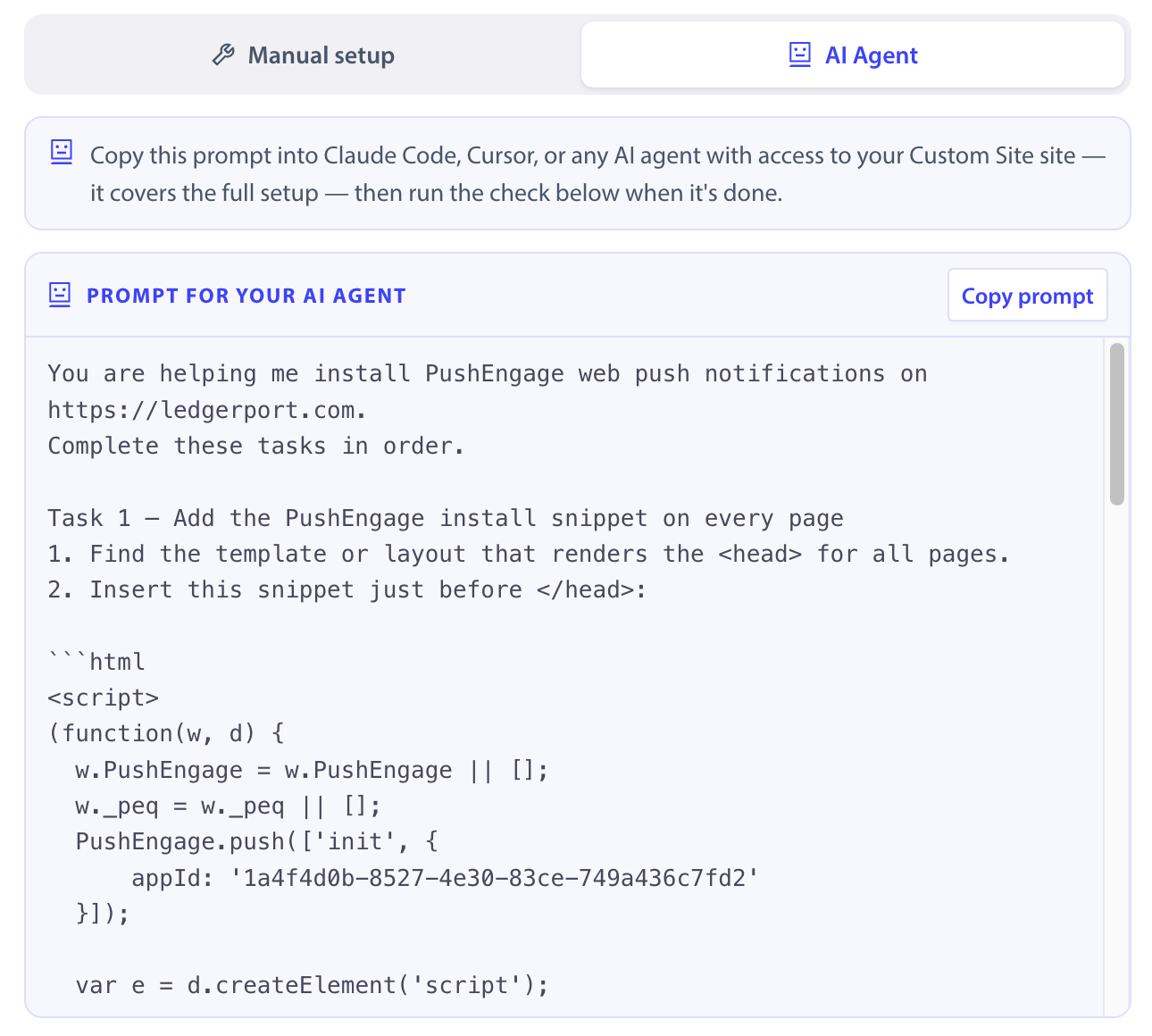
Tip: the Installation page in PushEngage also has an AI Agent tab. Click Copy prompt to get a longer, ready-made prompt with your site’s details already filled in. It was written for AI coding agents in general, so use the shorter prompt above if you want instructions that match Base44’s file layout.
Step 3: Publish Your App
Changes the AI makes are not live until you publish. Click Publish in the Base44 editor.
Then open https://yourapp.base44.app/service-worker.js in your browser (use your own address). You should see one line of JavaScript. If you see your app’s home page or an error instead, the file isn’t in the right place yet. Ask the AI chat to fix it, then publish again. In our testing, it sometimes took a second publish before the change went live.
Step 4: Check That Quick Install Is Off
PushEngage can collect subscribers in two ways: on your own domain, or on a PushEngage subdomain (called Quick Install). This guide sets up collection on your own domain, so your app’s name shows on your notifications and your subscribers stay with your domain.
For that to work, Quick Install must be off. In your PushEngage dashboard, go to Design » Popup Modals, edit your popup, and check the Quick Install toggle in the display options. Pick one method and stay with it, because switching later means your subscribers have to subscribe again. If you need more detail, follow our guide to turning off Quick Install.
Step 5: Confirm the Install and Send a Test
Go back to Site Settings » Installation and click Confirm and Check Status. PushEngage checks three things: that your app is on HTTPS, that the service worker is reachable, and that the installation code is on the page.
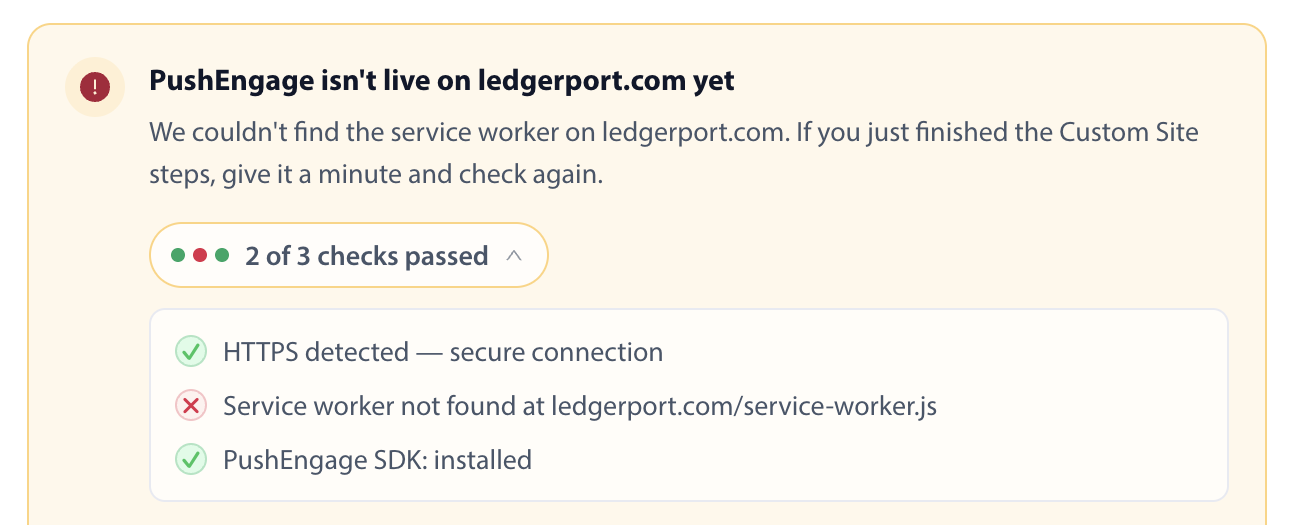
Once the check passes:
- Open your published app in a browser. You should see the opt-in prompt.
- Click Allow to subscribe.
- Send yourself a test notification from the PushEngage dashboard.
Your subscriber count and campaign stats can take 2 to 4 minutes to update in the dashboard, so don’t worry if the numbers don’t move right away.
Web Push on iPhone and iPad
Web push works on iPhone and iPad from iOS and iPadOS 16.4 onward, with one condition: the person has to add your app to their Home Screen and open it from that icon. It does not work in a regular Safari tab.
That fits how Base44 already tells you to share your app. Base44 recommends that your users add the app to their Home Screen, and the steps are the same ones your subscribers need:
- Open the app link in Safari.
- Tap the share option.
- Tap Add to Home Screen.
- Tap Add, then open the app from the new icon.
After that, the opt-in prompt shows inside the app, and notifications arrive like they do for any other app on the phone.
We’ve confirmed this on an iPhone running iOS 27.2 with a Base44 app. On versions before iOS 26 (that’s iOS 16.4 through 18), a Home Screen web app also depends on the app’s web app manifest. Base44 creates that manifest for you, but in our testing it wasn’t linked from the app’s pages, so push may not work on those older versions. Test on your own device before you rely on it for older iPhones. For more on how this works, see our guide to iOS web push notifications.
A good way to grow your iPhone audience is a short in-app banner that asks Safari visitors to add your app to their Home Screen.
Which Browsers and Devices Are Covered
We ran this exact install on a public Base44 app and confirmed that subscribing and receiving notifications work in:
- Chrome on desktop
- Firefox on desktop
- Safari on desktop
- iPhone (iOS 27.2), from the Home Screen
PushEngage web push also supports Chrome on Android and Microsoft Edge. Those use the same install, but we haven’t tested them on a Base44 app ourselves yet.
What You Can Send Once It’s Running
With subscribers coming in, you can use the full PushEngage web push toolkit on your Base44 app:
- Push broadcasts to announce a launch, a new feature, or an offer to all your subscribers at once.
- A welcome drip that greets new subscribers automatically.
- Workflows to build automated journeys in a visual builder.
- Segments and audience groups to target subscribers by the pages they visit, their device, their country, and how they engage with your notifications.
- Goal tracking to see which campaigns lead to sign-ups or sales.
Which of these you can use depends on your PushEngage plan. Base44’s built-in analytics doesn’t break visits down by campaign, so read your campaign results in the PushEngage dashboard.
Troubleshooting Your Base44 Install
If the opt-in prompt doesn’t show or the status check fails, work through this list:
- Your app requires a login. The service worker can’t be reached on an app that isn’t public. Change your app’s public access in Base44, publish, and check again.
- The service worker address shows a web page. Open
/service-worker.json your published app. If you see your app’s home page instead of one line of JavaScript, the file isn’t in thepublicfolder. Ask the AI chat to move it there, then publish. - Your changes aren’t live. Check the published app, not the preview, and publish again if the change is missing.
- Visitor tracking is set to Off. Base44 says this setting blocks tracking code you’ve added to your app. If the PushEngage code isn’t loading on your published app, check this setting in Base44.
- Quick Install is on. The steps in this guide need it off. See Step 4.
- You’re testing on an iPhone in Safari. Add the app to your Home Screen first and open it from the icon.
Still stuck? Our guide on what to do when the opt-in prompt doesn’t show covers the less common causes.
Base44 Push Notifications FAQ
Does Base44 support push notifications?
Yes, for store apps. Base44 can send push notifications to people who installed your app from the App Store or Google Play, on a Builder plan or higher. It doesn’t send push to people using your app in a browser or from a Home Screen shortcut. For those users, you need web push.
Do I need a paid Base44 plan to use PushEngage web push?
The install itself doesn’t depend on Base44’s mobile app files, store submission, or a developer account. You need a public, published Base44 app and a PushEngage account.
Can I use OneSignal with Base44?
You can. Options include a native app wrapper or an automation tool that connects the two, and both add an extra service to manage. With PushEngage web push, the install is two pieces of code added through Base44’s AI chat, and you send from one dashboard. If you’re comparing options, see our list of the best OneSignal alternatives.
Do web push notifications work on iPhone for Base44 apps?
Yes, from iOS and iPadOS 16.4 onward, once the person adds your app to their Home Screen and opens it from the icon. They don’t work in a regular Safari tab. We’ve confirmed it on iOS 27.2. Versions before iOS 26 may not work yet, so test those on your own device.
Can I add PushEngage app push to my Base44 mobile app?
No. Base44’s store apps don’t allow third-party native add-ons, so the PushEngage app SDK can’t be added. Use Base44’s built-in push for store installs and PushEngage web push for browser and Home Screen users.
Start Sending Push Notifications From Your Base44 App
Base44’s built-in push reaches the people who install your store app. Web push reaches everyone else, and for most Base44 apps that’s the bigger group.
The setup is short: copy your installation code and service worker file from PushEngage, ask Base44’s AI chat to add both, publish, and run the status check. You don’t need a store listing, a developer account, or any server work.
If you also want visitors to reach you on WhatsApp, Messenger, or email, see how to install a website chat widget for Base44.
Ready to try it? Get started with PushEngage today!


