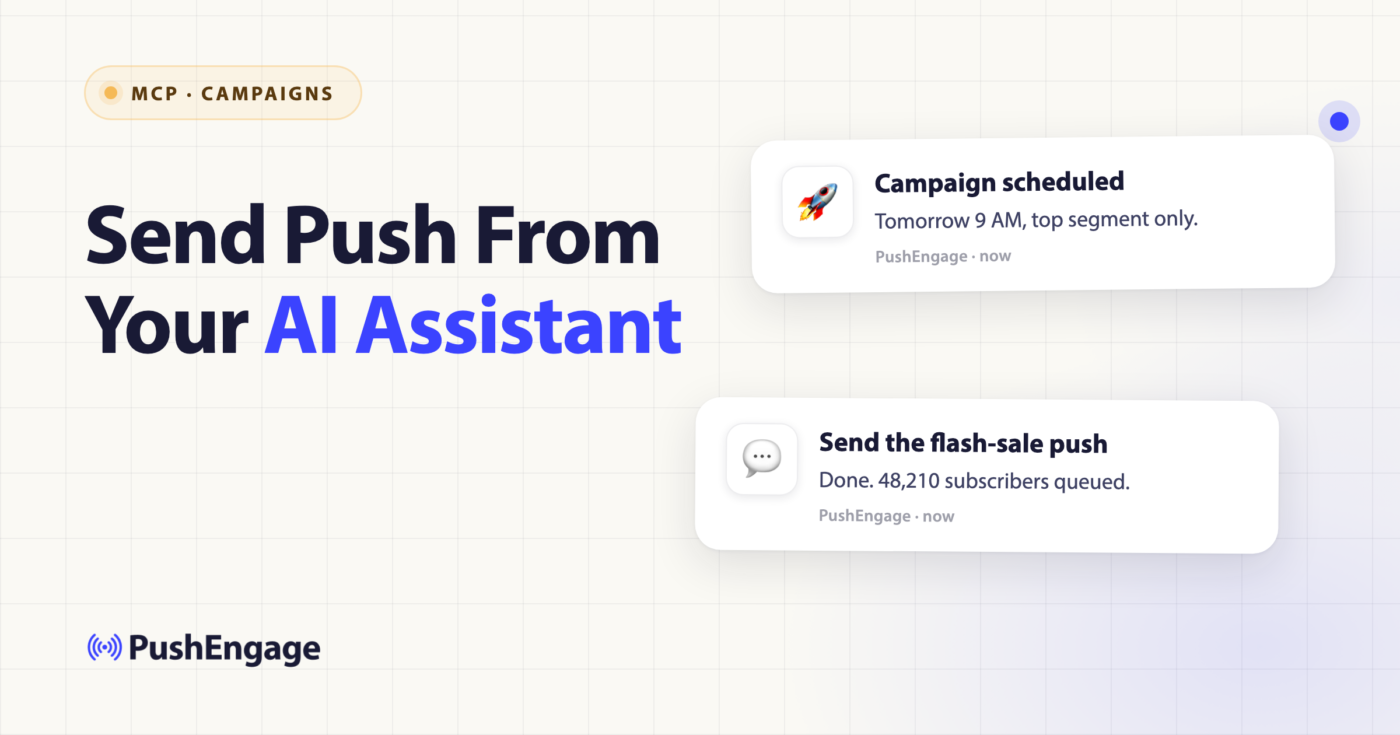
It’s 11:58 a.m. and your flash sale goes live at noon. The discount code is loaded and the landing page is up — the only thing missing is the push notification telling your subscriber list the sale is on. Normally that means logging into your PushEngage dashboard, finding the campaign builder, and clicking through to send: a context switch away from wherever you actually work. With the PushEngage MCP server connected to your AI assistant, you can send push notifications with your AI assistant in one sentence, from the window you’re already in, and the notification goes out before the sale’s first minute is gone.
That’s the case for the PushEngage MCP send notification tool, pushengage_send_notification: one tool, three delivery modes — send now, schedule once, or set up a recurring send — plus optional targeting so you’re not blasting your entire list every time. The rest of this post walks through what each mode is actually for, with the ecommerce moments where it matters: a flash sale, a restock, a webinar reminder, a holiday countdown.
Send push notifications with your AI assistant — to customers, not your phone
If you searched for how to send push notifications with an AI assistant and landed here, it’s worth being precise about what this is. Most of what shows up under that search is a different category of tool entirely — MCP servers built to ping a developer’s own phone when a coding agent finishes a build or hits an error. That’s push to your pocket, not push to your customers.
pushengage_send_notification runs in the opposite direction: it sends a campaign to your PushEngage subscriber list — the same subscribers who opted in on your site, your app, or your storefront — through the same delivery infrastructure behind every notification your account already sends. You describe what you want in plain language; the assistant fills in the title, message, link, and delivery mode, and PushEngage handles the send. Nothing here pings your own device. It pings theirs.
Getting started: connect your AI assistant to PushEngage
Add the PushEngage MCP server to your client’s config with npx -y @pushengage/mcp (no separate install needed, since npx fetches the package on demand), then restart Claude Desktop, Claude Code, or Cursor so “pushengage” shows up in your tool list. The first time you use it, ask your assistant to log you into PushEngage; it opens a browser tab where you authorize the connection, so your password never touches the assistant. Once authenticated, ask it to show your PushEngage sites and pick one to use — the selection is remembered across restarts. For the full walkthrough, including what to do if a client can’t find npx, see the PushEngage MCP setup guide.
Send now: the flash sale that can’t wait for a dashboard login
A flash sale’s value decays by the minute. A 50%-off notification that lands ten minutes after the sale opens has already missed the shoppers who would have jumped on it in minute one — and every minute spent logging into a dashboard, finding the right campaign screen, and composing the message is a minute the discount runs without anyone knowing it’s live.
Send now is the mode built for that window. You ask for exactly what you’d type into the dashboard’s campaign builder — a title, a message, a link — and it fires immediately: “Send a notification titled ‘Sale ends tonight,’ message ‘Last call, 50% off,’ linking to pushengage.com/sale.” There’s no draft state, no separate confirm screen three clicks deep.
The notification is the same one the dashboard would produce; the difference is how many seconds it takes to get there. A flash sale’s recovered revenue is concentrated in its first hour, and a notification that ships faster reaches more of that hour — the same urgency messaging that holds up in a cart-recovery sequence applies just as much to a countdown-driven flash sale.
One-shot schedule: restock alerts and webinar reminders timed to the moment
Not every send should go out the second you ask for it. A restock alert should fire the moment inventory is actually confirmed, not whenever you happen to be at your desk — so you schedule it in advance instead of babysitting a clock: “Schedule a notification for 3 PM saying the sold-out jacket is back, linking to the product page.” The back-in-stock alert setup works the same way whether you build it in the dashboard or ask for it directly — the notification just goes out on time instead of whenever you remember to send it. That is what it means to schedule push notifications with AI instead of setting yourself a personal reminder to do it manually later.
A webinar reminder has a different constraint: it needs to land in each subscriber’s morning, not yours. pushengage_send_notification supports scheduling in each subscriber’s local timezone, so “schedule that for 9 AM in each subscriber’s local timezone” sends the reminder at 9 a.m. everywhere at once, instead of 9 a.m. wherever you happen to be sitting and some other hour for everyone else.
That distinction — one fixed send time versus scheduling by subscriber timezone — is the difference between a reminder that lands as someone’s morning starts and one that lands while they’re asleep. However you cut it, this is what it looks like to schedule push notifications with AI handling the per-timezone math instead of you doing it by hand for every region on your list.
Recurring sends: the holiday countdown series that runs itself
A one-shot schedule handles a single moment. A recurring send handles a season. If you’re running a holiday campaign with a countdown that should remind subscribers every few days until the sale ends, you don’t want to manually re-send that notification each time — you set it up once as a recurring campaign: “Set up a recurring digest every Monday and Thursday at 8 AM through the end of the month.” The assistant configures the cadence and the end date in one sentence, and it keeps firing without you touching it again.
Recurring push notifications through your AI assistant work the same way for any standing cadence, not just holidays — you describe the pattern once instead of re-triggering it by hand every time it comes around.
Treating “one-shot schedule” and “recurring” as the same feature with an extra checkbox misses the point. A one-shot schedule is a single decision executed later; a recurring send is a standing decision that runs on its own until you tell it to stop. That’s the real appeal of recurring push notifications with an AI assistant over a manual resend — naming which one you need is most of the work, and the tool call itself is one sentence either way.
Targeting the send: audience_groups instead of “notify everyone”
Every scenario above assumed a “who” without saying it out loud, and that’s the part worth being deliberate about. By default, a send without an audience specified goes to every subscriber on the site — fine for a storewide flash sale, wrong for almost everything else. The optional audience_groups parameter lets you point a send, schedule, or recurring campaign at an existing group instead: “send only to the VIP segment” targets just that audience group, and the restock alert or countdown series above can be scoped the same way.
Audience targeting for push notifications shouldn’t be a separate errand run after the message is already written. Worth being precise about the boundary here, too: pushengage_send_notification targets an audience group that already exists in your account — it doesn’t build new segments or audience groups on its own. That’s a different part of the toolkit, and a later post in this series covers it. What this tool does is fold the “who gets this” decision into the same sentence as the “what” and “when,” which is audience targeting for push notifications the way a retention team actually works — one request, not three.
Why speed-to-send is a retention number, not a convenience feature
None of this is about typing being faster than clicking for its own sake. The push notifications that recover the most revenue are the ones that land inside a narrow window — the hour a flash sale is live, the moment an item is back in stock, the morning a webinar starts — and every minute spent finding the right dashboard screen is a minute of that window gone.
PushEngage’s infrastructure already moves at that scale: 15.2 billion notifications sent across the platform in the last 30 days, for more than 75,000 businesses in 150-plus countries. Every example above runs through the same PushEngage MCP send notification tool, pushengage_send_notification, just pointed at a different moment — it doesn’t change what runs underneath that volume, it changes how fast you, personally, can get one campaign into it.
That’s the actual case for sending push notifications with your AI assistant instead of a dashboard: not novelty, but that the fastest path from “the sale just opened” to “the notification is live” is now a sentence, and a retention channel is only as good as how quickly it reaches the moment it exists for. If you’re ready to see what that looks like on your own subscriber list, PushEngage’s plans start with a free tier that includes every send mode covered here.


