The PushEngage extension is live on Firefox Add-ons, on the same day as the Chrome release. Teams do not all run the same browser, and neither do subscribers, so we shipped both.
It is free, it works with every PushEngage plan, and it is the full composer: the page you are on becomes the notification, AI drafts the copy from it, and you target, schedule, and send without opening the dashboard.
What you get in Firefox
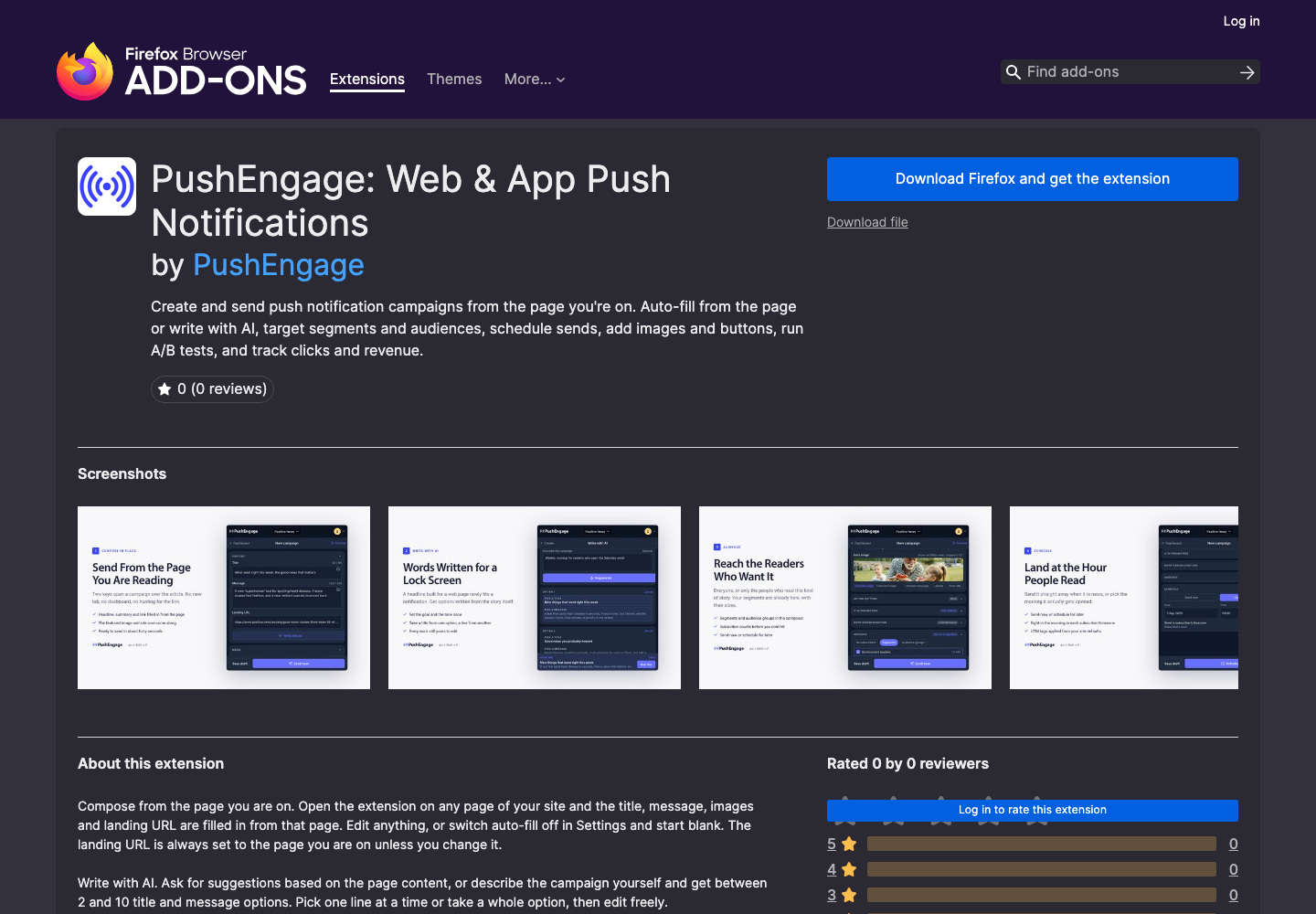
Everything in the Chrome extension, in Firefox’s toolbar:
- Compose from the page. Title, message, images, and landing URL are filled in from the page you are on. Auto-fill can be turned off if you prefer to start blank.
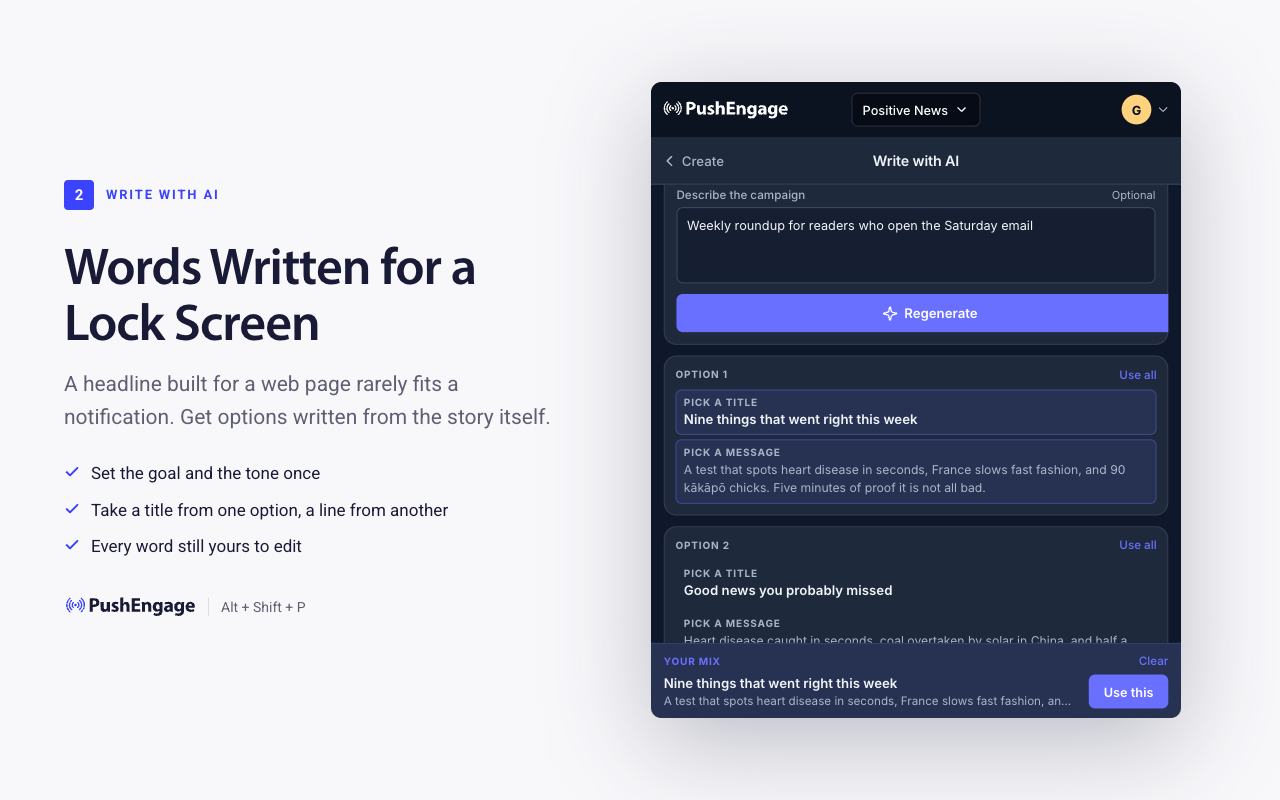
- Write with AI. Work from the page, a brief you type, or another URL. Set a goal and a tone, get three options by default (two to ten if you want more), take the title from one and the message from another, regenerate, and edit freely.
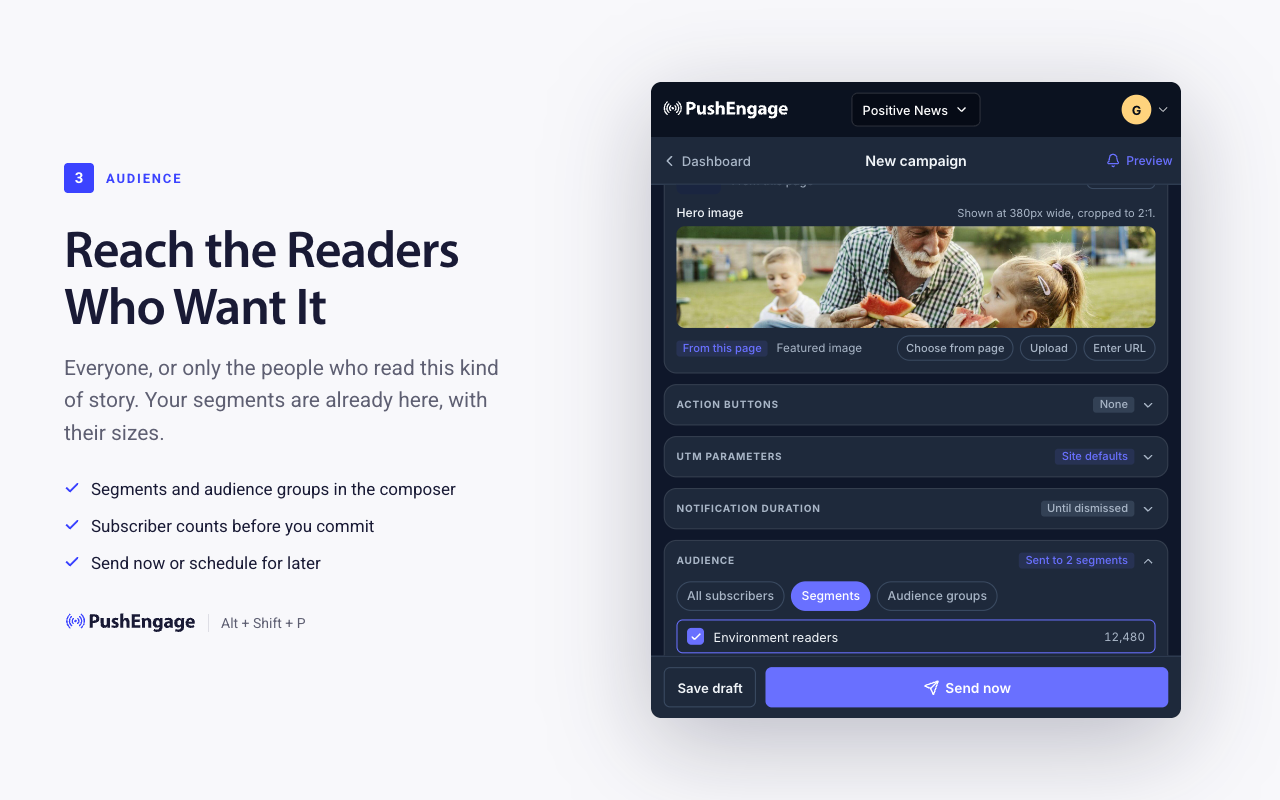
- Target. All subscribers, segments, or audience groups, with duplicates removed. Build a segment from the page you are on in two clicks.
- Schedule. Send now, pick a time, or deliver in each subscriber’s own time zone. Set the deliverable window from one minute to 28 days.
- Make it richer. Hero image, up to two action buttons with their own URLs, emoji, and per-campaign UTM tags. Preview on your own device first.
- Measure. A/B tests on titles and messages, goals and revenue, and a dashboard screen with 30-day comparisons and suggestions.
- Work across sites. Switch between every site on your account, with per-site defaults for icon, duration, and UTMs.
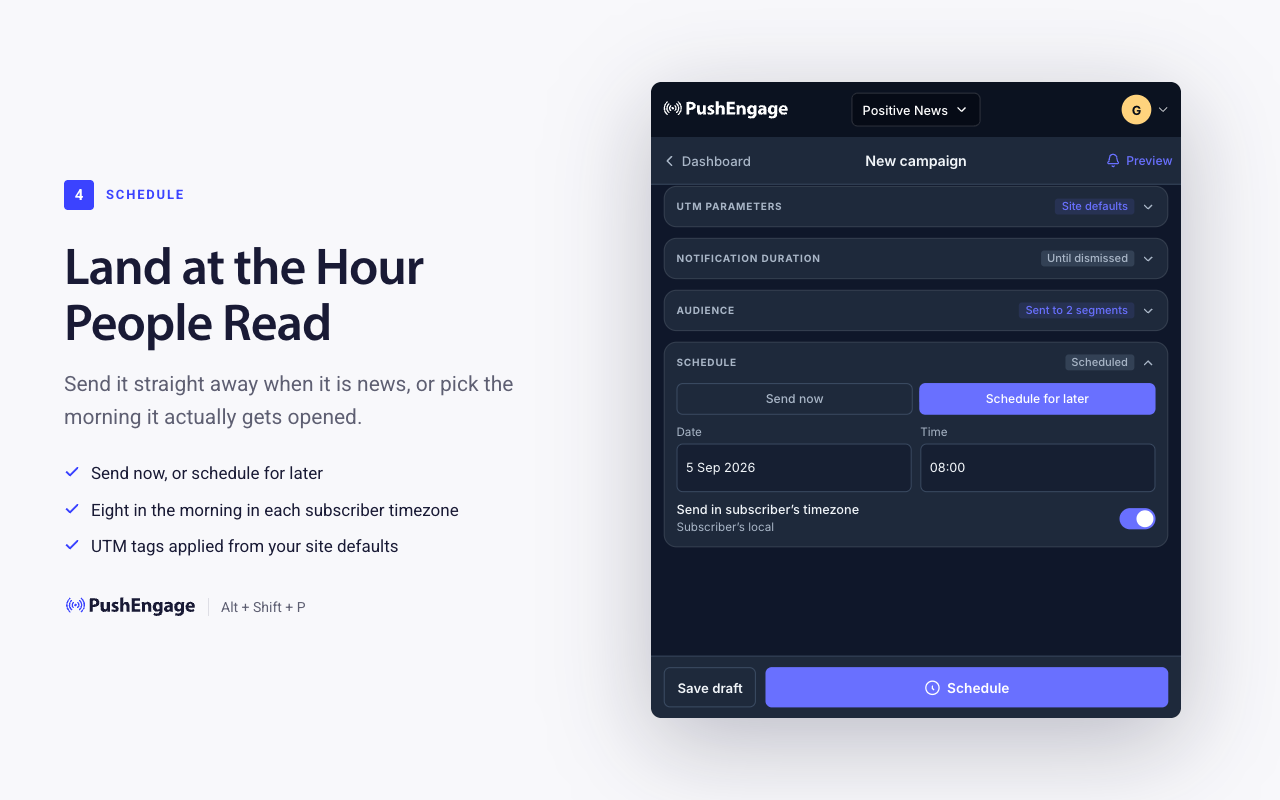
The full walkthrough, with a screenshot of every screen, is in the Chrome announcement. The panels are identical in Firefox.
Install it in Firefox
- Open the PushEngage extension on Firefox Add-ons and click Add to Firefox, then Add in the permissions prompt.
- Pin it: click the extensions (puzzle) button in the toolbar, then the gear next to PushEngage and choose Pin to Toolbar.
- Sign in with your PushEngage login and pick your site.
- Open any page and press Alt+Shift+P (Windows, Linux) or Cmd+Shift+P (Mac).
A note on Firefox and web push
The extension composes campaigns for all of your subscribers, whatever browser they use. Firefox visitors on your site can also subscribe to PushEngage web push on desktop and on Android, so a Firefox-heavy audience is served both ways: your team can send from Firefox, and your Firefox readers can receive.
Plans
Free to install, and it works with every PushEngage plan. Feature availability follows your plan exactly as it does in the dashboard; the panel tells you when something needs Business or Premium.
Questions
Can I use it in Chrome and Firefox with the same account?
Yes. Sign in on each browser with the same PushEngage login. Campaigns and drafts live in your account, so a draft saved in one browser is waiting in the other. Per-site defaults for icon, duration, and UTMs are stored in the browser you set them in.
Does anything differ from the Chrome version?
The composer, targeting, scheduling, and analytics are the same. The keyboard shortcut is Alt+Shift+P on Windows and Linux and Cmd+Shift+P on a Mac in both browsers, and pinning works through Firefox’s extensions menu rather than Chrome’s puzzle-piece menu.
Open a page worth promoting, press the shortcut, and send.


