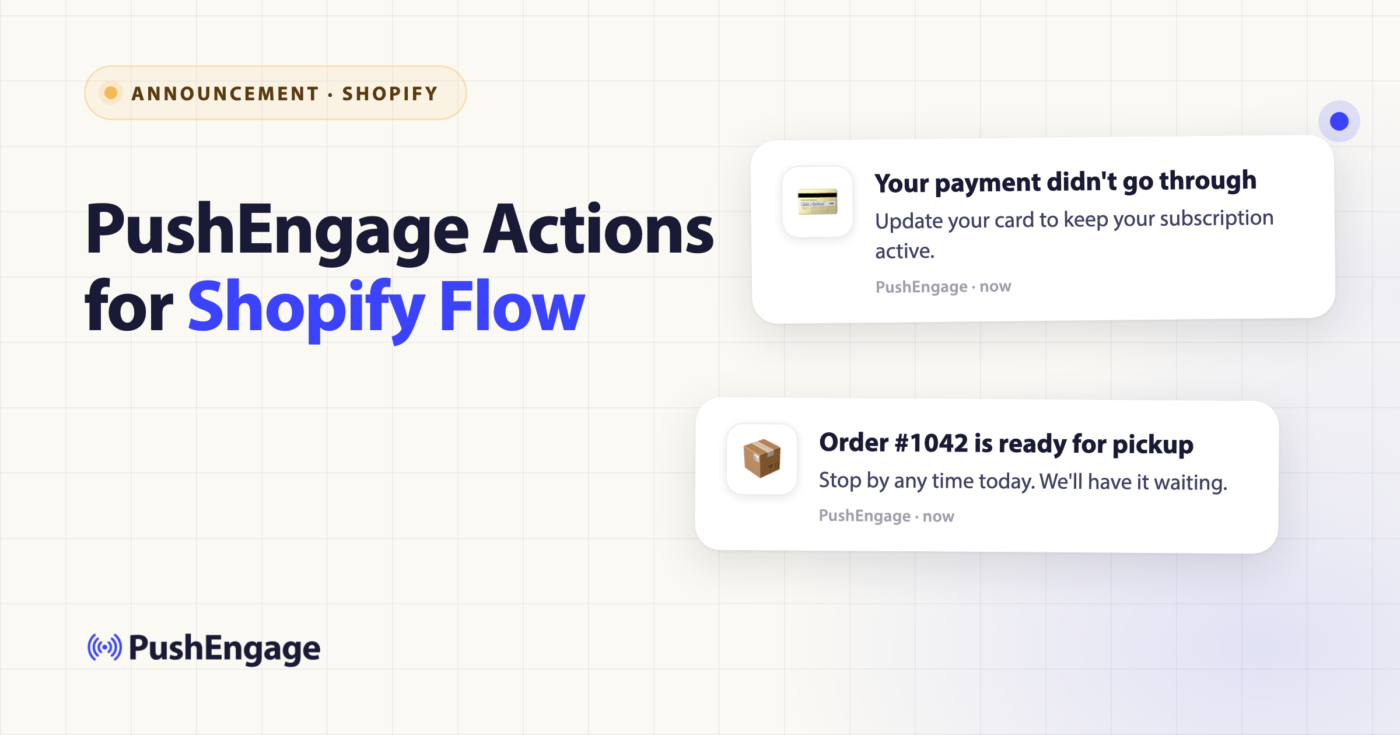
Shopify Flow already knows when things happen in your store. An order is paid. A return is approved. A subscription payment fails. A product comes back in stock. Until now, none of those moments could send a push notification.
Today that changes. The PushEngage app for Shopify now adds three actions to Shopify Flow, so you can send push notifications and update subscribers as steps inside your own Shopify automations. You build the workflow in Flow, drop in a PushEngage action, and it runs every time the workflow runs.
What’s new
Installing the PushEngage app registers three actions inside Shopify Flow. You can add them as steps in any workflow.
| Action | What it does | Needs a customer from the trigger |
|---|---|---|
| Send Push Notification to a Customer | Sends one push to the single customer in the workflow | Yes |
| Send Push Notification to All | Sends a push to all your subscribers, or only to the audience groups you name | No |
| Update PushEngage Subscriber | Updates segments, attributes, and fields on the subscriber linked to the workflow’s customer, without sending anything | Yes |
The two send actions share the same fields: a title, a message, a URL to open on click, and an optional icon and large image. Send Push Notification to All adds an Audience Groups field that takes up to 6 group names. Leave it blank to reach every subscriber.
Update PushEngage Subscriber can add or remove segments, add or remove attributes, and update subscriber fields such as first name, email, country, and language. That means a workflow can organize your audience as well as message it.
What you can build with it
PushEngage already ships Cart Abandonment, Browse Abandonment, Price Drop, and Inventory alerts for Shopify, plus order campaigns such as Order Received and Order Shipped. Flow actions are for the events and conditions those campaigns don’t cover. A few examples:
- Failed subscription payments. Trigger on Subscription billing attempt failure and send the customer a push with a link to update their payment method.
- Returns. Trigger on Return approved and tell the customer what happens next, without waiting for them to open an email.
- Ready for pickup. Trigger on Fulfillment order line items prepared for pickup and send a push the moment the order is waiting.
- High-value orders. Trigger on Order paid, add a Condition for orders above an amount you set, and use Update PushEngage Subscriber to add that customer to a VIP segment for your next campaign.
- Scheduled sends. Trigger on Scheduled time and use Send Push Notification to All with an audience group, so a recurring push goes out without anyone pressing send.
Which triggers work with which actions
Every Flow workflow starts with one trigger, and the trigger decides which PushEngage actions you can use.
- Triggers that include a customer work with all three actions. That covers checkouts, customers, orders, fulfillment, refunds and returns, and subscriptions.
- Triggers without a customer work with Send Push Notification to All only. That covers Scheduled time, product triggers such as Product variant back in stock, collections, and discounts.
One thing to watch: Send Push Notification to All sends on every workflow run. Pair it with a trigger that fires often, such as Order created, and every order becomes a broadcast. Add a Condition step to narrow when it runs.
Who the customer actions can reach
Send Push Notification to a Customer and Update PushEngage Subscriber act on the customer in the workflow, and that customer has to be linked to a PushEngage subscriber.
PushEngage links a customer when they complete a checkout on your store from a browser that is subscribed to your notifications. A shopper who has never completed an order from a subscribed browser isn’t linked yet, so these two actions can’t reach them. Send Push Notification to All doesn’t depend on that link.
How to add a PushEngage action to a workflow
- In your Shopify admin, open Apps » Flow and click Create workflow.
- Choose your trigger. For the two customer actions, pick a trigger that includes a customer.
- Optionally add a Condition step, for example to continue only when the order total is above a set amount.
- Add an action step, search for PushEngage, and choose one of the three actions.
- Fill in the fields. Click Add variable to insert Flow variables into the title, message, or URL.
- Click Turn on workflow so it starts running on live events.
Titles over 85 characters and messages over 135 characters are shortened, so keep the important words near the start.
Personalize each notification with Flow variables
The title, message, and URL fields support Shopify Flow variables, so each notification can use data from the trigger. {{order.name}} inserts the order name and {{customer.firstName}} inserts the customer’s first name. You can also use Liquid, for example to greet a customer by name when you have it and fall back to a generic greeting when you don’t.
Test before you turn it on
Flow lets you test a workflow against a recorded or sample event. A test run doesn’t take real actions, so it won’t send a push to anyone. To see a real notification, turn the workflow on and trigger it from a customer account that has completed a checkout from a subscribed browser.
Should you use Flow or the built-in Shopify campaigns?
Use the built-in campaigns for the standard messages: abandoned carts, browse abandonment, price drops, back-in-stock, and order updates. They don’t depend on a linked customer.
Use Flow actions when you need a Shopify event or a condition those campaigns don’t cover, such as returns, pickup readiness, subscription payment failures, customer tags, or branching on order value. Avoid running both for the same event, or the customer gets two notifications.
Plans and availability
The Flow actions are live now in the PushEngage app for Shopify and are included on every plan, including Free. You also need the Shopify Flow app, which Shopify offers on its Basic, Grow, Advanced, and Plus plans.
One more thing for sale weekend
Black Friday is Friday, November 27, and Cyber Monday follows on November 30. If you’re sending a sale announcement, remember that a PushEngage broadcast or drip step can carry a Shopify discount code that applies itself at checkout. See how discount codes in push notifications work.
Get started
If you already have PushEngage installed, open Apps » Flow in your Shopify admin, create a workflow, and search for PushEngage in the action step.
New to PushEngage? Install PushEngage from the Shopify App Store. The three Flow actions are registered as soon as the app is installed.


