Perdez-vous des ventes à cause de l'abandon de navigation sur votre boutique Shopify ?
L'abandon de navigation se produit lorsque les visiteurs de votre site parcourent votre site, puis repartent sans rien acheter. Pire encore, ils n'ajoutent même rien à leur panier. Alors, que pouvez-vous faire ?
Une façon simple de résoudre ce problème est de créer des publicités de reciblage sur Facebook, Instagram et Google Search Ads. Mais cela peut coûter très cher. Et vous devrez être un annonceur expérimenté pour que cela fonctionne.
Le moyen le plus simple de récupérer des abandons de navigation est de créer des campagnes de notifications push d'abandon de navigation.
Dans cet article, nous allons voir comment récupérer des abandons de navigation dans Shopify à l'aide de notifications push automatisées. C'est très facile à faire, et c'est aussi très abordable.
Plongeons dans le vif du sujet.
Comment configurer une campagne d'abandon de navigation Shopify
Pour ce tutoriel, nous allons vous montrer comment activer les notifications push Shopify en utilisant l'application PushEngage Shopify.

PushEngage est le logiciel de notifications push web n°1 sur le marché.
Les notifications push vous aident à augmenter le trafic de votre site web et l'engagement en mode automatique. Et si vous gérez une boutique en ligne, PushEngage vous aide également à augmenter vos ventes en vous aidant à créer des notifications push e-commerce automatisées.
Vous pouvez commencer gratuitement, mais si vous êtes sérieux au sujet de la croissance de votre entreprise, vous devriez acheter un plan payant. De plus, avant d'acheter un service de notification push, vous devriez consulter ce guide sur les coûts des notifications push.
Voici un aperçu rapide de ce que vous obtenez avec PushEngage :
- Campagnes automatisées à forte conversion
- Options multiples de ciblage et de planification de campagnes
- Suivi des objectifs et analyses avancées
- Tests A/B intelligents
- Un responsable du succès dédié
Vous verrez que PushEngage est de loin le meilleur choix si vous voulez générer du trafic, de l'engagement et des ventes pour votre entreprise. Et si vous avez un budget limité, vous pouvez toujours faire preuve d'un peu créativité avec vos notifications push.
Donc, si ce n'est pas déjà fait, commencez avec PushEngage dès aujourd'hui.
Étape n°1 : Installez PushEngage sur votre site Shopify
Shopify vous permet de créer des sites de commerce électronique sans écrire une seule ligne de code. Toutes les fonctionnalités qui ne sont pas disponibles par défaut peuvent être installées à l'aide d'une application. Ainsi, vous pouvez utiliser une application pour activer les notifications push Shopify.
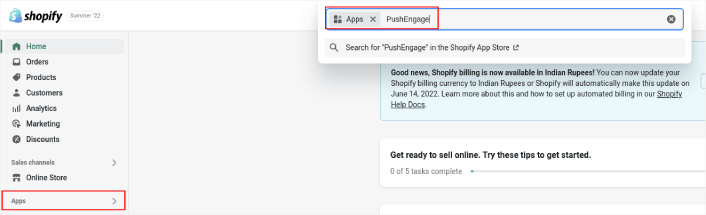
Rendez-vous sur votre compte Shopify et cliquez sur Apps pour rechercher l'application PushEngage :
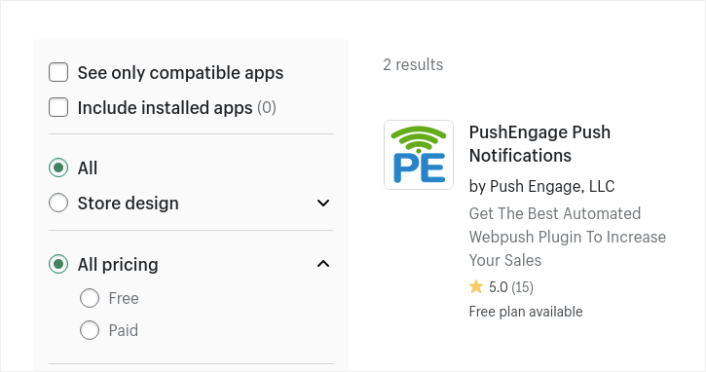
Ensuite, recherchez l'application PushEngage Push Notification Shopify App :
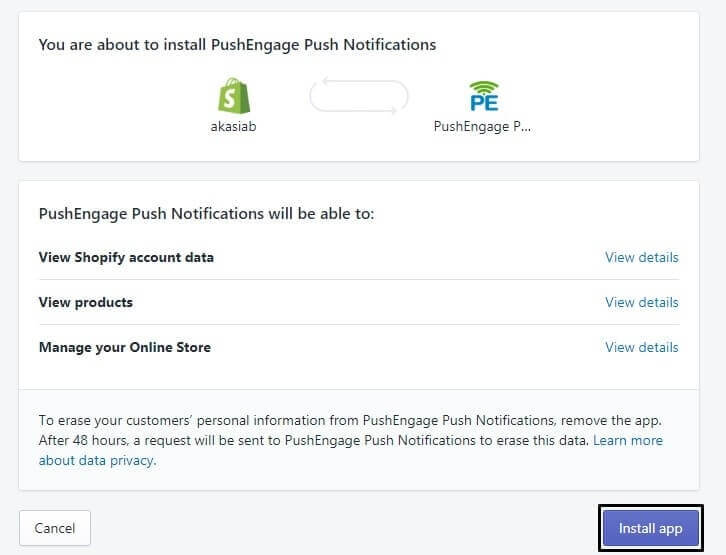
Et cliquez sur Installer l'application :
Vous avez presque terminé.
Ensuite, vous voudrez vous rendre sur votre tableau de bord PushEngage et configurer votre compte PushEngage pour envoyer vos notifications instantanément. Vous verrez une liste de contrôle en 7 points à compléter dans votre tableau de bord PushEngage.
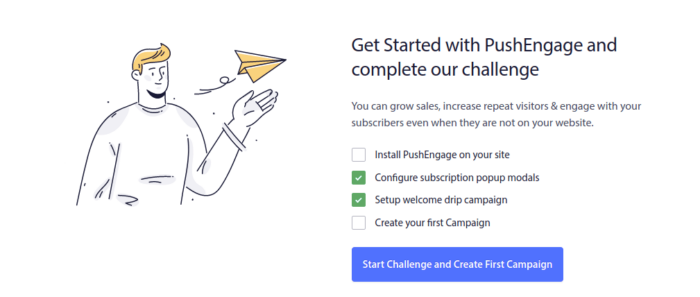
Si c'est la première fois que vous utilisez un logiciel de notifications push, nous vous recommandons vivement de relever le défi pour vous configurer.
Étape n°2 : Créez une campagne de notifications push d'abandon de navigation
Rendez-vous à nouveau sur le tableau de bord PushEngage et allez dans Campagne » Campagnes déclenchées pour créer une nouvelle campagne déclenchée :

Ensuite, créez une nouvelle campagne d'abandon de navigation en cliquant sur le bouton Créer :
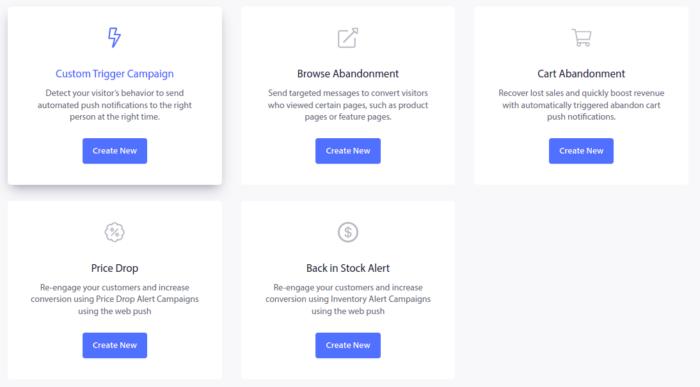
Ensuite, vous pourrez configurer toute votre séquence de notifications push avec un délai entre chaque notification :
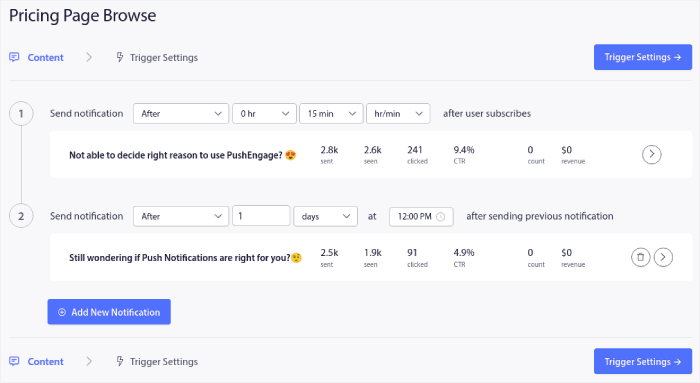
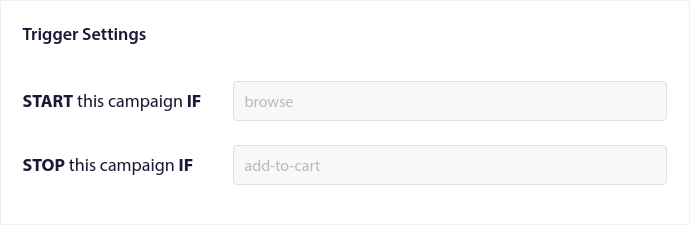
Si vous débutez avec les notifications push, vous devriez consulter notre article sur les meilleures pratiques en matière de notifications push. Lorsque vous êtes satisfait du contenu de vos notifications push, cliquez sur Paramètres de déclenchement. Vous verrez que les conditions d'une campagne d'abandon de navigation ont été préconfigurées dans la séquence.
Cliquez sur le bouton Code d'intégration pour obtenir l'extrait de code dont vous avez besoin pour intégrer la campagne d'abandon de navigation sur votre site.
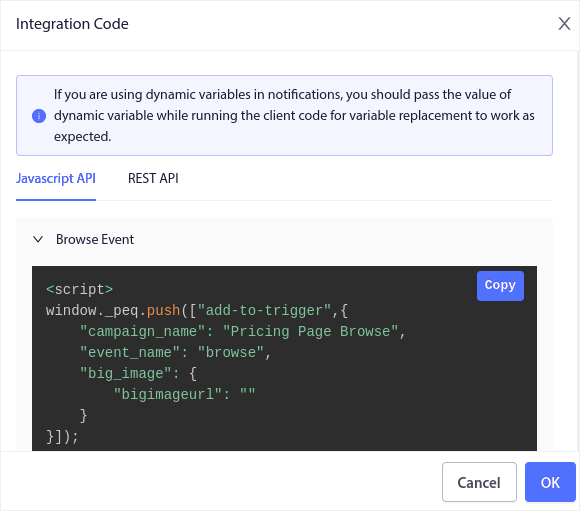
Ensuite, copiez le code et collez-le sur votre site. Vous devez coller ce code dans la section <head> HTML de la page que vous souhaitez suivre. Enfin, cliquez sur le bouton Activer la campagne déclenchée :
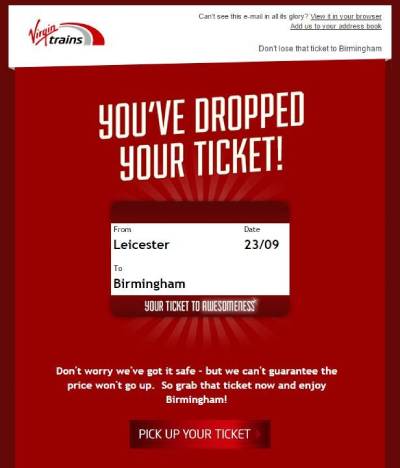
Si vous avez suivi toutes les étapes, vous aurez créé une campagne d'abandon de navigation dans Shopify comme celle-ci :
Étape n°3 : Configurez votre optin de notification push
Enfin, dans votre tableau de bord PushEngage, allez dans Design » Fenêtres modales :
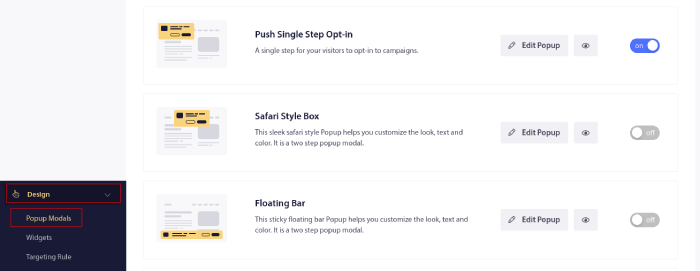
À partir d'ici, vous pouvez personnaliser votre popup d'inscription aux notifications push. Si vous avez besoin d'aide pour cela, vous devriez consulter cet article sur comment créer une popup d'inscription personnalisée aux notifications push.
Si vous avez besoin d'inspiration, vous pouvez consulter cet article sur les popups d'inscription aux notifications push à forte conversion.
Ajuster la campagne : Limites de déclenchement, UTM et suivi des objectifs
Les trois étapes ci-dessus permettent de lancer une campagne opérationnelle. Avant de l'étendre, passez cinq minutes supplémentaires dans les Paramètres de déclenchement sur les trois contrôles qui décident si la campagne augmente les revenus ou les désabonnements.
Définir une limite de déclenchement
La limite de déclenchement plafonne le nombre de notifications qu'un acheteur reçoit par jour. Les abandonneurs de navigation sont moins réceptifs que les abandonneurs de panier, alors visez bas : une ou deux par jour est le maximum. Un acheteur qui visite votre boutique à chaque pause déjeuner ne devrait pas recevoir une notification pour chaque visite. Les valeurs par défaut du modèle sont raisonnables, mais vérifiez-les par rapport à vos propres tendances de trafic.
Ajouter des paramètres UTM
Dans le même panneau de configuration, définissez des paramètres UTM sur la campagne, par exemple utm_source=push et utm_campaign=browse_abandonment. Sans eux, les sessions récupérées atterrissent dans vos analyses comme trafic direct et la campagne semble ne rien récupérer, ce qui explique pourquoi les budgets d'abandon de navigation sont réduits pour de mauvaises raisons.
Activer le suivi des objectifs
Activez le suivi des objectifs afin que chaque notification de la séquence rende compte des revenus qu'elle a récupérés, pas seulement des clics. C'est le chiffre qui vous indique quelle notification de votre série mérite sa place et laquelle réécrire. Si vous débutez, le guide de suivi des objectifs des notifications push vous explique la configuration.
Avec les limites, les UTM et les objectifs en place, itérez sur la séquence elle-même. Les modèles de stratégie de notre guide sur les notifications push d'abandon de navigation, tels que la segmentation par profondeur de navigation et la réservation de coupons pour les navigateurs à forte intention, s'appliquent aux boutiques Shopify sans modification.
Que faire après avoir configuré l'abandon de navigation dans Shopify
Vous devriez consulter notre article sur les campagnes d'e-mails de relance de navigation une fois que vous aurez terminé. C'est une excellente petite ressource pour trouver de l'inspiration et créer vos propres campagnes.
Si vous recherchez un moyen rentable d'augmenter votre trafic, votre engagement et vos ventes, vous devriez commencer par des campagnes de notifications push. Les notifications push sont de puissants outils marketing qui peuvent aider toute entreprise de commerce électronique à se développer rapidement.
Pas convaincu ? Consultez ces ressources incroyables :
- Comment configurer des notifications push pour paniers abandonnés (Tutoriel facile)
- Comment programmer les notifications push facilement [Guide de 5 min.]
- Comment créer des campagnes de notification de baisse de prix en moins de 10 minutes.
- Comment utiliser les notifications push e-commerce pour augmenter les revenus
PushEngage est le logiciel de notifications push n°1 au monde. Nous vous recommandons donc d'utiliser PushEngage pour créer vos notifications push et développer votre activité e-commerce.


