Send your app users directly to a specific screen inside your Android or iOS app when they tap a push notification. Instead of just opening the app’s home screen, deep links take users exactly where you want them could be a product page, an order status screen, a special offer, or any other in-app destination.
This guide walks you through setting up deep links using in PushEngage Dashboard for both Android & iOS.
Before You Start
Make sure PushEngage is installed and working in your mobile app (Android, iOS, Flutter, or React Native). If you haven’t done this yet, follow the setup guide for your platform:
Have your deep link URL ready. This is the URL or URI scheme your app uses to open a specific screen (for example: myapp://products/123 or https://yourapp.com/offers).
What is a Deep Link?
A deep link is a special URL that points to a specific page or screen inside your mobile app. When a user taps a push notification with a deep link, they are taken straight to that screen instead of just the app’s home page.
Examples:
myapp://orders/456: opens order #456 in the apphttps://yourstore.com/sale: opens a sale page inside the appapp://www.yourapp.com/trigger: opens a specific workflow screen
Adding Deep Links via the PushEngage Dashboard
For Android App Push
- Log in to your PushEngage Dashboard.
- Go to App Push » Create Campaign.
- Select Android as the platform.
- Fill in the Title and Message for your notification.
- Scroll down to the Deep Link field.
- Enter your deep link URL (for example:
myapp://products/123). - Click Send / Schedule to send the notification.
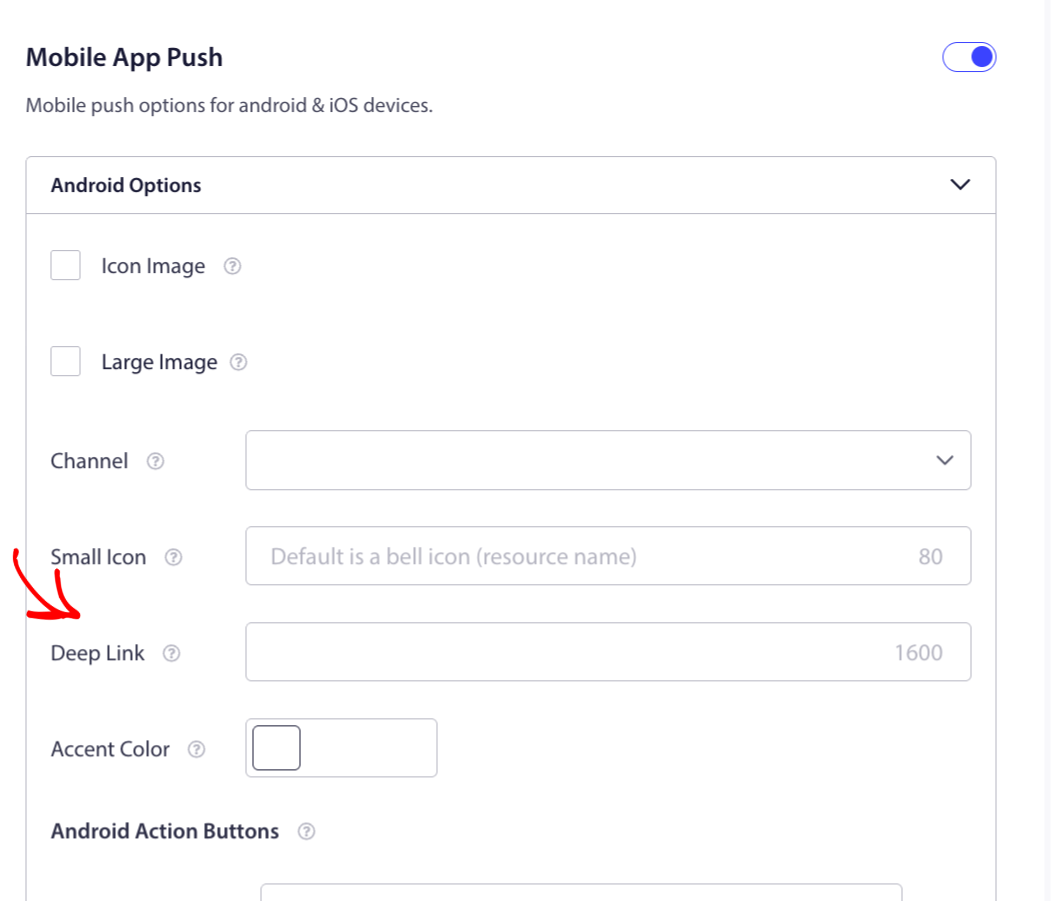
If a deep link is provided, it takes priority over the Notification URL. If no deep link is set, the Notification URL is used instead.
For iOS App Push
- Log in to your PushEngage Dashboard.
- Go to App Push » Create Campaign.
- Select iOS as the platform.
- Fill in the Title and Message for your notification.
- Scroll down to the Deep Link field.
- Enter your deep link URL (for example:
myapp://offers/summer-sale). - Click Send / Schedule to send the notification.
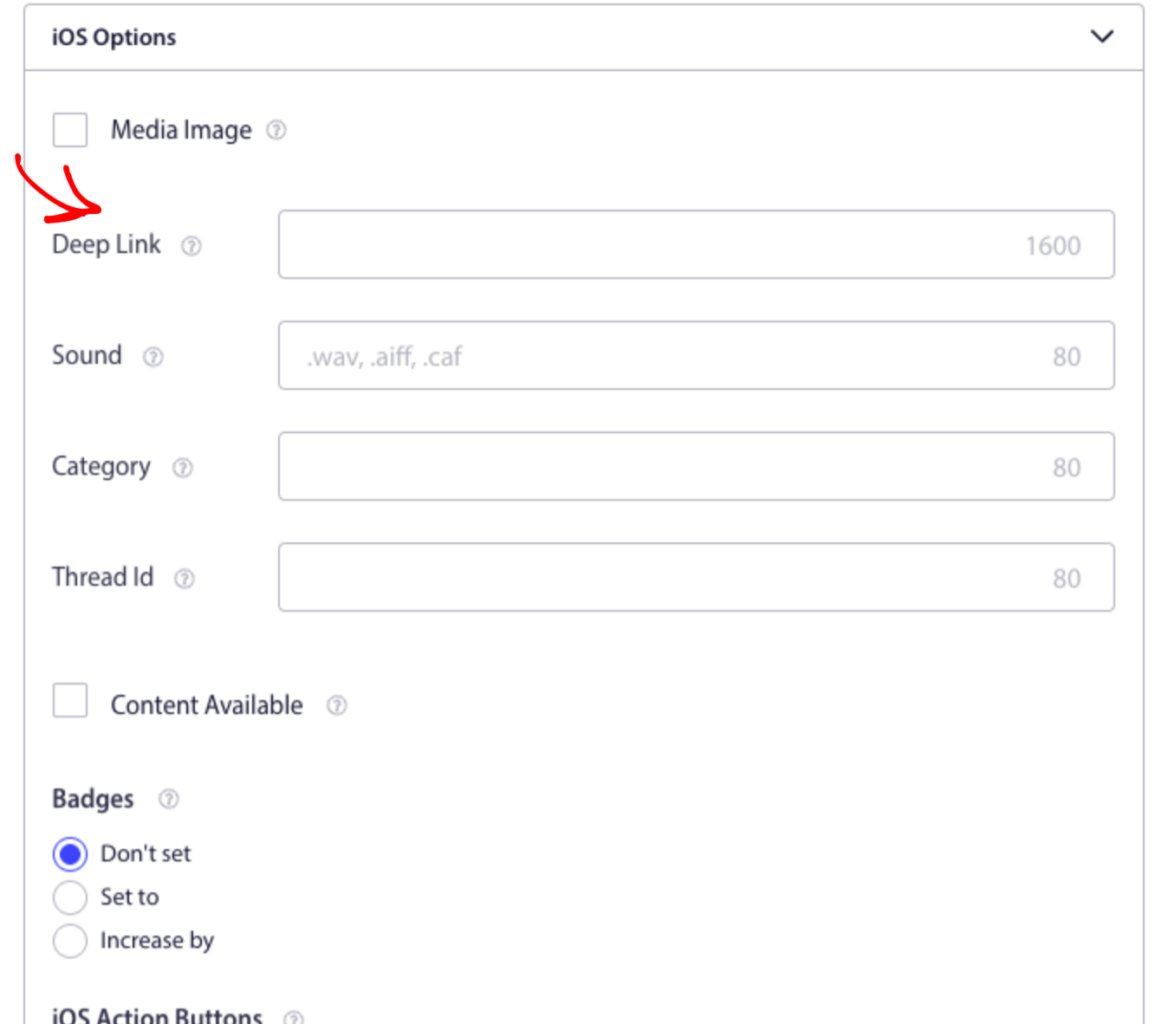
If no deep link is set on iOS, tapping the notification will simply open the app. Please note the character limits for Deep links can be up to 1,600 characters long on both Android and iOS.
Handling Deep Links in Your App Code
Once the notification is sent with a deep link, your app needs to listen for it and navigate the user to the right screen. Here’s how to do it on each platform:
You can handle deep links in your Flutter app by listening to the deepLinkStream stream. The stream emits when a notification is tapped while the app is running. Cold-boot taps (notification taps that launch the app from a terminated state on iOS) are not delivered here — use getInitialNotification for those as mentioned here.
Flutter
PushEngage.deepLinkStream.listen((data) {
  String? deepLink = data?['deepLink'];
  if (deepLink == null) return;
  Uri uri = Uri.parse(deepLink);
  if (uri.path == '/offers') {
    Navigator.pushNamed(context, '/offers');
  }
});
Also, make sure PushEngageAutoHandleDeeplinkURL is set to NO in your iOS Info.plist if you want your app to handle the routing itself.
React Native
PushEngage.onValueChanged((data) => {
  const { deepLink } = data;
  // Navigate based on the deep link value
  if (deepLink === '/orders') {
    navigation.navigate('Orders');
  }
});
iOS (Swift)
PushEngage.setNotificationOpenHandler { result in
  let deepLink = result.notificationAction.actionID
  // Route the user to the correct screen
}
Tip: For iOS, if you set
PushEngageAutoHandleDeeplinkURLtoYESin yourInfo.plist, the SDK will automatically open any HTTP or HTTPS deep link URLs in the browser. Set it toNOif you want to handle routing inside your app.
Android (Intent Filter)
For Android, add an intent filter in your AndroidManifest.xml so the app can receive deep link URLs:
<intent-filter>
    <action android:name="android.intent.action.VIEW" />
    <category android:name="android.intent.category.DEFAULT" />
    <data android:scheme="myapp" android:host="https://yourstore.com/sale" />
</intent-filter>
You’ve now set up deep linking for your app push notifications using PushEngage. Your users will be taken straight to the right screen when they tap a notification whether you send it from the dashboard or through the API.
If you run into any issues, please contact us by clicking here. Our support team will be happy to help you.