Are you looking at your Shopify store and wondering how to enable Shopify push notifications?
Maybe you want to be a little more like Amazon. Or, maybe you’ve just realized that push notifications can get you free repeat traffic on autopilot.
Either way, you’re about to learn how to enable Shopify push notifications:
- Even if… you’ve never set up push notifications before and you don’t know where to start;
- Even if… you’ve tried and failed at setting up push notifications for your Shopify store;
- Even if… you know how to use push notifications but you’ve never done it on Shopify;
And the best part is that we’re about to show you two ways to do it.
Now, keep in mind: One of these ways is much simpler than the other ones and that’s the one we recommend.
You’ll see what we’re talking about in a few minutes.
For now, let’s just get started.
- How to Enable Shopify Push Notifications Using An App
- How to Enable Shopify Push Notifications Without An App
- What’s Next?
How to Enable Shopify Push Notifications Using An App
The whole point of using Shopify is that it’s a full Content Management System (CMS). You can create an eCommerce website without writing a single line of code — and whatever isn’t available by default, you can add with an app.
And yes, that includes Shopify push notifications. For this tutorial, we’re going to use the PushEngage Shopify app.
PushEngage is the #1 web push notification software in the market. So, if you haven’t already, get started with PushEngage today.
Then, log in to your Shopify admin and head to Apps. Search for PushEngage in the Shopify App Store:
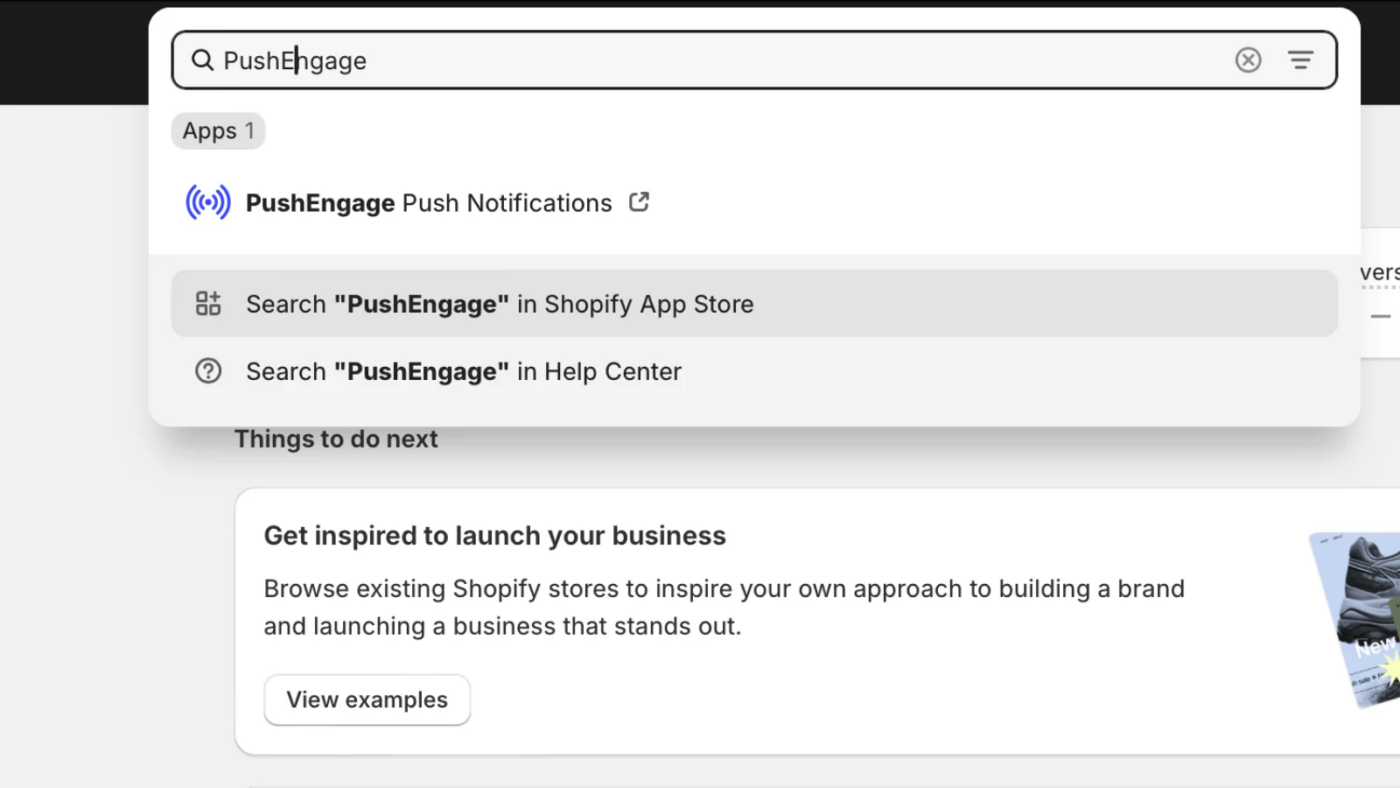
Hit Install and follow the onboarding. The app places the installation code on your store for you and automatically creates ready-to-go playbooks like cart abandonment, browse abandonment, price drop, and restock alerts. No code, and you can go live in minutes.
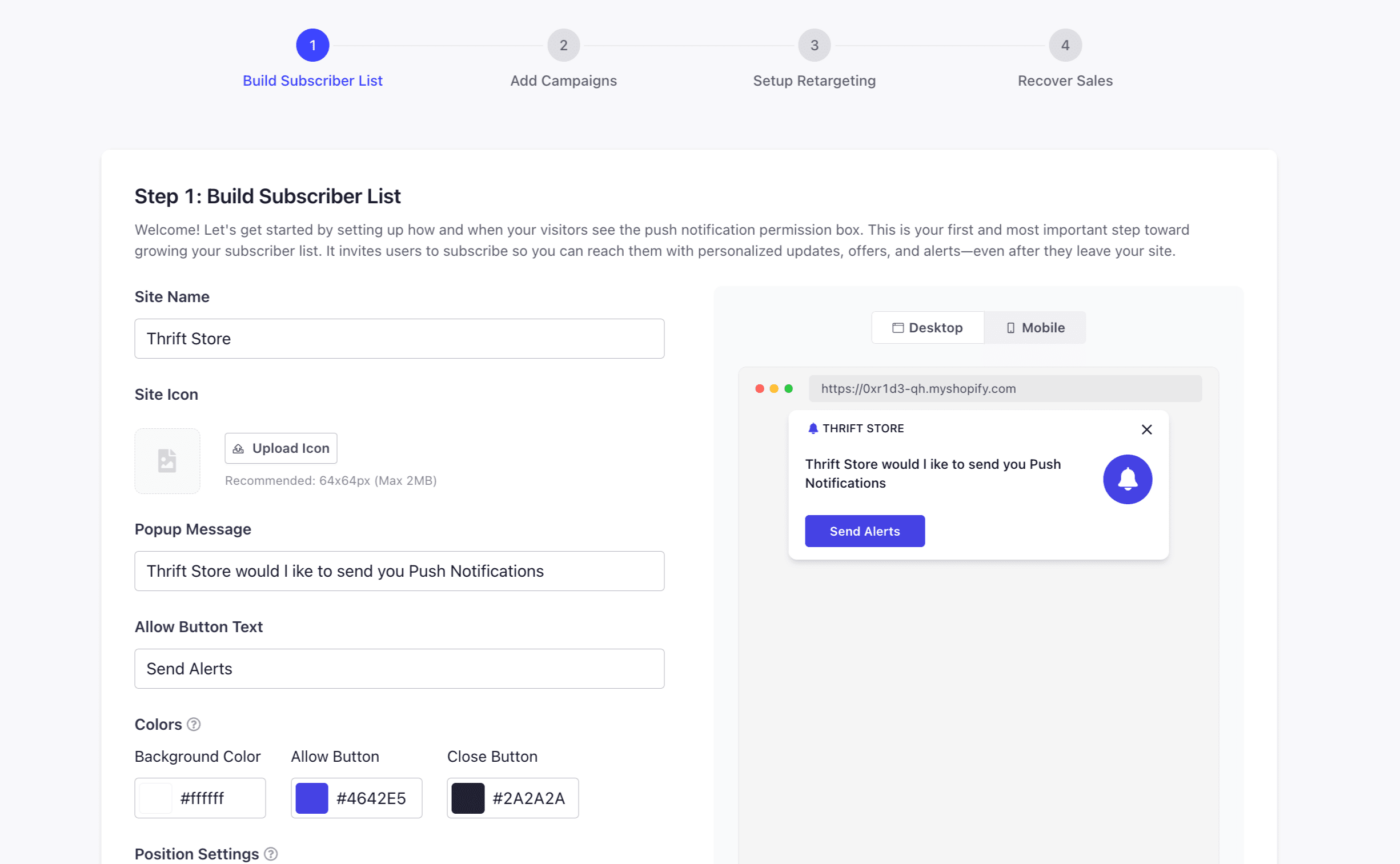
Once you’re in the PushEngage dashboard, style your subscription popup under Design » Popup Modals so it matches your brand:
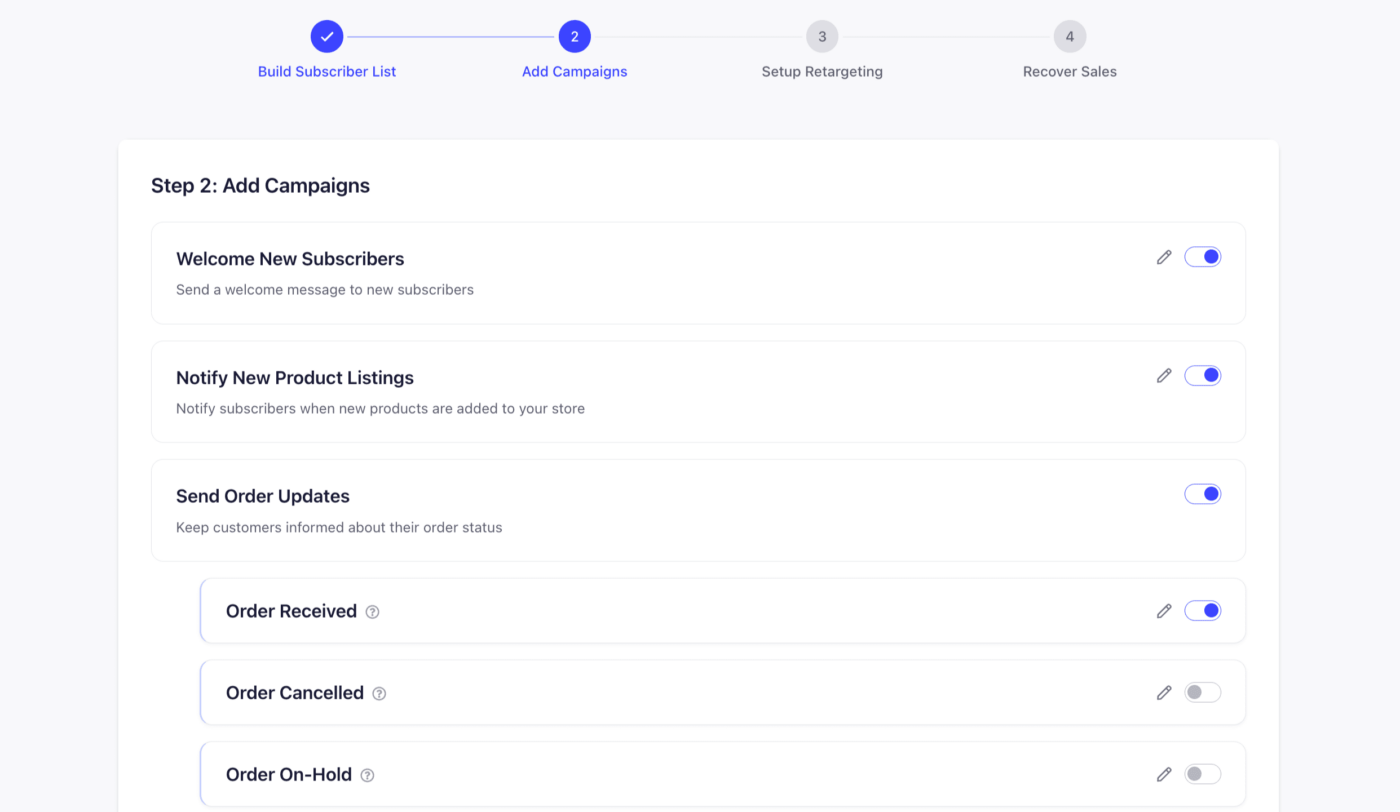
Next, toggle on the default campaigns you want — welcome offers, new product announcements, order updates:
And enable the pre-built audience segments (or create your own) so your campaigns go to the right people:
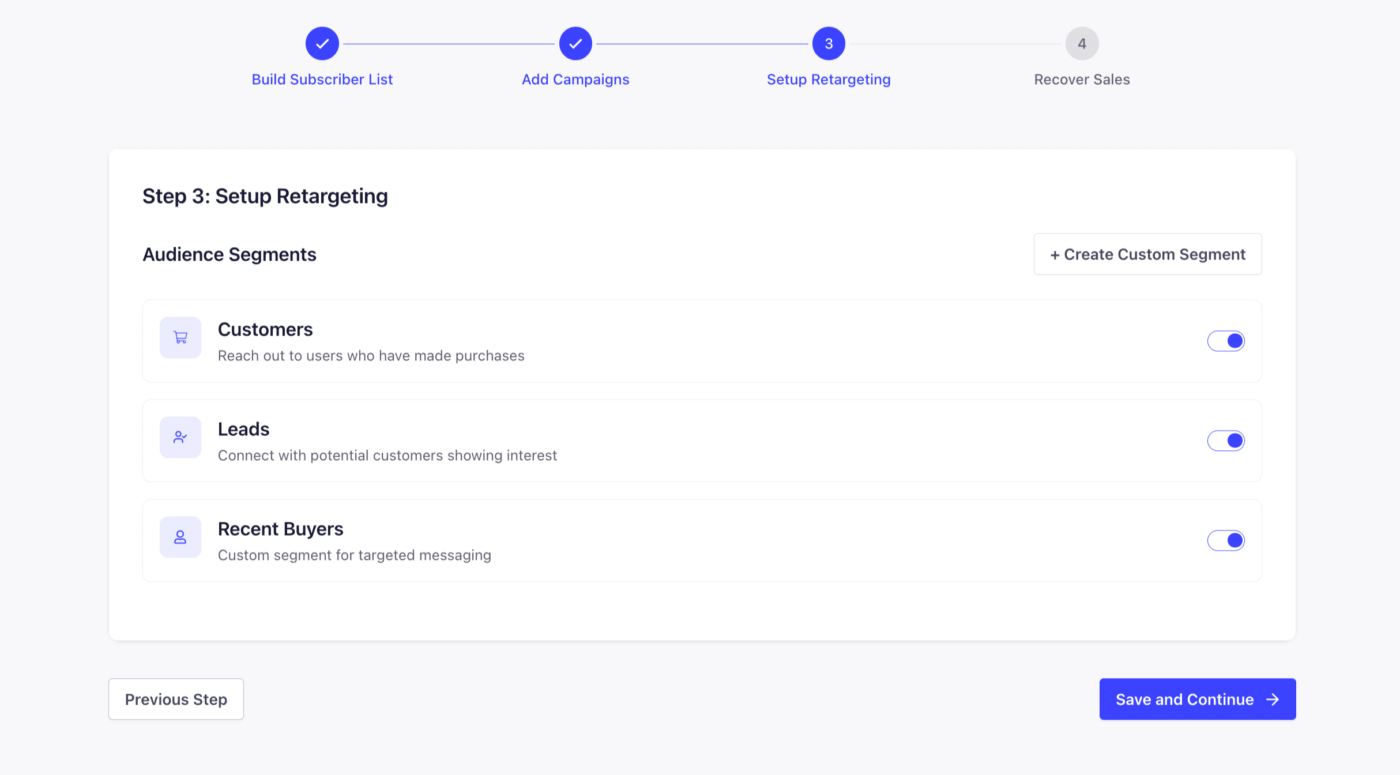
That’s it! You’re done.
How to Enable Shopify Push Notifications Without An App
Let’s talk about how you can install and enable Shopify push notifications without using an app.
To be clear: This is not our recommended method. We strongly suggest that you use the PushEngage app to enable Shopify push notifications. This method is completely manual and you shouldn’t use it unless you’re comfortable with code.
That said, start off by logging in to your Shopify admin. Head over to Online Store » Themes, find your live theme, click the … (more actions) button next to Customize, and select Edit code.
Then click on the theme.liquid file under Layout to edit it.
Now, head over to your PushEngage dashboard, go to Site Settings » Site Details, and click the Click Here For Setup Instructions button:
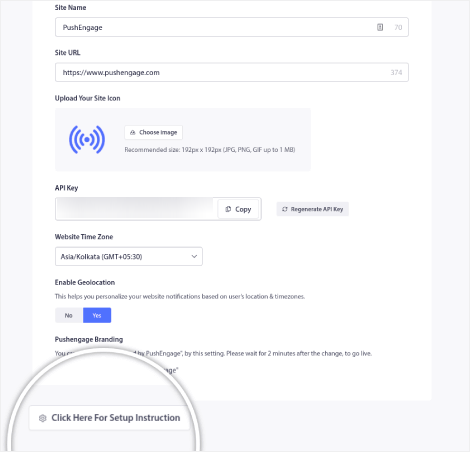
Go to the Any Site tab and copy the installation code. Then, back in your Shopify code editor, paste it into theme.liquid just before the closing </head> tag, and hit Save.
And you’re done! Head back to your PushEngage dashboard and finish your setup tasks to start collecting subscribers.
Again, this may seem a little complex. So, it’s always better to use the PushEngage Shopify push notifications app instead.
What’s Next?
Enabling push notifications is only the first step of your journey to making six-figure sales. But hey, getting started is the most important step and you’ve just made it!
Now, it’s time to create your very first campaign. Check out this list of automated push notification campaigns that keep selling while you sleep.
Just take a little time out and set up these campaigns. We guarantee you’ll see great results.
And if you need some inspiration with your messaging, check out these eCommerce stores that use push notifications well. There are examples in that article that you can steal right now and start growing your subscribers.
That’s all for this one.
Use your new push notification superpowers wisely.
And if you haven’t already, get started with PushEngage today.


Nice
Helpful information
Shopify doesn’t allow you to upload to the root domain. Can we place the Service Worker download in an alternate location on shopify CDN?
You can use the PushEngage Shopify Plugin. It will automatically install PushEngage on your Shopify website.