
Vous cherchez un moyen simple et rapide de créer une page de paiement WordPress ?
Disons que vous avez une page de destination qui convertit les visiteurs en prospects ou en clients payants de manière répétée. Mais ensuite, vous devez vous assurer que vos visiteurs peuvent réellement payer votre produit ou service et terminer le processus de paiement.
Alors, avez-vous besoin d'apprendre à coder ? Avez-vous besoin d'un designer coûteux pour créer une page de paiement ?
Heureusement, il existe un moyen simple de créer une page de paiement WordPress. Dans cet article, nous allons vous aider à lancer une page de paiement en moins de 15 minutes.
Êtes-vous prêt ? Plongeons.
Qu'est-ce qu'une page de paiement WordPress et pourquoi devriez-vous vous en soucier ?
Une page de paiement est conçue pour convertir les visiteurs intéressés par l'achat d'un produit ou d'un service chez vous en un client payant.
Mais avant de commencer, n'oubliez pas d'avoir un objectif très clair et précis pour votre page de paiement. Ce n'est pas parce que vous pouvez faire beaucoup de choses que vous devriez toutes les faire sur une seule page. Le plus souvent, si vous donnez trop de choses à cliquer à vos visiteurs, ils ne cliqueront sur rien du tout.
Par défaut, WooCommerce crée une page de paiement pour chaque site e-commerce. Et c'est bien si vous débutez. Mais si vous voulez optimiser votre page de paiement pour des taux de conversion plus élevés, c'est très difficile à faire. Ensuite, il y a les problèmes d'abandon de panier.
La meilleure façon de lutter contre cela est de créer une page de paiement WordPress personnalisée. Avec une page personnalisée, vous pouvez ajouter :
- Des témoignages et des preuves sociales pour accroître la confiance
- Des produits et services associés pour augmenter les revenus
- Des formulaires de paiement personnalisés pour réduire l'hésitation des acheteurs
- Des options de paiement supplémentaires
- Des champs de paiement WooCommerce personnalisés
Maintenant que vous connaissez les avantages de la création d'une page de paiement personnalisée dans WordPress, passons à la découverte de comment le faire.
Comment créer une page de paiement WordPress
Maintenant que vous savez quoi créer, il est temps de lancer votre page de paiement WordPress. Nous recommandons vivement d'utiliser SeedProd pour créer vos pages de destination.

SeedProd est le meilleur constructeur de pages de destination WordPress. Il est parfait pour les entreprises, les blogueurs et les propriétaires de sites Web qui cherchent à créer des pages de destination à forte conversion sans aucune compétence en développement.
Avec SeedProd, vous obtenez des modèles pré-conçus pour des pages de destination à forte conversion que vous pouvez publier instantanément. Cela inclut des modèles pour :
- Pages de vente
- Pages "Bientôt disponible"
- Pages 404
- Pages de maintenance
- Pages de capture
- Pages de connexion
- Pages de remerciement
- Pages de webinaires
- Pages vidéo
Et bien plus encore !
Étape n°1 : Installer et activer SeedProd
Tout d'abord, vous voudrez obtenir le plugin SeedProd Pro et l'activer. Si vous n'êtes pas sûr de la procédure, consultez cet article sur comment installer un plugin WordPress. Ensuite, allez dans SeedProd » Paramètres sur votre tableau de bord WordPress et activez la version Pro :

Ensuite, rendez-vous sur SeedProd » Pages pour un aperçu du tableau de bord des pages de destination de SeedProd. C'est ici que vous pouvez voir les différents types de pages de destination que vous pouvez créer avec SeedProd :

Gardez à l'esprit qu'il s'agit de pages spéciales avec des fonctionnalités pré-conçues et des modèles de conception. Pour une page de destination de vente, vous ne voulez utiliser AUCUNE de ces pages de destination spéciales. Au lieu de cela, vous allez créer une page de destination personnalisée.
Faites défiler vers le bas et cliquez sur le bouton Ajouter une nouvelle page de destination pour commencer :

Étape n°2 : Créer une nouvelle page de paiement WordPress
Après avoir cliqué sur le bouton Ajouter une nouvelle page de destination, vous verrez la bibliothèque de modèles de pages de destination de SeedProd. Ce sont des modèles de pages de destination conçus par des professionnels et entièrement réactifs.
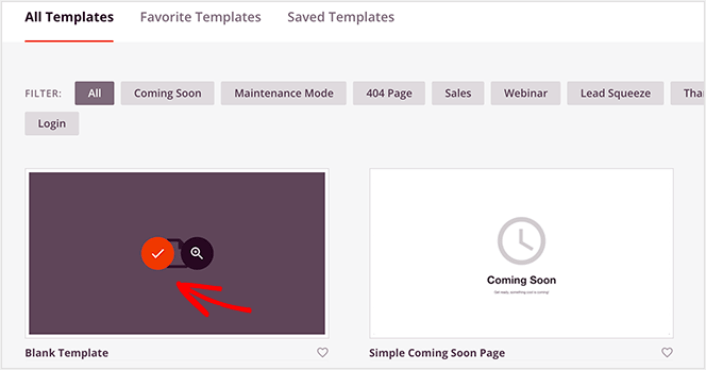
Ensuite, vous pouvez sélectionner l'un de ces modèles pour vous aider à démarrer. N'oubliez pas que le modèle n'est qu'un point de départ. vous pouvez personnaliser tous les aspects de la page plus tard. Pour l'instant, trouvez un modèle qui, selon vous, conviendra. Nous utilisons le Modèle vierge pour ce tutoriel, mais vous pouvez sélectionner n'importe quel modèle que vous aimez.
Étape n°3 : Personnaliser la conception de votre page de paiement WordPress
Le constructeur visuel de SeedProd vous permet de personnaliser votre page de destination à l'aide de blocs de contenu glisser-déposer.
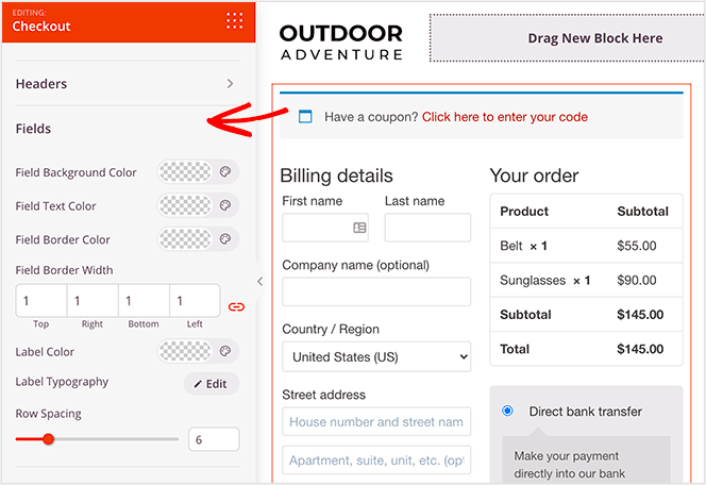
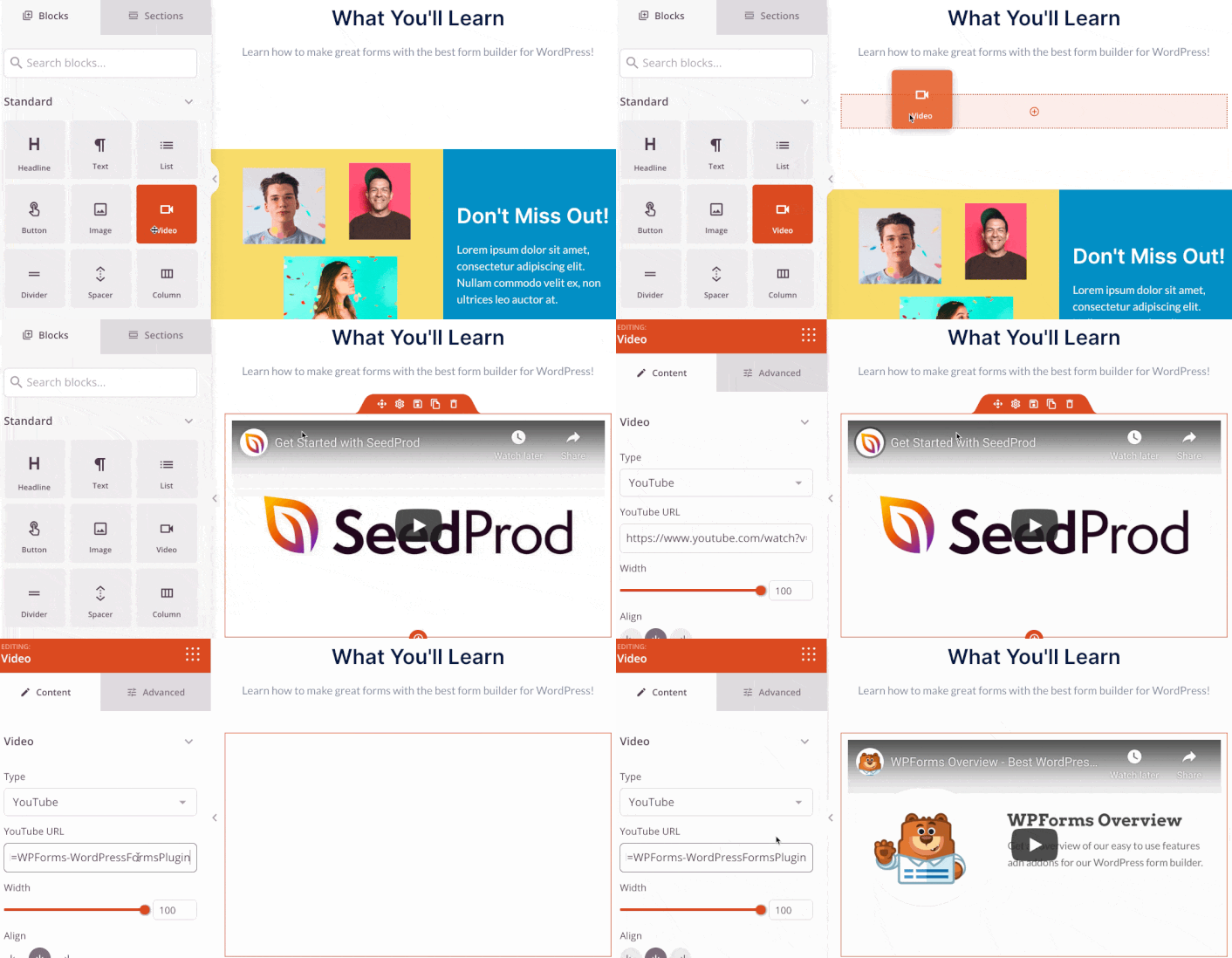
Vous pouvez créer un en-tête entièrement personnalisé pour votre page de remerciement en quelques minutes. Vous pouvez même ajouter des éléments personnalisés pour convaincre et convertir votre trafic. Par exemple, vous pouvez créer un module vidéo et intégrer une vidéo YouTube pour convaincre vos visiteurs d'acheter votre produit ou service.
Il est également très facile d'ajouter une section avec une brève description de votre produit ou service. Rendez-vous dans l'onglet Sections du constructeur visuel et, sous la section Héros, vous trouverez plusieurs modèles prédéfinis que vous pouvez importer en un seul clic.
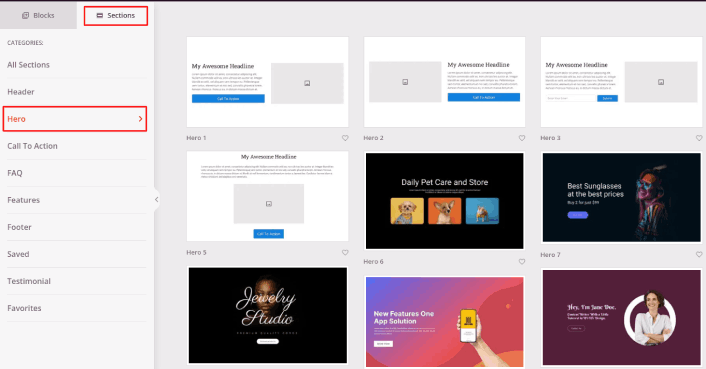
Choisissez-en un qui vous plaît.
Ne vous souciez pas des couleurs ou du contenu. Vous pouvez tout modifier. Ce que vous devriez rechercher, c'est une mise en page qui correspond à votre modèle.
Vous pouvez personnaliser la section héros de la même manière que nous l'avons fait précédemment en choisissant une image différente et en modifiant le titre et la description. Pendant que vous y êtes, ajoutez un bouton d'appel à l'action qui incite les visiteurs à acheter chez vous.
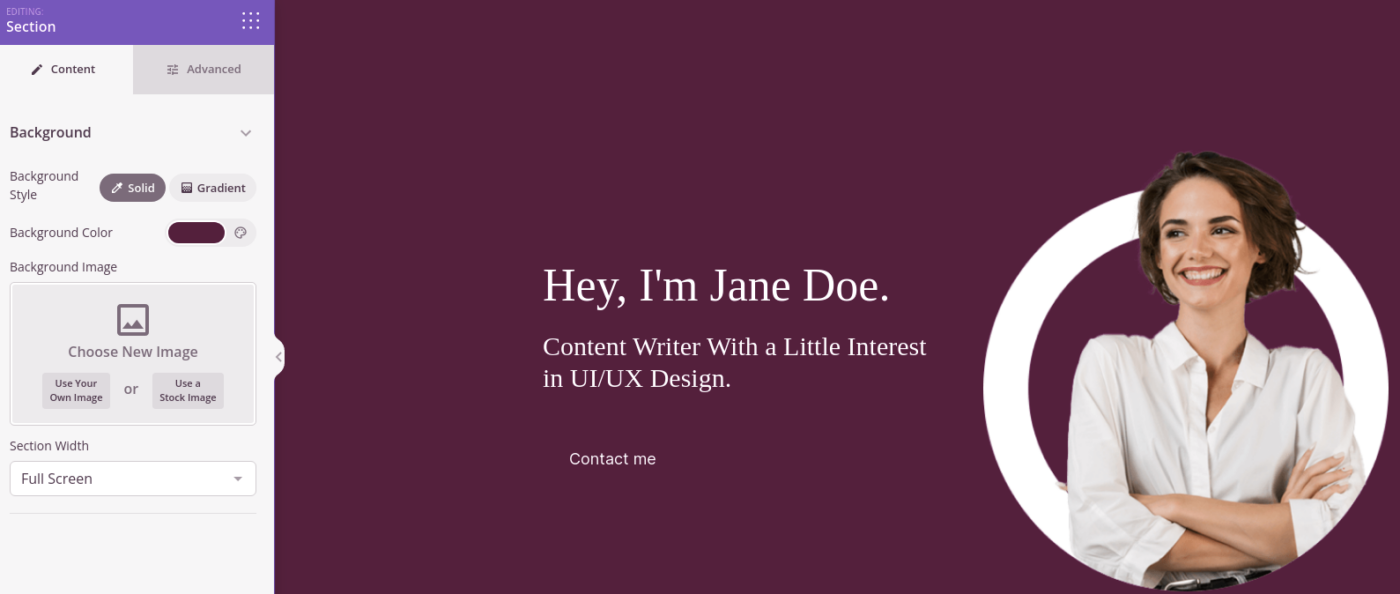
C'est si simple ! Lorsque vous avez terminé la personnalisation de votre page de remerciement, cliquez sur le bouton Enregistrer. Pour ajouter des produits populaires, choisissez le bloc Produits les plus vendus dans la section WooCommerce et faites-le glisser sur votre page.
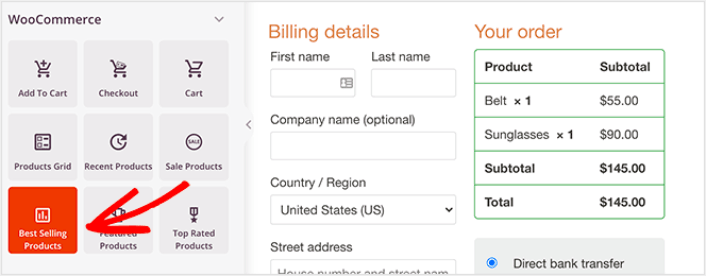
Il est judicieux à ce stade de faire glisser le bloc de titre et de le modifier pour quelque chose comme « Produits populaires ». De cette façon, les gens savent exactement ce qu'ils regardent.
Vous pouvez également ajouter des témoignages pour augmenter vos taux de conversion. Accédez simplement aux blocs Avancé et faites glisser le bloc Témoignages sur votre page de paiement.
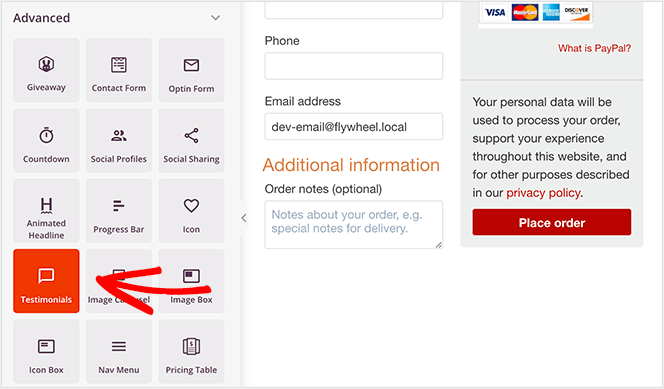
Au lieu de la page de paiement WooCommerce par défaut, vous avez maintenant une page de paiement WordPress à forte conversion, adaptée à votre public.
Étape n°4 : Configurer les paramètres de votre page
Une fois que vous avez terminé la conception de votre page de remerciement, cliquez sur l'onglet Connecter en haut de votre constructeur de page, et sélectionnez votre fournisseur de marketing par e-mail pour collecter des prospects sur votre site.
REMARQUE : cette étape n'est nécessaire que si vous souhaitez que vos clients optent pour un autre service. Donc, si vous essayez de vendre un service supplémentaire, vous pouvez sauter la connexion du service de marketing par e-mail.

Ensuite, cliquez sur l'onglet Paramètres de la page en haut de votre écran.

Ici, vous pouvez ajouter un plugin SEO et un plugin Google Analytics à votre page de remerciement. Vous pouvez même configurer des codes de suivi personnalisés tels qu'un pixel Facebook ou un pixel Pinterest pour suivre les performances des publicités.
Étape n°5 : Publiez votre page de paiement WordPress
Maintenant, publions votre conception. Pour ce faire, cliquez sur la flèche déroulante à côté du bouton Enregistrer et cliquez sur Publier.
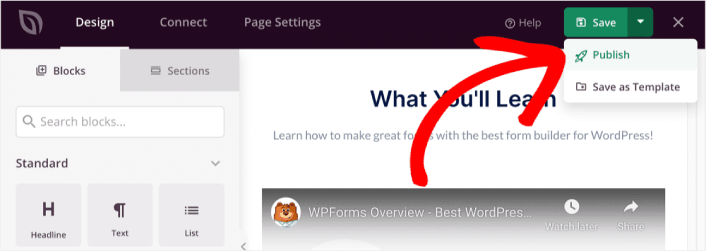
Ensuite, attribuez votre nouvelle page de paiement WordPress à WooCommerce. Cela implique de modifier les paramètres par défaut de WooCommerce et d'ajouter l'URL de votre nouvelle page.
Pour configurer ce paramètre, allez dans WooCommerce » Paramètres et cliquez sur l'onglet Avancé. Ensuite, à côté de l'en-tête Page de paiement, recherchez la page que vous venez de créer.
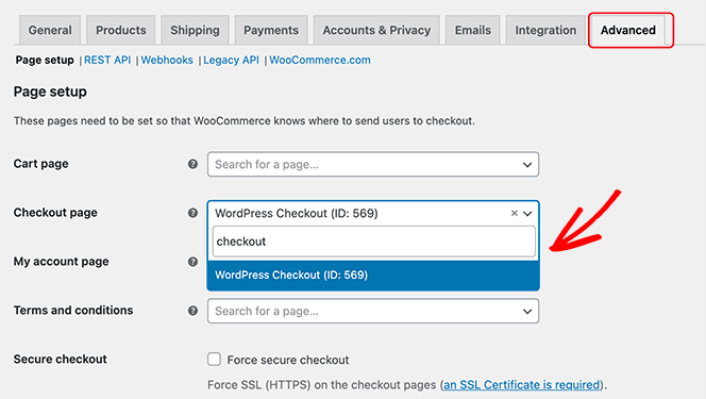
Maintenant, lorsqu'un visiteur clique sur « Procéder au paiement », il sera dirigé vers votre nouvel écran de paiement à forte conversion que vous venez de créer.
Que faire après avoir créé une page de paiement WordPress
Maintenant que votre page de remerciement est en ligne, il est temps de travailler sur votre trafic, votre engagement et vos ventes. Vous devriez essayer d'utiliser les notifications push sur votre site. Les notifications push sont un excellent outil marketing qui peut vous aider à développer votre entreprise.
Jetez un œil à ces ressources exceptionnelles et vous comprendrez ce que nous voulons dire :
- 7 stratégies intelligentes pour stimuler l'engagement client
- Les notifications push sont-elles efficaces ? 7 statistiques + 3 conseils d'experts
- Comment configurer des notifications push pour paniers abandonnés (Tutoriel facile)
Nous vous recommandons d'utiliser PushEngage pour créer vos campagnes de notifications push. PushEngage est le logiciel de notifications push n° 1 au monde. Donc, si ce n'est pas déjà fait, commencez dès aujourd'hui avec PushEngage !


