Notice: There is no legacy documentation available for this item, so you are seeing the current documentation.
The default cart abandonment campaign in PushEngage sends one push notification when a subscriber leaves without completing their purchase. This guide shows you how to extend that into a three-step sequence so each subscriber receives a reminder, an urgency nudge, and a final incentive push until they buy or the sequence ends.
This guide assumes your cart abandonment campaign is already enabled. If you have not set it up yet, start with Enabling Cart and Browse Abandonment Campaigns for Your Shopify Store first.
Before You Start
- PushEngage is installed on your Shopify store and your cart abandonment trigger campaign is already enabled.
- Your store has active push subscribers.
- A Growth plan or above is required for multi-step trigger campaigns.
- To include a discount code in Push 3, create the coupon in your Shopify admin first under Discounts » Create discount code.
Create Cart Abandonment Trigger Sequence
The cart abandonment trigger campaign lives under Campaigns » Trigger Campaigns in your PushEngage dashboard. By default it contains one notification. You will edit that notification and add two more to build the full recovery sequence.
To open the campaign:
- Log in to your PushEngage dashboard.
- Go to Campaigns » Trigger Campaigns.
- Find the Cart Abandonment campaign and click Edit.
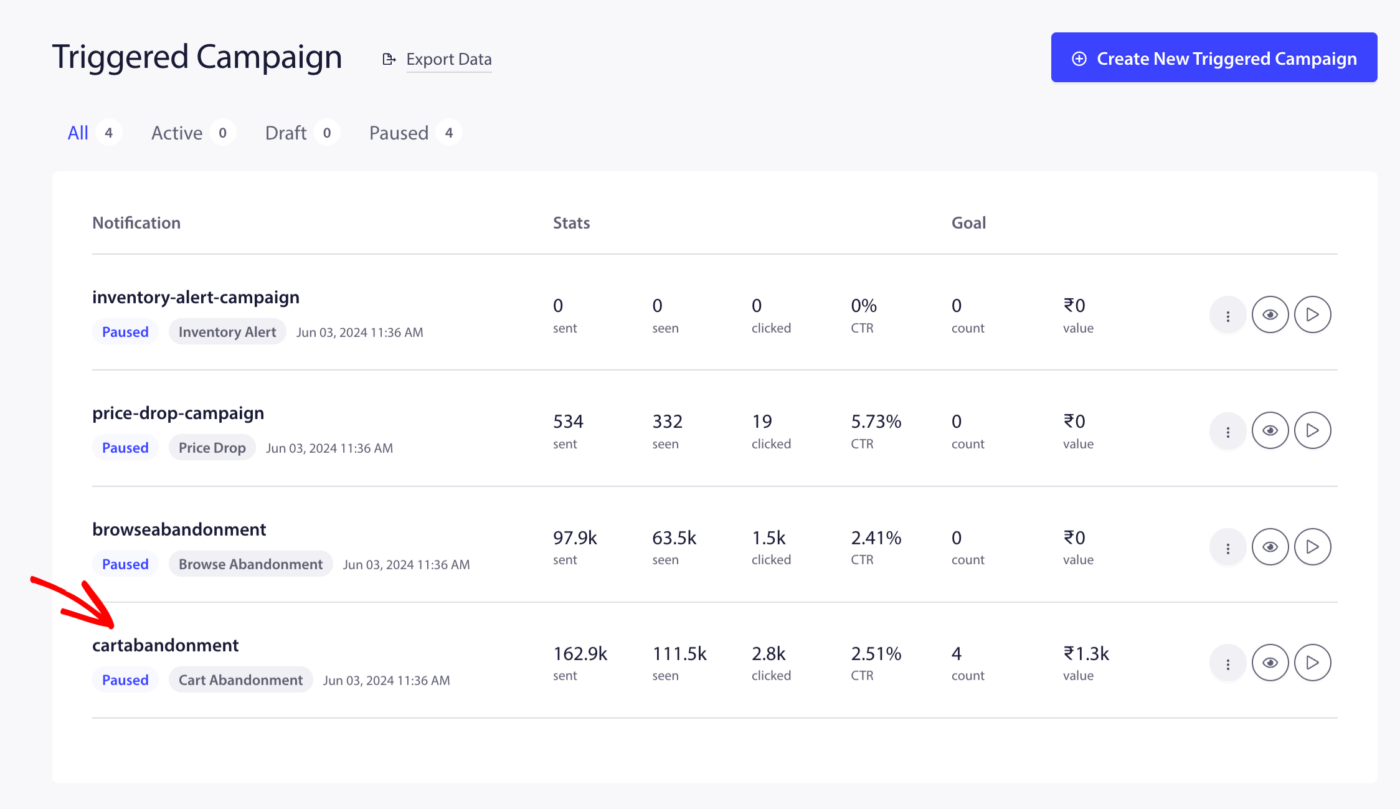
You will land on the campaign editor showing the existing notification sequence. From here you can edit the first notification, add new ones, and configure sequence settings.
The 3-Push Recovery Strategy
Before editing any settings, plan the timing and purpose of each notification in the sequence.
| Step | Timing | Goal | Tone |
|---|---|---|---|
| Push 1 | 30 to 60 minutes after abandonment | Remind the subscriber their cart is still waiting | Helpful, low pressure |
| Push 2 | 24 hours after Push 1 | Create urgency around stock or availability | Mild urgency |
| Push 3 | 48 hours after Push 1 | Convert holdouts with a small incentive or stronger CTA | Direct, incentive-led |
The campaign stops automatically for any subscriber the moment they complete a purchase. Push 2 and Push 3 will not fire for someone who already bought after Push 1.
Step 1: Edit Push 1 (The Reminder)
Click on the first notification in the sequence to edit it.
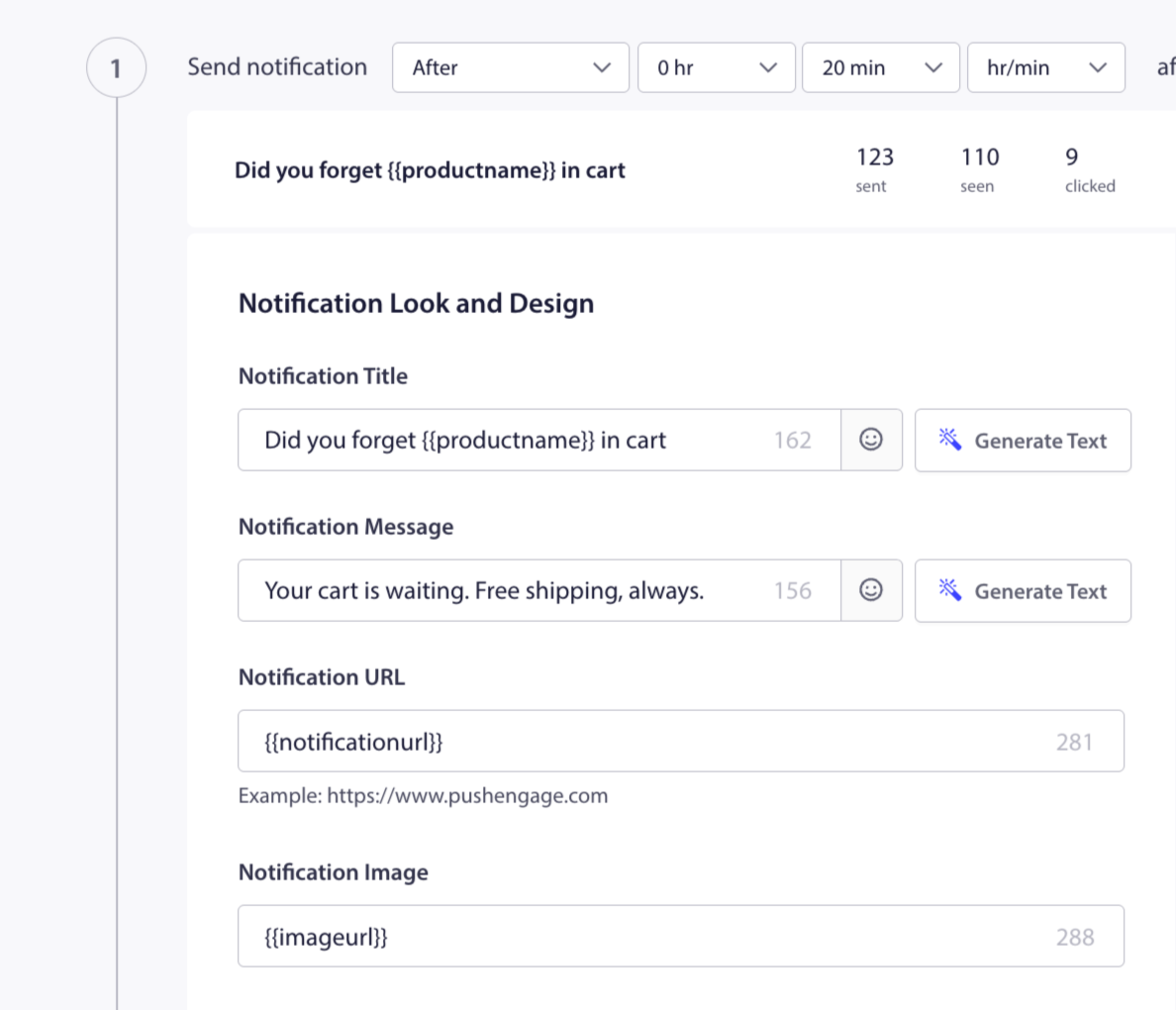
Set the send time to 30 to 60 minutes after the cart is abandoned.
Fill in the notification fields:
| Field | Recommendation |
|---|---|
| Title | See copy options below |
| Message | See copy options below |
| URL | Use {notificationurl} to link directly to the subscriber’s cart page |
| Image | Use {bigimageurl} to display the abandoned product image |
Copy Options for Push 1
| Option | Title | Message |
|---|---|---|
| 1 | You left something behind! | {productname} is still in your cart. Complete your purchase before it sells out. |
| 2 | Did you forget something? | Your cart is saved! {productname} is ready for checkout whenever you are. |
| 3 | Your cart is waiting for you | {productname} is still available. Head back and complete your order. |
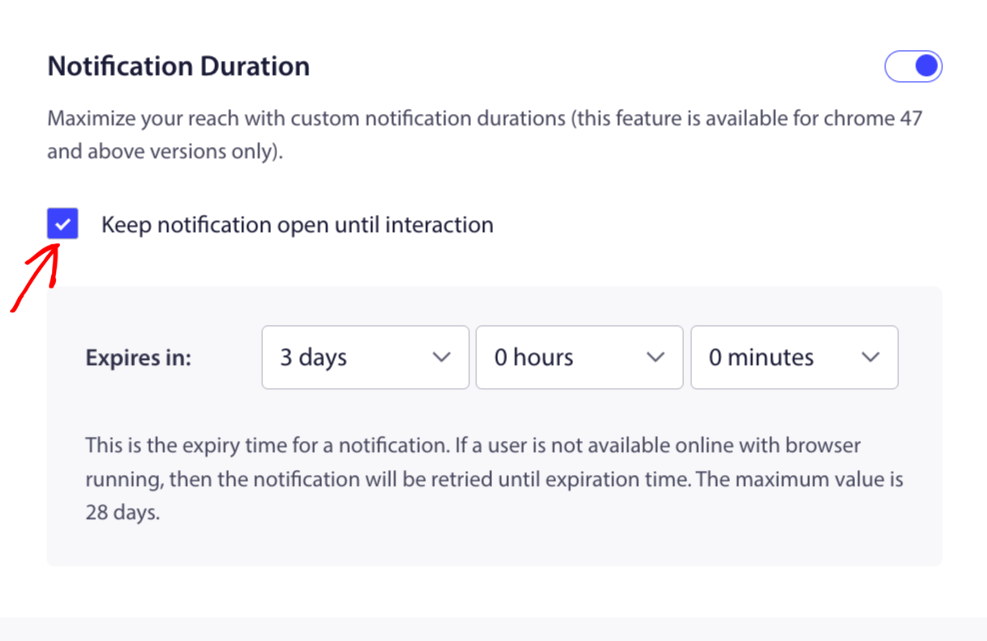
Notification Duration for Push 1
Set the expiry to 24 hours so the notification does not stack alongside Push 2 in the subscriber’s notification center.
Enable Keep notification open until user interaction so the push stays visible in the action center until the subscriber clicks or dismisses it.
\
Click Save when done.
Step 2: Add Push 2 (The Urgency Push)
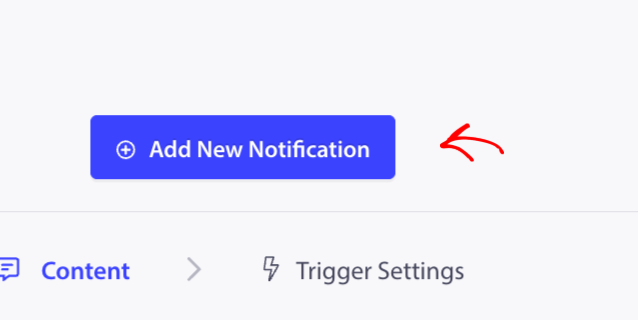
- Scroll to the bottom of the campaign editor.
- Click Add Notification.
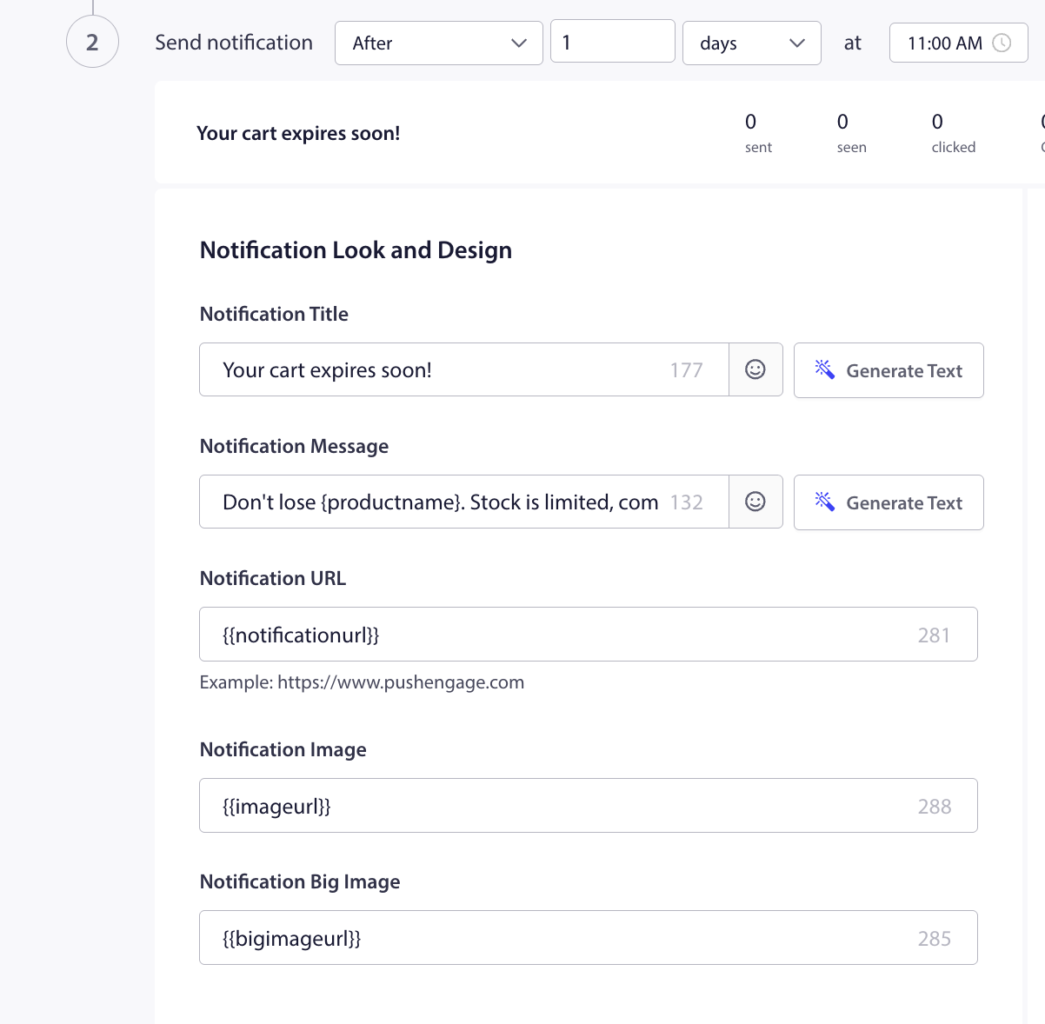
Set the send time to 24 hours after the previous notification.
Fill in the notification fields:
| Field | Recommendation |
|---|---|
| Title | See copy options below |
| Message | See copy options below |
| URL | Use {notificationurl} |
| Image | Use {bigimageurl} |
Copy Options for Push 2
| Option | Title | Message |
|---|---|---|
| 1 | Still thinking it over? | {productname} is popular. Your cart is saved but stock may not last. |
| 2 | Your cart expires soon! | Don’t lose {productname}. Stock is limited, complete your order now. |
| 3 | Last chance to grab {productname} | Your saved cart will not be there forever. Complete your order today. |
Notification Duration for Push 2
Set the expiry to 48 hours so this notification clears before Push 3 fires.
Enable Keep notification open until user interaction.
Click Save when done.
Step 3: Add Push 3 (The Incentive Push)
- Click Add Notification again at the bottom of the sequence.
- Set the send time to 48 hours after the previous notification (72 hours total from the cart abandonment event).
Fill in the notification fields:
| Field | Recommendation |
|---|---|
| Title | See copy options below |
| Message | See copy options below |
| URL | Use {notificationurl} |
| Image | Use {bigimageurl} |
Copy Options for Push 3
| Option | Title | Message |
|---|---|---|
| 1 | Here’s a little something for you | Complete your {productname} order today and use code SAVE10 for 10% off. |
| 2 | We saved you a spot and a deal | Use code SAVE10 at checkout and get 10% off {productname}. |
| 3 | Your exclusive discount is waiting | Get 10% off {productname} with code SAVE10. This offer will not last long. |
Note: Replace SAVE10 with the actual coupon code you created in your Shopify admin. See Using Discount Codes in Shopify Push Notifications for more on this.
Notification Duration for Push 3
Set the expiry to 72 hours.
Enable Keep notification open until user interaction.
Click Save when done.
Review the Full Sequence
Once all three notifications are saved, your sequence should look like this in the campaign editor:
| # | Notification | Send After | Expiry |
|---|---|---|---|
| 1 | Reminder push | 30 to 60 minutes | 24 hours |
| 2 | Urgency push | 24 hours after Push 1 | 48 hours |
| 3 | Incentive push | 48 hours after Push 1 | 72 hours |
[Screenshot: Full 3-notification sequence visible in the campaign editor]
Set Frequency Capping
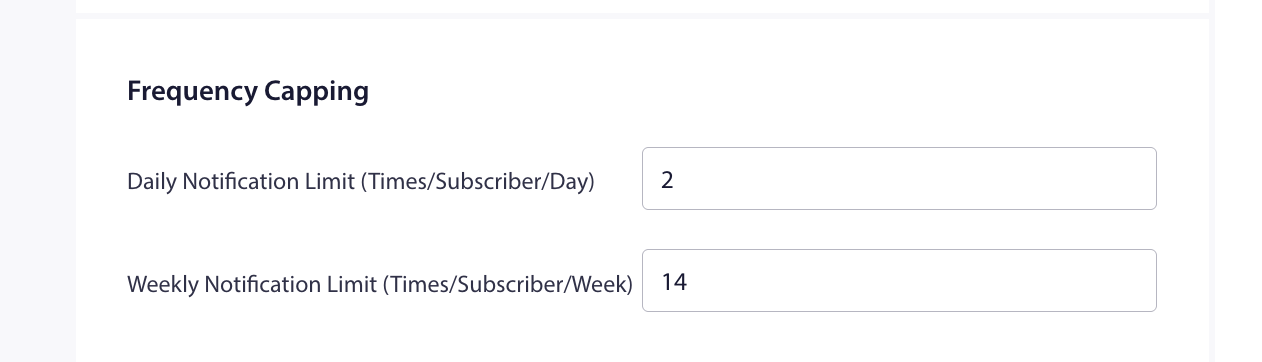
Frequency capping prevents a subscriber who abandons multiple carts from being flooded with notifications. Navigate to the Trigger Settings tab within the campaign editor.
Recommended settings:
| Setting | Recommended Value |
|---|---|
| Daily limit | 2 notifications per subscriber |
| Weekly limit | 6 notifications per subscriber |
Activate the Campaign
- Click Save in the campaign editor.
- Return to Campaigns » Trigger Campaigns.
- Click the Play / Resume button next to the Cart Abandonment campaign.

PushEngage will now send the full three-push sequence to any subscriber who abandons their cart. The sequence stops automatically as soon as a subscriber completes a purchase.
Track Recovery Performance
To measure how each notification in the sequence is performing:
- Go to Campaigns » Trigger Campaigns.
- Click on the Cart Abandonment campaign to expand the analytics view.
- Review sent, delivered, clicked, and conversion metrics per notification.
For revenue attribution, enable goal tracking. See How to Set Up Goal Tracking for instructions.
Frequently Asked Questions
Will a subscriber receive all three pushes even after they buy? No. The campaign stops automatically as soon as a subscriber completes a purchase. They will not receive any remaining notifications in the sequence.
Can I add more than three notifications to the sequence? Yes. You can add as many notifications as you want using the Add Notification button. Three is a common best practice, but some stores run a four-step sequence with a final expiry reminder.
Can I change the timing between notifications? Yes. Each notification in the sequence has its own send time setting. You can adjust the delay between any two notifications at any time without losing your copy settings.
Do the copy variables work across all three notifications? Yes. Variables like {productname}, {price}, {notificationurl}, and {bigimageurl} are available in every notification in the sequence and will always reference the specific product the subscriber abandoned.
What happens if a subscriber abandons their cart a second time after receiving this sequence? The sequence will trigger again from Push 1 for the new cart abandonment event.
If you run into any issues, please feel free to contact us by clicking here. Our support team will be able to help you.


