Aviso: No hay documentación heredada disponible para este elemento, por lo que está viendo la documentación actual.
PushEngage no genera ni recupera códigos de descuento automáticamente. Para incluir un código de descuento en una notificación push, primero crea el código en tu panel de administración de Shopify y luego agrégalo como texto estático en el texto de la notificación. Esta guía explica cómo hacerlo en diferentes tipos de campañas.
Antes de empezar
- PushEngage está instalado en tu tienda de Shopify.
- Tienes un código de descuento de Shopify listo o sabes cómo crear uno en Descuentos en tu panel de administración de Shopify.
- Los códigos de descuento se pueden usar en Difusiones Push, Respuestas Automáticas de Goteo y Campañas de Disparador.
Paso 1: Crea un Código de Descuento en Shopify
- Inicia sesión en tu panel de administración de Shopify.
- Ve a Descuentos en la navegación izquierda.
- Haz clic en Crear descuento.
- Elige el tipo de descuento: Descuento de importe en productos, Descuento de importe en pedido, Compra X y obtén Y o Envío gratuito.
- Establece el valor del descuento, los requisitos mínimos, los límites de uso y la fecha de caducidad.
- Introduce un código de descuento. Usa un código corto y fácil de recordar. Ejemplo:
AHORRA15,BIENVENIDO10,VUELVEALCARRO. - Haz clic en Guardar.
Consejo: Establece una fecha de caducidad para el código de descuento para crear urgencia. Asegúrate de que el código esté activo antes de que se envíe la notificación push.
Paso 2: Añade el Código de Descuento a tu Notificación Push
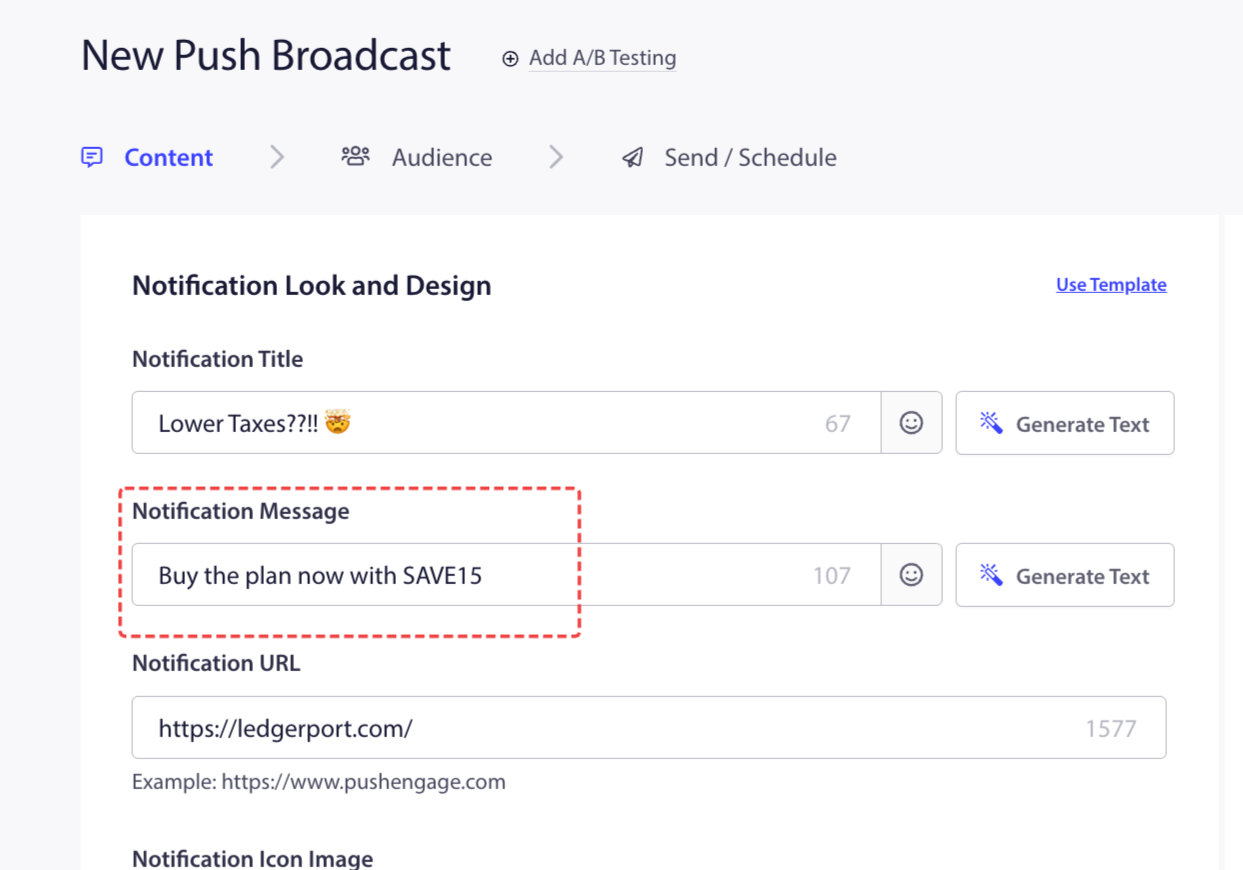
Una vez que el código se haya creado en Shopify, añádelo directamente al texto de tu notificación en PushEngage. No hay ninguna variable ni recuperación automática; el código se escribe como texto plano.
Ubicación Recomendada
El código de descuento funciona mejor en el mensaje de notificación (texto del cuerpo), no en el título. El título debe crear el anzuelo; el mensaje entrega la oferta.
| Campo | Ejemplo |
|---|---|
| Título | Un pequeño regalo de nuestra parte |
| Mensaje | Usa el código AHORRA15 al finalizar la compra para obtener un 15% de descuento en tu pedido. |
| URL | La página de inicio de tu tienda o una página de producto/colección específica |
Usa Códigos de Descuento por Tipo de Campaña
En Campañas de Abandono de Carrito
La notificación push 3 de abandono de carrito (la notificación de incentivo) es el lugar más común para ofrecer un descuento. El suscriptor ya ha visto dos recordatorios; un descuento en este punto convierte a los indecisos.
- Ve a Campañas » Campañas de Disparo.
- Abre tu campaña de Abandono de Carrito y haz clic en la tercera notificación (o añade una si solo tienes dos).
- Incluye el código de descuento en el cuerpo del mensaje.
Ejemplo de texto:
| Opción | Título | Mensaje |
|---|---|---|
| 1 | ¿Todavía indeciso? Aquí tienes un 10% de descuento | Usa el código CARRO10 al finalizar la compra. Tu {productname} te está esperando. |
| 2 | Queremos que tengas esto | Completa tu pedido de {productname} con el código AHORRA10 para obtener un 10% de descuento. |
| 3 | Una oferta para volver | Usa el código COMEBACK10 para un 10 % de descuento en tu pedido. La oferta caduca en 48 horas. |
En Campañas de bienvenida automáticas
Un descuento en la Notificación 3 de la serie de bienvenida anima a los nuevos suscriptores a realizar su primera compra.
- Ve a Campañas » Autorrespuestas de secuencias.
- Abre tu serie de bienvenida y edita la tercera notificación (la notificación de incentivo).
- Añade el código de descuento en el mensaje.
Ejemplo de texto:
| Opción | Título | Mensaje |
|---|---|---|
| 1 | Tu regalo de bienvenida | Usa el código WELCOME10 al finalizar la compra para obtener un 10% de descuento en tu primer pedido. Válido durante 48 horas. |
| 2 | Descuento en tu primer pedido | Queremos que tu primera compra sea fácil. Usa el código FIRST10 para obtener un 10% de descuento. |
| 3 | Un detalle por unirte a nosotros | Usa el código NEW15 para un 15 % de descuento en cualquier cosa de nuestra tienda. Anímate, date un capricho. |
En Notificaciones masivas
Usa las Notificaciones masivas para enviar códigos de descuento para ofertas flash, promociones de temporada u ofertas únicas a todos los suscriptores o a un segmento específico.
- Ve a Campañas » Difusiones push.
- Haz clic en Crear nueva difusión push.
- Redacta tu notificación con el código de descuento en el cuerpo del mensaje.
- Selecciona tu audiencia (todos los suscriptores, Clientes potenciales, Clientes o un Grupo de audiencias).
- Envía inmediatamente o programa para el momento adecuado.
Ejemplo de texto para una oferta flash:
| Opción | Título | Mensaje |
|---|---|---|
| 1 | La oferta flash de 24 horas está activa | Usa el código FLASH20 para un 20 % de descuento en todo. La oferta termina esta noche a medianoche. |
| 2 | Solo hoy: 20 % de descuento en tu pedido | Usa el código TODAY20 al finalizar la compra. Esta oferta caduca en 24 horas. |
| 3 | Oferta sorpresa en el interior | Usa el código SURPRISE15 para un 15 % de descuento en toda la web. Válido solo hoy. |
Mejores Prácticas
1. Establece una fecha de caducidad clara. Los códigos de descuento sin fecha de caducidad generan menos urgencia. Establece que el código caduque 24-48 horas después de que se envíe la notificación.
2. Usa un código por campaña. No uses el mismo código de descuento en varias campañas a la vez. Si necesitas rastrear qué campaña generó conversiones, usa códigos únicos por campaña (p. ej., CART10, WELCOME10, FLASH10).
3. Adapta la oferta a la audiencia. Usa el segmento de Clientes potenciales para descuentos de primera compra y el segmento de Clientes para recompensas de fidelidad o de compra repetida. Consulta Comprensión de la segmentación predeterminada de Shopify y los grupos de audiencias para saber cómo segmentar audiencias.
4. No ofrezcas descuentos demasiado pronto. En una secuencia de abandono de carrito, reserva el descuento para la Notificación 3. Ofrecerlo en la Notificación 1 enseña a los clientes a esperar y abandonar a propósito.
Preguntas frecuentes
¿Puede PushEngage generar automáticamente códigos de descuento únicos por suscriptor? No de forma nativa. Todos los suscriptores que reciben la notificación ven el mismo código estático que tú escribiste. Para códigos únicos por suscriptor, necesitarías generarlos a través de la API de PushEngage.
¿Qué sucede si el código de descuento caduca antes de que un suscriptor abra la notificación? El suscriptor verá el código en la notificación, pero no funcionará al finalizar la compra. Establece tiempos de caducidad de la notificación que coincidan con la ventana de validez de tu código de descuento para reducir esto.
¿Puedo usar el mismo código de descuento en varias campañas? Sí, pero no podrás distinguir qué campaña generó la conversión en los informes de Shopify. Usa códigos únicos por campaña para una atribución más clara.
¿Dónde introduce el suscriptor el código? Al finalizar la compra. Asegúrate de que la URL de tu notificación enlace a una página donde puedan añadir artículos a su carrito y proceder fácilmente a la compra.
Si tienes algún problema, no dudes en contactarnos haciendo clic aquí. Nuestro equipo de soporte podrá ayudarte.


