Notice: There is no legacy documentation available for this item, so you are seeing the current documentation.
When you install the PushEngage Shopify app, two subscriber segments are automatically created for your store: Customers and Leads. These segments group your push subscribers based on their purchase behavior, so you can send different campaigns to buyers and non-buyers without any manual setup.
This guide explains what these default segments are, how to enable and use them, how to create your own custom segments, and how to combine segments into Audience Groups for more targeted campaigns.
Before You Start
- PushEngage is installed on your Shopify store and you have active push subscribers.
- Segments are available on all plans. Audience Groups are available on Growth plans and above.
Default Shopify Segments
PushEngage creates two segments automatically when the app is installed.
| Segment | Who It Includes |
|---|---|
| Customers | Push subscribers who have completed a purchase on your Shopify store |
| Leads | Push subscribers who have not yet made a purchase |
These two segments together cover your entire subscriber base. Subscribers move from Leads to Customers automatically once they complete their first order.
To view your default segments:
- Log in to your PushEngage dashboard.
- Go to Audience » Segments.
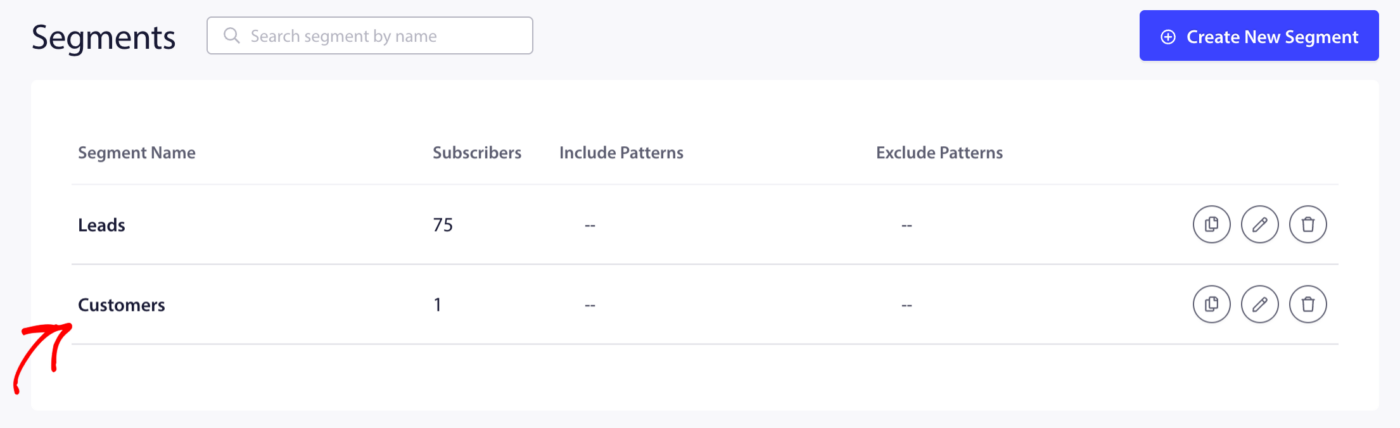
You will see the Customers and Leads segments listed here along with the subscriber count in each.
Enabling Default Segments During Setup
If you are going through the initial Shopify onboarding flow, you can enable both segments in Step 3 of the setup wizard under the Retargeting step.
- Toggle on the Customers segment to begin tracking subscribers who have purchased.
- Toggle on the Leads segment to begin tracking subscribers who have not yet purchased.
Both segments will begin populating from the moment they are enabled. Historical subscribers already in your list will be sorted into the appropriate segment on the next qualifying event.
Using Segments When Sending a Campaign
Once your segments are active, you can target them when sending a Push Broadcast.
- Go to Campaigns » Push Broadcasts.
- Click Create Push Broadcast.
- Compose your notification.
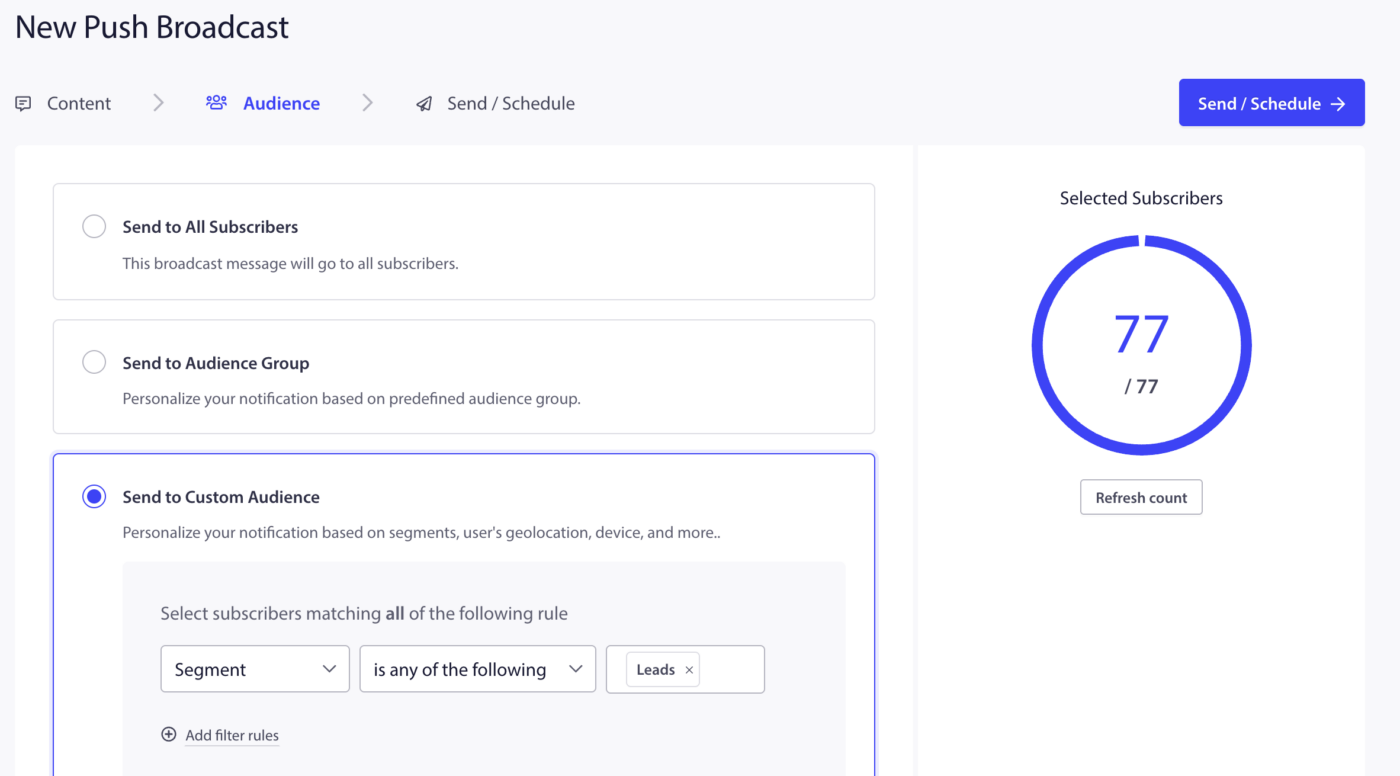
- In the Audience tab, select Segment and choose Customers or Leads from the dropdown.
- Only subscribers in that segment will receive the notification.
When to Use Each Segment
| Use Case | Target Segment |
|---|---|
| Flash sale or new product announcement | Leads (to drive first purchase) |
| Loyalty reward or repeat purchase offer | Customers |
| Product restock alert | Both (send separately with different copy) |
| Re-engagement campaign for inactive subscribers | Leads (non-buyers who have gone quiet) |
| Post-purchase follow-up (review request, upsell) | Customers |
Creating a Custom Segment
You can create additional segments beyond Customers and Leads for more specific targeting. Custom segments are useful for grouping subscribers by the product categories they browse, the pages they visit, or any other behavior you want to track.
Step 1: Create the Segment
- Go to Audience » Segments.
- Click Create a New Segment.
- Enter a name for the segment. Example: Sale Page Visitors or High Value Customers.
- Optionally add URL patterns to automatically add subscribers to this segment when they visit a matching page.
- Click Save Segment.

Step 2: Add Subscribers to the Segment
For segments based on page visits, subscribers are added automatically when they visit a URL that matches the pattern you defined.
For segments based on custom events (such as purchase value or product category), you can add subscribers programmatically using PushEngage’s JavaScript API:
window._peq.push(["add-to-segment", "High Value Customers"]);
Place this snippet on the order confirmation page or any event page where the qualifying action occurs.
Note: For Shopify stores, URL-based segments require no code. Custom event-based segments require adding a snippet to your Shopify theme. If you need help with this, contact our support team.
[Screenshot: Segments list showing a custom segment alongside the default Customers and Leads segments]
Understanding Audience Groups
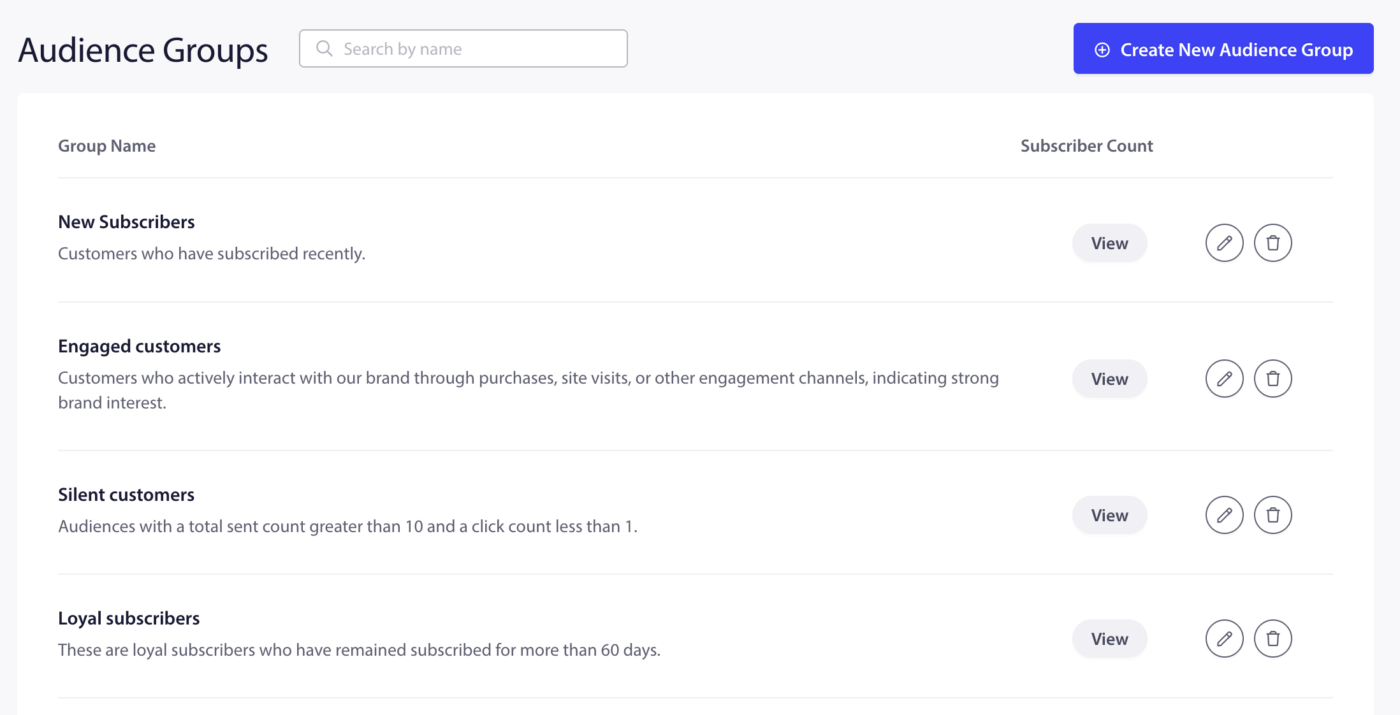
An Audience Group is different from a segment. A segment groups subscribers by a single criterion. An Audience Group combines multiple criteria such as segments, geography, device type, subscription date, and engagement history into a single reusable group.
Use Audience Groups when you want to target a specific combination that you will send to repeatedly. For example: Customers in the United States who have not clicked a notification in the last 30 days.
Creating an Audience Group
- Go to Audience » Audience Group.
- Click Create New Audience Group.
- Enter a name and optional description for the group.
- Add criteria by selecting from the available filters:
| Filter Type | Examples |
|---|---|
| Segments | Customers, Leads, any custom segment |
| Geography | Country, State, City |
| Device and Browser | Mobile, Desktop, Chrome, Safari |
| Subscription Date | Subscribed before or after a specific date |
| Engagement | Last click date, total notifications sent, total clicks |
- Click Save when your criteria are set.
Tip: Click the View button after adding criteria to see how many subscribers match the group before saving.
Example Audience Groups for Shopify
| Group Name | Criteria | Use Case |
|---|---|---|
| Re-engage Leads | Segment = Leads + Last Click Date older than 30 days | Send a discount to non-buyers who have gone quiet |
| US Customers | Segment = Customers + Country = United States | Region-specific sale or free shipping offer |
| Mobile Leads | Segment = Leads + Device = Mobile | Mobile-optimized campaign for first-time buyers |
| Recent Customers | Segment = Customers + Subscription Date last 30 days | Welcome sequence for new buyers |
Sending a Campaign to an Audience Group
- Go to Campaigns » Push Broadcasts.
- Click Create Push Broadcast.
- Compose your notification.
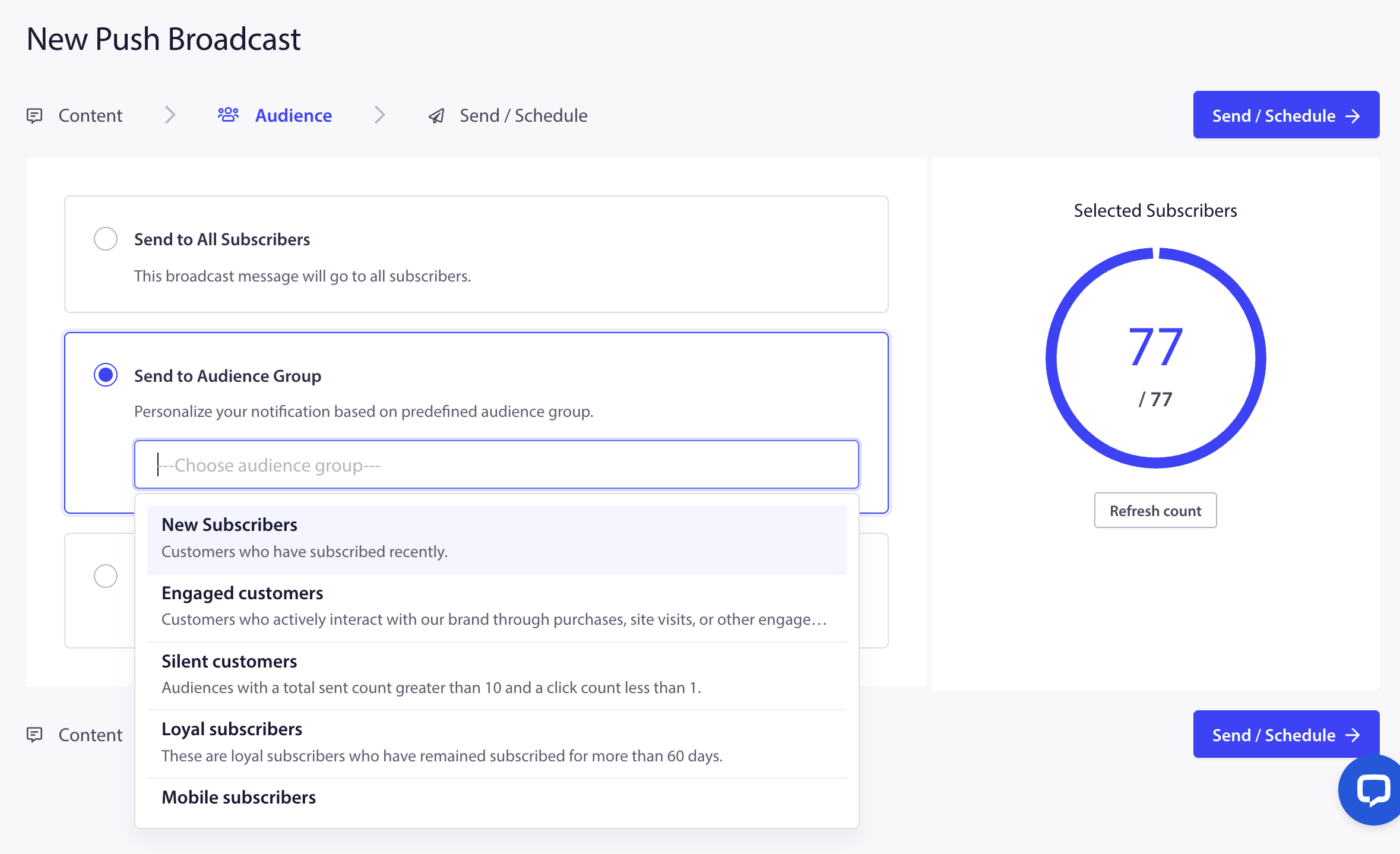
- In the Audience tab, select Audience Group and choose the group from the dropdown.
- Send or schedule the campaign.
Frequently Asked Questions
When does a subscriber move from Leads to Customers? A subscriber is moved to the Customers segment automatically when they complete a purchase on your Shopify store. This happens in real time as the order is processed.
Can a subscriber be in both Customers and Leads at the same time? No. The Customers and Leads segments are mutually exclusive. Once a subscriber completes a purchase, they are moved to Customers and removed from Leads.
Can I create more than two segments? Yes. There is no hard limit on the number of custom segments you can create. The number of segments available may vary by plan.
What is the difference between a Segment and an Audience Group? A segment groups subscribers by one criterion. An Audience Group combines multiple criteria into a single reusable group for more precise targeting. You can use segments on their own or combine them inside an Audience Group.
Can I use Audience Groups in Trigger Campaigns or Drip Campaigns? Audience Groups are available for Push Broadcasts. For trigger campaigns and drip campaigns, you can use individual segments to filter who receives the campaign.
Do custom segments update automatically? Segments based on URL patterns update automatically when a subscriber visits a matching page. Segments based on custom JavaScript events update when the event fires. Segments you manage manually require you to add or remove subscribers yourself.
If you run into any issues, please feel free to contact us by clicking here. Our support team will be able to help you.


