
Tous les visiteurs ne sont pas prêts à discuter au moment où ils arrivent sur votre site Web. En fait, afficher un widget de chat trop tôt entraîne souvent un engagement plus faible et des taux de rebond plus élevés.
Une approche plus intelligente consiste à déclencher le chat uniquement lorsque le visiteur a fait défiler 50 % de la page, un signal qu'il est engagé, intéressé et plus susceptible d'interagir.
Le widget de chat de PushEngage rend cela incroyablement facile.
Ce guide rapide vous expliquera pourquoi les déclencheurs basés sur le défilement fonctionnent et comment les configurer en quelques clics.
Envoyez des messages multicanaux dès aujourd'hui !
La messagerie Push et WhatsApp sont des outils marketing très efficaces et peu coûteux pour vous aider à augmenter votre trafic de retour, votre engagement et vos ventes en mode automatique.
- Pourquoi un déclencheur de défilement de 50 % fonctionne
- Comment PushEngage gère les déclencheurs de chat basés sur le défilement
- Comment déclencher votre widget de chat à 50 % de défilement (étape par étape)
- Astuce de pro : Combinez le déclencheur de défilement + le ciblage de page
- Meilleures pratiques pour les déclencheurs de chat à 50 % de défilement
- Que faire après la configuration des widgets de chat
Pourquoi un déclencheur de défilement de 50 % fonctionne
Un visiteur qui atteint 50 % d'une page a montré une intention claire. Il a investi du temps, absorbé votre contenu et signalé sa curiosité.
Un déclencheur de 50 % vous aide à :
- Éviter d'interrompre les lecteurs trop tôt
- Attraper les visiteurs lorsqu'ils sont pleinement réceptifs
- Augmenter les taux d'ouverture de chat
- Améliorer la qualité des prospects
- Réduire la charge de travail des agents pour les discussions à faible intention
Ceci est particulièrement efficace pour :
- Longs articles de blog
- Pages de comparaison de produits
- Guides ultimes
- Pages FAQ
- Tutoriels
Comment PushEngage gère les déclencheurs de chat basés sur le défilement
PushEngage inclut des Règles de comportement intégrées pour les widgets de chat. Ces règles déterminent quand un widget de chat apparaît en fonction des actions du visiteur.
L'une des plus utiles est : Afficher lorsque le visiteur fait défiler X %
Cela vous permet de retarder le widget jusqu'à un seuil de défilement de votre choix — 50 % étant l'un des paramètres les plus performants pour les pages informatives ou riches en contenu.
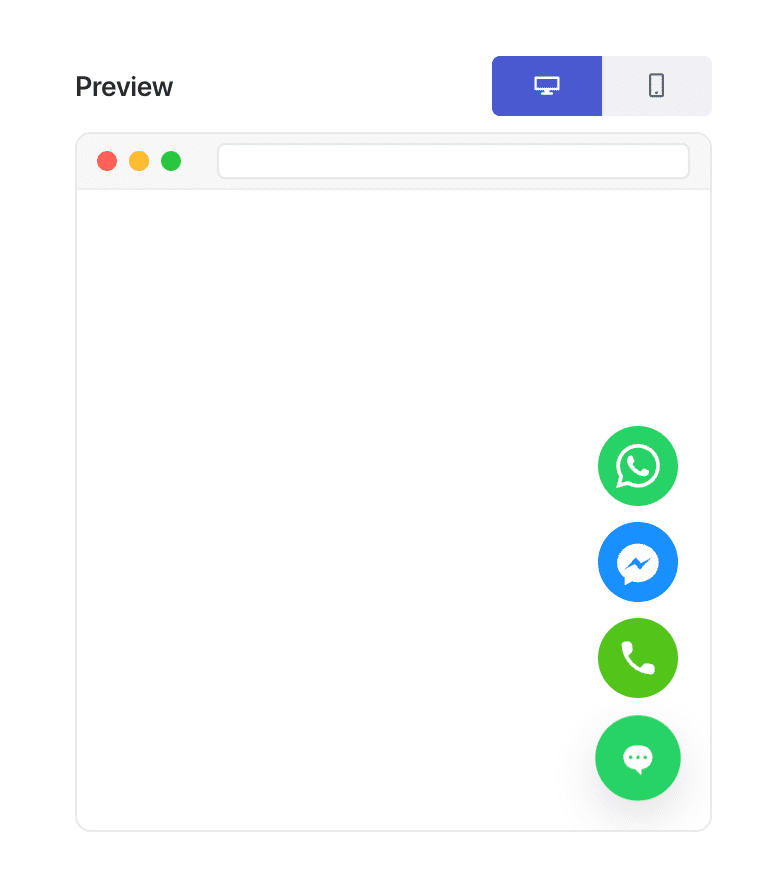
Cette flexibilité est précisément ce qui rend la « personnalisation basée sur le type de page » possible.
Comment déclencher votre widget de chat à 50 % de défilement (étape par étape)
Étape 1 : Créer ou modifier un widget de chat
Dans votre tableau de bord WordPress :
Accédez à PushEngage » Chat Widgets et cliquez sur Créer un nouveau widget ou Modifier un widget existant.
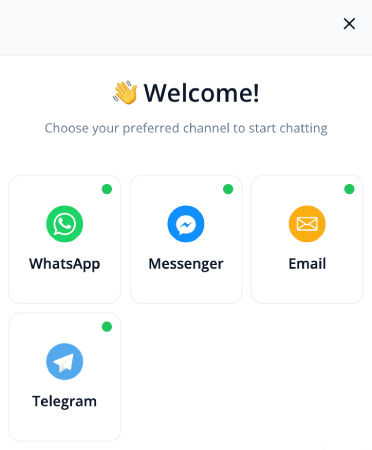
Configurez votre message, vos canaux et votre design comme d'habitude.
Étape 2 : Ouvrir l'onglet Comportement
Dans l'éditeur de widget, accédez à Déclencheurs. Cela contrôle quand le widget apparaît.
Dans le menu déroulant des déclencheurs, choisissez Afficher après % de défilement :
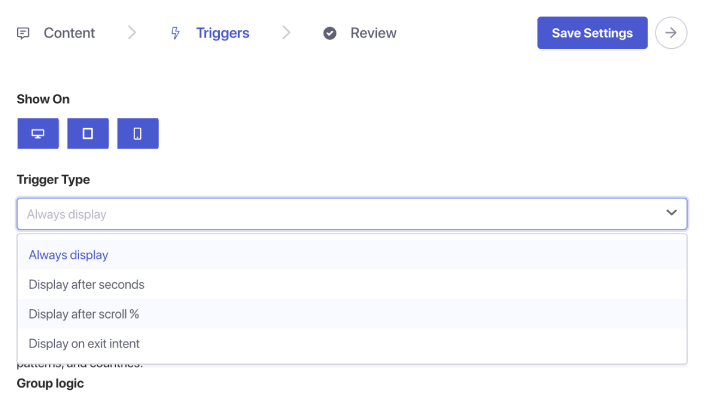
Vous verrez apparaître une boîte de saisie de pourcentage. Définissez la profondeur de défilement à 50 %. Cela indique à PushEngage d'attendre qu'un utilisateur ait parcouru la moitié de la page avant d'afficher le widget de chat.
Étape 3 : Enregistrer et publier
Cliquez sur Enregistrer le widget.
Assurez-vous ensuite que le widget est activé et ciblé sur les pages souhaitées. Votre widget de chat se déclenchera alors exactement au point de défilement de 50 % sur chaque page assignée.
Astuce de pro : Combinez le déclencheur de défilement + le ciblage de page
Les déclencheurs basés sur le défilement deviennent encore plus puissants lorsqu'ils sont associés à des règles de ciblage.
Vous pouvez afficher le widget :
- Uniquement sur les articles de blog
- Uniquement sur les catégories de produits WooCommerce
- Uniquement sur le contenu long
- Uniquement pour les visiteurs récurrents
- Uniquement sur les pages de tarification
Accédez simplement à l'onglet Déclencheurs et définissez les conditions de page.
Meilleures pratiques pour les déclencheurs de chat à 50 % de défilement
Pour obtenir les meilleurs résultats :
1. Ne combinez pas le défilement à 50 % avec des déclencheurs instantanés
Cela va à l'encontre de l'objectif de l'engagement basé sur l'intention.
2. Gardez le message utile, pas insistant
Exemples :
- « Besoin d'aide pour comprendre cette page ? »
- « Vous souhaitez des recommandations personnalisées ? »
- « Vous avez une question ? Je suis là pour vous aider ! »
3. Évitez d'utiliser plusieurs widgets déclenchés par défilement à la fois
Un widget par page permet de garder une expérience épurée.
4. Testez sur mobile et sur ordinateur
La profondeur de défilement peut sembler différente selon les appareils.
Que faire après la configuration des widgets de chat
Un déclencheur de défilement à 50 % est l'un des moyens les plus simples d'afficher le chat au moment idéal — *après* que le visiteur soit engagé mais *avant* qu'il ne parte.
Avec les règles de comportement de PushEngage, la mise en place prend moins d'une minute et améliore immédiatement la qualité et l'intention des chats entrants.
Avec PushEngage, vous pouvez le configurer en quelques minutes — et commencer immédiatement à constater un meilleur engagement, des conversions plus élevées et des charges de travail plus efficaces pour les agents.
- Les clients voient toujours quelqu'un en ligne
- Les temps de réponse diminuent
- Les conversions avant l'achat augmentent
- Le support semble plus rapide et plus fiable
- Votre boutique semble prête pour le marché mondial
Une fois les horaires définis, votre équipe peut fonctionner plus efficacement et vos clients obtiennent l'expérience qu'ils attendent.
Si vous n’avez pas encore configuré les profils et les plannings des agents dans PushEngage, c’est le moment.
Pas convaincu ? Consultez ces ressources étonnantes sur les campagnes de marketing multicanal :
- Comment augmenter les ventes hôtelières en basse saison
- Comment faire du marketing multicanal pour les hôtels en 2026
- Comment convertir les abonnés en acheteurs à l'aide des notifications push web
- Comment notifier les abonnés des nouveaux articles WordPress
- Comment envoyer des notifications de réapprovisionnement pour augmenter vos ventes
- Comment nettoyer les listes d’abonnés aux notifications push (Facile)
- Comment envoyer automatiquement des notifications push RSS
- Comment utiliser les notifications push pour promouvoir un site d’actualités
- Comment utiliser les notifications push de vente croisée pour multiplier vos ventes par 2
- Comment utiliser les notifications push d'abandon de navigation (4 étapes)


