
Vous cherchez un moyen d’améliorer la recherche de produits dans WooCommerce ?
WooCommerce est un moyen incroyable de créer une boutique en ligne évolutive. Mais leur recherche de produits est franchement décevante. Vous pourriez passer à côté d’une TONNE de ventes simplement à cause de la recherche de produits par défaut dans WooCommerce.
Alors, que pouvez-vous faire ? Dans cet article, nous allons vous présenter des moyens très simples et faciles de suralimenter la recherche de produits WooCommerce sans utiliser une seule ligne de code. Et nous allons le faire en 10 minutes ou moins.
Ça vous dit ? Plongeons.
PushEngage est le plugin de notifications push n°1 au monde. Obtenez-le gratuitement !
Pourquoi améliorer votre recherche de produits dans WooCommerce ?
WooCommerce utilise la recherche WordPress par défaut dès sa sortie de la boîte. Et bien que WordPress offre de nombreuses fonctionnalités intéressantes, sa fonction de recherche n’est pas vraiment conçue pour les applications de commerce électronique.
Par exemple, elle ne prend pas en compte les attributs des produits, ne vous donne aucun moyen de contrôler vos résultats de recherche, ne collecte aucune donnée de recherche, et bien plus encore. Nous vous recommandons d’utiliser un plugin de recherche de produits WooCommerce pour améliorer la convivialité de votre moteur de recherche.
Avec le bon plugin de recherche, vous pouvez rechercher des résultats à partir de :
- Champs personnalisés (métadonnées de publication) y compris les champs ACF
- Détails des produits e-commerce, variations et attributs
- Catégories, Étiquettes, Taxonomies personnalisées
- Sorties de shortcodes
- Documents téléchargés (PDF, .docx, .txt, etc.)
- Contenu de table de base de données personnalisée
Et bien sûr, vous pouvez également rechercher dans les titres et le contenu des articles.
Une alternative serait d'utiliser un plugin de recherche de produits AJAX dans vos pages de produits. Un plugin de recherche AJAX fonctionne comme l'autocomplétion d'Amazon sur votre site. Mais pourquoi se contenter de cela alors que vous pouvez créer un moteur de recherche personnalisé sur votre site ?
Lorsqu'un visiteur du web recherche quelque chose sur votre site, il vous dit littéralement exactement ce qu'il veut de vous. Mais la plupart des barres de recherche WordPress ne peuvent tout simplement pas effectuer de recherches approfondies. Et elles ne vous aident certainement pas à comprendre ce que vos visiteurs recherchent.
Vous devez commencer à utiliser un plugin de recherche qui peut vous aider à créer un moteur de recherche personnalisé qui offre à vos visiteurs de site web des résultats de recherche contextuels.
Nous vous recommandons d’utiliser SearchWP.
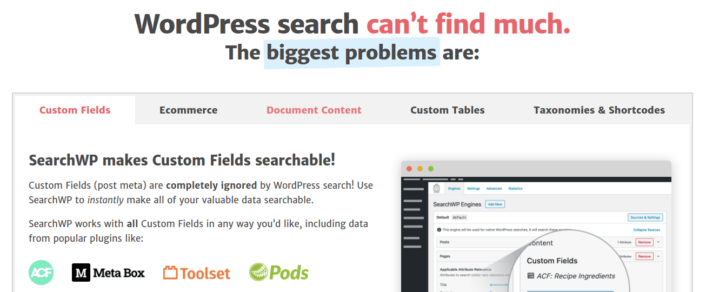
SearchWP est l’un des meilleurs plugins de recherche WooCommerce que nous connaissions.
Vous bénéficiez d’une large gamme de fonctionnalités à un prix abordable. En fait, SearchWP fait tout ce que tous les autres plugins de la liste peuvent faire, à l’exception de la création d’un filtre de produits.
L'avantage le plus intéressant est que SearchWP vous indique exactement ce que recherchent les visiteurs de votre site Web en maintenant des analyses détaillées. Ainsi, il vous aide également à créer du contenu qui manque actuellement sur votre site et à générer plus de trafic, d'engagement et de ventes sur votre site.
Allez lire notre avis complet sur SearchWP et une fois que vous avez terminé, allez installer le plugin.
Comment configurer SearchWP et améliorer votre recherche de produits dans WooCommerce
SearchWP est de loin l'un des plugins de recherche les plus faciles à configurer et à utiliser. Après avoir téléchargé et installé le plugin, vous obtenez une confirmation d'installation :

Après cela, vous pouvez aller dans Paramètres » SearchWP pour configurer votre plugin. Puis cliquez sur l'option de menu « Licence » :
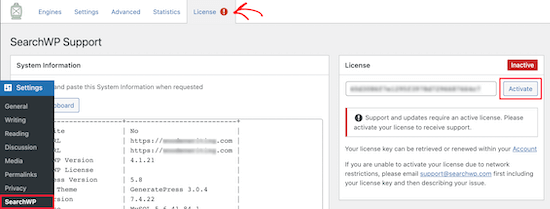
Entrez votre clé de licence dans la boîte « Licence » et cliquez sur le bouton « Activer » :
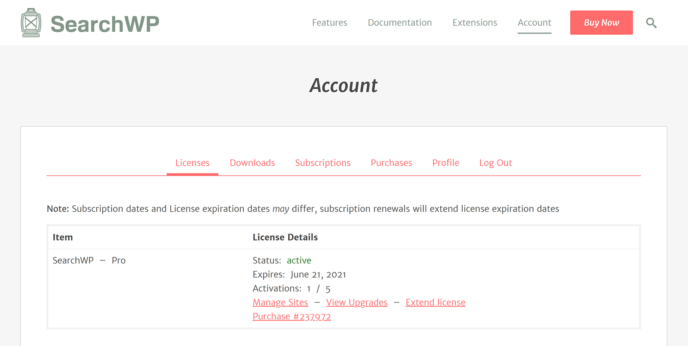
Nous parlerons bientôt des paramètres. Mais c'est littéralement tout ce que vous devez faire pour commencer.
Avec SearchWP, vous devez créer un moteur de recherche sur l'ensemble du site avant de pouvoir personnaliser davantage votre recherche.
Rendez-vous dans Paramètres » SearchWP » Moteurs :
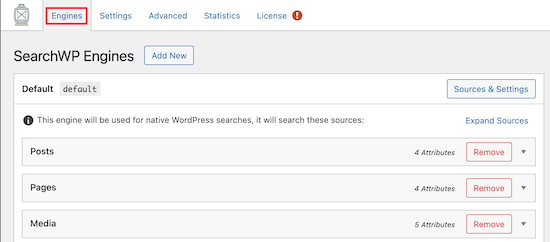
Vous pouvez ajuster les paramètres de votre moteur de recherche en incluant différents types de contenu en cliquant sur leurs listes déroulantes. Et vous pouvez contrôler la pertinence que votre moteur de recherche attribue à chaque type de contenu à l'aide de curseurs :
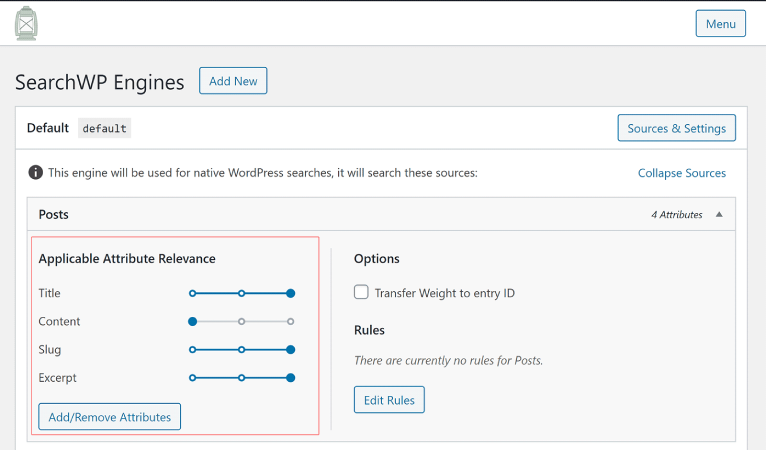
Dans notre exemple, nous accordons plus de pertinence au titre de l'article, au slug et à l'extrait qu'au contenu réel pour les résultats de recherche.
Une fois que vous avez terminé, appuyez simplement sur « Enregistrer ».
Une chose vraiment intéressante à propos du moteur de recherche que vous venez de créer est le fait qu'il utilise la racinisation des mots (Keyword Stemming) plutôt que les correspondances exactes de recherche. Ce que cela signifie, c'est que vos utilisateurs peuvent rechercher votre contenu comme ils le souhaitent et ils obtiendront des résultats pertinents sur le plan contextuel, même si votre contenu n'inclut pas la phrase de recherche exacte !
Comment suralimenter la recherche de produits dans WooCommerce
Ensuite, examinons ce que nous pouvons faire pour améliorer la recherche de produits dans WooCommerce.
1. Restreindre la recherche de produits dans WooCommerce aux produits WooCommerce
Une fois que vous avez installé et activé le plugin SearchWP, la première chose que vous voudrez faire est de restreindre les résultats de recherche de produits pour qu’ils ne concernent que les produits WooCommerce au lieu d’afficher tout type d’article.
Pour commencer, cliquez sur le bouton Sources et paramètres sous Moteurs.
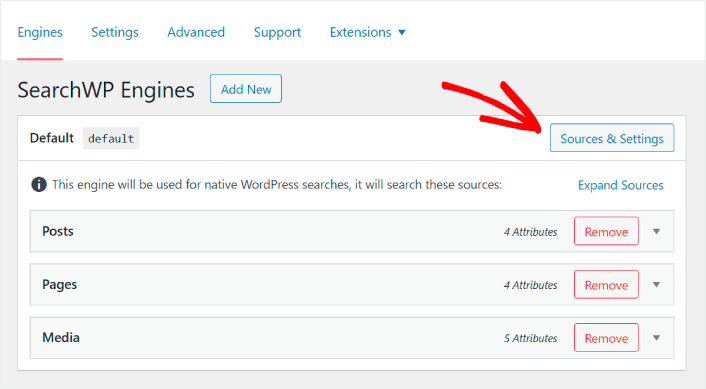
Ici, décochez les cases à côté de toutes les sources de recherche sauf Produits.
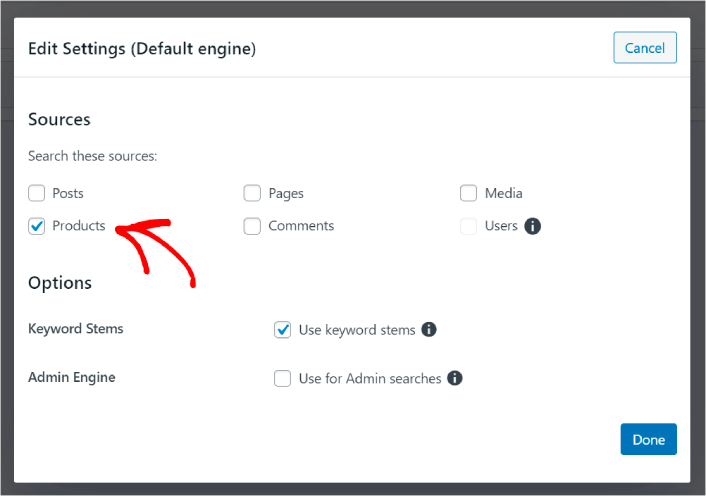
Lorsque vous avez terminé, cliquez sur le bouton Terminé pour enregistrer les modifications. Et vous avez terminé !
2. Activer la recherche par attributs de produits
Rendons également les attributs de produits pour tous les produits WooCommerce consultables. WooCommerce stocke de toute façon ces attributs sous forme de champs personnalisés. Nous allons simplement les rendre consultables.
Vous avez déjà configuré un moteur de recherche pour les produits. Vous pouvez donc simplement continuer à partir de la dernière étape. Cliquez sur le bouton Ajouter/Supprimer des attributs pour ajouter des champs personnalisés.
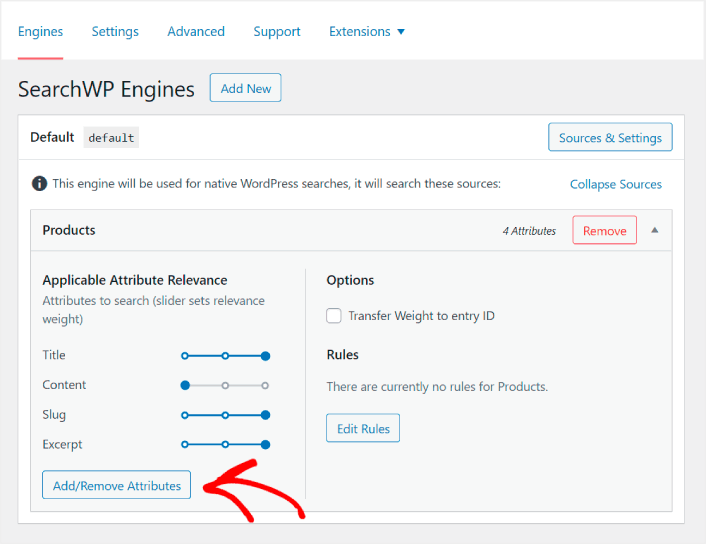
Ensuite, dans le menu déroulant Champs personnalisés, sélectionnez l'option N'importe quelle clé méta .
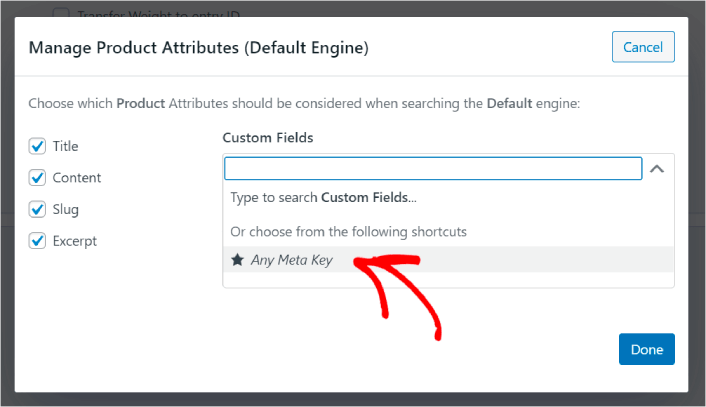
Cela vous permet de rendre automatiquement tous les champs personnalisés consultables. Et maintenant, votre moteur de recherche de produits peut rechercher par champs personnalisés tels que les attributs de produits.
#3. Activer la recherche par catégorie de produits
Vous avez déjà vu comment rendre les attributs de produits consultables. Mais qu'en est-il des catégories ? Et si vos clients ne recherchent pas un produit, mais quelque chose dans une catégorie spécifique ?
C'est facile. Continuez simplement à partir du conseil précédent. Dans le même écran sous Gérer les attributs de produits, vous verrez un autre menu déroulant intitulé Taxonomies. Sélectionnez simplement Catégories de produits dans la liste.
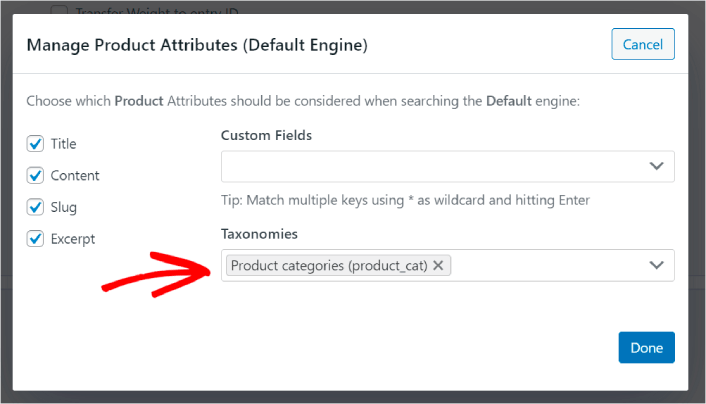
Et maintenant, votre moteur de recherche permettra aux utilisateurs de rechercher par catégorie.
#4. Activer la recherche par étiquettes de produits
Vous n'avez pas encore terminé. Dans le même écran, vous pouvez ajouter encore plus de taxonomies dans le menu déroulant Taxonomies. Et si vos clients ne recherchent pas un produit ou une catégorie générale ? Et s'ils ne savent pas qu'ils veulent des Air Jordan bleues et blanches ou même des baskets, mais qu'ils recherchent plutôt des baskets bleues et blanches ?
C'est là que vous devez activer la recherche par étiquettes de produits.
Sous Taxonomies, sélectionnez également Étiquettes de produits.
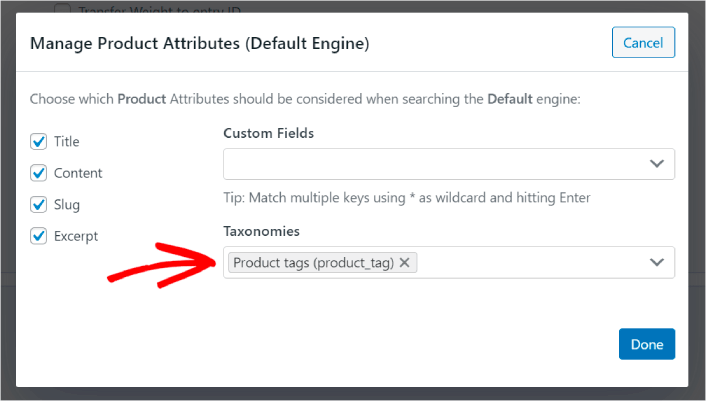
Permettre à votre recherche de produits dans WooCommerce de prendre également en compte les étiquettes de produits lui donne une toute nouvelle façon de rechercher des produits. Sans oublier que cela aide également vos clients à trouver ce qu'ils recherchent beaucoup plus rapidement.
#5. Rendre les SKU de produits consultables
Enfin, nous allons ajouter un dernier champ personnalisé au moteur de recherche pour le rendre plus performant. Nous permettrons également la recherche par SKU de produits. Les Stock Keeping Units (SKU) sont un moyen pour les entreprises de commerce électronique d'identifier rapidement différents produits ou même des produits similaires.
Dans un point de vente, le SKU est généralement un code-barres. De cette façon, vous identifiez rapidement la variante du produit, la taille, le prix, la couleur, le type et le fabricant sans même regarder le produit.
Principalement, les SKU sont utilisés pour la gestion des stocks dans WooCommerce. Mais il est également courant que les sites de dropshipping, d'affiliation et de vente au détail affichent le SKU de leurs produits dans la description du produit.
Donc, pour rendre les SKU de produits consultables, tout ce que vous avez à faire est d'ajouter un autre Champ personnalisé dans vos paramètres Attributs de produits. Tapez simplement ‘_sku’ et SearchWP s'occupera automatiquement du reste.
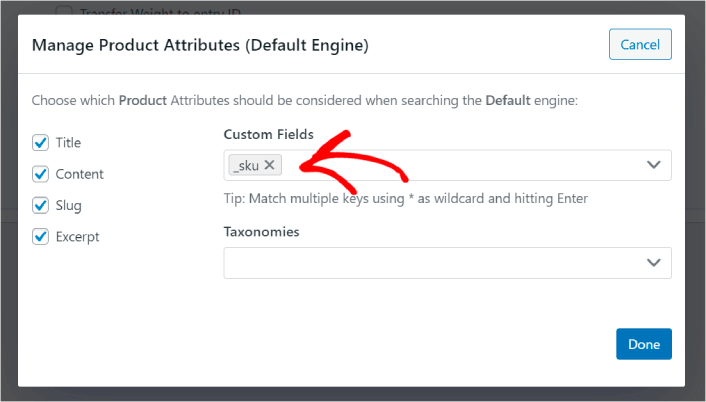
Et vous êtes prêt à partir !
Que faire après avoir amélioré la recherche de produits dans WooCommerce
Maintenant que vous avez amélioré la recherche de produits dans WooCommerce, tous vos produits sont prêts à vous rapporter de l'argent. Il est temps de vous concentrer ensuite sur l'apport de trafic, d'engagement et de ventes à partir de votre contenu.
Et si vous recherchez de nouvelles façons d'obtenir du trafic, de l'engagement et des ventes, les notifications push peuvent être très utiles pour votre site.
Si vous n'êtes pas convaincu à 100 %, vous devriez consulter ces ressources sur la façon d'utiliser efficacement les notifications push :
- 7 stratégies intelligentes pour stimuler l'engagement client
- Les notifications push sont-elles efficaces ? 7 statistiques + 3 conseils d'experts
- Comment configurer des notifications push pour paniers abandonnés (Tutoriel facile)
- Comment ajouter un plugin WordPress de notifications Web à votre site
Nous vous recommandons d'utiliser PushEngage pour créer vos campagnes de notifications push. PushEngage est le logiciel de notifications push n° 1 au monde. Donc, si ce n'est pas déjà fait, commencez dès aujourd'hui avec PushEngage !


