Vous cherchez un moyen simple d'activer les notifications push de Google Chrome ?
Les notifications push du navigateur vous aident à rester en contact avec les marques que vous aimez. Et vous pouvez opter pour les notifications push assez facilement. Mais comment commencer à recevoir les notifications push du navigateur ?
Dans cet article, nous allons vous montrer étape par étape comment activer les notifications push de Google Chrome.
Ça vous dit ? Plongeons.
Comment recevoir les notifications push de Google Chrome depuis n'importe quel site
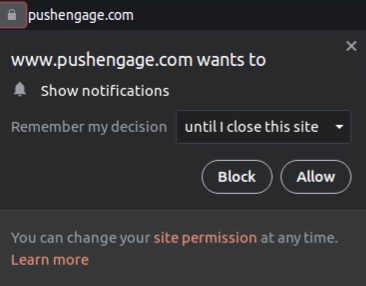
Nous commencerons par expliquer comment vous pouvez recevoir des notifications push d'un site. Chaque site a besoin de votre permission pour vous envoyer des notifications push. Tout ce que vous avez à faire est d'aller sur n'importe quel site et lorsque l'option d'abonnement aux notifications push apparaît, cliquez sur Autoriser :
Certains sites ont une double confirmation pour les notifications push. Dans ce cas, après avoir cliqué sur Autoriser, vous devrez confirmer que vous souhaitez réellement vous abonner aux notifications push de Chrome.
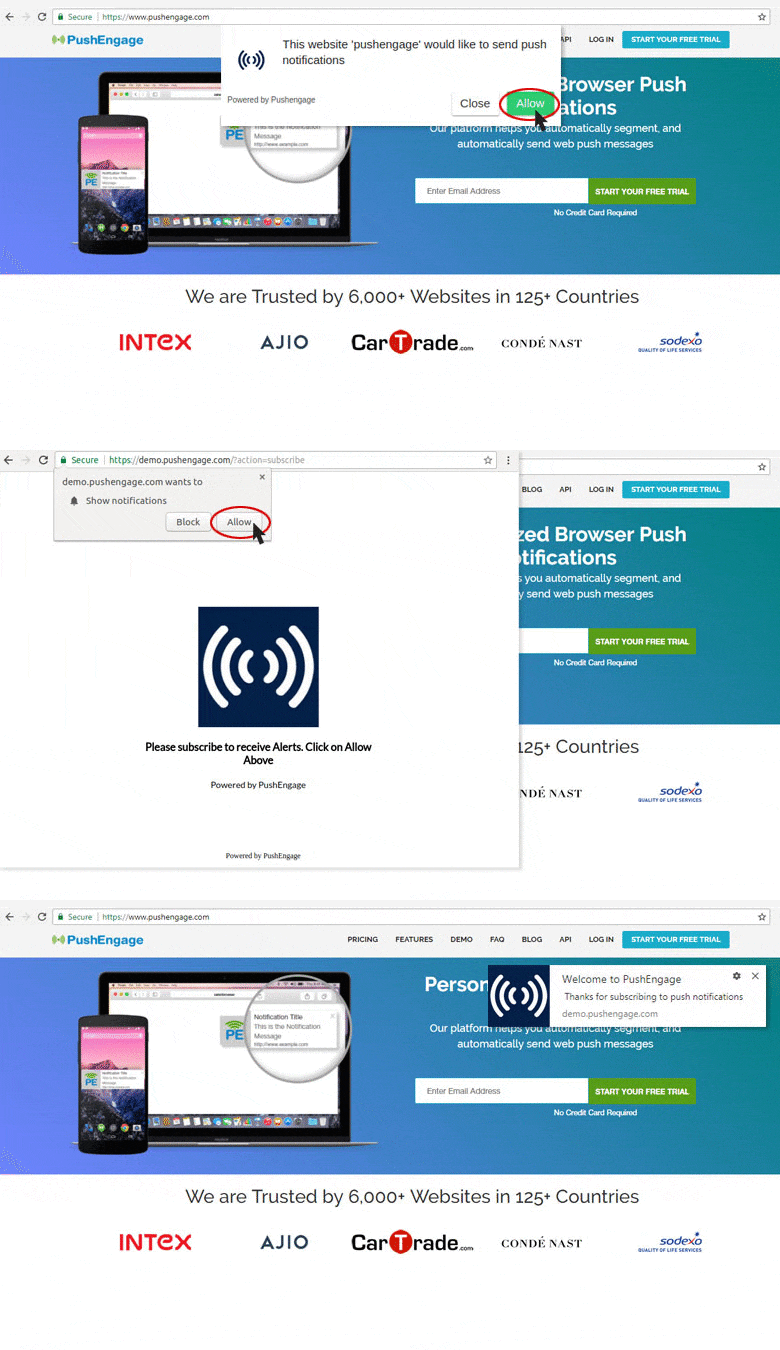
Tant que le site propose une option d'adhésion aux notifications push, vous pouvez vous y abonner de cette manière depuis Google Chrome.
Comment activer les notifications push de Chrome depuis les paramètres de sécurité
Un problème majeur avec la réception des notifications push est que Chrome dispose de paramètres de notification push qui peuvent bloquer toutes les notifications push. Bien sûr, ce n'est pas le paramètre par défaut. De nombreux utilisateurs de Chrome souhaitent simplement se désabonner des notifications push et il est trop fastidieux de trouver des sites spécifiques à bloquer dans une liste.
Donc, si vous vous êtes abonné aux notifications push de Google Chrome et que vous ne parvenez toujours pas à les recevoir, vous devez ajuster vos paramètres.
Accédez au site. Dans la barre d'URL, cliquez sur le cadenas pour sélectionner les paramètres, et dans le menu déroulant, vous verrez Notifications :
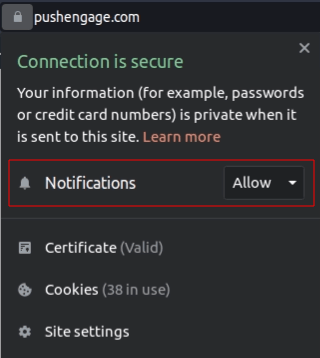
Assurez-vous que le paramètre est défini sur Autoriser. S'il est défini sur Bloquer, vous ne recevrez aucune notification push de ce site et vous devrez cliquer sur le menu déroulant pour Notifications et sélectionner Autoriser.
Comment activer les notifications push de Google depuis les paramètres de Chrome
Vous pouvez également activer les notifications push de Google Chrome depuis les Paramètres de Chrome.
Et cette méthode vous donne un plus grand contrôle sur les notifications push que vous souhaitez réellement recevoir. L'activation des notifications depuis les paramètres de Chrome est parfaite pour vous si vous ne voulez pas recevoir les notifications push de Google Chrome de tous les sites Web, et que vous souhaitez uniquement recevoir des messages push de sites spécifiques.
Ouvrez Chrome et accédez à un nouvel onglet de navigateur. Ensuite, allez sur chrome://settings/content pour commencer.
Accédez à Autorisations » Notifications :
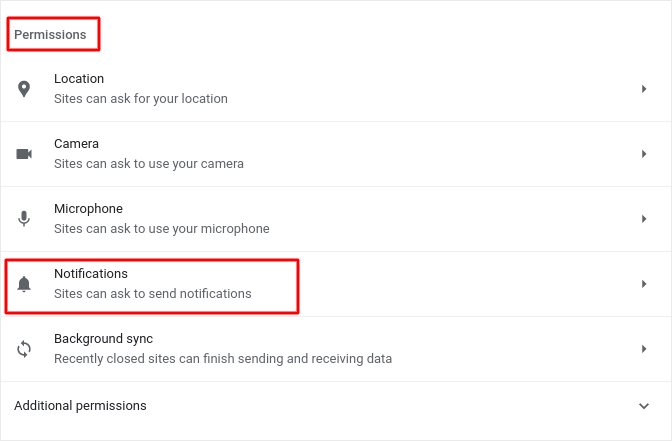
Et ensuite, cliquez sur la flèche à côté. Faites défiler jusqu'à Autorisé à envoyer des notifications :
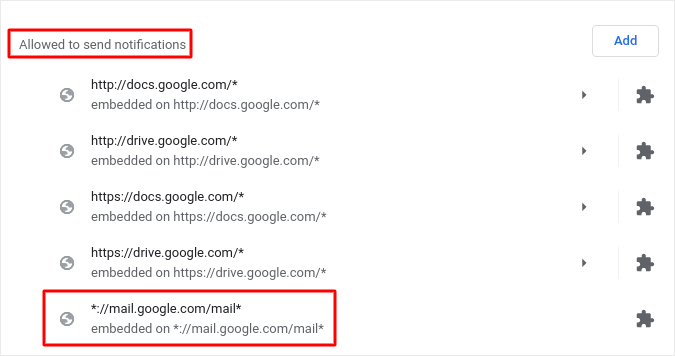
Ceci est une liste de tous les sites qui peuvent vous envoyer des notifications push Web. Nous vous recommandons de ne pas désactiver les services Google essentiels, tels que Gmail. Mais toutes les notifications auxquelles vous êtes abonné apparaîtront ici. Trouvez la marque dont vous souhaitez recevoir les notifications push de Google Chrome.
Cliquez sur la flèche à côté et faites défiler jusqu'à Autorisations » Notifications :
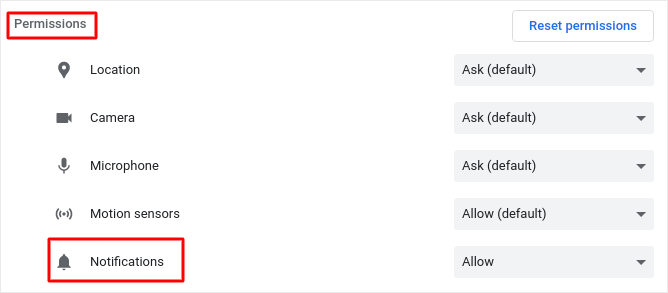
Et changez cette permission de Bloquer à Autoriser.
C'est tout ! Vous avez terminé. Cette méthode fonctionnera quel que soit le système d'exploitation ou l'appareil que vous utilisez, tant que vous utilisez le navigateur Chrome.
Que faire après avoir activé les notifications push de Google Chrome
Ce n'est pas parce que vous aimez le contenu des notifications push que vous devez y être abonné. Avant de vous abonner à d'autres notifications push, vous devriez consulter les règles de conformité RGPD et découvrir si vos notifications push sont sûres.
Et si vous trouvez que les notifications push de Google Chrome sont géniales, vous devriez également consulter comment démarrer avec les notifications push pour votre entreprise.
Les notifications push sont un excellent moyen de développer organiquement votre base de fans. Et il est très facile de configurer des campagnes de push. De plus, si vous êtes nouveau dans les notifications push, vous devriez consulter ces ressources exceptionnelles :
- Comment ajouter un widget d'abonnement au blog dans WordPress
- Comment obtenir plus de trafic vers votre blog WordPress (9 méthodes faciles)
- Coût des notifications push : Est-ce vraiment gratuit ? (Analyse des prix)
- Comment augmenter votre taux d'opt-in pour les notifications push Web (7 méthodes)
- Comment utiliser les boutons d'action de notification push pour multiplier les clics par 2
Nous vous recommandons d'utiliser PushEngage pour créer vos campagnes de notifications push. PushEngage est le logiciel de notifications push n°1 sur le marché et vos campagnes seront entre de bonnes mains.
Alors, si ce n’est pas déjà fait, commencez dès aujourd’hui avec PushEngage.


