Vous cherchez un guide pour créer des campagnes push en cascade ?
Les notifications en cascade gagnent énormément en popularité ces jours-ci. Pendant longtemps, vous ne pouviez envoyer que des campagnes d'e-mails en cascade. Mais maintenant, vous pouvez recréer les mêmes campagnes efficaces et utiliser les options de ciblage du logiciel de notification push pour envoyer des notifications push en cascade.
Mais comment commencer ? Avez-vous besoin d'expérience avec les campagnes en cascade ? Avez-vous besoin d'expérience pour configurer des campagnes de notification push ?
Dans cet article, nous allons vous aider à créer des campagnes push en cascade en utilisant un exemple. Nous répondrons également à toutes vos questions sur les notifications push en cascade.
Ça vous dit ? Plongeons.
Que sont les campagnes push en cascade ?
Une campagne push en cascade est un type de campagne publicitaire pour appareils mobiles. Elle fonctionne comme suit : vous envoyez des notifications push à un groupe de personnes, mais pas toutes en même temps. Au lieu de cela, vous envoyez la notification d'abord aux personnes les plus susceptibles d'interagir avec la notification et d'effectuer l'action que vous souhaitez qu'elles effectuent.
Si ces personnes ne répondent pas, vous passez au groupe de personnes suivant, et ainsi de suite.
L'idée est d'amener autant de personnes que possible à interagir avec la notification tout en dépensant le moins d'argent possible. On l'appelle "en cascade" car c'est comme une série d'étapes que le réseau traverse, ciblant différents groupes de personnes à chaque étape.
Laissez-moi vous expliquer.
Quelle que soit l’activité que vous menez, vous verrez un groupe d’abonnés extrêmement engagés. Ils achètent tout ce que vous vendez, vous donnent volontiers des témoignages et des avis, et vous recommandent de nouveaux clients.
Et puis encore, vous verrez des abonnés qui ne s’intéressent tout simplement à rien de votre entreprise.
Les campagnes de notification push sont accompagnées d’analyses détaillées. Ainsi, vous pouvez voir les deux groupes assez clairement dans votre liste d’abonnés. Et la chose cool, c’est que vous pouvez créer des groupes d’audience dans PushEngage pour recibler les deux types d’abonnés.
Ensuite, vous pouvez créer des options de ciblage pour vos notifications push afin de recibler des comportements spécifiques sur chaque notification que vous envoyez. Une fois que nous aborderons notre exemple, vous verrez plus clairement comment le ciblage comportemental impacte une campagne push en cascade. Pour l'instant, sachez que toutes les campagnes push en cascade ont deux composantes principales :
- Un ensemble de notifications push avec un objectif commun
- Des groupes d’audience pour recibler différents types d’abonnés
Voyons pourquoi les campagnes push en cascade sont si efficaces ensuite.
Pourquoi envoyer des campagnes push en cascade ?
Il y a plusieurs avantages à utiliser les campagnes push en cascade pour développer votre marque :
- Utilisation efficace du budget publicitaire : En ciblant d'abord les utilisateurs les plus précieux, puis en descendant dans la liste de priorité, une campagne push en cascade peut aider à maximiser le retour sur investissement (ROI) de vos dépenses publicitaires. Cela garantit que votre budget publicitaire est utilisé aussi efficacement que possible.
- Taux d'engagement plus élevés : En ciblant les utilisateurs les plus susceptibles d'interagir avec la publicité, vous augmentez les chances d'obtenir un taux de clics et un taux de conversion plus élevés, ce qui peut entraîner une augmentation des revenus.
- Ciblage personnalisable : Avec une campagne push en cascade, vous pouvez créer différents segments d'utilisateurs en fonction de leurs données démographiques, de leur comportement et d'autres facteurs. Cela vous permet d'adapter votre message à chaque groupe et d'augmenter les chances de succès.
- Optimisation en temps réel : Avec une campagne push en cascade, vous pouvez suivre les performances de chaque segment en temps réel et ajuster votre stratégie de ciblage en conséquence. Cela garantit que vous optimisez toujours pour obtenir les meilleurs résultats possibles.
Dans l'ensemble, les campagnes push en cascade peuvent être un moyen efficace d'atteindre votre public cible et de stimuler l'engagement et les conversions, tout en minimisant le gaspillage des dépenses publicitaires.
Comment envoyer des notifications push en cascade
Maintenant que nous savons ce qu'est une campagne push en cascade et pourquoi vous devriez en créer, examinons un exemple concret avec des instructions étape par étape pour en créer une.
Avant de commencer à envoyer des notifications push en cascade, vous devez sélectionner un service de notification push. Nous vous recommandons d'utiliser PushEngage.
Étape n°1 : Créez un compte PushEngage gratuit
Rendez-vous sur PushEngage et cliquez sur Commencez gratuitement dès maintenant :

Vous pouvez commencer avec le plan gratuit. Mais si vous recherchez les notifications push les plus puissantes, vous devriez choisir un plan payant en fonction de vos besoins professionnels :
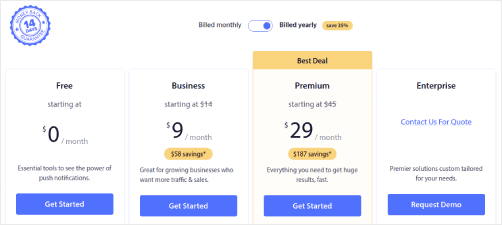
Une fois que vous savez quel plan vous voulez, cliquez sur Commencer pour créer votre compte PushEngage.
Étape n°2 : Inscrivez-vous sur PushEngage
Il est maintenant temps de créer votre compte PushEngage. Commencez par vous inscrire avec une adresse e-mail ou un identifiant Gmail :
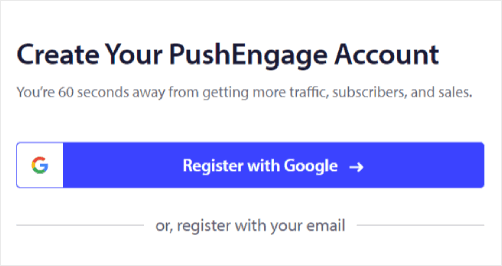
Ensuite, remplissez les détails de votre compte :
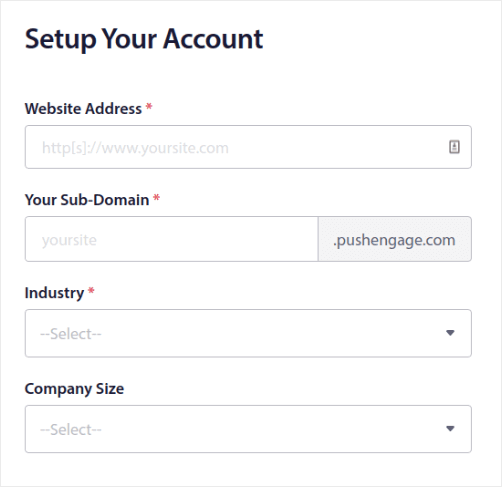
Et ajoutez les informations de votre carte de crédit pour acheter votre plan :
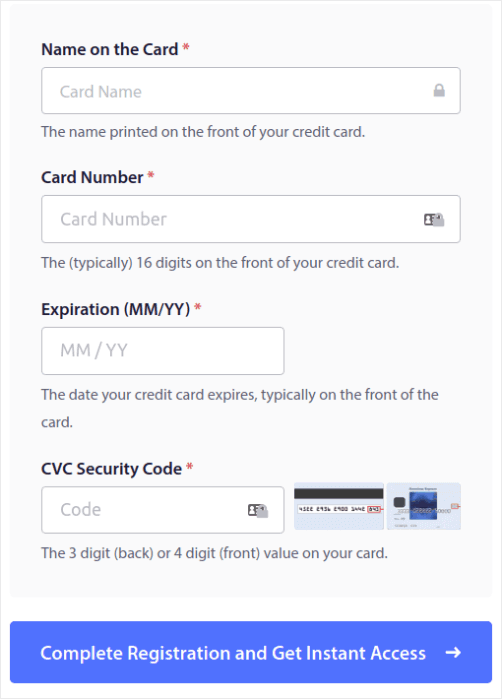
Si vous avez choisi le compte gratuit, votre carte de crédit ne sera jamais débitée tant que vous n'aurez pas choisi de mettre à niveau votre plan. Et maintenant, vous êtes prêt à accéder à votre tableau de bord PushEngage. Cliquez simplement sur Terminer l'inscription et obtenir un accès instantané.
Si vous avez déjà utilisé OneSignal ou PushAlert, vous constaterez que PushEngage vous offre une expérience beaucoup plus fluide depuis le tableau de bord. Le tableau de bord OneSignal n'est pas conçu pour les campagnes avancées. Pour cela, vous aurez besoin de l'API plus que du plugin OneSignal.
Étape n°3 : Installez le plugin WordPress pour les notifications web
Vous avez terminé la création de votre compte. Rendez-vous donc sur le tableau de bord PushEngage et suivez le guide :

Cliquez sur Paramètres du site » Détails du site et cliquez sur le bouton Cliquez ici pour les instructions de configuration :

Cliquez sur l'onglet WordPress et cliquez sur le bouton Installer le plugin WordPress PushEngage pour installer le plugin sur votre site web.

Le plus intéressant : Lorsque vous avez créé votre compte PushEngage, vous avez déjà synchronisé votre site web avec votre compte PushEngage. Cliquez donc sur le lien d'installation dans le tableau de bord PushEngage pour installer automatiquement le plugin WordPress PushEngage sur votre site web.
Étape n°4 : Connectez votre site WordPress à PushEngage
Une fois que vous avez terminé l'installation et l'activation du plugin WordPress PushEngage, vous verrez l'assistant de configuration PushEngage :
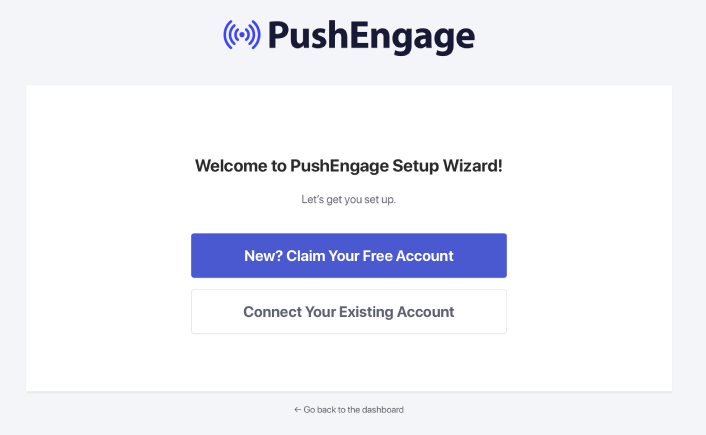
L'assistant est assez simple. Si vous êtes un nouvel utilisateur, cliquez sur Nouveau ? Réclamez votre compte gratuit. Et si vous vous êtes déjà inscrit, cliquez sur Connecter votre compte existant.
Ensuite, vous pouvez sélectionner votre site dans le menu déroulant Sélectionner un site sous Connecter un site enregistré si vous avez déjà enregistré un site lors de l'inscription :
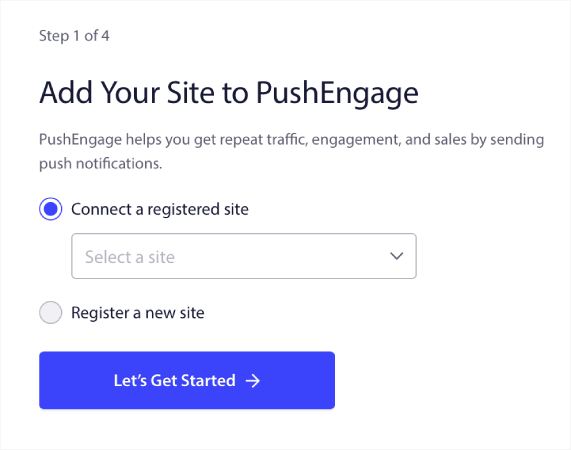
Ou, vous pouvez cliquer sur Enregistrer un nouveau site pour ajouter un nouveau site si vous avez un plan tarifaire Premium ou supérieur. À l'étape suivante, l'assistant de configuration vous invitera à installer d'autres plugins WordPress indispensables.
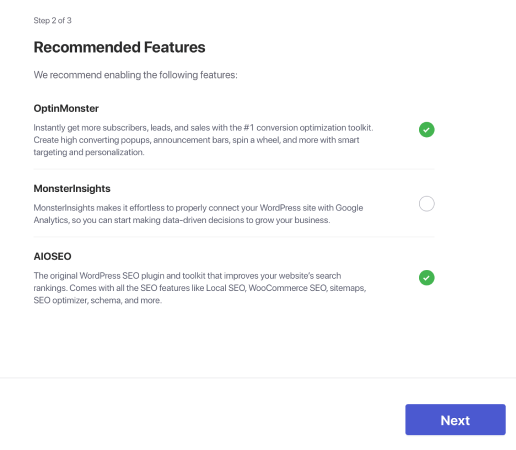
Si vous avez suivi chaque étape correctement, vous verrez ce message de succès de l'assistant :
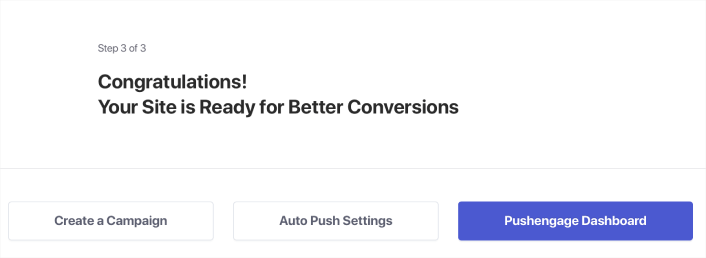
Vous êtes maintenant prêt à créer des campagnes.
Étape n° 5 : Créer des campagnes push en cascade
Enfin, place à notre exemple. Pour vous montrer un cas d'utilisation réel des campagnes push en cascade, nous allons prendre l'exemple des promotions du Black Friday. Notre objectif est de maximiser les conversions sur notre offre du Black Friday.
Pour recibler nos abonnés en fonction de leur comportement, nous allons envoyer une diffusion à tous nos abonnés. Ensuite, en fonction de leurs niveaux d’engagement, nous allons créer différents groupes d’audience pour le reciblage.
Comment envoyer votre notification à tous les abonnés
Nous voulons la portée maximale pour 3 notifications :
- Annonce anticipée du Black Friday
- Vente flash Black Friday
- Vente Cyber Monday
Nous envoyons donc ces 3 notifications à tout le monde. Dans l'onglet Audience, sélectionnez Envoyer à tous les abonnés :

Comment recibler les abonnés qui n'ont pas cliqué sur la diffusion à tout le monde
Si vous n'envoyez pas la notification à tous les abonnés, vous devrez créer un Groupe d'audience. Par exemple, si vous souhaitez cibler les abonnés qui n'ont pas cliqué sur la diffusion à tout le monde, vous devrez créer un nouveau Groupe d'audience.
Dans votre tableau de bord WordPress, allez dans Audience » Groupes d'audience et cliquez sur Créer un nouveau groupe d'audience :
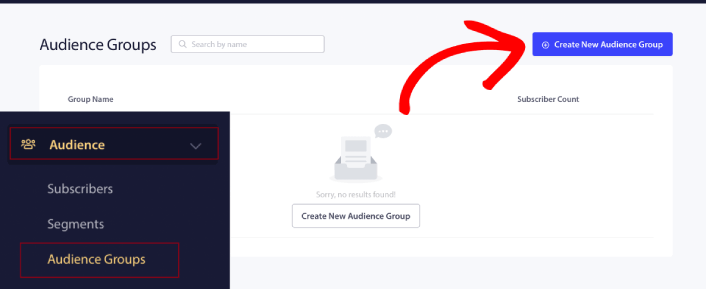
Pour cibler les abonnés qui n'ont pas cliqué sur la dernière notification, vous devrez filtrer par Date du dernier clic :
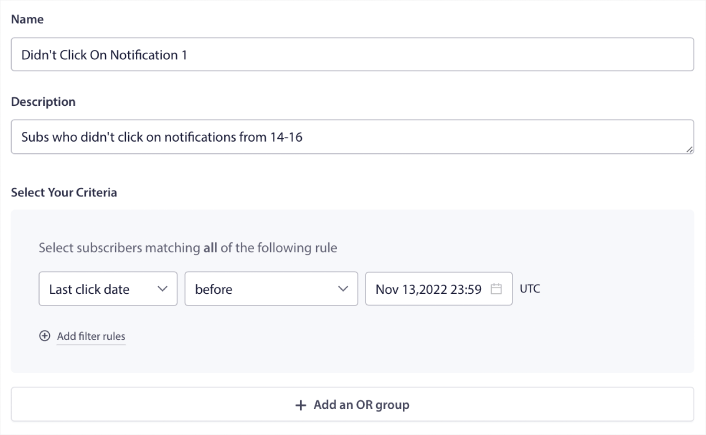
Filtrez par date du dernier clic avant la date d'envoi de votre notification précédente. Ainsi, si vous avez envoyé la dernière notification push le 14 novembre, filtrez les abonnés qui ont cliqué sur les notifications uniquement avant le 13 novembre à minuit.
REMARQUE : Contrairement à une campagne par e-mail, vous ne pouvez pas réellement filtrer par taux de clics sur la dernière notification. L'approximation la plus proche consiste à filtrer les clics dans une plage de dates.
Lorsque vous avez terminé, cliquez sur Enregistrer la notification.
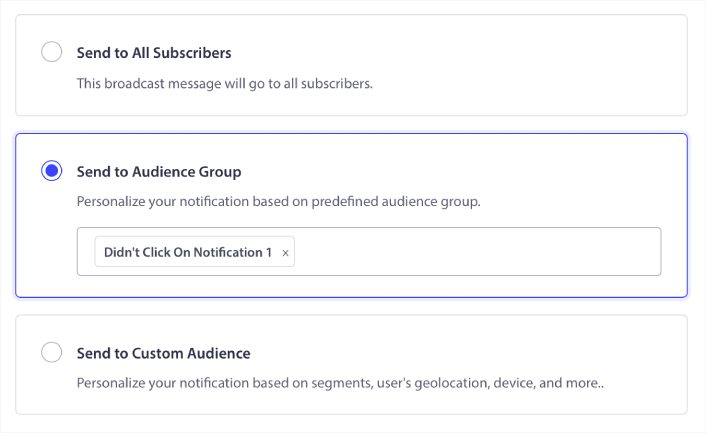
Ensuite, retournez à votre diffusion de notification push et sélectionnez Envoyer au groupe d'audience. Dans le menu déroulant, sélectionnez votre groupe :
Comment recibler les abonnés qui ont cliqué sur la diffusion à tout le monde
Si vous souhaitez cibler les abonnés qui ont cliqué sur votre dernière notification, vous pouvez créer un autre Groupe d'audience.
Filtrez vos abonnés par Date du dernier clic après la date d'envoi de votre notification précédente ET avant la date d'envoi de votre prochaine notification :
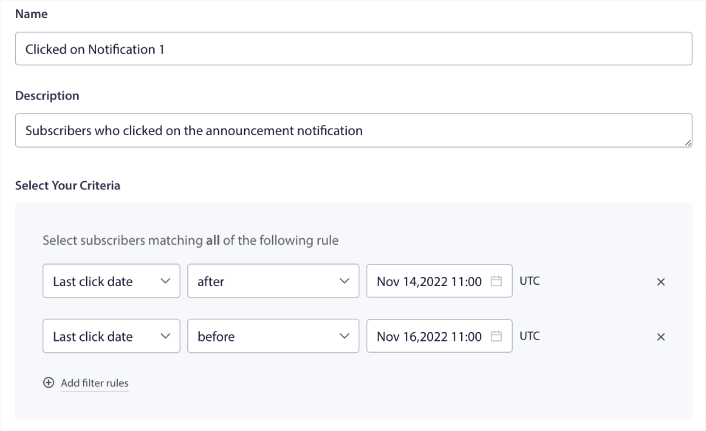
Vous pouvez ajouter des critères ET à votre filtre en cliquant sur Ajouter des règles de filtre. Un filtre comme celui-ci est idéal pour les notifications push de vente croisée.
Le résultat de ces groupes d'audience est un ciblage plus granulaire. Ainsi, à chaque fois, vous pouvez envoyer différentes offres pour améliorer vos taux de conversion.
Que faire après avoir créé des campagnes push en cascade
L'une des choses les plus importantes à retenir à propos des campagnes push en cascade est que vous ne pouvez utiliser cette méthodologie que sur les notifications push de diffusion. Les campagnes goutte à goutte dans les notifications push n'ont pas encore d'options de ciblage aussi granulaires.
Ainsi, assurez-vous de tester A/B vos notifications push. Nous vous suggérons également de prendre le temps de lire nos articles et d'apprendre comment optimiser vos notifications push automatisées. Commencez par notre article sur les bonnes pratiques des notifications push.
Si vous êtes novice en matière de notifications push, vous devriez suivre un processus complet de test de notifications push avant de vous lancer. Cela vous aidera à résoudre les problèmes courants avant que vos visiteurs ne les voient et ne commencent à se plaindre d'une expérience utilisateur dégradée. Et vous devriez absolument configurer Google Analytics pour suivre les notifications push.
Retargeting des notifications push pour cibler les abonnés qui ont cliqué dessus ou non. Faites-nous savoir comment cela fonctionne pour vous. En attendant, consultez ces ressources :
- Comment augmenter les clics sur vos notifications push avec la curiosité
- Comment personnaliser chaque notification push
- Comment vous démarquer avec des médias riches dans vos notifications push
- Comment réactiver les abonnés push dormants
- Comment utiliser les notifications push pour tenir les clients informés
- Comment utiliser les emojis dans vos notifications push pour des taux de clics plus élevés
- Comment augmenter les conversions en créant un sentiment d'urgence
Et si ce n'est pas déjà fait, commencez avec PushEngage.


