Vous cherchez un guide pour créer des campagnes goutte-à-goutte afin d'augmenter vos ventes ?
Le marketing est incomplet aujourd'hui sans automatisation. Bien sûr, vous pouvez collecter des abonnés et envoyer des notifications push et des e-mails. Et ensuite ? Continuez à leur vendre votre entreprise avec chaque newsletter et espérez que vos abonnés se convertiront ?
Il n'y a aucun moyen de :
- Personnaliser vos campagnes
- Acquérir de nouveaux clients en mode pilote automatique
- Conserver les clients existants avec votre contenu
- Augmenter ou vendre des produits complémentaires
- Récupérer les ventes perdues
Sauf si... vous utilisez des campagnes goutte-à-goutte qui convertissent.
Dans cet article, nous vous montrerons comment configurer des campagnes goutte-à-goutte et en tirer le meilleur parti. Le meilleur dans tout ça ? Vous n'avez besoin d'aucune expérience préalable.
Ça vous dit ? Plongeons.
Que sont les campagnes goutte-à-goutte ?
Pensez aux campagnes goutte-à-goutte comme à la mise en place d'une série d'e-mails ou même de notifications push à envoyer automatiquement, un peu comme un système d'arrosage pour votre jardin. Au lieu d'arroser les plantes, vous envoyez des messages aux personnes intéressées par ce que vous avez à dire ou à vendre.
Voici comment cela fonctionne :
- Ce n'est pas de la magie, c'est automatisé : Une fois que vous l'avez configuré, ces messages continuent d'être envoyés d'eux-mêmes. Vous n'avez pas à continuer à les envoyer manuellement.
- Vous pouvez parler aux bonnes personnes : Vous pouvez envoyer différents messages à différents groupes de personnes. Par exemple, quelqu'un qui vient de s'inscrire pourrait recevoir un message de bienvenue amical, tandis que quelqu'un d'autre qui est là depuis un moment pourrait recevoir des offres spéciales ou des mises à jour.
- C'est personnel : Ces messages peuvent utiliser le nom de la personne ou parler de choses qui l'ont intéressée. Cela lui donne l'impression que vous lui parlez vraiment, et pas seulement que vous envoyez la même chose à tout le monde.
- Le timing est essentiel : Les messages sont envoyés aux moments les plus opportuns – par exemple, juste après que quelqu'un se soit inscrit ou ait consulté quelque chose sur votre site.
- Chaque message a un rôle : Chaque e-mail ou notification est destiné à accomplir quelque chose de spécifique, comme aider les gens à mieux connaître votre produit ou leur rappeler quelque chose qu'ils ont regardé mais n'ont pas acheté.
- Vous pouvez voir comment ça se passe : Vous pouvez vérifier des choses comme le nombre de personnes qui ouvrent les messages ou cliquent sur les liens qu'ils contiennent. Cela vous aide à savoir si vos messages fonctionnent bien.
Les campagnes goutte-à-goutte ne se limitent pas aux e-mails – elles fonctionnent aussi pour les notifications push d'application et les notifications push web. Elles sont idéales pour rester en contact avec les personnes intéressées par vos produits, sans les submerger. C'est une façon intelligente de maintenir l'engagement et l'intérêt des gens pour ce que vous faites.
Types de campagnes goutte-à-goutte
Plongeons dans les différents types de campagnes goutte-à-goutte. Tout comme la crème glacée existe en toutes sortes de variétés, les campagnes goutte-à-goutte ont aussi différents types. Chaque type est adapté à un objectif ou à un public spécifique. Voici quelques-uns des plus courants :
- Série de bienvenue : C'est comme dire « Salut ! » à quelqu'un de nouveau. Quand quelqu'un s'inscrit à vos e-mails ou notifications, vous lui envoyez quelques messages amicaux pour lui présenter votre marque ou votre service. C'est comme dérouler le tapis rouge pour vos nouveaux invités.
- Campagnes d'intégration : Pensez-y comme à un guide utile. Quand quelqu'un achète un produit ou s'inscrit à un service, ces messages lui expliquent comment l'utiliser, lui offrent des conseils utiles ou lui montrent des choses qu'il pourrait ignorer. C'est comme faire visiter la ville à un nouveau venu.
- Rappels de panier abandonné : Avez-vous déjà mis quelque chose dans votre panier d'achat en ligne avant de l'oublier ? Ces campagnes sont de petites piqûres de rappel pour les personnes qui étaient intéressées par des articles mais ne les ont pas achetés. C'est comme une légère tape sur l'épaule disant : « Hé, avez-vous oublié ceci ? »
- Campagnes de réengagement : Celles-ci visent à contacter les personnes qui interagissaient auparavant avec votre marque mais qui ne le font plus depuis un certain temps. C'est comme appeler un vieil ami et dire : « Hé, rattrapons-nous ! » Vous pourriez leur offrir une offre spéciale ou simplement leur rappeler votre marque.
- Contenu éducatif : Ici, l'objectif est d'enseigner à votre public quelque chose de précieux lié à votre produit ou à votre secteur d'activité. C'est comme un mini-cours, dispensé en petits messages digestes. Pensez-y comme à une série de leçons amusantes et informatives.
- Mises à jour de produits : Vous avez quelque chose de nouveau ou d'amélioré ? Ce type de campagne tient votre public informé des nouvelles fonctionnalités, des nouveaux produits ou services. C'est comme montrer votre dernier gadget à des amis.
- Invitations à des événements : Vous organisez un webinaire, un atelier ou un autre événement ? Ces campagnes visent à susciter l'enthousiasme et à inscrire les gens à vos événements. C'est comme envoyer des invitations sympas à une fête.
- Campagnes saisonnières : Celles-ci sont liées à des moments spécifiques de l'année, comme les fêtes, les saisons ou les événements spéciaux. C'est comme décorer votre magasin pour Noël ou organiser une vente d'été.
Chaque type de campagne goutte à goutte a son propre charme et son propre objectif. En associant le bon type de campagne à votre public et à vos objectifs, vous pouvez créer des connexions significatives et maintenir l'engagement de votre public d'une manière qui semble naturelle et pas trop commerciale.
Comment créer des campagnes goutte à goutte de notifications push
L'installation de notifications push sur un site Web n'est pas difficile. Mais cela comporte quelques étapes et vous voudrez suivre ce guide étape par étape.
Ne sautez aucune étape et tout ira bien.
Avant de créer une campagne de notifications push de bienvenue, vous devez sélectionner un service de notifications push. Un service de notifications push est un logiciel qui vous permet de créer des campagnes push sans aucun codage.
Nous vous recommandons d'utiliser PushEngage.

PushEngage est le plugin de notifications push n°1 au monde.
Les notifications push vous aident à augmenter le trafic de votre site web et l'engagement en mode automatique. Et si vous gérez une boutique en ligne, PushEngage vous aide également à augmenter vos ventes en vous aidant à créer des notifications push e-commerce automatisées.
Vous pouvez commencer gratuitement, mais si vous êtes sérieux au sujet de la croissance de votre entreprise, vous devriez acheter un plan payant. De plus, avant d'acheter un service de notification push, vous devriez consulter ce guide sur les coûts des notifications push.
Voici un aperçu rapide de ce que vous obtenez avec PushEngage :
- Campagnes automatisées à forte conversion
- Options multiples de ciblage et de planification de campagnes
- Suivi des objectifs et analyses avancées
- Tests A/B intelligents
- Un responsable du succès dédié
Vous verrez que PushEngage est de loin le meilleur choix si vous voulez générer du trafic, de l'engagement et des ventes pour votre entreprise. Et si vous avez un budget limité, vous pouvez toujours faire preuve d'un peu créativité avec vos notifications push.
REMARQUE : Si vous avez un site WordPress, vous devriez installer et activer le plugin WordPress PushEngage.
Allons-y !
Étape n°1 : Créez un compte PushEngage gratuit
Rendez-vous sur PushEngage et cliquez sur Commencez gratuitement dès maintenant :
Vous pouvez commencer avec le plan gratuit. Mais si vous cherchez à envoyer des notifications push ciblées, vous devriez sélectionner le plan Growth. Une fois que vous savez quel plan vous voulez, cliquez sur Commencer pour créer votre compte PushEngage.
Étape n°2 : Inscrivez-vous sur PushEngage
Il est maintenant temps de créer votre compte PushEngage. Commencez par vous inscrire avec une adresse e-mail ou un identifiant Gmail :
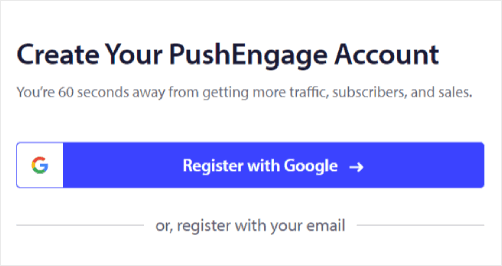
Ensuite, remplissez les détails de votre compte :
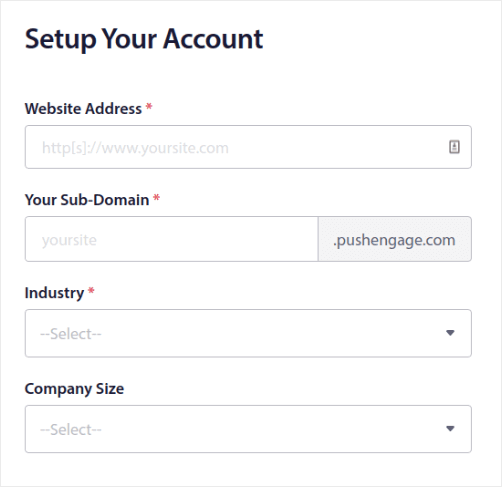
Et ajoutez les informations de votre carte de crédit pour acheter votre plan :
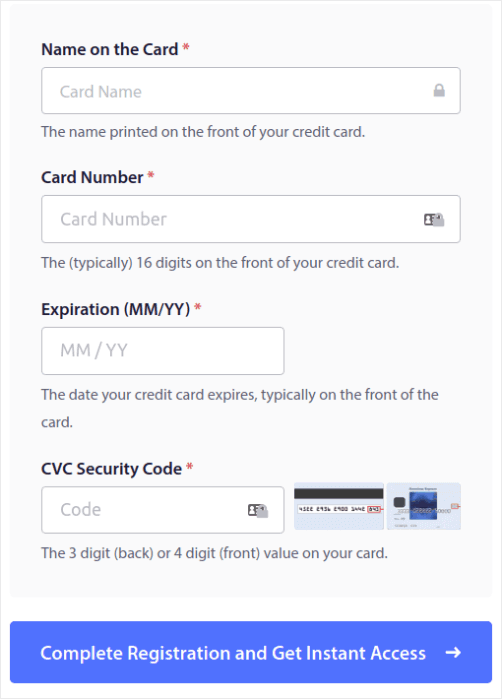
Si vous avez choisi le compte gratuit, votre carte de crédit ne sera jamais débitée tant que vous n'aurez pas choisi de mettre à niveau votre forfait. Et maintenant, vous êtes prêt à accéder à votre tableau de bord PushEngage. Cliquez simplement sur Terminer l'inscription et obtenir un accès instantané.
Si vous avez déjà utilisé OneSignal ou PushAlert, vous constaterez que PushEngage vous offre une expérience beaucoup plus fluide depuis le tableau de bord. Le tableau de bord OneSignal n'est pas conçu pour les campagnes avancées. Pour cela, vous aurez besoin de l'API plus que du plugin OneSignal.
Étape n°3 : Installez le plugin WordPress pour les notifications web
NOTE : Si vous n'utilisez pas un site WordPress, vous devriez consulter nos guides d'installation pour commencer.
Vous avez terminé la création de votre compte. Alors, rendez-vous sur le tableau de bord PushEngage et suivez les instructions :

Cliquez sur Paramètres du site » Détails du site et cliquez sur le bouton Cliquez ici pour les instructions de configuration :

Cliquez sur l'onglet WordPress et cliquez sur le bouton Installer le plugin WordPress PushEngage pour installer le plugin sur votre site Web.

Voici la partie intéressante : Lorsque vous avez créé votre compte PushEngage, vous avez déjà synchronisé votre site Web avec votre compte PushEngage. Alors, cliquez sur le lien d'installation dans le tableau de bord PushEngage pour installer automatiquement le plugin WordPress PushEngage sur votre site Web.
Étape n°4 : Connectez votre site WordPress à PushEngage
Une fois que vous avez terminé l'installation et l'activation du plugin WordPress PushEngage, vous verrez l'assistant de configuration PushEngage :
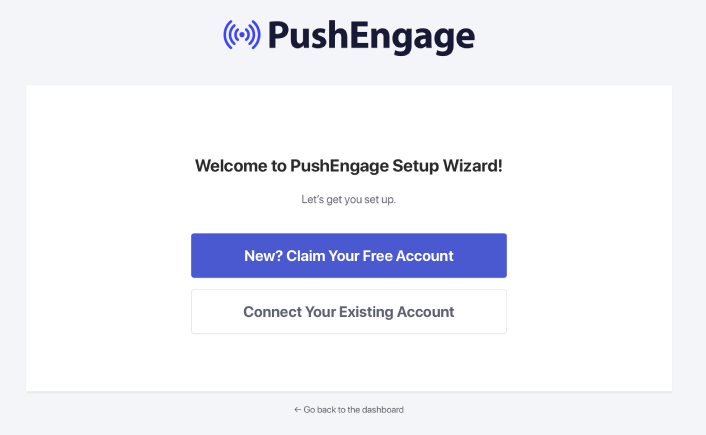
L'assistant est assez simple. Si vous êtes un nouvel utilisateur, cliquez sur Nouveau ? Réclamez votre compte gratuit. Et si vous vous êtes déjà inscrit, cliquez sur Connecter votre compte existant.
Ensuite, vous pouvez sélectionner votre site dans le menu déroulant Sélectionner un site sous Connecter un site enregistré si vous avez déjà enregistré un site lors de l'inscription :
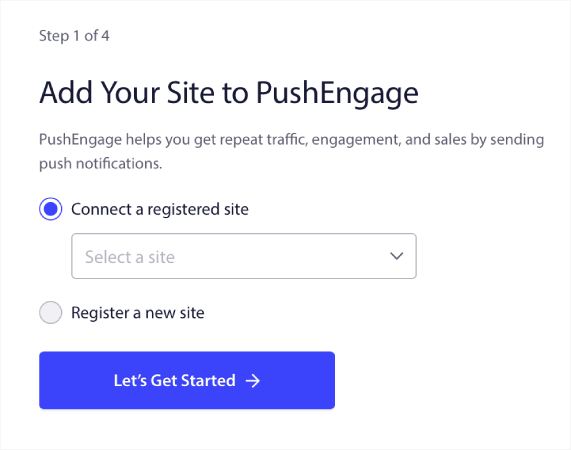
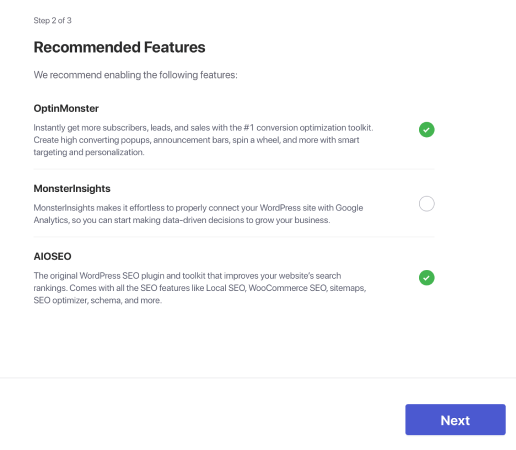
Ou, vous pouvez cliquer sur Enregistrer un nouveau site pour ajouter un nouveau site si vous avez un plan tarifaire Premium ou supérieur. À l'étape suivante, l'assistant d'intégration vous invitera à installer d'autres plugins WordPress indispensables.
Si vous avez suivi chaque étape correctement, vous verrez ce message de succès de l'assistant :
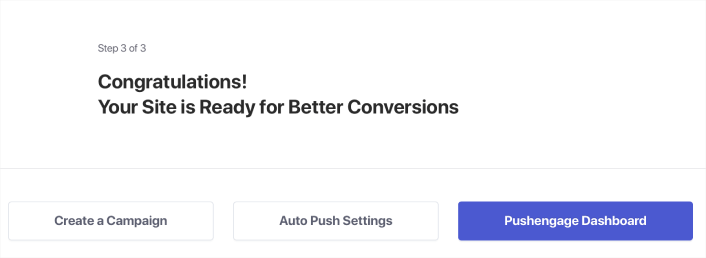
Vous êtes maintenant prêt à créer des campagnes et des modales de fenêtre contextuelle de notification push.
Étape n°4 : Envoyer des campagnes goutte à goutte personnalisées
Avant de créer une campagne, vous devez configurer des segments et des groupes d'audience pour envoyer des messages push personnalisés.
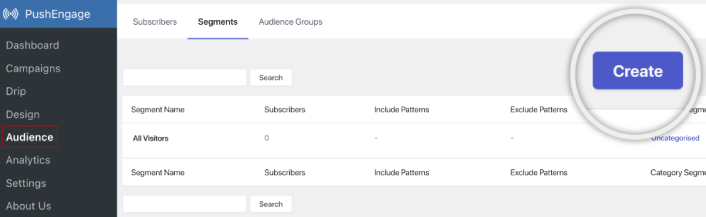
Rien ne vaut le niveau de personnalisation que vous pouvez obtenir en créant des segments et des groupes d'audience pour vos abonnés aux notifications push. Accédez à PushEngage » Audience et commencez à créer des segments et des groupes d'audience immédiatement.
Sous l'onglet Segments, vous pouvez créer de nouveaux segments ou modifier ceux qui existent déjà :
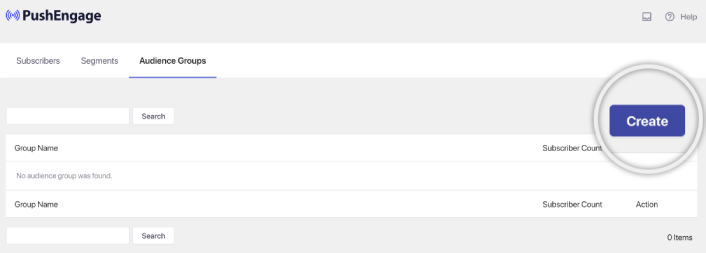
Et si vous avez besoin d'une personnalisation encore plus poussée, créez un groupe d'audience dans l'onglet Groupes d'audience :
Si vous êtes nouveau dans les segments de notifications push et les notifications push personnalisées, vous devriez consulter notre article sur comment créer des segments et notre annonce sur le regroupement avancé d'audience.
Étape n°5 : Créez votre campagne de notifications push de goutte-à-goutte
Accédez au tableau de bord PushEngage et allez dans Campagne » Répondeurs automatiques de goutte-à-goutte et cliquez sur Créer un nouveau répondeur automatique de goutte-à-goutte :

Ensuite, nommez votre campagne (nous suggérons quelque chose comme Bienvenue Drip), et sous Contenu, sélectionnez l'option qui dit « Envoyer la notification immédiatement après l'abonnement de l'utilisateur » :

À ce stade, vous pouvez cliquer sur la flèche à côté de la notification pour modifier le contenu de votre notification.
Si vous avez un plan Premium ou Entreprise avec PushEngage, vous pourrez ajouter plus d'une notification pour créer une séquence de messages de bienvenue automatisés. Cliquez simplement sur Ajouter une nouvelle notification et modifiez le contenu.
Une fois que vous avez terminé, cliquez sur Paramètres de goutte-à-goutte et sélectionnez l'option pour envoyer votre campagne de bienvenue à tous les abonnés :

Ensuite, faites défiler vers le bas pour définir vos propres paramètres UTM afin de suivre les notifications push :

Et une fois que vous avez terminé, faites défiler vers le haut et cliquez sur le bouton Activer le répondeur automatique :

Et voilà !
Comment créer des campagnes de goutte-à-goutte par e-mail
Vous configurez ces campagnes de goutte-à-goutte automatisées dans WordPress ? Vous pouvez le faire facilement avec un outil de marketing par e-mail. Suivez le reste de ce guide et vous serez prêt !
Étape n°1 : Sélectionnez un service de goutte-à-goutte par e-mail
Nous vous suggérons d'essayer Constant Contact. C'est comme la superstar des services de marketing par e-mail. Super facile à utiliser et il est doté d'une fonctionnalité de glisser-déposer pour créer des e-mails.

Constant Contact est le meilleur service d'email marketing pour configurer des auto-répondeurs pour votre entreprise. Il est très facile à utiliser et offre des tonnes de fonctionnalités d'automatisation pour améliorer vos campagnes d'e-mail.
Voici ce qui fait de Constant Contact un excellent choix pour la mise en place de campagnes d'e-mail marketing :
- Constructeur facile par glisser-déposer pour créer des e-mails
- Des centaines de modèles d'e-mails prédéfinis
- Messages de bienvenue, offres d'anniversaire et auto-répondeurs de panier abandonné
- Outils de création de listes et formulaires d'inscription pour développer votre audience
- Tests A/B pour des e-mails ciblés
- Intégrations avec les CRM et les services tiers
- Excellent support par chat en direct et par téléphone
Sans oublier que Constant Contact dispose d'un plugin de formulaires pour WordPress que vous pouvez utiliser pour la génération de prospects. Vous pouvez également nourrir et conclure vos prospects avec des auto-répondeurs.
Mais bon, ce n'est pas le seul acteur sur le marché. La plupart des grands services de marketing par e-mail, comme Brevo (vous le connaissez peut-être sous le nom de Sendinblue), HubSpot, et d'autres, ils ont aussi cette magie des e-mails de goutte-à-goutte.
En quelques clics, vous pouvez lancer ces e-mails automatisés à vos abonnés. De plus, Constant Contact s'intègre bien avec les plugins WordPress comme WPForms et OptinMonster. Et si vous êtes dans le eCommerce, en utilisant WooCommerce ou Shopify, il vous couvre pour contacter de nouveaux clients ou rappeler aux gens les articles qu'ils ont laissés dans leur panier.
Prêt à essayer ? Rendez-vous sur le site web de Constant Contact, inscrivez-vous, et devinez quoi ? Vous pouvez l'essayer avec un essai gratuit de 60 jours. C'est comme essayer une voiture mais pour le marketing par e-mail. De cette façon, vous pouvez voir si c'est le bon choix avant de décider de passer à un plan payant.
Étape n°2 : Créez une liste d'e-mails
Après avoir créé un compte, vous pouvez visiter le tableau de bord de Constant Contact pour créer une liste de contacts.
Constant Contact aura déjà créé une liste par défaut pour vous. Cependant, vous pouvez créer votre propre liste en allant dans l'onglet Contacts dans le menu supérieur, puis en cliquant sur le bouton Créer une liste.

Vous pouvez connecter votre formulaire d'abonnement à la newsletter WordPress avec Constant Contact et commencer à construire une liste d'e-mails. Vous devriez également consulter notre article de blog sur comment ajouter un widget d'abonnement au blog WordPress.
Étape n°3 : Créez des campagnes de marketing de goutte-à-goutte
Maintenant que vous avez ajouté des abonnés à votre liste Constant Contact , l'étape suivante consiste à créer une campagne de goutte-à-goutte automatisée. Allez dans l'onglet Campagnes marketing, puis cliquez sur le bouton Créer.

Constant Contact vous montrera plusieurs options pour créer une campagne. Allez-y et sélectionnez la campagne Automatisations.

À partir d'ici, vous pouvez choisir parmi plusieurs modèles de campagne prédéfinis pour configurer une campagne séquentielle. Vous pouvez créer une Automatisation personnalisée pour commencer à partir de zéro, ou vous pouvez commencer rapidement en utilisant l'un des modèles de campagne.
Pour ce tutoriel, nous sélectionnerons le modèle Créer un chemin personnalisé pour commencer. Sélectionnez l'option S'abonne pour e-mail, puis cliquez sur le bouton Suivant.

Donnez un nom à votre chemin personnalisé et vous avez terminé ! Ce modèle déclenchera une campagne séquentielle chaque fois que quelqu'un de nouveau s'abonnera à votre liste d'e-mails. C'est donc parfait pour une campagne de bienvenue. Si vous cherchez à créer une campagne d'intégration, vous pouvez utiliser des balises pour les placer sur une campagne séquentielle distincte.
Étape n° 4 : Créer un flux de campagne
Cependant, vous pouvez simplement faire glisser des actions et des règles du menu de gauche sur le chemin. Par exemple, vous ajoutez différentes actions comme l'envoi d'un e-mail ou l'envoi d'un SMS à votre flux de travail.
Il existe également différentes règles qui vous aident à personnaliser votre automatisation. Vous pouvez ajouter un délai et spécifier quand le prochain e-mail doit être envoyé. De même, il existe une option de division conditionnelle qui vous permet de définir des conditions Oui et Non et de diviser le chemin.

Modifier votre flux de travail automatisé est également un jeu d'enfant. Repérez simplement l'icône des trois points et cliquez dessus. Choisissez Modifier pour apporter des modifications. Disons que vous voulez changer l'action Envoyer un e-mail.
Une fois que vous avez fait cela, une fenêtre contextuelle apparaît. C'est ici que vous pouvez soit créer un tout nouvel e-mail, soit en utiliser un que vous avez déjà créé.
Comme c'est la première fois que vous configurez ce flux de travail, allez-y et choisissez Créer un nouvel e-mail. Entrez un nom sympa pour votre e-mail, puis cliquez sur Continuer. Et juste comme ça, vous êtes en train de personnaliser votre flux d'e-mails !
Étape n° 5 : Créer votre campagne par e-mail
Vous pouvez rechercher un modèle en fonction de l'occasion ou utiliser un modèle vierge pour créer un e-mail à partir de zéro.

Une fois que vous avez sélectionné un modèle, l'éditeur d'e-mails se lancera.

Lorsque vous avez terminé, cliquez sur le bouton Enregistrer et fermer en haut. Cela vous ramènera au Constructeur de chemin dans Constant Contact. Continuez et terminez votre chemin d'automatisation en ajoutant autant d'actions et de règles que nécessaire à votre chemin et en modifiant chacune d'elles.

Après avoir créé un flux de travail automatisé, vous pouvez simplement cliquer sur le bouton Activer en haut. Et vous avez terminé !
Que faire après avoir créé une campagne séquentielle
C'est tout pour cette fois, les amis !
Si vous avez trouvé cet article utile, n'hésitez pas à laisser un commentaire ci-dessous.
Commencer avec les campagnes séquentielles peut sembler intimidant. Mais si vous gardez un œil sur le suivi des objectifs et les analyses, tout ira bien. Plus important encore, vous réaliserez beaucoup plus de profits grâce aux campagnes de notifications push. Voici quelques ressources intéressantes pour vous aider à démarrer :
- Comment utiliser les notifications push de retargeting pour multiplier vos revenus par 2
- Comment trier vos notifications push et trouver les campagnes gagnantes
- Comment nettoyer les listes d’abonnés aux notifications push (Facile)
- Comment envoyer automatiquement des notifications push RSS
- Comment utiliser les notifications push pour promouvoir un site d’actualités
- Comment utiliser les notifications push de vente croisée pour multiplier vos ventes par 2
- Comment utiliser les notifications push d'abandon de navigation (4 étapes)
Si vous êtes nouveau dans les notifications push, vous devriez essayer PushEngage. PushEngage est le logiciel de notification push numéro 1 sur le marché. Et vos campagnes seront entre de bonnes mains.
Alors, si ce n'est pas déjà fait, commencez dès aujourd'hui avec PushEngage !


