Bonjour, Engagelings.
Bonne nouvelle : nous venons d'ajouter une mise à niveau MAJEURE aux notifications push RSS sur PushEngage.
Nous avons lancé les campagnes de notifications push RSS automatiques il y a quelque temps et elles sont devenues très populaires. Cependant, il y avait des limitations à ce que vous pouviez faire avec les notifications RSS. Nous avons donc ajouté des fonctionnalités plus puissantes à nos campagnes de flux RSS.
Voici un aperçu rapide des points forts :
- Créer plusieurs flux RSS
- Démarrer/mettre en pause/supprimer vos notifications push RSS à tout moment
- Ajouter une grande image pour vos flux RSS
- Sélectionner dynamiquement la grande image pour vos notifications push de flux RSS
- Définir une icône de notification dynamiquement à partir du flux RSS ou télécharger votre icône de marque
- Promouvoir automatiquement votre dernier contenu en analysant le flux RSS à des intervalles que vous décidez
- Sélectionner le groupe d'audience que vous souhaitez cibler pour une meilleure personnalisation
- Ajouter des règles d'expiration de notification
- Définir des paramètres UTM personnalisés
- Obtenir des analyses détaillées de campagne pour chaque campagne de flux RSS
Nous l'avons également rendu très facile à utiliser. Beaucoup de travail a été consacré à cette mise à niveau et nous pensons que vous allez l'adorer. C'est aussi une mise à jour majeure, il y a donc BEAUCOUP à découvrir.
Plongeons dans le vif du sujet.
Pourquoi envoyer des notifications push RSS ?
Créer constamment du contenu et gérer un blog est un travail difficile. Mais si vous dirigez une entreprise sérieuse, vous savez que la simple création de contenu ne suffit pas. Vous devez également être en mesure de promouvoir votre contenu.
Et les notifications push sont un excellent moyen de gagner des abonnés de manière rentable. Ce qui rend les notifications push si efficaces en tant qu'outil marketing, c'est qu'elles peuvent être entièrement automatisées.
C'est là qu'interviennent les notifications push RSS.
Si vous configurez correctement les notifications push RSS, chaque fois que vous publiez du contenu sur votre site, vos abonnés reçoivent automatiquement une notification push qui les amène à votre contenu.
Ne vous y trompez pas, cependant. Les notifications push RSS sont toujours moins personnelles que d'autres campagnes de notifications push automatisées. Nous vous recommandons donc d'utiliser un mélange de différentes campagnes pour maximiser votre croissance. Par exemple, vous devez activer les notifications push e-commerce si vous gérez un site e-commerce.
Créer plusieurs notifications de flux RSS
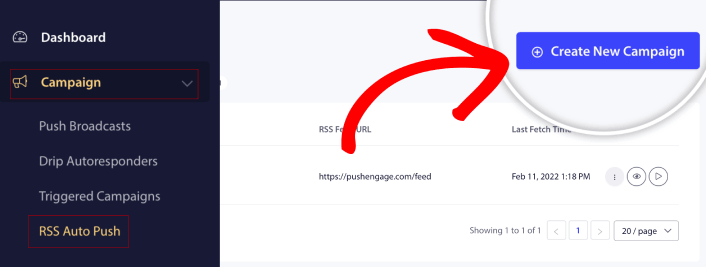
Une fois que vous avez installé PushEngage sur votre site, accédez à votre tableau de bord PushEngage et allez dans Campagne » RSS Auto Push et cliquez sur Créer une nouvelle campagne :
Avec cette nouvelle mise à niveau, vous pouvez désormais créer et envoyer plusieurs notifications de flux RSS pour différents segments et groupes d'audience. Votre site n'a pas qu'un seul flux RSS. Vous pouvez créer des flux RSS pour chaque catégorie de contenu sur votre site.
Et cela prend très peu de temps. Mais la création de plusieurs flux vous permet d'envoyer des notifications push RSS plus personnalisées.
Disons que vous avez trois groupes d'audience qui ne s'intéressent qu'aux supercars, aux motos et aux camions respectivement. Vous pouvez facilement créer différentes URL de flux RSS pour chaque catégorie et envoyer à vos abonnés des notifications push sur le contenu qui les intéresse réellement.
Le résultat ? Vous verrez un pic d'engagement sur votre site, même avec une simple campagne de notifications push RSS automatiques !
Démarrez, mettez en pause et supprimez votre campagne RSS à tout moment
Le plus gros problème avec les campagnes RSS, même les campagnes RSS par e-mail, a été la planification. Il est très difficile de contrôler le nombre de publications que vous envoyez. Et il était encore plus difficile de mettre en pause vos campagnes.
Jusqu'à maintenant !
Avec PushEngage, vous pouvez facilement démarrer, mettre en pause ou supprimer n'importe quelle campagne de flux RSS à tout moment. C'est une fonctionnalité très utile si vous exécutez plusieurs campagnes.
Disons que vous exécutez une campagne de notifications push pour le Black Friday. Vos abonnés devraient se concentrer uniquement sur vos offres promotionnelles. Mais en même temps, vous ne pouvez pas arrêter de publier du nouveau contenu avant la fin de la saison des fêtes. C'est le moment idéal pour mettre en pause vos campagnes de flux RSS.
Étant donné que vous pouvez désormais exécuter plusieurs campagnes RSS, vous pouvez même continuer à envoyer du contenu régulier aux abonnés que vous ne ciblez pas avec votre promotion.
Options de personnalisation d'image faciles
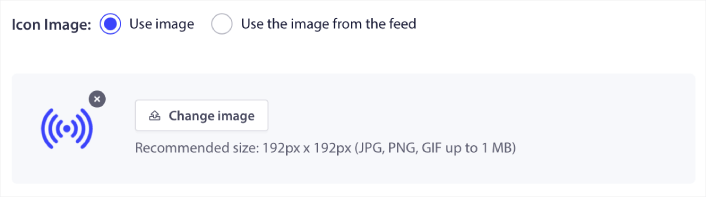
Vous pouvez personnaliser à la fois l'icône de notification et la grande image de notification directement depuis votre flux RSS. Pour l'icône de notification, vous pouvez soit télécharger l'icône manuellement :
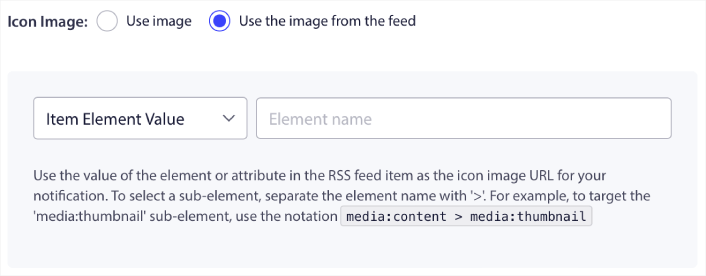
Ou, vous pouvez configurer un modèle pour que PushEngage analyse dynamiquement l'icône de notification à partir de votre flux RSS :
De même, vous pouvez soit permettre à PushEngage de trouver automatiquement la grande image pour vos articles :

Ou, vous pouvez personnaliser le type de grande image que vous souhaitez en la récupérant de votre flux RSS :
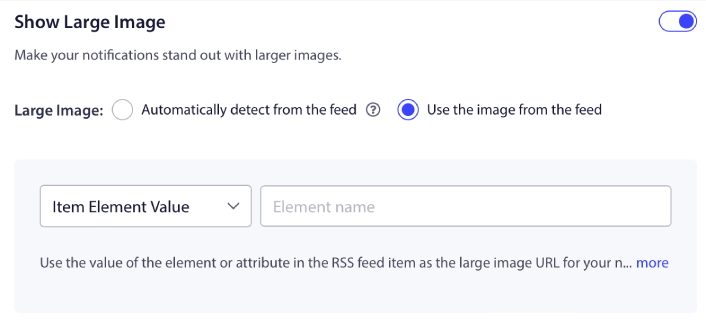
ATTENTION : Utilisez les options avancées d'analyse d'images uniquement si vous êtes capable de lire le XML dans un flux RSS. Si vous n'êtes pas à l'aise avec le XML, vous devriez laisser PushEngage décider de la grande image de notification pour vous et télécharger manuellement l'icône de notification.
Définir la fréquence des notifications RSS
Vous pouvez également définir la fréquence de campagne pour chaque campagne RSS :
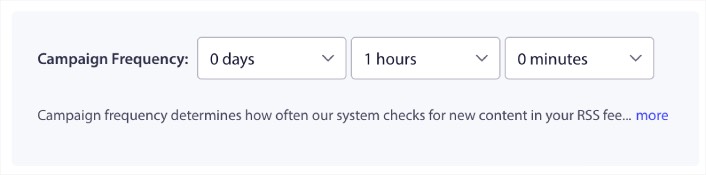
La Fréquence de campagne est la fréquence à laquelle la campagne de flux RSS recherche du nouveau contenu sur votre blog pour envoyer une notification push automatisée. La valeur minimale est de 15 minutes et la valeur maximale est de 7 jours.
Nous recommandons de rechercher du contenu à promouvoir tous les 2 jours, sauf si vous êtes une agence de presse. Pour les agences de presse, vous devriez la maintenir à 15 minutes. Gardez à l'esprit que PushEngage ne recherchera du nouveau contenu qu'après avoir configuré et publié votre campagne de flux RSS.
Définir la durée des notifications push
La durée de la notification push est le temps pendant lequel la notification reste dans le tiroir de notification de votre abonné avant d'être automatiquement supprimée.
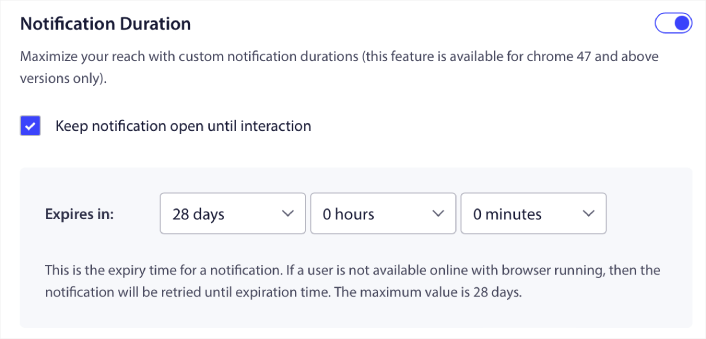
Si vous ne voulez pas submerger vos abonnés avec une tonne de notifications non lues, il est probablement préférable de laisser les notifications push expirer en quelques jours.
Contrairement aux notifications de diffusion ou même à d'autres notifications push automatisées, vous ne pouvez pas vraiment planifier les notifications push RSS par fuseau horaire ou par heure d'envoi spécifique. Ainsi, vous avez toujours la possibilité de laisser la notification ouverte jusqu'à ce que votre abonné interagisse avec elle, même dans la limite d'expiration.
Définir les paramètres UTM pour suivre vos notifications
Vous pouvez également configurer des paramètres UTM pour suivre les notifications push :
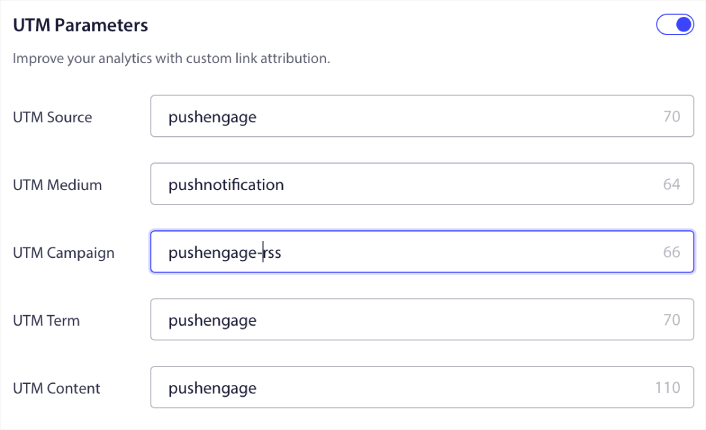
De cette façon, vous pouvez facilement attribuer votre trafic provenant de ces notifications push dans Google Analytics. Bien sûr, vous pouvez également obtenir des analyses détaillées pour l'ensemble de votre campagne directement depuis votre tableau de bord PushEngage.
Cibler un groupe d'audience spécifique
La plus grande amélioration des notifications push RSS est votre option de sélectionner un groupe d'audience pour envoyer des notifications ciblées. Vous pouvez soit envoyer la campagne de flux RSS à tous vos abonnés, soit créer des groupes d'audience pour envoyer des notifications push personnalisées même à partir de votre flux RSS.
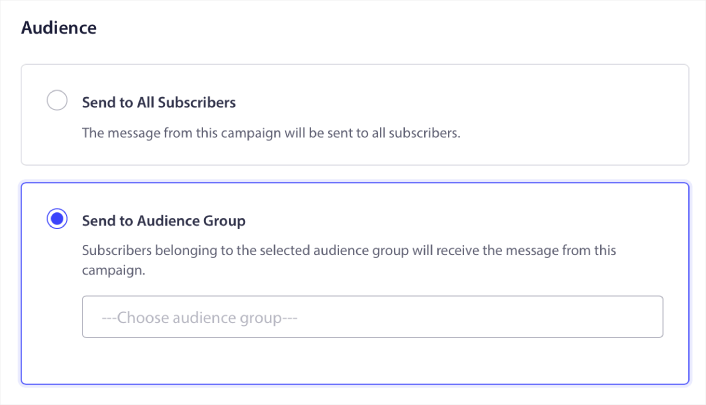
Vous pouvez maintenant envoyer des notifications push automatisées en les configurant une seule fois. Mais c'est encore mieux car vous pouvez choisir le type de contenu que vous souhaitez promouvoir à des audiences spécifiques.
Quoi d'autre ?
Nous savons que développer une entreprise est un travail difficile. Chez PushEngage, nous cherchons toujours à améliorer notre produit et votre expérience. Nous avons lancé cette nouvelle fonctionnalité pour vous aider à tirer encore plus de valeur de votre abonnement PushEngage.
Merci beaucoup d'avoir lu cette annonce.
Si vous avez des questions, notre équipe de succès client est là pour vous aider. Lancez simplement une conversation sur le chat en direct ou consultez notre page de contact.
Et merci d'utiliser PushEngage. Que vous utilisiez la version gratuite ou la version Enterprise, vous êtes tout aussi important pour nous. Les nouvelles fonctionnalités d'autopush RSS sont conçues pour vous aider à réussir et nous vous souhaitons tout le meilleur.
Faites-nous part de vos réflexions dans les commentaires ci-dessous et si ce n'est pas déjà fait, commencez avec PushEngage dès aujourd'hui !


