Notice: There is no legacy documentation available for this item, so you are seeing the current documentation.
UTM parameters append tracking tags to push notification URLs so Google Analytics can attribute site traffic back to specific PushEngage campaigns. You can set default UTM values that apply to all campaigns, then override them at the campaign level for more granular tracking.
Before You Start
- PushEngage is installed on your Shopify store.
- Google Analytics or a similar tool is connected to your Shopify store.
Step 1: Set Default UTM Parameters
Default UTM parameters apply automatically to every push notification sent from your account unless a campaign overrides them.
- Log in to your PushEngage dashboard.
- Go to Site Settings » Campaign Defaults » UTM Parameters.
- Fill in the fields and click Save Changes.
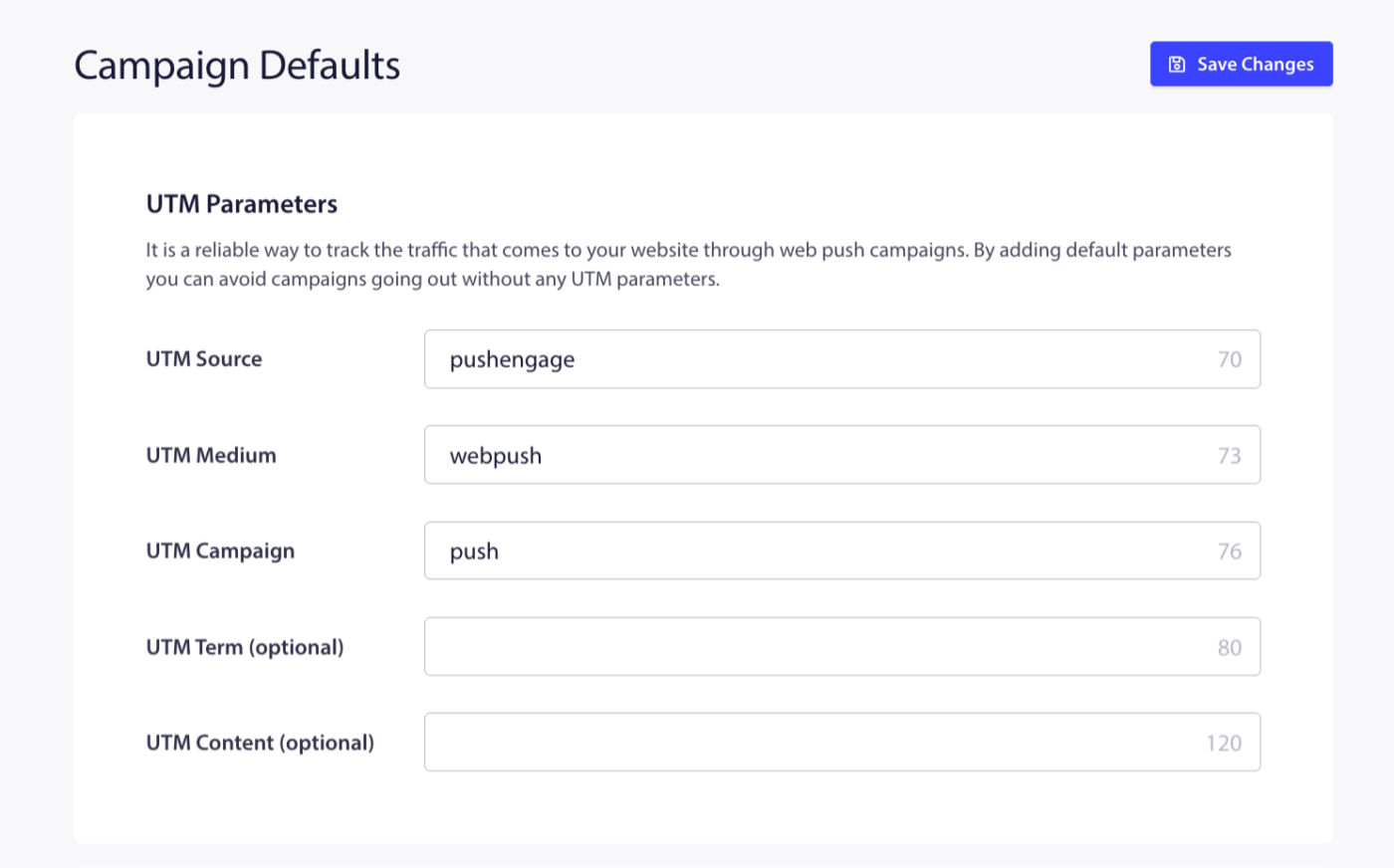
| Field | Required | Recommended Value for Shopify |
|---|---|---|
| UTM Source | Yes | pushengage |
| UTM Medium | Yes | push |
| UTM Campaign | Yes | shopify-push or your store name |
| UTM Term | No | Leave blank or use for seasonal tags |
| UTM Content | No | Leave blank (set per campaign instead) |
Once saved, all campaigns will carry these tags unless a specific campaign sets its own values.
Step 2: Override UTM Per Campaign
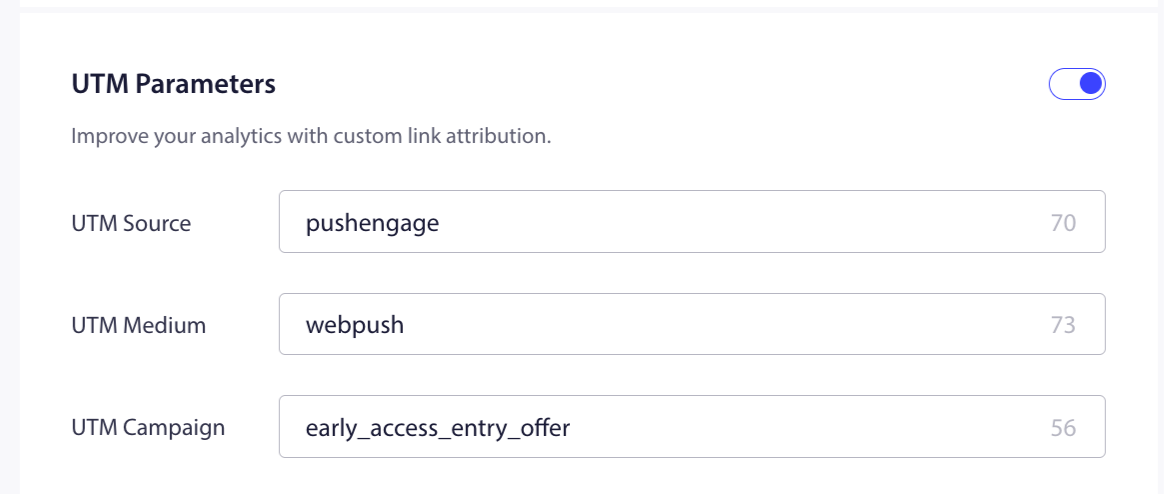
Set campaign-level UTMs to distinguish traffic from different campaign types in Google Analytics. Use utm_campaign to identify the type and utm_content to identify the specific notification step.
Push Broadcasts
- Open a broadcast in Campaigns » Push Broadcasts.
- In the campaign editor, find the UTM Settings or Campaign Settings tab.
- Override
utm_campaignwith a campaign-specific name.
| Campaign | utm_campaign | utm_content |
|---|---|---|
| Flash sale | flash-sale-june | — |
| New arrivals | new-arrivals | — |
| Seasonal promotion | summer-sale | — |
Cart Abandonment (Trigger Campaign)
Use utm_content to distinguish between the 3 notifications in the sequence.
| Notification | utm_campaign | utm_content |
|---|---|---|
| Push 1 — Reminder | cart-abandonment | push1-reminder |
| Push 2 — Urgency | cart-abandonment | push2-urgency |
| Push 3 — Discount | cart-abandonment | push3-discount |
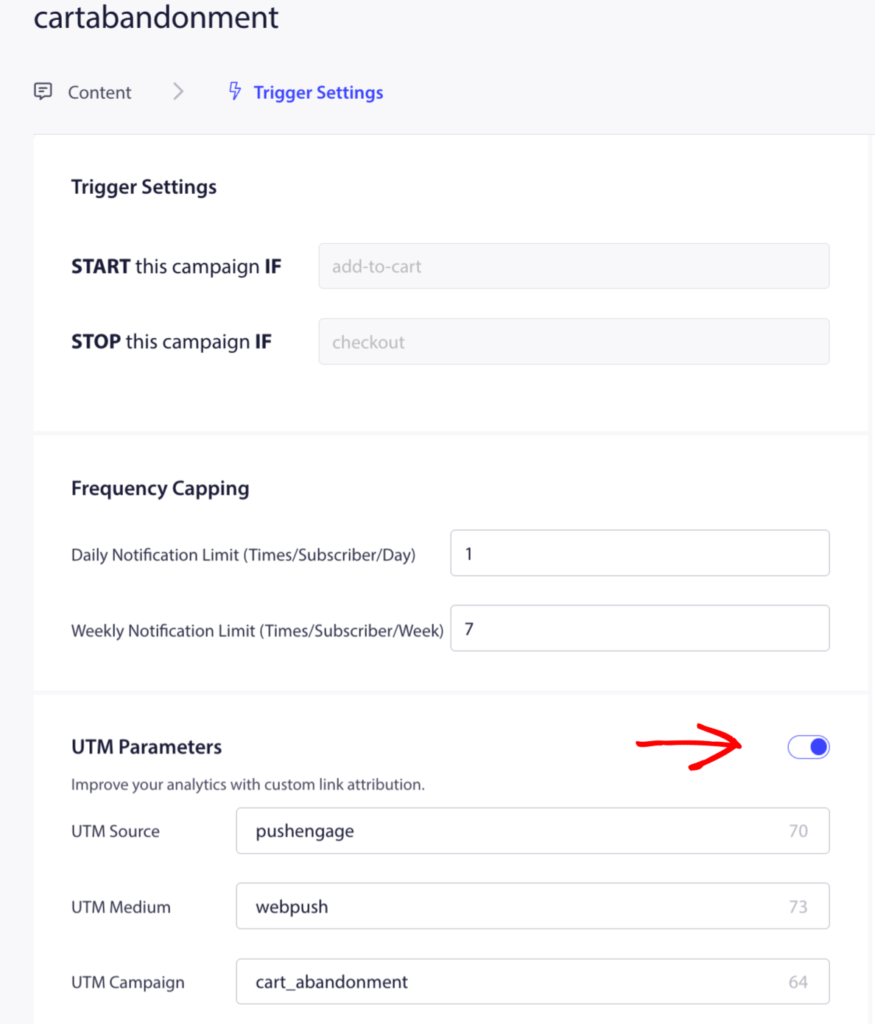
- Go to Campaigns » Trigger Campaigns and open Cart Abandonment.
- Click on each notification and add UTM parameters to the URL field directly, or use the campaign’s UTM settings panel if available.
Browse Abandonment (Trigger Campaign)
| Notification | utm_campaign | utm_content |
|---|---|---|
| Push 1 | browse-abandonment | push1 |
| Push 2 (if used) | browse-abandonment | push2 |
Price Drop and Back-in-Stock (Trigger Campaigns)
These are single-notification campaigns. Set utm_campaign in the notification URL.
| Campaign | utm_campaign |
|---|---|
| Price Drop Alert | price-drop-alert |
| Back-in-Stock Alert | back-in-stock-alert |
Welcome Drip (Drip Autoresponder)
- Open your welcome drip in Campaigns » Drip Autoresponders.
- Click Drip Settings.
- Enter UTM values. Use
utm_contentto separate the 3 pushes.
| Notification | utm_campaign | utm_content |
|---|---|---|
| Push 1 — Welcome | welcome-drip | push1-welcome |
| Push 2 — Bestsellers | welcome-drip | push2-bestsellers |
| Push 3 — Discount | welcome-drip | push3-discount |
Check Results in Google Analytics
Once UTMs are in place, find your push traffic at:
- Acquisition » All Traffic » Source/Medium — filter for
pushengage / push - Acquisition » Campaigns — see results by
utm_campaignname - Secondary dimension: Add
Ad Contentto seeutm_contentbreakdown by notification step
Frequently Asked Questions
Will UTM parameters show in the notification itself? No. They are appended to the destination URL only. The subscriber sees the notification title and message as normal.
Does the default UTM apply to trigger campaigns automatically? Yes. If you do not set a per-campaign override, the default UTM values from Site Settings will be used.
Can I use UTM parameters with the {notificationurl} variable? The {notificationurl} variable fetches the product URL from your store and does not support appending UTM tags automatically. For trigger campaigns using product variables, add UTMs manually or check if your campaign editor has a UTM fields panel separate from the URL field.
If you run into any issues, please feel free to contact us by clicking here. Our support team will be able to help you.


