Uyarı: Bu öğe için eski belgelere ulaşılamıyor, bu nedenle geçerli belgeleri görüyorsunuz.
PushEngage Shopify uygulamasını yüklediğinizde, mağazanız için otomatik olarak iki abone segmenti oluşturulur: Müşteriler ve Potansiyel Müşteriler. Bu segmentler, itme abonelerinizi satın alma davranışlarına göre gruplandırır, böylece alıcılara ve alıcılara manuel kurulum olmadan farklı kampanyalar gönderebilirsiniz.
Bu kılavuz, bu varsayılan segmentlerin neler olduğunu, bunları nasıl etkinleştireceğinizi ve kullanacağınızı, kendi özel segmentlerinizi nasıl oluşturacağınızı ve daha hedeflenmiş kampanyalar için segmentleri Kitle Gruplarına nasıl birleştireceğinizi açıklar.
Başlamadan Önce
- PushEngage Shopify mağazanıza yüklenmiştir ve aktif itme aboneleriniz var.
- Segmentler tüm planlarda mevcuttur. Kitle Grupları Growth planlarında ve üst planlarda mevcuttur.
Varsayılan Shopify Segmentleri
PushEngage, uygulama yüklendiğinde otomatik olarak iki segment oluşturur.
| Segmentasyon | Kimi Kapsar |
|---|---|
| Müşteriler | Shopify mağazanızda bir satın alma işlemi tamamlamış itme aboneleri |
| Potansiyel Müşteriler | Henüz satın alma işlemi yapmamış itme aboneleri |
Bu iki segment birlikte tüm abone tabanınızı kapsar. Aboneler, ilk siparişlerini tamamladıklarında otomatik olarak Potansiyel Müşteriler'den Müşteriler'e geçer.
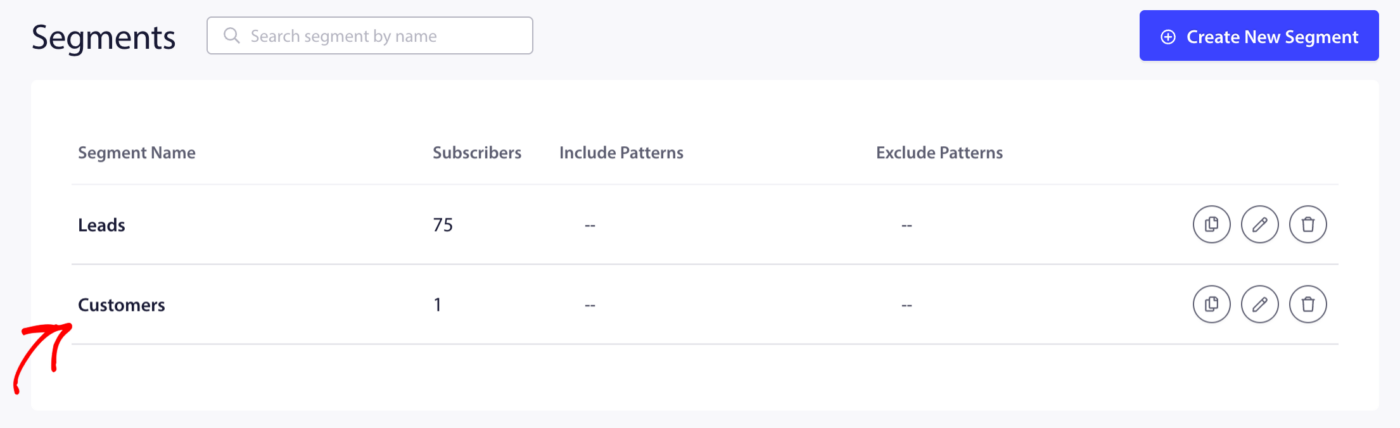
Varsayılan segmentlerinizi görüntülemek için:
- PushEngage kontrol panelinize giriş yapın.
- Kitle » Segmentler bölümüne gidin.
Burada, her birindeki abone sayısıyla birlikte Müşteriler ve Potansiyel Müşteriler segmentlerini göreceksiniz.
Kurulum Sırasında Varsayılan Segmentleri Etkinleştirme
İlk Shopify işe alım akışından geçiyorsanız, kurulum sihirbazının 3. Adımındaki Yeniden Pazarlama adımı altında her iki segmenti de etkinleştirebilirsiniz.
- Satın alma yapmış aboneleri izlemeye başlamak için Müşteriler segmentini etkinleştirin.
- Henüz satın alma yapmamış aboneleri izlemeye başlamak için Potansiyel Müşteriler segmentini etkinleştirin.
Her iki segment de etkinleştirildikleri andan itibaren doldurulmaya başlayacaktır. Listenizde zaten bulunan geçmiş aboneler, bir sonraki uygun olayda uygun segmente yerleştirilecektir.
Kampanya Gönderirken Segmentleri Kullanma
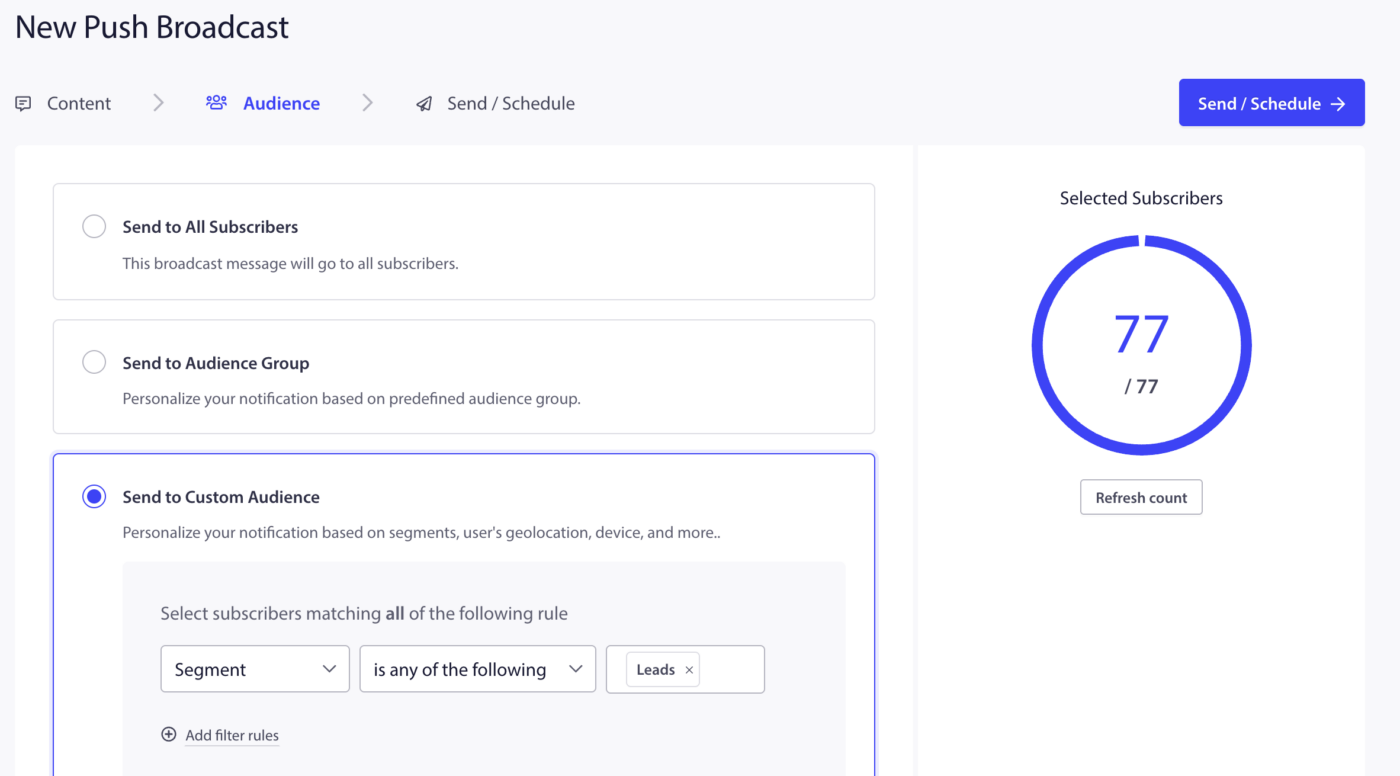
Segmentleriniz aktif olduğunda, bir Anlık Yayın Gönderirken onları hedefleyebilirsiniz.
- Kampanyalar » Anlık Yayınlar'a gidin.
- Anlık Yayın Oluştur'a tıklayın.
- Bildiriminizi oluşturun.
- Kitle sekmesinde, Segment'i seçin ve açılır menüden Müşteriler veya Potansiyel Müşteriler'i seçin.
- Yalnızca o segmentteki aboneler bildirimi alacaktır.
Her Segment Ne Zaman Kullanılır
| Kullanım Senaryosu | Hedef Segment |
|---|---|
| Flaş satış veya yeni ürün duyurusu | Potansiyel Müşteriler (ilk satın almayı teşvik etmek için) |
| Sadakat ödülü veya tekrar satın alma teklifi | Müşteriler |
| Ürün stok güncelleme uyarısı | Her ikisi (farklı metinlerle ayrı ayrı gönder) |
| Pasif aboneler için yeniden etkileşim kampanyası | Potansiyel Müşteriler (sessizleşmiş alıcı olmayanlar) |
| Satış sonrası takip (yorum isteği, ek satış) | Müşteriler |
Özel Bir Segment Oluşturma
Daha spesifik hedefleme için Müşteriler ve Potansiyel Müşteriler dışındaki ek segmentler oluşturabilirsiniz. Özel segmentler, aboneleri göz attıkları ürün kategorilerine, ziyaret ettikleri sayfalara veya izlemek istediğiniz başka herhangi bir davranışa göre gruplandırmak için kullanışlıdır.
Adım 1: Segmenti Oluşturun
- Kitle » Segmentler bölümüne gidin.
- Yeni Bir Segment Oluştur'a tıklayın.
- Segment için bir ad girin. Örnek: İndirim Sayfası Ziyaretçileri veya Yüksek Değerli Müşteriler.
- Eşleşen bir sayfayı ziyaret ettiklerinde aboneleri otomatik olarak bu segmente eklemek için isteğe bağlı olarak URL kalıpları ekleyin.
- Segmenti Kaydet'e tıklayın.

Adım 2: Segment'e Aboneler Ekleyin
Sayfa ziyaretlerine dayalı segmentler için, aboneler tanımladığınız kalıpla eşleşen bir URL'yi ziyaret ettiklerinde otomatik olarak eklenir.
Özel olaylara (satın alma değeri veya ürün kategorisi gibi) dayalı segmentler için, PushEngage'in JavaScript API'sini kullanarak aboneleri programatik olarak ekleyebilirsiniz:
window._peq.push(["add-to-segment", "High Value Customers"]);
Bu kod parçasını sipariş onay sayfasında veya uygun eylemin gerçekleştiği herhangi bir olay sayfasında yerleştirin.
Not: Shopify mağazaları için URL tabanlı segmentler kod gerektirmez. Özel olay tabanlı segmentler, Shopify temanıza bir kod parçacığı eklenmesini gerektirir. Bu konuda yardıma ihtiyacınız olursa, destek ekibimizle iletişime geçin.
Kitle Gruplarını Anlama
Bir Kitle Grubu, bir segmentten farklıdır. Bir segment, aboneleri tek bir kritere göre gruplandırır. Bir Kitle Grubu, birden çok kriteri (segmentler, coğrafya, cihaz türü, abonelik tarihi ve etkileşim geçmişi gibi) tek, yeniden kullanılabilir bir grupta birleştirir.
Tekrarlayarak göndereceğiniz belirli bir kombinasyonu hedeflemek istediğinizde Kitle Gruplarını kullanın. Örneğin: Son 30 gün içinde bir bildirime tıklamamış Amerika Birleşik Devletleri'ndeki müşteriler.
Bir Kitle Grubu Oluşturma
- Kitle » Kitle Grubu'na gidin.
- Yeni Kitle Grubu Oluştur'a tıklayın.
- Grup için bir ad ve isteğe bağlı bir açıklama girin.
- Mevcut filtrelerden seçim yaparak kriter ekleyin:
| Filtre Türü | Örnekler |
|---|---|
| Segmentler | Müşteriler, Potansiyel Müşteriler, herhangi bir özel segment |
| Coğrafya | Ülke, Eyalet, Şehir |
| Cihaz ve Tarayıcı | Mobil, Masaüstü, Chrome, Safari |
| Abonelik Tarihi | Belirli bir tarihten önce veya sonra abone olundu |
| Etkileşim | Son tıklama tarihi, gönderilen toplam bildirim, toplam tıklama |
- Kriterleriniz ayarlandığında Kaydet'e tıklayın.
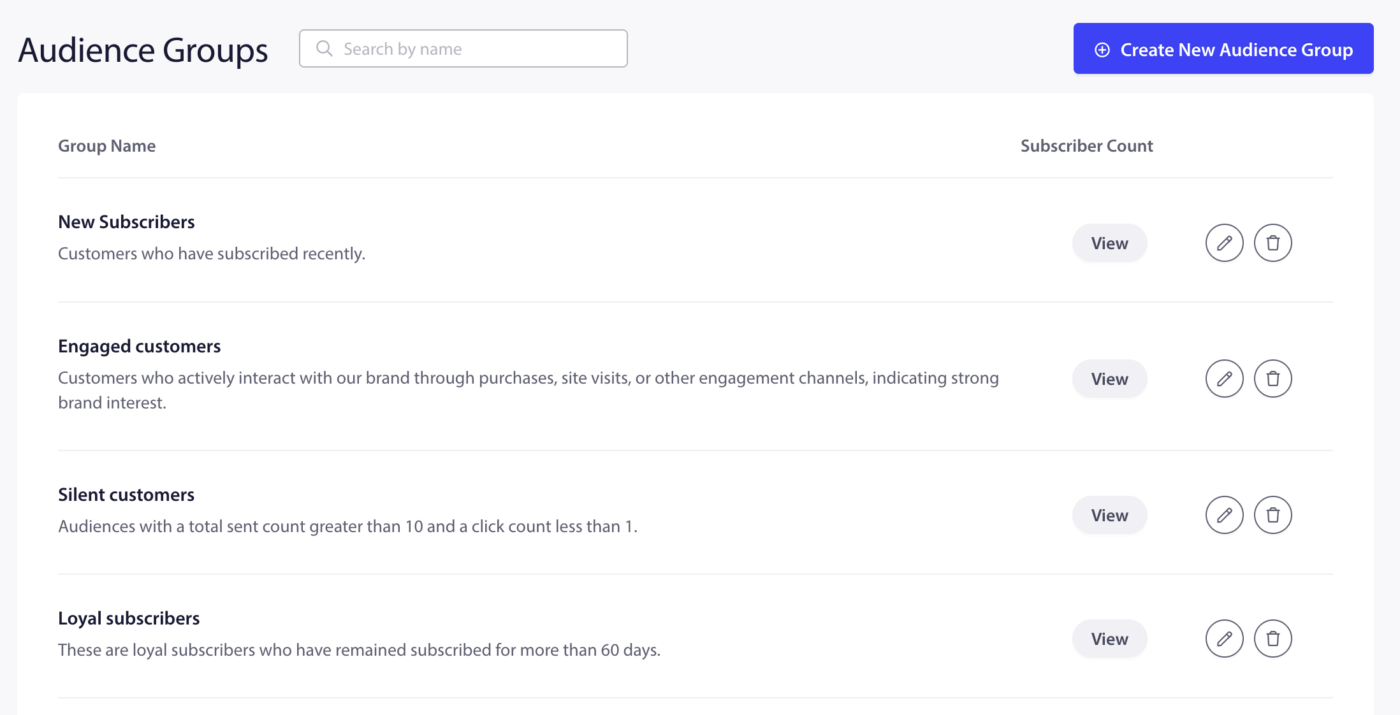
İpucu: Kaydetmeden önce kaç abonenin grubu eşleştirdiğini görmek için kriter ekledikten sonra Görünüm düğmesine tıklayın.
Shopify için Örnek Kitle Grupları
| Grup Adı | Kriterler | Kullanım Senaryosu |
|---|---|---|
| Potansiyel Müşterilerle Yeniden Etkileşim Kurun | Segment = Potansiyel Müşteriler + Son Tıklama Tarihi 30 günden eski | Sessizleşen alıcılara indirim gönderin |
| ABD Müşterileri | Segment = Müşteriler + Ülke = Amerika Birleşik Devletleri | Bölgeye özel satış veya ücretsiz kargo teklifi |
| Mobil Potansiyel Müşteriler | Segment = Potansiyel Müşteriler + Cihaz = Mobil | İlk kez alışveriş yapanlar için mobil uyumlu kampanya |
| Son Müşteriler | Segment = Müşteriler + Abonelik Tarihi son 30 gün | Yeni alıcılar için karşılama dizisi |
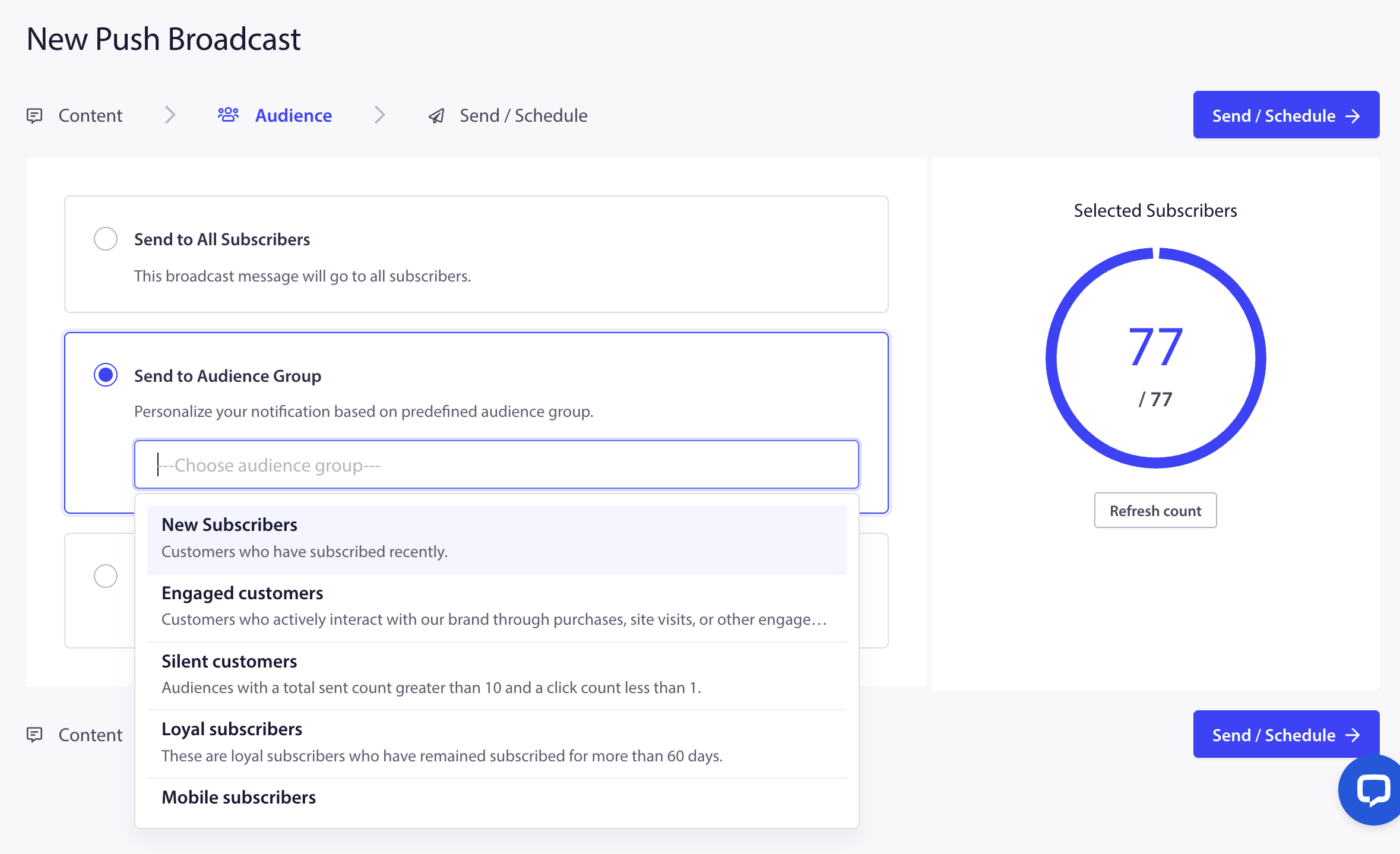
Bir Kampanyayı Bir Kitle Grubuna Gönderme
- Kampanyalar » Anlık Yayınlar'a gidin.
- Anlık Yayın Oluştur'a tıklayın.
- Bildiriminizi oluşturun.
- Kitle sekmesinde, Kitle Grubu'nu seçin ve açılır menüden grubu seçin.
- Kampanyayı gönderin veya zamanlayın.
Sıkça Sorulan Sorular
Bir abone Potansiyel Müşterilerden Müşterilere ne zaman geçer? Bir abone, Shopify mağazanızda bir satın alma işlemi tamamladığında otomatik olarak Müşteriler segmentine taşınır. Bu, sipariş işlenirken gerçek zamanlı olarak gerçekleşir.
Bir abone aynı anda hem Müşteriler hem de Potansiyel Müşteriler segmentinde olabilir mi? Hayır. Müşteriler ve Potansiyel Müşteriler segmentleri birbirini dışlar. Bir abone bir satın alma işlemi tamamladığında, Müşteriler segmentine taşınır ve Potansiyel Müşteriler segmentinden çıkarılır.
İkiden fazla segment oluşturabilir miyim? Evet. Oluşturabileceğiniz özel segment sayısında kesin bir sınır yoktur. Mevcut segment sayısı plana göre değişiklik gösterebilir.
Segment ile Kitle Grubu arasındaki fark nedir? Bir segment, aboneleri tek bir kritere göre gruplandırır. Bir Kitle Grubu, daha hassas hedefleme için birden çok kriteri tek bir yeniden kullanılabilir grupta birleştirir. Segmentleri kendi başlarına kullanabilir veya bir Kitle Grubu içinde birleştirebilirsiniz.
Tetikleyici Kampanyalarda veya Damla Kampanyalarda Kitle Gruplarını kullanabilir miyim? Kitle Grupları Anlık Yayınlar için kullanılabilir. Tetikleyici kampanyalar ve damla kampanyalar için, kampanyayı kimin alacağını filtrelemek üzere bireysel segmentleri kullanabilirsiniz.
Özel segmentler otomatik olarak güncellenir mi? URL kalıplarına dayalı segmentler, bir abone eşleşen bir sayfayı ziyaret ettiğinde otomatik olarak güncellenir. Özel JavaScript etkinliklerine dayalı segmentler, etkinlik tetiklendiğinde güncellenir. Manuel olarak yönettiğiniz segmentler, aboneleri kendiniz eklemenizi veya kaldırmanızı gerektirir.
Herhangi bir sorunla karşılaşırsanız, lütfen buraya tıklayarak bize ulaşmaktan çekinmeyin. Destek ekibimiz size yardımcı olabilecektir.


