メールの開封率が低下し、ソーシャル投稿が埋もれてしまう場合は、何か違うことを試す時期かもしれません。ウェブプッシュ通知キャンペーンは、まさにあなたが必要としているものかもしれません。
ウェブプッシュは高速で直接的であり、購読者がオンラインのときに表示されます。受信トレイはありません。アルゴリズムもありません。重要なときに人々をあなたのサイトに戻す、簡単なメッセージだけです。
このガイドでは、PushEngageを使用して最初のウェブプッシュ通知キャンペーンを設定する方法を説明します。思ったよりも簡単で、簡単なキャンペーンでも実際の成果を上げることができることがわかります。
よろしいですか?早速始めましょう。
今すぐウェブプッシュ通知を送信!
プッシュ通知は、リピートトラフィック、エンゲージメント、売上を自動で伸ばすのに役立つ、非常に効果的で低コストなマーケティングツールです。
ウェブプッシュが機能する理由(他のチャネルが機能しない場合でも)
ウェブプッシュ通知は、メールやソーシャルではできない方法でノイズをカットします。
- リストを増やすために電話番号やメールアドレスは必要ありません
- 購読者が積極的に閲覧しているときにメッセージが表示されます
- カートの回収から製品ドロップまで、すべてを自動化できます
- デバイスやブラウザ全体で機能します(アプリは不要)
独自のプライベートトラフィックチャネルを持っているようなものです…実際に注目されるものです。考えてみてください…あなたの名前、魅力的な見出し、そしてあなたが気にかけている行動喚起が表示されたブラウザ通知を無視したのはいつですか?
⚡ 即時表示:数日間未読のままになるメールとは異なり、プッシュ通知は即時に届きます。ユーザーの画面に直接表示されます。デスクトップでもモバイルでも関係ありません。受信トレイを開くのを待つ必要はありません。最も重要なときに正確に表示されます。
🧠 記憶不要:ユーザーはあなたのウェブサイトを覚えている必要はありません。またはあなたの製品を。あるいはログイン情報さえも。
購読したら、いつでも再エンゲージできます。フォームなし、手間なし、面倒なし。注意力を維持するための高速レーンのようなものです。
📈 驚異的なエンゲージメント:ウェブプッシュのCTRはメールの2〜3倍になることがよくあります。なぜでしょうか?短く、予期せず、人々が閲覧する方法にネイティブだからです。それに、誰も受信トレイがプッシュ通知で溢れているわけではありません(今のところ)。だから目立ちます。
💸 チャネルを所有する:アルゴリズムなし。入札なし。ソーシャルフィードのいたずらなし。プッシュ購読者はあなたのものです。何を表示し、いつ表示するかはあなたが決めます。それはあなたのオーディエンスであり、MetaやGoogleから借りたものではありません。
🧪 テストに最適:見出しが機能するかどうかを知る必要がありますか?人々が新機能に関心があるかどうか?プッシュは、あなたが持っていたと知らなかった最速のA/Bテストツールです。見出しのバリエーションを送信します。どちらが多くクリックされるかを確認します。速く学び、速く動きます。
ウェブプッシュは、安価でコンバージョンが高く、適切に使用すれば非常に効果的な、まれなチャネルです。
そして最も良い点…最初のキャンペーンを開始するのに10分もかかりません。
作成しましょう。
要するに、Webプッシュ通知は、送信ボタンを押した瞬間に購読者の画面に届き、受信トレイ、アルゴリズム、アプリのインストールを介さずに購読者にリーチします。
ウェブプッシュ通知キャンペーンの種類の内訳
広義には、ウェブプッシュ通知キャンペーンには3種類あります。
- ブロードキャスト通知
- ドリップウェブプッシュ通知キャンペーン
- トリガーウェブプッシュ通知キャンペーン
ブロードキャストは、単一の通知として送信するプッシュ通知です。スケジュール設定はできますが、一度しか実行されません。トリガーキャンペーンは、プッシュ通知を設定し、それをトリガーするトリガーを定義し、そのスケジュールを制御するワークフローを定義することを含みます。自動ドリップ通知は、特定の時間または特定の条件が満たされたときに自動的に開始される一連の通知です。
実質的に、トリガーキャンペーンと自動ドリップキャンペーンは外部からは同じように見えます。決定的な違いは、トリガーキャンペーンの方がはるかに柔軟でカスタマイズ可能であるということです。プッシュ通知のコストが他のほとんどのチャネルよりもはるかに低いことを考えると、これら3つすべてを組み合わせてビジネスを成長させることは理にかなっています。
プッシュ通知が初めての場合は、実績のあるテンプレートを使用してジャーニーを開始することを強くお勧めします。
注:ほとんどのトリガーキャンペーンには、ある程度の開発経験が必要です。トリガー通知を最大限に活用するには、APIを使用する必要があります。ただし、すぐに使用できるトリガー通知もいくつかあります。興味のある方は、eコマースプッシュ通知に関する記事をご覧ください。
ウェブプッシュ通知キャンペーンを送信するための最良のサービス
多くの「無料プッシュ通知サービス」は実際には無料トライアルであることを最初に言っておきましょう。ここにリストされているプロバイダーの中には、トライアルソフトウェアであるものもあれば、選択できる永続的な無料プランがあるものもあります。
Firebase Cloud Messaging(FCM)のような他のフリーミアムオプションもありますが、それは実際には良い選択肢ではありません。PushEngageのようなサービスプロバイダーとFCMが競争できない理由については、さらに詳しく読むことができます。しかし、今のところ、私たちの言葉を信じて、より良い選択肢に進んでください。
PushEngageの使用をお勧めします。

PushEngage は世界No.1のプッシュ通知プラグインです。
プッシュ通知は、ウェブサイトのトラフィックとエンゲージメントを自動で増やすのに役立ちます。オンラインストアを運営している場合は、PushEngageが自動eコマースプッシュ通知の作成を支援することで、売上を伸ばすのにも役立ちます。
無料で開始できますが、ビジネスの成長に真剣に取り組んでいる場合は、有料プランを購入する必要があります。また、プッシュ通知サービスを購入する前に、プッシュ通知のコストに関するこのガイドを確認してください。
PushEngageで得られるものを簡単に見てみましょう。
- コンバージョン率の高い自動キャンペーン
- 複数のターゲティングおよびキャンペーンスケジュールオプション
- 目標追跡と高度な分析
- スマートA/Bテスト
- プッシュキャンペーンテンプレート
- 強力なセグメンテーションオプション
- 専任のサクセスマネージャー
そして、これはほんの一部です。さらに進む前に、PushEngageの全機能リストを確認してください。
しかし、PushEngageの最も魅力的な点は、永久無料プランで始めることができることです。そして、複数のカスタマイズオプションを使用して、実際にビジネスを成長させるためにそれを使用できます。
ビジネスのトラフィック、エンゲージメント、売上を伸ばしたいのであれば、PushEngageが断然最良の選択肢であることがわかるでしょう。予算が限られている場合は、プッシュ通知で少しクリエイティブになることもできます。
注意: WordPressサイトを実行している場合は、 PushEngage WordPressプラグインをインストールして有効化する必要があります。
無料版では、最大200人の購読者と30件の生涯通知が許可されます。これは、ビジネスを簡単に有料プランを購入できるレベルまで引き上げるのに十分です。有料プランは、初年度は月額9ドルから(1,000人の購読者、年払い)で、購読者数に応じてスケールします。100,000人の購読者はプレミアムプランとなり、現在の料金は価格ページに記載されています。

コーディングの知識が全くなくても心配いりません。あらゆるウェブサイトやCMSに対応した多数のインストールガイドのいずれかを使用して、PushEngageをインストールできます。
PushengageのAI搭載最適化は、より優れたタイトルとメッセージの作成を支援し、エンゲージメントとキャンペーンの成功を高めます。プッシュ通知が自分で作成できたらと思ったことはありませんか?ついにそれが可能になりました!
プッシュブロードキャスト、ドリップキャンペーン、自動トリガーキャンペーンのキャンペーン作成時間を最大50%削減し、コピーライティングの品質を向上させることができます。
PushEngage AIは、すべてのコピーライティングの参照点として高性能なキャンペーンを使用し、デフォルトで常にベストプラクティスに従います。
そして最も良い点は、同じダッシュボードからウェブプッシュ、Androidネイティブ通知、iOSネイティブ通知、Flutter通知、React Native通知すべてで機能することです!
AIテキスト生成は、どのキャンペーンタイプにも使用できます。この例では、機能を示すためにプッシュブロードキャストを使用しています。しかし、その可能性を最大限に引き出すには、このビデオをご覧ください!
新しいキャンペーンを作成するか、テンプレートからいずれかを選択します。次に、テキストを生成ボタンをクリックできます。
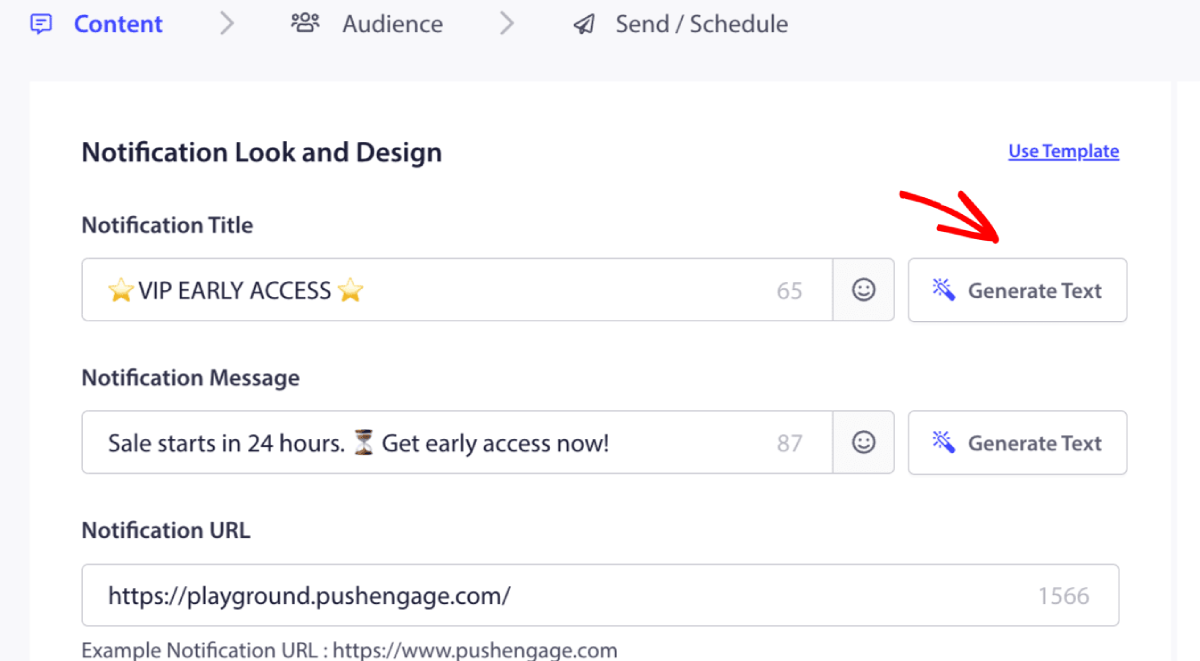
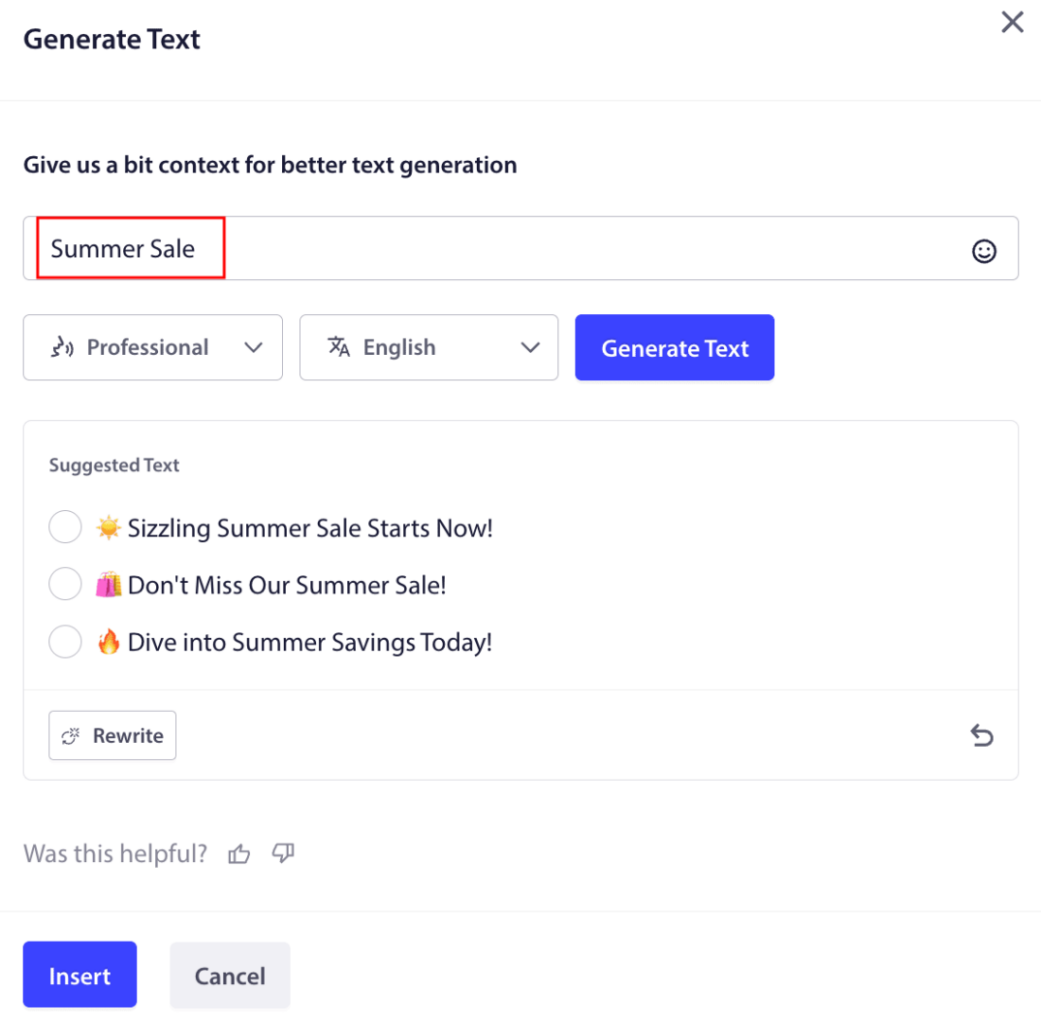
Webプッシュ通知キャンペーンのタイトルとメッセージ用の小さなウィンドウが開きます。AIのプロンプトとして機能するキーワードを追加することから始めることができます。プロンプトは好きなだけ詳細にすることができます。
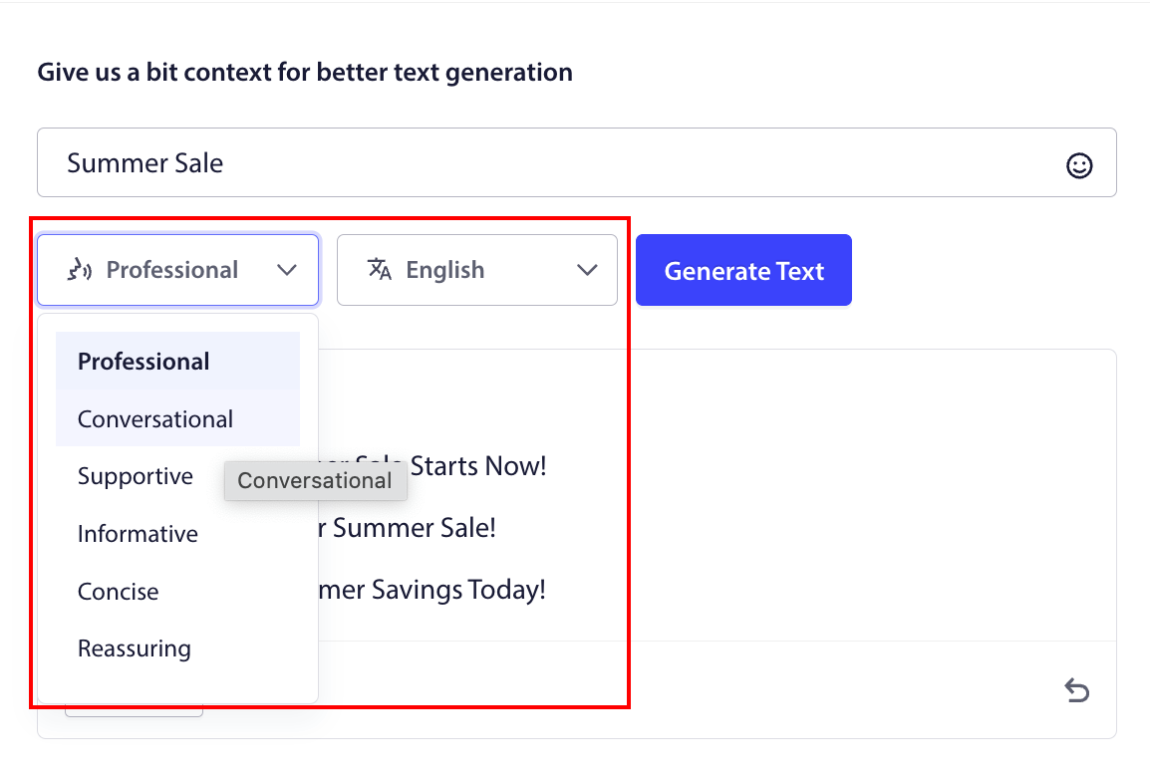
Webプッシュ通知キャンペーンのタイトルまたはメッセージのトーンを設定することもできます。会話のトーンは、作成されるキャンペーンの種類を決定する上で非常に重要です。ブランドスタイルに響くようにしてください。
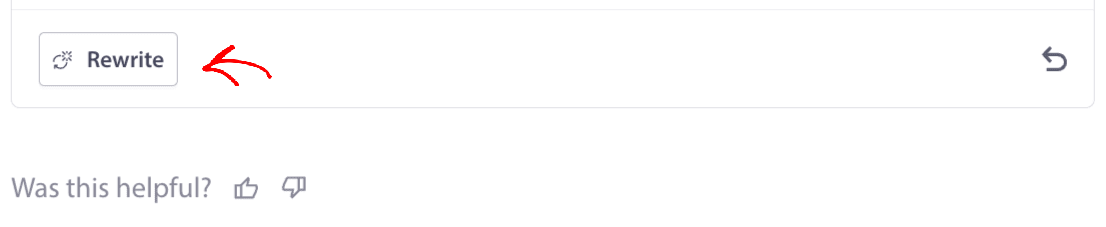
設定したら、テキストを生成ボタンをクリックできます。生成されたテキストに満足できませんか?書き直しボタンをクリックするだけです!
実際には、あらゆる言語でコピーを作成できます!
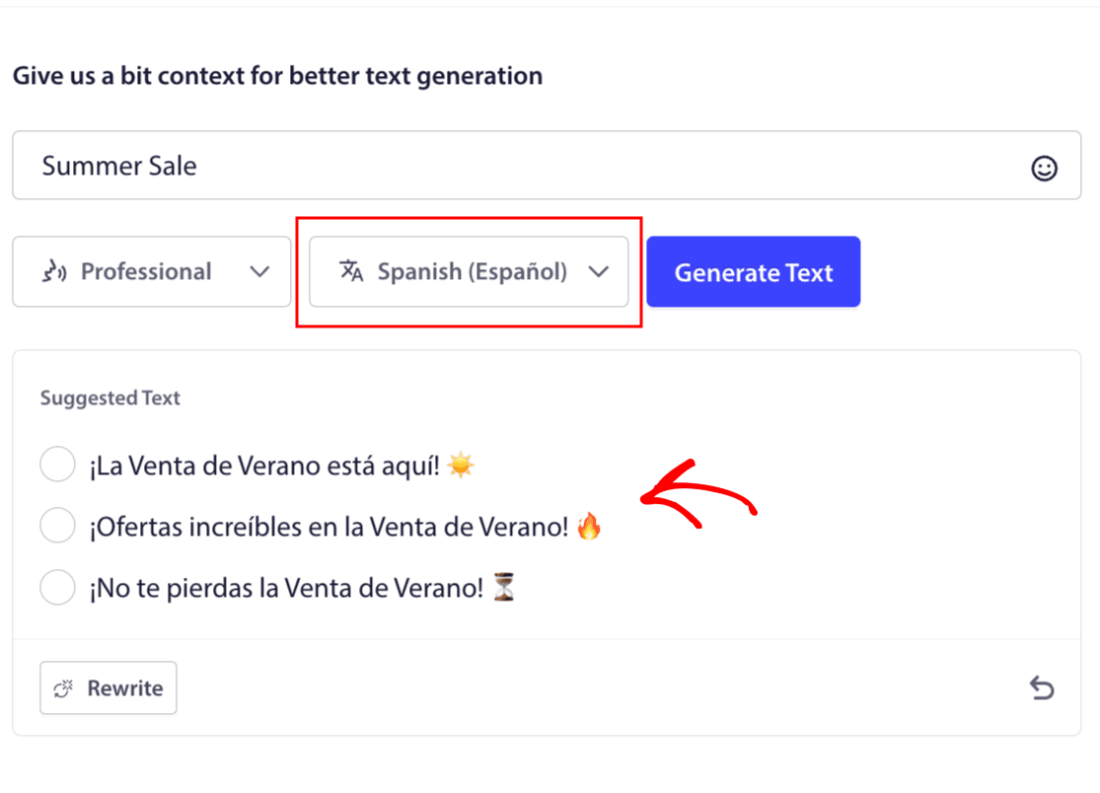
このレベルの組み込み多言語サポートは、他のプッシュ通知ソフトウェアにはまったく存在しません。そして心配しないでください、翻訳は正確です!そのため、地域固有のキャンペーンを非常に簡単に送信できるようになりました。適切なオーディエンスグループを選択し、言語を選択して、AIに魔法を使わせましょう。
Webプッシュ通知キャンペーンの送信方法
Webプッシュ通知キャンペーンとは何か、そしてそれを送信するために必要なサービスを知った今、さまざまな通知を送信する方法をチェックする時が来ました。
実際にWebプッシュキャンペーンがどのように表示されるかはこちらです:
🛒 Eコマース:
- ウェルカム割引:「ご登録ありがとうございます!10%オフです。」
- 値下げアラート:「お気に入りのジャケットは?ついにセールになりました。」
- 新商品ドロップ:「新着商品が入荷しました。いち早くお買い物をどうぞ。」
📚 出版社&ブロガー:
- 新着記事アラート:「今週の[トピック]の解説をお見逃しなく。」
- 週刊ダイジェスト:「金曜日の読み物はここにあります。」
- リードマグネット配信:「無料ガイドはこちらです。ご意見をお聞かせください。」
💼 SaaS&ツール:
- 機能アップデート:「新機能がリリースされました。無料でお試しください。」
- トライアルリマインダー:「無料トライアルは明日までです。」
- 放棄者:「まだ検討中ですか?お試しいただくために20%オフをご用意しました。」
小さく始めてください。これらを参考にしてください。あなたのトーンに合わせて調整してください。完了です。
実用的な目的のために、ここではAPIサービスを使用して作成できるカスタムトリガーキャンペーンについては説明しません。カスタム通知に興味がある場合は、ドキュメントを確認してください。
#1。ウェルカムWebプッシュ通知キャンペーン
ウェルカムWebプッシュ通知キャンペーンは、新しい購読者を歓迎するためのシンプルなプッシュ通知です。
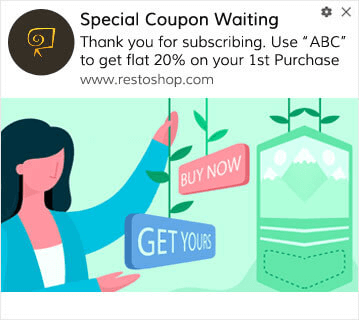
プッシュ通知を購読したことに対するオファーやギフトを送信することもできます。これは多くの顧客にとって非常に一般的です。ウェルカムプッシュ通知を使用して、次のことができます:
- ウェルカムクーポンを共有する
- プレミアム機能を提供する
- 送料無料を提供する
- 無料ギフトを提供する
- ウォークスルーで購読者をオンボーディングする
それでは、PushEngageを使用して最初のウェルカムプッシュ通知を設定しましょう。
PushEngageでウェルカム通知を有効にする方法はこちらです。 PushEngageダッシュボードに移動し、キャンペーン » ドリップ自動応答に移動して、新しいドリップ自動応答を作成をクリックします。

次に、キャンペーンに名前を付け(「ウェルカムドリップ」のような名前をお勧めします)、コンテンツの下で、「ユーザー登録直後に通知を送信」というオプションを選択します。

この時点で、通知の横にある矢印をクリックして、通知のコンテンツを編集できます。PushEngageのPremiumまたはEnterpriseプランをお持ちの場合は、複数の通知を追加して自動ウェルカムメッセージのシーケンスを作成できます。Add New Notificationをクリックして、コンテンツを編集するだけです。
完了したら、ドリップ設定をクリックし、ウェルカムキャンペーンをすべての購読者に送信するオプションを選択します。

次に、下にスクロールして独自のUTMパラメータを設定し、プッシュ通知を追跡します。

完了したら、上にスクロールして戻り、自動応答を有効にするボタンをクリックします。

これで、ウェルカムプッシュ通知キャンペーンの設定がなぜ重要なのかがわかりました。設定方法もわかりました。新しい購読者を再エンゲージするためにウェルカムプッシュ通知を有効にするか、インスピレーションのためにウェブサイトのウェルカムメッセージに関するこの記事を確認してください。
#2. 廃棄カートのウェブプッシュ通知キャンペーン
ショッピングカート放棄とは、潜在顧客が商品をショッピングカートに追加しても、チェックアウトプロセスを完了しないことです。
あなたの仕事は、カート放棄を可能な限り減らすことです。
失われた売上を回復する1つの方法は、カート放棄ウェブプッシュ通知キャンペーンを使用することです。カート放棄リカバリーキャンペーンは、カートに商品が残っている購読者を対象とし、フォローアップ、リマインダー、オファー、クーポン、割引などを送信します。
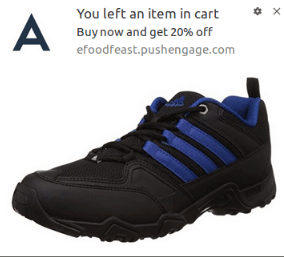
シンプルなアイデアです:できるだけ多くの人に何かを購入してもらうこと。
カート放棄プッシュ通知は、あなたの収益に非常に現実的な影響を与えます。例えば、WickedWeasel は、カート放棄プッシュキャンペーンから毎週 $2,000 ~ $4,000 の追加売上を得ています。
それでは、最初のカート放棄キャンペーンを PushEngage で設定しましょう。
PushEngageダッシュボードに移動し、キャンペーン » トリガーキャンペーンにアクセスして、新しいトリガーキャンペーンを作成をクリックします。
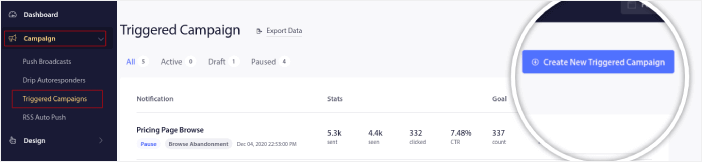
次に、「カート放棄」テンプレートを選択し、「新規作成」をクリックします。
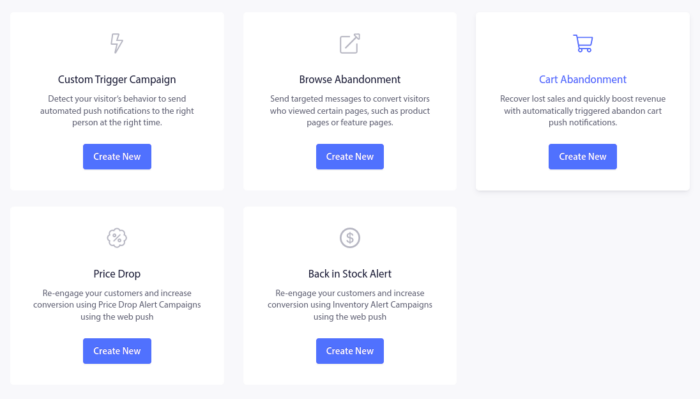
そして、カート放棄自動応答の作成を開始できます。コンテンツタブの下で、一連のプッシュ通知を作成できます。
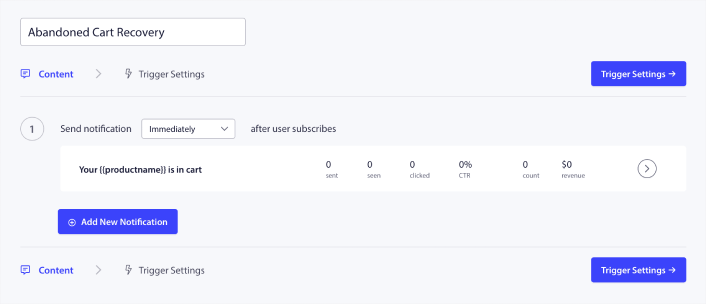
通知を編集するには、横にある矢印をクリックするだけで、プッシュ通知をカスタマイズできます。
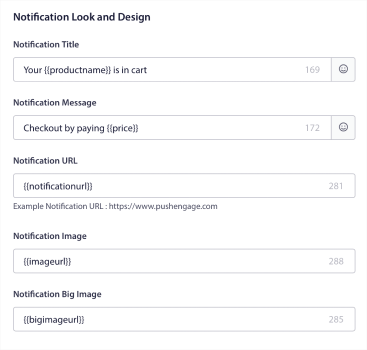
より詳しいチュートリアルについては、カート放棄プッシュ通知の設定方法に関するこの記事を確認してください。
#3. ブラウズ放棄ウェブプッシュ通知キャンペーン
閲覧放棄は、まさにその名の通りです。ウェブサイトの訪問者があなたのウェブサイトを閲覧していて、突然離れることを決定した場合です。これらのインシデントは、他のベンダーからはファネル放棄とも呼ばれます。
閲覧放棄は、ほぼすべての業界で非常に一般的な発生状況です。
そして、ランダムなユーザーにウェブサイトに滞在してもらうためのインセンティブを与える方法がないため、これを削減または制御することは非常に困難です。ここで閲覧放棄キャンペーンが非常に強力になります。
これは、パブリッシャー向けの閲覧放棄プッシュ通知の例です。
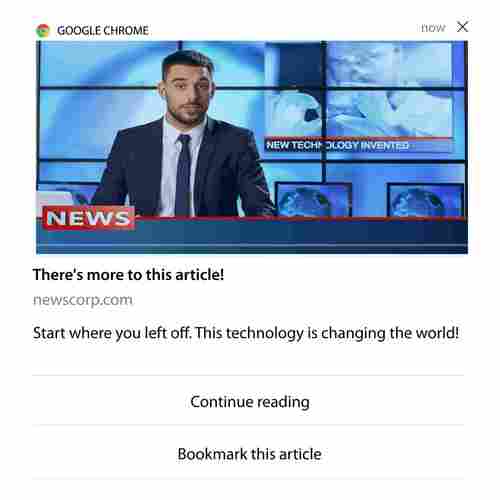
PushEngage の素晴らしい点は、ほぼすべての業界でキャンペーンを設定できることです。したがって、SaaS および旅行ウェブサイト向けの閲覧放棄プッシュ通知を送信することもできます。
では、閲覧放棄キャンペーンをどのように設定するのでしょうか?
カート放棄では、プッシュ通知をトリガーするための非常に明確なパラメータがあります。閲覧放棄の場合、次のようなパラメータを検討するとよいでしょう。
- ウィッシュリストに商品を追加した
- 同じ商品を X 回以上見た
- 同じカテゴリで X 個以上の商品を見た
- サイトで特定の商品を検索した
- 離脱する前に少なくとも X 分間サイトに滞在した
eコマースサイト向けのこのキャンペーンの背後にある考え方は、購読者に商品をカートに追加してもらうことです。パブリッシャーの場合は、閲覧していた記事のクリックまたはダウンロードになる可能性があります。
再度PushEngageダッシュボードにアクセスし、[Campaign] » [Triggered Campaigns]に移動して新しいトリガーキャンペーンを作成します。

次に、[Create New]ボタンをクリックして、新しい閲覧放棄キャンペーンを作成します。
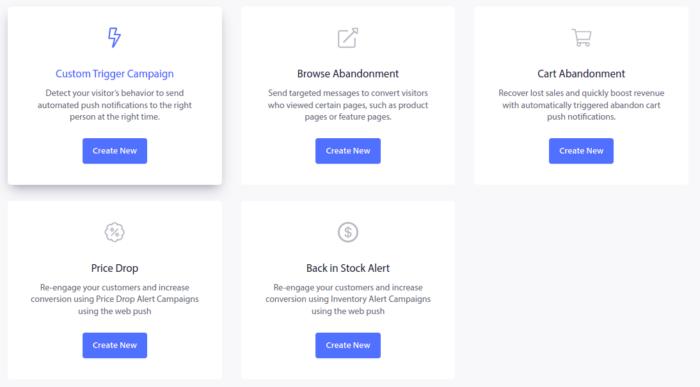
次に、各通知の間に遅延を設定して、プッシュ通知のシーケンス全体を設定できるようになります。
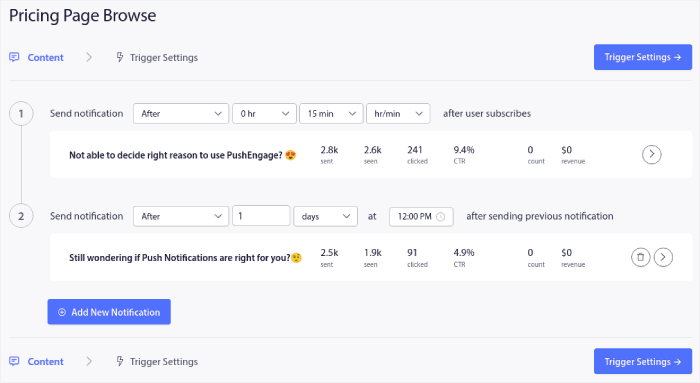
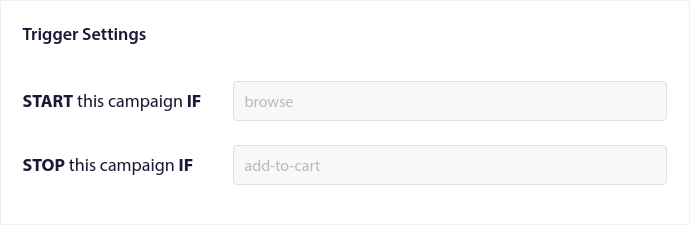
プッシュ通知に慣れていない場合は、プッシュ通知のベストプラクティスに関する記事を確認してください。プッシュ通知コンテンツに満足したら、[Trigger Settings]をクリックします。閲覧放棄キャンペーンの条件がシーケンスに事前設定されていることがわかります。
閲覧放棄キャンペーンをサイトに埋め込むために必要なコードスニペットを取得するには、[Integration Code]ボタンをクリックします。
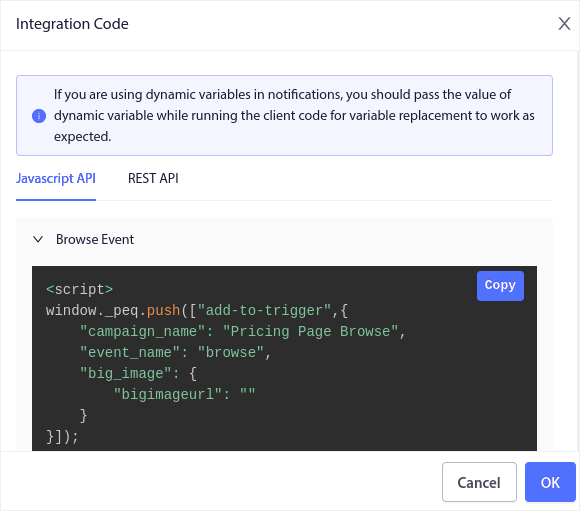
次に、コードをコピーしてサイトに貼り付けます。そのコードを追跡したいページのHTML セクションに貼り付けます。最後に、[Activate Triggered Campaign]ボタンをクリックします。
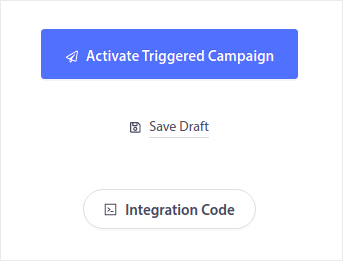
これで完了です!
#4. RSSフィードウェブプッシュ通知キャンペーン
RSS Auto Push を使用すると、RSS を介して通知を自動化できます。
PushEngage は 10 分ごとに RSS フィードに追加された新しい投稿をチェックします。新しい投稿が見つかった場合、PushEngage はそれをプッシュ通知に変換し、すべての購読者に送信します。最も良い点は、それが完全に自動で行われることです。
RSS フィードキャンペーンは、パブリッシャーやニュースサイトに最適です。
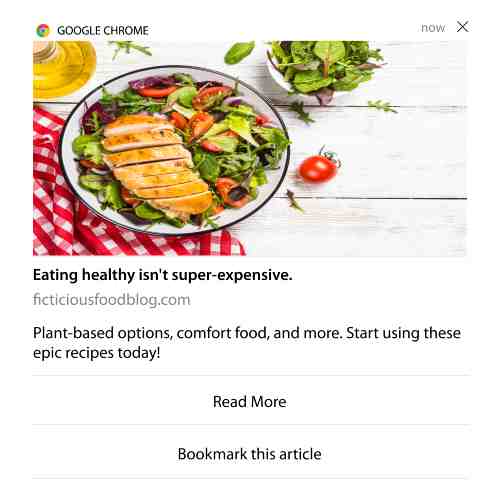
あなたが大手パブリッシャーで、30分に1回以上の投稿を行う場合、PushEngageは2つの投稿通知の間に5分間の遅延を維持します。
さらに進む前に、より多くの素晴らしいヒントやコツについては、RSSフィードの使用方法に関するこの記事をご覧ください。
それでは、PushEngageでRSSフィードウェブプッシュ通知キャンペーンを設定しましょう。
新しいRSSウェブプッシュ通知キャンペーンを作成
サイトにPushEngageをインストールしたら、PushEngageダッシュボードに移動し、キャンペーン » RSS自動プッシュにアクセスして、新しいキャンペーンを作成をクリックします。
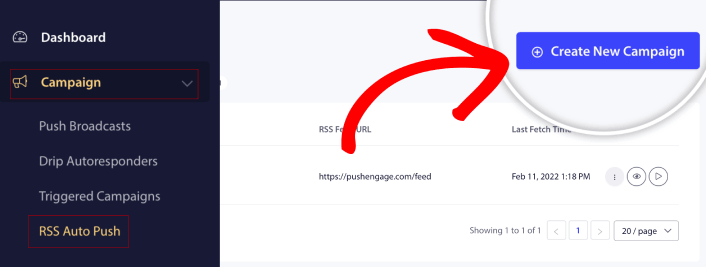
これにより、まったく新しいRSSウェブプッシュ通知キャンペーンが作成されます。PushEngageでは複数のRSSフィードキャンペーンを設定できます。まず、キャンペーンにわかりやすい名前を付けます。次に、RSSフィードのURLを貼り付けます。
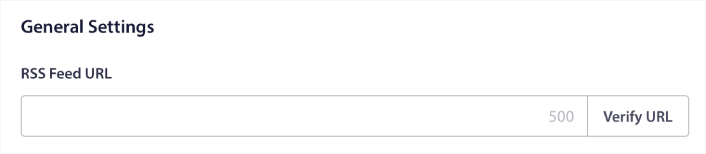
RSS通知設定を設定
次に、キャンペーン頻度を設定します。
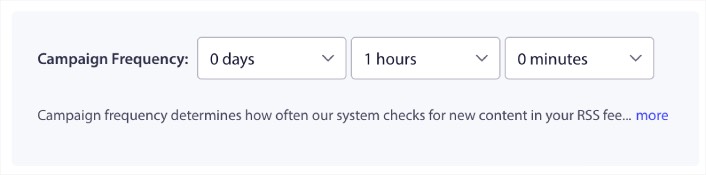
キャンペーン頻度は、RSSフィードウェブプッシュ通知キャンペーンがブログの新しいコンテンツをどれくらいの頻度でチェックして自動プッシュ通知を送信するかを示します。最小値は15分、最大値は7日です。
ニュースエージェンシーでない限り、2日に1回コンテンツを宣伝することをお勧めします。ニュースエージェンシーの場合は、15分に設定してください。PushEngageは、RSSフィードキャンペーンを設定して公開した後でのみ新しいコンテンツを検索することに注意してください。
プロモートする投稿を選択
プロモートする投稿を選択できます。最新アイテムのみまたは全アイテムから選択できます。RSSプッシュ通知を最新アイテムのみを選択するように設定した場合、PushEngageは最新の投稿のみを送信します。
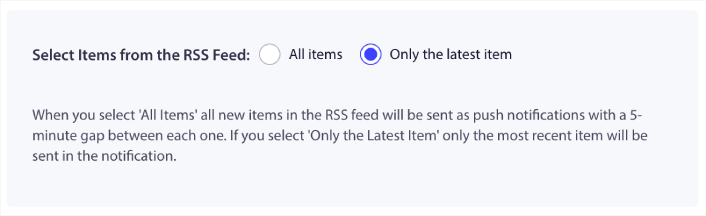
または、全アイテムオプションを選択することもできます。この場合、キャンペーンはサイト上のすべての投稿を選択し、それぞれにウェブプッシュ通知キャンペーンを送信します。ただし、通知間には5分間隔が空きます。
RSSプッシュ通知アイコンを設定
あなたのプッシュ通知アイコンは、RSSプッシュ通知におけるブランドアイデンティティを確立します。購読者が通知があなたのブランドからのものであることをすぐに認識できるように、ブランドマークを使用することをお勧めします。
ここで2つのオプションがあります。手動で通知アイコンをアップロードするか:
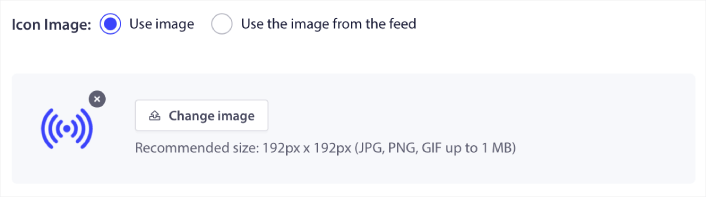
そして、それは非常に簡単に実行できます。画像を変更をクリックして通知アイコンをアップロードするだけです。または、RSSフィードから取得することもできます。
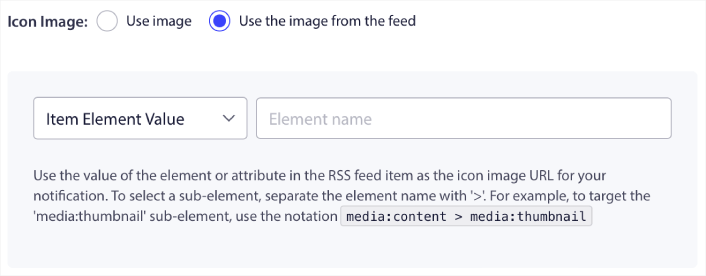
フィードから通知アイコンを動的に選択するために、アイテム要素または要素内の属性を選択できます。通常、ほとんどのRSSフィードは、media:contentアイテム要素内にサイトアイコンを保持しています。さらに具体的には、通常はmedia:content要素のmedia:thumbnail属性内にあります。
要素をターゲットにするには、Item Element Valueオプションを選択してmedia:contentに設定します。または、Element Attribute Valueオプションを選択してmedia:content > media:thumbnailに設定します。
注意: このオプションは、XMLの読み方を知っている場合にのみ使用することをお勧めします。RSSフィードには、例と同じXMLタグにサイトアイコンが含まれていない場合があります。したがって、RSSフィードから通知アイコンを取得する方法がわからない場合は、代わりに手動でアップロードすることをお勧めします。
RSSフィード通知用の大きな画像を選択
次に、RSSフィードのWebプッシュ通知用の大きな画像を選択します。ここでも、これを行うには2つの方法があります。PushEngageにRSSフィードから画像を自動的に検出させることができます。

または、フィードからどの画像を使用するかを手動で選択できます。
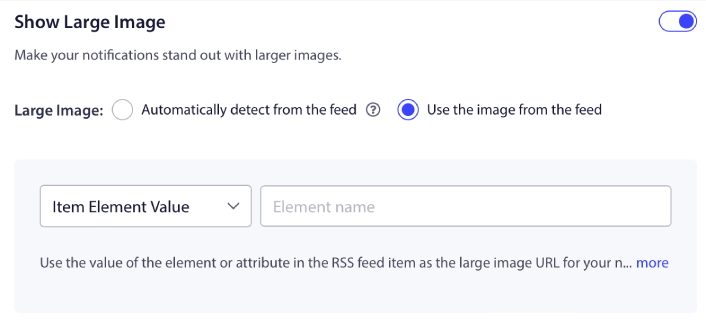
これは、RSSフィードから通知アイコンを選択するのと同じです。ここでも、画像が含まれているXML要素から画像を選択するか、好みの画像が含まれている特定の属性を選択できます。
注意: RSSフィードからURLを選択するのは、XMLの読み方を知っている場合にのみお勧めします。XMLの読み方がわからない場合は、PushEngageに通知に最適な画像を見つけさせる方が良いでしょう。
Webプッシュ通知キャンペーンの期間を設定
Webプッシュ通知キャンペーンの期間とは、通知が自動的に削除される前に、購読者の通知トレイに表示される期間のことです。
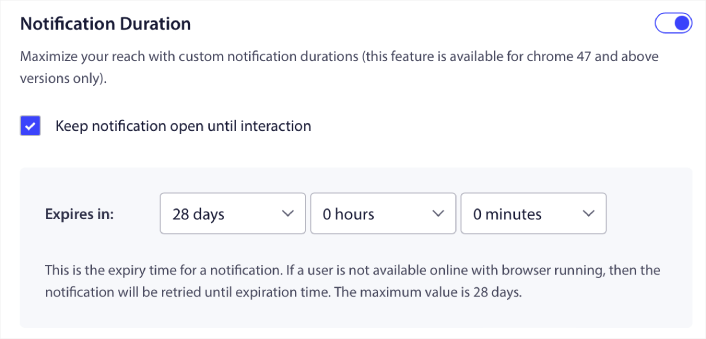
未読通知の山で購読者を圧倒したくない場合は、プッシュ通知が数日で期限切れになるようにするのが最善でしょう。
ブロードキャスト通知や他の自動Webプッシュ通知とは異なり、RSSプッシュ通知をスケジュールすることはできません。そのため、有効期限内であっても、購読者が操作するまで通知を開いたままにするオプションを常に選択できます。
UTMパラメータを設定
ほぼ完了です。下にスクロールして、独自のUTMパラメータを設定し、プッシュ通知を追跡します。
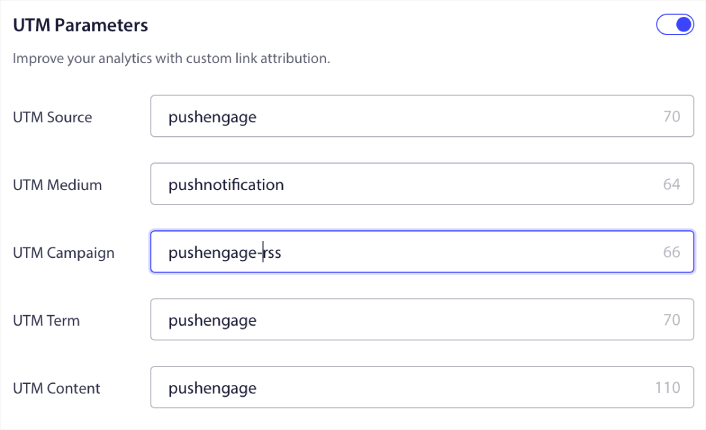
これにより、Googleアナリティクスでこれらのプッシュ通知からのトラフィックを簡単に分析できます。
オーディエンスグループを選択
最後に、RSS Webプッシュ通知キャンペーンを送信するためのオーディエンスグループを選択します。RSSフィードキャンペーンをすべての購読者に送信するか、オーディエンスグループを作成して、RSSフィードからでもパーソナライズされたプッシュ通知を送信できます。
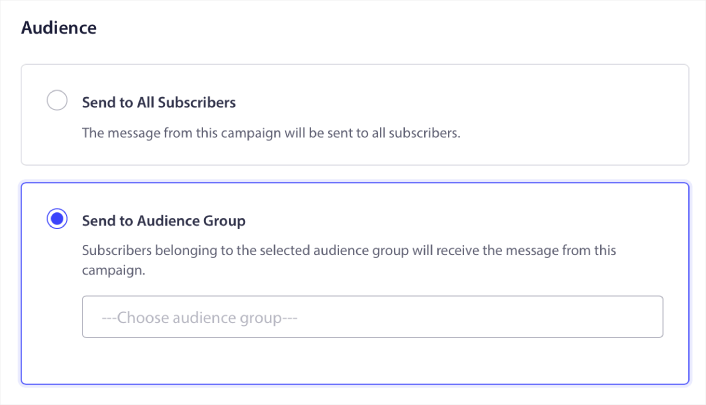
これで完了です!本当にそれだけです。
これで、新しい投稿を公開するたびに、選択したオーディエンスグループのプッシュ通知購読者は、新しいコンテンツに関するプッシュ通知を自動的に受信します。
これで完了です。設定はすべて完了しました。新しい投稿を公開するたびに、すべての購読者に自動的に送信されます。
#5. 自動再エンゲージメント通知
しばらくの間、コンテンツにエンゲージしていない購読者に対して、自動再エンゲージメントキャンペーンを設定できます。
しかし、そもそもなぜそれを行うのでしょうか?
例えば、どうでしょうか?
- 新規顧客獲得コストは、既存顧客維持コストの5倍です。
- 個人の好みをすでに理解している既知のオーディエンスをターゲットにし、リマーケティングするのは簡単です。
- 長期的には、エンゲージした顧客は、ブランドとほとんど接続しない人よりも会社により多くのビジネスをもたらします。
Ofertiaは、パーソナライズされた取引を提供するプッシュ通知を使用して、リピートユーザーを39%増加させることに成功しました。彼らだけではありません。これをeコマースウェブサイトに効果的に使用できます。
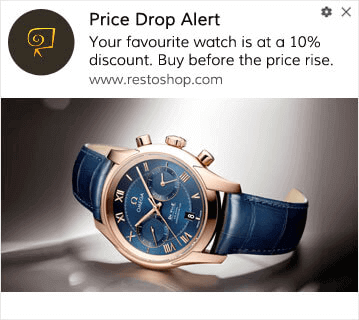
購読者を再エンゲージさせるための方法はたくさんあります。
想像してみてください:
- ユーザーがあなたのサイトを訪問します。控えめなオプトインが表示されます。「許可」をクリックします。
- すぐに割引または次のステップが表示されるウェルカム通知を受け取ります。
- サイトを離れます…
- その日の後半、リマインダーが表示されます:「まだ考えていますか?」
- クリックして戻り、購入します。
それは基本的なプッシュファネルです — そして一度公開したら、あなたは何もする必要はありませんでした。
次に、セグメンテーションと自動キャンペーンを重ねることを想像してみてください。それが楽しくなるところです。ダイナミックセグメントを使用すると、購読者について多くのことを把握し、彼らが気に入るパーソナライズされたコンテンツを送信できます。
PushEngageダッシュボードで、Segmentationに移動し、新しいセグメントを作成します。

これにより、行動や閲覧パターンに基づいたセグメントを作成できます。特定のセグメントが自動プッシュ通知を受信するタイミングを決定するAND/OR操作のシーケンスを設定することも可能です。
プッシュ通知を購読する際にユーザーをセグメント化することもできます。Design » Popup Modalsに移動し、Large Safari Style with Segmentを選択してください。
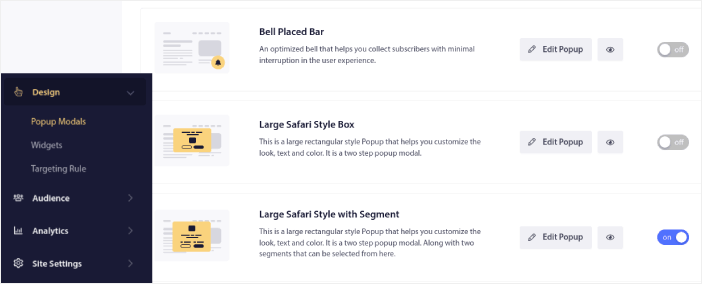
ユーザーをセグメント化するさらに多くの方法が必要な場合は、PushEngage Javascript APIを使用して、ユーザーのアクションに基づいてカスタムセグメントを作成できます。
#6。ページ訪問Webプッシュ通知キャンペーン
ページ訪問トリガーは、プッシュ通知セグメントの拡張機能です。ウェブ訪問者が特定のフレーズまたはパターンを含むURLを閲覧したときにセグメントを作成するだけです。
次に、Audience » Segmentsに移動し、オーディエンスを特定のセグメントに設定するだけです。
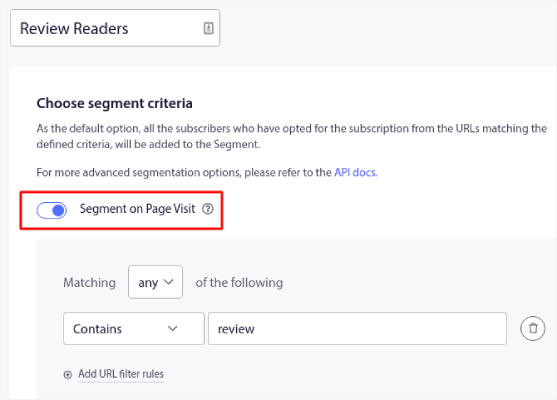
これにより、非常にパーソナライズされた自動プッシュ通知を作成できます。
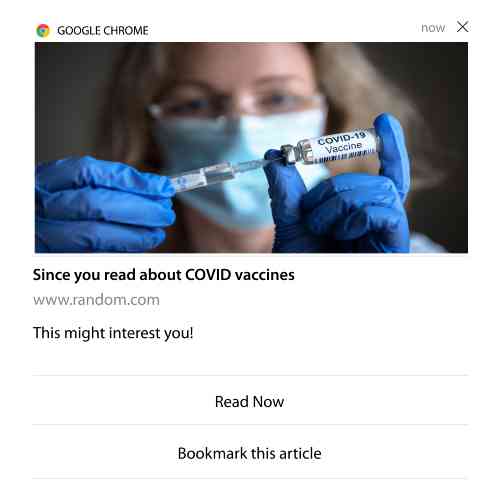
そして、最も良い点は、PushEngageでカスタムセグメントを数分で作成できることです。
#7. クリックからの自動プッシュ通知
PushEngageでは、配信された通知をクリックしたときにトリガーされるプッシュ通知を作成することはできません。
しかし、非常に巧妙な回避策があります。
特定の通知が誘導するURLに基づいてセグメントを作成できます。誰かがこのURLに着地するたびに、そのセグメントに追加され、このセグメントを使用してターゲットを絞った通知を送信できます。
プッシュ通知クリックキャンペーンは、基本的にステップメールの標準的なオーディエンスセグメンテーションの拡張機能です。
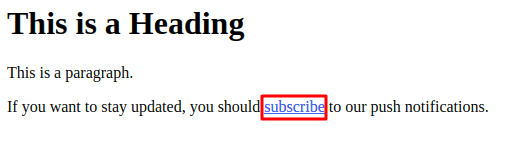
クリックして購読するボタンの作成方法に関するチュートリアルをご覧ください。
#8. 反復自動プッシュ通知
たとえば、次のようなものがあると想像してください…
- フリーマーケットの週次セール、
- または週末セール;
- または在庫一掃セール;
- または月次フラッシュセール。
すべてのイベントに対して手動でプッシュ通知を作成するのは、どれほど不便でしょうか?
幸いなことに、PushEngageで繰り返し通知を設定できます。
繰り返し通知は、定期的なイベントのためのスケジュールされた自動プッシュ通知です。一度設定し、スケジュールを指定すれば完了です。
これは、MyDealがプッシュ通知を使用している方法の1つにすぎません。ぜひケーススタディ全体をお読みください!
Campaignに移動し、PushEngageダッシュボードに自動通知を追加します。次に、スケジューリングセクションまでスクロールダウンし、Send/Scheduleタブに移動します。
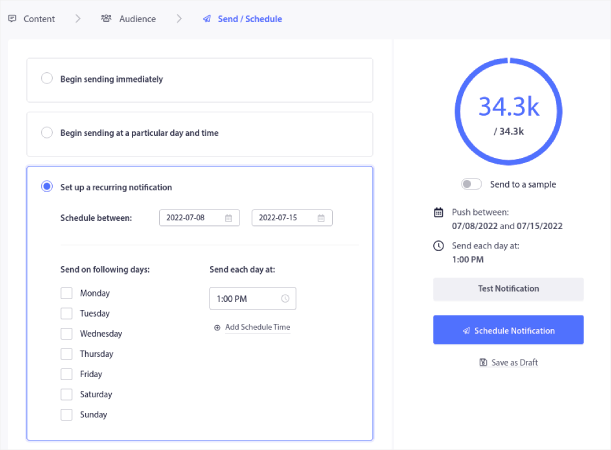
タイミングを設定するだけで完了です!
#9. 購読者タイムゾーン通知
購読者のタイムゾーン通知は、その名前の通りです。購読者のタイムゾーンに自動プッシュ通知を送信します。
なぜこれがそれほど重要なのでしょうか?
購読者タイムゾーン通知は開封率が高くなります。通常、購読者がオフラインであってもプッシュ通知は配信されます。これらの通知は積み重なり、購読者が最終的にオンラインになったときに無視されます。
一方、購読者のタイムゾーンWebプッシュ通知キャンペーンは、購読者が最もオンラインになっている可能性が高いとわかっているときに配信されます。
プロのヒント: A/Bテストを使用して、購読者にプッシュ通知を送信するのに最適な時間を見つけてください。
購読者タイムゾーン通知は、はるかにパーソナライズされたように感じられます。そして、賢く行えば、ジオロケーションデータと組み合わせて通知をさらにパーソナライズできます。これはまさにPhootoがローカル言語を使用したときに開封率を急上昇させた方法です。
では、PushEngageで購読者タイムゾーン通知を設定しましょう。
新しい通知を作成する際に、スケジューリングオプションに移動し、Send Notifications in Subscriber Timezoneというチェックボックスをクリックします。
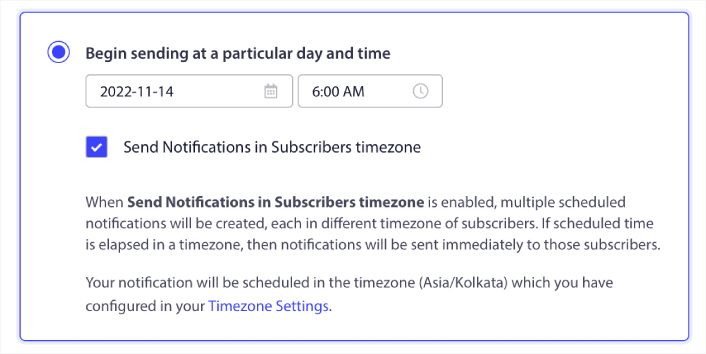
以上です!ドリップキャンペーンについても同様に行う必要がありますが、結果は各キャンペーンのボタンを1回クリックする労力に見合う価値があります。
週に1〜2通のメッセージから始めましょう。効果が出ていることが確認できたら、徐々に増やしていきます。
まずは簡単な配信頻度をご紹介します。
- 1週目:ようこそメッセージ+商品またはコンテンツのプッシュ1回
- 2週目:リマインダーまたは割引フォローアップ
- 3週目:新着情報、ブログ記事、または機能ハイライト
ユーザーのクリックが止まったら、配信を減らします。クリックが続くなら?配信を増やしましょう。
プロのヒント: 前述の2つの戦術は、どちらもプッシュ通知のスケジューリングに関するものでした。しかし、これら2つだけが自動プッシュ通知をスケジュールする方法ではありません。さらに多くの素晴らしいトリックについては、プッシュ通知をスケジュールする方法に関する記事をご覧ください。
#10. Eメールオプトイン通知
Eメールマーケティングは、リードを生成し育成するための最良の方法であり続けてきました。自動プッシュ通知の最も良い点は、それらを使用してより多くのEメール購読者を生成できることです。
設定は非常に簡単で、Eメールとウェブプッシュ通知キャンペーンを組み合わせることで、どちらか一方を使用するよりもはるかに効果的です。
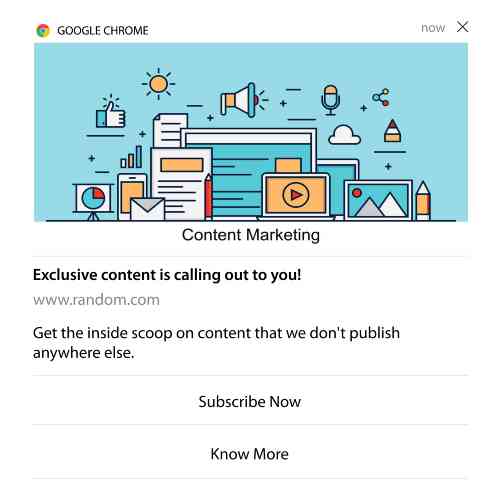
ユーザーにメール通知をオプトインするように求めるトリガー通知を送信するだけです。
カスタムCTA(コールトゥアクション)ボタンを作成し、ボタンのURLとして購読リンクを挿入するだけです。本当に必要なのはそれだけです。購読ボタンの取得方法がわからない場合は、そのまま続けてください。
どの通知でも、下にスクロールしてマルチアクションボタンをオンにすることができます。
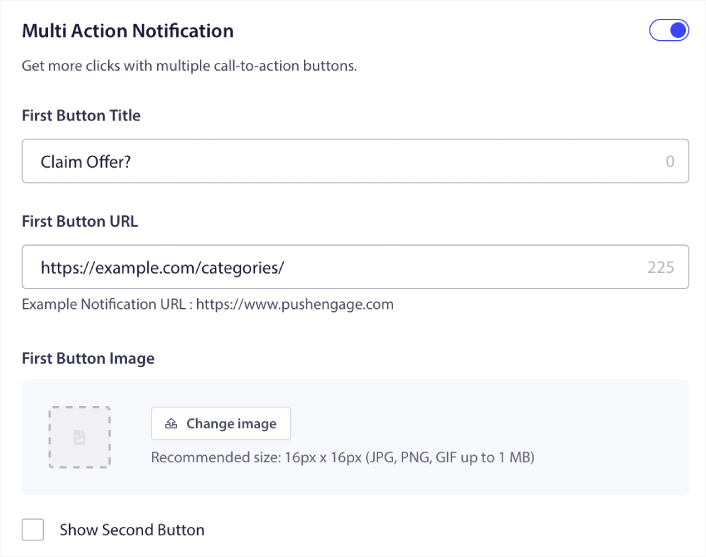
URLは、メールサインアップフォームへのリンクである必要があります。Dripのようなほとんどのメールサービスプロバイダーを使用して作成できます。サインアップフォームの共有オプションをクリックして、そのURLをコピーするだけです。次に、プッシュ通知のボタンURLに貼り付けます。
詳細については、マルチアクションボタンのチュートリアルをご覧ください。Eメールアイコンをボタンに追加して、Eメール通知の購読を求めていることを非常に明確にすることもできます。
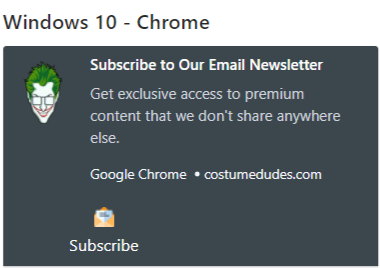
プロのヒント: 同じアイデアを使用して、YouTubeチャンネルを成長させることもできます。チャンネルURLの末尾に「?sub_confirmation=1」を追加し、プッシュ通知ボタンのURLに貼り付けるだけです。
プッシュ通知の購読ボタンをクリックするたびに、YouTubeチャンネルにリダイレクトされ、購読するように求められます。
盗めるセグメンテーションのアイデア
セグメントは、ターゲットを絞ったプッシュキャンペーンを送信するための非常に優れた方法です。そして、それはあなたのプッシュ通知マーケティング戦略の大きな部分を占めるはずです。しかし、どのように始めればよいでしょうか?どのようなセグメントを作成すべきでしょうか?
まず、1種類のセグメントを作成することだけに集中すべきではありません。最も効果的だとわかったさまざまなセグメンテーションタイプを説明します。
設定する価値のある、影響力の高いセグメントをいくつかご紹介します。
- エンゲージメントの高い買い物客:過去1週間に2回以上通知をクリックしたユーザー
- カート放棄者:商品を閲覧したが購入しなかったユーザー
- カテゴリーファン:特定の商品のカテゴリーを繰り返しチェックするユーザー(例:「スニーカーヘッズ」)
- 地域ターゲティング:国または都市に基づいてメッセージを調整
具体性が増すほど、より多くのクリックを獲得できます。高度なマーケターであれば、さまざまなセグメンテーションモデルを使用して、Eメールキャンペーンと同様の方法でセグメントを作成する必要があります。
ダイナミックセグメントを使用すると、単なるトラフィック統計ではなく、実際の人間のように購読者に話しかけることができます。
さらにメッセージングをパーソナライズしたい場合は、オーディエンスグループを使用できます。
プッシュ通知オーディエンスグループの作成方法
開始するには、PushEngageダッシュボードにアクセスし、**Audience » Audience Groups**に移動して、**Create New Audience Group**ボタンをクリックします。
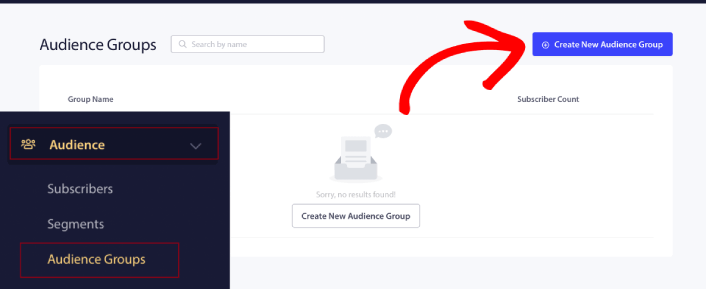
ターゲットプッシュブロードキャストを送信するためにオーディエンスグループを使用する前に、そのグループを作成するためのルールを持つオーディエンスグループを作成する必要があります。オーディエンスグループの名前と説明から始めることができます。
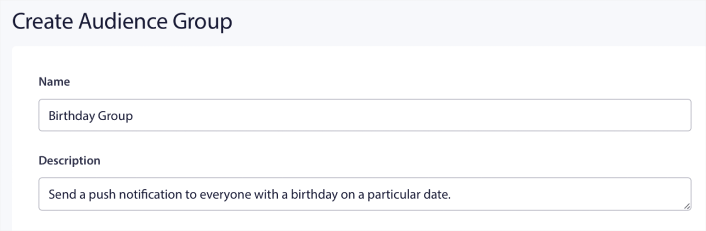
選択基準を作成する
次に、適切なオーディエンスをフィルタリングしてターゲットにするための選択基準を作成します。
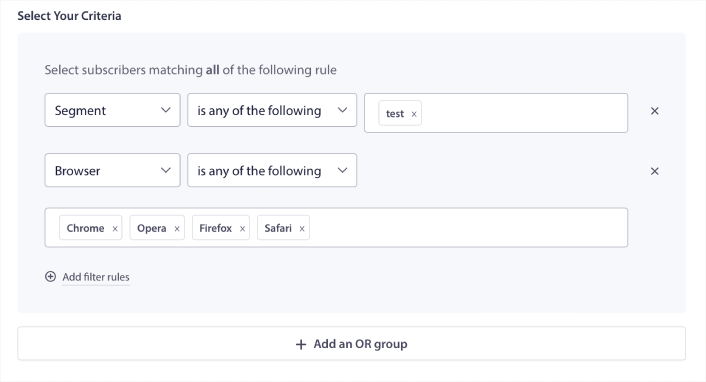
すべてのフィルター条件に一致する購読者を選択するには**Add filter rules**をクリックするか、少なくとも1つの選択基準を満たす購読者を作成するには**Add an OR group**をクリックできます。
ユーザー行動は、プッシュ通知サブスクライバーをターゲットにする最も基本的な方法です。前述したように、サブスクライバーセグメントは通常、同様のコンテンツを閲覧するのが好きな訪問者をグループ化します。しかし、同じコンテンツを愛するサブスクライバーのグループ内でも、行うことができる小さなパーソナライゼーションがあります。
さらに的を絞ると、複数のサブスクライバーセグメントを組み合わせて、共通の関連メッセージを送信できます。
サブスクライバーセグメントでフィルタリングする
まだ行っていない場合は、すぐにプッシュ通知購読者のセグメンテーションを開始する必要があります。そうしないと、このフィルターは機能しません。ただし、すでにセグメントがある場合は、複数のセグメントをオーディエンスグループのベースとして選択できます。

その後、ターゲティングを改善するために他のフィルターを追加できます。
サブスクライバー属性でフィルタリングする
属性は主にドリッププッシュ通知に使用されますが、プッシュブロードキャストにも使用できます。そして、プッシュ通知属性は主にeコマースサイトに役立ちます。ただし、カスタマーリレーションシップマネジメント(CRM)ツールがある場合は、パーソナライズされたプッシュ通知を送信するためにも使用できます。
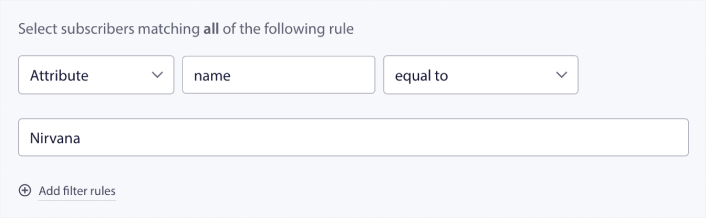
属性には、サブスクライバー名、生年月日、パーソナライズされたマーケティングキャンペーンのためにCRMに保存するその他の情報などの個人情報を含めることができます。
サブスクライバーのデバイスとブラウザでフィルタリングする
多くの場合、サブスクライバーがメッセージをどのように受信するかを知ることは非常に重要です。
マイケル・ジャクソンに関する非常に素晴らしい話があります。彼は曲を録音するたびに、ラジオでそれを聴いていました。何百万ドルもする録音スタジオで最高の音質で聴くのではなく、ほとんどのリスナーが後で聴くであろう安価なラジオで聴いていました。たとえ市場で最も安価なデバイスで曲が良く聞こえたとしても、彼はその曲のリリースにサインしていました。
Billie Jean が 29回プラチナ を獲得したのも無理はありません!
プッシュ通知に関しても、それは同じです。
購読者のブラウザでフィルタリング
ブラウザによってプッシュ通知の文字数制限が異なります。そのため、プッシュブロードキャストを送信する際は、これらの制限に注意する必要があります。便利なのは、異なるオーディエンスグループを保存して、異なるブラウザを再ターゲットできることです。セグメントを毎回作成する必要はありません。
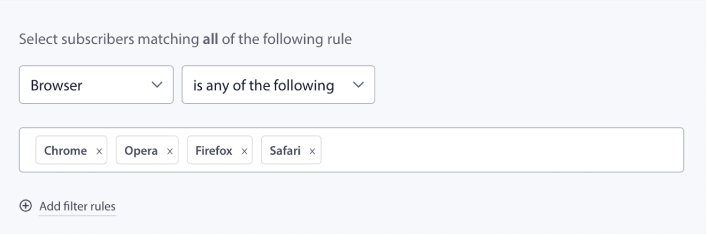
購読者のデバイスでフィルタリング
iOS、Android、Windowsデバイスに送信できるリッチプッシュ通知の種類には違いがあります。そのため、送信するすべてのキャンペーンがすべてのデバイスで同じように表示されるわけではありません。実際、多くのプッシュ通知タイプはすべてのデバイスに表示されないことさえあります。デバイスによって画面サイズも異なります。そのため、プッシュ通知を送信する前に、表示方法を最適化することをお勧めします。
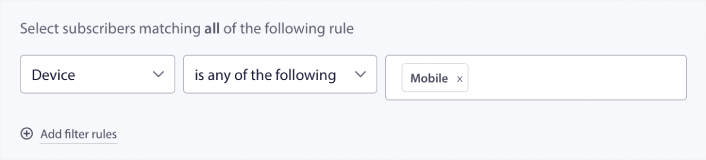
しかし、これでデバイスでオーディエンスをフィルタリングできるようになったので、それはもう問題にならないはずです。
ジオロケーションでフィルタリングする方法
さらにキャンペーンをパーソナライズするために、ジオロケーションでフィルタリングすることもできます。このフィルターを使用すると、国、都市、州でオーディエンスグループを選択できます。
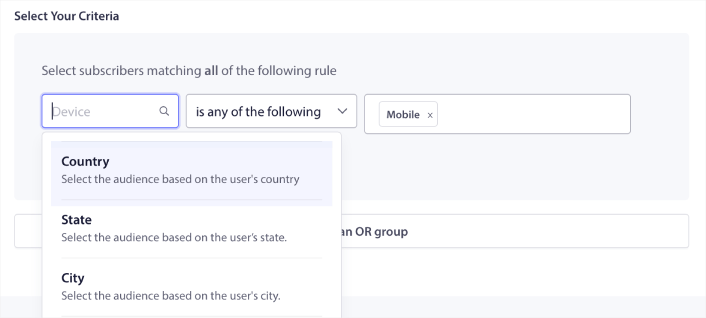
Phootoはジオロケーションを使用してローカル言語でプッシュ通知を送信しました。そして、エンゲージメント率を急速に急上昇させるのに役立ちました。完全なケーススタディをお読みください。
エンゲージメント指標でフィルタリングする方法
オーディエンスグループの最も優れた点の1つは、プッシュ通知を使用してリターゲティングキャンペーンを作成するのに役立つことです。オーディエンスを次のようにフィルタリングできます。
- 購読日
- 最終送信日
- 最終クリック日
- 最終閲覧日
これらの指標を使用すると、エンゲージメント率の低い購読者をリターゲットしたり、エンゲージメント率の高い購読者に販売したりすることができます。
または、オーディエンスを次のようにフィルタリングすることもできます。
- 総送信回数
- 総閲覧回数
- 総クリック回数
これらの数値は、あなたから最もメッセージを受け取っていない購読者を見つけるのに役立ち、より良い方法で通知をパーソナライズする方法を見つけることができます。また、プッシュ通知と最も頻繁にやり取りする購読者を見つけることもできます。
プロのヒント: 2つ以上のフィルターを組み合わせて、購読者と再エンゲージするための最良の方法を見つけてください。たとえば、合計表示回数が多く、合計クリック回数が多い購読者は、しばらくの間あなたとエンゲージしている購読者になります。これらは報酬に値するロイヤルな購読者です。
識別子でフィルタリングする方法
識別子は、PushEngageが購読者を識別する方法です。PushEngageはデフォルトでGDPRに準拠しているため、ソフトウェアはいかなる購読者の個人識別情報も決して保存しません。代わりに、各購読者にプロファイルIDと購読者ハッシュを割り当てます。
プロファイルIDと購読者ハッシュは、主に高度なキャンペーンの一部として使用することに注意してください。言い換えれば、これらの識別子を使用するカスタムキャンペーンを作成するには、PushEngage APIを使用する必要があります。
識別子は、このようにトランザクションプッシュ通知を送信するのに役立ちます。
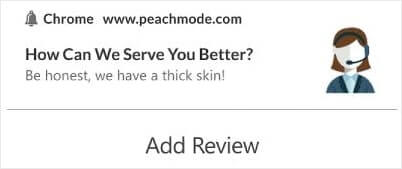
カスタムeコマースプッシュ通知には最適です。そのため、ダッシュボードからのプッシュブロードキャストのテスト以外の目的での使用は推奨しません。
ウェブプッシュ通知キャンペーンを設定した後にやること
ウェブプッシュ通知キャンペーンを開始しても成功が保証されるわけではありません。他のマーケティングツールと同様に、メッセージングとセグメントをテストして改善する必要があります。
細部にこだわりすぎないでください。3つの数字に焦点を当ててください:
- クリック率 (CTR): 人々はエンゲージしていますか?
- オプトイン率: プロンプトは機能していますか?
- 購読解除: 送信しすぎていませんか?
送信あたりの収益を追跡している場合はボーナスですが、それがない場合でも、CTRとオプトイン率は迅速なフィードバックループを提供します。残念ながら、自動通知を直接A/Bテストすることはできません。しかし、これらのリソースはあなたが迅速に進むのを助けるでしょう:
- Web通知WordPressプラグインをサイトにインストールする方法
- プッシュ通知のA/Bテストの実施方法(ベストプラクティス)
- 即時トラフィックを獲得するための7つのプッシュ通知のベストプラクティス
- 2022年の最高のeコマースWordPressプラグイン21選(無料および有料)
- 2022年の最高のWordPressニュースプラグイン7選(比較)
また、PushEngageには多くのインテグレーションが付属しています。Zapierを使用してカスタムトリガーを設定することもできます。これらはかなり高度なキャンペーンであり、組み込みの自動化に慣れてから設定することをお勧めします。
また、PushEngage Javascript APIは非常に柔軟であり、ウェブサイト上のほぼすべての操作に対してカスタムトリガーを設定できることも知っておくべきです。
これらのすべてのリソースを確認すると、PushEngageが市場でナンバーワンのプッシュ通知ソフトウェアであることがわかるでしょう。
まだお済みでない場合は、今日からPushEngageを始めましょう!


