Webプッシュ通知とは何でしょうか?心配いりません、すべてお教えします。しかし、まず、こんな状況を想像してみてください…
時間のかかるSEOキャンペーンなしで、新しいブログ記事を公開するたびに自動的に無料トラフィックを獲得できることを想像してみてください。WordPressサイトを運営しているなら、コンテンツを宣伝し、読者にコンテンツに戻ってきてもらうのがどれほど大変かはすでにわかっているはずです。
良いニュースは、自動的にリピート訪問者を生成する簡単な方法があることです。
- たとえ…あなたが始めたばかりで、ファンベースがまだ小さい場合でも。
- たとえ…毎月何百ものプロモーションを実行しているeコマースストアを運営している場合でも。
- たとえ…すでに大量のSEOトラフィックを生み出しているメガブログを持っている場合でも。
答えは次のとおりです。
この記事では、公開するたびに即座にリピート訪問者を獲得する方法を説明します。
一番良いところは?
完全に無料ですし、検索エンジンからのトラフィックを待つ必要もありません。
早速飛び込みましょう。
ウェブプッシュ通知とは?
プッシュキャンペーンとは、購読者のデバイスに表示され、ワンクリックでコンテンツにリダイレクトされる、短くてクリック可能なポップアップメッセージのことです。
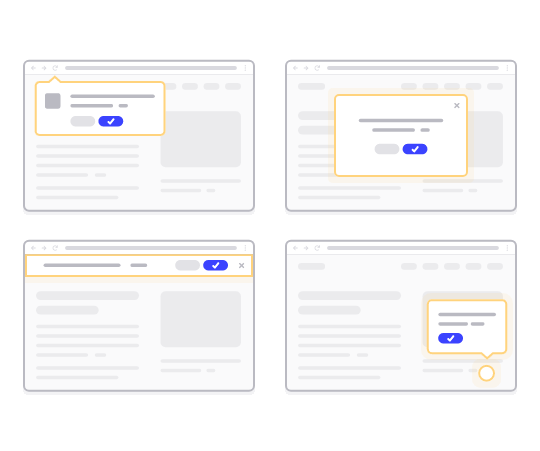
一番良いのは、購読者がブラウザを使用していなくても通知が表示されることです。メールマガジンのようなものですが、ブラウザプッシュキャンペーンでは、購読者がメッセージを見るためにアプリを使用する必要はありません。
要するに: WordPressのウェブプッシュ通知は、オプトインした人にクリック可能なコンテンツへのリンクを送信する簡単な方法です。
プッシュキャンペーンのドリップシーケンスがあれば、あなたのオーディエンスはあなたを無視する言い訳はもうありません。ソーシャルメディアサイトとは異なり、広告料を支払わせるためにリーチを制限するアルゴリズムはありません。
ブラウザプッシュキャンペーンの最もクールな点は、リードマグネットやメールオプトインフォームを補完するために使用できることです!
プロのヒント: まだリードマグネットを使用していない場合は、コンバージョンを向上させるためにOptinMonsterでリードマグネットの作成を開始すべきです。
ウェブプッシュとモバイルプッシュを無料で開始するには、PushEngageの使用をお勧めします。ブログ記事を公開するたびに、PushEngageは自動的にすべての購読者にプッシュブロードキャストを送信します。
次のセクションでは、15分以内にセットアップする方法を正確に説明します。
ウェブサイトにウェブプッシュ通知をインストールする方法
PushEngageは、WordPress向けの最高のプッシュ通知プラグインの1つです。無料プランでも、すぐに200人の購読者にリーチできます。ブログの購読者が200人を超えた場合は、プランをアップグレードすることで迅速に規模を拡大できます。
では、ブラウザプッシュ通知を無料で利用して、オーディエンスを増やしましょう。
ステップ#1:無料のPushEngageアカウントを作成する
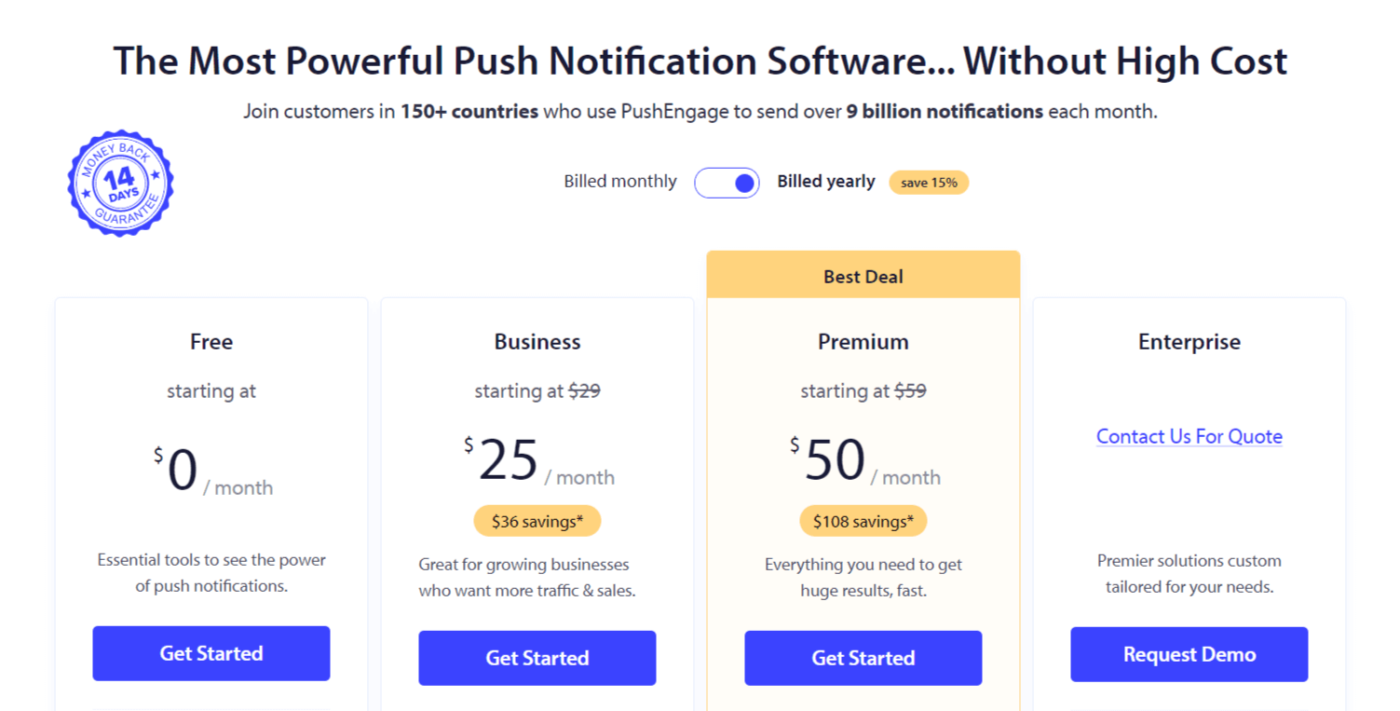
PushEngageにアクセスし、無料で開始する:をクリックします。
無料プラン、またはニーズに最適なプランを選択してください:
ステップ#2:PushEngageにサインアップする
ユーザー情報またはGmail IDでプラグインにサインアップしてください:
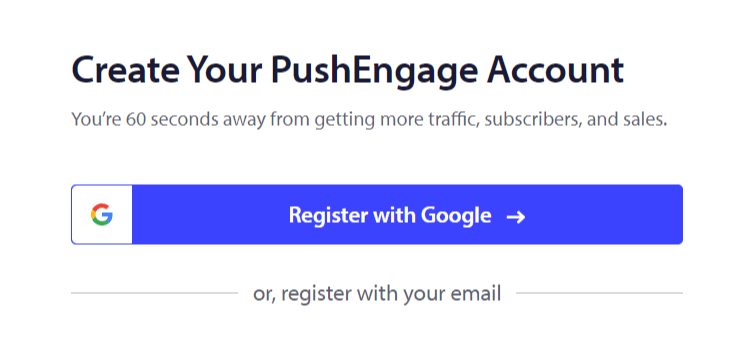
指示に従ってアカウントの設定を完了し、ウェブサイトにウェブプッシュ通知アプリを追加してください。
ステップ3:ウェブプッシュ通知WordPressプラグインのインストール
注意: ウェブサイトがWordPressで構築されていない場合は、他の方法でウェブサイトプッシュ通知をインストールできます。この記事ではそれらの方法については説明しませんが、興味がある場合はインストールガイドをご覧ください。
サインアップすると、PushEngageダッシュボードに移動します。

サイト設定 »サイト詳細にアクセスします:

セットアップ手順はこちらボタンをクリックします:

次に、WordPressプラグインをインストールボタンをクリックします:

サイトのURLをすでに設定している場合、PushEngageはサイトに自動的にインストールされます。
ステップ4:WordPressサイトをウェブプッシュサービスに接続する
PushEngage WordPressプラグインのインストールと有効化が完了すると、PushEngageのオンボーディングウィザードが表示されます。
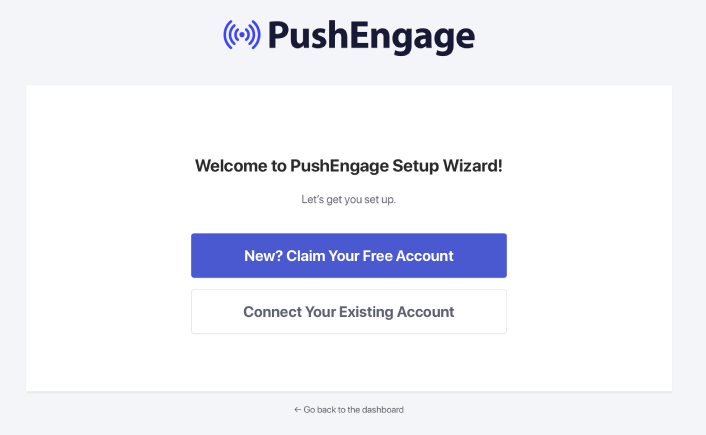
ウィザードは非常にわかりやすいです。新規ユーザーの場合は、新規?無料アカウントを請求をクリックしてください。すでにサインアップ済みの場合、既存のアカウントを接続をクリックしてください。
次に、サインアップ中にサイトを登録した場合、登録済みサイトを接続の下にあるサイトを選択ドロップダウンからサイトを選択できます:
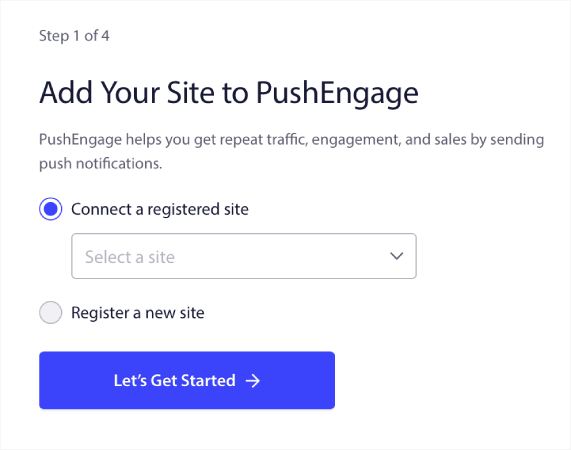
または、 プレミアムプラン以上をお持ちの場合は、新規サイトを登録をクリックして新しいサイトを追加できます。次のステップでは、オンボーディングウィザードが他の 必須のWordPressプラグインをインストールするように促します。
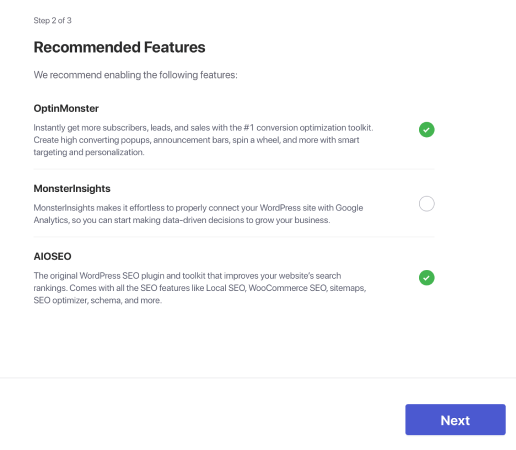
各ステップを正しく実行すると、ウィザードからこの成功メッセージが表示されます。
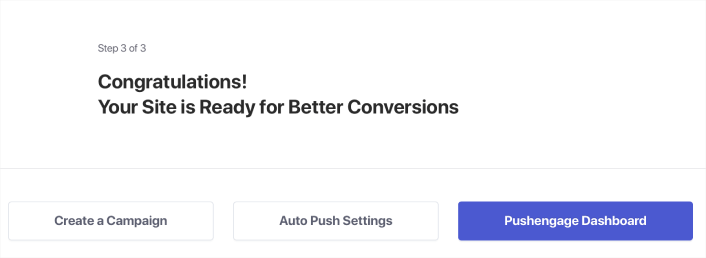
これで、キャンペーンやプッシュ通知ポップアップモーダルを作成する準備が整いました。
ウェブプッシュ通知はどのように機能しますか?
では、少し技術的な話をして、ウェブプッシュ通知の仕組みを探ってみましょう。
簡単に言うと、新しい訪問者があなたのウェブサイトにアクセスするたびに、ウェブプッシュ購読者になるように促されます。
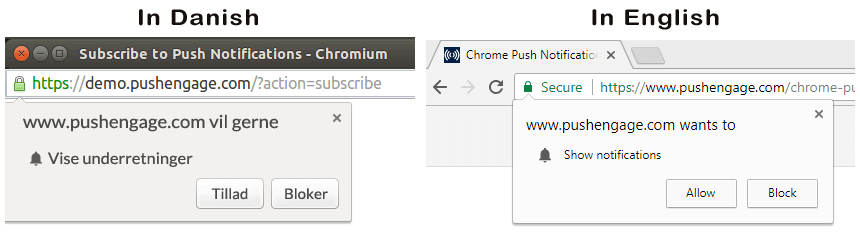
これらすべては、サービスワーカーと呼ばれるJavaScriptファイルによって処理されます。サービスワーカーの仕事は、ウェブプッシュのオプトインを作成し、プッシュ購読者を取得することです。これはウェブサイトだけでなく、プログレッシブウェブアプリ(PWA)にも当てはまります。ただし、AndroidアプリプッシュやiOSアプリプッシュ通知とは異なります。モバイルプッシュ通知には、通常、PushEngage Mobile SDKのようなプッシュAPIが必要です。
次に、PushEngageのようなWebプッシュ通知サービスを使用して、購読者に送信したい通知を作成およびスケジュール設定します。リストのすべての購読者に送信するか、購読者の特定のセグメントに送信するかを選択できます。
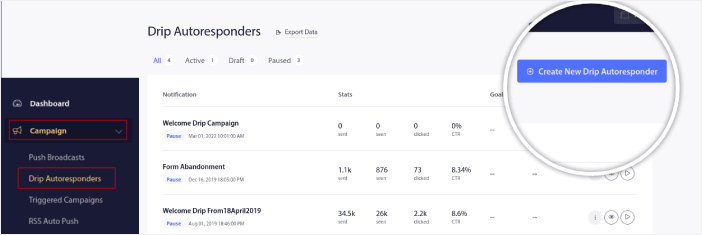
まず、Drip Autoresponderを作成します。
最後に、デバイスがオンラインになり、推奨されるアクションを実行すると、購読者は通知を受け取ります。
これらはすべて完全に真実ですが、これはバックグラウンドで起こることのほんの一部です。それでは、技術的な詳細を見てみましょう。しかし、まず、まだ行っていない場合は、今日PushEngageを使い始めましょう。
まず、PushEngageには、購読者のデバイスに接続してプッシュ通知を送信するサーバーがあります。これらのサーバーは、購読者の名前やメールアドレスなどの個人情報を一切保存しません。
では、これらのサーバーは何を保存するのでしょうか?
PushEngageと当社のサーバーにとって、購読者は、購読者のデバイスとブラウザに基づいて生成される一意のハッシュ番号です。さらに、サーバーは購読者のジオロケーションを保存することもできます。
これらのサーバーに直接アクセスすることはできません。PushEngageダッシュボードを使用して、プッシュ通知キャンペーンを作成、最適化、管理することしかできません。
つまり、PushEngageはあなたのサービスプロバイダーです。これは、コーディングや元のサーバーのメンテナンス方法について何も知る必要がないことを意味します。私たちはそのすべてをあなたのために処理します。あなたが心配する必要があるのは、キャンペーンの設定と利益を上げることだけです!
その他、一般的なブラウザプッシュサービスには以下のようなものがあります。
- Firebase Cloud Messaging
- Amazon Simple Notification Service
- Airship
- Leanplum Inc.
- Pushwoosh Inc.
どのサービスがあなたに適しているかわからない場合は、まずプッシュ通知の費用を確認することから始めましょう。
さて、サーバーがハッシュ番号のみを保存し、個人情報を保存しない場合、パーソナライズされたプッシュキャンペーンがどのように機能するのか疑問に思っているかもしれません。実際には、購読者を特定することなく、セグメントを使用して十分な顧客データを保存できます。また、完全にカスタムキャンペーンを作成し、任意の種類のユーザーデータを保存することもできます。ここでウェブプッシュAPIが役立ちます。あなたにとっては、PushEngage Javascript APIになります。
このAPIを使用して、お持ちの他のCRMやデータベースに接続できます。これにより、購読者の個人情報を使用して、パーソナライズされたプッシュ通知を送信できます。
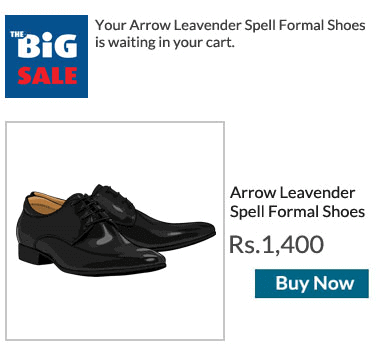
PushEngage APIを使用して、カート放棄キャンペーンなどの高度なキャンペーンを送信することもできます。
ウェブプッシュ通知の各部分は何ですか?
プッシュ通知が技術的にどのように機能するかを理解したので、カスタマイズできる(またはできない)プッシュ通知の各部分を見てみましょう。
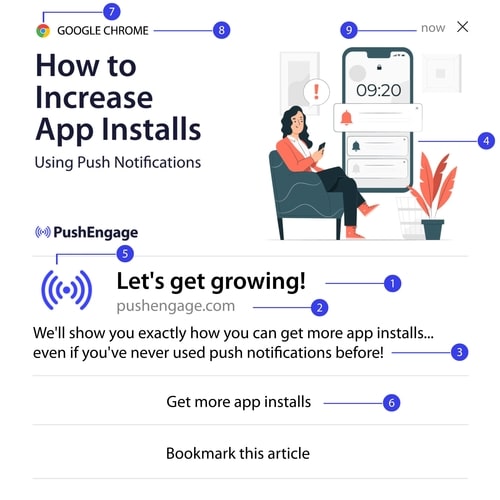
また、より明確にするために、いくつかのウェブプッシュ通知の例も確認してください。
#1。プッシュ通知のタイトル
タイトルは、プッシュ通知の中で最も目立つテキストです。明確な視認性のために 60〜80 文字に制限されています。このタイトルの目的は、購読者の注意を引くことです。そのため、タイトル全体がはっきりと見えるようにすることが重要です。
購読者が気に入るような、 killer なタイトルを作成するために、プッシュ通知のコピーライティングガイドをご覧ください。
#2。ドメイン
プッシュ通知のドメインは、ウェブサイトのURLにすぎません。これも変更できません。ただし、ブラウザアイコンとは異なり、ブランド認知度を高めるためにドメインは明確に見える必要があります。
ここで、PushEngage のサブドメインにプッシュ通知データを保存するオプションがあります。サブドメインを使用すると、プッシュ通知のこの部分は、ブランドの代わりに PushEngage サブドメインの URL を表示します。
ブランド価値が低下する可能性があるため、このオプションの使用はお勧めしません。
#3. プッシュ通知コンテンツ
通知コンテンツには、通知全体の中で最も多くのテキストが含まれます。タイトルと同様に、視認性のために 120〜150 文字に制限されています。より多くの文字を使用することもできますが、短く簡潔に保つことをお勧めします。
通常、この部分はタイトルに関する追加情報を提供したり、オファーを完了したりするために使用されます。テキスト自体にCTA(行動喚起)を使用する必要はありません。ウェブプッシュでは、CTAボタンを追加できます。
プロのヒント: 地域言語を使用して、プッシュ通知をよりパーソナライズされたものにすることができます。エンゲージメントを高めるために、Phoot がローカル言語をプッシュ通知に使用した方法に関するこのケーススタディをお読みください。
#4. 通知の大きな画像
大きな画像は、通知の中で最初に目に入るものです。通常は 360x180 の画像で、プッシュ通知の中で最も魅力的な部分となります。
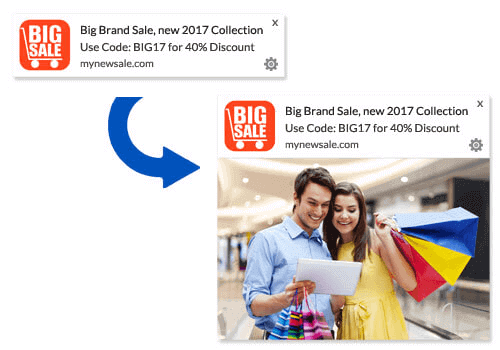
通知画像も完全にオプションです。必要なければ使用しないことも選択できます。通知画像を使用すると、プッシュ通知が広告のように感じられることがあります。これにより、多くの購読者に通知が無視される可能性があります。
しかし、適切に行えば、画像はCTR(クリック率)を最大62%向上させることができます。業界別のプッシュ通知における画像の影響に関する調査をご覧ください。
大きな画像を使用すべきかどうか不明な場合は、画像ありとなしで通知のA/Bテストを行うことをお勧めします。
#5. プッシュ通知アイコン
プッシュ通知アイコンは、ウェブサイトのサイトアイコンのようなものですが、プッシュキャンペーン用です。ビジネスを表すために、192×192ピクセル以上の画像です。通常、これはサイトアイコンになり、すべてのプッシュ通知に対して一度だけ設定できます。
プロのヒント: ブランド変更を行う場合は、PushEngageのプッシュ通知アイコンも変更することを忘れないでください。また、アイコンにはアニメーション画像を使用できないことに注意してください。したがって、GIFはここでは機能しません。
#6. 行動喚起ボタン
各プッシュ通知は最大2つのボタンをサポートします。キャンペーンには、カスタマイズされたCTAボタンを使用することをお勧めします。各CTAに個別のURLとボタンアイコンを追加することもできます。
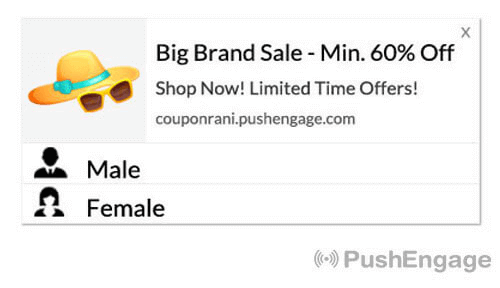
いくつかの良いCTAのアイデアについては、ウェブプッシュ通知のヒントのリストをご覧ください。
#7. ブラウザアイコン
プッシュ通知の最小の部分は、購読者が現在使用しているブラウザを示すブラウザアイコンです。これは、どの方法でも変更できず、ほとんどの場合、購読者はブラウザアイコンに気づかないため、最も見過ごされがちな部分の1つです。
#8. ブラウザのラベル
ブラウザラベルは、ブラウザアイコンのテキストバージョンにすぎません。アイコンと同様に、ブラウザ名のラベルを変更することはできません。
#9. タイムスタンプ
タイムスタンプは、購読者がメッセージを受信した時刻を知るための簡単な方法です。システムによって生成され、これも変更できません。
プッシュ通知のオプトインのさまざまな種類
すべてのプッシュキャンペーンは同意から始まります。これは、セス・ゴーディンの許可マーケティングのアイデアの延長です。アイデアは非常にシンプルです。ウェブ訪問者に表示される可能性のある、または表示されない可能性のあるコンテンツを送信する前に、許可を求めてください。
プッシュキャンペーンを送信する許可を得るプロセスは、「オプトイン」と呼ばれます。したがって、プッシュ通知キャンペーンを送信する前に、まずウェブサイト訪問者にオプトインして通知を購読してもらう必要があります。
YouTubeのコンテンツクリエイターであれば、購読者がどのように機能するかはすでに理解しているはずです。唯一の違いは、YouTubeの購読者リストを所有しておらず、送信する通知を制御できないことです。
PushEngageを使用すると、その情報はドメインに保存されるため、そのリストを所有できます。ウェブサイトで使用できるオプトインには、オプトインプロセスに基づいた2つのタイプがあります。
- シングルオプトイン
- ダブルオプトイン
それらの主な違いは非常に明確です。シングルオプトインは、通知を送信する許可を一度だけ求めます。ダブルオプトインは、各購読者に決定を確認するように求めます。では、どちらを選択すべきでしょうか?
シングルオプトインは、ダブルオプトインよりも最大150%多くの購読者を獲得できることがわかりました。もしこれに苦労している場合は、オプトイン率を向上させる方法に関する記事をご覧ください。
法的な観点から、GDPRではシングルオプトインのみが要求されます。しかし、ダブルオプトインでは、購読者が実際にコンテンツを求めているため、エンゲージメントが大幅に向上します。ただし、純粋なオプトイン数という点では、シングルステップオプトインの方がはるかに効果的です。
考慮すべきもう1つの点は、シングルオプトインを使用するには、ウェブサイトにSSL証明書をインストールする必要があるということです。しかし、セキュアなウェブサイトがなくても、ツーステップオプトインをインストールできます。
したがって、SSL証明書がインストールされている場合は、シングルオプトインを使用してください。そうでない場合は、WordPressウェブサイトにSSL証明書をインストールする方法に関するこの記事をご覧ください。
パーソナライズしてプッシュ通知エンゲージメント率を向上させる
キャンペーンを作成する前に、パーソナライズされたプッシュメッセージを送信するために、セグメントとオーディエンスグループを設定する必要があります。
プッシュ通知購読者向けのセグメントとオーディエンスグループを作成することで得られるパーソナライゼーションのレベルを超えるものはありません。 PushEngage » オーディエンスにアクセスし、すぐにセグメントとオーディエンスグループの作成を開始してください。
セグメントタブの下で、新しいセグメントを作成したり、既存のセグメントを編集したりできます:
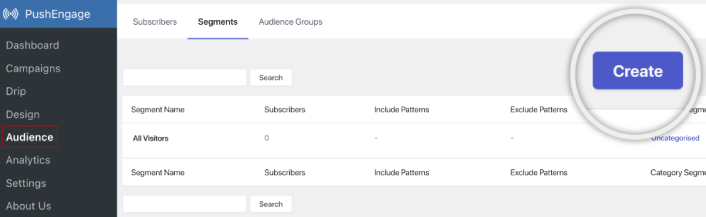
さらに深いパーソナライゼーションが必要な場合は、オーディエンスグループタブでオーディエンスグループを作成してください:
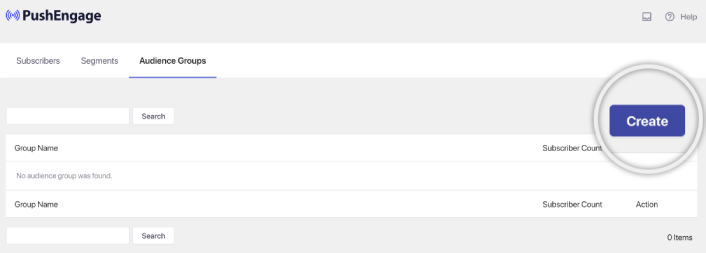
プッシュ通知セグメントとパーソナライズされたプッシュ通知が初めての場合は、セグメントの作成方法と、オーディエンスグルーピングを使用してユーザー行動をターゲットにする方法に関する記事を確認してください。
エンゲージメントを高めるためのターゲットWebプッシュ通知を作成する
PushEngage ダッシュボードに移動し、キャンペーン » ドリップ自動応答 に進み、新しいドリップ自動応答を作成 をクリックします。

次に、キャンペーンに名前を付け(「ウェルカムドリップ」のような名前をお勧めします)、コンテンツの下で、「ユーザー登録直後に通知を送信」というオプションを選択します。

この時点で、通知の横にある矢印をクリックして、通知の内容を編集できます。
PushEngageのプレミアムまたはエンタープライズプランをお持ちの場合、複数の通知を追加して、一連の自動ウェルカムメッセージを作成できます。 新しい通知を追加をクリックしてコンテンツを編集するだけです。完了したら、ドリップ設定をクリックし、ウェルカムキャンペーンをすべての購読者に送信するオプションを選択します。

次に、下にスクロールして独自のUTMパラメータを設定し、プッシュ通知を追跡します。

完了したら、上にスクロールして戻り、自動応答を有効にするボタンをクリックします。

これで完了です!
Webプッシュブロードキャストを送信する方法
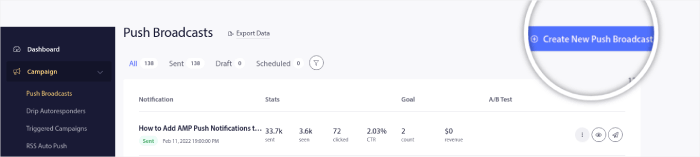
「PushEngageダッシュボード」にアクセスし、「Campaign » Push Broadcasts」に移動して、「Create a New Push Broadcast」ボタンをクリックします。
「Content」タブで、プッシュ通知のコンテンツを追加します。
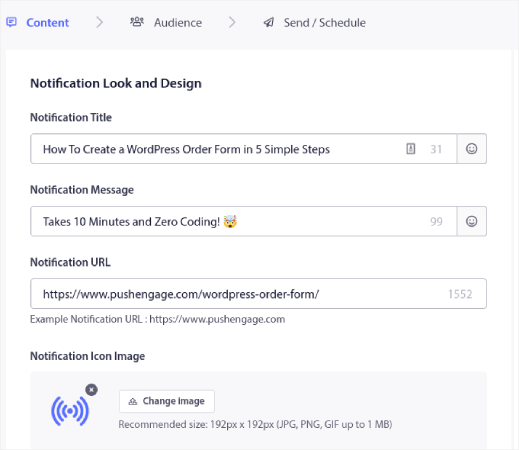
また、クリック率を向上させるためにA/Bテストを設定したり、より多くの表示回数を獲得するためにプッシュブロードキャストをスケジュールしたりすることもできます。いずれの場合も、最良の結果を得るために、プッシュ通知のベストプラクティスを確認してください。
エンゲージングなWebプッシュポップアップモーダルを作成する方法
プッシュ通知ポップアップモーダルとは、ウェブサイト訪問者にメッセージや通知を表示するために、ウェブサイトまたはモバイルアプリのインターフェイスの上に表示される小さなウィンドウです。ポップアップモーダルは、さまざまなイベントによってトリガーされる可能性があります。ページ訪問時、スクロール深度時、さらにはボタンクリックなどのカスタムアクション時にトリガーされるようにポップアップを設定できます。
通常、ポップアップモーダルには、「購読」または「許可」などの行動喚起が表示され、訪問者からプッシュブロードキャストまたはドリップキャンペーンを送信するための同意を得ます。このチュートリアルに従えば、このようなポップアップを作成できます。
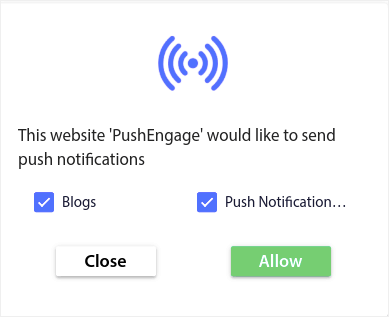
登録者を直接セグメント化できるポップアップモーダルを作成したり、ジオロケーションやブラウザなどのデフォルト属性で登録者を収集するだけの通常のポップアップを作成したりできます。
WordPressダッシュボードに戻ります。PushEngage » デザインに移動します。
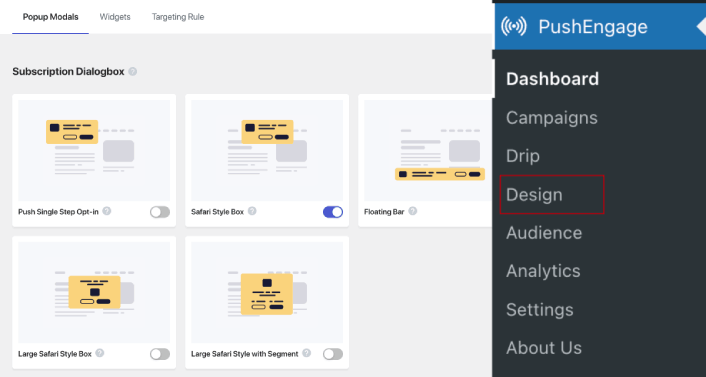
そして、好きなだけ多くのポップアップモーダルを作成できます。もちろん、各ポップアップモーダルの表示オプションの下で、異なる時間にトリガーされるようにすることができます。
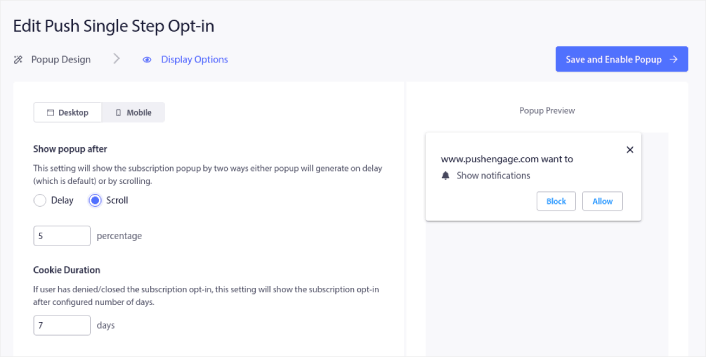
ここでのアイデアは、訪問者に購読する確かな理由を与えることです。そのためのヘルプが必要な場合は、カスタムプッシュ通知オプトインを作成する方法 に関する記事を確認してください。
よりターゲットを絞ったポップアップモーダルを作成したい場合は、ターゲティングルールタブの下にあるターゲティングルールを使用できます。
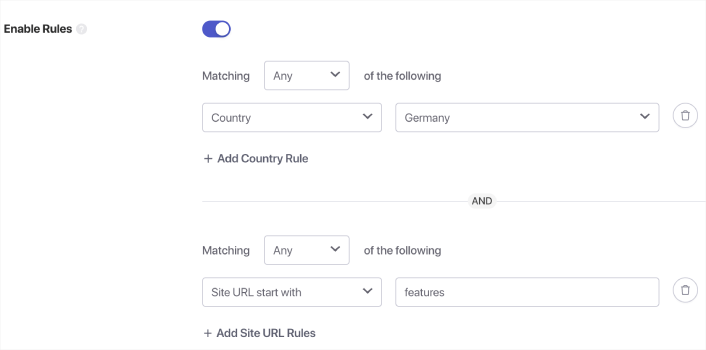
これらはグローバルなターゲティングルールであり、個々のポップアップモーダルのターゲティングルールよりも優先されます。ただし、必要に応じて、それらを編集することで、各モーダルに堅牢なターゲティングルールを作成できます。
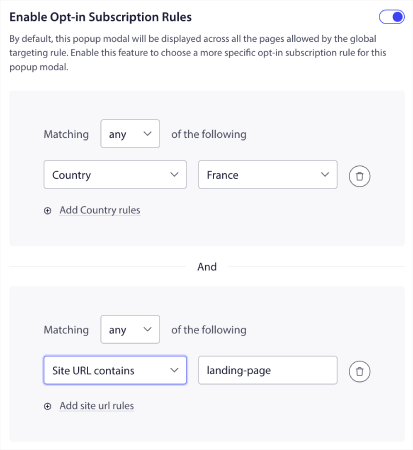
たとえば、さまざまな国の訪問者をターゲットにするために、さまざまな言語でポップアップモーダルを作成できます。
開始するためにクリック率の高いテンプレートが必要な場合は、コンバージョン率の高いプッシュ通知オプトイン に関するこの記事を確認してください。
ターゲットWebプッシュ通知を送信する前にやること
ほぼ完了です。プッシュブロードキャストまたはドリップキャンペーンの送信を開始する前に、ウェブサイトのサブスクリプションオプトインを設定する必要があります。オプトインは、ウェブ訪問者をプッシュ通知購読者に変換します。したがって、これは重要な要素です。インスピレーションが必要な場合は、コンバージョン率の高いプッシュ通知オプトインに関するこの記事を確認できます。オプトインの設定が完了すると、サイトは購読者情報を収集できます。しかし、オプトインが正常に機能していることをどのように知ることができますか?
したがって、賢明なのは、ウェルカムプッシュ通知を設定することです。
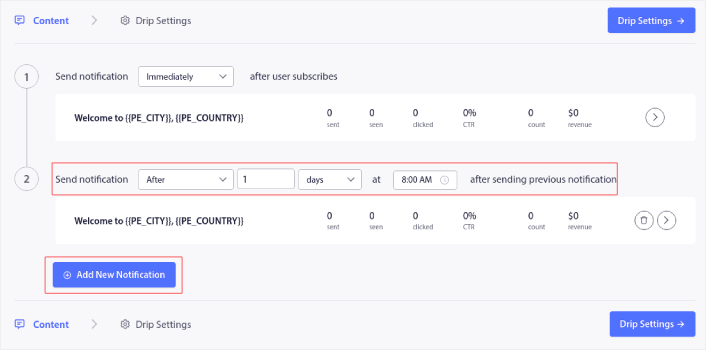
プロのヒント: プッシュ通知の本格的なテストに時間をかけるべきです。これにより、最も一般的な問題がトラブルシューティングされ、後で問題を解決しようとして時間を無駄にすることはありません。また、多くのキャンペーンを立ち上げる前に、適切なユーザーエンゲージメント戦略またはプッシュキャンペーン戦略が必要です。
Webプッシュ通知とは何かを知った今、何をすべきか
Webプッシュ通知とは何かを知った今、独自のプッシュキャンペーンを設定する時が来ました。
Webプッシュを始めたばかりの場合は、PushEngageを使用して最初のウェルカムメッセージを作成する方法をご覧ください。ウェルカムメッセージは、ウェブサイトへの再エンゲージメントとリピート訪問者に最適です。
また、すでにWebプッシュの使用を開始している場合でも、キャンペーンのアイデアを思いつくのが難しい場合があることを認識しています。トラフィックソースを使用する期間が長くなるほど、新しいアイデアを思いつくのが難しくなります。お客様がすでに使用しているプッシュキャンペーンのアイデアをいくつかご覧ください。必要なインスピレーションが得られるかもしれません!
セグメンテーションを開始することは、 intimidating に思えるかもしれません。しかし、目標追跡と分析に注意を払っていれば、問題ないはずです。さらに重要なのは、プッシュ通知キャンペーンの助けを借りて、はるかに多くの利益を上げることになるでしょう。開始に役立つクールなリソースをいくつか紹介します。
- リターゲティングプッシュ通知を使用して収益を2倍にする方法
- プッシュ通知の並べ替え方法と、成果の出るキャンペーンの見つけ方
- プッシュ通知購読者リストをクリーンアップする方法(簡単)
- RSSプッシュ通知を自動送信する方法
- プッシュ通知を使用してニュースサイトを宣伝する方法
- クロスセルプッシュ通知を使用して売上を2倍にする方法
- 閲覧放棄プッシュ通知の使用方法(4つのステップ)
eコマースウェブサイトの場合は、次にカート放棄キャンペーンを確認してください。そうでない場合は、最初のドリッププッシュキャンペーンを送信してください。これらは、ほとんどのお客様にとってコンバージョン率が最も高いキャンペーンの一部です。
まだの方は、今日からPushEngageを始めましょう!


良い情報を共有していただきありがとうございます。非常に良い記事で、ブログでプッシュ通知をどのように使用できるかについて、大いに役立ちました。
これは素晴らしい情報共有です。ブログを始めたばかりなので、きっと違いを生むでしょう。本当にありがとうございます。
ユーザーが特定のサイトにアクセスしたときにWebプッシュ通知を送信できますか?たとえば、私のウェブサイトは靴下を販売しています。WebプッシュでオプトインしたユーザーがAmazonにアクセスしたときに、そのユーザーにWebプッシュ通知をトリガーします。できないと思いますが、念のため確認しておきました。
また、Webプッシュ通知を有効にするにはサイトがhttpsである必要があると思っていました。httpsページを作成することで、httpサイトでWebプッシュ通知を有効にできますか?
iOSはWebプッシュ通知をサポートしていません。もし私が間違っていたら訂正してください。
はい、その通りです。iOSは依然としてWebプッシュ通知をサポートしていません。
更新、2026年9月:上記の回答は2020年4月時点では正確でしたが、現在は当てはまりません。iOS 16.4(2023年3月)以降、iPhoneおよびiPadのSafariは、ユーザーがホーム画面にWebアプリとして追加したサイトのWebプッシュをサポートしています。設定ガイド:iOSおよびiPadOSのWebプッシュ通知の設定方法。
すべて実行しましたが、ブロガーのブログでこれらのものがまだ表示されません。
[email protected]にメールするか、ライブチャットでお問い合わせください。チームが問題の解決をお手伝いします。
あなたは本当に適切なウェブマスターです。ウェブサイトの読み込み速度は驚くほどです。
何か特別な
トリックを使っているように感じます。さらに、コンテンツは傑作です。この件に関して素晴らしい仕事をしてくれました!