
Androidアプリのプッシュ通知アイコンをすばやく追加する方法をお探しですか?
実はとても簡単です。Androidの通知アイコンは、購読者に誰であるかを伝えます。送信するすべてのプッシュ通知に表示されるブランドマークです。これにより、ユーザーはブランドを覚えてくれるため、非常に価値があります。
送信するすべてのプッシュ通知を記憶に残るものにするためにかかる費用は? 5分未満です。
この記事では、Androidアプリのプッシュ通知アイコンを追加する方法をご紹介します。チャンネルに関するその他の情報については、Androidプッシュメッセージの完全ガイドをブックマークしてください。そして、前述したように、これは非常に簡単です。
さあ、始めましょう。
今すぐAndroidアプリにプッシュ通知を送信しましょう!
プッシュ通知は、リピートトラフィック、エンゲージメント、売上を自動で伸ばすのに役立つ、非常に効果的で低コストなマーケティングツールです。
Androidアプリにプッシュ通知アイコンを追加する理由
アプリのプッシュ通知アイコンは、ユーザーのデバイス上でアプリを表す小さなバッジのようなものです。この小さくも重要な画像はプッシュ通知とともに表示され、メッセージやアラートを配信しているアプリを明確に識別します。
特徴的なアプリプッシュ通知アイコンがあると、ユーザーはエンゲージしようとしているアプリやウェブサイトをすばやく認識できるため、通知のテキストを読む必要がなくなります。
アプリプッシュ通知アイコンを統合することには、いくつかの重要な利点があります。
- 認識:アイコンは、群衆の中で見慣れた顔を見つけるように、すぐに認識できます。アプリが通知を送信すると、アイコンはブランドをそっとリマインドし、ユーザーがどのアプリが注意を引こうとしているのかを素早く識別するのに役立ちます。
- ブランディング:アプリのアイコンは、アプリのミニ広告として機能します。これは全体的なブランドアイデンティティの一部であり、すべてのインタラクションでブランドイメージをさりげなく強化し、アプリを注目させ続けます。
- ユーザーエクスペリエンス:デバイスに多くのアプリがインストールされているため、ユーザーは簡単に圧倒されてしまいます。ユニークなアイコンは、通知を効果的に管理するのに役立ち、最初に確認したい通知を決定できるようにします。
- プロフェッショナリズム:特別な通知アイコンがあると、アプリの外観と感触が向上します。細部へのこだわりを示しており、全体的なユーザー満足度を高めることができます。
- 機能性:場合によっては、アイコンが追加情報を提供できます。たとえば、コミュニケーションアプリでは、新しいメッセージと不在着信で異なるアイコンを表示できます。これにより、別のレベルの機能性が追加され、ユーザーにとってより便利になります。
したがって、アプリプッシュ通知アイコンは小さく見えるかもしれませんが、ユーザーのアプリとのインタラクションを形成し、ユーザーがアプリをどのように認識するかに影響を与える上で重要な役割を果たします!
Android向けアプリプッシュ通知アイコンの追加方法
AIコーディングアシスタントとの連携PushEngage Agent Skillsは、Claude Code、Cursor、およびSKILL.md互換のエージェントにこのSDKの統合とデバッグを教えます。出荷後は、PushEngage MCPサーバーにより、同じアシスタントがキャンペーン(セグメント、送信、A/Bテスト、レポート)を実行できます。Replit、Lovable、またはBoltで構築していますか?オープンソースのvibe-coding kitsには、すぐに使えるデモストア、Flutterスターター、およびPushEngageが事前に接続されたワンプロンプトデモが含まれています。
Android向けアプリプッシュ通知アイコンの意味と追加すべき理由を理解したところで、コーディングなしで簡単にアイコンを追加する方法を見てみましょう。
ステップ1:Androidアプリプッシュ通知サービスを選択する
プッシュ通知は、訪問者がウェブサイトを離れた後も接続を維持するのに役立つマーケティングツールです。プッシュ購読者にターゲットを絞った通知を送信したり、さまざまな顧客セグメントに合わせて通知をパーソナライズしたりすることもできます。しかし、どのAndroidプッシュ通知サービスを選択すべきでしょうか?
プッシュ通知キャンペーンの送信にはPushEngageの使用をお勧めします。

PushEngage は世界最高のプッシュ通知サービスです。無料版だけでなく、ターゲットを絞ったプッシュメッセージでサイトを離れた訪問者とつながることができます。
PushEngageがプッシュ通知サービスおよびツールとして第一選択肢である理由は次のとおりです。
- 非常に使いやすい
- 設定にほとんどまたは全くコーディングを必要としない、事前構築済みテンプレートを備えたビジュアルキャンペーンビルダーがあります。
- あらゆる種類のサイト向けに、完全に自動化されたプッシュ通知キャンペーンを簡単に設定できます。
- AndroidおよびiOS SDKを完備しており、アプリプッシュキャンペーンを迅速に開発、展開、分析、管理できます。
- クリック率を高めるためのパーソナライズされたプッシュ通知を送信するための複数のオプションが組み込まれています。
- カスタム目標追跡、UTMパラメータ、高度な分析機能を備えています。
- 強力なプッシュ通知A/Bテストオプションがあります。
これはほんの始まりにすぎません。さらに進む前に、PushEngageの機能の全リストを確認してください。PushEngageの最も素晴らしい点は、購入を決定する前に試すことができる、永久無料プランがあることです。
プロのヒント:サービスを購入する前に、プッシュ通知のコスト分析に関する記事を確認してください。
ステップ2:PushEngage Androidアプリプッシュ通知を設定する
これまでは、アプリプッシュ通知を送信するためにスケルトンSDKを使用する必要がありました。これらのSDKを使用する問題は、非常に基本的なものであることです。
理論的には、それらを使用してあらゆる種類のモバイルアプリプッシュキャンペーンを送信できます。しかし、それには以下を構築する必要があります。
- キャンペーンを管理するためのインターフェース
- キャンペーンパフォーマンスを追跡するための分析スイート
- リッチメディアおよびアプリ内リダイレクトリンク(またはディープリンク)のより良いサポート
- マーケティングチームと開発チームの両方を連携させるプロセス
すべては、単一の成長チャネルを導入するためです。古いツールを使用してモバイルアプリのプッシュ通知を送信することは、面倒で、高価で、リソースを大量に消費し、時間がかかります。そしてもちろん、構築したすべてを開発および管理するには、チームに深いコーディングスキルが必要です。
新しいPushEngage Android SDKを使用すると、同じ信頼性の高いソフトウェアを使用してモバイルアプリプッシュを送信し、優れた配信率を実現できます。しかし、アプリとのカスタム統合を非常に簡単に構築できる、いくつかのレイヤーを上に構築しました。そして、PushEngageはSDK全体を管理します。そのため、統合を管理するためだけに多大な時間とお金を費やす必要はありません。
あなたがする必要があるのは、構築することだけです!
PushEngageのSDKを使用してモバイルアプリプッシュ通知を送信するようにアプリを設定すると、PushEngageダッシュボードから直接ブロードキャスト通知を送信できます。はい、アプリにコードを追加し、アプリとPushEngage API間のコネクタを開発する必要があります。しかし、それが完了すれば、次のような、あらかじめ構築されたソフトウェアインターフェイスからモバイルアプリプッシュキャンペーンを簡単に作成できます。
- エンゲージメントの高いプッシュキャンペーンタイプ
- コンバージョン率の高い実績のあるキャンペーンテンプレート
- 公開するたびにコンテンツを宣伝するための自動キャンペーン
- 複数のターゲティングおよびキャンペーンスケジュールオプション
- 補完的な成長チャネルとしてのWebプッシュキャンペーン
- データに基づいたパーソナライゼーションを使用したオーディエンス維持率の向上
- 目標追跡と高度な分析
- スマートA/Bテスト
- 専任のサクセスマネージャー
その他多数。Androidモバイルプッシュキャンペーンの開発における手間を省きました。
ステップ3:Android向けアプリプッシュ通知アイコンを追加または編集する
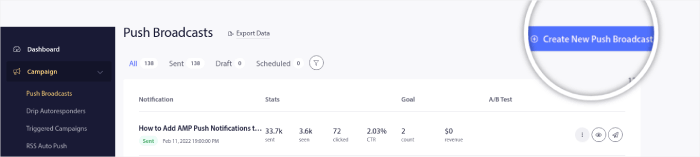
Androidモバイルアプリプッシュ通知のアイコンを簡単に設定できます。PushEngageダッシュボードに戻り、Campaign » Broadcastsに移動して、Create a New Push Broadcastをクリックします。
Androidオプションの下で、大きなアイコン画像チェックボックスをオンにします:
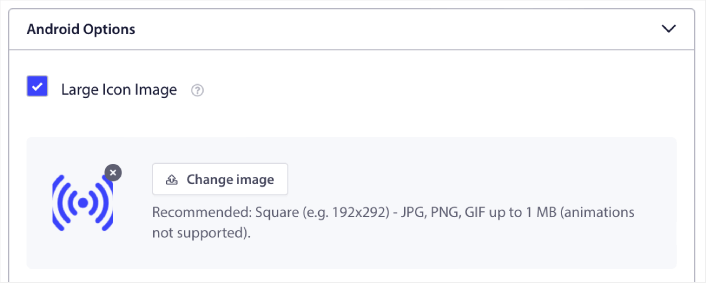
アップロードした画像は、Androidのアプリプッシュ通知アイコンです。最適な結果を得るために、画像の寸法を192px x 192pxに保ち、画像サイズが1MB未満であることを確認してください。JPG、PNG、またはアニメーションブランドマーク用のGIFを使用できます。ソーシャルネットワークサイトで使用するブランドマークとアイコンが一致していることを確認してください。
後でアイコンを編集する必要がある場合は、ここで編集します。別の画像をアップロードするだけで完了です!
つまり、モバイルプッシュ通知を送信する際に、ブランドデザインガイドラインを非常に簡単に維持できます。しかもすべて、管理する必要のない使いやすいインターフェイスから行えます!
ステップ4:テスト通知を送信してAndroid向けプッシュ通知アイコンを確認する
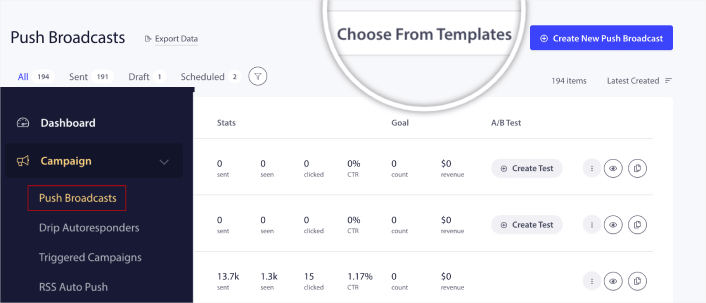
「PushEngageダッシュボード」にアクセスし、「Campaign » Push Broadcasts」に移動して、「Choose from Templates」をクリックします:
次に、ライブラリから開始するテンプレートを選択できます:
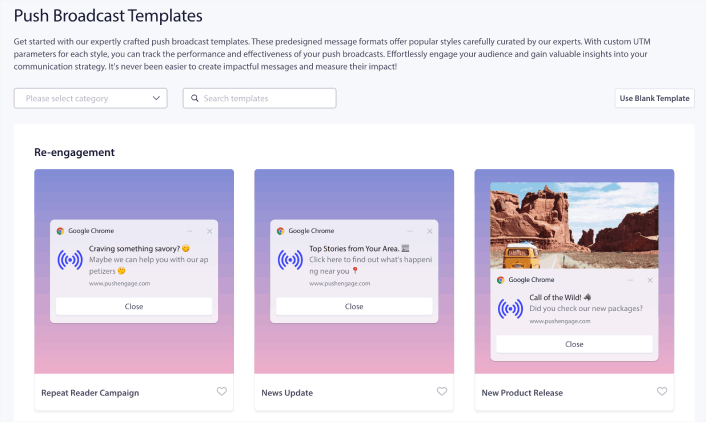
テンプレートのいずれかにカーソルを合わせ、「Use Template」ボタンをクリックするだけで、そのテンプレートを使用した新しいプッシュブロードキャストを作成できます:
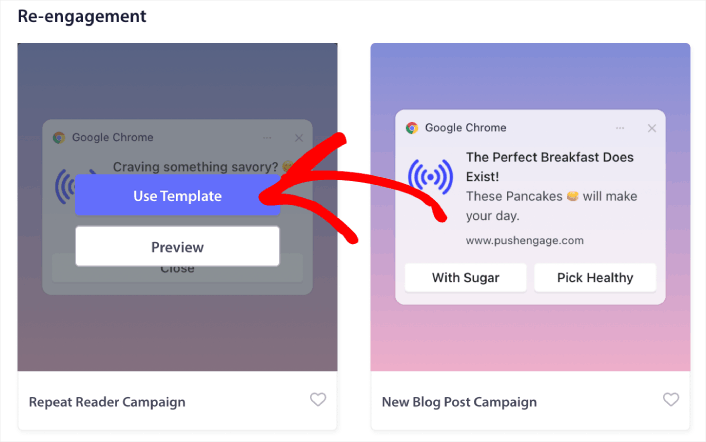
テンプレートを使用すると、テンプレートから取得して新しいプッシュブロードキャストを作成するために必要なすべてのフィールドが自動的に入力されます。もちろん、ブランドに合わせてすべてのフィールドを編集することもできます。ただし、必要に応じてそのままブロードキャストを送信することもできます。
現在、以下のプッシュ通知テンプレートがあります:
- 再エンゲージメントプッシュ通知
- お知らせキャンペーン
- プロモーションオファーキャンペーン
- 新しいブログ投稿プロモーションキャンペーン
- 季節限定オファープッシュ通知
- アップセルおよびクロスセルプッシュ通知
- フラッシュセールプッシュキャンペーン
そして最も素晴らしいのは、無料ユーザーでもいくつかの無料テンプレートにアクセスできることです。もちろん、PushEngageアカウントをアップグレードすれば、より強力な機能を備えたリッチプッシュ通知にアクセスできます。
ヒント: Androidアプリのアイコンをテストするには、ウェルカムプッシュ通知キャンペーンを作成します。
プッシュ通知が初めての場合は、公開前に本格的なプッシュ通知テストプロセスに従うことをお勧めします。これにより、訪問者が見てユーザーエクスペリエンスの不具合について不満を言う前に、一般的な機能の問題をトラブルシューティングできます。
Android向けプッシュ通知アイコンを追加した後の対応
アプリのプッシュ通知アイコンの追加方法がわかったので、独自のキャンペーン作成を開始する時間です。ただし、キャンペーンを開始する前に、まず優れたプッシュ通知の例をいくつか学ぶ必要があります。
また、プッシュ通知が初めての場合は、キャンペーンを作成する前にプッシュ通知のベストプラクティスに関する記事を確認してください。私たちが積極的に推奨するベストプラクティスの一部は次のとおりです。
- 好奇心を刺激してクリック率を向上させる
- 各プッシュ通知をパーソナライズする
- リッチメディアで目立つ
- 休眠中のプッシュ購読者を再活性化する
- 顧客に常に情報を提供する
- 可能な限り絵文字を使用する
- 緊急性を演出する
プッシュ通知キャンペーンの作成にはPushEngageの使用をお勧めします。PushEngageは市場でNo.1のプッシュ通知ソフトウェアであり、あなたのキャンペーンは安全な手に委ねられます。
まだの場合は、今すぐPushEngageを始めましょう。


