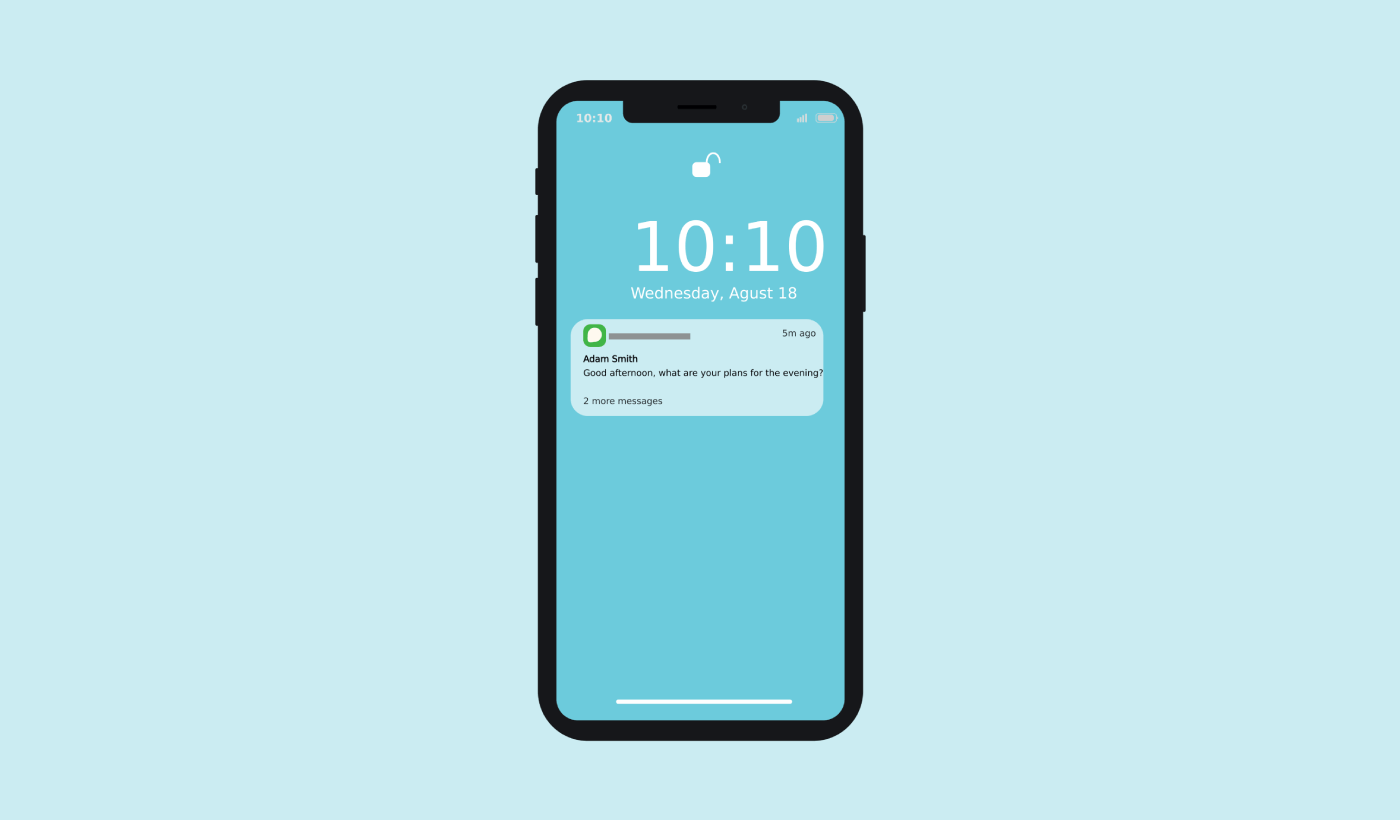
アプリを閉じてもらった後、Androidアプリのユーザーを再びエンゲージさせるのにまだ苦労していますか? あなたは一人ではありません。ほとんどのユーザーは数日以内にアプリを離れ、彼らを呼び戻すための適切なツールがなければ、彼らは永久に失われてしまいます。そこでAndroidプッシュメッセージが役立ちます。
これらの小さくてタイムリーなアラートは、ユーザーを再びエンゲージさせ、セッションの繰り返しを増やし、積極的にアプリを使用していない場合でもコンバージョンを促進できます。
このガイドでは、次の点について説明します。
- Androidプッシュメッセージとは何か
- 仕組み(ビジュアル付き)
- アプリの成長にとってなぜ重要なのか
- そして効果的に使い始める方法
さあ、始めましょう。あなたのアプリをリテンションエンジンに変えましょう。
今すぐモバイルアプリプッシュ通知を送信!
プッシュ通知は、リピートトラフィック、エンゲージメント、売上を自動で伸ばすのに役立つ、非常に効果的で低コストなマーケティングツールです。
- Androidプッシュメッセージとは?
- どのAndroidプッシュメッセージサービスを選択すべきか?
- ウェブサイトにAndroidプッシュメッセージをインストールする方法
- Androidでアプリプッシュメッセージを送信する方法
- Android Webプッシュメッセージはどのように機能しますか?
- モバイルAndroidプッシュメッセージはどのように機能しますか?
- Androidプッシュメッセージのさまざまな部分は?
- プッシュ通知のオプトインのさまざまな種類
- Androidプッシュメッセージをパーソナライズする方法
- ターゲットを絞ったAndroidプッシュメッセージを作成する方法
- ターゲットを絞ったAndroidプッシュメッセージを送信する方法
- Androidプッシュメッセージのポップアップモーダルを作成する方法
- ターゲットを絞ったAndroidプッシュメッセージを送信する前にやること
- Androidプッシュメッセージを送信した後にやること
Androidプッシュメッセージとは?
Androidプッシュメッセージとは、購読者のデバイスに表示され、ワンクリックで購読者をコンテンツにリダイレクトする、短くてクリック可能なポップアップメッセージです。
広義には、2種類のAndroidプッシュメッセージを送信できます。
- Androidウェブプッシュメッセージ:購読者のブラウザに配信されるブラウザプッシュメッセージ。プッシュ通知サービスが複数のブラウザと互換性がある限り、Androidデバイスの購読者をターゲットにできます。
- Androidモバイルプッシュメッセージ:GoogleのFirebase Cloud Messaging(FCM)を使用してAndroidモバイルアプリ経由で配信されるプッシュメッセージ。
したがって、アプリまたはシンプルなウェブサイトでAndroidプッシュメッセージを送信できます。プログレッシブウェブアプリ(PWA)を実行している場合は、両方のオーディエンスに同時にプッシュメッセージを送信できます。
ウェブプッシュ通知の送信を選択した場合、購読者がブラウザを使用していなくてもプッシュメッセージはポップアップ表示されます。これはメールの一斉送信のようなものですが、ウェブプッシュ通知では、購読者はメッセージを表示するためにアプリを使用する必要はありません。
しかし、アプリビジネスを運営していて、アプリユーザーにAndroidプッシュメッセージを送信したい場合は、それも可能です。
要するに:Androidプッシュメッセージは、オプトインした人にクリック可能なディープリンクまたはクリック可能なURLをコンテンツに送信する簡単な方法です。
プッシュ通知シーケンスを使用すると、オーディエンスはあなたを無視する言い訳がなくなります。ソーシャルメディアサイトとは異なり、広告料を支払わせるためにリーチを制限するアルゴリズムはありません。
重要:ウェブプッシュメッセージとアプリプッシュメッセージは、どのデバイスでも根本的に異なる方法で機能します。ウェブプッシュでは、プッシュメッセージを送信する前に、サイト訪問者から手動でオプトインする必要があります。アプリプッシュは、そのようなオプトインを必要としません。誰かがあなたのアプリをダウンロードした場合、デバイスで通知が有効になっていれば、メッセージを送信できます。
どのAndroidプッシュメッセージサービスを選択すべきか?
Androidプッシュメッセージの送信にはPushEngageの使用を強くお勧めします。
多くの無料プッシュメッセージングサービスは実際には無料トライアルであることを述べることから始めましょう。一部のプロバイダーはトライアルソフトウェアを提供していますが、他のプロバイダーは、選択できる永続的な無料プランを提供しています。ただし、そうする前に、プッシュ通知のコスト分析に関する記事をご覧ください。
私は最高のプッシュ通知アプリを比較し、それらが実際に提供しているものを分析するのに多くの時間を費やしました。
今のところ、PushEngageを選択すべき理由を簡単にまとめます。
Androidプッシュメッセージのローコードソリューションを入手する
これまでは、アプリプッシュ通知を送信するためにスケルトンSDKを使用する必要がありました。これらのSDKを使用する問題は、非常に基本的なものであることです。
理論的には、それらを使用してあらゆる種類のモバイルアプリプッシュキャンペーンを送信できます。しかし、それには以下を構築する必要があります。
- キャンペーンを管理するためのインターフェース
- キャンペーンパフォーマンスを追跡するための分析スイート
- リッチメディアおよびアプリ内リダイレクトリンク(またはディープリンク)のより良いサポート
- マーケティングチームと開発チーム間の連携プロセス
すべて、単一の成長チャネルを導入するためです。古いツールを使用してモバイルアプリプッシュ通知を送信することは、退屈で、高価で、リソースを大量に消費し、時間のかかる作業です。そしてもちろん、構築したすべてを開発および管理するには、チームに深いコーディングスキルが必要です。
新しいPushEngage AndroidおよびiOS SDKを使用すると、同じ信頼性の高いソフトウェアを使用してモバイルアプリプッシュを送信でき、優れた配信率を実現できます。しかし、アプリとのカスタム統合を簡単に構築できるような、いくつかのレイヤーを上に構築しました。そしてPushEngageはSDK全体を管理します。そのため、統合を管理するために多くの時間とお金を費やす必要はありません。
あなたがする必要があるのは、構築することだけです!
PushEngageのSDKを使用してモバイルアプリプッシュ通知を送信するようにアプリを設定したら、PushEngageダッシュボードから直接ブロードキャスト通知を送信できます。はい、アプリにコードを追加し、アプリとPushEngage API間のコネクタを開発する必要があります。しかし、それが完了すれば、次のようなプリビルドソフトウェアインターフェイスからモバイルアプリプッシュキャンペーンを簡単に作成できます。
- エンゲージメントの高いプッシュキャンペーンタイプ
- コンバージョン率の高い実績のあるキャンペーンテンプレート
- 公開するたびにコンテンツを宣伝するための自動キャンペーン
- 複数のターゲティングおよびキャンペーンスケジュールオプション
- 補完的な成長チャネルとしてのWebプッシュキャンペーン
- データに基づいたパーソナライゼーションを使用したオーディエンス維持率の向上
- 目標追跡と高度な分析
- スマートA/Bテスト
- 専任のサクセスマネージャー
そして、さらに多くの機能があります。AndroidおよびiOSモバイルプッシュキャンペーンをアプリ向けに開発する際の面倒な作業をなくしました。
ブランドアイデンティティを確立する
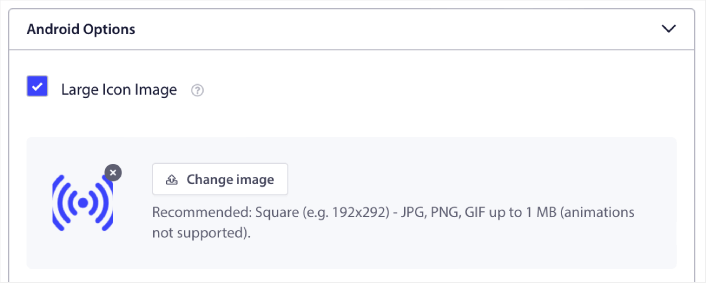
Androidモバイルアプリプッシュのアイコンを簡単に設定できます。
また、モバイルアプリプッシュ通知をよりクリックしやすくするための表示画像も設定できます。
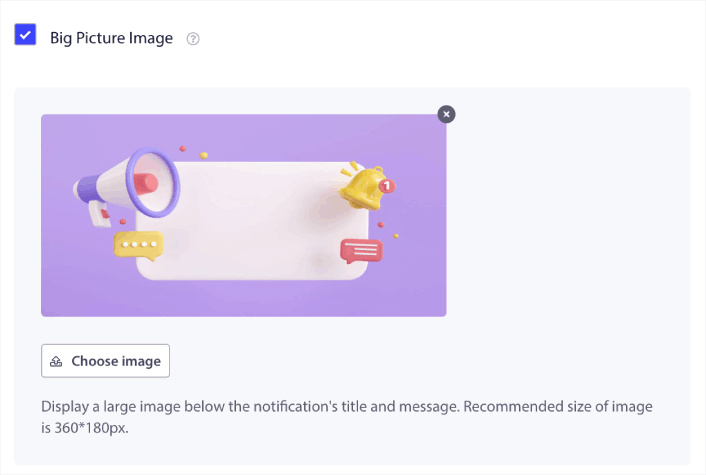
iOSモバイルアプリプッシュでも同様のことができます。キャンペーンをより目を引くものにするために、iOSアプリプッシュ通知のメディア画像をセットしてください。
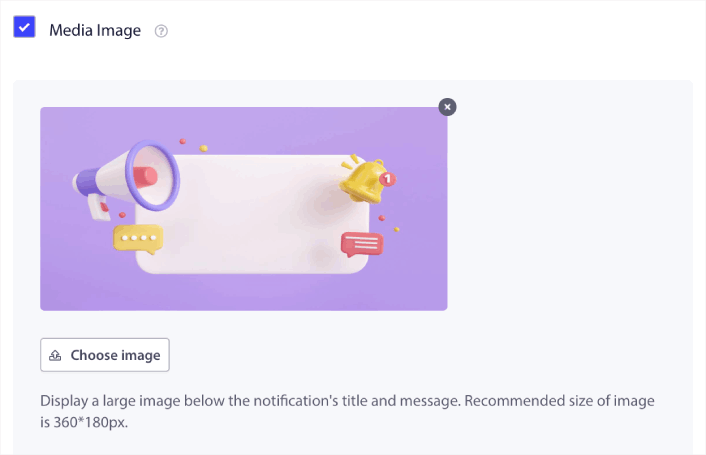
つまり、モバイルプッシュ通知を送信する際に、ブランドデザインガイドラインを非常に簡単に維持できます。しかも、すべて管理する必要のない使いやすいインターフェースから行えます!
よりターゲットを絞ったパーソナライズされたメッセージを送信する
Androidアプリプッシュでは、グループとチャネルを作成して、通知の外観、感触、サウンドを正確にカスタマイズできます。
グループは、共通の名前を持つ通知タイプのコレクションです。
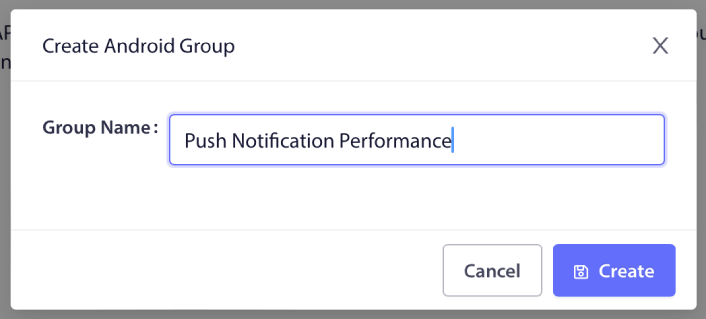
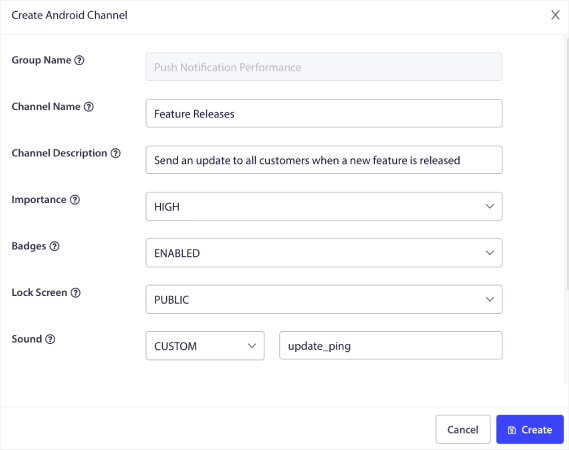
ブログのカテゴリと考えてください。各グループ内に、チャネルを追加できます:

チャンネルは、ユーザーが通知を受信したときにアプリの通知がどのように動作するかを説明します。ロック画面に表示されますか?バッジとしてアプリのアイコンを表示する必要がありますか?ユーザーにとってどの優先度レベルになりますか?ユーザーが通知を受信したときにカスタム通知音が鳴るようにしますか?
これらの設定はすべてチャンネル内で構成できます。
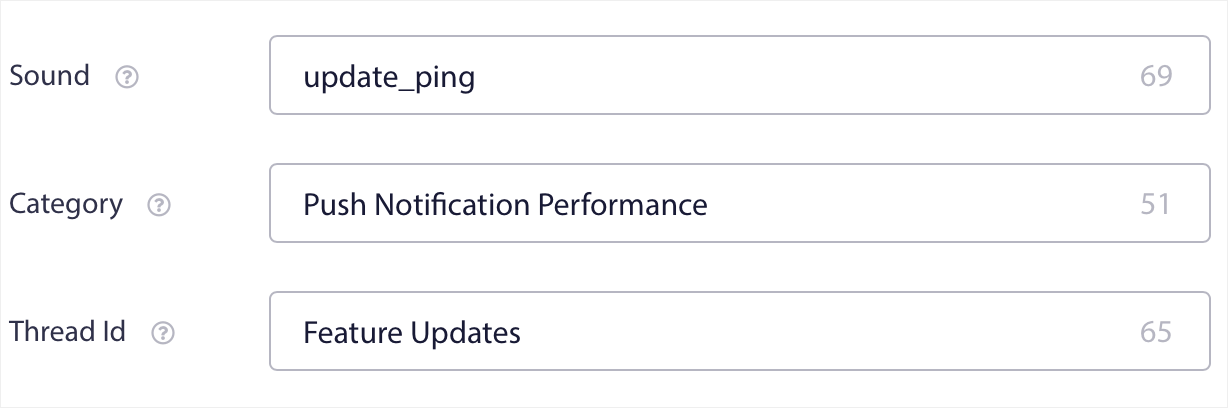
iOSモバイルアプリの通知には、グループやチャネルという概念はありません。ただし、他の設定を使用してパーソナライズされた通知を作成できます。通知音、通知のカテゴリ、およびそれらをバンドルするための共通のスレッドIDを設定できます。
ユーザーがアプリから受信した未読通知の数を示すカスタムバッジをその通知に設定することもできます。
ユーザーをアプリ内またはアプリ外の任意のリンクにリダイレクトする
モバイルアプリプッシュには、ディープリンクと呼ばれるユニークな機能があります。ディープリンクはURLのようなものですが、アプリ内の画面を指します。PushEngageダッシュボードからディープリンクを使用してユーザーを任意の画面に誘導したり、Web上の通常のURLに誘導したりできます。
これにより、ユーザーにアプリを開いてほしいときに開かせることができます。
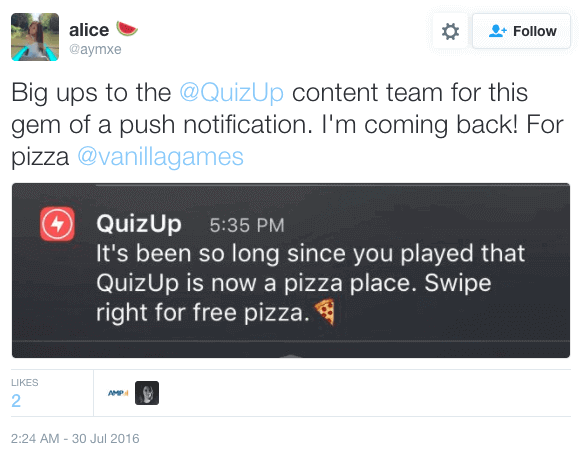
または、アプリストアやウェブサイトにリダイレクトして、アプリのレビューを残してもらうこともできます。
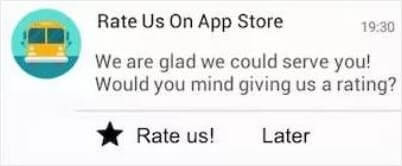
もちろん、これらは基本的なアイデアにすぎません。これらのリンクを使用して、アプリの内外で複雑な多段階のエンゲージメントキャンペーンを実行できます!
ウェブサイトにAndroidプッシュメッセージをインストールする方法
AIコーディングアシスタントとの連携PushEngage Agent Skillsは、Claude Code、Cursor、およびSKILL.md互換のエージェントにこのSDKの統合とデバッグを教えます。出荷後は、PushEngage MCPサーバーにより、同じアシスタントがキャンペーン(セグメント、送信、A/Bテスト、レポート)を実行できます。Replit、Lovable、またはBoltで構築していますか?オープンソースのvibe-coding kitsには、すぐに使えるデモストア、Flutterスターター、およびPushEngageが事前に接続されたワンプロンプトデモが含まれています。
Android Webプッシュメッセージを無料で使い始めるには、PushEngageの使用をお勧めします。ブログ記事を公開するたびに、PushEngageはすべての購読者にプッシュ通知を自動的に送信します。
Androidプッシュメッセージで無料でオーディエンスを増やしましょう。
ステップ#1:無料のPushEngageアカウントを作成する
PushEngageにアクセスし、無料で開始する:をクリックします。
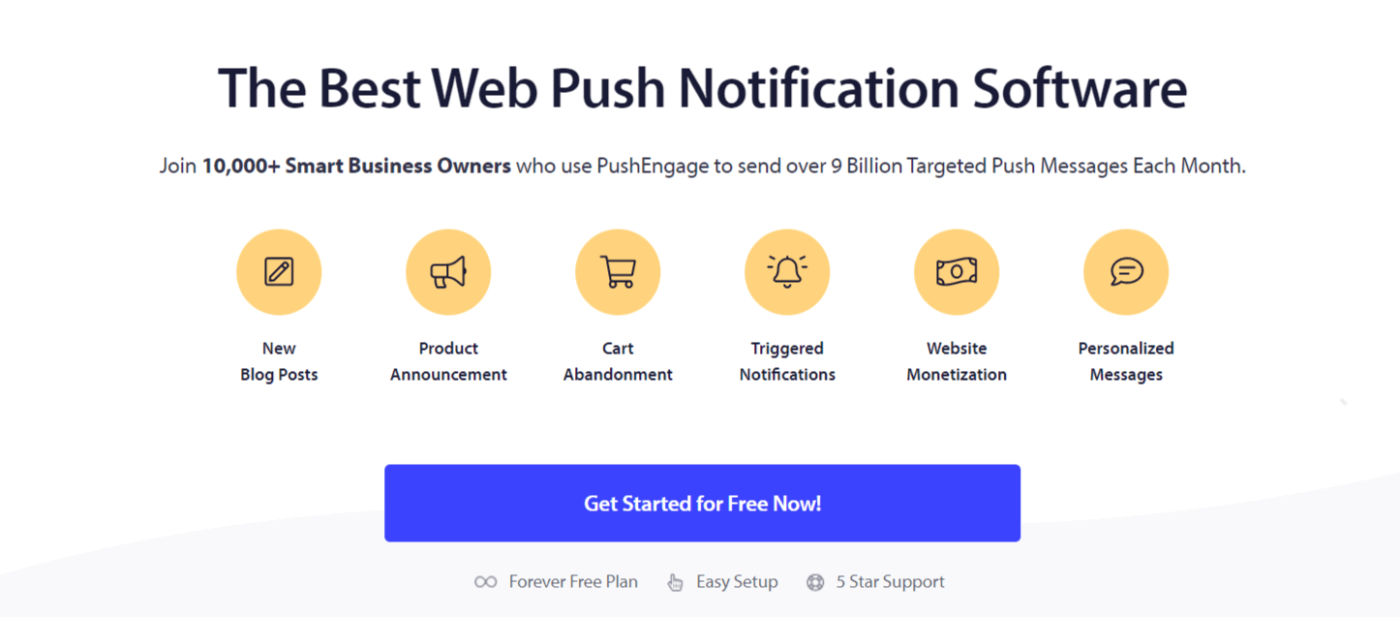
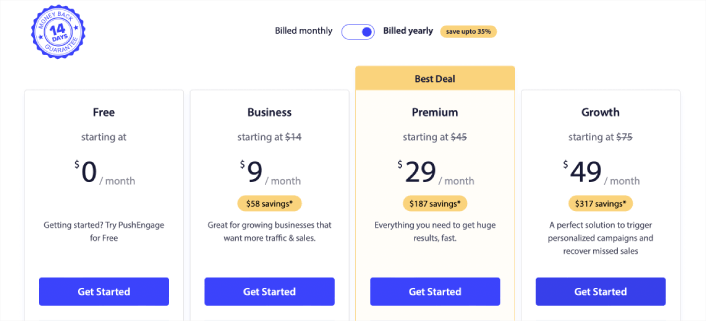
無料プラン、またはニーズに最適なプランを選択してください:
ステップ#2:PushEngageにサインアップする
ユーザー情報またはGmail IDでプラグインにサインアップしてください:
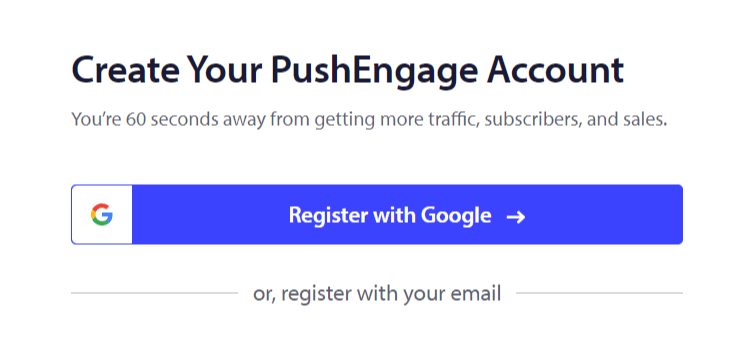
指示に従ってアカウントの設定を完了してください。
ステップ3:WordPressプラグインをインストールする
注意: WordPressでウェブサイトを構築していない場合は、他の方法でAndroidプッシュメッセージをインストールできます。この記事ではそれらの方法については説明しませんが、興味がある場合は、インストールガイドをご覧ください。
サインアップすると、PushEngageダッシュボードに移動します。

サイト設定 »サイト詳細にアクセスします:

セットアップ手順はこちらボタンをクリックします:

次に、WordPressプラグインをインストールボタンをクリックします:

サイトのURLをすでに設定している場合、PushEngageはサイトに自動的にインストールされます。
ステップ#4:WordPressウェブサイトをPushEngageに接続する
PushEngage WordPressプラグインのインストールと有効化が完了すると、PushEngageのオンボーディングウィザードが表示されます。
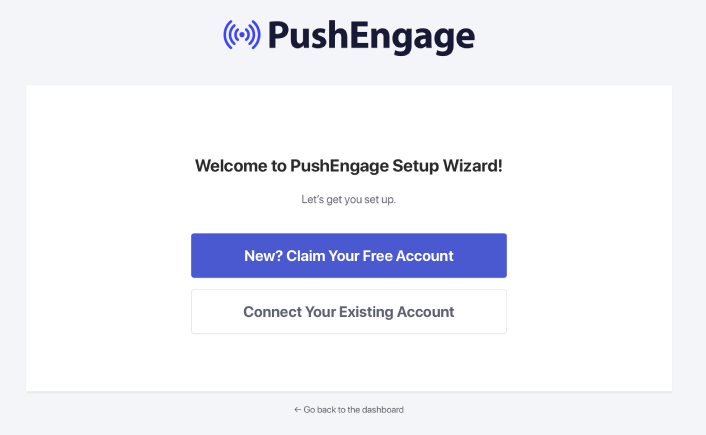
ウィザードは非常にわかりやすいです。新規ユーザーの場合は、新規?無料アカウントを請求をクリックしてください。すでにサインアップ済みの場合、既存のアカウントを接続をクリックしてください。
次に、サインアップ中にサイトを登録した場合、登録済みサイトを接続の下にあるサイトを選択ドロップダウンからサイトを選択できます:
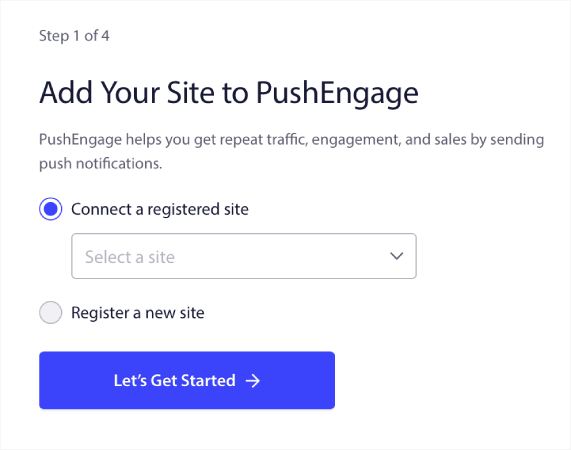
または、 プレミアムプラン以上をお持ちの場合は、新規サイトを登録をクリックして新しいサイトを追加できます。次のステップでは、オンボーディングウィザードが他の 必須のWordPressプラグインをインストールするように促します。
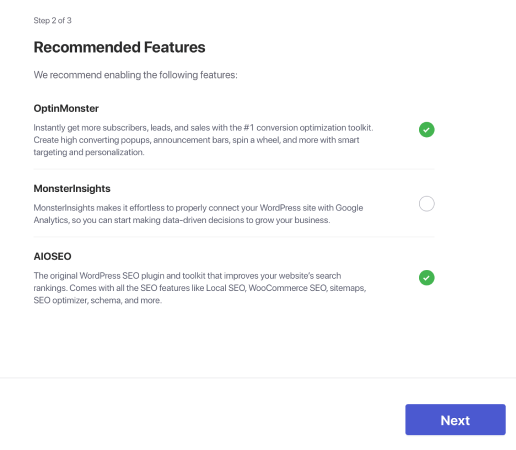
各ステップを正しく実行すると、ウィザードからこの成功メッセージが表示されます。
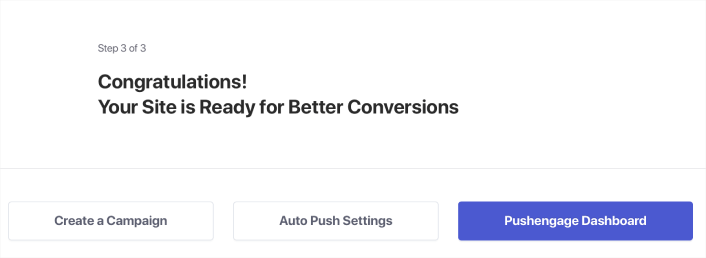
これで、キャンペーンとプッシュ通知ポップアップモーダルを作成する準備が整いました。まず、Webプッシュ通知WordPressプラグインをインストールするのが最善です。
Androidでアプリプッシュメッセージを送信する方法
PushEngage を使用すると、Android アプリケーションにプッシュ通知を実装できるようになりました。SDK を一度統合するだけで、マーケティングチームは Android アプリのユーザーにコンテキストに合わせたパーソナライズされたメッセージを送信できるようになります。これを実行するには、開発者の助けが必要になります。
Firebaseプロジェクトの設定
アプリプッシュ通知を開始する前に、既存のFirebaseアカウントがあることを確認する必要があります。FirebaseコンソールにGoogleアカウントを使用してログインし、プロジェクトを追加をクリックするか、既存のプロジェクトを選択します。

プロジェクト名を入力し、続行をクリックします。次の画面で、プロジェクト名でプロジェクトを作成をクリックします。

次に、続行をクリックします。Firebaseがアカウントの構成を完了したら、プロジェクトを作成をクリックできます。

最後に、Androidアイコンをクリックして、プロジェクトにAndroidアプリを追加します。

次に、Androidアプリのパッケージ名を入力します。統合しようとしているAndroidアプリの名前を使用することをお勧めします。登録をクリックします。

google-services.jsonファイルをダウンロードし、Androidアプリモジュールのルートディレクトリに配置します。

Firebaseコンソールで、左上にある[プロジェクトの概要]の横にある[設定アイコン]をクリックし、[プロジェクトの設定]を選択します。
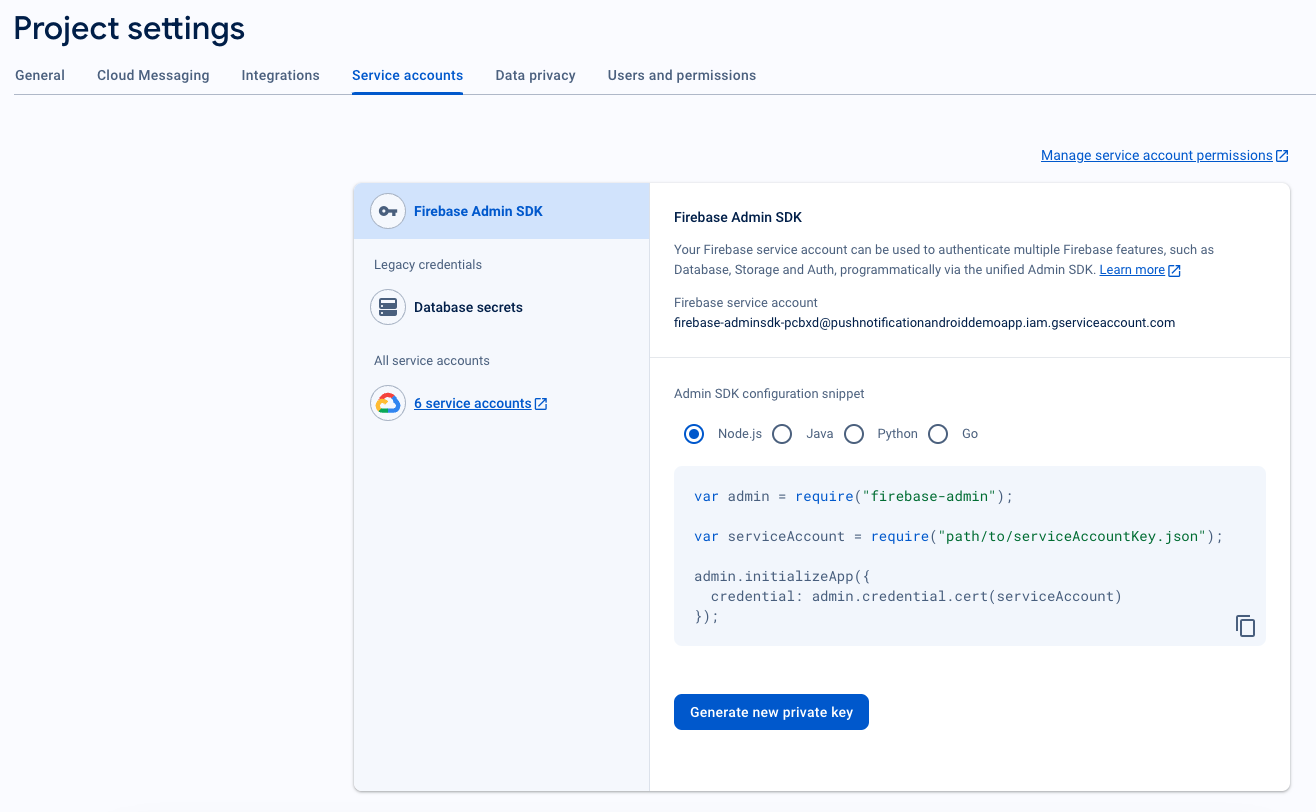
[新しい秘密鍵を生成]をクリックします。
重要:前の手順でダウンロードした.jsonファイルを安全な場所に保管してください。PushEngageダッシュボードで設定する際に必要になります。
Firebaseコンソールで、左上にある[プロジェクトの概要]の横にある[設定アイコン]をクリックし、「[プロジェクトの設定]」を選択します。[Cloud Messaging]タブに移動し、[Sender ID]を見つけます。
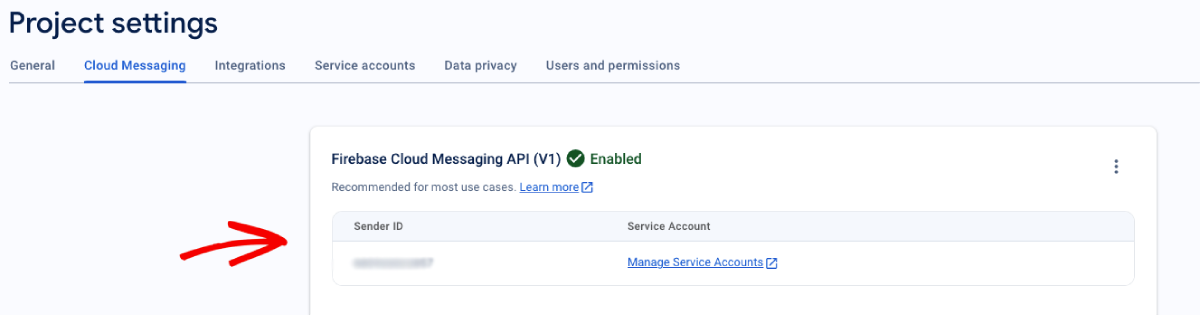
FCMをPushEngageダッシュボードに統合する
Firebaseでプロジェクトを作成したら、PushEngageダッシュボードにSender IDを統合できます。PushEngageアカウントで、[サイト設定] » [インストール]に移動し、[Android SDK]タブを選択します。
ここで、Sender IDとService Account JSONを設定できます。
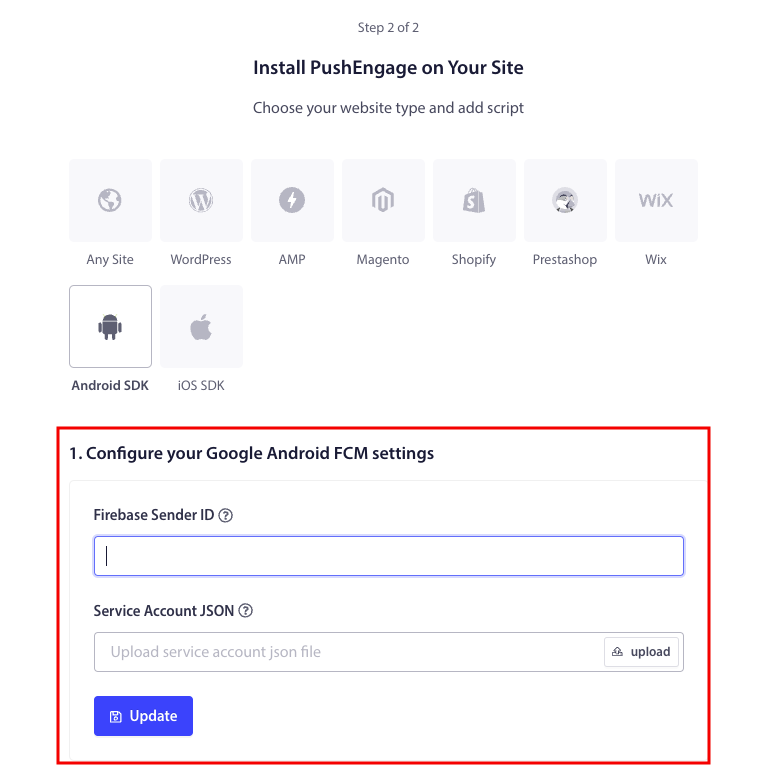
アプリケーションでPushEngage Android SDKを初期化するために必要なApp IDをコピーします。
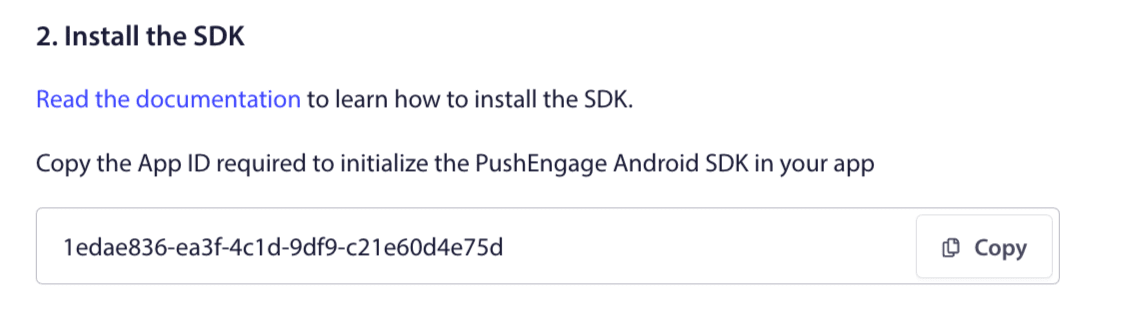
SDK依存関係の追加
次にSDK依存関係を追加します。ルートのbuild.gradleに次の行を追加します。
1. プロジェクトで集中リポジトリ宣言を使用していない場合は、プロジェクトレベルのbuild.gradleファイルに次の行を追加します。それ以外の場合は、2番目のセクションに進むことができます。
// Project level build file where you can add configuration options common to all sub-projects/modules.
buildscript {
   repositories {
       google()
       jcenter()
   }
   dependencies {
       // ...
       // Add this line
       classpath "com.google.gms:google-services:4.3.10"

   }
}

allprojects {
   repositories {
      // ...
      // Check that you have the following line (if not, add it):
      google()
      maven {url 'https://jitpack.io' }
   }
}
プロジェクトで集中リポジトリ宣言を使用している場合は、settings.gradleファイルに次を追加します。
dependencyResolutionManagement {
    repositoriesMode.set(RepositoriesMode.FAIL_ON_PROJECT_REPOS)
    repositories {
        //add this line
        maven { url 'https://jitpack.io' }
    }
次に、アプリケーションレベルの“build.gradle”ファイルに次を追加します。
plugins {
   id 'com.android.application'
   // Add this line
   id 'com.google.gms.google-services'
}

dependencies {
   // ...
   // Add the following lines
   implementation 'com.github.awesomemotive:pushengage-android-sdk:0.0.5'
   implementation platform('com.google.firebase:firebase-bom:26.1.1')
}
AndroidプッシュメッセージSDKの初期化
PushEngage SDK初期化コードブロックを、ApplicationクラスのonCreateメソッドに追加します。PUSHENGAGE_APP_IDは、PushEngageダッシュボードから取得したApp IDに置き換える必要があります。
注意:モバイルアプリケーションにPushEngageを拡張するカスタムクラスがない場合は、Applicationクラスを拡張するクラスを作成する必要があります。
Javaでの例を次に示します。
public class PEApplication extends Application {
@Override
public void onCreate() {
super.onCreate();

// PushEngage SDK Initialization code
PushEngage pushEngage = new PushEngage.Builder()
.addContext(getApplicationContext())
.setAppId("PUSHENGAGE_APP_ID")
.build();
// The small icon is displayed on the top status bar and in the notification.
// By default PushEngage displays a bell icon, however It is recommended to
// customize this so users easily recognize notifications from your app.
PushEngage.setSmallIconResource("your_icon_name");
}
}
Kotlinでの例を次に示します。
class PEApplication : Application() {
   override fun onCreate() {
       super.onCreate()
       // PushEngage SDK Initialization code
       val pushEngage = PushEngage.Builder()
           .addContext(applicationContext)
           .setAppId("PUSHENGAGE_APP_ID")
           .build()
        // The small icon is displayed on the top status bar and in the notification.
       // By default PushEngage displays a bell icon, however It is recommended to
       // customize this so users easily recognize notifications from your app.
       PushEngage.setSmallIconResource("your_icon_name");
   }
}
Applicationクラスを拡張するカスタムクラス名を登録するには、アプリケーションのManifest.xmlファイルに移動します。“android:name=.”PEApplication”,”という行を見つけ、“PEApplication”をカスタムクラスの名前に置き換えます。次のようになります。
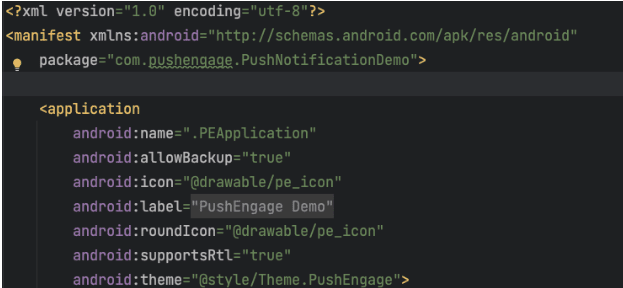
上記の手順をすべて構成したら、Androidアプリケーションにプッシュ通知を送信できます。物理デバイスでアプリケーションをビルドして実行し、PushEngageダッシュボードからテストプッシュ通知を送信します。
Android 13以降の通知権限の処理
Android 13では、一部のデバイスに通知を送信する前に権限が必要になります。そのため、Android 13以降を実行している場合は、権限に必要なコードは次のとおりです。
 @RequiresApi(api = Build.VERSION_CODES.TIRAMISU)
    private void requestNotificationPermissionIfNeeded() {
        int permissionState = ContextCompat.checkSelfPermission(this, android.Manifest.permission.POST_NOTIFICATIONS);

        if (permissionState == PackageManager.PERMISSION_DENIED) {
            ActivityCompat.requestPermissions(this, new String[]{android.Manifest.permission.POST_NOTIFICATIONS}, 100);
        }
    }
通知権限プロンプトの結果を処理できます:
@Override
    public void onRequestPermissionsResult(int requestCode, String[] permissions, int[] grantResults) {
        super.onRequestPermissionsResult(requestCode, permissions, grantResults);
        if (requestCode == 100) {
            if (grantResults.length > 0 && grantResults[0] == PackageManager.PERMISSION_GRANTED) {
                PushEngage.subscribe();
            } else {
                Log.d("MainActivity", "onRequestPermissionsResult: Permission denied");
            }
        }
    }
これで完了です。PushEngageダッシュボードに戻り、同じダッシュボードから直接Androidプッシュメッセージを送信できるようになりました。
Android SDKについてさらに詳しく知りたい場合は、詳細なAPIドキュメントをご覧ください。
Android Webプッシュメッセージはどのように機能しますか?
それでは、Androidウェブプッシュメッセージがどのように機能するかを技術的に掘り下げてみましょう。
簡単に言うと、新しい訪問者があなたのウェブサイトに入るたびに、プッシュ通知購読者になるように促されます。
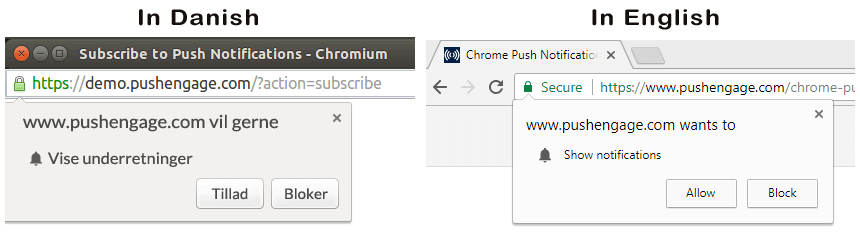
次に、PushEngageのようなウェブプッシュ通知サービスを使用して、購読者に送信したいAndroidプッシュメッセージを作成およびスケジュールします。リストのすべての購読者に送信するか、購読者の特定のセグメントに送信するかを選択できます。
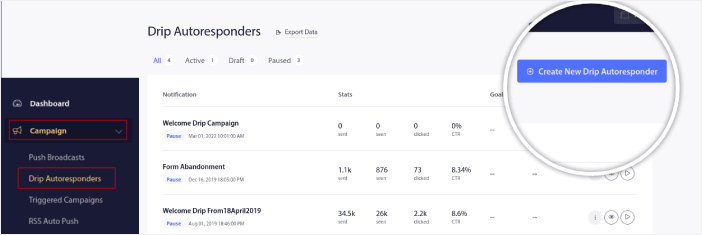
まず、Drip Autoresponderを作成します。
最後に、デバイスがオンラインになり、推奨されるアクションを実行すると、購読者はプッシュメッセージを受信します。

これらはすべて完全に真実ですが、これはバックグラウンドで起こることのほんの一部です。それでは、技術的な詳細を見てみましょう。しかし、まず、まだ行っていない場合は、今日PushEngageを使い始めましょう。
まず、PushEngageには、購読者のデバイスに接続してAndroidプッシュメッセージを送信するサーバーがあります。これらのサーバーは、購読者の名前やメールアドレスなどの個人情報を保存しません。
では、これらのサーバーは何を保存するのでしょうか?
PushEngageと当社のサーバーにとって、購読者は、購読者のデバイスとブラウザに基づいて生成される一意のハッシュ番号です。さらに、サーバーは購読者のジオロケーションを保存することもできます。
これらのサーバーに直接アクセスすることはできません。PushEngageダッシュボードを使用して、プッシュ通知キャンペーンを作成、最適化、管理することしかできません。
つまり、PushEngageはあなたのサービスプロバイダーです。これは、コーディングや元のサーバーのメンテナンス方法について何も知る必要がないことを意味します。私たちはそれらすべてをあなたのために処理します。あなたが心配する必要があるのは、キャンペーンの設定と利益を上げることだけです!
さて、サーバーがハッシュ番号のみを保存し、個人情報は保存しない場合、パーソナライズされたプッシュ通知がどのように機能するか疑問に思っているかもしれません。ここでサービスプロバイダーAPIが登場します。あなたにとっては、PushEngage Javascript APIになります。
このAPIを使用して、お持ちの他のCRMまたはデータベースに接続できます。これにより、購読者の個人情報を使用して、パーソナライズされたAndroidプッシュメッセージを送信できます。
PushEngage APIを使用して、カート放棄キャンペーンなどの高度なキャンペーンを送信することもできます。
モバイルAndroidプッシュメッセージはどのように機能しますか?
Androidプッシュメッセージは、Firebase Cloud Messaging (FCM)と呼ばれるサービスを介してユーザーに配信されます。アプリがプッシュ通知を送信するときにバックグラウンドで起こることは次のとおりです。
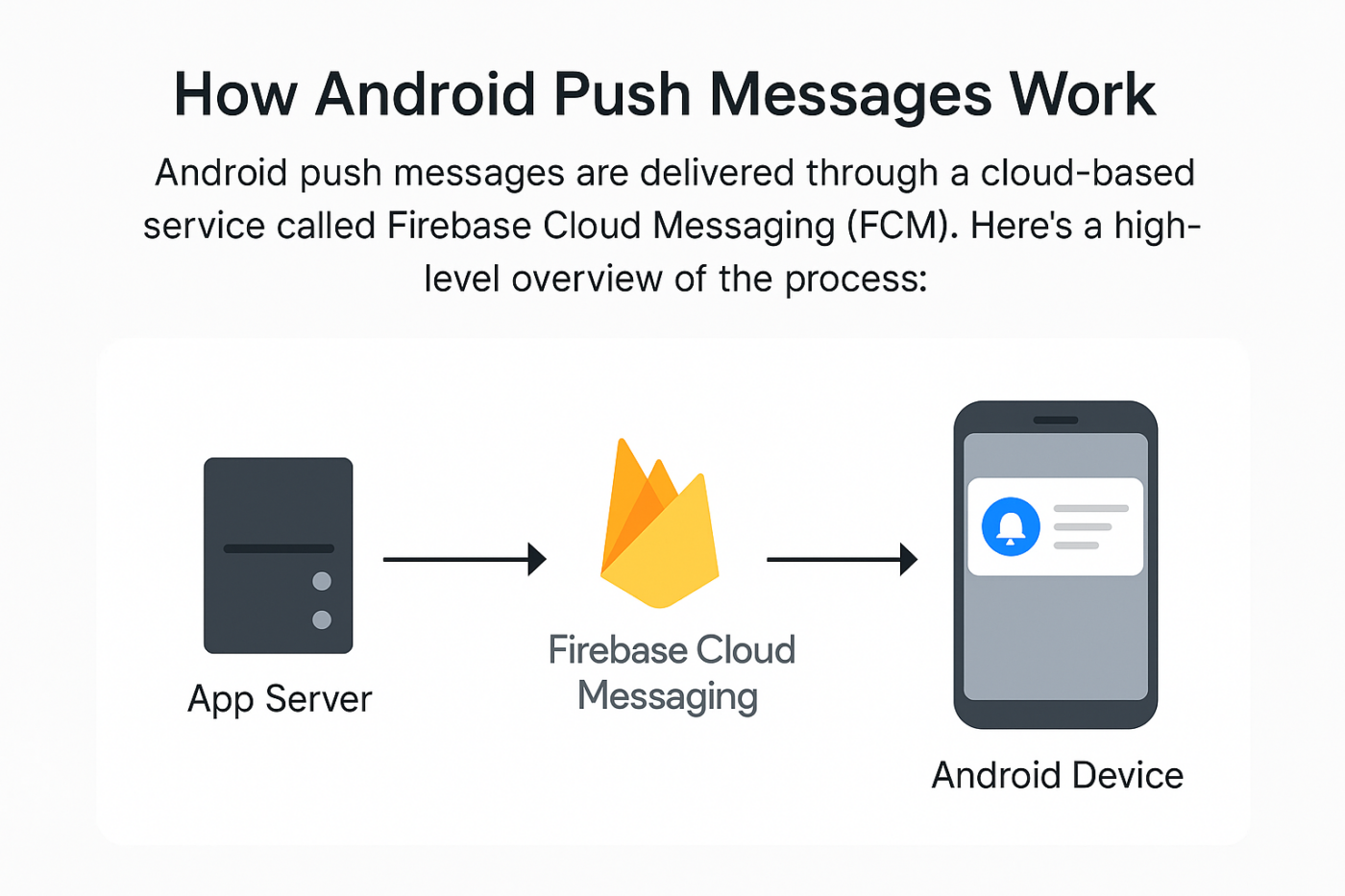
ステップ1:ユーザーがアプリをインストールする
ユーザーがアプリをダウンロードして開くと、アプリはFirebase Cloud Messaging (FCM)に登録され、一意のデバイス トークンを取得します。
ステップ 2: サーバーが通知を準備する
バックエンド(またはPushEngageのような通知プロバイダー)は、リッチメディアと共にメッセージを作成し、それを受信するユーザーを選択します。また、プッシュメッセージごとに本格的な自動化プロセスを設定します。
ステップ 3: PushEngage が FCM に送信する
通知はFirebase Cloud Messagingに送信されます。これは、サーバーとユーザーの電話の間の中間者として機能します。
ステップ 4: FCM が Android デバイスに配信する
FCM は、アプリが閉じている場合でも、プッシュメッセージをユーザーの Android デバイスに安全にルーティングします。
ステップ 5: ユーザーが通知を確認する
Android OS は、デバイスの設定に応じて、プッシュ通知をステータスバー、ロック画面、またはバナーとして表示します。
Androidプッシュメッセージのさまざまな部分は?
Android プッシュメッセージの仕組みを理解したところで、カスタマイズできる(またはできない)プッシュ通知のさまざまな部分を見てみましょう。
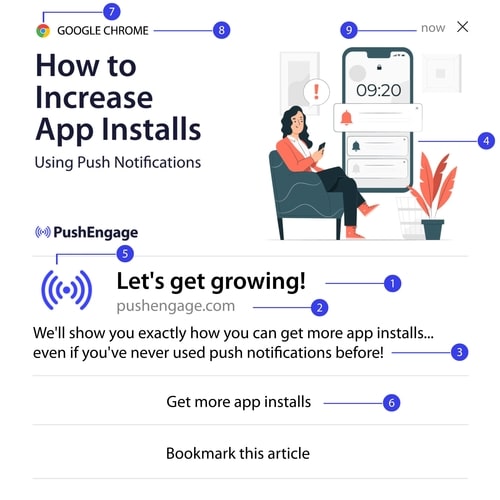
#1。プッシュ通知のタイトル
タイトルは、プッシュ通知の中で最も目立つテキストです。明確な視認性のために 60〜80 文字に制限されています。このタイトルの目的は、購読者の注意を引くことです。そのため、タイトル全体がはっきりと見えるようにすることが重要です。
購読者が気に入るような、 killer なタイトルを作成するために、プッシュ通知のコピーライティングガイドをご覧ください。
#2。ドメイン
プッシュ通知のドメインは、単にウェブサイトの URL です。これも変更できません。しかし、ブラウザアイコンとは異なり、ドメインはブランド認知度を高めるため、はっきりと見える必要があります。
ここで、PushEngage のサブドメインにプッシュ通知データを保存するオプションがあります。サブドメインを使用すると、プッシュ通知のこの部分は、ブランドの代わりに PushEngage サブドメインの URL を表示します。
ブランド価値が低下する可能性があるため、このオプションの使用はお勧めしません。
#3. プッシュ通知コンテンツ
通知コンテンツには、通知全体の中で最も多くのテキストが含まれます。タイトルと同様に、視認性のために 120〜150 文字に制限されています。より多くの文字を使用することもできますが、短く簡潔に保つことをお勧めします。
通常、この部分は、タイトルに追加のコンテキストを提供する、またはオファーを完了するための方法として機能します。テキスト自体にコールトゥアクションを使用する必要はありません。プッシュ通知では、コールトゥアクションボタンを追加できます。
プロのヒント: 地域言語を使用して、プッシュ通知をよりパーソナライズされたものにすることができます。エンゲージメントを高めるために、Phoot がローカル言語をプッシュ通知に使用した方法に関するこのケーススタディをお読みください。
#4. 通知の大きな画像
大きな画像は、通知の中で最初に目に入るものです。通常は 360x180 の画像で、プッシュ通知の中で最も魅力的な部分となります。
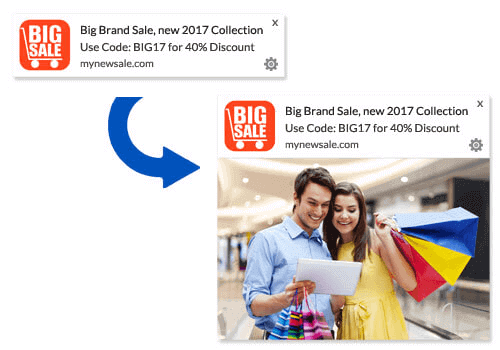
通知画像も完全にオプションです。必要なければ使用しないことも選択できます。通知画像を使用すると、プッシュ通知が広告のように感じられることがあります。これにより、多くの購読者に通知が無視される可能性があります。
しかし、適切に行えば、画像はCTR(クリック率)を最大62%向上させることができます。業界別のプッシュ通知における画像の影響に関する調査をご覧ください。
大きな画像を使用すべきかどうか不明な場合は、画像ありとなしで通知のA/Bテストを行うことをお勧めします。
#5. プッシュ通知アイコン
プッシュ通知アイコンは、ウェブサイトのサイトアイコンのようなものですが、プッシュキャンペーン用です。これは、ビジネスを表すために192×192ピクセル以上の画像です。通常、これはサイトアイコンであり、すべてのAndroidプッシュメッセージに対して1回だけ設定できます。
プロのヒント: ブランド変更を行う場合は、PushEngageのプッシュ通知アイコンも変更することを忘れないでください。また、アイコンにはアニメーション画像を使用できないことに注意してください。したがって、GIFはここでは機能しません。
#6. 行動喚起ボタン
各プッシュ通知は最大2つのボタンをサポートします。キャンペーンには、カスタマイズされたCTAボタンを使用することをお勧めします。各CTAに個別のURLとボタンアイコンを追加することもできます。
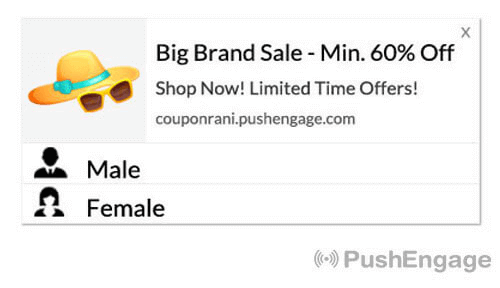
いくつかの良いCTAのアイデアについては、ウェブプッシュ通知のヒントのリストをご覧ください。
#7. ブラウザアイコン
プッシュ通知の最小の部分は、購読者が現在使用しているブラウザを示すブラウザアイコンです。これは、どの方法でも変更できず、ほとんどの場合、購読者はブラウザアイコンに気づかないため、最も見過ごされがちな部分の1つです。
#8. ブラウザのラベル
ブラウザラベルは、ブラウザアイコンのテキストバージョンにすぎません。アイコンと同様に、ブラウザ名のラベルを変更することはできません。
#9. タイムスタンプ
タイムスタンプは、購読者がメッセージを受信した時刻を知るための簡単な方法です。システムによって生成され、これも変更できません。
プッシュ通知のオプトインのさまざまな種類
すべてのWebプッシュ通知キャンペーンは同意から始まります。これは、Seth Godinのパーミッションマーケティングのアイデアの拡張です。アイデアは非常にシンプルです。Web訪問者に表示される可能性のあるコンテンツを送信する前に、許可を求めてください。
プッシュ通知を送信する許可を得るプロセスは、「オプトイン」と呼ばれます。したがって、プッシュ通知キャンペーンを送信する前に、まずウェブサイト訪問者にオプトインして通知を購読してもらう必要があります。
YouTubeのコンテンツクリエイターであれば、購読者がどのように機能するかはすでに理解しているはずです。唯一の違いは、YouTubeの購読者リストを所有しておらず、送信する通知を制御できないことです。
PushEngageを使用すると、その情報はドメインに保存されるため、そのリストを所有できます。現在、ウェブサイトに使用できるオプトインには2種類あります。
- シングルオプトイン
- ダブルオプトイン
それらの間の主な違いは非常に明確です。シングルオプトインは、プッシュメッセージを送信する許可を1回だけ求めます。ダブルオプトインは、各サブスクライバーに決定を確認するように求めます。
では、どちらを選択すべきでしょうか?
シングルオプトインは、ダブルオプトインよりも最大150%多くの購読者を獲得できることがわかっています。この件で苦労している場合は、オプトイン率を高める方法に関する記事をご覧ください。
法的な観点から、GDPRではシングルオプトインのみが要求されます。しかし、ダブルオプトインでは、購読者が実際にコンテンツを求めているため、エンゲージメントが大幅に向上します。ただし、純粋なオプトイン数という点では、シングルステップオプトインの方がはるかに効果的です。
考慮すべきもう1つの点は、シングルオプトインを使用するには、ウェブサイトにSSL証明書をインストールする必要があるということです。しかし、セキュアなウェブサイトがなくても、ツーステップオプトインをインストールできます。
したがって、SSL証明書がインストールされている場合は、シングルオプトインを使用してください。そうでない場合は、WordPressウェブサイトにSSL証明書をインストールする方法に関するこの記事をご覧ください。
注意:Android 13以降を使用している場合を除き、アプリのプッシュ通知にオプトインは必要ありません。
Androidプッシュメッセージをパーソナライズする方法
キャンペーンを作成する前に、セグメントとオーディエンス グループを設定して、パーソナライズされた プッシュ メッセージを送信する必要があります。
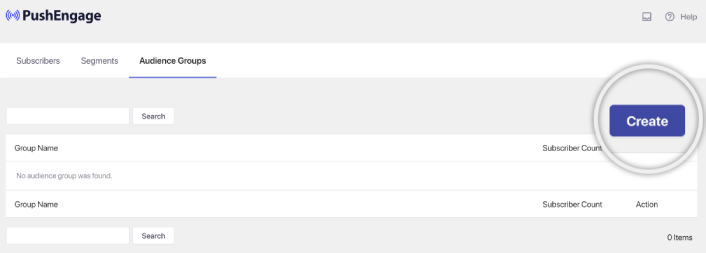
プッシュ通知購読者向けのセグメントとオーディエンスグループを作成することで得られるパーソナライゼーションのレベルを超えるものはありません。 PushEngage » オーディエンスにアクセスし、すぐにセグメントとオーディエンスグループの作成を開始してください。
セグメントタブの下で、新しいセグメントを作成したり、既存のセグメントを編集したりできます:
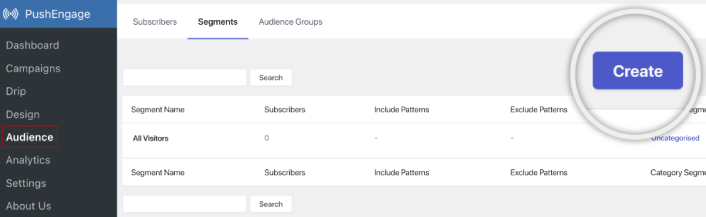
さらに深いパーソナライゼーションが必要な場合は、オーディエンスグループタブでオーディエンスグループを作成してください:
プッシュ通知セグメントとパーソナライズされたプッシュ通知が初めての方は、セグメントの作成方法に関する記事と、高度なオーディエンスグルーピングに関する発表をご覧ください。
ターゲットを絞ったAndroidプッシュメッセージを作成する方法
PushEngage ダッシュボードに移動し、キャンペーン » ドリップ自動応答 に進み、新しいドリップ自動応答を作成 をクリックします。

次に、キャンペーンに名前を付け(「ウェルカムドリップ」のような名前をお勧めします)、コンテンツの下で、「ユーザー登録直後に通知を送信」というオプションを選択します。

この時点で、通知の横にある矢印をクリックして、通知の内容を編集できます。
PushEngageのプレミアムまたはエンタープライズプランをご利用の場合、複数の通知を追加して一連の自動ウェルカムメッセージを作成できます。新しい通知を追加をクリックしてコンテンツを編集するだけです。
完了したら、ドリップ設定をクリックし、ウェルカムキャンペーンをすべての購読者に送信するオプションを選択します。

次に、下にスクロールして独自のUTMパラメータを設定し、プッシュ通知を追跡します。

完了したら、上にスクロールして戻り、自動応答を有効にするボタンをクリックします。

これで完了です!
ターゲットを絞ったAndroidプッシュメッセージを送信する方法
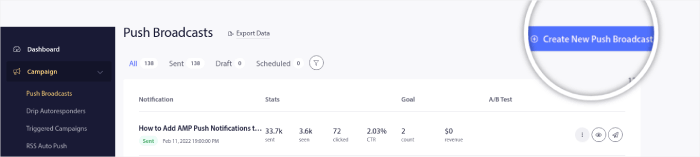
「PushEngageダッシュボード」に移動し、「キャンペーン」→「プッシュブロードキャスト」に移動して、「新しいプッシュブロードキャストを作成」ボタンをクリックします。
「Content」タブで、プッシュ通知のコンテンツを追加します。
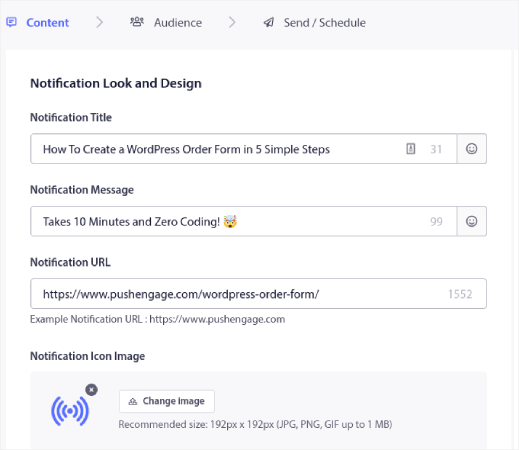
また、クリック率を向上させるためにA/Bテストを設定したり、より多くの表示回数を獲得するためにプッシュブロードキャストをスケジュールしたりすることもできます。いずれの場合も、最良の結果を得るために、プッシュ通知のベストプラクティスを確認してください。
Androidプッシュメッセージのポップアップモーダルを作成する方法
プッシュ通知ポップアップモーダルとは、ウェブサイト訪問者にメッセージや通知を表示するために、ウェブサイトまたはモバイルアプリのインターフェイスの上に表示される小さなウィンドウです。
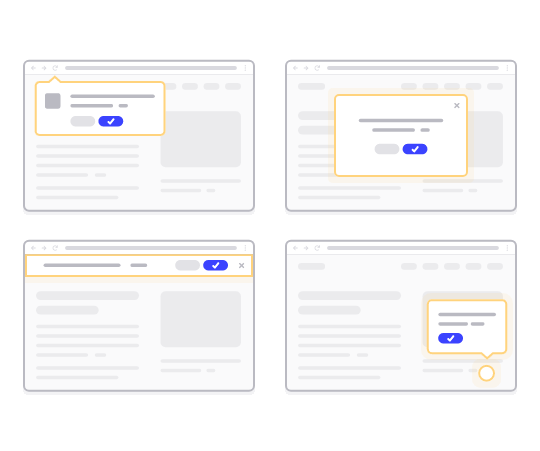
ポップアップモーダルは、さまざまなイベントによってトリガーされる可能性があります。ページ訪問時、スクロール深度時、さらにはボタンクリックのようなカスタムアクション時にトリガーされるようにポップアップを設定できます。
通常、ポップアップモーダルには、「購読」や「許可」などの行動喚起が表示され、訪問者からAndroidプッシュメッセージを送信する許可を得ます。このチュートリアルに従えば、次のようなポップアップを作成できます。
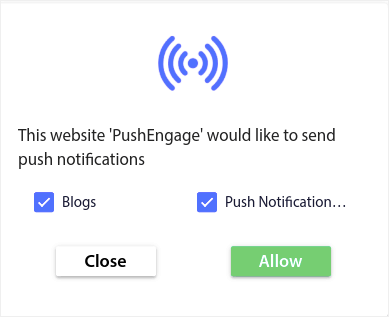
登録者を直接セグメント化できるポップアップモーダルを作成したり、ジオロケーションやブラウザなどのデフォルト属性で登録者を収集するだけの通常のポップアップを作成したりできます。
WordPressダッシュボードに戻ります。PushEngage » デザインに移動します。
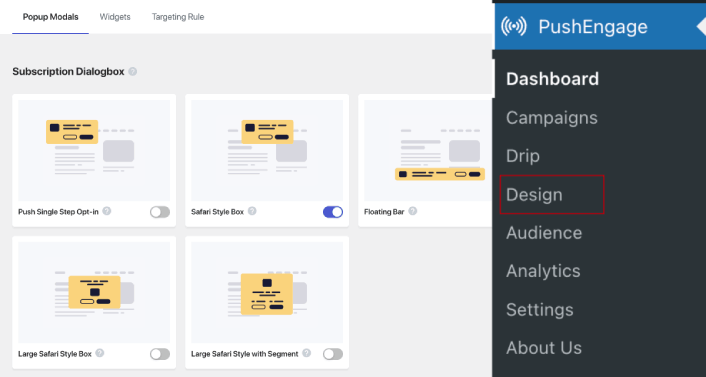
そして、好きなだけ多くのポップアップモーダルを設定できます。もちろん、各ポップアップモーダルの「表示オプション」で、異なる時間にトリガーされるようにすることができます。
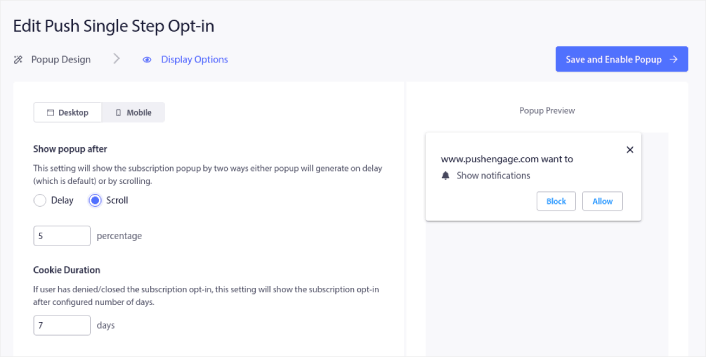
ここでのアイデアは、訪問者に購読する確かな理由を与えることです。そのためのヘルプが必要な場合は、カスタムプッシュ通知オプトインを作成する方法 に関する記事を確認してください。
よりターゲットを絞ったポップアップモーダルを作成したい場合は、「ターゲティングルール」タブの下にあるターゲティングルールを使用できます。
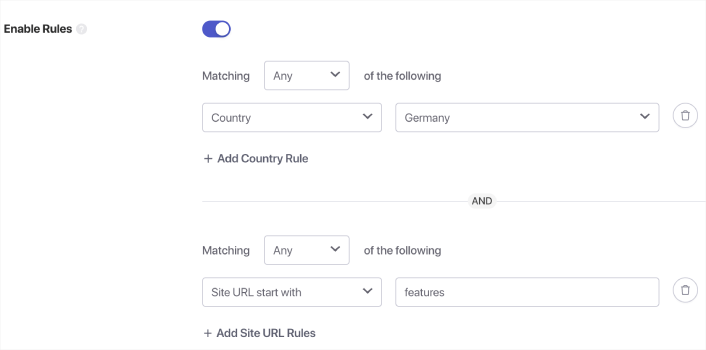
これらはグローバルなターゲティングルールであり、個々のポップアップモーダルのターゲティングルールよりも優先されます。ただし、必要に応じて、それらを編集することで、各モーダルに堅牢なターゲティングルールを作成できます。
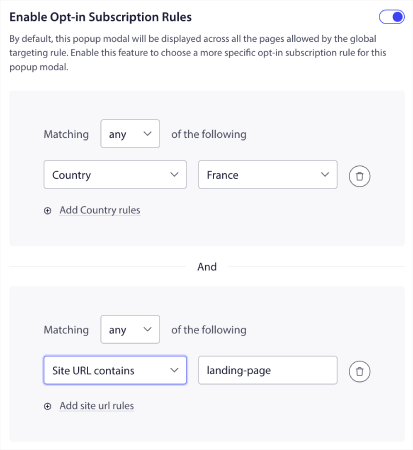
たとえば、さまざまな国の訪問者をターゲットにするために、さまざまな言語でポップアップモーダルを作成できます。
開始するためにクリック率の高いテンプレートが必要な場合は、コンバージョン率の高いプッシュ通知オプトイン に関するこの記事を確認してください。
ターゲットを絞ったAndroidプッシュメッセージを送信する前にやること
ほぼ完了です。
プッシュ通知の送信を開始する前に、ウェブサイトにサブスクリプションのオプトインを設定する必要があります。オプトインは、ウェブ訪問者をプッシュ通知の購読者に変換します。したがって、これは重要な要素です。
インスピレーションが必要な場合は、コンバージョン率の高いプッシュ通知オプトインに関するこの記事を確認できます。オプトインの設定が完了したら、サイトは登録者情報を収集できます。しかし、オプトインが正常に機能していることをどのように確認しますか?
したがって、賢明なのは、ウェルカムプッシュ通知を設定することです。
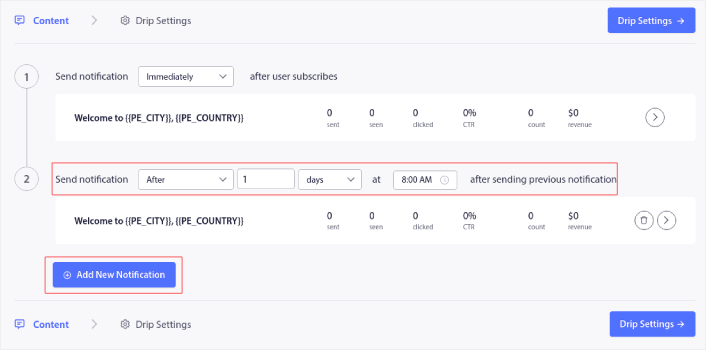
ヒント: 本格的なプッシュ通知のテストに時間をかけるべきです。これにより、最も一般的な問題がトラブルシューティングされ、後で問題を解決しようと時間を無駄にすることはありません。
Androidプッシュメッセージを送信した後にやること
今回は以上です、皆さん!
この記事がお役に立った場合は、ぜひ下記のコメント欄にご記入ください。
Androidプッシュメッセージの開始は、気が遠くなるように思えるかもしれません。しかし、目標追跡と分析に注意を払っていれば、問題ないはずです。さらに重要なのは、プッシュ通知キャンペーンの助けを借りて、はるかに多くの利益を得られることです。開始に役立つクールなリソースをいくつか紹介します。
- リターゲティングプッシュ通知を使用して収益を2倍にする方法
- プッシュ通知の並べ替え方法と、成果の出るキャンペーンの見つけ方
- プッシュ通知購読者リストをクリーンアップする方法(簡単)
- RSSプッシュ通知を自動送信する方法
- プッシュ通知を使用してニュースサイトを宣伝する方法
- クロスセルプッシュ通知を使用して売上を2倍にする方法
- 閲覧放棄プッシュ通知の使用方法(4つのステップ)
プッシュ通知を初めて利用する場合は、PushEngageを試してみてください。そして、完全な戦略を構築する準備ができたら、アプリプッシュマーケティングガイドを読むのが次の一歩です。PushEngageは市場でナンバーワンのプッシュ通知ソフトウェアです。あなたのキャンペーンは安全な手に委ねられます。
ですので、まだの場合は、今すぐPushEngageを使い始めましょう!


