
プッシュ通知ボタンを作成し、プッシュ通知購読者を収集する方法をお探しですか?
わかります。購読者を増やす方法に少し柔軟性を持たせたい場合、それがより便利になることがあります。
心配いりません。お任せください。
この記事では、独自のプッシュ通知ボタンを作成する方法をステップバイステップで説明します。
準備はいいですか?始めましょう。
WordPressでプッシュ通知ボタンを作成する方法
WordPressでプッシュ通知ボタンを作成する前に、プッシュ購読者を収集するためのランディングページを作成する必要があります。ランディングページの作成には、SeedProdの使用を強くお勧めします。

SeedProdは最高のWordPressランディングページビルダーです。開発スキルなしでコンバージョン率の高いランディングページを構築したい企業、ブロガー、ウェブサイト所有者に最適です。
SeedProdを使用すると、すぐに公開できる、コンバージョン率の高いランディングページの事前構築済みテンプレートを入手できます。これには、次のテンプレートが含まれます:
そして、さらに多くの機能があります!
ステップ#1:SeedProdのインストールと有効化
まず、SeedProd Proプラグインを入手して有効化します。方法がわからない場合は、WordPressプラグインのインストール方法に関するこの記事をご覧ください。次に、WordPressダッシュボードのSeedProd » Settingsに移動して、Proバージョンを有効化します。

次に、SeedProdのランディングページダッシュボードの概要を確認するために、SeedProd » Pagesに移動します。ここで、SeedProdを使用して作成できるさまざまな種類のランディングページを確認できます。

これらはすべて、事前構築済みの機能とデザインテンプレートを備えた特別なページであることを覚えておいてください。ランディングページの場合、これらの特別なランディングページのいずれも使用したくありません。代わりに、カスタムランディングページを作成します。
さらに下にスクロールして、新しいランディングページを追加ボタンをクリックして開始してください。

ステップ#2:プッシュ通知ボタン用の新しいランディングページを作成する
新しいランディングページを追加ボタンをクリックすると、SeedProdのランディングページテンプレートライブラリが表示されます。これらは、完全にレスポンシブな、専門的にデザインされたランディングページテンプレートです。
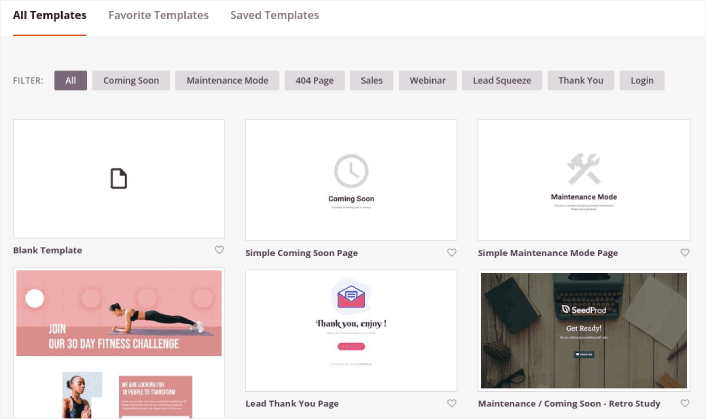
次に、これらのテンプレートのいずれかを選択して、開始を支援できます。
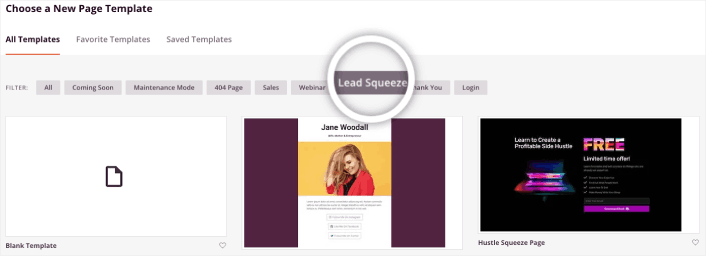
テンプレートはあくまで出発点であることを忘れないでください。後でページに関するすべてをカスタマイズできます。今のところ、フィットすると思われるテンプレートを見つけてください。テンプレートページが開いたら、リストをフィルタリングするために「Squeeze Page」をクリックできます。
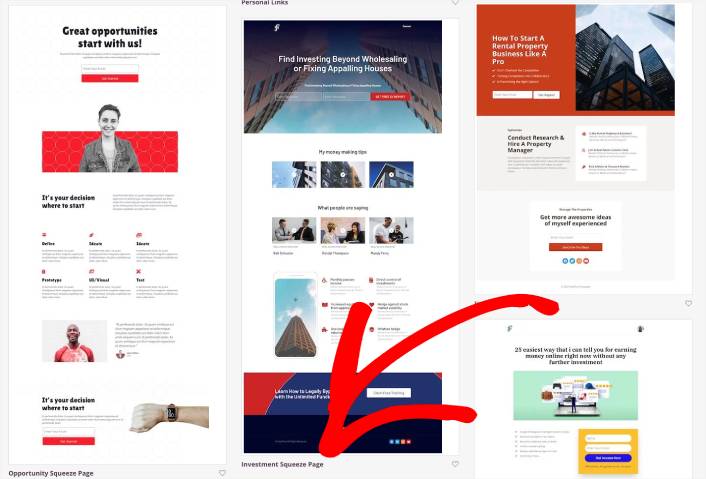
このガイドでは、Investment Squeeze Pageを選択します。
squeezeページには1つの目的しかありません。それは、あなたのメールアドレスを取得するために、あなたをちょうどよく「絞る」ことです。投資および個人金融分野で誰かを知っていますか?はい、彼らは確かに絞ることができます!
今すぐクリックしてください。
次に、ランディングページをカスタマイズします。
ステップ #3: ランディングページのデザインをカスタマイズする
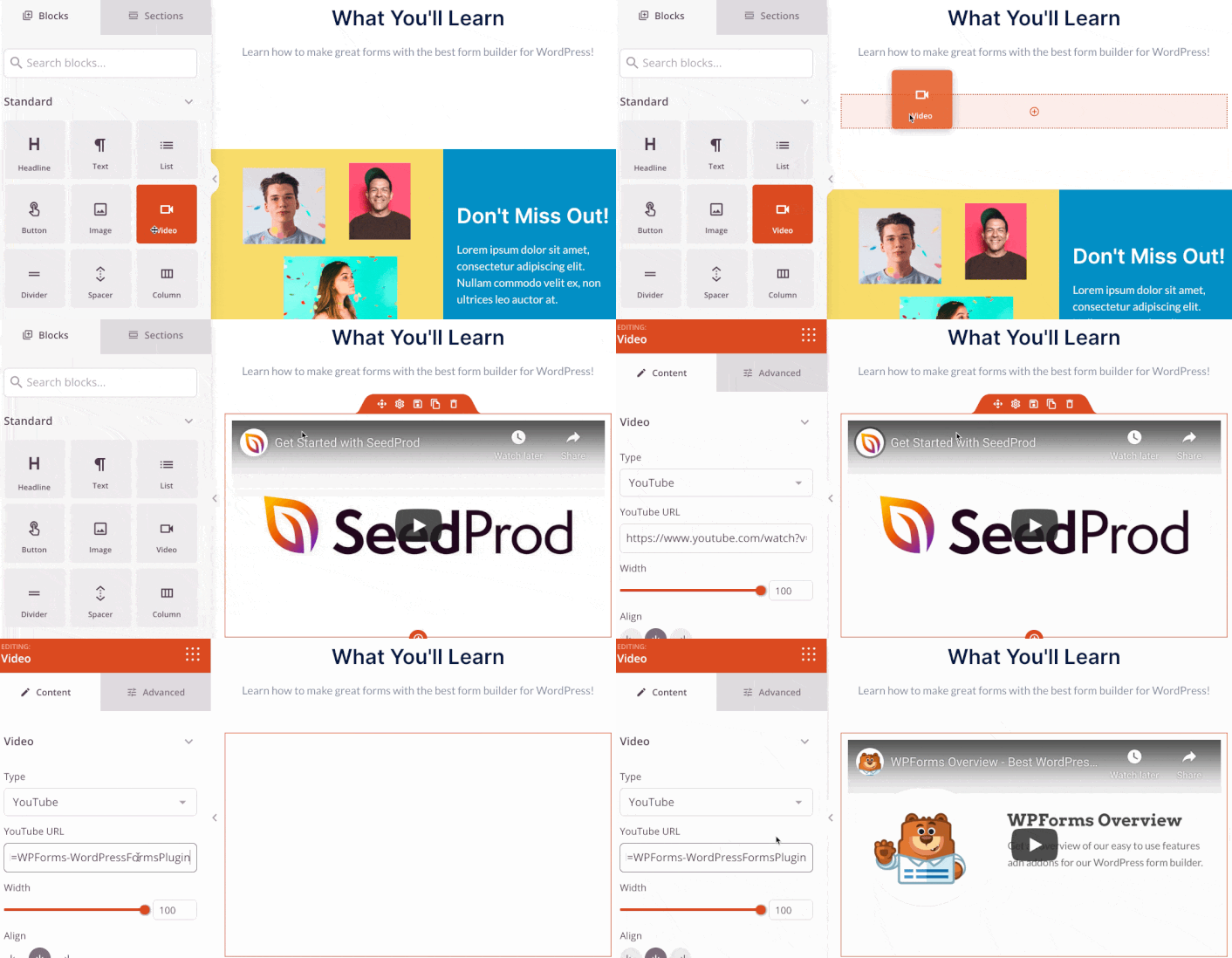
SeedProdのビジュアルビルダーを使用すると、ドラッグアンドドロップのコンテンツブロックを使用してランディングページをカスタマイズできます。
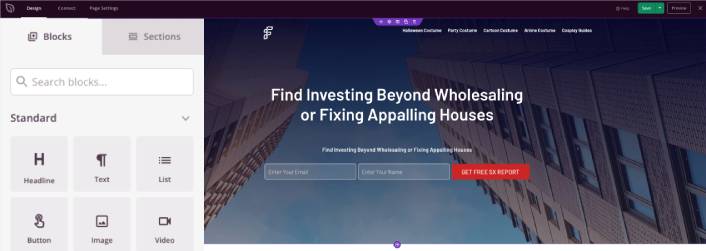
数分でランディングページの完全にカスタマイズされたヘッダーを作成できます。訪問者に製品やサービスを購入してもらうために、ビデオモジュールを作成してYouTubeビデオを埋め込むなど、トラフィックを説得してコンバージョンさせるためのカスタム要素を追加することもできます。
製品やサービスを簡単に説明するセクションを追加することもできます。ビジュアルビルダーの「セクション」タブに移動し、「ヒーロー」セクションの下にある、ワンクリックでインポートできる既製のテンプレートをいくつか見つけてください。
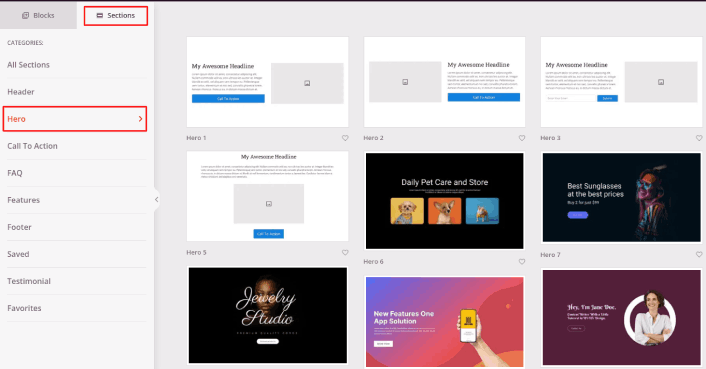
好きなものを選択してください。
色やコンテンツは気にしないでください。すべて編集できます。テンプレートによく合うレイアウトを探してください。
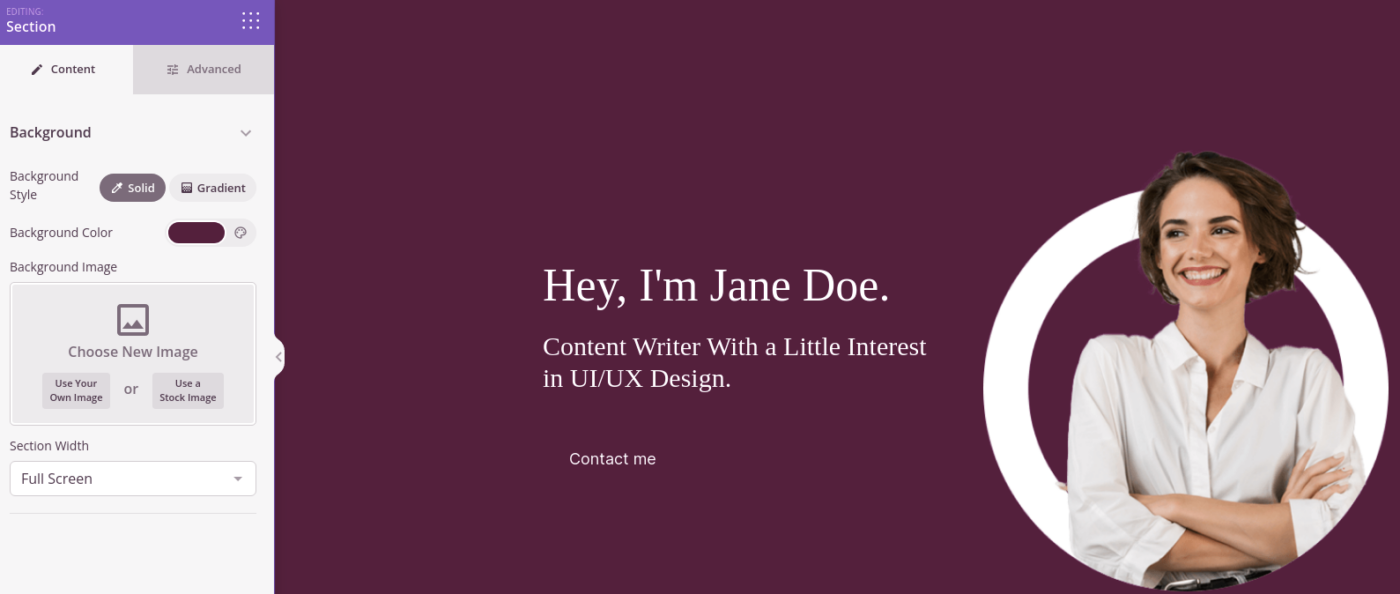
以前に行ったのと同じように、ヒーローセクションをカスタマイズできます。別の画像を選択し、見出しと説明を変更します。その際、訪問者に購入を促す行動喚起ボタンを追加してください。
次に、セクションタブから、お客様の声の見出しを選択し、好きなデザインを選びます。そして、あっという間に、ランディングページにお客様の声セクションができます。
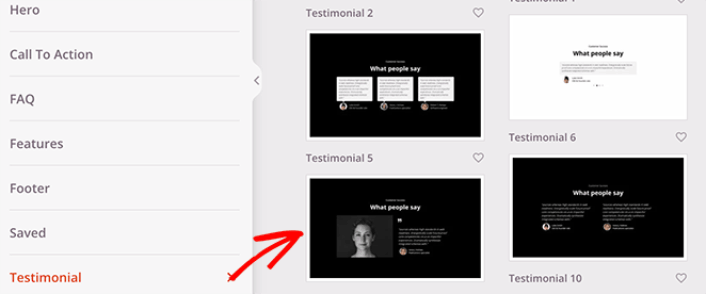
とても簡単です!
ステップ#4:ランディングページにプッシュ通知ボタンを追加する
プッシュ通知購読者を収集するために、クリックして購読ボタンを追加することもできます。プッシュ通知は、リピートトラフィックを増やし、エンゲージメントを高め、公式グッズがあれば販売するためにも役立ちます。
SeedProdでは、サイドバーからカスタムHTMLモジュールをドラッグアンドドロップするだけです。
最初の折り目のメールサインアップフォームのすぐ下に、購読ボタンを配置しました。
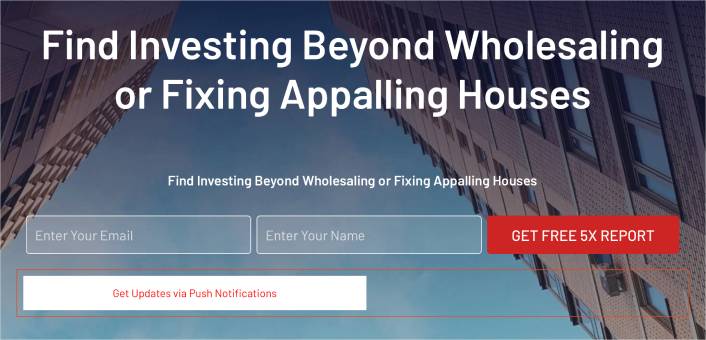
しかし、ボタンは好きな場所に挿入できます。
この部分では、HTMLとCSSの経験が必要です。または、このコードをコピーしてカスタムHTMLブロックに貼り付けることができます。
<button onclick="subscribeOnClickButton()" style="border: none; padding-left: 5%; padding-right:5%; text-align: center; display: inline-block; color: blue;">Get Updates via Push Notifications</button>これは、ほとんどスタイルが適用されていないHTMLの標準的なボタンです。唯一の凝った部分は、コード内のonclick関数です。これは基本的に、訪問者がボタンをクリックして何かを購読できることを意味します。次に、訪問者がプッシュ通知を購読できるように、ボタンに追加のコードを与える必要があります。
PushEngageのホームページにアクセスし、開始するボタンをクリックします。

PushEngage は世界No.1のプッシュ通知プラグインです。
プッシュ通知は、ウェブサイトのトラフィックとエンゲージメントを自動で増やすのに役立ちます。オンラインストアを運営している場合は、PushEngageが自動eコマースプッシュ通知の作成を支援することで、売上を伸ばすのにも役立ちます。
無料で開始できますが、ビジネスの成長に真剣に取り組んでいる場合は、有料プランを購入する必要があります。また、プッシュ通知サービスを購入する前に、プッシュ通知のコストに関するこのガイドを確認してください。
PushEngageで得られるものを簡単に見てみましょう。
- コンバージョン率の高い自動キャンペーン
- 複数のターゲティングおよびキャンペーンスケジュールオプション
- 目標追跡と高度な分析
- スマートA/Bテスト
- プッシュキャンペーンテンプレート
- 強力なセグメンテーションオプション
- 専任のサクセスマネージャー
ビジネスのトラフィック、エンゲージメント、売上を伸ばしたいのであれば、PushEngageが断然最良の選択肢であることがわかるでしょう。予算が限られている場合は、プッシュ通知で少しクリエイティブになることもできます。
注意: WordPressサイトを実行している場合は、 PushEngage WordPressプラグインをインストールして有効化する必要があります。
次に、PushEngage を試すために無料プランを選択するか、ビジネスの成長に真剣に取り組んでいる場合は有料プランを選択します。有料プランには、より多くのキャンペーンオプションと、さらに大きな購読者リストを構築する機能が付属しています。
あなたのPushEngageダッシュボードで、サイト設定 »サイト詳細に移動し、セットアップ手順を表示するにはここをクリックボタンをクリックします。「任意のサイト」の下に、インストールコードが表示されます。

警告:ダッシュボードから取得したコードをコピーする必要があります。コードはPushEngageユーザーごとに固有です。画像内のコードをコピーしてプッシュ通知購読者を収集することはできません。
PushEngage ダッシュボードでコードを取得したら、このスニペットをコードに追加します。
<script> window._peq = window._peq || [];</script> <script>
function subscribeOnClickButton(){
window._peq.push(['subscribe',{}.pe,function(res){
if(res.statuscode==1)
{
// Code to return response
console.log(res);
}
}]);
}
</script>
最終的なコードは次のようになります。
<script src="https://clientcdn.pushengage.com/core/02a6e92667ae2279fcba8932356c1d93.js" async></script>
<script> window._peq = window._peq || [];</script> <script>
function subscribeOnClickButton(){
window._peq.push(['subscribe',{}.pe,function(res){
if(res.statuscode==1)
{
// Code to return response
console.log(res);
}
}]);
}
</script>
このコードは、ボタンのコードの後に、ランディングページのHTMLブロックに追加する必要があります。次のようになります。

ボタンのスタイルは自由にカスタマイズしてください。ランディングページのカスタマイズが完了したら、保存ボタンをクリックしてください。
ステップ4:ページ設定の構成
ランディングページの設計が完了したら、ページビルダーの上部にある接続タブをクリックし、メールマーケティングプロバイダーを選択して、サイトでリードを収集します。

次に、画面上部にある「ページ設定」タブをクリックします。

ここで、ランディングページにSEOプラグインとGoogle Analyticsプラグインを追加できます。広告パフォーマンスを追跡するために、FacebookピクセルやPinterestピクセルなどのカスタムトラッキングコードを設定することもできます。
ステップ#5:WordPressでランディングページを公開する
それでは、デザインを公開しましょう。これを行うには、保存ボタンの横にあるドロップダウン矢印をクリックし、「公開」をクリックします。
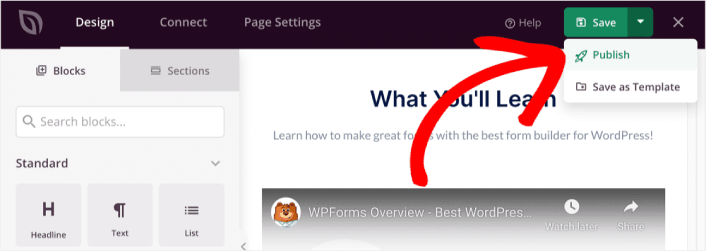
次に ライブページを表示 ボタンをクリックして、どのように見えるかを確認できます。
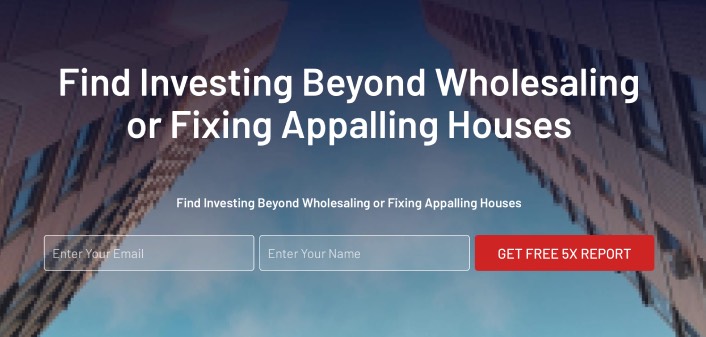
おめでとうございます!最初のランディングページを公開しました。
サイトにプッシュ通知ボタンを追加した後の対処法
ランディングページが公開されたので、トラフィック、エンゲージメント、セールスに取り組む時間です。サイトでプッシュ通知を使用してみてください。プッシュ通知は、ビジネスの成長に役立つ優れたマーケティングツールです。
これらの素晴らしいリソースをご覧ください。きっと意味がわかるはずです。
プッシュ通知キャンペーンを作成するためにPushEngageの使用をお勧めします。PushEngageは世界No.1のプッシュ通知ソフトウェアです。まだお済みでない場合は、 今すぐPushEngageを使い始めましょう!


