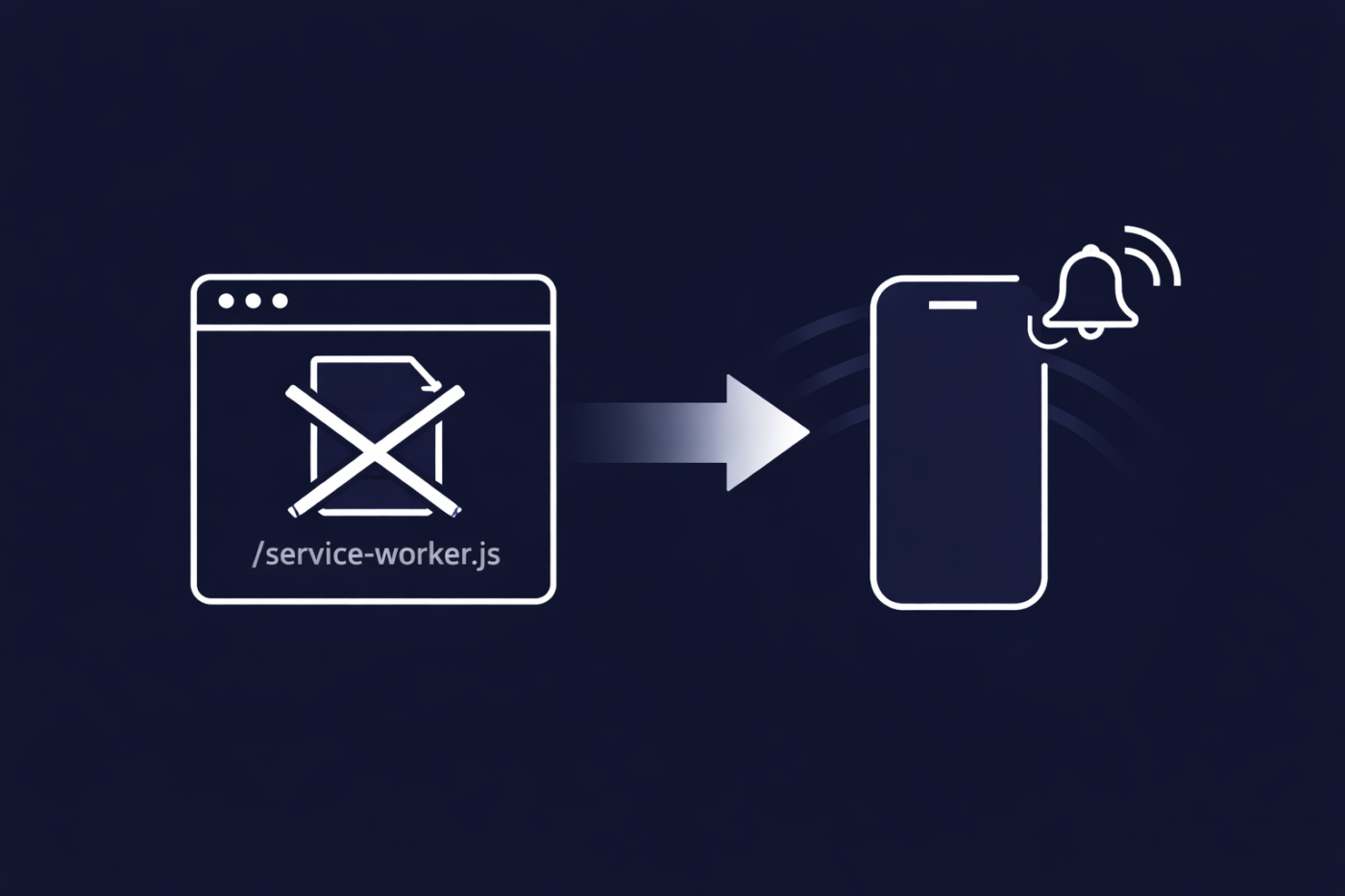
Base44 is a popular choice for building modern PWAs. It’s fast, flexible, and removes a lot of traditional infrastructure headaches. But if you’ve ever tried to add web push notifications to a Base44 app, you’ve probably hit what looks like a hard stop.
No root access. No service-worker.js. No push notifications.
Or so it seems.
In this article, we’ll break down:
- Why Web Push usually fails on Base44
- Why most teams assume it’s impossible
- How PushEngage enables Web Push on Base44 anyway
- What works, what doesn’t, and why that tradeoff still makes sense
If you’re building a PWA on Base44 and care about retention, this is for you.
Send Multichannel Messages Today!
Push and WhatsApp messaging are super effective, low-cost marketing tools to help you grow your repeat traffic, engagement, and sales on autopilot.
- Why Web Push Looks Impossible on Base44
- Why This Is Usually a Dead End
- The PushEngage Service Worker Bypass
- How to Set Up PushEngage on Base44 (Step-by-Step)
- What You Can Do With PushEngage on Base44
- Why This Still Makes Sense for Most Base44 PWAs
- Base44 + PushEngage: A Practical Retention Stack
- Set It Once, Cover All Customer Support
Normally, web push notifications require registering a service worker at your domain root — and that requirement is exactly what Base44’s architecture appears to block.
Why Web Push Looks Impossible on Base44
To understand the problem, you need to understand how Web Push actually works.

How Web Push Works (Quick Primer)
Web Push notifications rely on a service worker.
A service worker:
- Runs in the background
- Listens for push events
- Can display notifications even when the site or PWA is closed
For browsers to trust it, the service worker usually must:
- Live at the root of your domain
(e.g./service-worker.js) - Be registered with the correct scope
This is not optional. It’s how browsers enforce security boundaries.
The Base44 Constraint
Base44 does not allow arbitrary access to the root directory in the traditional way.
That means:
- You can’t just drop a
service-worker.jsfile at/ - You can’t implement Web Push using the “standard” PWA push notifications playbook
So most teams reach the same conclusion: “Web Push won’t work on Base44.”
And normally, they’d be right.
Why This Is Usually a Dead End
Most push providers assume one thing: You control your root files.
Their setup depends on:
- A root-level service worker
- Direct file access
- Manual service worker merging
That works fine on custom stacks, but not on Base44.
As a result:
- Teams abandon Web Push entirely
- Or assume they need a native app to do retention properly
That’s where PushEngage does something differently.
The PushEngage Service Worker Bypass
PushEngage supports a Service Worker Bypass specifically designed for environments like Base44. This approach enables Web Push without requiring root-level file access.
The Idea (High Level)
Instead of forcing you to:
- Modify Base44’s root
- Replace or merge service workers manually
PushEngage:
- Registers a service worker through an alternate, browser-supported mechanism
- Uses its own infrastructure to handle push events
- Maintains correct scope and security requirements without touching your root files
From the browser’s perspective:
- A valid service worker exists
- Push events are handled correctly
- Notifications can be delivered reliably
From your perspective:
- No root access required
- No custom service worker plumbing
- No Base44 limitations blocking you
This is what makes Web Push viable on Base44 PWAs.
How to Set Up PushEngage on Base44 (Step-by-Step)
Here’s the best part: you don’t need to touch a server, a DNS panel, or any infrastructure config. The whole setup takes about 10 minutes.
There are two ways to do it — let Base44’s AI builder install everything for you, or add the code manually. We’ll cover both.
Step 1: Grab Your PushEngage Installation Code
First, create your PushEngage account and add your Base44 app’s URL (for example, yourapp.base44.app or your custom domain) as your site.
Then, in the PushEngage dashboard, head to Site Settings » Installation and select Any Site. You’ll need two things from this screen:
- Your installation code — a small script that goes inside your app’s
<head>tag - Your service worker file — click Download Service Worker File to get the
service-worker.jsthat needs to live at the root of your app (e.g.yourapp.base44.app/service-worker.js)
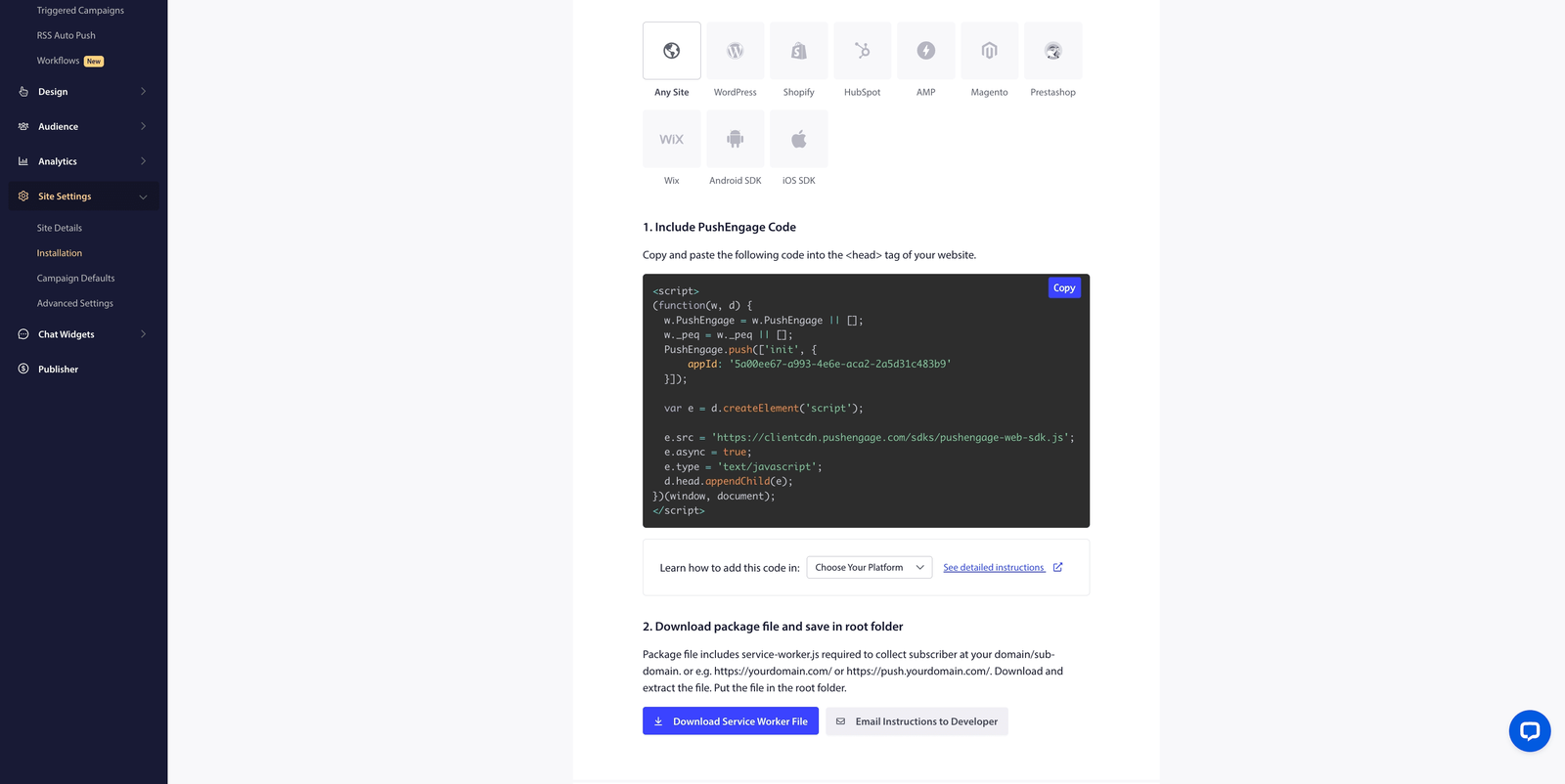
For the full walkthrough, follow the PushEngage installation guide.
Step 2: Ask Base44’s AI to Install It (The Easy Way)
Remember the constraint from earlier: you can’t manually drop files at Base44’s root. But here’s the loophole — Base44’s AI chat can edit your app’s files for you. It opens automatically as soon as you log in.
Just paste a prompt like this:
Integrate PushEngage web push notifications into my app:

1. Add my PushEngage installation code (below) to the <head> of every page.
2. Create a service-worker.js file at the root of my app, using the contents of the PushEngage service worker file (below), so it is publicly accessible at /service-worker.js.

[paste your installation code here]

[paste your service-worker.js contents here]
Base44’s AI will wire everything into place. No code editor required.
Prefer doing it by hand? It’s the same two moves: paste the installation code into your app’s <head>, and add the service-worker.js file at the root of your project. Either path works.
Step 3: Test Your Setup
Open your Base44 app in Chrome and you should see the push notification opt-in prompt. Subscribe, then check your PushEngage dashboard:
- Your subscriber count should increase
- Send yourself a test notification — it should arrive within seconds
- Your delivery and click stats should start updating
We’ve tested this exact flow on a live Base44 app — subscriptions, delivery, and stats all work just like they do on any other site.
If the opt-in doesn’t show up, the most common causes are covered in our troubleshooting guide. Nine times out of ten, it’s the service worker not being publicly reachable at the root — which is exactly what the prompt above fixes.
What You Can Do With PushEngage on Base44
Once the service worker bypass is in place, you unlock real retention capabilities — not a watered-down version.
Supported Platforms
With PushEngage on Base44, you can send:
- Desktop Web Push
- Chrome
- Firefox
- Edge
- Android Web Push
- Including PWA installs
These are the platforms where most high-intent traffic already lives for ecommerce and SaaS.
What You Can Build
You’re not limited to basic broadcasts. PushEngage supports:
- Automated workflows
- Abandoned cart recovery
- Browse abandonment
- Price drop alerts
- Segmentation
- Based on behavior, attributes, and events
- Goal tracking
- Measure clicks, conversions, and revenue impact
In short, you get the same retention stack you’d expect on a traditional setup — without re-architecting your app.
Why This Still Makes Sense for Most Base44 PWAs
For most Base44 use cases, this limitation is far less impactful than it sounds.
Where High-Intent Users Actually Are
For ecommerce and SaaS PWAs:
- Desktop users convert at higher rates
- Android dominates global mobile traffic
- Logged-in and repeat users overwhelmingly come from these platforms
That’s exactly where Web Push on Base44 does work.
What You Gain
Even without iOS Web Push, you still gain:
- A direct, owned retention channel
- Real-time re-engagement without email or ads
- Automated recovery flows that run on autopilot
For many teams, this delivers immediate ROI without waiting for a native app roadmap.
Base44 + PushEngage: A Practical Retention Stack
If you’re using Base44 to build a PWA, your goals are usually clear:
- Reduce friction
- Ship faster
- Retain users without piling on infrastructure
PushEngage fits naturally into that model.
You can:
- Keep your Base44 setup intact
- Enable Web Push where it actually matters
- Avoid hacks, workarounds, or brittle custom code
No root access required. No re-platforming required.
Set It Once, Cover All Customer Support
Web Push on Base44 isn’t impossible — it’s just impossible the traditional way.
With PushEngage’s Service Worker Bypass:
- Desktop and Android Web Push are fully supported
- Automated retention workflows are unlocked
- The only missing piece is iOS — and that’s an Apple constraint, not a Base44 one
If you’re building a PWA on Base44 and want a real retention channel, web push is still very much on the table. And you should definitely start using web push notifications for your business.
Not convinced? Check out these amazing resources on push notification campaigns:
- How to Increase Hotel Sales in Low Season
- How to Do Multichannel Marketing for Hotels in 2026
- How to Convert Subscribers To Buyers Using Web Push Notifications
- How to Notify Subscribers of New WordPress Posts
- How to Send Back-in-Stock Notifications to Get More Sales
- How to Clean Up Push Notifications Subscriber Lists (Easy)
- How to Automatically Send RSS Push Notifications
- How to Use Push Notifications to Promote a News Site
- How to Use Cross Selling Push Notifications to 2x Your Sales
- How to Use Browse Abandonment Push Notifications (4 Steps)


