Your PushEngage API key authenticates API requests for a site, so anything that calls the PushEngage API uses it. You can view, copy, and regenerate the key from your site settings, and each site has its own key. This guide shows you how to find your API key and how to rotate it safely.
Before You Start
- You need to be signed in to the PushEngage dashboard with access to the site you want to manage.
- Regenerating the key immediately replaces the old one. Any integration still using the old key stops working until you update it with the new key, so plan to update your integrations right after you rotate.
- The API key is specific to a site. If you manage more than one site, switch to the right site first.
Where to Find Your API Key
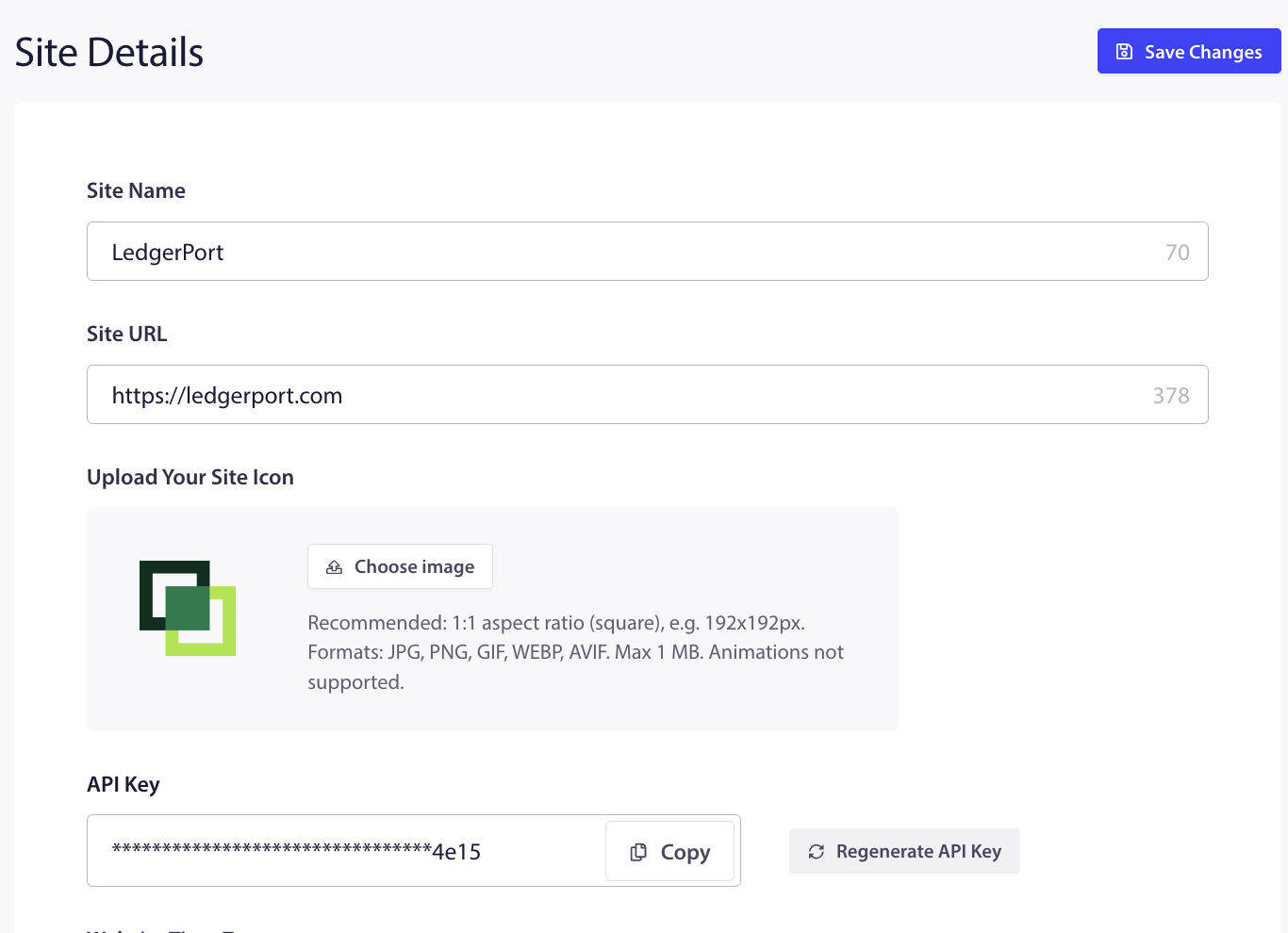
In the PushEngage dashboard, go to Site Settings » Site Details and scroll to the API Key section.
Generate Your First API Key
If the site does not have an API key yet, click Generate a new API Key. PushEngage creates the key and confirms with “API key generated successfully.”
Copy Your API Key
Once a key exists, it is shown masked for safety. Click Copy to copy the full key to your clipboard, then paste it into whatever needs it. The key is only ever shown masked on screen, so use Copy rather than trying to read it.
Rotate (Regenerate) Your API Key
Rotating the key replaces it with a new one, which is the right move if the key may have been exposed, or as periodic hygiene.
- In the API Key section, click Regenerate API Key.
- On the confirmation prompt, “Do you want to regenerate the API key?”, click Yes, Regenerate.
- PushEngage issues a new key and confirms it was generated.
- Copy the new key and update every integration that used the old one.
Frequently Asked Questions
Will regenerating the key break my integrations?
Yes, until you update them. The old key stops working the moment you regenerate, so any app, plugin, or script using it will fail until you replace it with the new key. Rotate at a time when you can update your integrations right away.
Is the API key the same across all my sites?
No. Each site has its own API key. If you manage several sites, make sure you are on the correct site before you copy or regenerate a key.
Why can I only see a masked key?
The key is shown masked on screen for security. Use the Copy button to copy the full key to your clipboard.
When should I rotate my API key?
Rotate it if you think the key has been exposed, when someone with access to it leaves, or on a regular schedule as good security hygiene. Remember to update your integrations with the new key each time.
If you run into any issues, please feel free to contact us by clicking here. Our support team will be able to help you.