Notice: There is no legacy documentation available for this item, so you are seeing the current documentation.
The Price Drop Alert campaign sends an automated push notification to subscribers who have opted in to price drop alerts for a specific product on your Shopify store. When you reduce a product’s price in Shopify, PushEngage detects the change and notifies everyone who subscribed to that product’s alert.
This guide explains how the alert widget works, how to enable and customize it, and how to configure the notification campaign.
Before You Start
- PushEngage is installed on your Shopify store.
- Price Drop Alert campaigns require a PushEngage Growth plan or Automation Plan.
- The campaign is pre-built by PushEngage during onboarding. This guide covers enabling and customizing it.
How Price Drop Alerts Work
The Price Drop Alert runs in two parts: a widget on your product pages that customers use to subscribe, and a trigger campaign that fires when a price drops.
- A visitor lands on a product page and sees the Price Drop Alert widget.
- They click Notify me when the price drops and subscribe.
- When you lower the price of that product in your Shopify admin, PushEngage detects the change.
- Every subscriber who opted in for that product receives a push notification with the new price.
Subscribers only receive notifications for the specific products they opted in to. They will not receive alerts for other products unless they subscribe to those separately.
Step 1: Enable the Alert Widget
The widget is what customers see on your product pages to opt in. It must be enabled before the campaign can collect subscribers.
- Log in to your PushEngage dashboard.
- Go to Design » Widgets.
- Scroll down to Alert Campaign Widget.
- Toggle the switch to On.
Customizing the Widget
Once enabled, you can customize the widget appearance to match your store’s branding.
| Setting | Description |
|---|---|
| Widget message | The text shown to visitors prompting them to subscribe. Example: “Get notified when this price drops” |
| Button text | The label on the subscribe button. Example: “Notify Me” |
| Colors | Match the widget background and button color to your store’s theme |
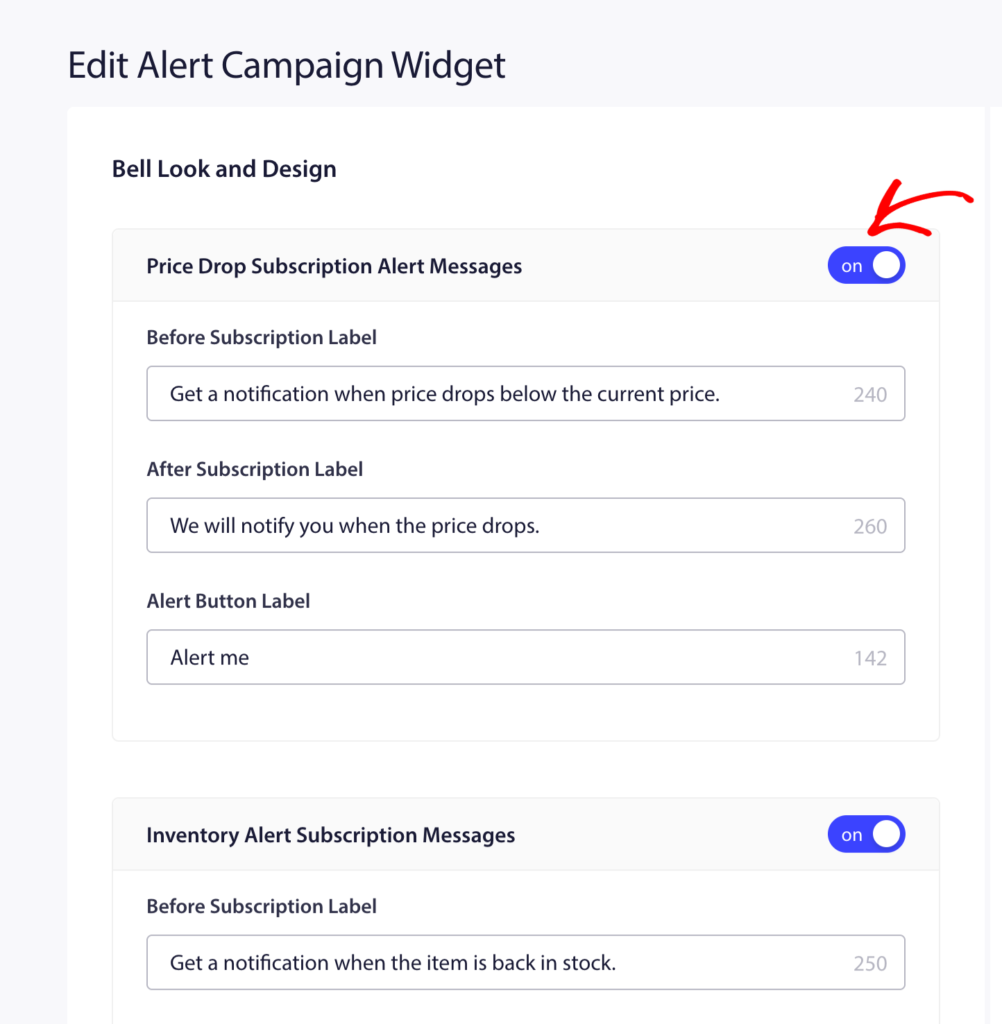
Click Save after making changes.
Step 2: Open the Price Drop Alert Campaign
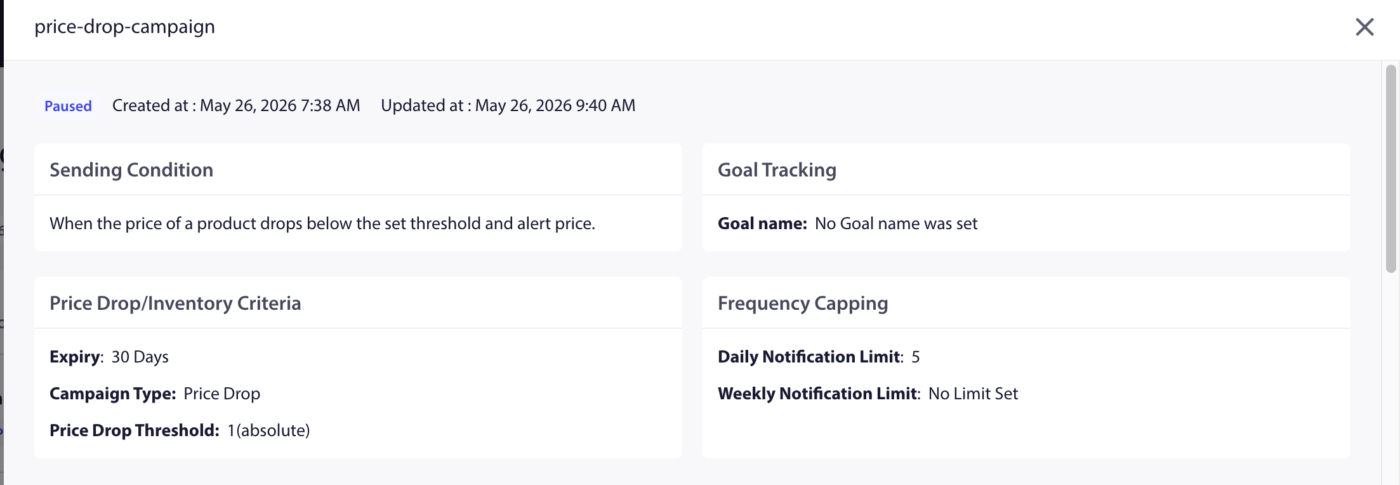
- Go to Campaigns » Trigger Campaigns.
- Find Price Drop Alert in the list and click Edit.
Step 3: Edit the Notification
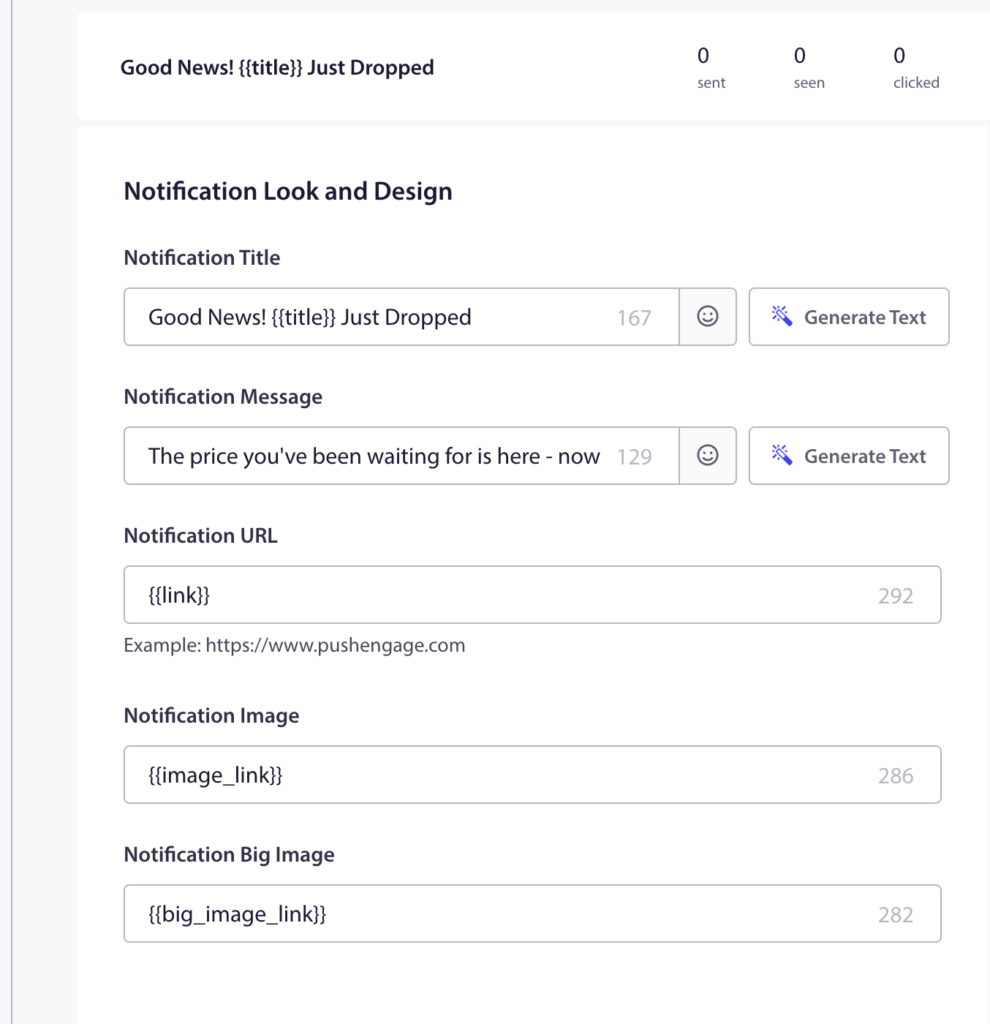
The pre-built campaign contains one notification. Click on it to edit.
Available Variables
| Variable | What it inserts |
|---|---|
{productname} | Name of the product whose price dropped |
{price} | The new (lower) price of the product |
{notificationurl} | Direct link to the product page |
{imageurl} | Your store logo |
{bigimageurl} | Product image |
Note: Do not remove these variables. They pull live product data from your Shopify store at the time the notification fires.
Recommended Field Settings
| Field | Recommendation |
|---|---|
| URL | Use {notificationurl} to link directly to the product page |
| Image | Use {bigimageurl} to show the product image |
Copy Options
| Option | Title | Message |
|---|---|---|
| 1 | Price drop on {productname}! | Good news! {productname} is now only {price}. Grab it before it goes back up. |
| 2 | The price just dropped | {productname} is now {price}. You subscribed to this alert. Now is the time to buy. |
| 3 | Your price alert is here | {productname} dropped to {price}. Click to shop now before stock runs out. |
Step 4: Set Notification Duration
Set the expiry so the notification does not sit in the subscriber’s notification center too long after it is no longer relevant.
Recommended setting: 48 hours
Enable Keep notification open until user interaction so the push stays visible until the subscriber clicks or dismisses it.
Step 5: Activate the Campaign
- Click Save in the campaign editor.
- Return to Campaigns » Trigger Campaigns.
- Click the Play / Resume button next to Price Drop Alert.
The campaign is now active. The next time you reduce a price on any product in your Shopify admin, subscribers who opted in to that product’s price alert will receive the notification automatically.
Tracking Performance
To review how the campaign is performing:
- Go to Campaigns » Trigger Campaigns.
- Click on Price Drop Alert to expand the analytics view.
- Review sent, delivered, clicked, and conversion metrics.
For revenue attribution, enable goal tracking. See How to Set Up Goal Tracking for instructions.
Frequently Asked Questions
Does the alert fire for every price reduction, even small ones? Yes. Any price reduction on a product triggers the alert for subscribers of that product. If you want to avoid notifying subscribers of minor adjustments, consider how frequently you change prices.
Can a subscriber receive price drop alerts for multiple products? Yes. Subscribers can opt in to alerts on as many individual products as they want. Each product has its own subscriber list.
What if a product’s price goes back up after the alert fires? The alert only fires when a price drops. Price increases do not trigger any notification. Subscribers remain subscribed to future price drop alerts for the same product.
Can I customize the widget separately for Price Drop vs. Back-in-Stock? The Alert Campaign Widget toggle enables both types. The widget appearance settings apply to both. You cannot style them differently from the same widget panel.
Where do subscribers go when they click the notification? They are taken to the product page via the {notificationurl} variable. You can change this to a cart page or any other URL by editing the URL field in the campaign editor.
If you run into any issues, please feel free to contact us by clicking here. Our support team will be able to help you.


