
WordPressのOpen Graphメタタグをサイトに追加するための簡単なチュートリアルをお探しですか?
Open Graphは、Facebookで投稿やページを共有する際にFacebookがメタデータを処理する方法です。URLからアイキャッチ画像とメタディスクリプションを自動的に取得する方法です。
しかし、これをサイトに手動で追加するのは非常に面倒です。
まず、Open Graph構造化データがどのように記述されるかを学ぶ必要があります。次に、それをWordPressテーマファイルに挿入する必要があります。そしてそれは非常に危険です。サイト全体を正常に機能させるためのファイルを編集する必要があります。1行でも間違えるとサイト全体がクラッシュする可能性があります。
この記事では、コーディングなしで簡単にWordPressのOpen Graphメタタグを追加する方法を説明します。
さあ、始めましょう。
ステップ1:All in One SEOをインストールする
All in One SEOは、世界No.1のWordPress SEOプラグインです。コーディングなしでWordPressのOpen Graphメタタグをサイトに追加するのに最適なプラグインです。

All in One SEO(AIOSEO)は、WordPressコミュニティで最も高く評価されているSEOプラグインの1つです。元のバージョンは、多くの新機能とアドオンを追加するために完全に作り直されました。したがって、過去にAIOSEOを使用したことがある場合は、プラグインをもう一度確認する必要があります。
AIOSEOは最新のSEOベストプラクティスを実装するのに十分強力であるだけでなく、特定のSEOの問題をすぐに解決するための高度なオプションも利用できます。これには以下が含まれます:
- ローカルオーディエンスを持つ中小企業向けのローカルSEOモジュール
- オンラインストア向けのWooCommerce SEO
- WordPressエディター内のSEOオプティマイザー
- 検索エンジンでの即時インデックス作成のためのスマートサイトマップ
- リッチスニペットでコンテンツをランク付けするためのスキーマプラグイン
その他多数!All in One SEOの全機能については、プラグインのレビューをご覧ください。
まず、All in One SEOプラグインをインストールして有効化する必要があります。方法がわからない場合は、WordPressプラグインのインストール方法に関するこのガイドを確認してください。
プラグインをダウンロードしてインストールすると、セットアップウィザードが表示されます:
そして、セットアッププロセスは10分もかかりません。
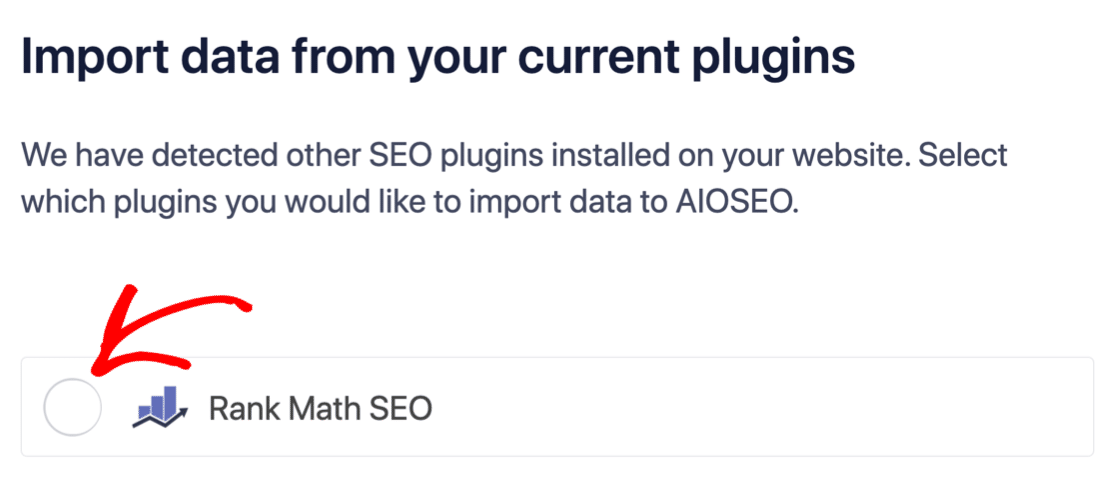
しかし、他のSEOプラグインから移行する場合はどうでしょうか?各プラグインはメタデータを異なる方法で処理します。したがって、すべてをゼロから行う必要がありますか?以前のすべての努力は無駄ですか?
いいえ!All in One SEOがセットアップウィザード中に他のSEOプラグインを検出した場合、基本的な設定をコピーするように求められます:
セットアップの最後に、セットアップウィザードは古いSEOプラグインを非アクティブ化するように求めます。これにより、プラグインの競合やエラーが発生しなくなります:
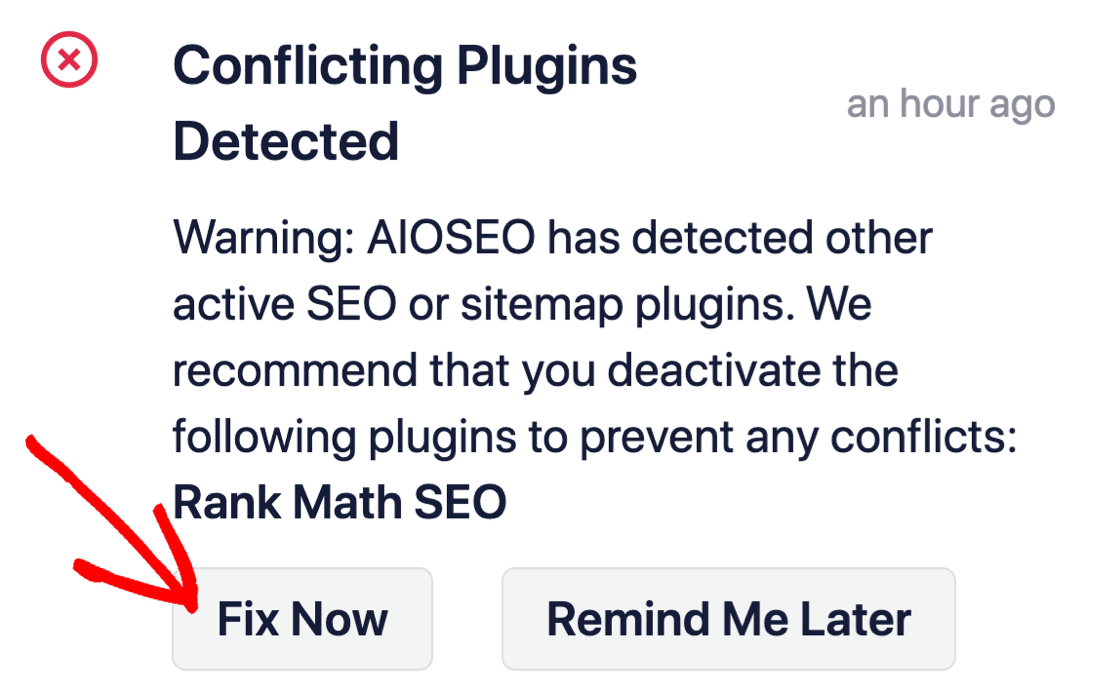
今すぐ修正をクリックしても、古いSEOプラグインの設定は削除されません。競合を防ぐためにプラグインを非アクティブ化するだけです。
ステップ2:ソーシャルメディア設定を構成する
WordPressダッシュボードで、All in One SEO » Social Networks » Social Profilesに移動し、サイトにソーシャルプロファイルを追加します:
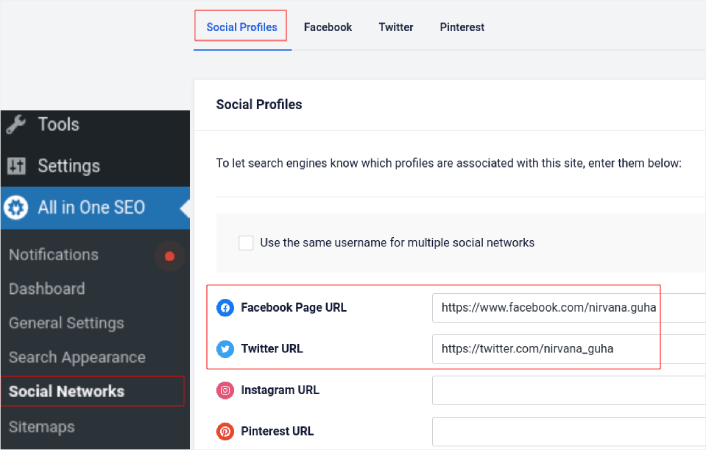
このステップにより、GoogleやBingなどの検索エンジンがサイトに関連付けられているソーシャルメディアプロファイルを知ることができます。同時に、ソーシャルメディア共有設定にも役立ちます。それは次に続きます。
ステップ3:Facebook一般設定を編集する
All in One SEO » Social Networksに移動し、Facebookタブをクリックします。ここで、General Facebook Settingsを構成できます:
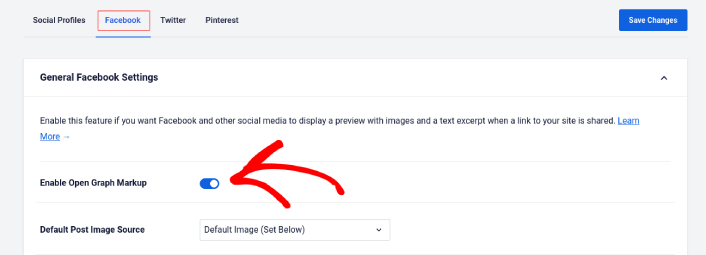
Enable Open Graph Markupスイッチを切り替えて有効にします。
ここで、Default Post Image SourceとDefault Post Facebook Imageを設定できます:
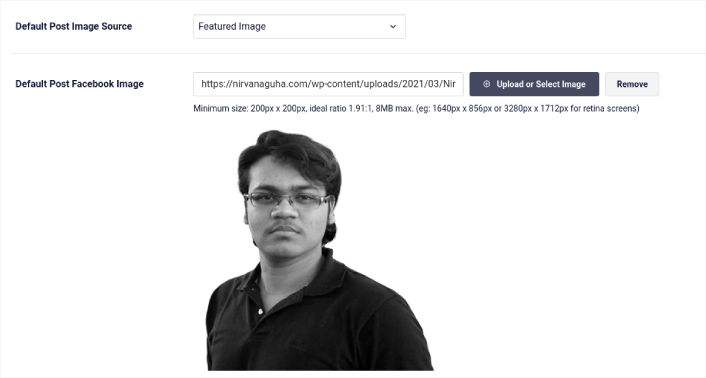
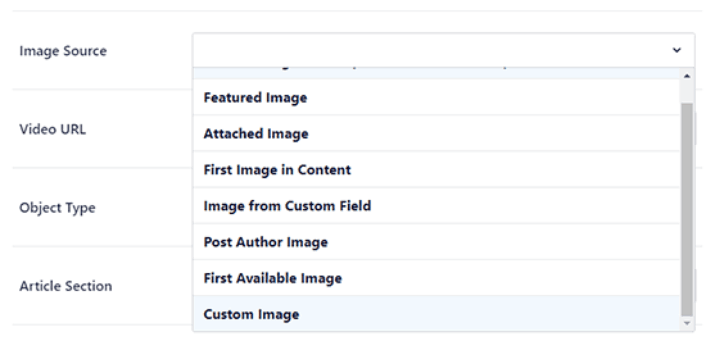
投稿の画像ソースとしてFeatured Imageオプションを使用することをお勧めします。ただし、他のオプションも確認してください:
デフォルトのFacebook画像は、ロゴまたはブランドを表すものに設定できます。Upload or Select Imageボタンをクリックして、デフォルトの画像を変更します。この例では、パーソナルブランドを使用しています。そのため、デフォルトのFacebook画像は著者の写真です。
完了したら、Saveボタンをクリックします。
これで完了です。変更を保存すると、サイトの投稿をFacebookページやプロフィールに共有してみてください。
WordPressのOpen Graphメタタグを追加した後の対処法
今回は以上です、皆さん!
次に、ソーシャルメディアアカウントから集めたトラフィックをエンゲージさせ、コンバージョンさせるための複数の方法を考え始めるべきです。そのための優れた方法の1つが、プッシュ通知を使用することです。プッシュ通知は、ビジネスへのトラフィック、エンゲージメント、直接販売を促進するための強力なマーケティングツールとなり得ます。
100%確信が持てない場合は、プッシュ通知を効果的に使用する方法に関するこれらのリソースを確認してください。
- 顧客エンゲージメントを高めるための7つのスマートな戦略
- プッシュ通知は効果的ですか?7つの統計情報+3つの専門家のアドバイス
- 放棄されたカートのプッシュ通知を設定する方法(簡単なチュートリアル)
- Web通知WordPressプラグインをサイトに追加する方法
プッシュ通知キャンペーンを作成するためにPushEngageの使用をお勧めします。PushEngageは世界No.1のプッシュ通知ソフトウェアです。まだお済みでない場合は、 今すぐPushEngageを使い始めましょう!


