
Wixプッシュ通知をサイトに追加する方法をお探しですか?
プッシュ通知は、リピートトラフィック、エンゲージメント、売上を迅速に伸ばすのに役立ちます。しかし、プッシュ通知を送信するにはどのサービスを使用すべきでしょうか?それだけの価値はあるでしょうか?Web通知をマーケティングチャネルとして利用する余裕はありますか?
そして最も重要なことですが、マーケティングキャンペーンを開始するために開発チームは必要ですか?
この記事では、コーディングなしで10分以内にWixサイトにプッシュ通知を設定する方法を段階的に説明します。Wixは初めてのウェブサイトを作成するのに最適なプラットフォームです。したがって、Wixウェブサイトの設定が完了したら、このチュートリアルに進みましょう。
さあ、始めましょう。
Wixプッシュ通知のインストール方法
Wixプッシュ通知のインストールはそれほど難しくありません。これらの簡単な手順に従ってください。この記事の最後には、次のようなウェルカムプッシュ通知がサイトに表示されるはずです。

正直なところ、私たちはWixをウェブサイトビルダーとしてあまり好みません。私たちの率直な意見では、WordPressやShopifyの方がはるかに優れた機能を提供します。したがって、WordPressやShopifyに移行できる場合は、今がその時期かもしれません。
しかし、Wixを使い続ける場合は、心配しないでください。サイトにプッシュ通知を簡単にインストールできます。
さあ、始めましょう。
ステップ1:PushEngageアカウントの設定
PushEngage のホームページにアクセスし、開始ボタンをクリックします。

PushEngageを試すために無料プランを選択するか、ビジネスの成長に真剣に取り組んでいる場合は有料プランを選択できます。有料プランには、より多くのキャンペーンオプションと、さらに大きな購読者リストを構築する機能が付属しています。プッシュ通知の費用は、開始するのに非常に少なく、クレジットカードを使用してプランを購入できます。
eコマースサイトを運営している場合は、有料プランを取得することを強くお勧めします。これにより、eコマースプッシュ通知を設定できます。プッシュ通知は、オンラインストアから新製品を発売するのに最適です。
料金プランを確認して、開始するプランを選択してください。アカウントにサインアップしたら、PushEngageダッシュボードに移動し、サイト設定 » インストール設定に移動します。

ここでサイトの詳細とブランディングを設定します。プッシュ通知用のロゴとウェブサイトURLを設定してください。プッシュ通知を正しくテストできるように、今すぐこれを行ってください。
ステップ2:PushEngageからインストールコードを取得する
次に、PushEngageダッシュボードに移動して、インストールコードを取得する必要があります。インストール設定内で:

サイトにSSL証明書がインストールされているかどうかに応じて、HTTPタブまたはHTTPSタブのいずれかからインストールコードを取得します。WordPressサイトの場合、このインストールコードは不要です。プラグインがすべてを処理します。これはWooCommerceサイトにも適用されます。
Wixアプリを使用してWixサイトにプッシュ通知をインストールできます。ただし、今のところはこのコードをコピーしてください。Wixアプリの自動化は、問題を解決するよりも問題を引き起こす可能性があります。
ステップ3:Wixプッシュ通知のインストールコードをサイトに配置する
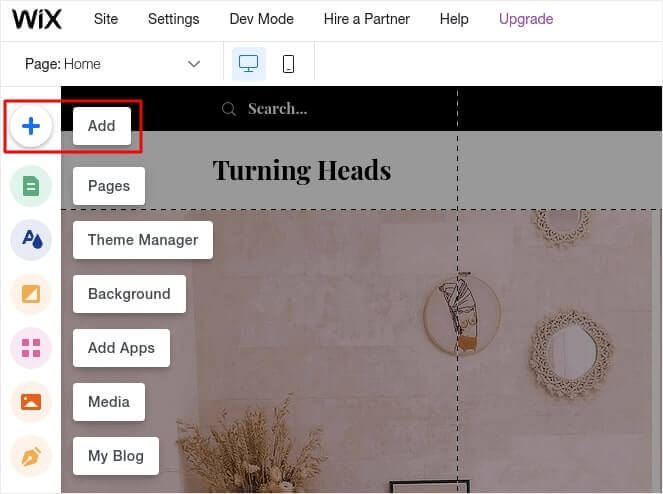
Wixアカウントにログインし、編集 » 追加:に移動します。
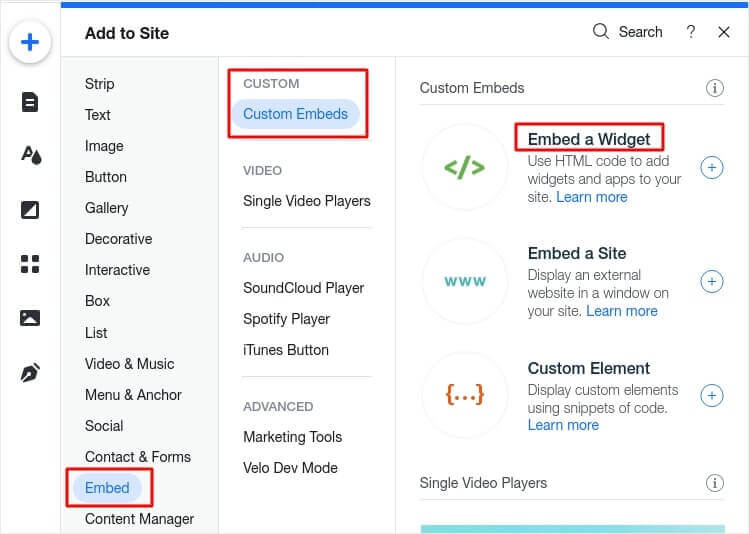
埋め込み » カスタム埋め込み » ウィジェットの埋め込みに移動します。
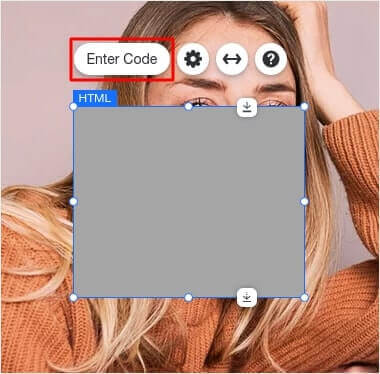
ここで、PushEngageダッシュボードからコードスニペットをインストールします。「コードの入力」をクリックします。
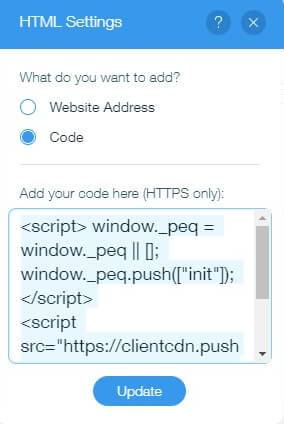
そして今、コードを貼り付けて「更新」をクリックします。
次に、iframeを右クリックして「すべてのページに表示」を有効にします。
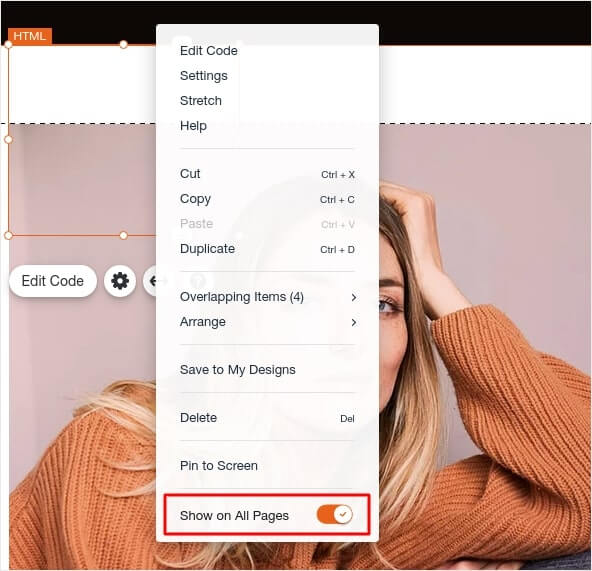
「公開」をクリックすると、Wixウェブサイトにオプトインポップアップが表示されるはずです。
プロのヒント:この要素を画面上のどこにでもドラッグして配置できます。ナビゲーションバーのすぐ下に配置することをお勧めします。これにより、訪問者は標準のプッシュ通知オプトインエクスペリエンスを得ることができます。
ステップ4:Wixプッシュ通知オプトインの設定
最後に、PushEngageダッシュボードでデザイン » ポップアップモーダルに移動します。
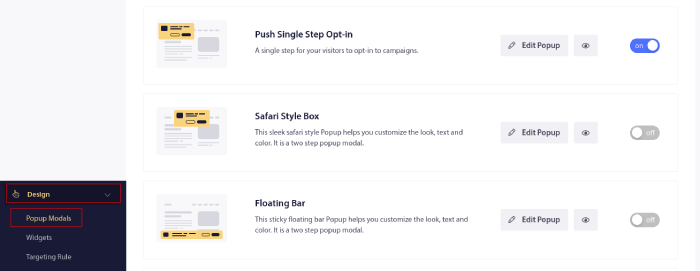
ここからプッシュ通知のオプトインをカスタマイズできます。ヘルプが必要な場合は、カスタムプッシュ通知オプトインの作成方法に関するこの記事を確認してください。
インスピレーションが必要な場合は、コンバージョン率の高いプッシュ通知オプトインに関するこの記事を確認できます。
ステップ5:ウェルカムウェブプッシュ通知の作成
新規ストアであっても既存のストアであっても、ウェブサイトのウェルカムメッセージは絶対に必要です。ウェルカムプッシュ通知は以下のような場合に役立ちます。
- 確認:新しい購読者がウェブプッシュ通知に確実に購読したことを確認したい場合。
- 再エンゲージメント:ウェルカムキャンペーンは、購読者をサイトに戻すための優れた方法です。
- セール:新しい購読者に、割引、無料ギフト、クーポン付きのウェルカムオファーを提供できます。
それでは、ウェルカムプッシュ通知キャンペーンを作成しましょう。PushEngageダッシュボードに移動し、キャンペーン » ドリップ自動応答 » 新規ドリップ自動応答の作成に移動します。
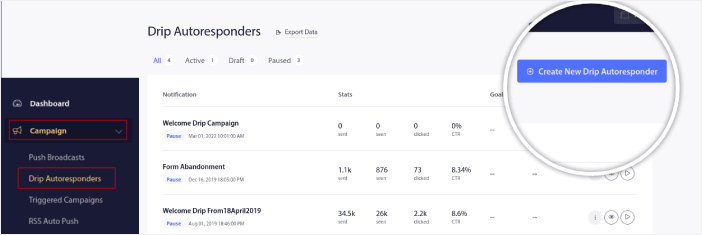
ドリップキャンペーンに、覚えやすい名前を付けます。次に、最初のプッシュ通知が訪問者のプッシュ通知購読直後に送信されるように設定します。

通知を編集して、ウェルカムメッセージのカスタムコンテンツを作成できます。完了したら、新しい通知の追加ボタンをクリックして、シーケンスに通知を追加します。新しい通知を編集し、各通知間のカスタム遅延を設定できます。
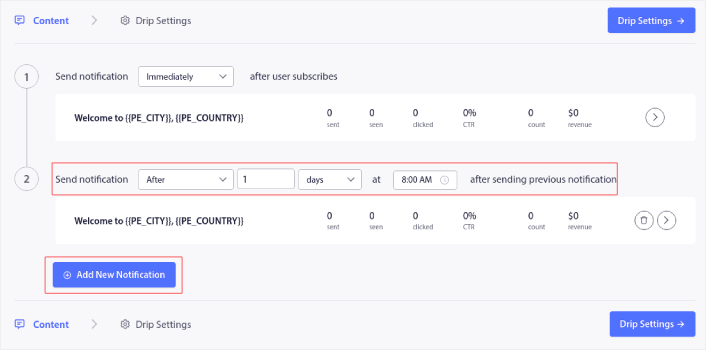
通知はいくつでも追加できますが、5〜7件の通知を含むウェルカムドリップを作成することをお勧めします。
その後、ドリップ設定でオーディエンスを選択します。
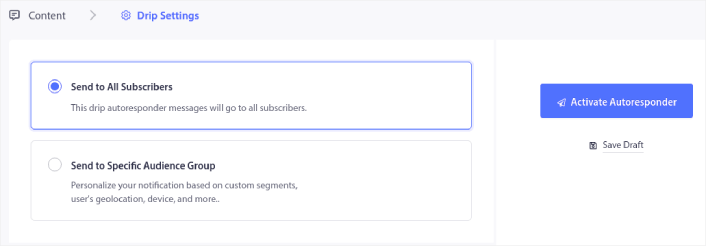
特定のオーディエンスグループに送信オプションを使用すると、セグメントごとに異なるウェルカムドリップを送信できます。これは、訪問者がプッシュ通知をオプトインする際にセグメント化している場合に特に役立ちます。ターゲティングに満足したら、自動応答の有効化ボタンをクリックします。これで完了です!
注意:リアルタイム通知もスケジュール設定できます。したがって、AndroidまたはiOSのモバイルアプリから通知を送信したい場合は、PushEngageが最適です。
Wixプッシュ通知をサイトに正常に設定しました。PushEngageダッシュボードに戻り、プッシュ通知キャンペーンの作成を開始する時間です。
Wixプッシュ通知を追加した後に行うこと
今回は以上です、皆さん!
プッシュ通知が初めての場合は、公開する前に完全なプッシュ通知テストプロセスに従う必要があります。これにより、訪問者が見てユーザーエクスペリエンスが壊れていると不満を言う前に、機能に関する一般的な問題をトラブルシューティングできます。
拡張機能に投資する前に、プッシュ通知がビジネスの成長にどのように役立つかを理解するために、これらの素晴らしいリソースのいくつかをチェックする必要があります。
プッシュ通知の最も良い点の1つは、キャンペーンのテンプレートを非常に簡単に作成できることです。キャンペーンテンプレートのインスピレーションが必要な場合は、これらの素晴らしいプッシュ通知の例をチェックしてください。
まだの方は、ぜひPushEngageをお試しください。PushEngageは世界No.1のプッシュ通知サービスです。ビジネスの成長に真剣に取り組んでいるなら、PushEngageに投資すべきです。


