こんにちは、Engagelings。
エキサイティングなお知らせ:新しいWordPressプラグインをリリースしました!
なぜなら、それはあなたのためだからです!
そうです、ユーザーエクスペリエンス(つまり、あなたのエクスペリエンス)をはるかに向上させます。これまでPushEngageアプリで行っていたことはすべて、WordPressダッシュボードからプラグインで実行できるようになりました。
使いやすさも抜群です。このプラグインには多くの作業が費やされており、きっと気に入っていただけると思います。メジャーアップデートでもあるため、多くの機能があります。
さあ、始めましょう。
PushEngage WordPressプラグインを使用する理由
端的に言うと、PushEngage WordPressプラグインは次のとおりです。
- プッシュ通知キャンペーンの作成、編集、管理にかかる時間を節約します
- Gutenbergエディター内でブログ投稿用のプッシュ通知を作成できます
- WordPressダッシュボード内で詳細なプッシュ通知分析を提供します
- WordPressサイト内でプッシュ通知オーディエンスを管理できます
- WordPressサイトから直接プッシュ通知ポップアップモーダルを作成します
現在、ほとんどのプッシュ通知サービスは、アプリのダッシュボードから操作できるか、カスタムコードを作成してプッシュ通知キャンペーンを送信する必要があるAPIサービスを提供しています。
市場に出回っているプッシュ通知プラグインは、単にダッシュボードをサイトに接続するための手段として機能します。つまり、コンテンツとマーケティングプラグインの間を行き来する必要があります。
もう必要ありません!
新しいPushEngage WordPressプラグインを使用すると、すべての機能をWordPressダッシュボード内で直接利用できます。PushEngageのインストールが完了したら、アプリのダッシュボードに戻ることを気にする必要はほとんどありません。このプラグインはWordPressエコシステムのために設計されています。そのため、使いやすいだけでなく、非常に軽量でもあります。
これは単なるダッシュボードを置き換えるWordPressプラグインではありません。ダッシュボード内で作成したキャンペーンはすべてプラグインにも引き継がれます。これにより、チームメンバーがPushEngageダッシュボードでキャンペーンを作成した場合でも、WordPressプラグイン内から管理できます。
私たちがこのプラグインを開発したのは、テストしたすべてのWordPress向けプッシュ通知プラグインが、機能性とシンプルさのどちらかを犠牲にしなければならないというトレードオフを強いていたからです。このプラグインはそれを拒否します。
WordPressプラグインダッシュボードからすべてにアクセス
WordPressプラグインをインストールしたら、プラグインからPushEngageキャンペーン、戦略、ポップアップモーダル、分析にアクセスできます。WordPressダッシュボードで、PushEngage » Dashboardに移動すると、PushEngageアカウントのすべての重要な要素を簡単に確認できます。
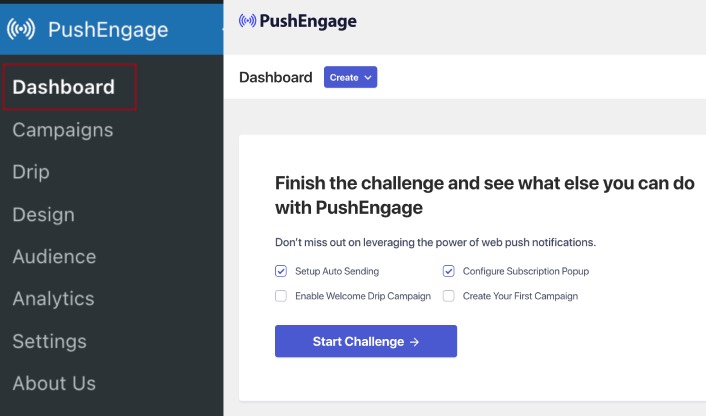
最初に表示されるのは、新しいキャンペーンをすばやく作成するための Create ボタンです。アカウントが新しい場合、Welcome Challenge が表示され、標準的なプラクティスに従いながらPushEngageをすばやく設定するのに役立ちます。
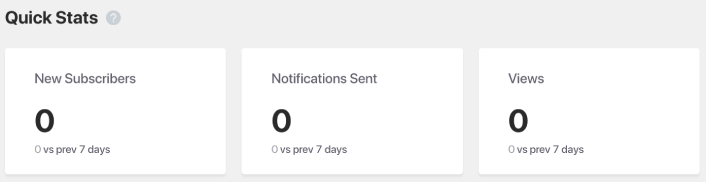
さらに下にスクロールすると、プッシュ通知のパフォーマンスがどのように表示されているかの Quick Stats を確認できます。
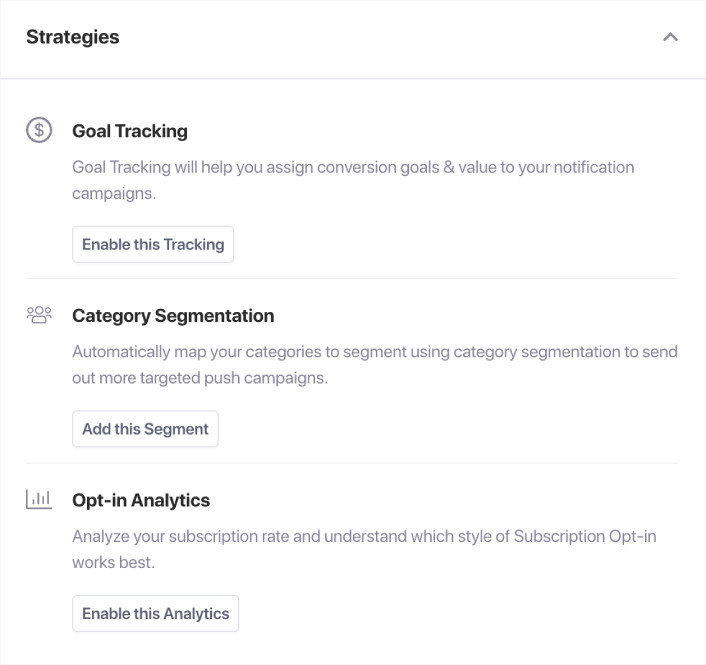
さらに下にスクロールすると、プッシュ通知の購読者をすばやく増やすのに役立つ 推奨戦略 が表示されます。
これはほんの始まりにすぎません。
投稿を宣伝するための自動プッシュ通知を作成する
WordPress Gutenbergエディター内から、投稿を宣伝するための自動プッシュ通知を作成できるようになりました。PushEngage » 設定 » 自動プッシュ設定に移動します。
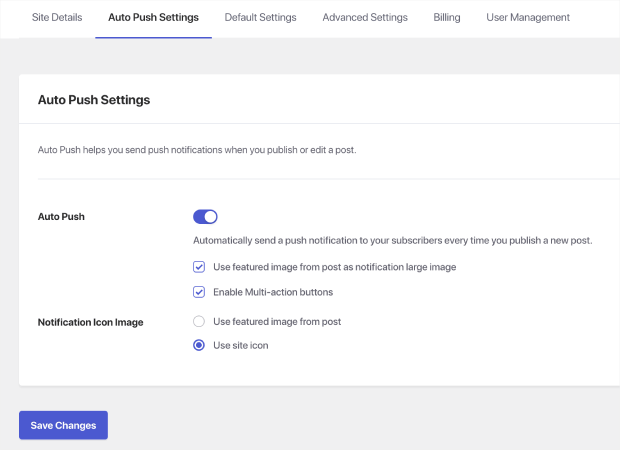
トグルボタンを使用してWordPressの自動プッシュ機能を有効にします。次に、ボックスをチェックしてマルチアクションボタンを有効にし、投稿のアイキャッチ画像を通知の大きな画像として使用します。これらの設定を有効にすると、次のようなリッチプッシュ通知を送信できます。

大きな画像と行動喚起ボタンを使用すると、表示率とクリック率が高くなります。
次に、WordPressの投稿を編集します。投稿の下部に、その投稿を宣伝するための自動プッシュ通知を作成するためのGutenbergブロックが表示されるはずです。
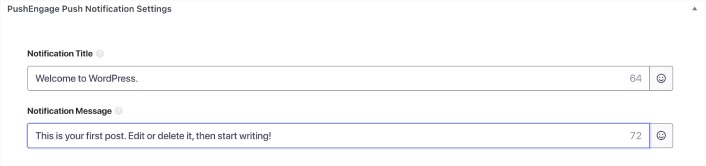
自動プッシュキャンペーンを作成するには、通知タイトルと通知メッセージを追加します。次に、さらに設定を行うために下にスクロールします。
プッシュ通知用の大きな画像を追加できます。
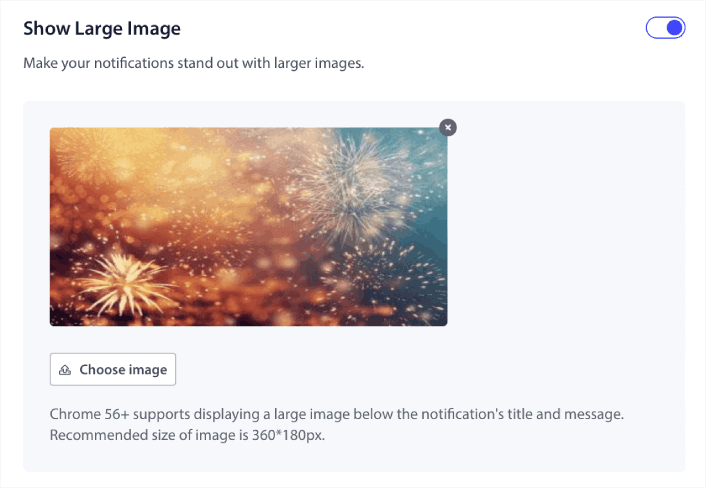
デフォルトでは、通知の大きな画像を有効にすると、PushEngageは投稿のアイキャッチ画像を大きな画像として使用します。ただし、独自の画像を追加することもできます。
マルチアクション通知の下で、プッシュ通知用のボタンを作成することもできます。
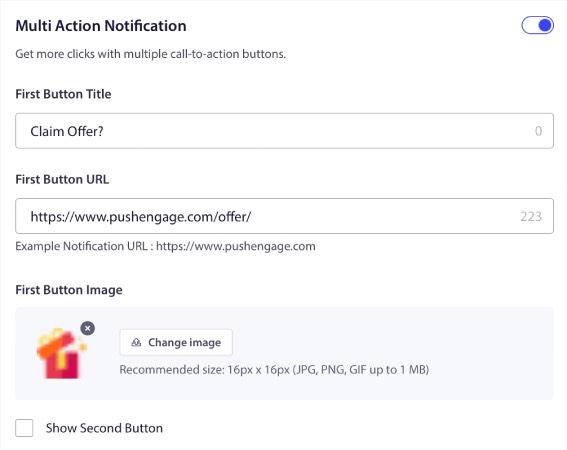
ボタン付きのプッシュ通知は、ボタンなしの通知よりもクリック率が高くなる傾向があります。実際、通知には常にコールトゥアクションボタンを使用することが、プッシュ通知のベストプラクティスガイドの一部となっています。
さらに下にスクロールすると、自動プッシュ通知を受け取る対象を選択するためのオーディエンス設定が表示されます。
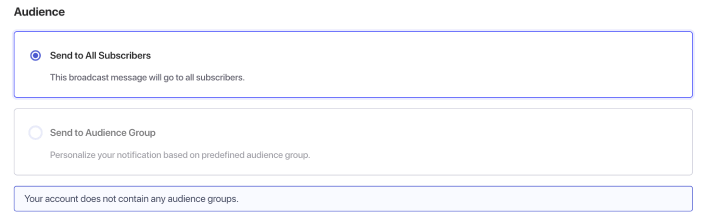
もちろん、ターゲットにする前にオーディエンスグループを作成する必要があります(詳細は後述)。プッシュ通知の設定が完了したら、Gutenbergの右側のバーにあるPushEngageプッシュ通知設定を確認してください。
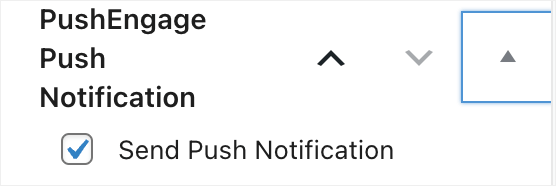
Send Push Notificationというチェックボックスを有効にしてください。投稿が公開されると、投稿が後でスケジュールされていても、プッシュ通知も自動的に送信されます!
プッシュ通知ブロードキャストを作成する
プッシュ通知ブロードキャストを作成するには、PushEngage » Campaigns に移動します。
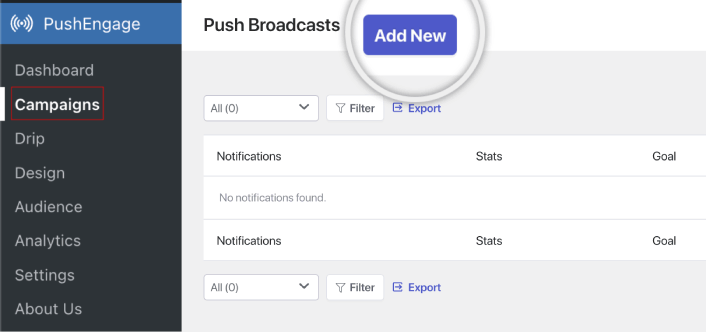
新しいプッシュ通知ブロードキャストを作成するには、Add New ボタンをクリックします。以前にPushEngageを使用してプッシュ通知を送信したことがある場合は、以前の通知のリストもここに表示されます。
ドリップ自動応答を設定する
プラグイン内でゼロからドリップキャンペーンを作成することもできます。PushEngage » Dripに移動します。
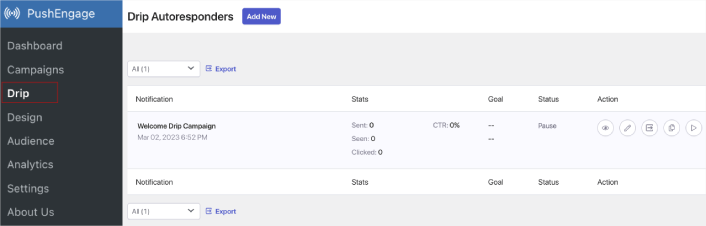
これには、ウェブサイトウェルカムキャンペーンが含まれます。ここにリストされているすべてのドリップ自動応答を表示、編集、有効化、無効化することもできます。
注:現時点では、WordPressプラグイン内でeコマースプッシュ通知を作成することはできません。ダッシュボードでトリガー通知を作成することはできますが、WordPressプラグインには表示されません。
プッシュ通知ポップアップモーダルをデザインする
プッシュ通知のポップアップモーダルは、購読者を取得するためのオプトインとして使用されます。ポップアップモーダルがないと、購読者を取得したり、誰にもプッシュ通知を送信したりすることはできません。素晴らしいのは、WordPressプラグイン内でプッシュ通知ポップアップモーダルをデザイン、カスタマイズ、有効化、無効化できることです。
PushEngage » デザインに移動します。
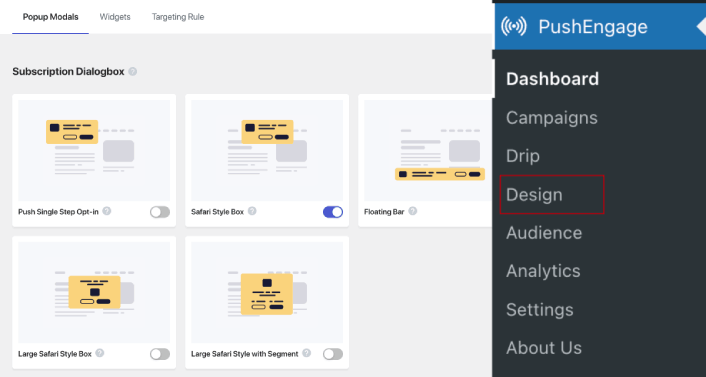
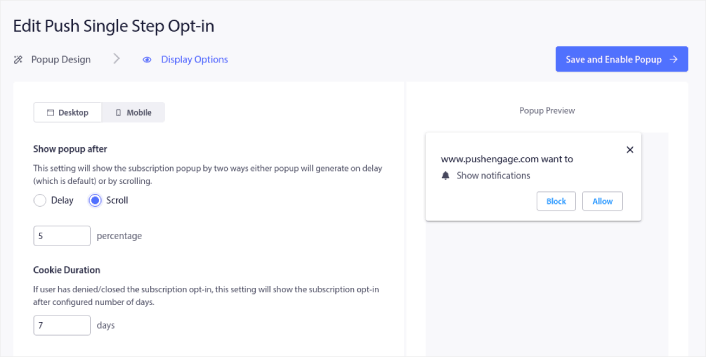
そして、好きなだけ多くのポップアップモーダルを設定できます。もちろん、各ポップアップモーダルの Display Options で、異なるタイミングでトリガーされるようにすることができます。
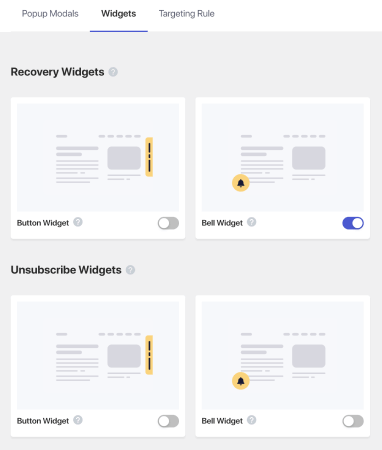
Widgets タブから、購読ウィジェット または Chrome通知の購読解除 用の購読解除ウィジェットを作成することもできます。
よりターゲットを絞ったポップアップモーダルを作成したい場合は、Targeting Rule タブの下にあるターゲティングルールを使用できます。
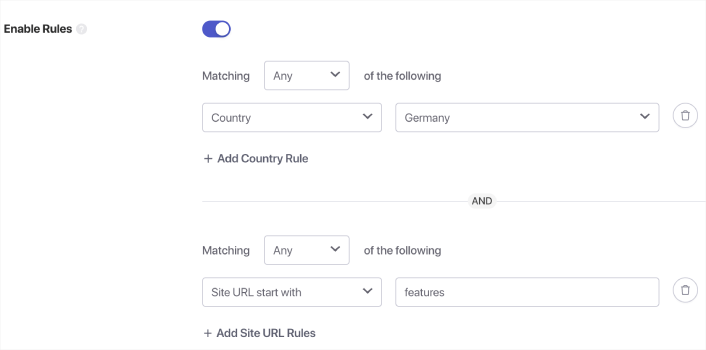
これらはグローバルターゲティングルールであり、個々のポップアップモーダルのターゲティングルールよりも優先されます。ただし、必要に応じて、編集することで、各モーダルに強力なターゲティングルール を作成できます。
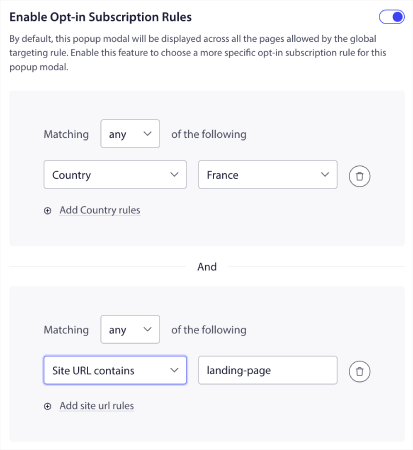
たとえば、さまざまな国の訪問者をターゲットにするために、さまざまな言語でポップアップモーダルを作成できます。
セグメントとオーディエンスグループを作成して、ターゲットを絞ったプッシュ通知を送信する
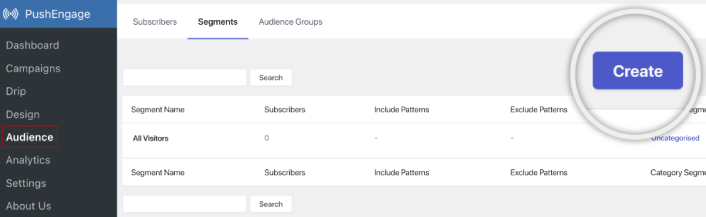
もちろん、プッシュ通知購読者向けのセグメントとオーディエンスグループを作成することで得られるパーソナライゼーションのレベルに勝るものはありません。PushEngage » オーディエンスに移動し、すぐにセグメントとオーディエンスグループの作成を開始してください。
セグメントタブの下で、新しいセグメントを作成したり、既存のセグメントを編集したりできます。
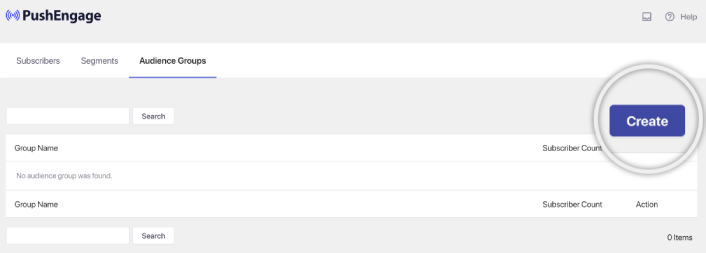
さらに深いパーソナライゼーションが必要な場合は、オーディエンスグループタブでオーディエンスグループを作成してください。
プッシュ通知セグメントとパーソナライズされたプッシュ通知に慣れていない場合は、セグメントの作成方法に関する記事と、高度なオーディエンスグルーピングに関する発表を確認してください。
詳細なプッシュ通知分析を取得する
分析とA/Bテストは、ビジネス目標を追跡し続けるのに役立ちます。Google AnalyticsやPushEngageダッシュボードでプッシュ通知を追跡できますが、WordPressダッシュボードから詳細な分析を取得する方がはるかに便利です。
PushEngage » 分析に移動します。
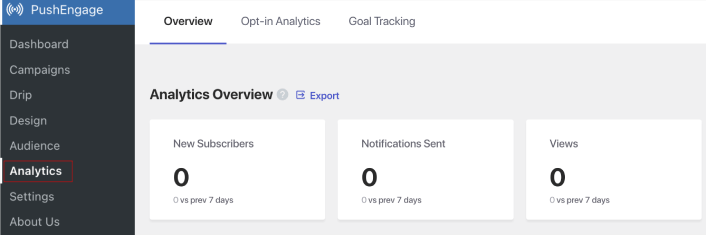
デフォルトの分析ダッシュボードでは、PushEngageキャンペーンのパフォーマンスの概要がわかります。しかし、ポップアップモーダルのオプトイン分析をより詳しく見たい場合は、オプトイン分析タブに移動してください。

そして、目標追跡タブの下でPushEngageで目標追跡を有効にできます。
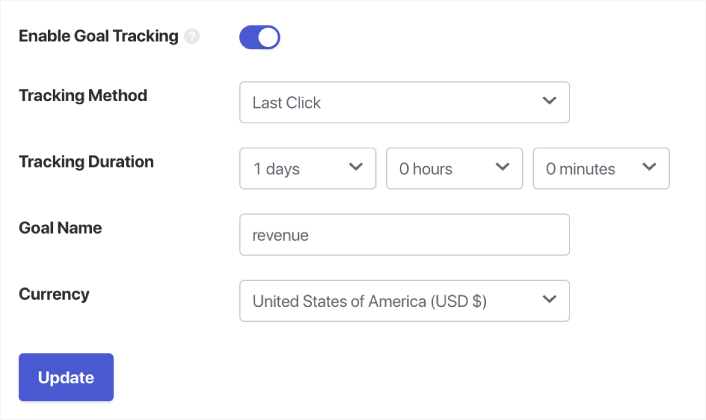
目標追跡は、各通知が収益にどれだけ貢献しているかを正確に測定するのに役立ちます。
他に何か?
ビジネスを成長させることは大変な仕事であることを私たちは知っています。PushEngageでは、製品とお客様の体験を常に改善する方法を探しています。この新しいプラグインをリリースし、PushEngageサブスクリプションからさらに多くの価値を引き出せるようにしました。
このお知らせをお読みいただき、誠にありがとうございます。
ご不明な点がございましたら、カスタマーサクセスチームがお手伝いいたします。ライブチャットで会話を開始するか、 お問い合わせページをご覧ください。
そして、PushEngageをご利用いただきありがとうございます。無料版をご利用の場合でも、エンタープライズ版をご利用の場合でも、お客様は私たちにとって同様に重要です。PushEngage WordPressプラグインは、お客様の成功を支援することを目的としており、お客様の今後のご活躍を心よりお祈り申し上げます。
以下のコメントでご意見をお聞かせください。まだお済みでない場合は、 今日からPushEngageを始めましょう!


