こんにちは、Engagelings。
エキサイティングなニュース:サブスクリプション管理ウィジェットという新機能をリリースします。
なぜなら、それはあなたのためだからです!
そうです、ユーザーエクスペリエンス(別名:あなたのエクスペリエンス)をはるかに向上させます。購読者は現在、以下を管理するための簡単な方法を提供できます。
- あなたからの通知を受け取るかどうか
- 興味のある通知の種類
また、PushEngageでサブスクリプション管理ウィジェットを表示することを非常に簡単にしました。このクールな新機能に非常に誇りを持っており、気に入っていただけると思います。これはメジャーアップデートなので、さらに多くのことを解き明かす必要があります。
さあ、始めましょう。
サブスクリプション管理ウィジェットを使用する理由
プッシュ通知ソフトウェアの最大の課題の1つは、購読者から特定の種類の通知を送信する許可を得ることが非常に難しいことです。その結果、プッシュ通知が多すぎるまたは無関係なメッセージを送信するリスクがあります。
同じ問題はEメールマーケティングにも存在します。しかし、少なくともEメールマーケティングソフトウェアを使用すると、カスタムリンクを作成して、購読者を特定のEメールリストセグメントに追加できます。プッシュ通知では、この機能は利用できません。
まあ…そうではありませんでした。今までは。
私たちは、誰も対処しようとしていない巨大な問題の解決策を構築しました!
サブスクリプション管理ウィジェットは、プッシュ通知購読リストを民主化します。訪問者は、どのような種類の通知を受け取りたいかを選択できるようになりました。購読者は、自分の希望を聞いてくれたことに感謝し、ターゲットを絞った非常に的確なプッシュ通知を送信することで、はるかに多くのお金を稼ぐことができます。
そして、プッシュ通知の購読解除を試みている不満のある購読者からのサポートチケットを減らすことができます。
サブスクリプション管理ウィジェットを簡単に使い始める
開始するには、PushEngageダッシュボードにアクセスし、デザイン » ウィジェットに移動して、サブスクリプション管理ウィジェットを有効にします。
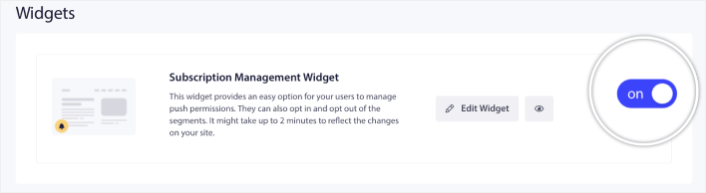
ウィジェットを編集ボタンをクリックして、ウィジェットをカスタマイズします。まず、ルックアンドデザインの下で、ブランドのデザイン言語に合わせてウィジェットの外観をカスタマイズすることから始めます。
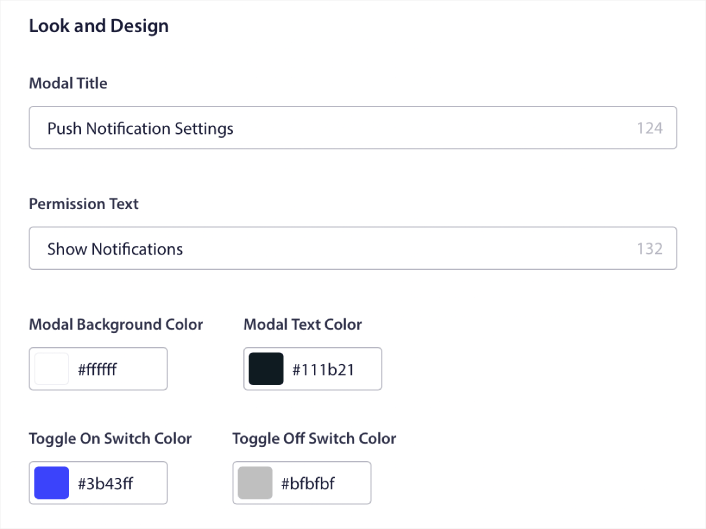
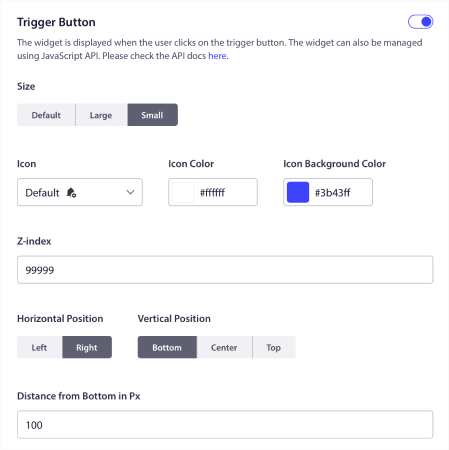
完全にカスタムされたポップアップモーダルを作成でき、訪問者がデフォルトのポップアップモーダルから購読しなくても表示され続けます。ポップアップトリガーボタンのサイズが合わないと感じる場合は、トリガーボタンの下でカスタマイズすることもできます。
サブスクリプション管理ウィジェットを表示する場所を選択する
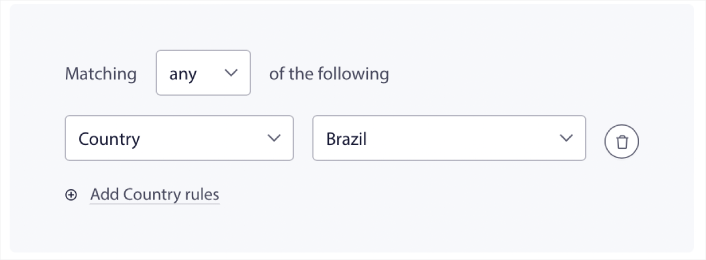
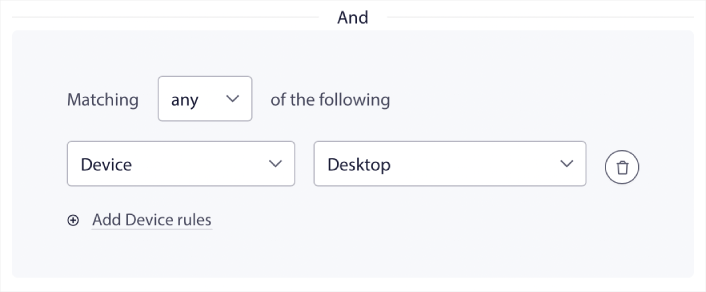
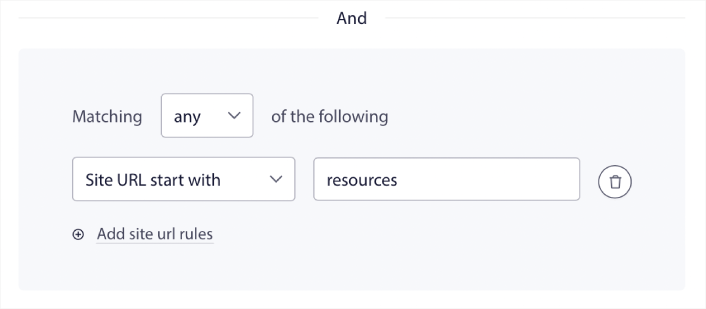
そして最もクールなのは、ウィジェットを表示する特定のページを選択できることです。これはトリガーボタンの表示ルールの下で行います。

デフォルトでは、ボタンはすべてのページに表示されます。 しかし、特定のターゲットを設定することで、ウィジェットの特定のバージョンを表示するためのカスタムターゲティングルールを作成できます。
場所:
デバイス:
そしてサイト上のURL:
簡単な購読解除オプション
また、購読解除オプションの下で、購読者がプッシュ通知を簡単に購読解除できる方法を提供することもできます。
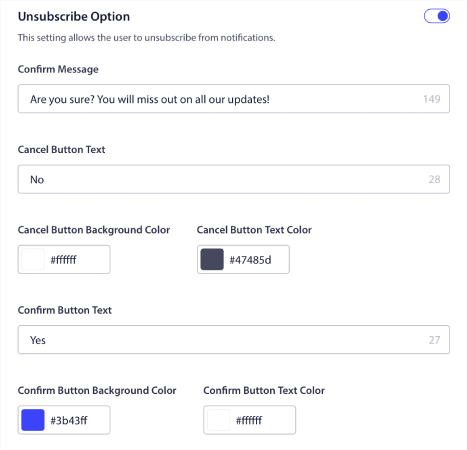
繰り返しになりますが、デザインの外観とメッセージングは、ブランドガイドラインに合わせて完全にカスタマイズできます。プッシュ通知を購読解除した訪問者は、サブスクリプション管理ウィジェットを使用して再購読することもできます。
購読者にプッシュ通知の設定を許可する
さらに進んで、購読者がどの種類の通知を受け取りたいかを選択できるようにすることもできます。これはセグメント設定の下で行います。
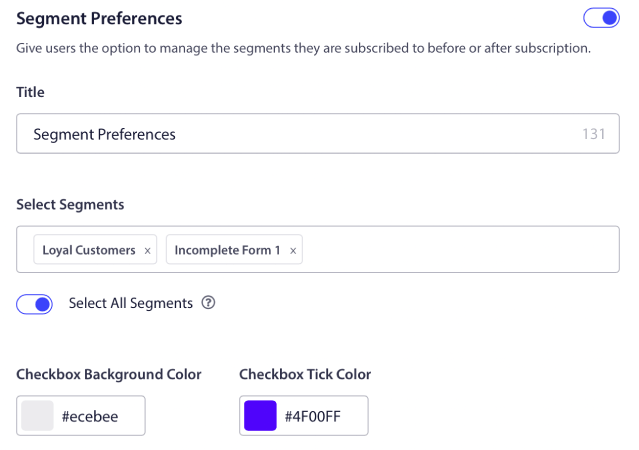
すべて選択を有効にすると、購読者はデフォルトで選択されたすべてのセグメントに自動的に追加されます。
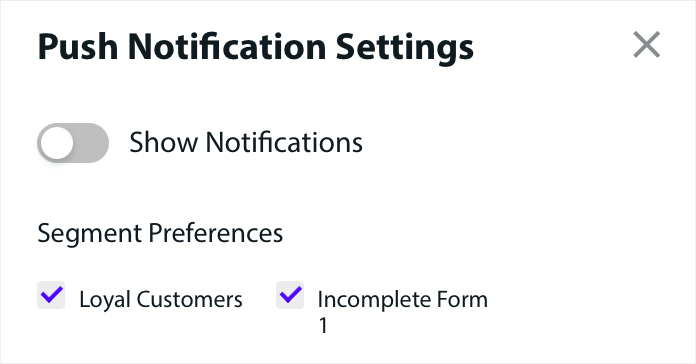
これはニュースサイトやブログサイトにとって非常に強力な機能です。
パーソナライズされたプッシュ通知の送信許可を求める
サイトでeコマースプッシュ通知を実行している場合、その多くはトリガー付きプッシュ通知になります。これには以下が含まれます:
カスタムトリガー付きプッシュ通知キャンペーンも可能です。
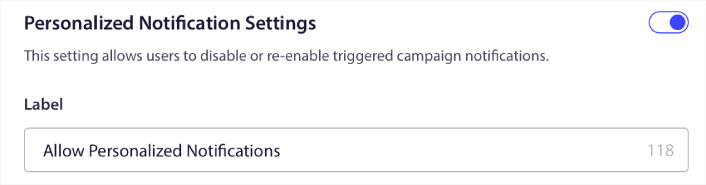
新しい購読管理ウィジェットを使用すると、購読者がパーソナライズされた通知を表示するかどうかを選択できるようになりました。
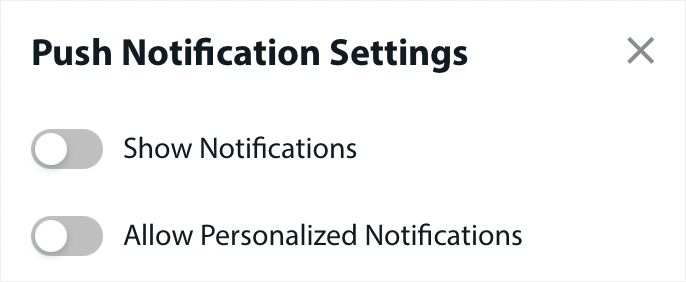
パーソナライズされた通知設定の下のオプションを有効にするだけです。
他に何か?
ビジネスを成長させることは大変な仕事であることを私たちは知っています。PushEngageでは、製品とお客様のエクスペリエンスを常に改善する方法を探しています。この新機能は、PushEngageサブスクリプションからさらに多くの価値を引き出すのに役立つようにリリースされました。
このお知らせをお読みいただき、誠にありがとうございます。
ご不明な点がございましたら、カスタマーサクセスチームがお手伝いいたします。ライブチャットで会話を開始するか、 お問い合わせページをご覧ください。
PushEngageをご利用いただきありがとうございます。無料版をご利用の場合でも、エンタープライズ版をご利用の場合でも、お客様は私たちにとって同様に重要です。購読管理ウィジェットは、お客様の成功を支援するために設計されており、お客様の今後のご活躍を心よりお祈り申し上げます。
以下のコメントでご意見をお聞かせください。まだお済みでない場合は、 今日からPushEngageを始めましょう!


