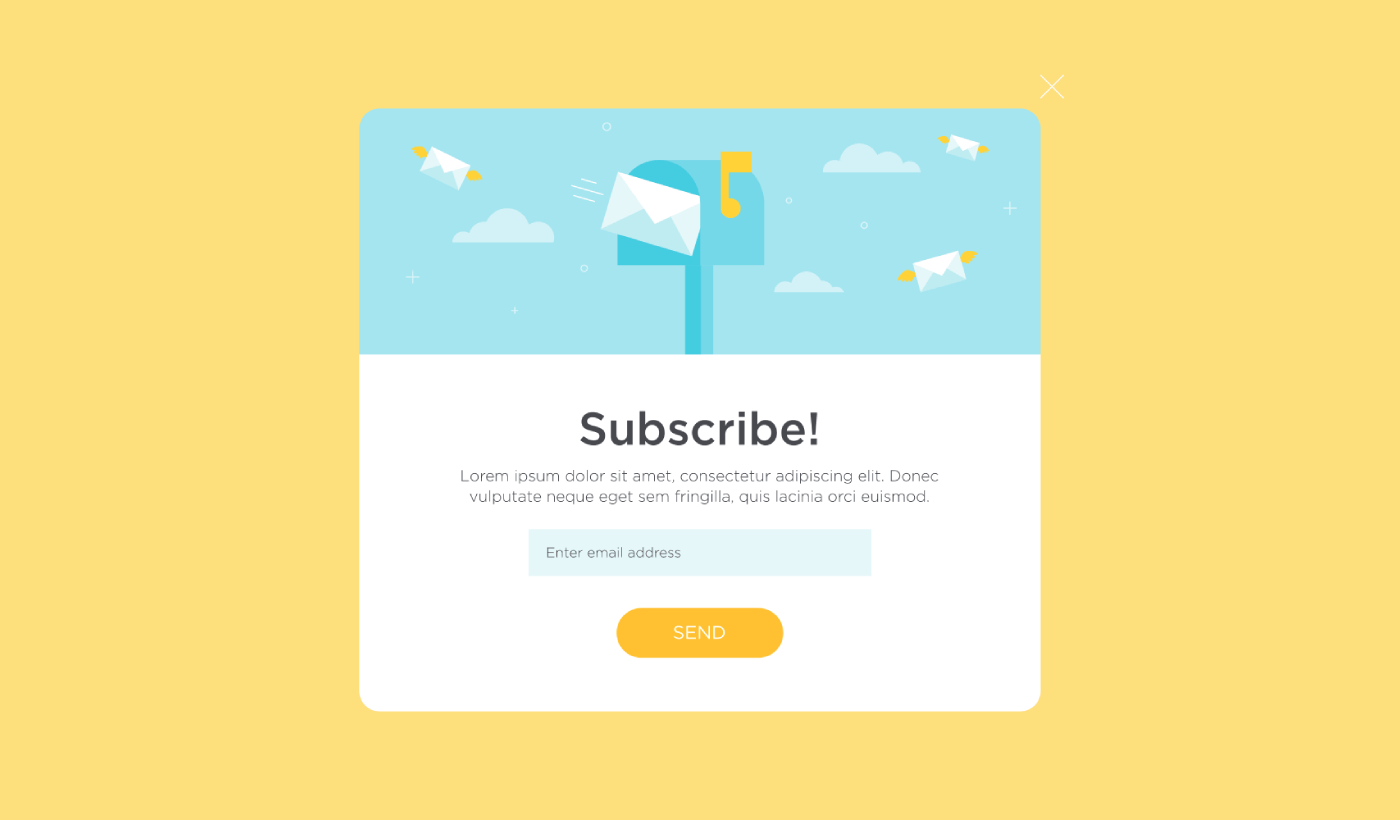
Vous cherchez un moyen de créer une fenêtre contextuelle de type lightbox pour votre site ?
Une fenêtre contextuelle de type lightbox peut être incroyablement efficace pour capturer des prospects. Elles sont conçues pour convaincre et convertir.
Mais devoir en coder une à partir de zéro est un vrai casse-tête. D'une part, vous devriez connaître suffisamment de HTML, CSS et Javascript pour créer la fenêtre contextuelle ainsi que les règles de déclenchement pour savoir quand l'afficher. Ensuite, vous devriez créer une intégration manuelle avec votre fournisseur de services de messagerie. Et enfin, vous devriez gérer les problèmes de confidentialité et de sécurité.
Bonne nouvelle : il existe un moyen beaucoup plus simple.
Dans cet article, nous allons vous montrer comment lancer une fenêtre contextuelle de type lightbox sans aucun codage en moins de 10 minutes.
Plongeons dans le vif du sujet.
Qu'est-ce qu'une fenêtre contextuelle de type lightbox ?
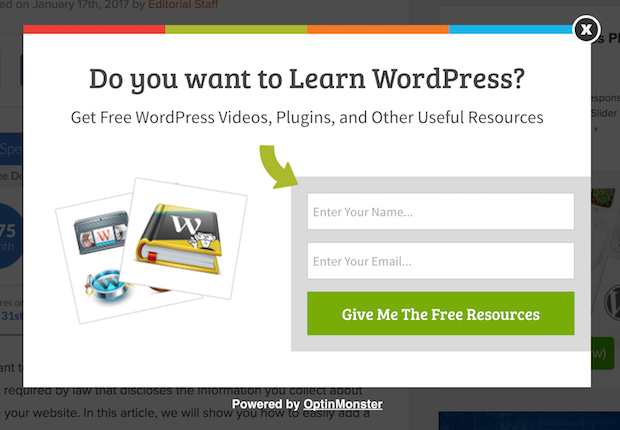
Une fenêtre contextuelle de type lightbox est un formulaire d'opt-in qui apparaît avec un effet cinématographique. Lorsqu'une fenêtre contextuelle de type lightbox apparaît, elle floute le reste du site en arrière-plan. De cette façon, toute votre attention est portée sur la fenêtre contextuelle.
À l'origine, le concept des lightboxes provient de la publicité extérieure :
Et puis, certains développeurs ont pensé que c'était un effet vraiment cool et ont créé une bibliothèque Javascript pour recréer le même effet sur les ressources web. Plus tard, l'idée d'utiliser des fenêtres contextuelles de type lightbox est entrée en jeu.
Pourquoi les fenêtres contextuelles de type lightbox fonctionnent
Les fenêtres contextuelles de type lightbox capturent plus d'adresses e-mail qu'un formulaire d'opt-in traditionnel.
Mais pourquoi fonctionnent-elles ?
Jetons un coup d'œil rapide aux principales raisons pour lesquelles les fenêtres contextuelles de type lightbox fonctionnent si bien.
#1. Les fenêtres contextuelles de type lightbox présentent un appel à l'action clair
La plupart des gens pensent que c'est une excellente chose de donner beaucoup d'options à leurs clients.
Mais ce n'est pas vraiment vrai.
Si vous recherchez des conversions directes, vous voulez un appel à l'action unique et clair sur lequel votre public peut se concentrer. De cette façon, vous éliminez toutes les distractions de l'esprit de l'utilisateur. Et les fenêtres contextuelles de type lightbox font un excellent travail pour mettre en évidence votre offre principale et amener les gens à se concentrer sur votre appel à l'action.
Ainsi, naturellement, les taux de conversion sont assez élevés.
#2. Les fenêtres contextuelles de type lightbox sont impossibles à ignorer
Les fenêtres contextuelles de type lightbox occupent tout l'écran et floutent tout le reste. Il est donc pratiquement impossible de les ignorer.
C'est particulièrement vrai si elles sont animées :
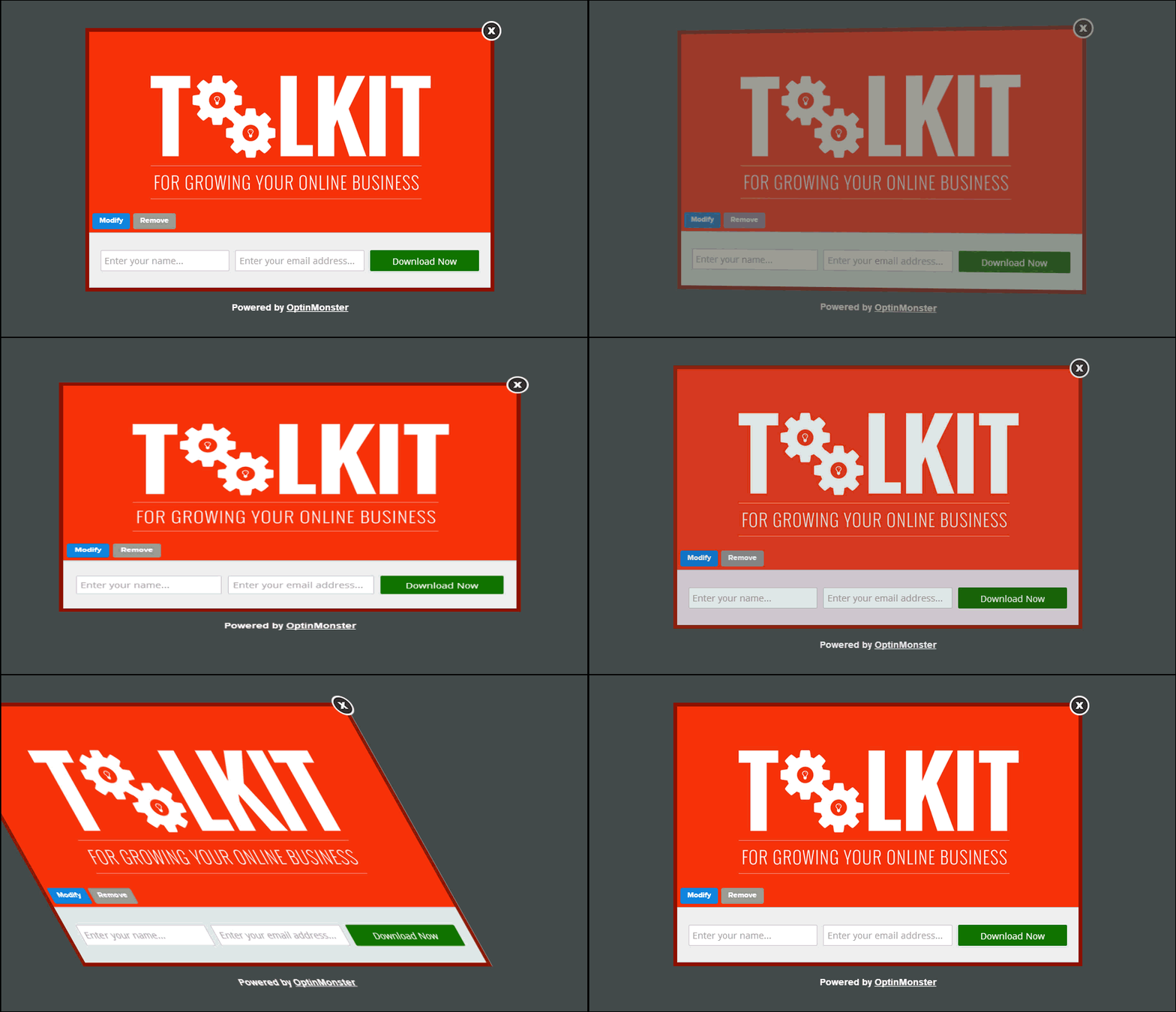
Bien sûr, vous devez vous assurer que vos fenêtres contextuelles ne sont pas intrusives. Et vous pouvez le faire en personnalisant le moment où déclencher différentes fenêtres contextuelles sur votre site. Tant que votre public n'est pas agacé par l'interruption, vous pouvez très facilement le convaincre et le convertir.
#3. Les fenêtres contextuelles de type lightbox ont des déclencheurs personnalisés
Vous ne devriez pas montrer la même offre à tous vos visiteurs web. Si vous gérez une boutique de commerce électronique, vous aurez besoin d'offres très différentes pour les nouveaux clients et les clients fidèles.
Pour un nouveau client, vous pouvez déclencher une campagne de bienvenue :
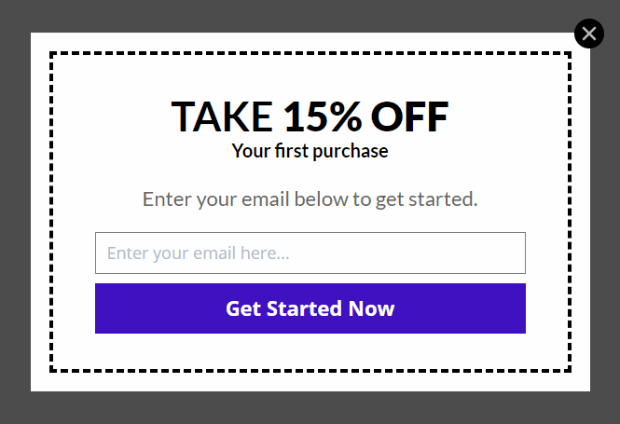
Mais pour un client fidèle, vous voudrez peut-être lui envoyer une offre différente :
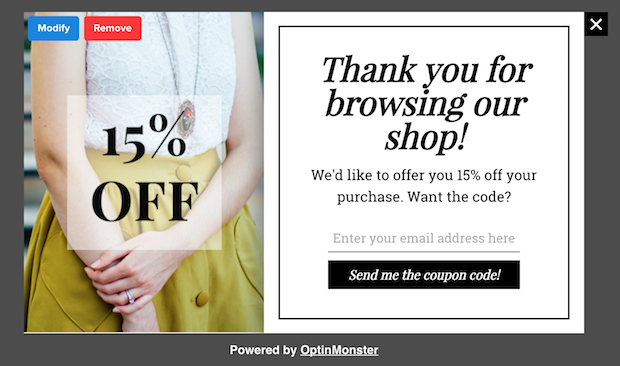
Remarquez comment les montants de réduction pour les deux offres sont exactement les mêmes. Mais la façon dont l'offre est présentée est radicalement différente. Et c'est super important car les fenêtres contextuelles de type lightbox sont conçues pour des effets théâtraux. Ainsi, une approche plus personnalisée vous donnera à coup sûr de bien meilleurs résultats.
Vous pourriez même personnaliser l'offre en fonction des préférences de contenu de votre utilisateur. S'il lit un article sur les recettes de dîner, il est plus logique de lui montrer une offre liée aux recettes de dîner plutôt qu'une offre de voitures.
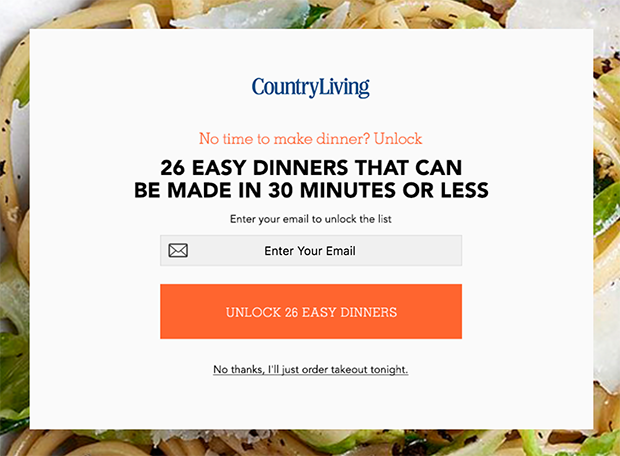
#4. Les popups Lightbox peuvent capturer les visiteurs qui abandonnent
Les Lightboxes sont juste une méthode d'affichage de votre popup. Il n'y a donc vraiment rien qui vous empêche de personnaliser le déclencheur dans la mesure où vous le souhaitez. Nous recommandons de créer des popups Lightbox à intention de sortie.
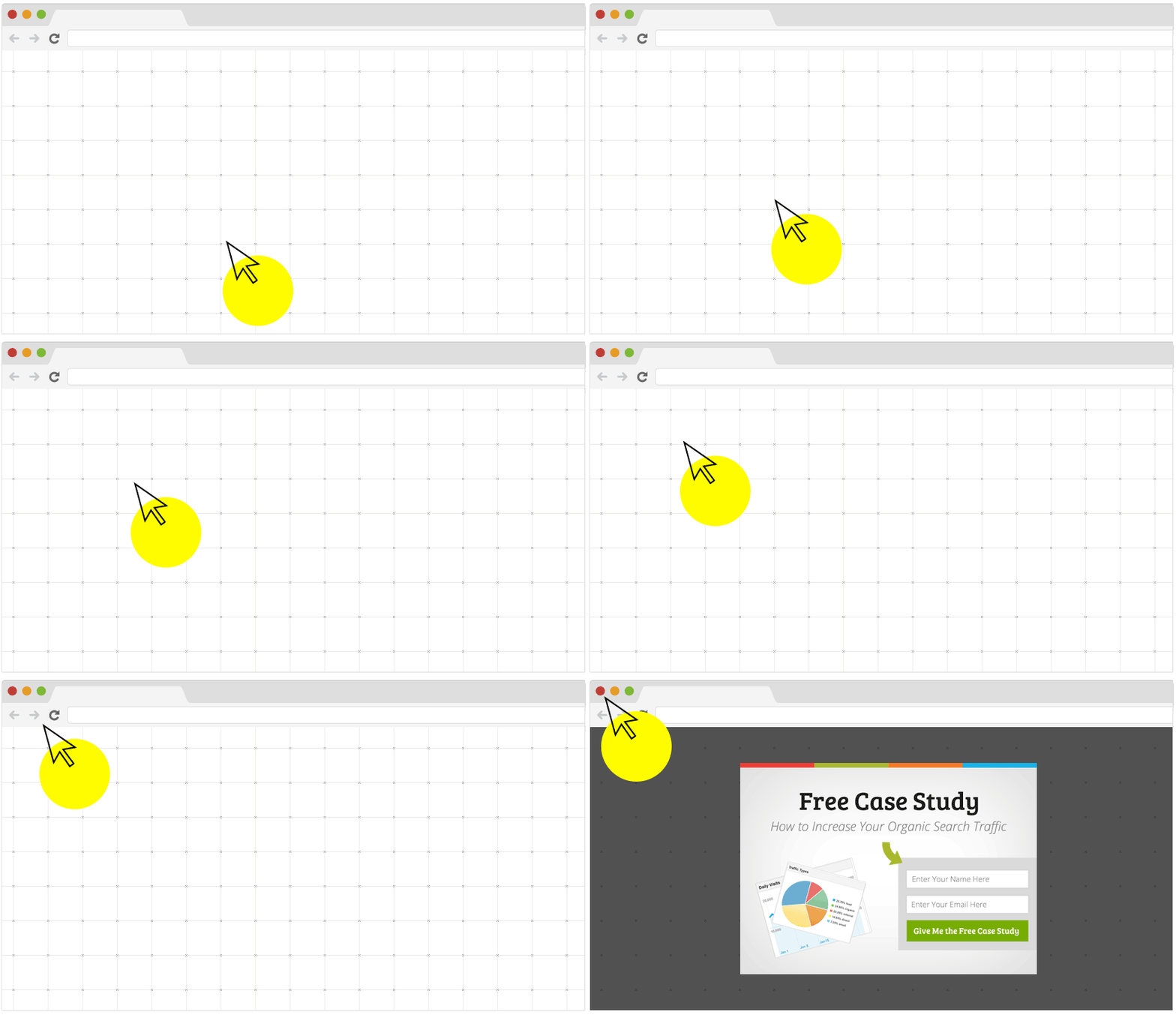
Les popups à intention de sortie sont déclenchés lorsque vos visiteurs essaient de quitter votre site Web. Par conséquent, vous retenez un grand nombre de visiteurs qui auraient autrement abandonné votre site. Donc, si vous souffrez d'd'abandon de site, vous devriez absolument créer un popup Lightbox à intention de sortie.
Comment créer un popup Lightbox
Maintenant que vous comprenez ce qu'est un popup Lightbox et pourquoi vous voudriez en créer un, comment en créez-vous un ? Nous vous recommandons d'utiliser OptinMonster pour créer vos popups.
OptinMonster est la boîte à outils de conversion n°1 au monde et nous l'utilisons nous-mêmes. OptinMonster rend très simple la création de popups puissantes qui convertissent. Et vous n'aurez jamais besoin d'utiliser de code.
Nous avons même écrit une critique complète d'OptinMonster.
Vous pouvez consulter cela, ou commencer votre campagne dès maintenant. Tout ce que vous avez à faire est de vous inscrire à OptinMonster et de suivre le reste de cet article.
Étape n°1 : Créer une campagne
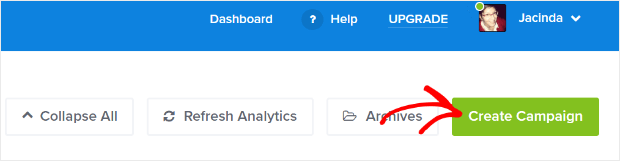
Rendez-vous sur votre tableau de bord OptinMonster et cliquez sur le bouton Créer :
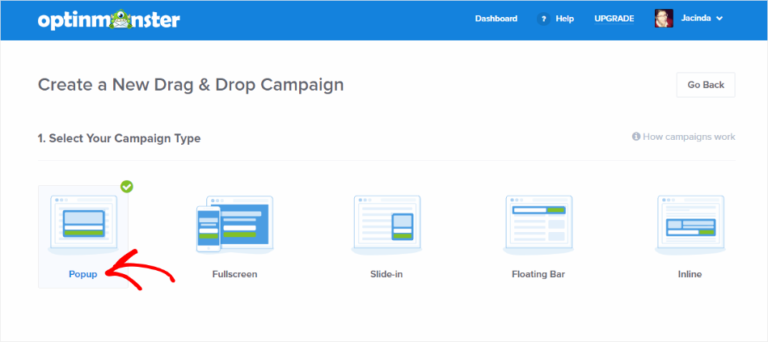
Sélectionnez le type de campagne Popup Lightbox :
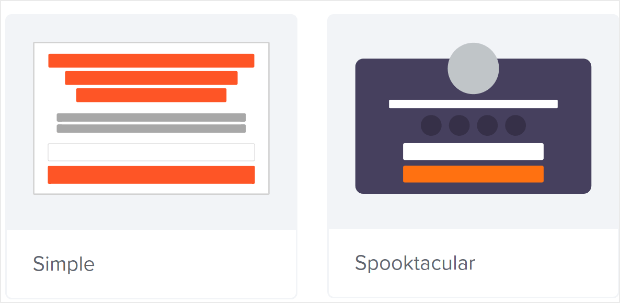
Ensuite, choisissez un modèle de campagne. Vous pouvez choisir le modèle que vous voulez, mais nous allons opter pour le type de campagne Simple pour ce tutoriel.
Maintenant, donnez un nom à votre campagne. N'oubliez pas que ce nom de campagne est pour vous et que vous créerez probablement un grand nombre de ces popups avec différentes options de ciblage. Alors, donnez un nom significatif à la campagne, sinon vous finirez par être vraiment confus plus tard.
De plus, selon votre forfait, vous pouvez également utiliser OptinMonster sur plusieurs sites. Sélectionnez donc le site Web où vous souhaitez afficher votre campagne.
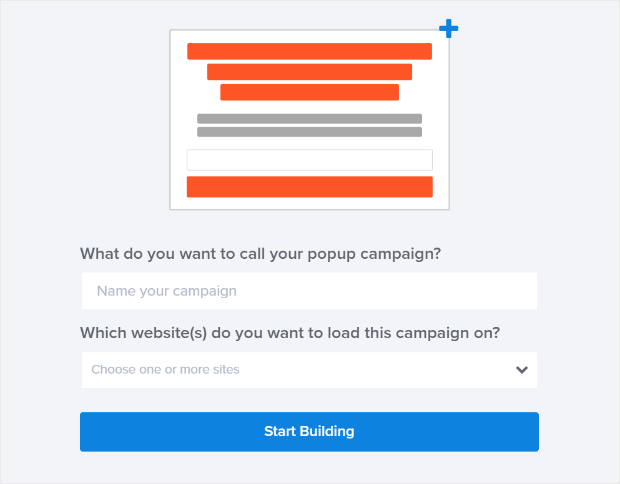
Appuyez sur Commencer la création lorsque vous avez terminé.
Étape n°2 : Modifier votre popup Lightbox
Avec OptinMonster, vous obtiendrez un constructeur de popup visuel par glisser-déposer. Une fois que vous aurez terminé de créer votre campagne, vous pourrez modifier les moindres détails de votre popup. Commencez par modifier le titre de votre popup :
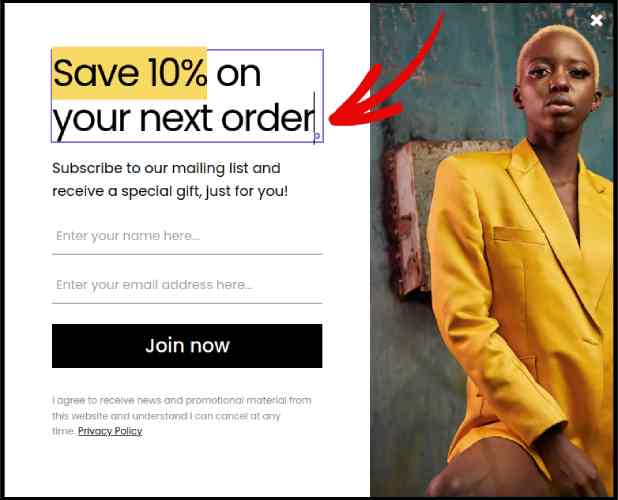
La partie la plus incroyable ici est que vous cliquez simplement sur le texte que vous souhaitez modifier et vous le changez en ligne. Il n'est pas nécessaire de remplir un formulaire ou de modifier du code HTML dans la popup.
Et ensuite, ajustez le texte et l'apparence de votre bouton pour créer un appel à l'action clair :
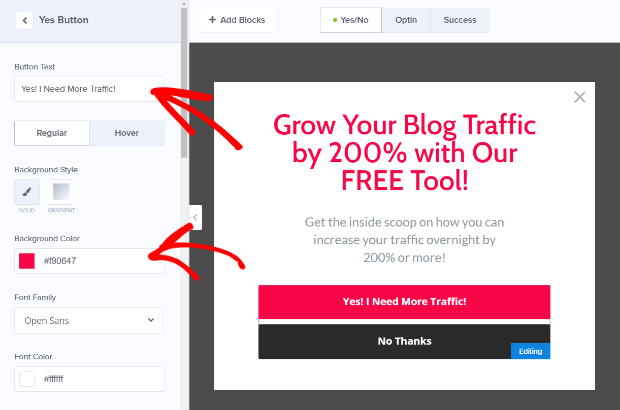
Lorsque vous êtes satisfait de l'apparence de votre popup, vous pouvez passer à des paramètres plus avancés.
Étape n°3 : Définir les règles d'affichage
Les règles d'affichage sont destinées à définir quand votre campagne s'affiche sur votre site et qui la voit.
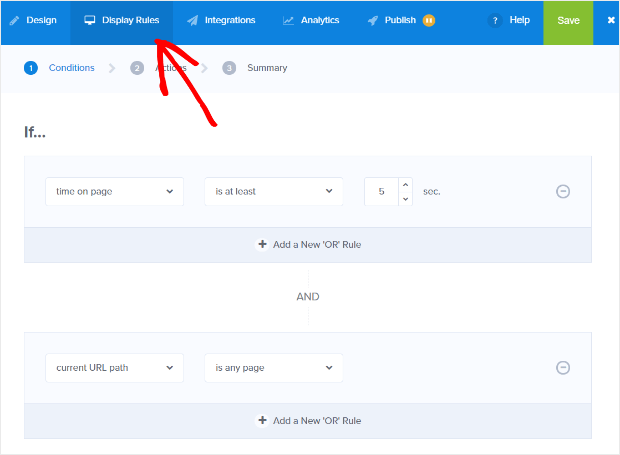
Notre recommandation est de changer la condition de déclenchement en intention de sortie :
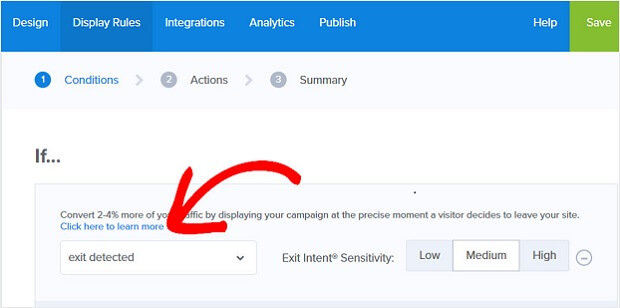
Cliquez sur Étape suivante pour choisir l'Action. Ici, nous vous recommandons de définir Afficher la vue de la campagne sur Vue d'option, de définir Afficher avec MonsterEffect sur l'animation d'entrée de votre choix, et Jouer un effet sonore sur un effet sonore pour votre popup.
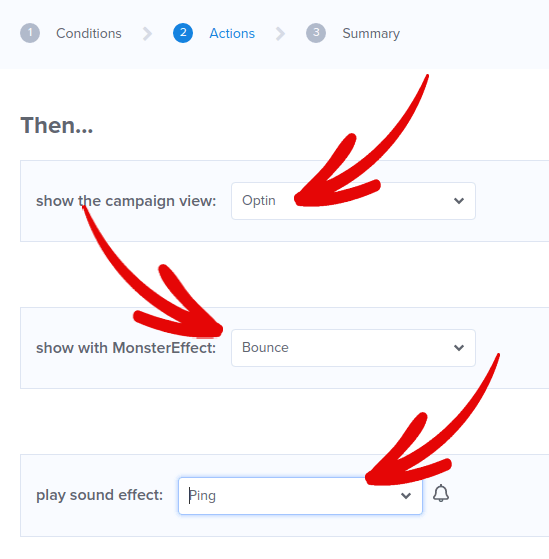
Ensuite, cliquez sur le bouton Étape suivante. Vous pouvez voir l'étendue complète de vos paramètres dans l'onglet Résumé.
Étape n°4 : Configurer votre intégration d'e-mails
L'étape suivante consiste à configurer votre intégration e-mail. Cliquez sur Ajouter une nouvelle intégration depuis l'onglet Intégrations et sélectionnez votre fournisseur de services de messagerie :
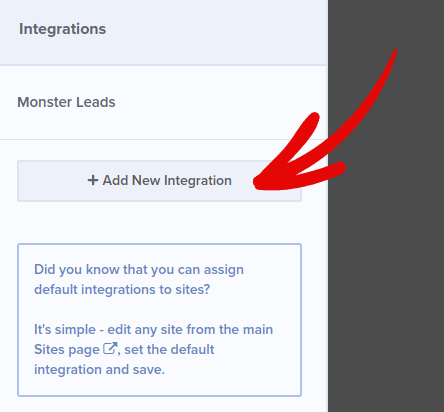
Nous vous recommandons d'utiliser Drip pour votre marketing par e-mail si vous n'avez pas encore de fournisseur de services de messagerie.
Étape n°5 : Publier votre popup Lightbox
Lorsque vous créez une nouvelle campagne, elle est En pause par défaut.
Accédez à l'onglet Publier depuis le menu supérieur pour voir les Options de publication. Ensuite, définissez le statut sur Publier et sélectionnez la plateforme de site Web :
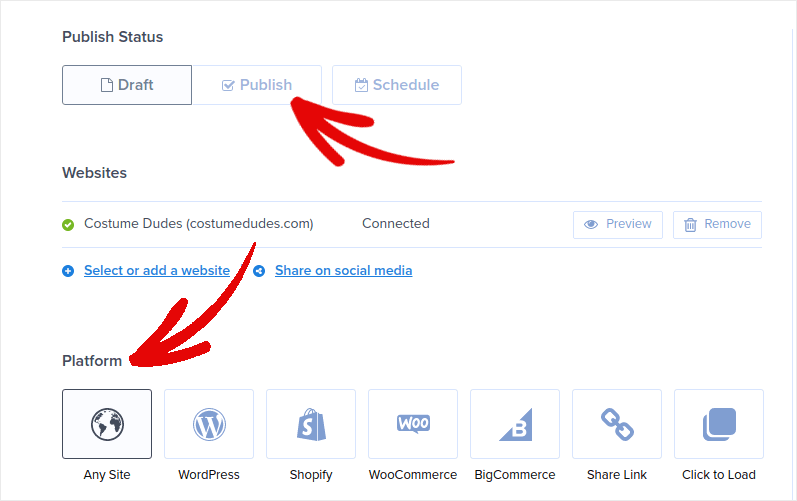
Si vous utilisez un site WordPress, le plugin OptinMonster s'occupe du reste de la configuration automatiquement. Il en va de même pour Shopify et BigCommerce. Pour tout autre site, cliquez sur N'importe quel site et collez le code d'intégration dans l'en-tête de votre site Web :
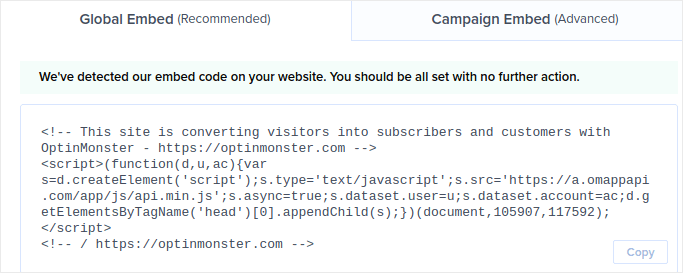
Et voilà !
BONUS : Collectez des abonnés aux notifications push depuis votre popup
Les notifications push vous aident à augmenter le trafic de votre site Web et l'engagement de manière automatique. Les notifications push Web sont un moyen efficace de faire revenir les utilisateurs qui ont pu abandonner leur session ou quitter le site Web. Elles aident à réengager les utilisateurs en les informant des nouveaux contenus, offres ou événements.
Les notifications push incluent également des messages clairs et exploitables ainsi que des boutons d'appel à l'action, encourageant les utilisateurs à entreprendre des actions spécifiques, telles que la lecture d'un article, la finalisation d'un achat ou la participation à un événement.
Vous pouvez adapter les notifications push en fonction des préférences, du comportement et des intérêts des utilisateurs, afin de vous assurer que les messages sont pertinents et précieux pour chaque utilisateur. Les utilisateurs doivent accepter de recevoir des notifications push Web. Cela garantit que les messages ne sont pas considérés comme du spam et qu'ils sont envoyés avec la permission des utilisateurs.
La partie la plus cool est que vous pouvez collecter des abonnés aux notifications push depuis votre popup d'e-mail. Donc, juste au cas où les visiteurs de votre site ne voudraient pas donner leur identifiant e-mail, vous pouvez toujours les faire s'abonner en utilisant les notifications push web.
Et c'est sur cela que nous allons travailler.
Étape n°1 : Sélectionner un service de notification push
Nous vous recommandons d'utiliser PushEngage pour envoyer des notifications push web.

Voici un aperçu rapide de ce que vous obtenez avec PushEngage :
- Campagnes automatisées à forte conversion
- Options de ciblage multiple et de planification de campagne
- Suivi des objectifs et analyses avancées
- Tests A/B intelligents
- Un responsable du succès dédié
Vous pouvez commencer gratuitement, mais si vous êtes sérieux au sujet de la croissance de votre entreprise, vous devriez acheter un plan payant. De plus, avant d'acheter un service de notification push, vous devriez consulter ce guide sur les coûts des notifications push.
Et si vous gérez une boutique en ligne, PushEngage vous aide également à augmenter vos ventes en vous aidant à créer des notifications push e-commerce automatisées.
Vous verrez que PushEngage est de loin le meilleur choix si vous voulez générer du trafic, de l'engagement et des ventes pour votre entreprise. Et si vous avez un budget limité, vous pouvez toujours faire preuve d'un peu créativité avec vos notifications push.
Étape n°2 : Ajouter un bloc HTML à votre popup
Tout d'abord, ajoutez un bloc HTML à votre fenêtre contextuelle depuis la barre latérale dans OptinMonster.
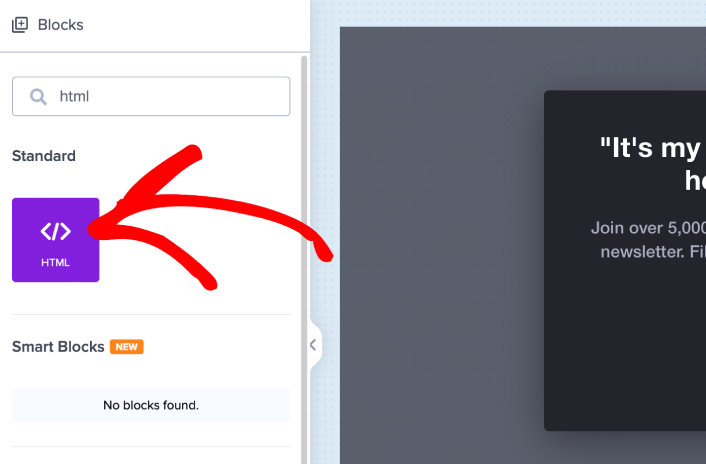
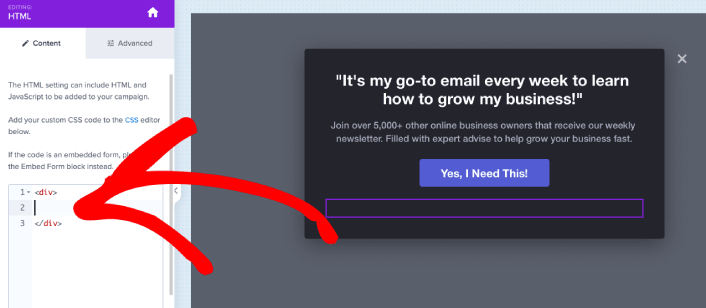
C'est ici que nous allons ajouter le code pour collecter les abonnés aux notifications push. Tout d'abord, collez le code suivant pour créer un bouton cliquable :
<button onclick="subscribeOnClickButton()" style="border: none; width: 100%; padding-left: 15%; padding-right:15%; text-align: center; display: inline-block; color: white;">Get Updates via Push Notifications Instead</button>Collez le code là où il est indiqué que vous pouvez ajouter du HTML :
À ce stade, vous devriez voir un nouveau bouton dans votre popup qui dit « Obtenir les mises à jour par notifications push à la place » juste en dessous du bouton d'abonnement par e-mail :
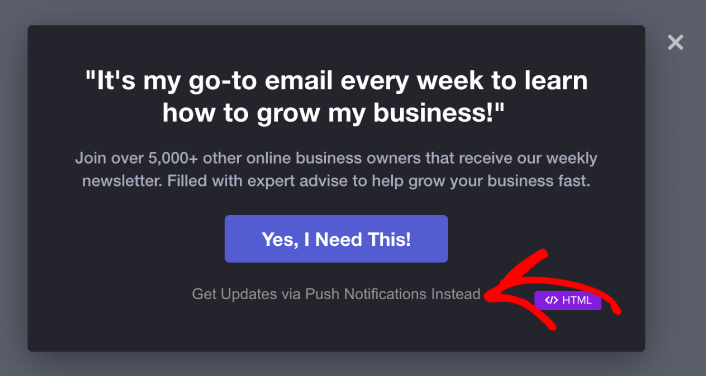
Bien sûr, vous pouvez jouer avec les styles pour le rendre plus attrayant. Ensuite, nous allons faire en sorte que le bouton collecte les abonnés aux notifications push lorsqu'il est cliqué.
Étape n°3 : Obtenir le code d'abonnement de PushEngage
Rendez-vous sur la page d'accueil de PushEngage et cliquez sur le bouton Commencer :

Ensuite, vous devrez sélectionner le plan gratuit pour essayer PushEngage ou choisir un plan payant si vous êtes sérieux au sujet de la croissance de votre entreprise. Les plans payants offrent plus d'options de campagne et la possibilité de créer des listes d'abonnés encore plus grandes.
Dans votre tableau de bord PushEngage, allez dans Paramètres du site » Détails du site et cliquez sur le bouton Cliquez ici pour les instructions de configuration. Sous N'importe quel site, vous obtiendrez votre code d'installation :

ATTENTION : Vous devez copier le code que vous obtenez de votre tableau de bord. Le code est unique pour chaque utilisateur de PushEngage. Vous ne pourrez pas copier le code de l'image et collecter les abonnés aux notifications push.
Une fois que vous avez le code dans votre tableau de bord PushEngage, prenez le deuxième script et ajoutez-lui du code supplémentaire. Votre code final devrait ressembler à ceci :
<script src="https://clientcdn.pushengage.com/core/02a6e92667ae2279fcba8932356c1d93.js" async></script>
<script> window._peq = window._peq || [];
function subscribeOnClickButton(){
window._peq.push(['subscribe',{}.pe,function(res){
console.log(res);
}]);
}
</script>
Étape n°4 : Ajouter votre code d'abonnement au bloc HTML dans votre popup
Ajoutez ce code au bloc HTML dans OptinMonster et vous avez terminé !
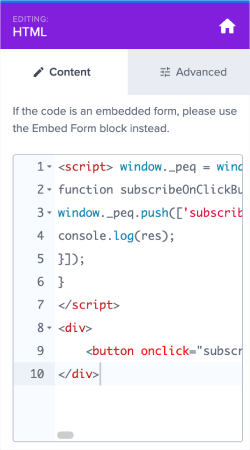
Lorsque vous avez terminé, cliquez simplement sur les boutons Enregistrer et Publier.
Si vous consultez votre site Web, vous devriez maintenant voir la popup lightbox collecter des abonnés par e-mail et par notifications push :
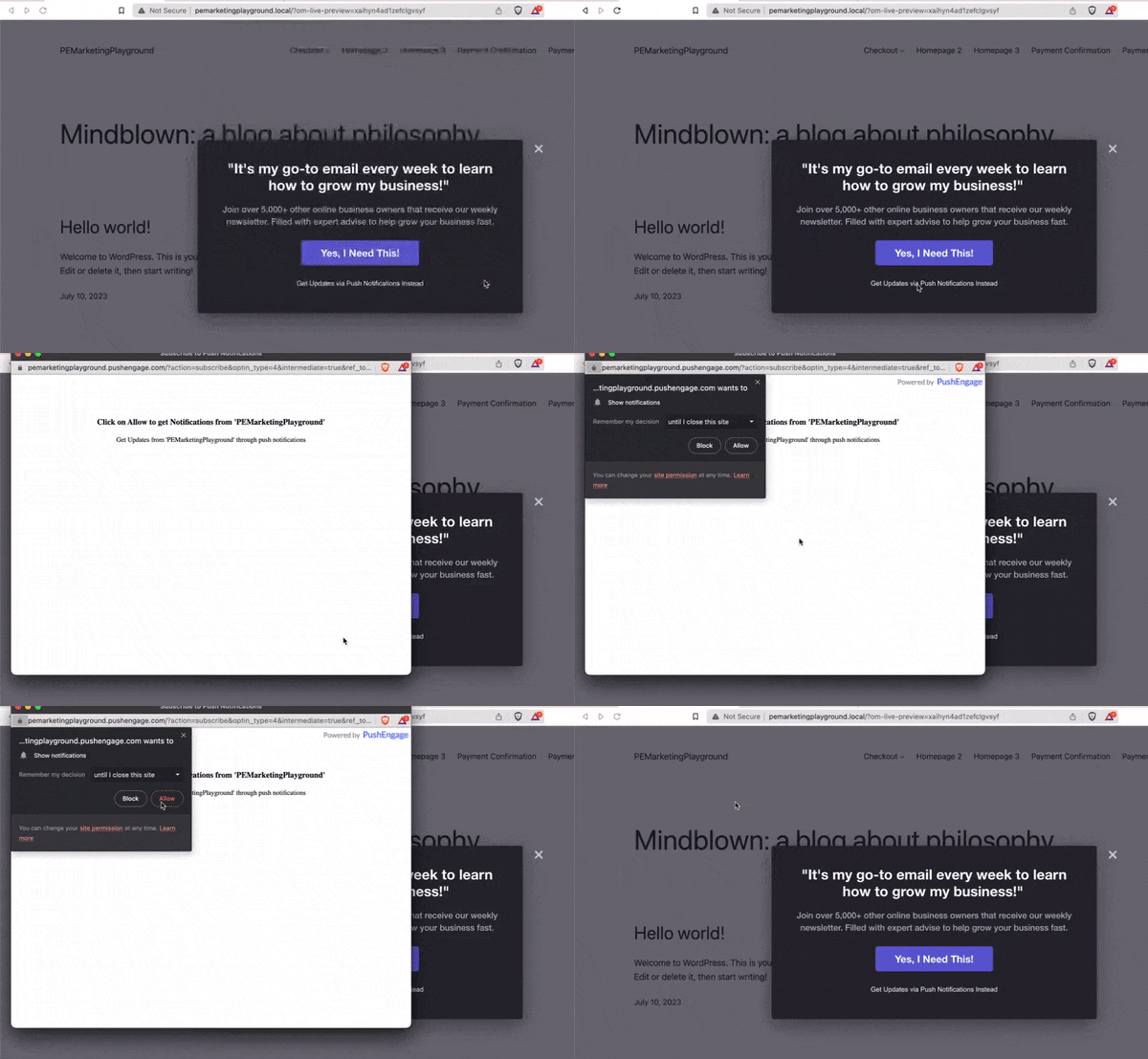
Et juste comme ça, vous collectez des abonnés push depuis votre popup. Les notifications push sont livrées avec leurs propres modales de popup. Mais elles sont un peu difficiles à personnaliser. Vous pouvez donc créer de belles popups en utilisant OptinMonster, puis les utiliser comme vos popups de notification push.
Que faire après avoir créé une popup lightbox
C'est tout pour cette fois, les amis !
Faites-nous savoir si cet article vous a aidé. La création de popups sur votre site peut vous aider à convertir votre trafic en abonnés par e-mail et en prospects commerciaux authentiques. Et nous vous recommandons vivement de commencer à créer des popups lightbox immédiatement.
Et si vous recherchez un moyen abordable de développer votre trafic, nous vous recommandons d'utiliser les notifications push. Les notifications push peuvent vous aider à générer plus de trafic de retour et d'engagement sur le site. Vous pouvez également créer des campagnes de notifications push automatisées qui génèrent des ventes.
Pas convaincu ? Consultez ces ressources :
- 7 stratégies intelligentes pour stimuler l'engagement client
- Les notifications push sont-elles efficaces ? 7 statistiques + 3 conseils d'experts
- Comment configurer des notifications push pour paniers abandonnés (Tutoriel facile)
Nous vous recommandons d'utiliser PushEngage pour créer vos campagnes de notifications push. PushEngage est le logiciel de notifications push n°1 au monde. Donc, si ce n'est pas déjà fait, commencez avec PushEngage dès aujourd'hui !


