Two-factor authentication, or 2FA, adds a second step to your login. After your password, you enter a 6-digit code from an authenticator app, so your account stays secure even if your password is compromised. This guide shows you how to turn on 2FA, save your recovery codes, and what to do if you change phones.
Before You Start
- Verify your email address first. You cannot set up 2FA until your email is verified.
- Install an authenticator app on your phone. You can use Google Authenticator, Microsoft Authenticator, or any other app that supports time-based codes (TOTP).
- Keep somewhere safe to store your recovery codes, which you save at the end of setup.
Turn On Two-Factor Authentication
- Go to your account profile settings and find the Two-Factor Authentication section. You will find this under My Account section.
- Click Enable 2FA.
- In your authenticator app, add a new account by scanning the QR code shown, or by entering the setup key manually if you cannot scan.
- Enter the 6-digit code from your authenticator app to confirm, then continue.
- Save your recovery codes when they appear. You can download them as a file. Store them somewhere safe, because they are how you get in if you lose your device.
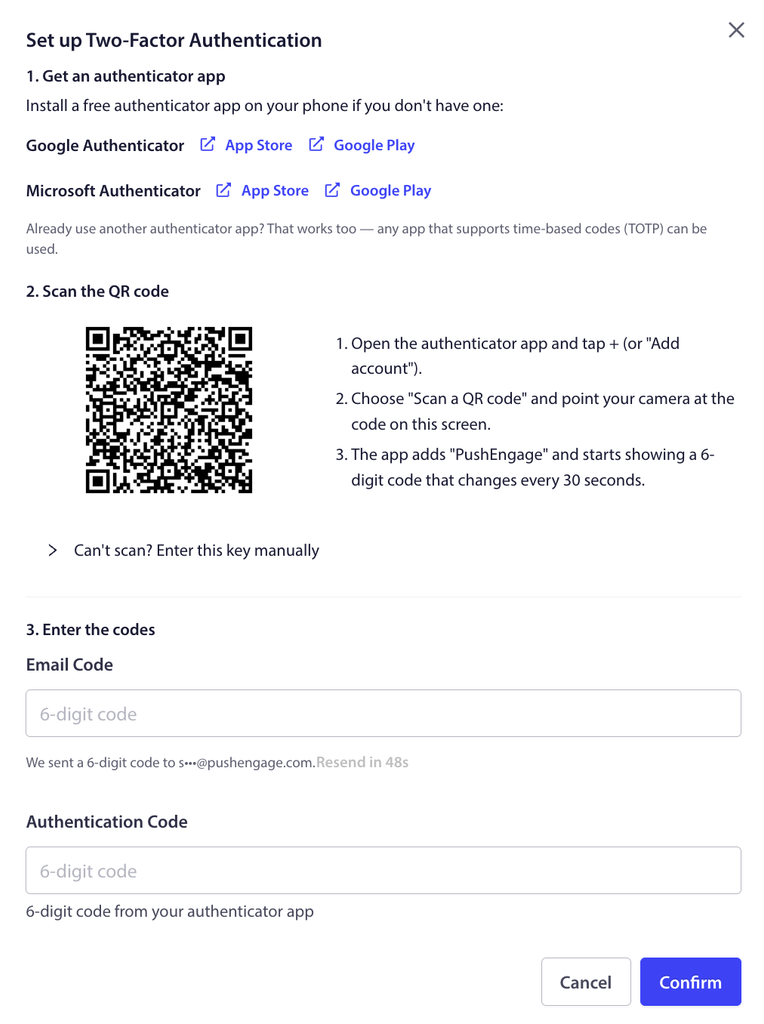
Once 2FA is on, the section shows Enabled, and your login will ask for a code from your authenticator app after your password.
If You Change or Lose Your Phone
If you get a new phone or switch authenticator apps, open the Two-Factor Authentication section and click Reset authenticator to link the new device. If you cannot use your authenticator app at all, use one of the recovery codes you saved during setup to sign in.
Frequently Asked Questions
Which authenticator apps can I use?
Google Authenticator, Microsoft Authenticator, or any other authenticator app that supports time-based codes (TOTP). Any one of them works.
Why do I need to verify my email first?
Email verification is required before you can set up 2FA. If you see a prompt to verify your email, complete that first, then return to the Two-Factor Authentication section.
What are recovery codes, and why save them?
Recovery codes are backup codes you can use to sign in if you lose access to your authenticator app. Save or download them during setup and keep them somewhere safe, since they are your way back into your account if your device is unavailable.
I got a new phone. How do I keep using 2FA?
Open the Two-Factor Authentication section and click Reset authenticator, then scan the new QR code with the authenticator app on your new phone.
What happens at login once 2FA is on?
After you enter your password, PushEngage asks for the current 6-digit code from your authenticator app. Enter it to finish signing in.
If you run into any issues, please feel free to contact us by clicking here. Our support team will be able to help you.