
Vous cherchez un tutoriel simple pour ajouter des balises méta Open Graph WordPress à votre site ?
Open Graph est la façon dont Facebook gère les métadonnées lorsque vous partagez votre article ou votre page sur les publications Facebook. C’est ainsi que Facebook récupère automatiquement l’image mise en avant et la méta-description à partir de l’URL.
Mais l’ajouter manuellement à votre site peut être un vrai casse-tête.
D’une part, vous devrez apprendre comment sont écrites les données structurées Open Graph. Ensuite, vous devrez les insérer dans les fichiers de votre thème WordPress. Et c’est très risqué. Vous devrez modifier des fichiers qui aident l’ensemble de votre site à fonctionner correctement. Une seule ligne mal placée pourrait faire planter tout votre site.
Dans cet article, nous allons ajouter des balises méta Open Graph WordPress de manière simple, sans aucun codage.
Plongeons dans le vif du sujet.
Étape n° 1 : Installer All in One SEO
All in One SEO est le plugin SEO n° 1 au monde pour WordPress. C’est le plugin parfait pour ajouter des balises méta Open Graph WordPress à votre site sans aucun codage.

All in One SEO (AIOSEO) est l’un des plugins SEO les plus acclamés dans la communauté WordPress. La version originale a été complètement remaniée pour ajouter une tonne de nouvelles fonctionnalités et extensions. Donc, si vous avez utilisé AIOSEO par le passé, vous devez revoir le plugin une fois de plus.
Non seulement AIOSEO est suffisamment puissant pour mettre en œuvre les meilleures pratiques SEO actuelles, mais vous bénéficiez également d'options avancées pour résoudre des problèmes SEO spécifiques dès le départ. Cela comprend :
- Modules SEO locaux pour les petites entreprises ayant une audience locale
- SEO WooCommerce pour les boutiques en ligne
- Un optimiseur SEO à l'intérieur de votre éditeur WordPress
- Smart Sitemaps pour un indexation instantanée sur les moteurs de recherche
- Un plugin Schema pour que votre contenu se classe dans les Rich Snippets
Et bien plus encore ! Pour une liste complète des fonctionnalités d’All in One SEO, consultez notre avis sur le plugin.
La première chose à faire est d’installer et d’activer le plugin All in One SEO. Si vous n’êtes pas sûr de la façon de faire, vous devriez consulter ce guide sur comment installer des plugins WordPress.
Après avoir téléchargé et installé le plugin, vous obtenez un Assistant de configuration :
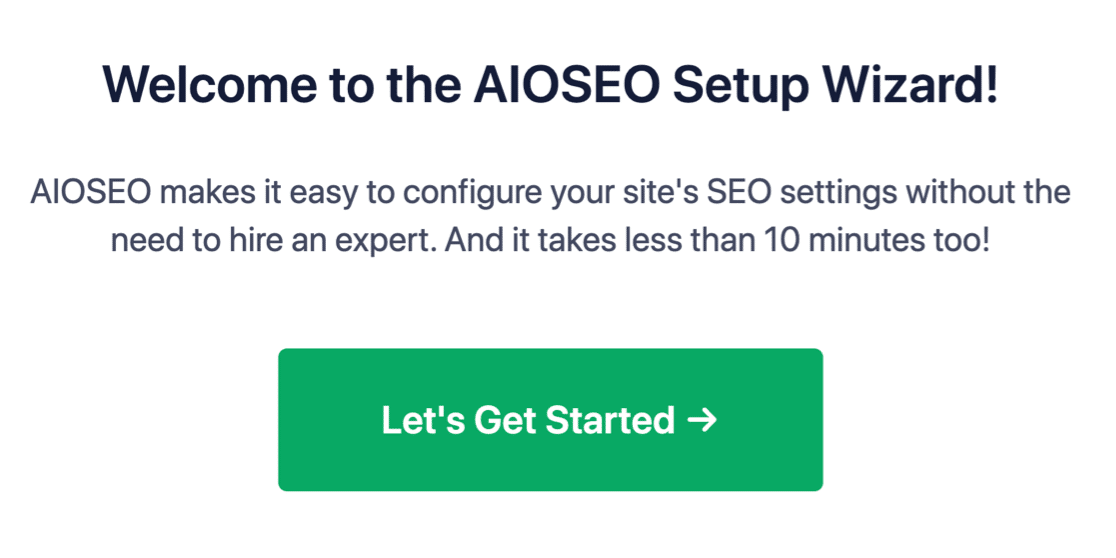
Et le processus de configuration prend moins de 10 minutes.
Mais que faire si vous migrez depuis un autre plugin SEO ? Chaque plugin gère les métadonnées différemment. Alors, devez-vous tout refaire à zéro ? Tous vos efforts précédents sont-ils vains ?
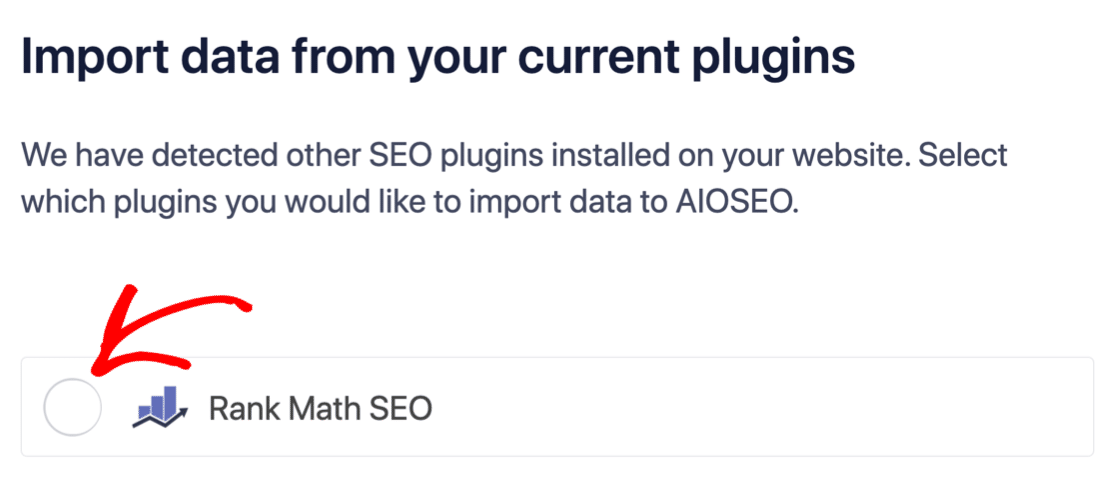
Non ! Si All in One SEO détecte un autre plugin SEO pendant l'Assistant de configuration, il vous proposera de copier les paramètres de base pour vous :
À la fin de la configuration, l'Assistant de configuration vous demandera également de désactiver votre ancien plugin SEO. Ainsi, il n'y aura pas de conflits de plugins ni d'erreurs :
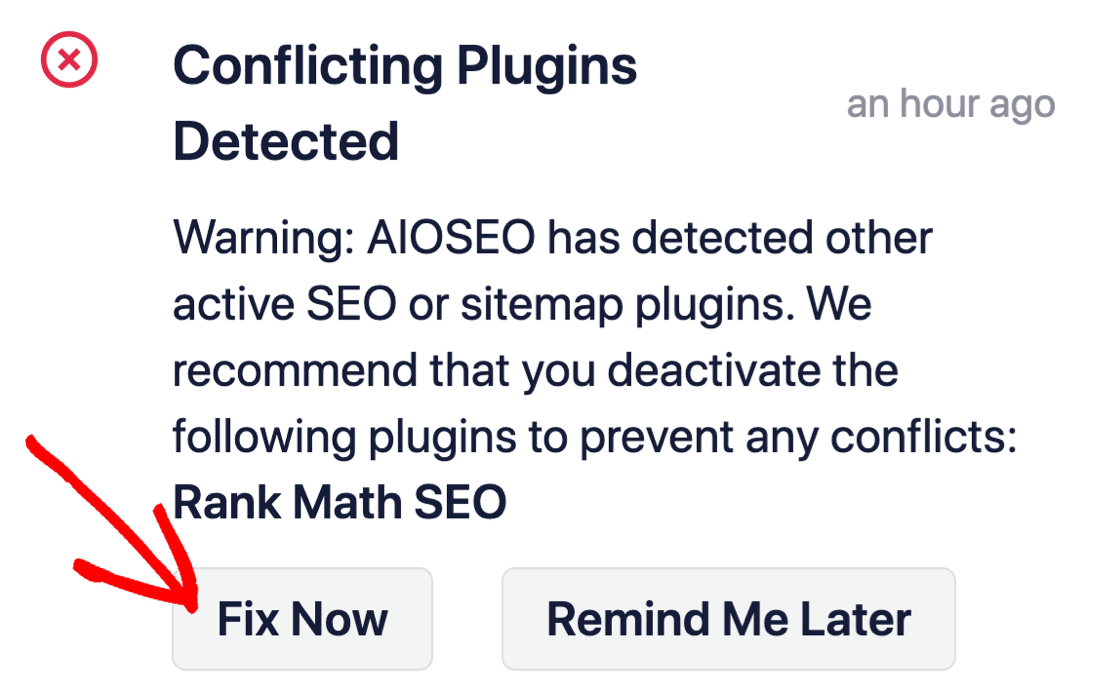
Cliquer sur Corriger maintenant ne supprimera pas les paramètres de votre ancien plugin SEO. Il désactive simplement le plugin pour éviter les conflits.
Étape n° 2 : Configurer les paramètres des médias sociaux
Dans votre tableau de bord WordPress, allez dans All in One SEO » Réseaux sociaux » Profils sociaux et ajoutez vos profils sociaux au site :
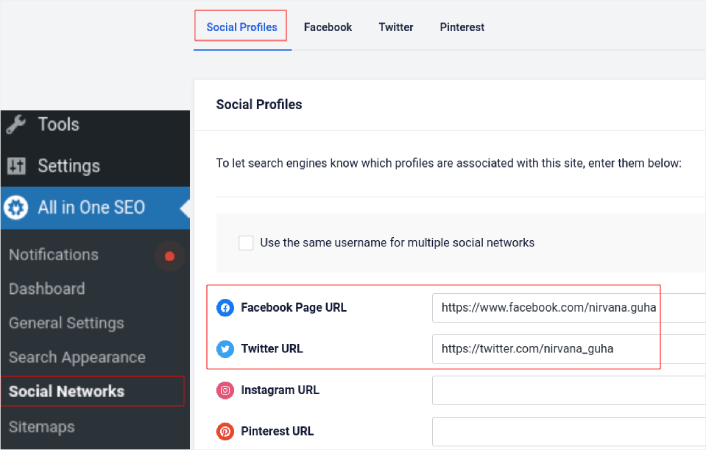
Cette étape garantit que les moteurs de recherche tels que Google et Bing savent quels profils de médias sociaux sont associés à votre site. En même temps, cela vous aide également avec vos paramètres de partage sur les médias sociaux. C’est ce qui suit.
Étape n° 3 : Modifier les paramètres généraux de Facebook
Allez dans All in One SEO » Réseaux sociaux et cliquez sur l’onglet Facebook. Ici, vous pouvez configurer vos Paramètres généraux de Facebook :
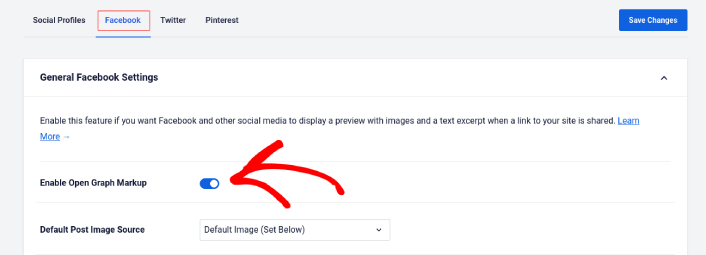
Activez le bouton Activer le balisage Open Graph pour l’activer.
Ici, vous pouvez définir la Source d’image par défaut des articles et une Image Facebook par défaut pour les articles :
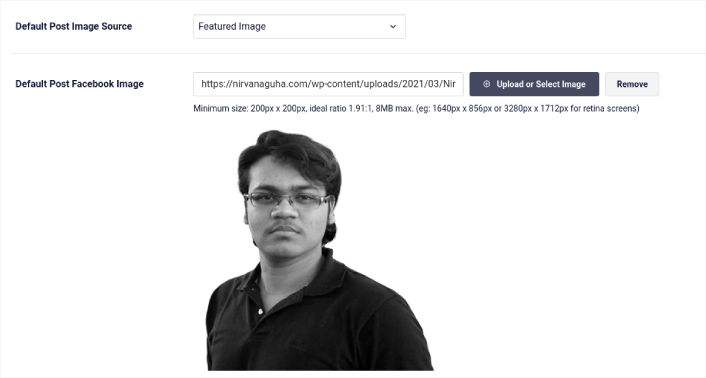
Nous recommandons d’utiliser l’option Image mise en avant comme source d’image pour vos articles. Mais vous devriez également examiner les autres options :
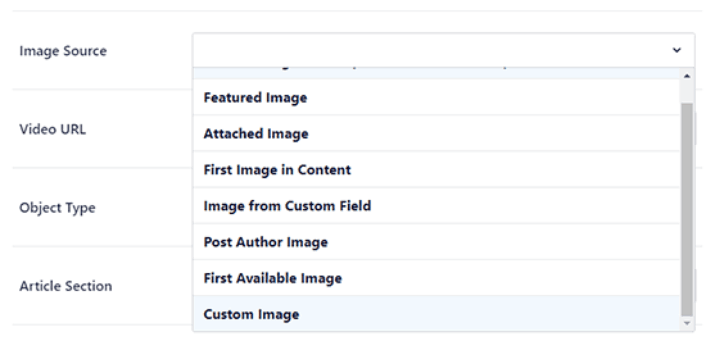
Vous pouvez définir l’image Facebook par défaut comme étant votre logo ou tout ce qui représente votre marque. Cliquez sur le bouton Télécharger ou sélectionner une image pour changer l’image par défaut. Dans notre exemple, nous utilisons une marque personnelle. L’image Facebook par défaut est donc une photo de l’auteur.
Une fois que vous avez terminé, appuyez sur le bouton Enregistrer.
Et voilà ! Vous avez terminé. Une fois que vous avez enregistré les modifications, vous pouvez essayer de partager un article de votre site sur votre page ou profil Facebook.
Que faire après avoir ajouté les balises méta Open Graph de WordPress
C'est tout pour cette fois, les amis !
Ensuite, vous devriez commencer à réfléchir à plusieurs façons d'engager et de convertir le trafic que vous attirez depuis vos comptes de réseaux sociaux. Une excellente façon de le faire est d'utiliser les notifications push. Les notifications push peuvent être un outil marketing puissant pour générer du trafic, de l'engagement et des ventes directes pour votre entreprise.
Si vous n'êtes pas convaincu à 100 %, vous devriez consulter ces ressources sur la façon d'utiliser efficacement les notifications push :
- 7 stratégies intelligentes pour stimuler l'engagement client
- Les notifications push sont-elles efficaces ? 7 statistiques + 3 conseils d'experts
- Comment configurer des notifications push pour paniers abandonnés (Tutoriel facile)
- Comment ajouter un plugin WordPress de notifications Web à votre site
Nous vous recommandons d'utiliser PushEngage pour créer vos campagnes de notifications push. PushEngage est le logiciel de notifications push n° 1 au monde. Donc, si ce n'est pas déjà fait, commencez dès aujourd'hui avec PushEngage !


