Vous cherchez un moyen d'ajouter des notifications push à la version AMP de votre site ? L'ajout de notifications push AMP peut être un peu technique. Mais nous allons vous aider à le faire facilement.
Les AMP ou Accelerated Mobile Pages sont essentiellement une version mobile de votre site. Donc, si vous n'installez pas de web push sur votre site AMP, vous allez perdre un tas d'abonnés car une grande partie de votre audience utilisera des appareils mobiles pour visiter votre site.
Dans cet article, nous allons utiliser PushEngage pour installer les notifications push AMP car c'est beaucoup plus facile que de faire les choses manuellement.
Plongeons dans le vif du sujet.
Comment installer les notifications push AMP
L'installation des notifications push AMP est un processus très rapide et facile. Suivez simplement ces étapes et à la fin de cet article, vous devriez être en mesure d'envoyer des campagnes push depuis votre site comme celle-ci :

Ça a l'air bien, n'est-ce pas ? Plongeons.
Étape n°1 : Configurer votre compte PushEngage
Rendez-vous sur la page d'accueil de PushEngage et cliquez sur le bouton Démarrer :

Vous pouvez sélectionner le plan gratuit pour essayer PushEngage, ou choisir un plan payant si vous êtes sérieux dans le développement de votre entreprise. Les plans payants offrent plus d'options de campagne et la possibilité de créer des listes d'abonnés encore plus grandes.
Une fois que vous avez créé votre compte PushEngage, rendez-vous sur votre tableau de bord PushEngage et allez dans Paramètres du site » Détails du site :

Vous pouvez y définir votre logo, le nom de votre site et l'URL de votre site. Il est très important de régler ces éléments dès maintenant afin de pouvoir tester toute votre configuration plus tard.
Étape n°2 : Obtenir le code d'installation des notifications push AMP
Pour installer le web push sur votre site AMP, vous aurez besoin d'un code d'installation. Dans votre écran Paramètres du site, faites défiler vers le bas et cliquez sur le bouton Cliquez ici pour les instructions de configuration :

Rendez-vous dans l'onglet AMP pour obtenir les paramètres d'installation.
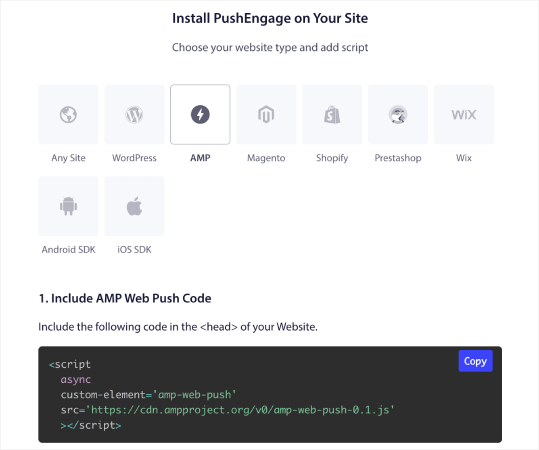
Copiez ce code. Vous devrez coller ce code dans l'<head> HTML de votre site. Si vous utilisez un site WordPress avec une version AMP, le moyen le plus simple est d'utiliser le plugin Insert Headers and Footers. C'est un plugin gratuit où vous pouvez coller le code d'installation AMP sans avoir à modifier le HTML réel de votre site :
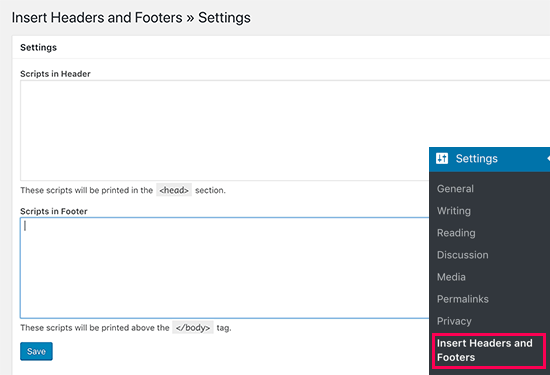
Étape n°3 : Installer le Service Worker sur votre site AMP
Ensuite, téléchargez le fichier du package qui inclut le service worker.
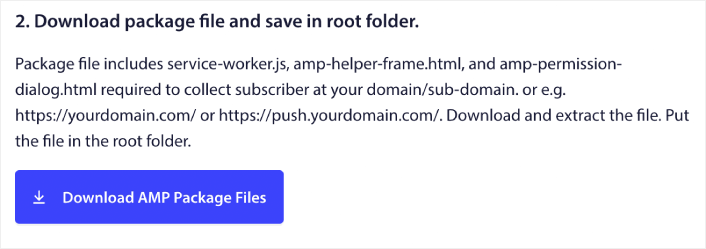
Cela inclut :
- service-worker.js
- amp-helper-frame.html
- amp-permission-dialog.html
Décompressez le package et placez ces fichiers dans le dossier racine de votre serveur. Cette partie est très importante. Si vous sautez cette étape, votre site ne pourra pas collecter d'abonnés push.
Astuce de pro : Si vous n'êtes pas sûr de ce qu'est le dossier racine et comment y téléverser des fichiers, vous devriez consulter cet article sur la Structure des fichiers et répertoires WordPress. C'est un guide très simple pour les débutants et vous obtiendrez beaucoup d'informations sur le fonctionnement de WordPress.
Étape n°4 : Ajouter le code HTML AMP Push à votre site
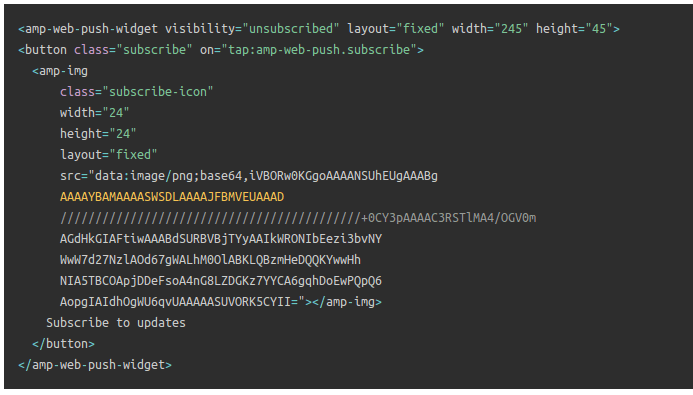
Ensuite, ajoutez le code HTML pour activer un bouton de souscription sur clic et un bouton pour se désabonner des campagnes push.
Ce code active le fichier service worker que vous avez téléchargé et permet à votre site d'afficher les boutons de souscription et de désabonnement. Pour collecter des abonnés, vous devez offrir à vos visiteurs un moyen simple de s'abonner à vos campagnes push. Le bouton de désabonnement permettra à vos abonnés actifs de se désinscrire s'ils ne sont pas intéressés par votre contenu. Les deux sont assez importants.
Ajoutez le bouton « S'abonner aux mises à jour » là où vous souhaitez qu'il apparaisse sur votre site :
Et ajoutez un bouton « Se désabonner des mises à jour » :
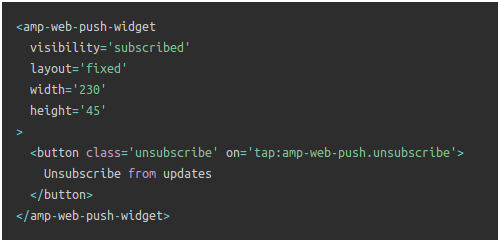
Le bouton Se désabonner sera un simple bouton « appuyez pour vous désabonner ». Vous bénéficiez de nombreuses options de personnalisation pour la version non-AMP de votre site sur les appareils mobiles et de bureau. Nous vous recommandons donc d'ajouter le CSS AMP à votre section <body>.
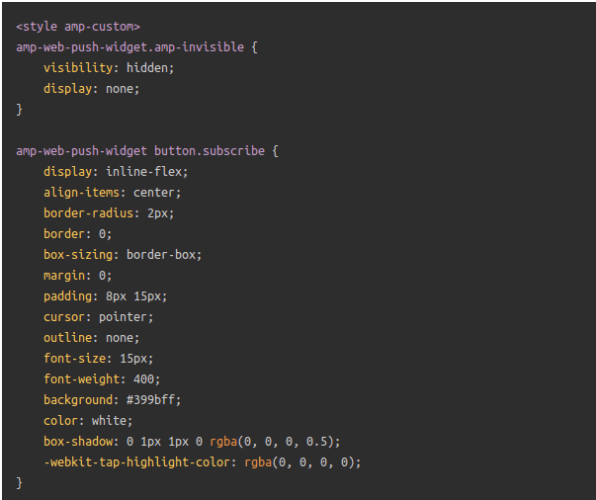
Cet extrait de code est destiné à personnaliser l'apparence des boutons S'abonner et Se désabonner. Si vous souhaitez jouer avec ces styles, allez-y. Assurez-vous simplement de ne pas modifier les balises HTML AMP que le code stylise.
Et voilà. Vous avez terminé.
Étape n° 5 : Configuration de l'opt-in PushEngage
Maintenant, retournez à votre tableau de bord PushEngage. Allez dans Design » Modèles de popup et sélectionnez l'option de votre choix :
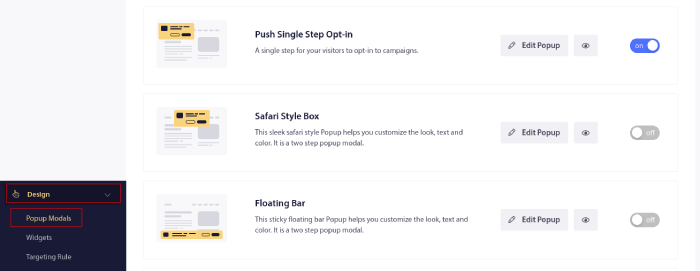
L'idée ici est de donner à vos visiteurs une bonne raison de s'abonner. Si vous avez besoin d'aide à ce sujet, consultez notre article sur comment créer un opt-in de notification push personnalisé.
Et si vous souhaitez des modèles pour commencer, vous devriez consulter cet article sur les opt-ins de notification push à haute conversion.
Étape BONUS : Créez une campagne de bienvenue
Une fois que vous avez terminé la configuration de la popup d'inscription, votre site peut collecter des abonnés.
Mais comment savoir si vos campagnes push fonctionnent correctement ?
Nous vous recommandons de créer une notification push de bienvenue pour tester si votre configuration s'est déroulée sans problème. Une notification de bienvenue est une notification push web que vous envoyez à un nouvel abonné pour confirmer son abonnement et le souhaiter la bienvenue.
Accédez à votre tableau de bord PushEngage et allez dans Campaign » Drip Autoresponders, puis cliquez sur Create New Drip Autoresponder :

Ensuite, nommez votre campagne (nous suggérons quelque chose comme Drip de bienvenue), et sous Contenu, sélectionnez l'option qui dit : « Envoyer la notification immédiatement après l'abonnement de l'utilisateur ») :

À ce stade, vous pouvez cliquer sur la flèche à côté de la notification pour modifier le contenu de votre notification. Si vous avez un plan Premium ou Entreprise avec PushEngage, vous pourrez ajouter plus d'une notification pour créer une séquence de messages de bienvenue automatisés. Cliquez simplement sur Ajouter une nouvelle notification et modifiez le contenu.
Une fois que vous avez terminé, cliquez sur Paramètres de drip et sélectionnez l'option pour envoyer votre campagne de bienvenue à tous les abonnés :

Ensuite, faites défiler vers le bas pour définir vos propres paramètres UTM afin de suivre les campagnes push :

Et une fois que vous avez terminé, faites défiler vers le haut et cliquez sur le bouton Activer l'autorépondeur :

Et c'est tout !
Vous avez configuré avec succès les notifications push web AMP sur votre site web. Il est temps de retourner à votre tableau de bord PushEngage et de commencer à créer vos campagnes push.
Que faire après avoir ajouté les notifications push AMP à votre site
C'est tout pour cette fois, les amis !
Si vous débutez avec les campagnes push, vous devriez suivre un processus complet de test des notifications push avant de vous lancer. Cela vous aidera à résoudre les problèmes courants avant que vos visiteurs ne les voient et ne commencent à se plaindre d'une expérience utilisateur défaillante.
Vous devriez également consulter d'autres campagnes automatisées de notifications push telles que :
Nous vous recommandons de contacter nos responsables du succès client si vous êtes bloqué sur l'un de ces points. Nous serons ravis de vous aider avec n'importe quel problème.
Et si ce n'est pas déjà fait, essayez PushEngage. PushEngage est le service de notification push n° 1 au monde. Donc, si vous êtes sérieux au sujet de la croissance de votre entreprise, PushEngage est la bonne option pour vous.


Merci pour ces astuces et informations. C'est très facile à comprendre.
bonne explication