Vous cherchez un moyen simple d'ajouter des notifications push à votre Instapage ?
C'est une très bonne idée. Instapage est un constructeur de sites web qui vous permet de créer des pages web instantanées. Il est très facile de créer un site web et de commencer à vendre un produit ou un service.
Mais une fois que votre site est en ligne, comment générer du trafic ? Comment susciter l'engagement ? Comment augmenter les ventes ?
C'est là que les notifications push peuvent être très efficaces en tant qu'outil marketing car elles peuvent générer du trafic et des ventes répétés sans avoir à recourir à des publicités payantes. Vous pouvez également créer des campagnes automatisées pour stimuler l'engagement et les ventes avec très peu d'effort.
Dans cet article, nous allons vous montrer étape par étape comment ajouter des notifications push à un site Instapage en moins de 10 minutes.
Plongeons dans le vif du sujet.
Comment installer des notifications push sur Instapage
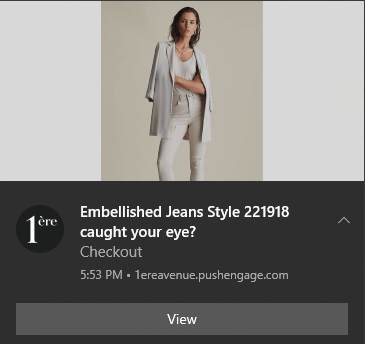
L'ajout de notifications push à un site Instapage est assez simple. Suivez simplement les étapes de cet article. Si vous suivez chaque étape, à la fin de cet article, vous devriez être en mesure d'envoyer des notifications push comme celle-ci :
Allons-y !
Étape n°1 : Configurer votre compte PushEngage
Rendez-vous sur la page d'accueil de PushEngage et cliquez sur le bouton Commencer :

Vous pouvez essayer PushEngage gratuitement. Si vous gérez un petit blog qui a besoin de trafic et d'engagement répétés, cela suffira probablement. Mais si vous êtes sérieux au sujet des ventes, vous devriez obtenir le package Enterprise et débloquer les campagnes automatisées.
Une fois que vous avez créé votre compte PushEngage, rendez-vous sur votre tableau de bord PushEngage et allez dans Paramètres » Paramètres du site » Paramètres d'installation :
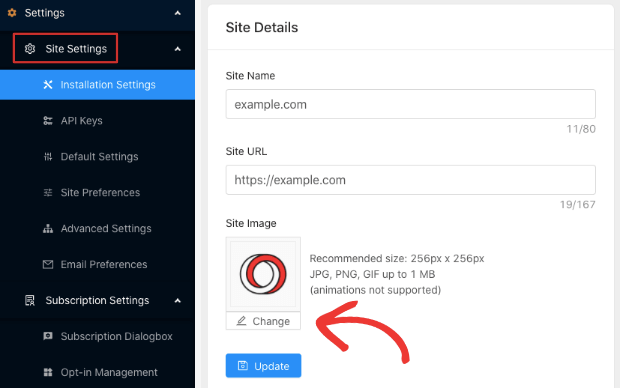
Vous pouvez y définir votre logo, le nom de votre site et l'URL de votre site. Il est très important de régler ces éléments dès maintenant afin de pouvoir tester toute votre configuration plus tard.
Étape n°2 : Obtenir le code d'installation de PushEngage
Pour installer les notifications push, vous devrez obtenir un code d'installation depuis votre tableau de bord PushEngage. Rendez-vous dans Paramètres » Paramètres du site » Paramètres d'installation :
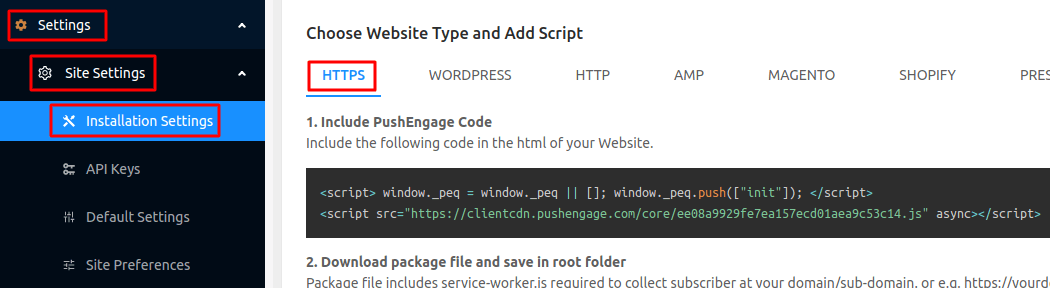
Selon que votre site dispose ou non d'un certificat SSL installé, allez dans l'onglet HTTP ou l'onglet HTTPS pour obtenir votre code d'installation.
Copiez cet extrait de code Javascript. Vous en aurez besoin bientôt.
Étape n°3 : Placez le code d'installation sur votre site Instapage
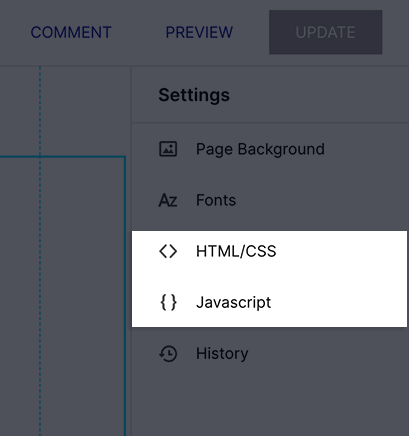
Connectez-vous à votre tableau de bord Instapage et dans le constructeur de site, allez dans Paramètres et cliquez sur Javascript :
Ensuite, collez simplement l'extrait de code que vous avez obtenu de votre tableau de bord PushEngage dans la fenêtre contextuelle :
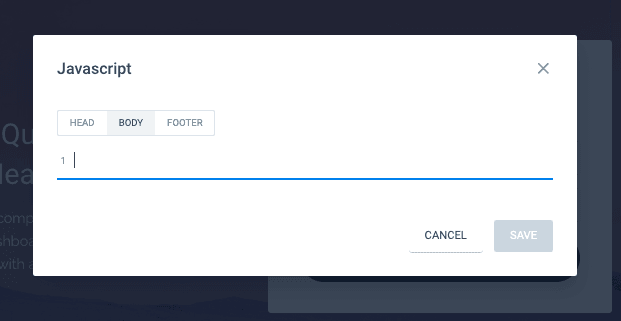
C'est généralement là que vous placeriez votre code Google Analytics, votre Pixel Facebook et d'autres codes de suivi. Lorsque vous avez terminé, cliquez sur Enregistrer.
Étape n°4 : Configurer l'opt-in PushEngage
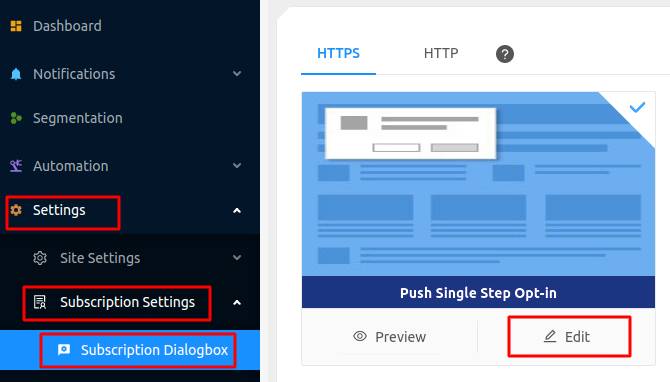
Maintenant, retournez à votre tableau de bord PushEngage. Allez dans Paramètres » Paramètres d'abonnement » Boîte de dialogue d'abonnement » Modifier :
L'idée ici est de donner à vos visiteurs une bonne raison de s'abonner. Si vous avez besoin d'aide à ce sujet, consultez notre article sur comment créer un opt-in de notification push personnalisé.
Et si vous souhaitez des modèles pour commencer, vous devriez consulter cet article sur les opt-ins de notification push à haute conversion.
Étape n°5 : Créer votre première campagne
Maintenant que votre site Instapage peut envoyer des notifications push, vous devriez créer une campagne réelle.
Étant donné que vous allez probablement vendre un produit sur votre page de destination, configurons un rappel de panier abandonné pour votre boutique.
Une campagne de panier abandonné aide à générer des revenus supplémentaires en convertissant les paniers abandonnés. C'est un simple rappel qui vend beaucoup de produits en mode automatique. C'est donc une excellente campagne pour soutenir toute page de destination qui génère des ventes directes.
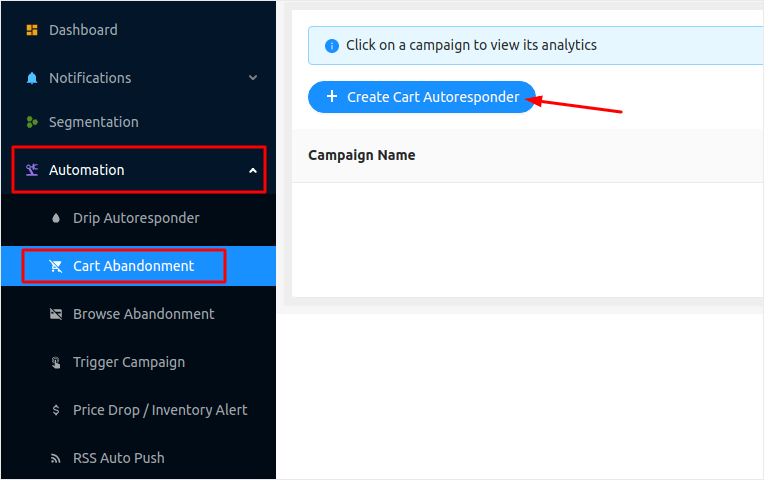
Rendez-vous simplement sur votre tableau de bord PushEngage et allez dans Automatisation » Panier abandonné » Créer un répondeur automatique de panier :
Si vous débutez dans la création de campagnes marketing automatisées, vous pouvez simplement suivre notre article sur comment configurer une campagne de notification push de panier abandonné. Suivez chaque étape et vous pourrez configurer des notifications push comme celle-ci :
Et juste au cas où vous vous demanderiez, vous n'avez pas besoin d'être une marque de renommée mondiale pour que vos campagnes de notifications push soient efficaces. En fait, PushEngage a été créé pour aider les petites entreprises à se développer grâce aux notifications push.
Mais avant de commencer à promouvoir votre page de destination, vous devriez corriger tout problème avec votre processus d'abonnement aux notifications push. Consultez cet article sur les tests de vos notifications push. Si tout fonctionne parfaitement, vous avez terminé !
Conclusion
C'est tout pour cette fois, les amis !
Vous venez d'ajouter des notifications push à votre site Instapage. Ensuite, vous avez créé une puissante campagne de notifications push pour stimuler votre croissance. Tout cela, en moins de 10 minutes !
Découvrez comment créer également des campagnes de notifications push automatisées. La plupart des campagnes push sont simples et efficaces. Nous vous recommandons donc de configurer plusieurs campagnes pour votre site. Voici quelques excellentes options pour commencer :
- Comment envoyer automatiquement des notifications push RSS
- Comment configurer les notifications push d'abandon de panier à l'aide de GTM
- Comment programmer les notifications push facilement [Guide de 5 min.]
Et si ce n'est pas déjà fait, commencez avec PushEngage. PushEngage est le logiciel de notification push n°1 au monde. Vos campagnes sont donc entre de bonnes mains.


