Vous cherchez un guide détaillé, étape par étape, pour créer des notifications push pour le Black Friday qui convertissent ?
Bien sûr, vous pouvez envoyer une simple diffusion de notifications push. Mais cela fonctionnera-t-il ? Nous avons trouvé un processus solide pour vous aider à augmenter vos ventes pendant la période des fêtes. Et nous l'avons testé plusieurs fois avec plusieurs marques.
Dans cet article, nous expliquons comment nous créons des notifications push pour la vente du Black Friday de PushEngage. Et comment vous pouvez faire la même chose. Nous allons examiner ce dont vous avez besoin pour commencer, comment créer les campagnes et à quoi ressemblerait un calendrier idéal.
Ça vous dit ? Plongeons.
Avant de commencer avec les notifications push du Black Friday
Les notifications push sont un outil marketing qui vous aide à vous connecter avec les visiteurs du site Web, même après qu'ils aient quitté votre site. Vous pouvez envoyer des notifications ciblées à vos abonnés push et même personnaliser vos notifications pour différents segments de clientèle. Mais quel service de notification push devriez-vous choisir ?
Nous vous recommandons d'utiliser PushEngage pour envoyer des campagnes de notifications push.

PushEngage est le meilleur service de notifications push au monde. Et nous ne parlons pas seulement de la version gratuite. Il vous permet de vous connecter avec les visiteurs après qu'ils aient quitté votre site avec des messages push ciblés.
PushEngage est notre premier choix pour les services et outils de notifications push car il est :
- Il est si facile à utiliser
- Efficace sur les sites HTTP et HTTPS
- Il est livré avec un constructeur visuel qui nécessite peu ou pas de codage pour être configuré
- Configurez facilement des campagnes de notifications push entièrement automatisées pour tout type de site
- Dispose de plusieurs options pour envoyer des notifications push personnalisées afin d'augmenter les taux de clics
- Équipé du suivi d'objectifs personnalisé, des paramètres UTM et d'analyses avancées
Et ce n'est qu'un aperçu. Consultez la liste complète des fonctionnalités de PushEngage avant d'aller plus loin. La partie la plus incroyable de PushEngage est qu'il dispose d'un plan gratuit à vie que vous pouvez essayer avant de prendre une décision d'achat.
Astuce de pro : Consultez notre article sur l'analyse du coût des notifications push avant d'acheter un service.
Une fois que vous avez créé votre compte, rendez-vous sur le tableau de bord PushEngage et suivez les instructions :

Cliquez sur Paramètres du site » Détails du site et cliquez sur le bouton Cliquez ici pour les instructions de configuration :

Cliquez sur l'onglet WordPress et cliquez sur le bouton Installer le plugin WordPress PushEngage pour installer le plugin sur votre site web.

Le plus intéressant : Lorsque vous avez créé votre compte PushEngage, vous avez déjà synchronisé votre site web avec votre compte PushEngage. Cliquez donc sur le lien d'installation dans le tableau de bord PushEngage pour installer automatiquement le plugin WordPress PushEngage sur votre site web.
Et voilà ! Vous avez installé avec succès un plugin de notifications web WordPress sur votre site Web. Vous n'avez pas besoin de vous connecter à votre panneau d'administration WordPress. Pour un guide plus détaillé, consultez notre article sur comment installer des notifications web sur WordPress.
Avant de commencer à créer des notifications push pour le Black Friday, vous devriez également consulter ces ressources pour vous aider à démarrer.
- Comment ajouter un plugin WordPress de notifications web à votre site
- Comment ajouter votre icône de notification push (la méthode facile)
- 7 meilleures pratiques de notification push pour obtenir du trafic instantané
- Comment activer les inscriptions en une seule étape pour les notifications push
- [Annonce] PushEngage dispose désormais d'un regroupement avancé d'audiences
Je vous recommande vivement d'utiliser ces ressources pour commencer rapidement avec PushEngage.
Comment créer votre campagne de notifications push
Maintenant que nous avons une compréhension de base du fonctionnement de PushEngage, créons notre campagne. Actuellement, PushEngage n'offre la fonctionnalité Groupes d'audience que pour les Diffusions push.
Donc, dans votre tableau de bord PushEngage, allez dans Campagne » Diffusions push pour créer vos notifications push.

Ensuite, suivez notre processus étape par étape pour créer une puissante vente du Black Friday. Si vous suivez chaque étape, vous devriez avoir des notifications push puissantes comme celle-ci :
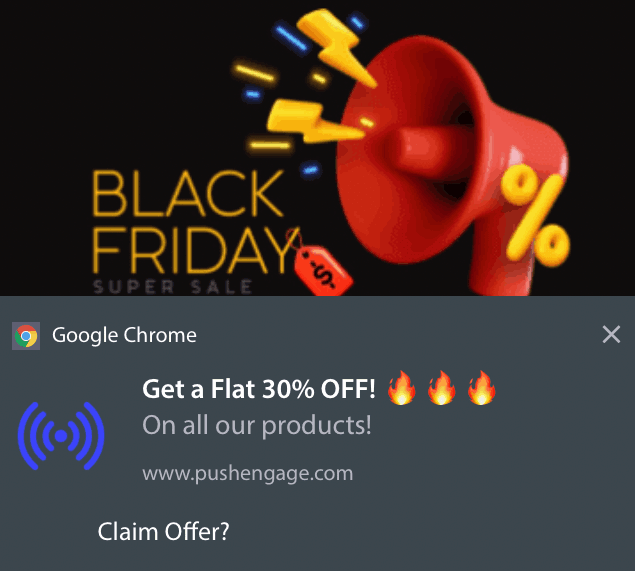
Étape n° 1 : Rédigez le contenu de votre notification push
Le contenu de votre notification push comprendra :
- Un titre de notification
- Un message de notification
- Une URL vers laquelle rediriger
- Une grande image pour la notification
- Boutons d'appel à l'action
- Une limite d'expiration de notification
Commencez par le contenu de base de votre notification :
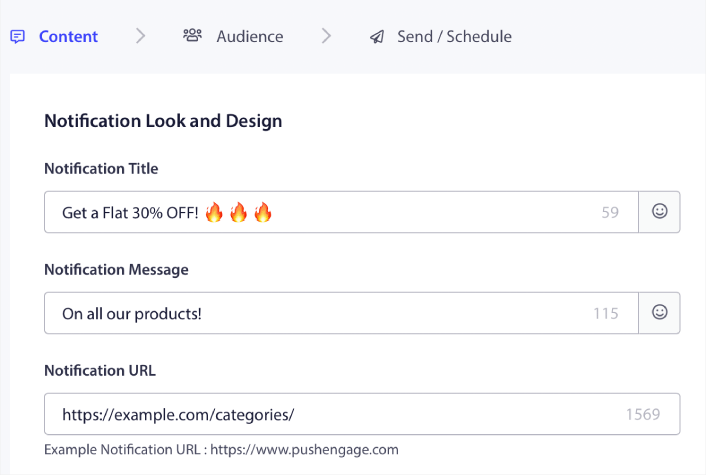
Remarquez l'utilisation d'emojis dans le Titre de la notification. Nous recommandons d'utiliser des emojis dans le titre et le message pour toutes vos notifications push afin d'obtenir des taux d'ouverture plus élevés. Vous pouvez également effectuer des tests A/B de vos notifications pour de meilleures performances.
Étape n° 2 : Ajoutez une grande image à votre notification
Il est difficile de se démarquer d'une multitude de notifications dans le Centre de notifications. C'est pourquoi vous avez besoin d'une grande image pour que vos notifications ressortent :
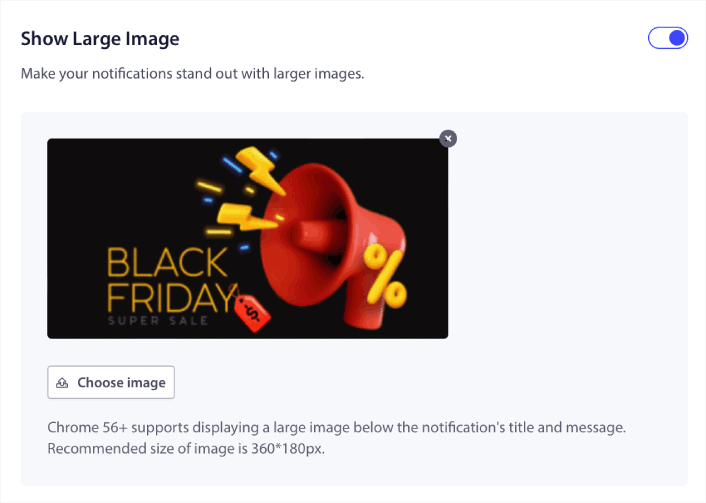
Vous pouvez utiliser les formats PNG et JPEG pour les images.
Étape n°3 : Ajoutez des CTA pour des taux de clics plus élevés
Nous avons constaté que l'utilisation de boutons d'appel à l'action personnalisés augmente les taux de clics sur vos notifications. Nous vous recommandons donc vivement d'utiliser l'option Notification Multi-Action pour créer un CTA personnalisé :
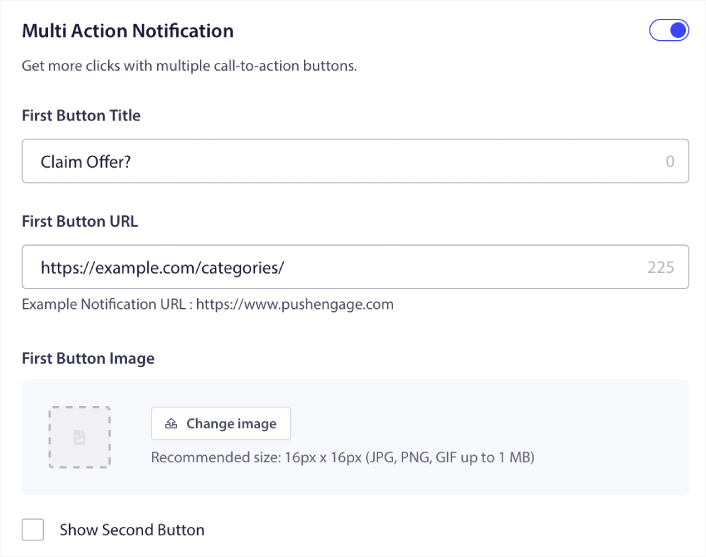
Vous pouvez ajouter au maximum deux CTA. Si vous le souhaitez, vous pouvez créer un test A/B avec un CTA ou deux. D'après notre expérience, il est généralement préférable d'utiliser plusieurs CTA, sauf si vous êtes uniquement concentré sur UNE seule action.
Une chose à laquelle vous devez faire attention est les limites de caractères des notifications push. Tout dans les notifications push a une limite de caractères basée sur le navigateur et l'appareil de votre abonné. Si vos notifications sont trop verbeuses, elles ne s'afficheront tout simplement pas correctement.
Étape n°4 : Définir la durée de la notification
La Durée de la notification est une limite de temps après laquelle votre notification push expire. Après expiration, votre abonné ne pourra plus voir la notification, même si elle lui a été livrée.
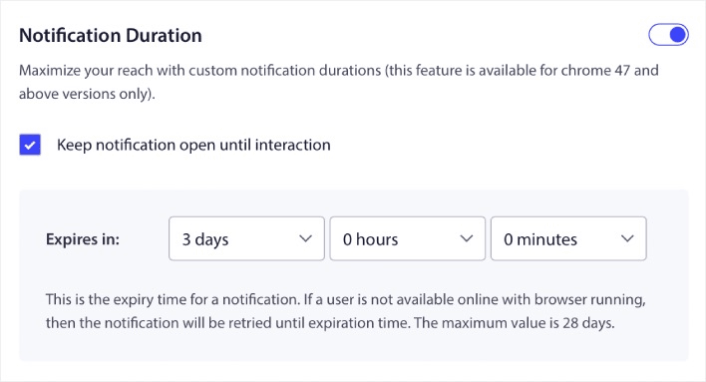
Définir une Durée de notification est une excellente pratique pour toutes les ventes. De cette façon, vos abonnés ne seront pas inondés d'une multitude de notifications.
Astuce de pro : Assurez-vous de définir la bonne durée pour une vente flash. Si vos abonnés cliquent sur une offre qui a déjà expiré, ils seront très mécontents.
Étape n°5 : Sélectionner votre groupe d'audience
Maintenant que votre contenu est en place, il est temps de trouver la bonne audience pour vos notifications.
Comment envoyer votre notification à tous les abonnés
Nous voulons la portée maximale pour 3 notifications :
- Annonce anticipée du Black Friday
- Vente flash Black Friday
- Vente Cyber Monday
Nous envoyons donc ces 3 notifications à tout le monde. Dans l'onglet Audience, sélectionnez Envoyer à tous les abonnés :

Comment recibler les abonnés qui n'ont pas cliqué sur la diffusion à tout le monde
Si vous n'envoyez pas la notification à tous les abonnés, vous devrez créer un Groupe d'audience.
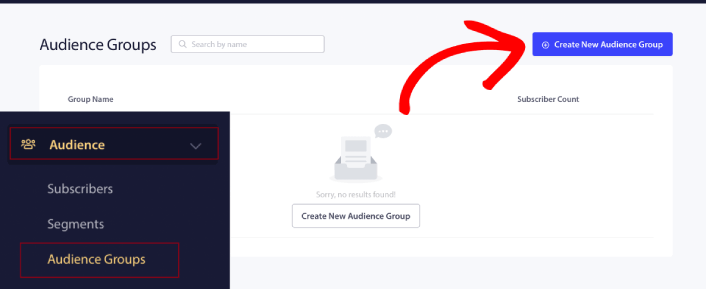
Allez dans Audience » Groupes d'audience et cliquez sur Créer un nouveau groupe d'audience :
Pour cibler les abonnés qui n'ont pas cliqué sur la dernière notification, vous devrez filtrer par Date du dernier clic :
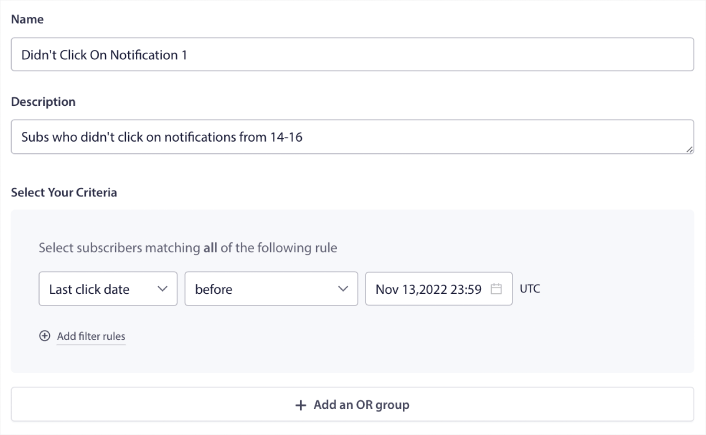
Filtrez par date du dernier clic avant la date d'envoi de votre notification précédente. Ainsi, si vous avez envoyé la dernière notification push le 14 novembre, filtrez les abonnés qui ont cliqué sur les notifications uniquement avant le 13 novembre à minuit.
REMARQUE : Contrairement à une campagne par e-mail, vous ne pouvez pas réellement filtrer par taux de clics sur la dernière notification. L'approximation la plus proche consiste à filtrer les clics dans une plage de dates.
Lorsque vous avez terminé, cliquez sur Enregistrer la notification.
Ensuite, retournez à votre diffusion de notification push et sélectionnez Envoyer au groupe d'audience. Dans le menu déroulant, sélectionnez votre groupe :
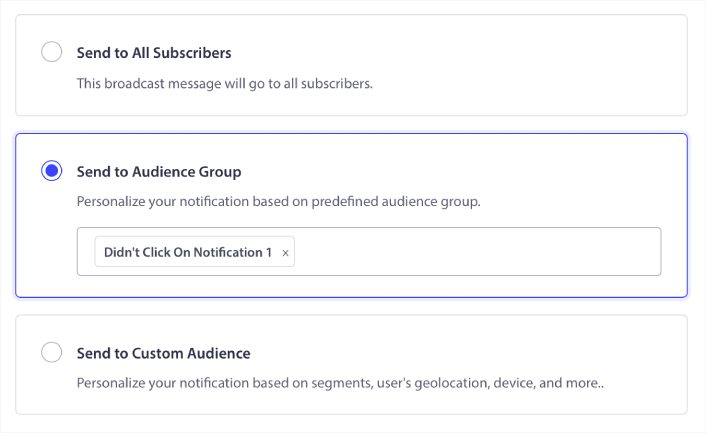
Comment recibler les abonnés qui ont cliqué sur la diffusion à tout le monde
Si vous souhaitez cibler les abonnés qui ont cliqué sur votre dernière notification, vous pouvez créer un autre groupe d'audience.
Filtrez vos abonnés par Date du dernier clic après la date d'envoi de votre notification précédente ET avant la date d'envoi de votre prochaine notification :
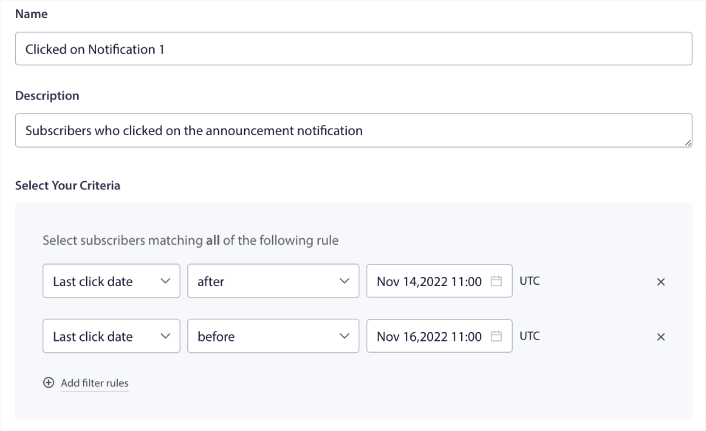
Vous pouvez ajouter des critères ET à votre filtre en cliquant sur Ajouter des règles de filtre. Un filtre comme celui-ci est idéal pour les notifications push de vente croisée.
Étape n°6 : Planifier votre notification push
Dans l'onglet Planification, sélectionnez Commencer l'envoi à une date et heure spécifiques pour des options de planification granulaires.
Nous envoyons la notification à 11h00. Comme les notifications push du navigateur s'affichent quelle que soit l'heure à laquelle vous avez réellement envoyé la notification, vous pouvez l'envoyer encore plus tôt si vous le souhaitez.
Comme mon fuseau horaire par défaut n'est pas EST, j'utilise l'option Envoyer les notifications dans le fuseau horaire des abonnés :
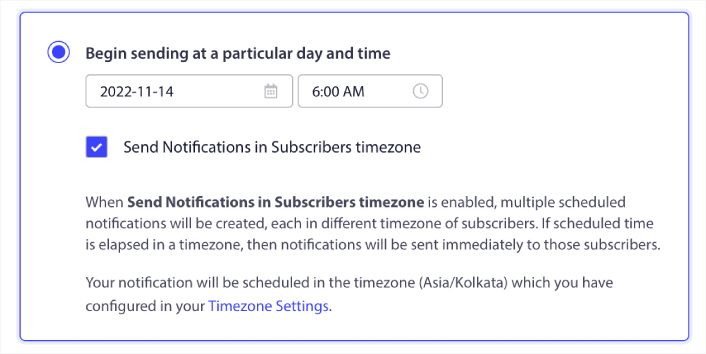
N'oubliez pas de tester vos notifications en cliquant sur le bouton Tester la notification. Lorsque vous avez terminé, cliquez sur Planifier la notification.
Quel est le calendrier idéal des notifications push pour le Black Friday
Il n'y a pas de calendrier unique, bon ou mauvais, pour les campagnes de fêtes. Mais nous suivons un calendrier très strict et cela fonctionne :
- 3 notifications pour une vente anticipée du Black Friday
- 1 notification pour le Black Friday
- 1 notification pour le Small Business Saturday
- 1 notification pour le Cyber Monday
- 1 notification pour la vente prolongée du Cyber Monday
Et des notifications push de reciblage pour cibler les abonnés qui ont cliqué dessus ou non. Faites-nous savoir comment cela fonctionne pour vous. En attendant, consultez ces ressources :
- Comment augmenter les clics sur vos notifications push avec la curiosité
- Comment personnaliser chaque notification push
- Comment vous démarquer avec des médias riches dans vos notifications push
- Comment réactiver les abonnés push dormants
- Comment utiliser les notifications push pour tenir les clients informés
- Comment utiliser les emojis dans vos notifications push pour des taux de clics plus élevés
- Comment augmenter les conversions en créant un sentiment d'urgence
Et si ce n'est pas déjà fait, commencez avec PushEngage dès aujourd'hui.


