Ищете ресурс о том, как отслеживать push-уведомления с помощью Google Analytics?
Аналитика push-уведомлений может показаться немного сложной. Во-первых, вы должны убедиться, что можете правильно отслеживать их в Google Analytics, чтобы лучше отчитываться о них. Затем вам нужно понять, что на самом деле означают цифры и находитесь ли вы на правильном пути.
Слишком много вопросов, и интернет полон посредственных ресурсов без реальных ответов.
Не волнуйтесь. В этой статье мы покажем вам, как правильно анализировать push-уведомления. Вы получите ответы на все эти вопросы и многое другое.
Давайте начнем.
Типы данных аналитики push-уведомлений
Аналитика push-уведомлений может сбивать с толку при первом взгляде. Поэтому, прежде чем перейти к продвинутым темам, таким как отслеживание целей и сопоставление доходов, давайте разберемся с различными типами данных аналитики push-уведомлений и как их интерпретировать.
Аналитика push-уведомлений для кампаний
Каждая кампания push-уведомлений или отдельная рассылка имеет свои аналитические данные. Вам следует обратить внимание на следующее:
- Показатель кликабельности (CTR): CTR — это процент людей, которые увидели ваше push-уведомление и затем нажали на него.
- Количество целей: Количество ваших целей — это число людей, которые выполнили действие, которое вы хотели, после нажатия на ваше уведомление.
- Доход: Мы настоятельно рекомендуем установить цель по доходу для ваших push-кампаний, особенно если вы управляете интернет-магазином.
Есть и другие метрики, на которые вы можете обратить внимание:
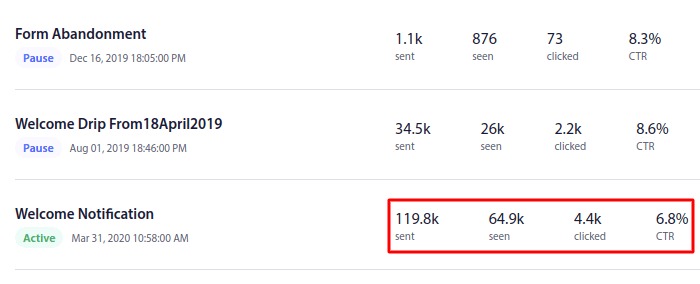
Но если вы сосредоточены только на CTR, количестве целей и доходе, этого достаточно. Скоро мы подробнее поговорим о создании целей. Продолжайте читать.
Аналитика согласия на получение push-уведомлений
Push-уведомления с согласием на получение также имеют очень специфическую аналитику.
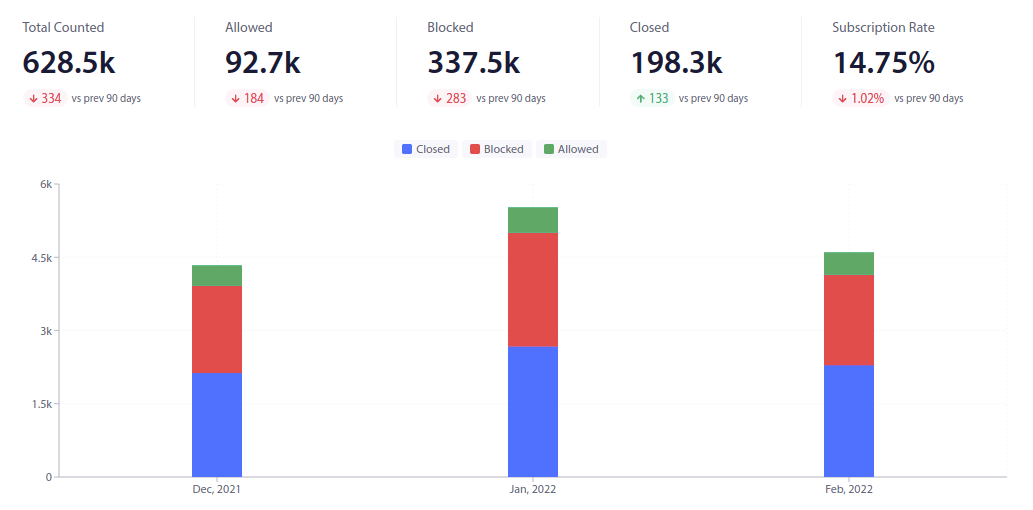
Важно сосредоточиться на показателе подписки. Остальные цифры могут отвлекать, если вы только начинаете.
Но по мере роста вам также нужна четкая картина того, сколько раз люди видели ваш запрос на подписку, сколько раз ваши посетители сайта разрешали отображение запроса, и сколько раз всплывающее окно блокировалось. Знание этих цифр поможет вам получить четкое представление о том, насколько эффективны ваши расходы на push-уведомления.
Отслеживание целей для push-уведомлений
Отслеживание целей — одна из самых мощных функций, которую может предложить вам любая служба push-уведомлений. Отслеживание целей позволяет вам установить цель для ваших кампаний. Каждый раз, когда ваши подписчики выполняют желаемое действие, счетчик целей автоматически фиксирует успех для удобной отчетности.
Давайте разберем это проще.
С помощью отслеживания целей вы можете отслеживать рентабельность инвестиций (ROI) ваших кампаний. Например, если мы установим цель по доходу от покупок, совершенных на вашем сайте, отслеживание целей с помощью push-уведомлений может отслеживать:
- Количество конверсий
- И сумму в долларах
За каждую продажу, совершенную в рамках кампании push-уведомлений!
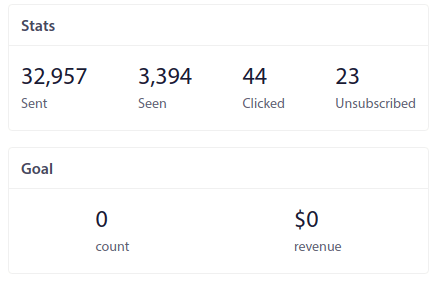
На основе этого отчета вы можете рассчитать рентабельность инвестиций (ROI) ваших кампаний.
Аналогично, если ваша цель — увеличить количество лидов на вашем сайте, отслеживание целей для кампании уведомлений об отказе от формы присвоит значение за лид, чтобы определить, сколько лидов вы сгенерировали с помощью push-уведомлений и сколько они стоят.
Если вы одновременно запускаете несколько триггерных кампаний и хотите протестировать, какая из них работает лучше всего, отслеживание целей поможет вам получить четкую картину.
Допустим, в одной из ваших кампаний по брошенной корзине у вас есть купоны на дополнительные скидки, а в другой — промокод на бесплатную доставку. Анализ метрик дохода для обеих кампаний покажет вам, что работает лучше.
Это даст ясность в отношении того, какая кампания лучше всего подходит для вашего веб-сайта.
Как отслеживать push-уведомления с помощью UTM-параметров
К настоящему моменту вы понимаете, на какие метрики следует обращать внимание для различных частей вашей кампании push-уведомлений. Но как эффективно отчитываться о них? Отчеты отслеживания целей на вашей панели push-уведомлений — это здорово. Но вам нужно будет сравнить эффективность ваших push-уведомлений с другими маркетинговыми каналами.
Мы проверим, как вы можете отслеживать push-уведомления в Google Analytics с помощью UTM-параметров. И мы сделаем это на PushEngage. PushEngage — это программное обеспечение для push-уведомлений № 1 в мире. Очень легко отслеживать эффективность кампаний push-уведомлений на PushEngage, и вы также можете использовать UTM-параметры.
Шаг № 1: Начните работу с PushEngage
Если вы еще этого не сделали, установите PushEngage на свой сайт.

Шаг № 2: Создайте трансляцию push-уведомлений
После регистрации перейдите на панель управления PushEngage и выберите Campaign » Push Broadcasts. Затем нажмите Create New Push Broadcast:

На следующем экране вы сможете создать свое push-уведомление:
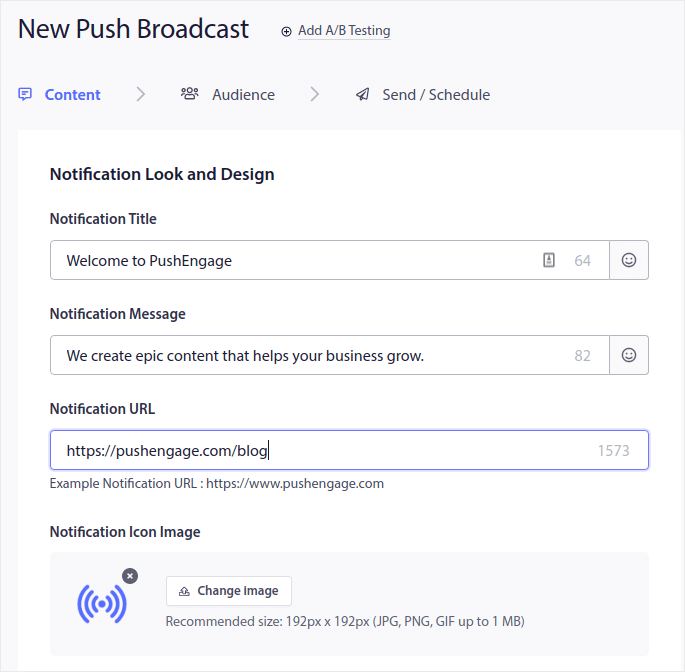
Шаг № 3: Добавьте UTM-параметры
На вкладке Content прокрутите вниз до раздела UTM Parameters и включите его:

Вы можете оставить значения UTM-параметров по умолчанию или изменить их по своему усмотрению. Например, мы, вероятно, установим более описательные теги для параметров UTM Campaign и UTM Content.
Если вы не уверены, что это за параметры, вот краткий обзор:
- UTM Source: Помогает определить, какой сайт отправил трафик
- UTM Medium: Определяет, какой тип ссылки использовался
- UTM Campaign: Указывает конкретный продукт или рекламную акцию
- UTM Terms: Помогает определить поисковые запросы для вашего контента
- UTM Content: Помогает отслеживать, на что нажал пользователь, что перенаправило его на сайт
Чем подробнее ваши UTM-параметры, тем больше вы можете отслеживать push-уведомления.
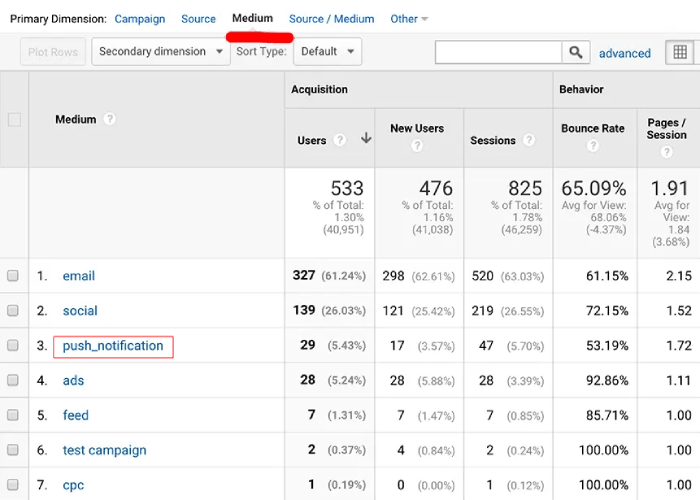
Если вы хотите увидеть, как ваши push-уведомления работают в Google Analytics, ознакомьтесь с этим руководством для начинающих по UTM-отслеживанию.
Совет эксперта: UTM-параметры предназначены не только для трансляций push-уведомлений. Вы можете перейти к своим автоматизированным кампаниям push-уведомлений и установить UTM-параметры для каждого уведомления в автоматизированной кампании.
Как настроить цели конверсии для push-уведомлений
Мы уже говорили о том, почему настройка отслеживания целей для ваших push-уведомлений очень важна. Но как это сделать на самом деле?
Шаг № 1: Настройте параметры отслеживания целей
Перейдите на панель управления PushEngage и выберите Analytics » Goal Tracking:
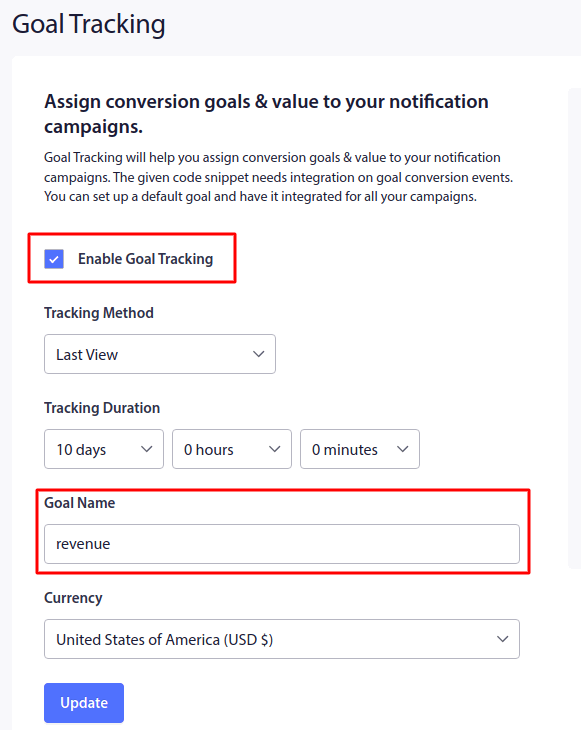
Начните с нажатия Enable Goal Tracking. При желании вы также можете изменить метод отслеживания. Здесь вы можете использовать два типа атрибуции:
- Last View: Подсчитывает количество просмотров, полученных вашим уведомлением. Идеально подходит для кампаний, которые повышают осведомленность и вовлеченность.
- Последний клик: Подсчитывает количество кликов по вашему push-уведомлению, а затем кликов на вашем сайте. Идеально подходит для кампаний по конверсии.
Затем, если хотите, вы всегда можете установить пользовательское время отслеживания для ваших файлов cookie, чтобы подсчитывать ваши цели. Но мы рекомендуем оставить значение по умолчанию.
Цель по умолчанию, которую предоставляет PushEngage, — это цель по доходу. И если вы хотите изменить свою валюту, теперь вы можете изменить ее на любую, какую захотите. Валюта по умолчанию — USD, но вы можете изменить ее на местную валюту из выпадающего списка.
После того как вы закончите настройку параметров отслеживания целей, нажмите Обновить.
Шаг № 2: Добавьте код отслеживания
Затем скопируйте код отслеживания справа и вставьте его в HTML-тег <body> страницы, которую вы отслеживаете для конверсий. Обычно это страница оформления заказа на вашем сайте. Не волнуйтесь, если вы не знаете, как это сделать. Тот же экран предоставит вам подробные инструкции.
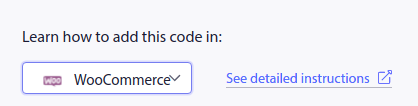
Просто выберите CMS, которую вы используете для вашего сайта, и нажмите Посмотреть подробные инструкции:
И вы закончили!
Что дальше?
На этом всё, друзья!
Если вы новичок в push-уведомлениях, вам следует пройти полный процесс тестирования push-уведомлений, прежде чем запускать их. Это поможет вам устранить распространенные проблемы до того, как ваши посетители увидят их и начнут жаловаться на сломанный пользовательский интерфейс.
Или вы можете ознакомиться с одним из этих отличных ресурсов, чтобы получить больше пользы от ваших кампаний push-уведомлений:
- 7 примеров форм подписки на push-уведомления с высокой конверсией
- Как настроить веб-push-уведомления на вашем веб-сайте
- Как превратить подписчиков в покупателей с помощью push-уведомлений в браузере
И если вы еще этого не сделали, попробуйте PushEngage. PushEngage — это сервис push-уведомлений № 1 в мире. Так что, если вы серьезно относитесь к развитию своего бизнеса, вам стоит инвестировать в PushEngage.


