В PushEngage вы можете выбрать один из нескольких вариантов подписки на веб-push-уведомления. Вы можете даже выбрать разные варианты подписки для настольных компьютеров и мобильных устройств. Вы можете настроить различные параметры, такие как цвет, положение, задержка, тип всплывающего окна для настройки вашей подписки.
Однако нам нужно понимать, что каждый шаблон подписки на push-уведомления отличается. Один тип подписки может подойти для одного веб-сайта, а другие типы — для других сайтов. Чтобы понять, какой тип подписки на push-уведомления лучше всего подходит для вашего сайта, вы можете ознакомиться с подробным отчетом "Аналитика подписки на push-уведомления". Аналитика воронки предоставляет статистику push-уведомлений, которая помогает улучшить коэффициент подписки на push-уведомления.
С помощью "Аналитики подписки на push-уведомления" вы получите полную картину того, как работает ваша подписка. Затем вы сможете проанализировать данные и увидеть, что работает лучше. Часто пользователи не нажимают на ваши уведомления и хотят отписаться. PushEngage предлагает функцию, позволяющую включить простой способ отписаться от веб-push-уведомлений.
Чтобы собрать эти данные, перейдите в настройки и включите сбор этих данных в разделе "Настройки" > "Настройки подписки" > "Аналитика подписки".
Установите флажок, чтобы включить аналитику подписки, и нажмите "Обновить".

Как понять отчет "Аналитика подписки на push-уведомления"?
Подписка на push-уведомления работает как маркетинговая воронка. Сначала нам нужно увидеть, сколько раз появляется ваша форма подписки. Это верхняя часть воронки. Далее идет второе отображение, которое является промежуточной страницей. Обратите внимание, что на HTTPS-сайтах вам не нужна промежуточная страница или всплывающее окно, и вы можете пропустить этот шаг.
Как только пользователь увидит форму подписки, у него есть два варианта — Разрешить или Блокировать. Если он разрешит, он увидит промежуточную страницу. Третье и последнее важное действие — подписка. На промежуточной странице, если пользователь "Разрешит" уведомления, он будет подписан на уведомления. Изображение ниже даст вам более четкое представление:

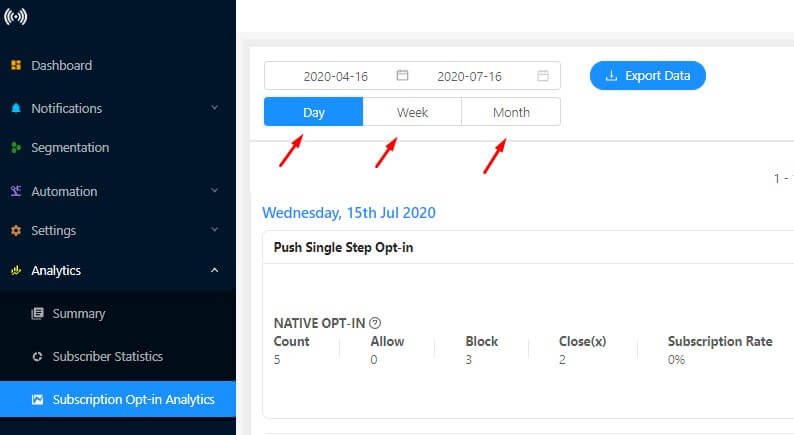
Чтобы просмотреть отчет аналитики, перейдите в раздел "Аналитика" > "Аналитика подписки". Для лучшего понимания ознакомьтесь с приведенным ниже примером отчета аналитики:

Значение каждого раздела отчета:
- Тип подписки: В PushEngage вы можете выбрать один из 7 различных типов подписки в зависимости от типа сайта. Этот столбец показывает, какой тип подписки на push-уведомления вы выбрали.
- Тип сайта: Это показывает тип вашего веб-сайта. Это может быть HTTP или HTTPS веб-сайт.
- Первое отображение: Это показывает первое отображение вашей формы подписки. Когда пользователь заходит на ваш веб-сайт, форма подписки появляется на странице. Это называется первым отображением формы подписки.
- Второе отображение: В двухэтапной подписке у вас есть промежуточное изображение после того, как пользователь нажимает "Разрешить". Это второе отображение вашей формы подписки. В случае одноэтапной подписки у вас нет второго отображения.
- Подписчики: Это количество всех подписчиков, которые подписались в рамках этого конкретного типа подписки.
- Тариф подписки: Это коэффициент выбора для типа подписки, который вы выбрали для своего веб-сайта.
Как использовать отчет по аналитике подписки на push-уведомления
Сначала вам нужно настроить тип подписки. Перейдите в «Настройки диалогового окна подписки» в разделе «Настройки». Выберите любой тип подписки и настройте push-подписку.
Далее посмотрите коэффициент подписки для этого типа подписки в вашем отчете. Вы можете выбрать просмотр отчета по дням/неделям/месяцам. Через пару дней или неделю измените тип подписки и посмотрите коэффициент подписки.
Таким образом, вы можете проверить, какой тип подписки дает вам более высокий коэффициент push-подписки. Используйте этот тип подписки для своего веб-сайта. Вы можете пойти дальше и изменить:
- Размещение формы подписки
- Содержимое формы подписки
- Название кнопки
- Цвет текста и кнопки
Посмотрите отчет по аналитике, чтобы узнать, что дает вам лучший результат.