
Ищете быстрый и простой способ создать страницу оформления заказа в WordPress?
Допустим, у вас есть целевая страница, которая постоянно превращает посетителей в потенциальных клиентов или платящих клиентов. Но затем вам нужно убедиться, что ваши посетители действительно могут оплатить ваш продукт или услугу и фактически завершить процесс оформления заказа.
Итак, вам нужно научиться программировать? Вам нужен дорогой дизайнер для создания страницы оформления заказа?
К счастью, есть простой способ создать страницу оформления заказа в WordPress. В этой статье мы поможем вам запустить страницу оформления заказа менее чем за 15 минут.
Готовы? Давайте начнем.
Что такое страница оформления заказа в WordPress и почему это важно?
Страница оформления заказа предназначена для превращения посетителей, заинтересованных в покупке у вас продукта или услуги, в платящих клиентов.
Но прежде чем начать, помните о четкой и конкретной цели вашей страницы оформления заказа. То, что вы можете сделать много вещей, не означает, что вы должны делать их все на одной странице. Чаще всего, если вы дадите посетителям слишком много вариантов для нажатия, они не нажмут ни на что вообще.
По умолчанию WooCommerce создает страницу оформления заказа для каждого сайта электронной коммерции. И это нормально, если вы только начинаете. Но если вы хотите оптимизировать свою страницу оформления заказа для более высоких коэффициентов конверсии, это очень сложно сделать. Затем возникают проблемы с брошенными корзинами.
Лучший способ бороться с этим — создать пользовательскую страницу оформления заказа в WordPress. С помощью пользовательской страницы вы можете добавить:
- Отзывы и социальные доказательства для повышения доверия
- Сопутствующие товары и услуги для увеличения дохода
- Пользовательские формы оформления заказа для снижения колебаний покупателя
- Дополнительные варианты оплаты
- Пользовательские поля оформления заказа WooCommerce
Теперь, когда вы знаете о преимуществах создания пользовательской страницы оформления заказа в WordPress, давайте перейдем к тому, как это сделать.
Как создать страницу оформления заказа в WordPress
Теперь, когда вы знаете, что создавать, пришло время запустить вашу страницу оформления заказа в WordPress. Мы настоятельно рекомендуем использовать SeedProd для создания ваших целевых страниц.

SeedProd — это лучший конструктор целевых страниц для WordPress. Он идеально подходит для бизнеса, блогеров и владельцев веб-сайтов, которые хотят создавать высококонверсионные целевые страницы без каких-либо навыков разработки.
С SeedProd вы получаете готовые шаблоны для высококонверсионных целевых страниц, которые вы можете мгновенно опубликовать. Это включает шаблоны для:
- Продающие страницы
- Страницы «Скоро открытие»
- Страницы 404
- Страницы обслуживания
- Страницы захвата
- Страницы входа
- Страницы благодарности
- Страницы вебинаров
- Страницы видео
И многое другое!
Шаг № 1: Установите и активируйте SeedProd
Сначала вам нужно будет приобрести плагин SeedProd Pro и активировать его. Если вы не знаете, как это сделать, ознакомьтесь с этой статьей о том, как установить плагин WordPress. Затем перейдите в раздел SeedProd » Настройки на панели управления WordPress и активируйте Pro-версию:

Далее перейдите в раздел SeedProd » Страницы для обзора панели управления целевыми страницами SeedProd. Здесь вы можете увидеть различные типы целевых страниц, которые вы можете создать с помощью SeedProd:

Имейте в виду, что все это специальные страницы с готовой функциональностью и шаблонами дизайна. Для целевой страницы продаж вы не хотите использовать НИ ОДНУ из этих специальных целевых страниц. Вместо этого вы собираетесь создать пользовательскую целевую страницу.
Прокрутите дальше вниз и нажмите кнопку Добавить новую целевую страницу , чтобы начать:

Шаг № 2: Создайте новую страницу оформления заказа в WordPress
После нажатия кнопки Добавить новую целевую страницу вы увидите библиотеку шаблонов целевых страниц SeedProd. Это профессионально разработанные шаблоны целевых страниц, которые полностью адаптивны.
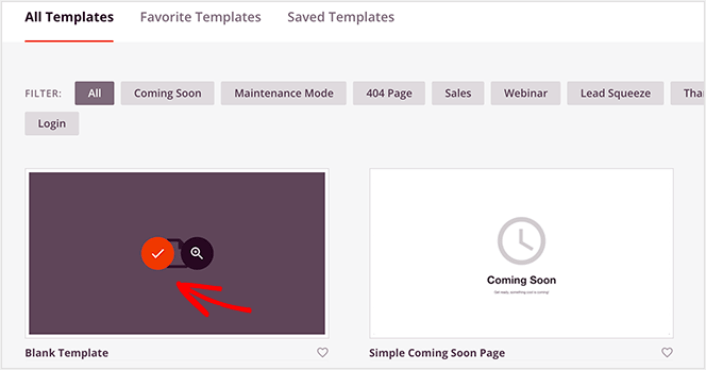
Далее вы можете выбрать один из этих шаблонов, чтобы начать. Помните, что шаблон — это всего лишь отправная точка. Вы можете настроить все на странице позже. Пока найдите шаблон, который, по вашему мнению, подойдет. Мы используем Пустой шаблон для этого руководства, но вы можете выбрать любой шаблон, который вам нравится.
Шаг № 3: Настройте дизайн вашей страницы оформления заказа в WordPress
Визуальный конструктор SeedProd позволяет настраивать вашу целевую страницу с помощью блоков контента, которые можно перетаскивать.
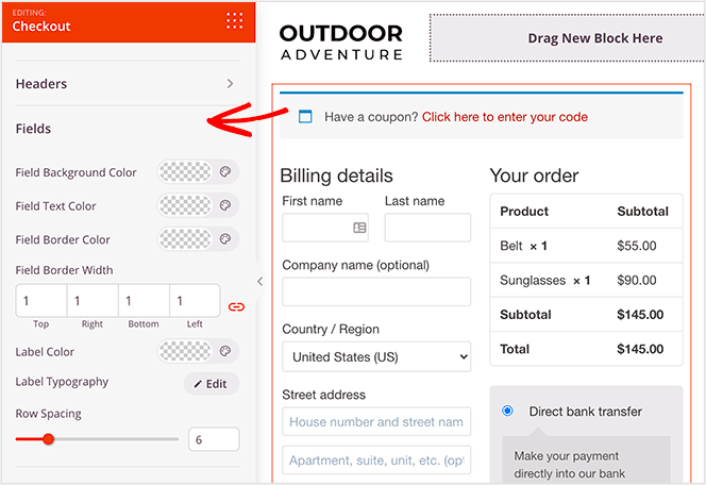
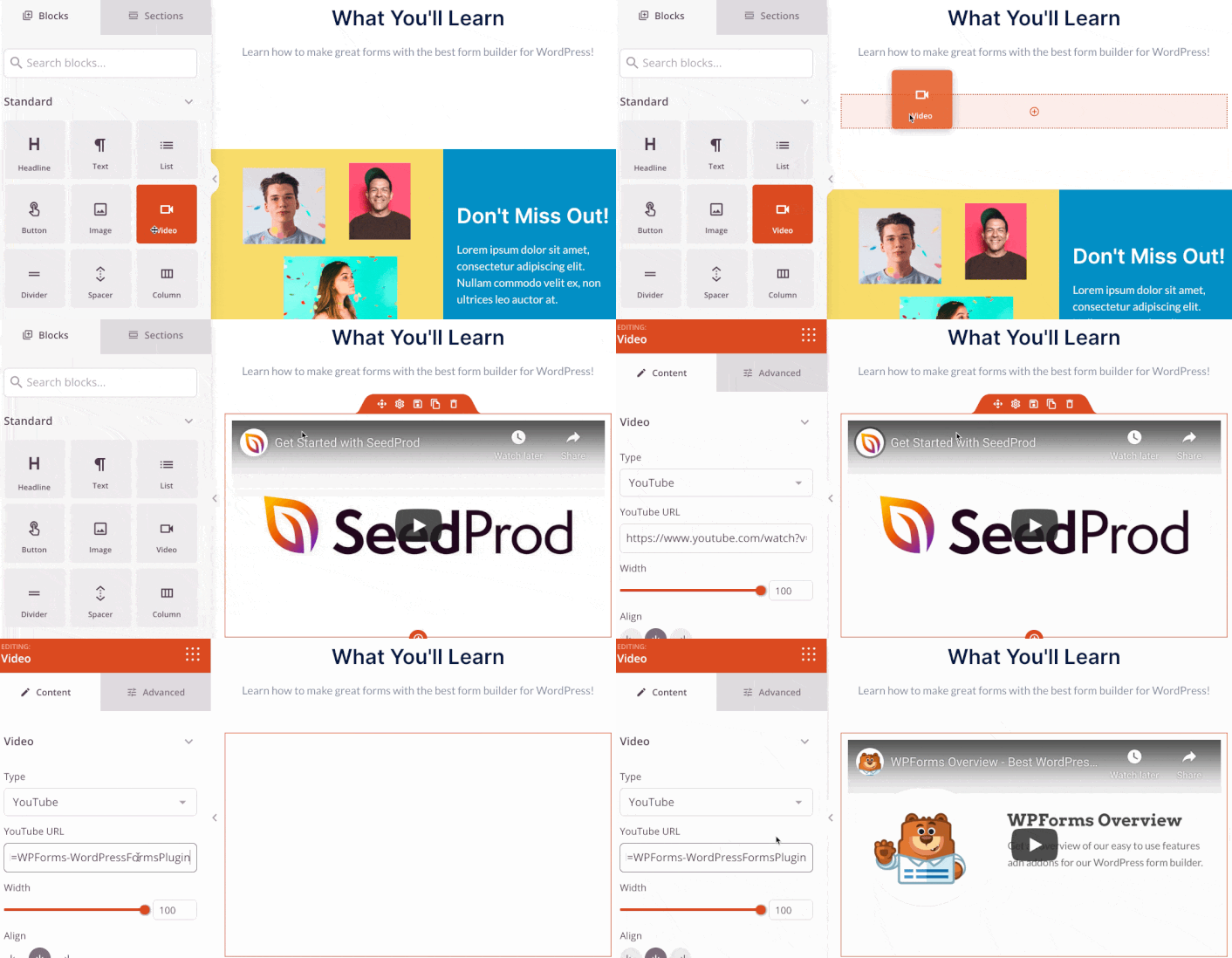
Вы можете создать полностью настраиваемый заголовок для вашей страницы благодарности за считанные минуты. Вы даже можете добавить пользовательские элементы, чтобы убедить и конвертировать ваш трафик. Например, вы можете создать видеомодуль и встроить видео с YouTube, чтобы убедить ваших посетителей купить ваш продукт или услугу.
Также очень легко добавить раздел с кратким описанием вашего продукта или услуги. Перейдите на вкладку Разделы в визуальном конструкторе, и в разделе Hero вы найдете несколько готовых шаблонов, которые можно импортировать одним щелчком мыши.
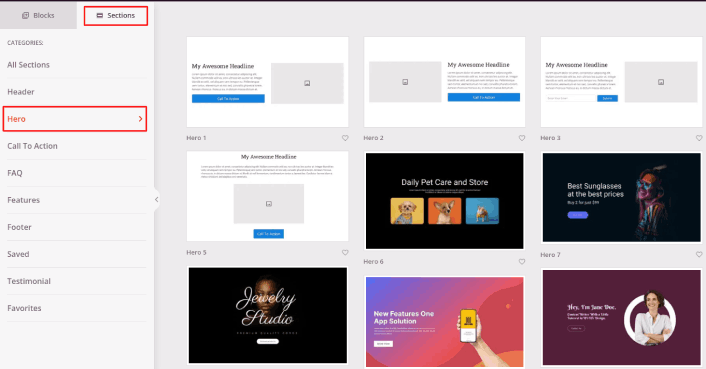
Выберите тот, который вам нравится.
Не беспокойтесь о цветах или контенте. Вы можете отредактировать все это. Вам следует искать макет, который хорошо сочетается с вашим шаблоном.
Вы можете настроить раздел hero так же, как мы делали ранее, выбрав другое изображение и изменив заголовок и описание. Пока вы этим занимаетесь, добавьте кнопку призыва к действию, которая побудит посетителей купить у вас.
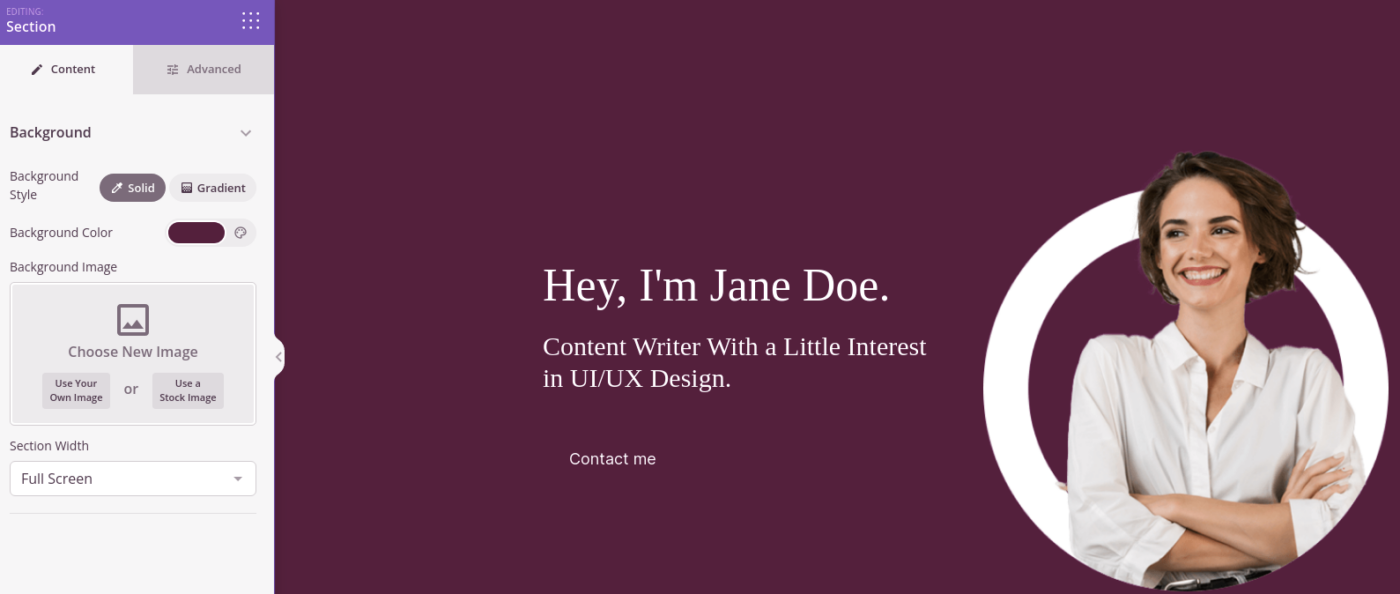
Это так просто! Когда вы закончите настройку страницы благодарности, нажмите кнопку Сохранить. Чтобы добавить популярные товары, выберите блок Самые продаваемые товары из раздела WooCommerce и перетащите его на свою страницу.
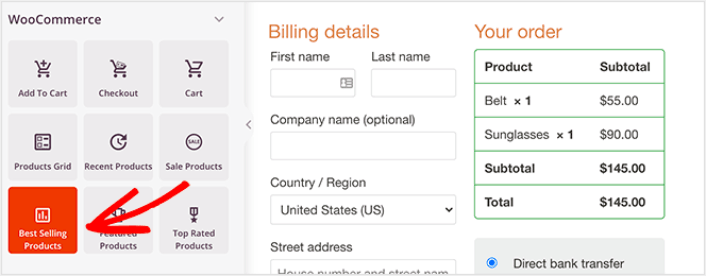
В этот момент будет хорошей идеей перетащить блок заголовка и изменить его на что-то вроде «Популярные товары». Таким образом, люди будут точно знать, на что они смотрят.
Вы также можете добавить отзывы, чтобы повысить коэффициент конверсии. Просто перейдите в раздел Дополнительные блоки и перетащите блок Отзывы на свою страницу оформления заказа.
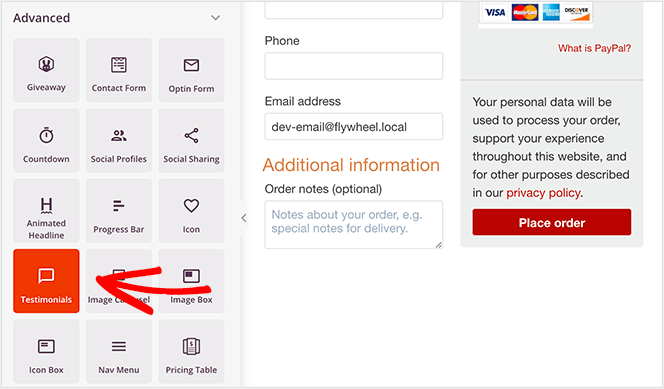
Вместо стандартной страницы оформления заказа WooCommerce у вас теперь есть высококонверсионная страница оформления заказа WordPress, адаптированная для вашей аудитории.
Шаг № 4: Настройка параметров страницы
После того, как вы закончите оформление страницы благодарности, нажмите вкладку Подключить в верхней части конструктора страниц и выберите поставщика услуг email-маркетинга для сбора лидов на вашем сайте.
ПРИМЕЧАНИЕ: Этот шаг нужен только в том случае, если вы хотите, чтобы ваши клиенты выбрали другую услугу. Поэтому, если вы пытаетесь продать услугу дороже, вы можете пропустить подключение службы email-маркетинга.

Затем нажмите на вкладку Настройки страницы в верхней части экрана.

Здесь вы можете добавить SEO-плагин и плагин Google Analytics на свою страницу благодарности. Вы даже можете настроить пользовательские коды отслеживания, такие как Facebook Pixel или Pinterest pixel, для отслеживания эффективности рекламы.
Шаг № 5: Опубликуйте вашу страницу оформления заказа WordPress
Теперь давайте опубликуем ваш дизайн. Для этого нажмите на стрелку раскрывающегося списка рядом с кнопкой сохранения и нажмите Опубликовать.
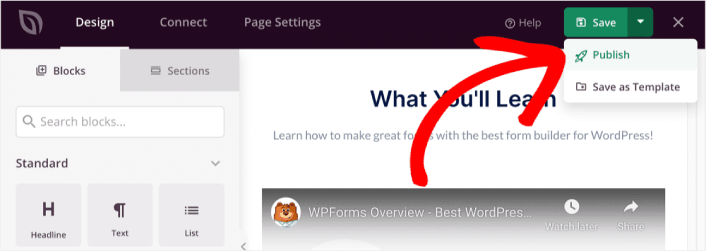
Затем назначьте вашу новую страницу оформления заказа WordPress для WooCommerce. Это включает в себя изменение настроек WooCommerce по умолчанию и добавление URL-адреса вашей новой страницы.
Чтобы настроить этот параметр, перейдите в раздел WooCommerce » Настройки и нажмите на вкладку Дополнительно. Затем рядом с заголовком Страница оформления заказа найдите страницу, которую вы только что создали.
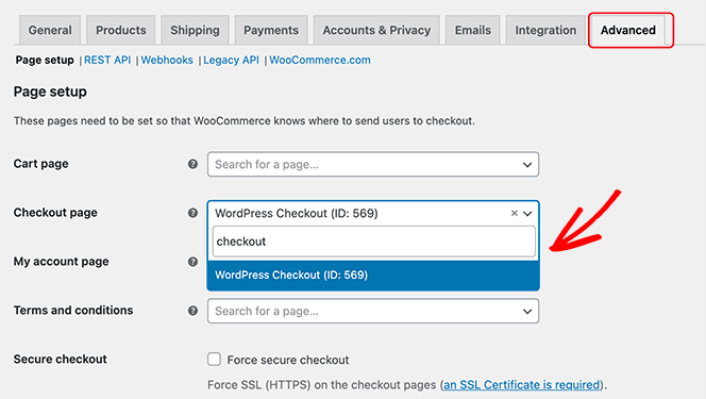
Теперь, когда посетитель нажмет «Перейти к оформлению заказа», он перейдет на ваш новый, высококонверсионный экран оформления заказа, который вы только что создали.
Что делать после создания страницы оформления заказа WordPress
Теперь, когда ваша страница благодарности активна, пришло время поработать над трафиком, вовлеченностью и продажами. Вам следует попробовать использовать push-уведомления на вашем сайте. Push-уведомления — отличный маркетинговый инструмент, который поможет вам развивать свой бизнес.
Посмотрите на эти эпические ресурсы, и вы поймете, что мы имеем в виду:
- 7 умных стратегий для повышения вовлеченности клиентов
- Эффективны ли push-уведомления? 7 статистических данных + 3 совета экспертов
- Как настроить push-уведомления о брошенной корзине (простое руководство)
Мы рекомендуем использовать PushEngage для создания ваших кампаний push-уведомлений. PushEngage — это программное обеспечение для push-уведомлений №1 в мире. Так что, если вы еще этого не сделали, начните использовать PushEngage сегодня!


