Ищете способ добавить приложение для мобильных push-уведомлений Weebly на ваш сайт?
Push-уведомления помогут вам быстро увеличить количество повторных посещений, вовлеченность и продажи. Но какой сервис использовать для отправки push-уведомлений? Стоит ли это вашего времени? Можете ли вы позволить себе веб-уведомления как маркетинговый канал?
И самое главное, нужна ли вам команда разработчиков для запуска ваших маркетинговых кампаний?
В этой статье мы пошагово покажем вам, как добавить сайт с приложением для мобильных push-уведомлений Weebly без написания кода за десять минут или меньше. Weebly — отличная платформа для создания вашего первого веб-сайта. Итак, как только вы закончите настройку вашего сайта Weebly, пришло время приступить к этому руководству.
Давайте начнем.
Как установить приложение для мобильных push-уведомлений Weebly
Установка приложения для мобильных push-уведомлений Weebly на самом деле несложна. Просто следуйте этим простым шагам, и к концу этой статьи вы увидите на своем сайте приветственное push-уведомление, похожее на это:
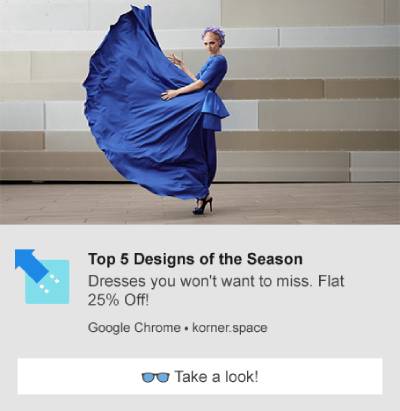
Честно говоря, мы не очень предпочитаем использовать Weebly в качестве конструктора сайтов. По нашему честному мнению, WordPress или даже Shopify предоставляют гораздо лучшие функции и возможности. Так что, если вы можете перейти на WordPress или Shopify, сейчас может быть лучшее время для этого.
Но если вы остаетесь с Weebly, не волнуйтесь. Добавить push-уведомления на ваш сайт по-прежнему легко.
Давайте начнем.
Шаг № 1: Настройте свою учетную запись PushEngage
Перейдите на главную страницу PushEngage и нажмите кнопку Начать работу:

Вы можете выбрать бесплатный план, чтобы попробовать PushEngage, или выбрать платный план, если вы серьезно относитесь к развитию своего бизнеса. Платные планы предлагают больше опций для кампаний и возможность создавать еще большие списки подписчиков. Push-уведомления стоят очень недорого для начала, и вы можете использовать свою кредитную карту для покупки плана.
Если у вас есть сайт электронной коммерции, мы настоятельно рекомендуем приобрести платный план, чтобы вы могли настроить push-уведомления для электронной коммерции. Push-уведомления отлично подходят для запуска новых продуктов из вашего интернет-магазина.
Ознакомьтесь с планами ценообразования и выберите план для начала. После регистрации учетной записи перейдите в панель управления PushEngage и выберите Настройки сайта » Настройки установки:

Здесь вы настраиваете детали вашего сайта и брендинг. Приступите к настройке логотипа и URL-адреса веб-сайта для ваших push-уведомлений. Вам следует сделать это прямо сейчас, чтобы вы могли правильно протестировать свои push-уведомления.
Шаг № 2: Получите установочный код из PushEngage
Далее вам нужно будет перейти в панель управления PushEngage и получить код установки. В разделе Настройки установки:

В зависимости от того, установлен ли SSL-сертификат на вашем сайте, перейдите на вкладку HTTP или HTTPS, чтобы получить код установки. Для сайтов WordPress этот код установки не требуется. Плагин позаботится обо всем. Это относится и к сайтам WooCommerce.
Но поскольку у вас сайт Weebly, просто скопируйте этот код установки.
Шаг № 3: Разместите код установки приложения для мобильных push-уведомлений Weebly на вашем сайте
Войдите в свою учетную запись Weebly, перейдите в Настройки » Инструменты отслеживания и откройте раздел Добавить пользовательский код заголовка:
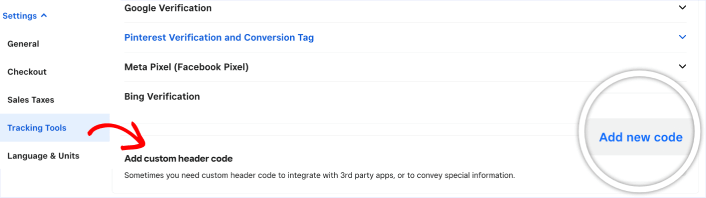
Нажмите кнопку Add new code и вставьте код установки PushEngage.
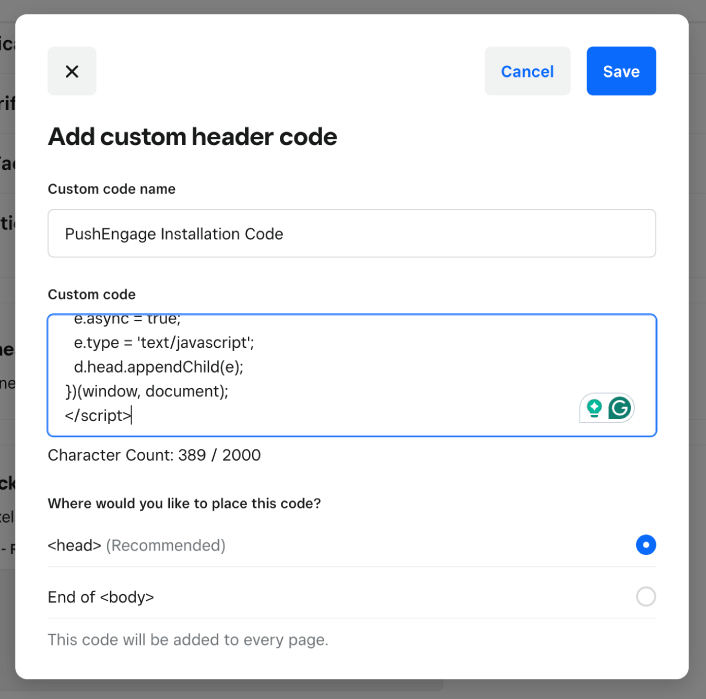
Когда закончите, нажмите кнопку Save.
ПРИМЕЧАНИЕ: В разделе «Куда вы хотите поместить этот код?» убедитесь, что выбран вариант <head>.
Шаг № 4: Настройка приложения Weebly для мобильных push-уведомлений
Наконец, в вашей панели PushEngage перейдите в раздел Дизайн » Модальные окна:
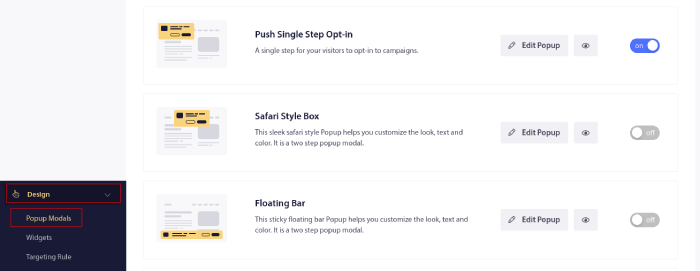
Отсюда вы можете настроить форму подписки на push-уведомления. Если вам нужна помощь с этим, ознакомьтесь с этой статьей о том, как создать пользовательскую форму подписки на push-уведомления.
Если вам нужно вдохновение, вы можете ознакомиться с этой статьей о высококонверсионных формах подписки на push-уведомления.
Шаг № 5: Создание приветственных push-уведомлений для веб
Независимо от того, есть ли у вас новый магазин или уже существующий, приветственные сообщения на веб-сайте абсолютно необходимы. Приветственные push-уведомления отлично подходят для:
- Подтверждение: Вы хотите подтвердить, что ваш новый подписчик действительно подписан на ваши веб-push-уведомления.
- Повторное вовлечение: Приветственные кампании — отличный способ вернуть ваших подписчиков на ваш сайт.
- Продажи: Вы можете предложить новым подписчикам приветственное предложение со скидками, подарками и купонами.
Давайте создадим кампанию приветственных push-уведомлений. Перейдите в свою панель PushEngage и выберите Campaign » Drip Autoresponders » Create New Drip Autoresponder:
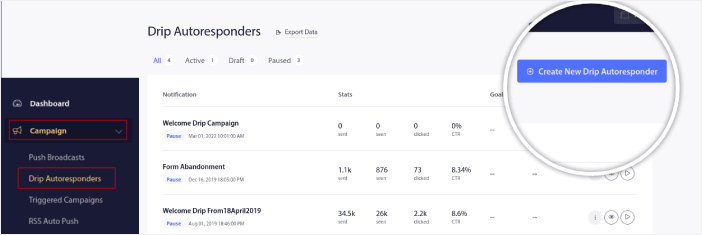
Дайте вашей капельной кампании легко запоминающееся имя. Затем установите первое push-уведомление, которое будет отправлено сразу после того, как посетитель подпишется на ваши push-уведомления.

Вы можете отредактировать уведомление, чтобы создать пользовательский контент для вашего приветственного сообщения. Когда закончите, нажмите кнопку Add New Notification, чтобы добавить больше уведомлений в последовательность. Вы можете редактировать новые уведомления и устанавливать пользовательскую задержку между каждым уведомлением.
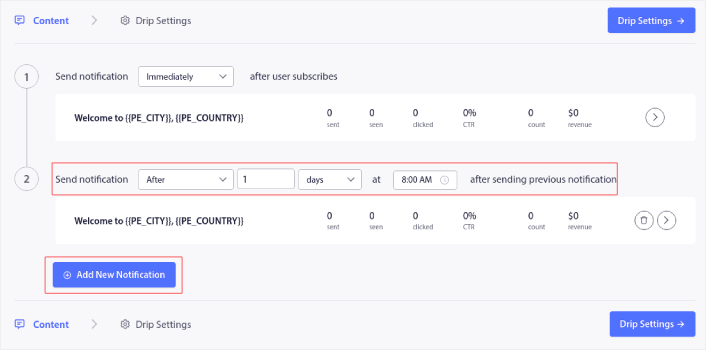
Вы можете добавить столько уведомлений, сколько захотите, но мы рекомендуем создать приветственную капельную кампанию из 5-7 уведомлений.
После этого выберите свою аудиторию в Drip Settings:
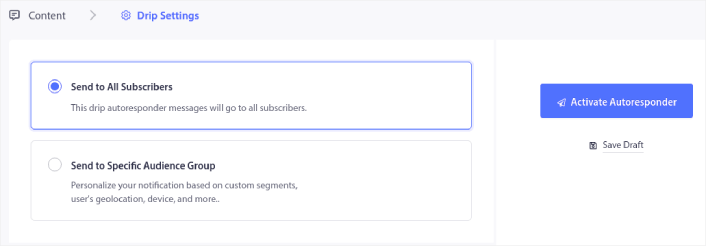
Вы можете отправлять разные приветственные капельные кампании для разных сегментов, используя опцию Send to Specific Audience Group. Это особенно полезно, когда вы сегментируете посетителей при их согласии на push-уведомления. Когда вы будете довольны своим таргетингом, нажмите кнопку Activate Autoresponder. И готово!
ПРИМЕЧАНИЕ: Вы также можете планировать уведомления в реальном времени. Так что, если вы хотите отправлять уведомления из мобильного приложения на Android или iOS, PushEngage — отличный выбор для вас.
Вы успешно настроили push-уведомления Wix на своем сайте. Пора вернуться на панель управления PushEngage и начать создавать свои кампании push-уведомлений.
Что делать после добавления приложения Weebly для мобильных push-уведомлений
На этом всё, друзья!
Если вы новичок в push-уведомлениях, вам следует пройти полный процесс тестирования push-уведомлений, прежде чем запускать его. Это поможет вам устранить распространенные проблемы с функциональностью, прежде чем ваши посетители увидят их и начнут жаловаться на сломанный пользовательский интерфейс.
Вам стоит ознакомиться с некоторыми из этих невероятных ресурсов, чтобы понять, как push-уведомления могут помочь в развитии вашего бизнеса, прежде чем вы инвестируете в расширение:
- Как повысить коэффициент согласия на получение push-уведомлений (7 способов)
- Как использовать отслеживание отказа от формы для восстановления потерянных лидов
- 11 автоматических push-уведомлений, которые продают, даже когда вы спите
Одна из лучших особенностей push-уведомлений заключается в том, что вы можете очень легко создавать шаблоны для своих кампаний. Если вам нужно вдохновение для шаблонов кампаний, ознакомьтесь с этими потрясающими примерами push-уведомлений.
И если вы еще этого не сделали, попробуйте PushEngage. PushEngage — это сервис push-уведомлений №1 в мире. Так что, если вы серьезно относитесь к развитию своего бизнеса, вам следует инвестировать в PushEngage.
Начните работу с PushEngage сегодня!
Запустите его из вашего ИИ-помощника: все в этом руководстве — создание сегмента, планирование кампании, получение результатов — работает через сервер PushEngage MCP. Подключите Claude (или любой совместимый с MCP помощник) к вашей учетной записи PushEngage один раз, затем опишите кампанию и позвольте ему выполнять нажатия. См. отправку push-уведомлений из вашего ИИ-помощника для примера.
Если вы сравниваете варианты помимо Weebly, наш обзор лучших бесплатных приложений для уведомлений расскажет, что предлагает каждая платформа, прежде чем запрашивать данные вашей кредитной карты.


