
Ищете простой способ включить и отключить уведомления Firefox?
Push-уведомления браузера помогают вам оставаться на связи с любимыми брендами. И вы можете довольно легко получать push-уведомления. Но как начать получать push-уведомления браузера?
В этой статье мы пошагово покажем вам, как включить или отключить уведомления Firefox.
Звучит неплохо? Давайте погрузимся.
Как получать уведомления Firefox с любого сайта
Давайте начнем с проверки того, как вы можете получать уведомления Firefox с любого сайта.
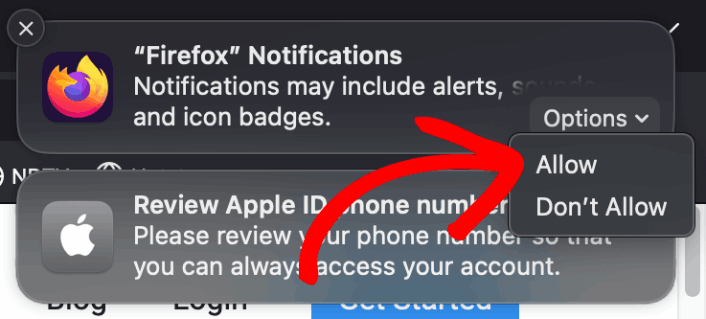
При первой установке Firefox вы получите всплывающее окно с разрешением или запретом веб-push-уведомлений в Firefox. Просто нажмите Параметры » Разрешить, чтобы получать уведомления Firefox:
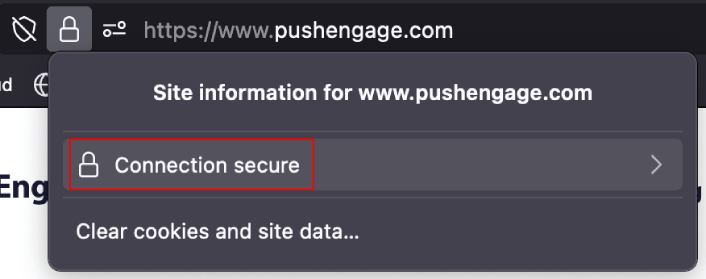
По умолчанию Firefox блокирует запросы на push-уведомления. Поэтому, если вы хотите получать уведомления Firefox с сайта, перейдите в адресную строку и нажмите на значок замка. В выпадающем меню нажмите Соединение защищено:
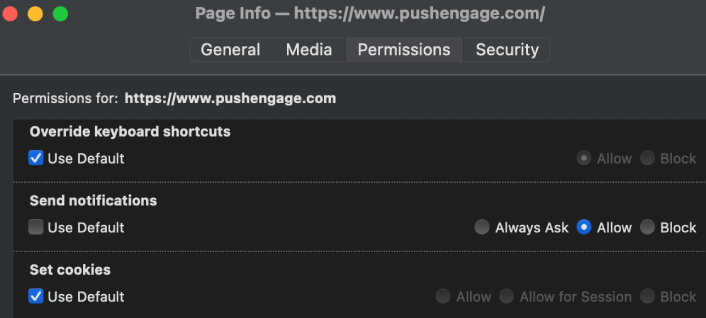
Здесь вы можете установить разрешения для сайта. Перейдите в раздел Разрешения, прокрутите вниз до пункта Отправлять уведомления, снимите флажок По умолчанию и нажмите Разрешить:
Теперь вы можете получать уведомления Firefox с этого сайта.
Как включить или отключить уведомления Firefox
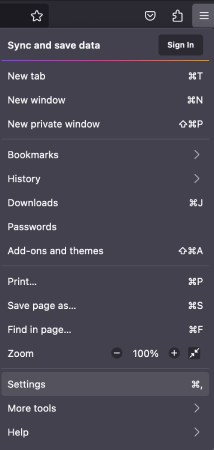
В Firefox встроены настройки и параметры, которые могут включать или отключать push-уведомления. Самый простой способ включить или отключить уведомления Firefox — перейти в строку меню и выбрать Настройки:
Затем перейдите в раздел Приватность и защита » Уведомления » Настройки:
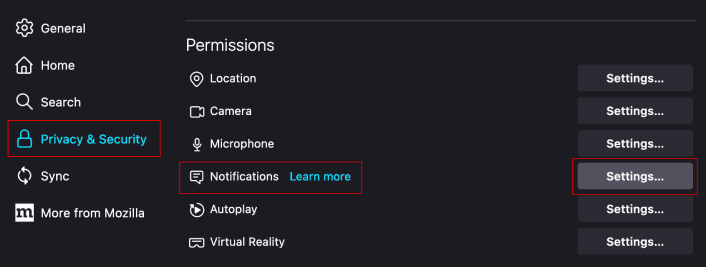
Здесь вы можете разрешить или запретить push-уведомления с любого сайта, просто изменив разрешение рядом с веб-сайтом.
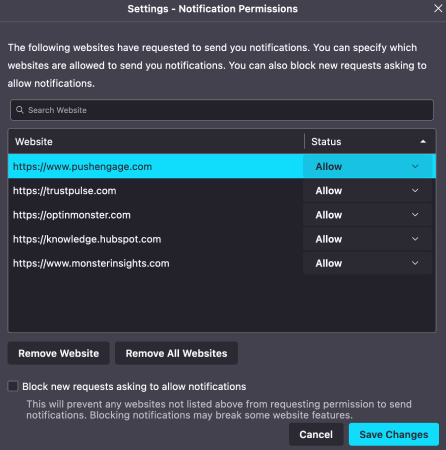
Если вы хотите включить push-уведомления Firefox с сайта, установите значение Разрешить. Если вы не хотите получать уведомления с сайта, установите разрешение Блокировать.
Вы можете удалить все разрешения, нажав Удалить все веб-сайты. Или, если вы хотите удалить только один веб-сайт из списка одобренных веб-сайтов, которые могут отправлять вам уведомления, вы также можете нажать Удалить веб-сайт.
Что делать после включения push-уведомлений Firefox
Только потому, что вам нравится контент в получаемых push-уведомлениях, не означает, что вы должны быть на них подписаны. Прежде чем подписываться на какие-либо push-уведомления, вам следует ознакомиться с правилами соответствия GDPR и узнать, безопасны ли ваши push-уведомления.
И если вы думаете, что push-уведомления Safari — это круто, вам также стоит узнать, как начать использовать push-уведомления для вашего бизнеса.
Push-уведомления — отличный способ органично расширить свою базу поклонников. И настроить push-кампании очень легко. Кроме того, если вы новичок в push-уведомлениях, вам стоит ознакомиться с этими отличными ресурсами:
- Как добавить виджет подписки на блог в WordPress
- Как привлечь больше трафика на ваш блог WordPress (9 простых способов)
- Стоимость push-уведомлений: действительно ли это бесплатно? (Анализ цен)
- Как повысить коэффициент согласия на получение push-уведомлений (7 способов)
- Как использовать кнопки действий в push-уведомлениях для удвоения кликов
Мы рекомендуем использовать PushEngage для создания ваших кампаний push-уведомлений. PushEngage — это программное обеспечение для push-уведомлений №1 на рынке, и ваши кампании будут в надежных руках.
Так что, если вы еще этого не сделали, начните использовать PushEngage сегодня.


