Здравствуйте, Engagelings.
Отличные новости: мы только что внесли КРУПНОЕ обновление в RSS-уведомления в PushEngage.
Мы запустили кампании RSS-автопуш некоторое время назад, и они стали очень популярными. Но были ограничения на то, что вы могли делать с RSS-уведомлениями. Поэтому мы добавили больше мощных функций в наши кампании RSS-лент.
Вот краткий обзор основных моментов:
- Создание нескольких RSS-лент
- Запускайте/приостанавливайте/удаляйте свои RSS-уведомления в любое время
- Добавление большого изображения для ваших RSS-лент
- Динамический выбор большого изображения для ваших RSS-лент уведомлений
- Установка значка уведомления динамически из RSS-ленты или загрузка вашего фирменного значка
- Автоматически продвигайте свой последний контент, сканируя RSS-ленту с заданными вами интервалами
- Выбор группы аудитории, которую вы хотите таргетировать, для лучшей персонализации
- Добавление правил истечения срока действия уведомлений
- Установка пользовательских UTM-параметров
- Получение подробной аналитики кампаний для каждой кампании RSS-ленты
Мы также сделали его очень простым в использовании. Много работы было вложено в это обновление, и мы думаем, что вам понравится. Это также крупное обновление, так что есть МНОГО чего распаковать.
Давайте начнем.
Зачем отправлять RSS-уведомления?
Постоянное создание контента и управление блогом — это тяжелая работа. Но если вы ведете серьезный бизнес, вы знаете, что простого создания контента недостаточно. Вы также должны уметь продвигать свой контент.
А push-уведомления — отличный способ привлечь подписчиков с минимальными затратами. Что делает push-уведомления таким хорошим маркетинговым инструментом, так это то, что они могут быть полностью автоматизированы.
Вот где в игру вступают push-уведомления через RSS.
Если вы правильно настроите push-уведомления через RSS, то каждый раз, когда вы публикуете контент на своем сайте, ваши подписчики автоматически получают push-уведомление, которое ведет их к вашему контенту.
Однако, не заблуждайтесь. RSS-уведомления по-прежнему менее персонализированы, чем другие автоматизированные кампании push-уведомлений. Поэтому мы рекомендуем использовать комбинацию различных кампаний для максимизации вашего роста. Например, вам нужно включить push-уведомления для электронной коммерции, если вы управляете сайтом электронной коммерции.
Создание нескольких уведомлений из RSS-лент
После установки PushEngage на ваш сайт перейдите на панель управления PushEngage и выберите Campaign » RSS Auto Push (Кампании » Автоматическая отправка RSS) и нажмите Create New Campaign (Создать новую кампанию):
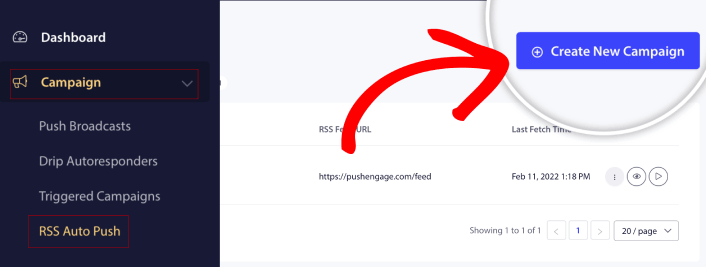
С этим новым обновлением вы теперь можете создавать и отправлять несколько RSS-уведомлений для различных сегментов и групп аудитории. На вашем сайте не одна RSS-лента. Вы можете создавать RSS-ленты для каждой категории контента на вашем сайте.
И это занимает очень мало времени. Но создание нескольких лент позволяет отправлять более персонализированные RSS-уведомления.
Допустим, у вас есть три группы аудитории, которые интересуются только суперкарами, мотоциклами и грузовиками соответственно. Вы можете легко создать разные URL-адреса RSS-лент для каждой категории и отправлять своим подписчикам push-уведомления о контенте, который их действительно волнует.
Результат? Вы увидите всплеск вовлеченности на вашем сайте даже с простой кампанией RSS-автопуш!
Запускайте, приостанавливайте и удаляйте свою RSS-кампанию в любое время
Самая большая проблема с RSS-кампаниями, даже с RSS-кампаниями по электронной почте, заключалась в планировании. Было очень сложно контролировать, сколько постов вы отправляете. И было еще сложнее приостановить ваши кампании.
До сих пор!
С PushEngage вы можете легко запускать, приостанавливать или удалять любую кампанию RSS-ленты в любое время. Это очень полезная функция, если вы управляете несколькими кампаниями.
Допустим, вы проводите кампанию push-уведомлений к Черной пятнице. Ваши подписчики должны сосредоточиться только на ваших рекламных предложениях. Но в то же время вы не можете прекращать публиковать новый контент до конца праздничного сезона. Это отличное время, чтобы приостановить кампании RSS-канала.
Поскольку теперь вы можете запускать несколько RSS-кампаний, вы можете даже продолжать отправлять обычный контент подписчикам, которых вы не нацеливаете с помощью своих рекламных акций.
Простые параметры настройки изображений
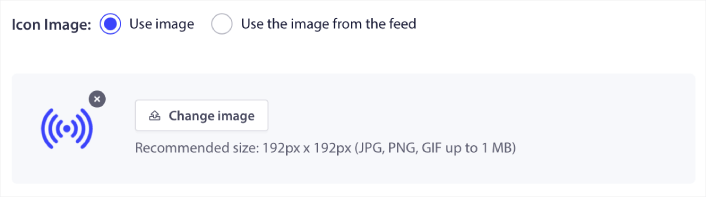
Вы можете настроить как значок уведомления, так и большое изображение уведомления непосредственно из вашего RSS-канала. Для значка уведомления вы можете загрузить значок вручную:
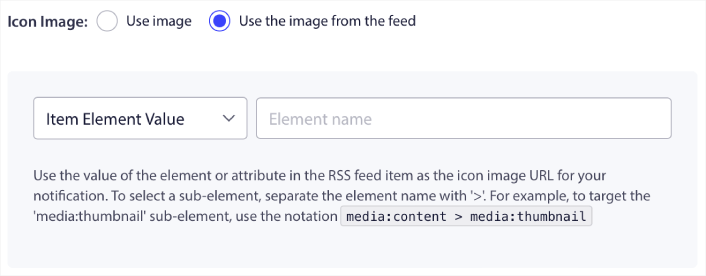
Или вы можете настроить шаблон, чтобы PushEngage динамически извлекал значок уведомления из вашего RSS-канала:
Аналогично, вы можете либо позволить PushEngage автоматически находить большое изображение для ваших сообщений:

Или вы можете настроить тип большого изображения, которое вы хотите, извлекая его из вашего RSS-канала:
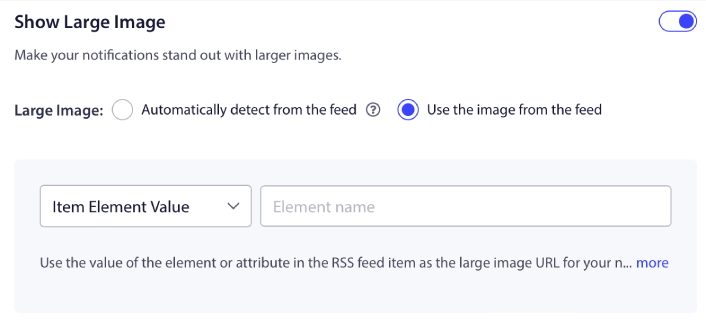
ВНИМАНИЕ: Используйте расширенные параметры извлечения изображений только в том случае, если вы умеете читать XML в RSS-канале. Если вы не знакомы с XML, вам следует позволить PushEngage самому выбирать большое изображение для ваших уведомлений, а значок уведомления загружать вручную.
Установите частоту RSS-уведомлений
Вы также можете установить частоту кампании для каждой RSS-кампании:
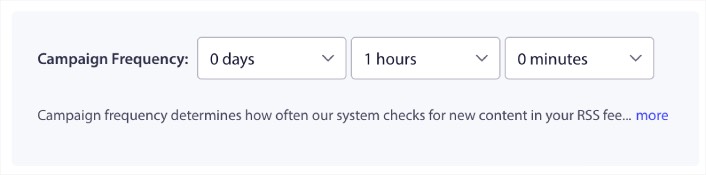
Campaign Frequency — это то, как часто кампания RSS-канала ищет новый контент в вашем блоге для отправки автоматического push-уведомления. Минимальное значение — 15 минут, а максимальное — 7 дней.
Мы рекомендуем искать контент для продвижения каждые 2 дня, если вы не являетесь новостным агентством. Для новостных агентств следует обновлять каждые 15 минут. Имейте в виду, что PushEngage будет искать новый контент только после того, как вы настроите и опубликуете свою кампанию RSS-канала.
Установить продолжительность push-уведомлений
Длительность push-уведомления — это время, в течение которого уведомление остается в трее уведомлений вашего подписчика, прежде чем оно будет автоматически удалено.
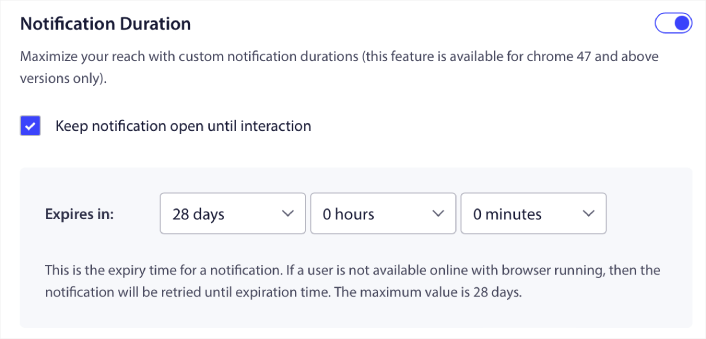
Если вы не хотите перегружать своих подписчиков множеством непрочитанных уведомлений, лучше всего позволить push-уведомлениям истекать через пару дней.
В отличие от широковещательных уведомлений или даже других автоматизированных push-уведомлений, вы не можете по-настоящему планировать RSS push-уведомления по часовому поясу или конкретному времени отправки. Таким образом, у вас всегда есть возможность держать уведомление открытым до тех пор, пока подписчик не взаимодействует с ним, даже в пределах срока действия.
Установите UTM-параметры для отслеживания ваших уведомлений
Вы также можете настроить UTM-параметры для отслеживания push-уведомлений:
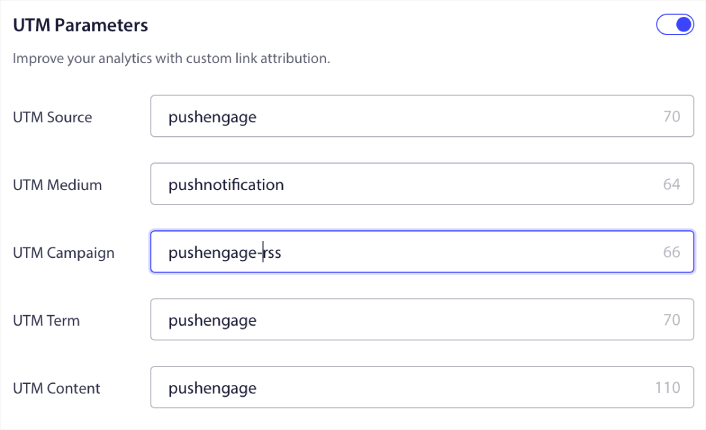
Таким образом, вы можете легко атрибутировать трафик от этих push-уведомлений в Google Analytics. Конечно, вы также можете получить подробную аналитику по всей вашей кампании прямо с панели управления PushEngage.
Нацельтесь на определенную группу аудитории
Самое большое обновление RSS push-уведомлений — это возможность выбрать группу аудитории для отправки целевых уведомлений. Вы можете либо отправить кампанию RSS-канала всем своим подписчикам, либо создать группы аудитории для отправки персонализированных push-уведомлений даже из вашего RSS-канала.
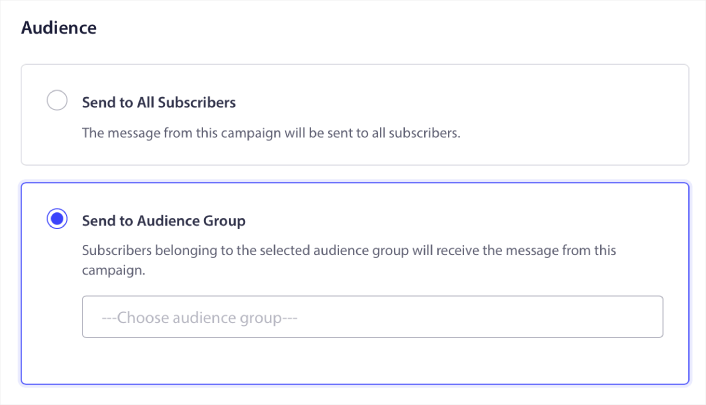
Теперь вы по-прежнему можете отправлять автоматизированные push-уведомления, настроив их один раз. Но это еще лучше, потому что вы можете выбрать, какой контент вы хотите продвигать для конкретных аудиторий.
Что еще?
Мы знаем, что развитие бизнеса — это тяжелая работа. В PushEngage мы всегда стремимся улучшать наш продукт и ваш опыт. Мы запустили эту новую функцию, чтобы помочь вам получить еще больше пользы от вашей подписки на PushEngage.
Большое спасибо за прочтение этого объявления.
Если у вас возникнут вопросы, наша команда по работе с клиентами готова помочь. Просто начните разговор в Live Chat или ознакомьтесь с нашей контактной страницей.
И спасибо, что пользуетесь PushEngage. Независимо от того, используете ли вы бесплатную или корпоративную версию, вы так же важны для нас. Новые функции автоматических RSS-уведомлений призваны помочь вам добиться успеха, и мы желаем вам всего наилучшего.
Сообщите нам свое мнение в комментариях ниже, и если вы еще этого не сделали, начните использовать PushEngage сегодня!


