PushEngageには、WooCommerceの注文ステータスの変更に基づいて自動的にトリガーされる4つのデフォルトプッシュ通知が含まれています。このガイドでは、それぞれの有効化と設定方法について説明します。
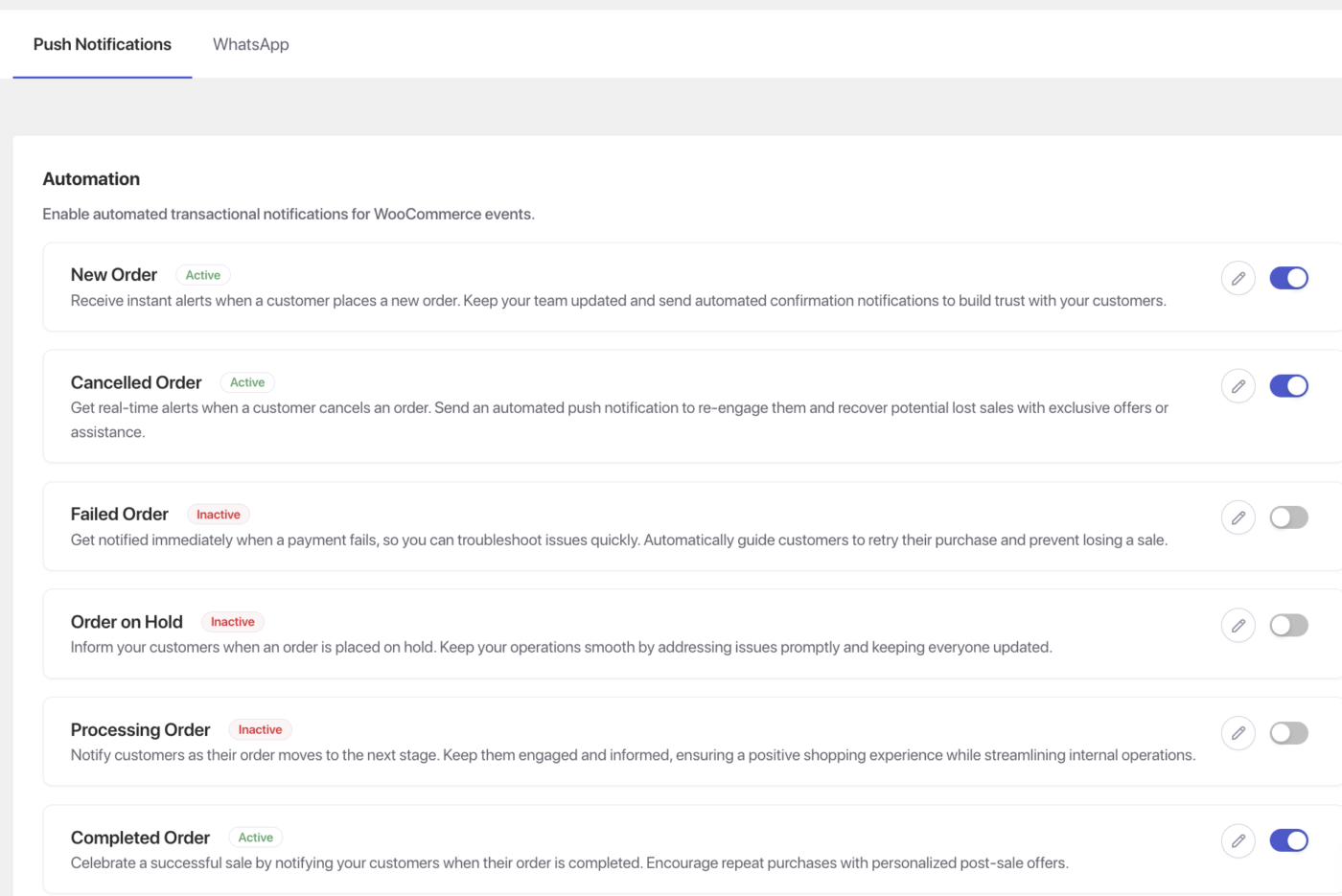
4つの通知はすべて、WordPress管理画面の同じ場所で管理されます:WooCommerce » 設定 » プッシュ通知タブ。
開始する前に
- PushEngageがインストールされ、WooCommerceストアに接続されていること。まだ接続していない場合は、PushEngageとWooCommerceを接続する方法を参照してください。
- お客様は、ストアでオプトインしている場合にのみプッシュ通知を受信します。
- このガイドの4つの通知はすべて顧客向けです。管理者通知は、同じ設定ページから個別に有効化できます。
プッシュ通知設定を開く
このガイドのすべての通知は、同じ場所で設定されます:
- WordPress管理画面で、WooCommerce » 設定に移動します。
- プッシュ通知タブをクリックします。

利用可能な通知タイプのリストが表示されます。それぞれに、有効化するためのトグル、受信者セレクター(顧客、管理者、または両方)、および通知エディタを開くための管理ボタンがあります。
以下の各通知の手順は次のとおりです:
- 通知をオンにします。
- 受信者を顧客に設定します。
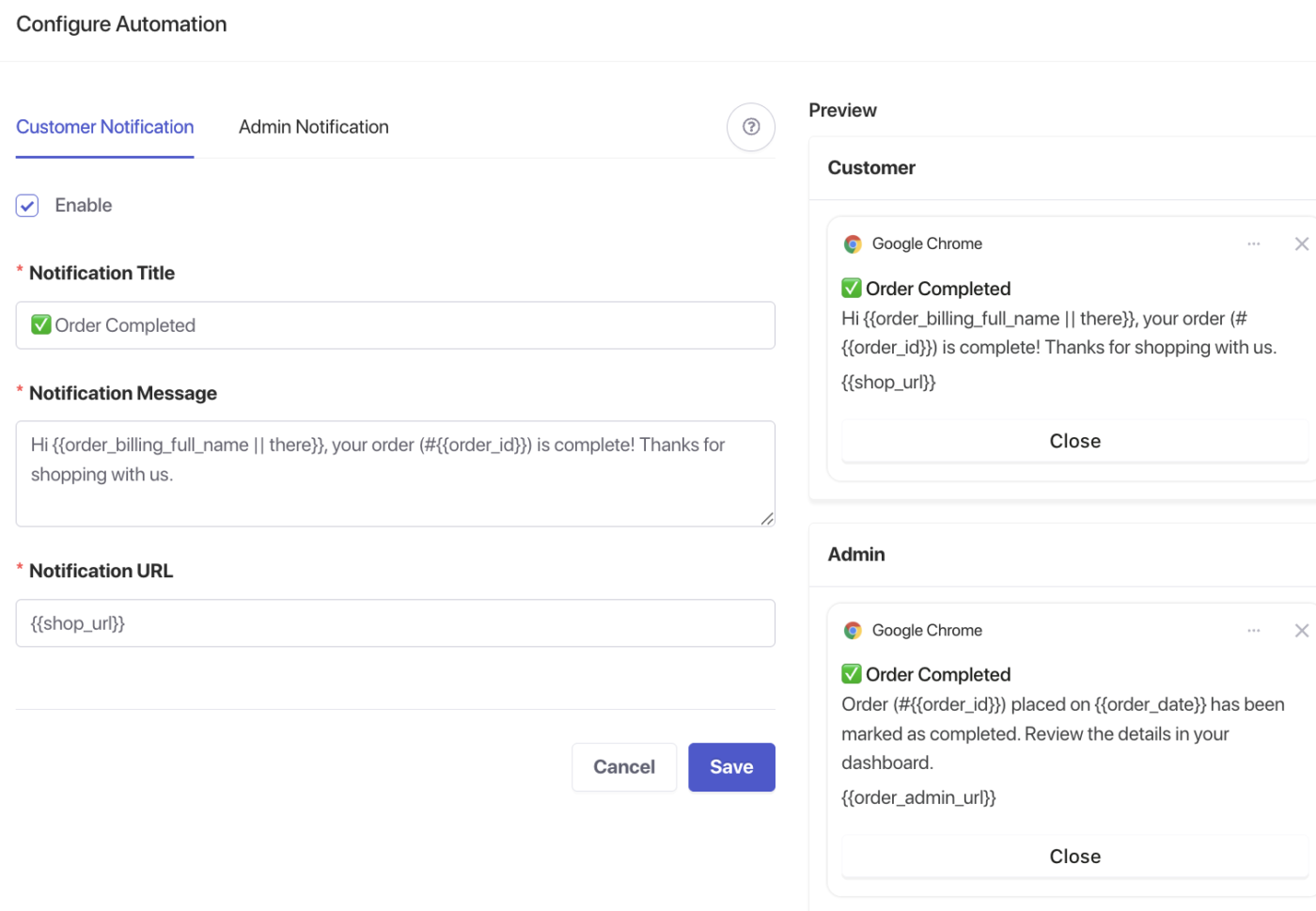
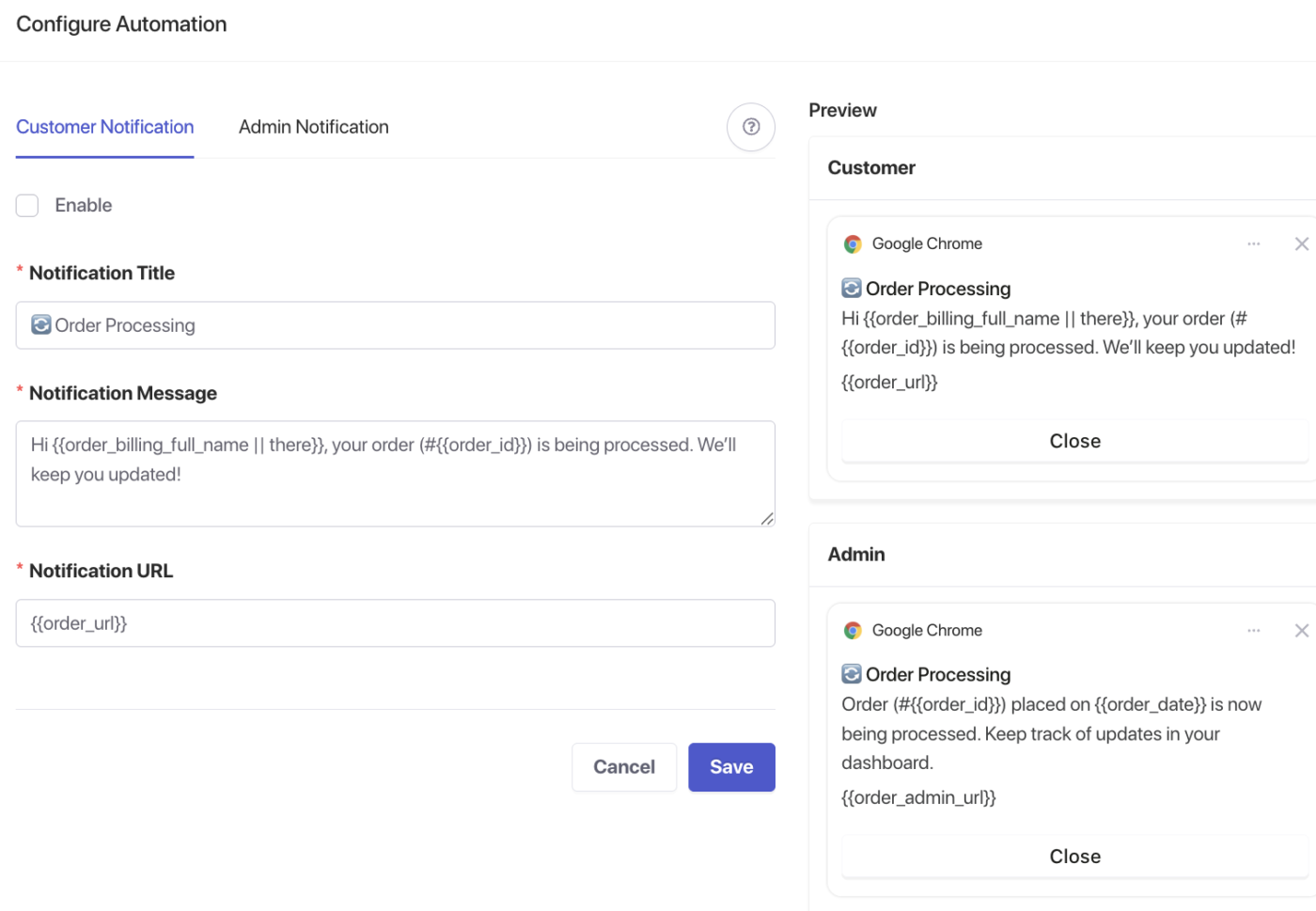
- エディタを開くには、管理をクリックします。
- タイトル、メッセージ、URLを設定します。
- 変更を保存をクリックします。
利用可能な変数
次の変数は、すべての注文通知エディタで利用できます:
| 変数 | 挿入される内容 |
|---|---|
{order_id} | WooCommerceの注文番号 |
{order_date} | 注文が行われた日付 |
設定で利用可能な追加の変数については、通知エディタを確認してください。
注文受信
顧客がチェックアウトを完了すると、即座に確認プッシュを送信します。通知は、注文ステータスが処理中または保留中に移動したときにトリガーされます。これは、WooCommerceが注文が正常に完了したことを示す信号です。
これは、注文コミュニケーションシーケンスの最初のタッチポイントです。注文が正常に完了したことを顧客に安心させ、次のステップへの期待を設定します。
コピーオプション
| オプション | タイトル | メッセージ |
|---|---|---|
| 1 | 注文確定! | ご注文(#{order_id})は{order_date}に承りました。ご利用ありがとうございます! |
| 2 | ご注文ありがとうございます | ご注文(#{order_id})を受け付けました。発送時にご連絡いたします。 |
| 3 | ご注文が確定しました | ご注文(#{order_id})を承りました。準備を進めております。 |
推奨URL:ストアのマイアカウント » 注文ページ(例:https://yourstore.com/my-account/orders/)
注文発送済み
WooCommerceで注文が完了とマークされたときにプッシュ通知を送信します。完了ステータスは、注文が処理され出荷されたことを示すWooCommerceの標準的な合図です。
初期設定後は手動での操作は不要です。注文を個別に、または一括で完了とマークするたびに、通知が自動的に送信されます。
コピーオプション
| オプション | タイトル | メッセージ |
|---|---|---|
| 1 | ご注文が出荷されました! | 注文 #{order_id} は発送されました。クリックしてご注文の詳細を確認してください。 |
| 2 | 素晴らしいお知らせです – ご注文が出荷されました! | ご注文 #{order_id} ({order_date} 注文) は処理されました。ご注文の詳細をご確認ください。 |
| 3 | ご注文は処理されました | アカウントにアクセスして、注文 #{order_id} の出荷詳細を確認してください。 |
推奨URL: ストアのマイアカウント » 注文ページ
追跡番号に関する注意: PushEngageは、出荷追跡番号をネイティブ変数としてサポートしていません。WooCommerce Shipment TrackingやAfterShipなどの出荷追跡プラグインを使用している場合は、顧客をマイアカウント » 注文ページに誘導してください。そこでは、クリックすると追跡詳細を確認できます。
保留中の注文
注文ステータスが保留中に移動したときにプッシュ通知を送信します。これは、銀行振込、小切手、または購入注文などのオフラインまたは遅延支払い方法を受け入れ、処理前に支払い確認が必要なストアに最も関連性があります。
保留中の注文を生成する支払い方法を使用している場合にのみ、この通知を有効にしてください。カード支払い(Stripe、PayPal、Square)のみを受け入れるストアは、通常、保留中ステータスを完全にスキップし、注文を直接処理中に移動します。
保留中の注文を生成する一般的な支払い方法:
- 銀行振込 (BACS)
- 小切手支払い
- 購入注文
- カスタムまたは手動の支払いゲートウェイ
コピーオプション
| オプション | タイトル | メッセージ |
|---|---|---|
| 1 | 注文 #{order_id} 受領 – 支払い待ち | ご注文を受け付けました。支払い確認後、すぐに処理いたします。 |
| 2 | ご注文は保留中です | 注文 #{order_id} は支払い確認待ちです。次のステップについては、ご注文の詳細をご確認ください。 |
| 3 | 注文 #{order_id} の対応が必要です | 支払い確認のため、ご注文は保留中です。お支払い方法については、ご注文をご確認ください。 |
推奨URL: ストアのマイアカウント » 注文ページ
ヒント: 安心感を与える情報提供的なトーンでコピーを作成してください。銀行振込または小切手支払い方法を使用する顧客は、保留期間を予想しています – 通知は、顧客を不安にさせるのではなく、注文がシステムにあることを確認するものであるべきです。
注文キャンセル
注文ステータスがキャンセル済みに移動したときにプッシュ通知を送信します。これは、ストア管理者、ショップマネージャー、または顧客自身によって開始されたかどうかにかかわらず、すべてのキャンセルに対して送信されます。
この通知により、コミュニケーションが明確になり、顧客は再注文、ストアの閲覧、サポートへの連絡などの直接的な次のステップを踏むことができます。
注意: PushEngageは、すべてのキャンセルイベントに対してこの通知を送信します。これには、顧客が開始したキャンセル、ストアが開始したキャンセル、および支払い失敗後に自動的にキャンセルされた注文が含まれます。特定のシナリオ(不正行為によるキャンセルなど)でこの通知を抑制する必要がある場合は、PushEngageサポートに連絡してガイダンスを受けてください。
コピーオプション
| オプション | タイトル | メッセージ |
|---|---|---|
| 1 | 注文#{order_id}はキャンセルされました | ご注文はキャンセルされました。ヘルプが必要な場合は、ストアを閲覧するか、お問い合わせください。 |
| 2 | ご注文はキャンセルされました | 注文#{order_id}は現在無効です。いつでもストアにアクセスして、新しい注文を行ってください。 |
| 3 | 注文#{order_id}がキャンセルされました – お手伝いいたします | ご注文はキャンセルされました。ご不明な点がある場合や、再注文をご希望の場合は、サポートチームにお問い合わせください。 |
推奨URL: ストアのホームページまたはお客様サービス/お問い合わせ専用ページ
通知のテスト
上記のいずれかの通知を設定した後、本稼働前にテストしてください:
- テスト顧客アカウントを使用して、ストアでプッシュ通知を購読してください。
- 関連する注文ステータスをトリガーします(テスト注文を行い、完了またはキャンセルとしてマークするなど)。
- プッシュ通知が数秒以内に購読デバイスに届くことを確認してください。
- 通知をクリックして、正しいURLが開かれることを確認してください。
通知が表示されない場合は、顧客アカウントがプッシュ通知をオプトインしており、WooCommerce » 設定 » プッシュ通知で関連する通知がオンになっていることを確認してください。
よくある質問
すべての顧客がこれらの通知を受け取りますか?ストアでプッシュ通知を購読している顧客のみが受け取ります。オプトインしていない顧客には通知されません。
「注文受信」と「注文発送」の違いは何ですか?「注文受信」は、顧客が注文を行ったとき(注文ステータスが処理中または保留中に変わる)にトリガーされます。「注文発送」は、注文が完了した(履行され、発送されたことを示す)とマークしたときにトリガーされます。これらは異なる目的を果たし、両方を同時に有効にすることができます。
「注文受信」と「注文保留」を同時に有効にすべきですか?お支払い方法によります。顧客が銀行振込で注文した場合、注文は処理中ではなく保留中になります。その場合、両方を有効にすると、顧客は同じ注文に対して2つの通知を受け取る可能性があります。お支払い方法が使用するステータスを確認し、チェックアウトフローに一致する通知のみを有効にしてください。
管理者にこれらの通知を送信することもできますか?はい。プッシュ通知タブの各通知には、受信者セレクターがあります。同じイベントに対して、顧客と管理者の両方の通知を有効にすることができます。管理者の通知は、注文管理および履行ワークフローに役立ちます。
キャンセル理由を通知に含めることはできますか?PushEngageはキャンセル理由のネイティブ変数を提供しておらず、WooCommerceはデフォルトで標準化されたキャンセル理由を保存していません。動的な理由を挿入しようとするのではなく、メッセージフィールドを使用して、質問がある場合はサポートに連絡するように顧客に指示してください。
カスタムの注文ステータスを出荷済み注文に使用した場合はどうなりますか? PushEngage の注文出荷済み通知は、WooCommerce のデフォルトの完了ステータスでトリガーされます。プラグインによって追加された「出荷済み」などのカスタムステータスをストアで使用している場合、そのステータスが完了にマッピングされていない限り、通知はトリガーされません。カスタム注文ステータス構成については、PushEngage サポートにお問い合わせください。
問題が発生した場合は、ここをクリックしてお気軽にお問い合わせください。サポートチームがお手伝いします。