
Ищете простое руководство по добавлению метатегов Open Graph WordPress на ваш сайт?
Open Graph — это то, как Facebook обрабатывает метаданные, когда вы делитесь своим постом или страницей в публикациях Facebook. Именно так Facebook автоматически извлекает главное изображение и мета-описание только по URL.
Но добавление его вручную на ваш сайт может быть настоящей проблемой.
Во-первых, вам придется научиться писать структурированные данные Open Graph. Затем вам придется вставить их в файлы вашей темы WordPress. И это очень рискованно. Вам придется редактировать файлы, которые обеспечивают правильную работу всего вашего сайта. Одна строка не на своем месте может привести к сбою всего вашего сайта.
В этой статье мы добавим метатеги Open Graph WordPress простым способом без какого-либо кодирования.
Давайте начнем.
Шаг № 1: Установите All in One SEO
All in One SEO — это SEO-плагин WordPress № 1 в мире. Это идеальный плагин для добавления метатегов Open Graph WordPress на ваш сайт без какого-либо кодирования.

All in One SEO (AIOSEO) — один из самых известных SEO-плагинов в сообществе WordPress. Оригинальная версия была полностью переработана с добавлением множества новых функций и дополнений. Так что, если вы использовали AIOSEO в прошлом, вам нужно снова ознакомиться с плагином.
AIOSEO не только достаточно мощный, чтобы внедрять последние лучшие практики SEO, но вы также получаете расширенные опции для решения конкретных проблем SEO прямо из коробки. Это включает:
- Модули локального SEO для малого бизнеса с местной аудиторией
- SEO для WooCommerce для интернет-магазинов
- SEO-оптимизатор внутри вашего редактора WordPress
- Умные карты сайта для мгновенной индексации в поисковых системах
- Плагин Schema, чтобы ваш контент ранжировался в расширенных сниппетах
И многое другое! Полный список функций All in One SEO вы можете найти в нашем обзоре плагина.
Первое, что вам нужно сделать, это установить и активировать плагин All in One SEO. Если вы не знаете, как это сделать, ознакомьтесь с этим руководством по установке плагинов WordPress.
После загрузки и установки плагина вы получите мастер настройки:
А процесс настройки займет менее 10 минут.
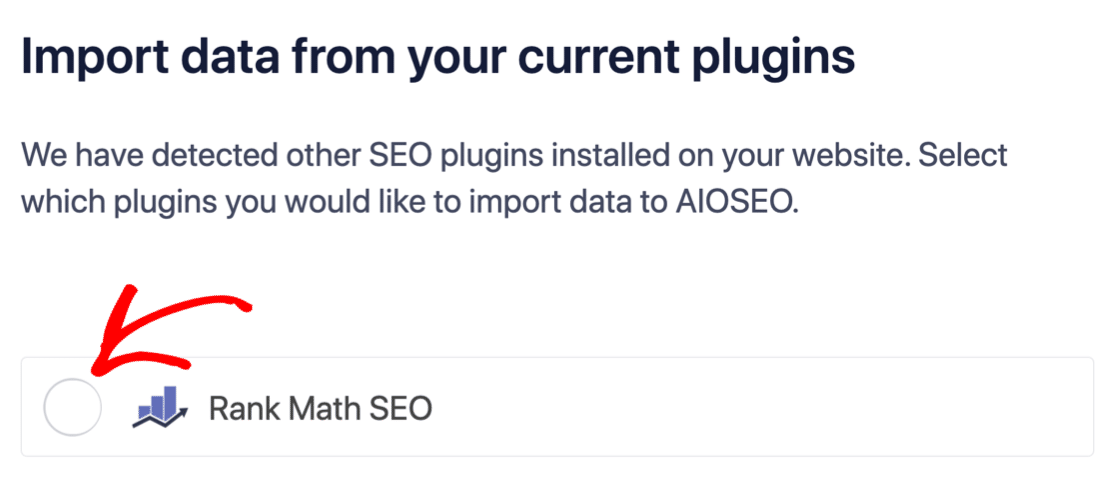
Но что, если вы переходите с другого SEO-плагина? Каждый плагин по-разному обрабатывает метаданные. Значит ли это, что вам придется делать все с нуля? Все ли ваши предыдущие усилия пропали даром?
Нет! Если All in One SEO обнаружит другой SEO-плагин во время мастера настройки, он предложит скопировать основные настройки для вас:
В конце настройки мастер настройки предложит вам деактивировать ваш старый SEO-плагин. Таким образом, не будет конфликтов плагинов и ошибок:
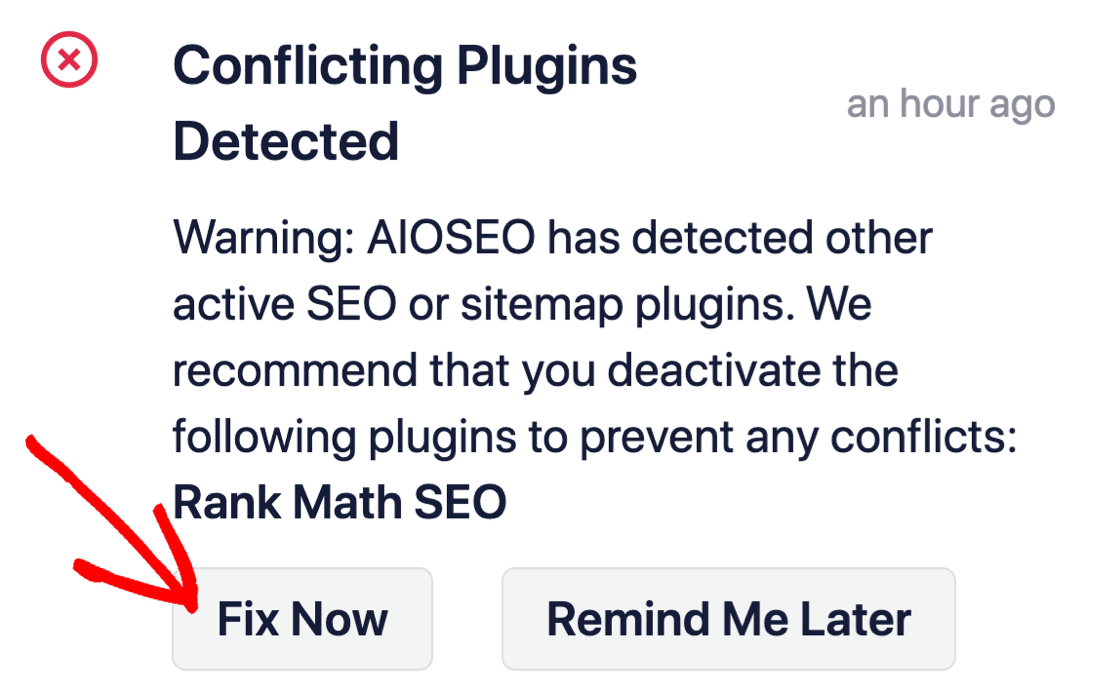
Нажатие кнопки Исправить сейчас не удалит настройки вашего старого SEO-плагина. Оно просто деактивирует плагин, чтобы предотвратить конфликты.
Шаг № 2: Настройте параметры социальных сетей
В вашей панели управления WordPress перейдите в раздел All in One SEO » Социальные сети » Профили в социальных сетях и добавьте профили ваших социальных сетей на сайт:
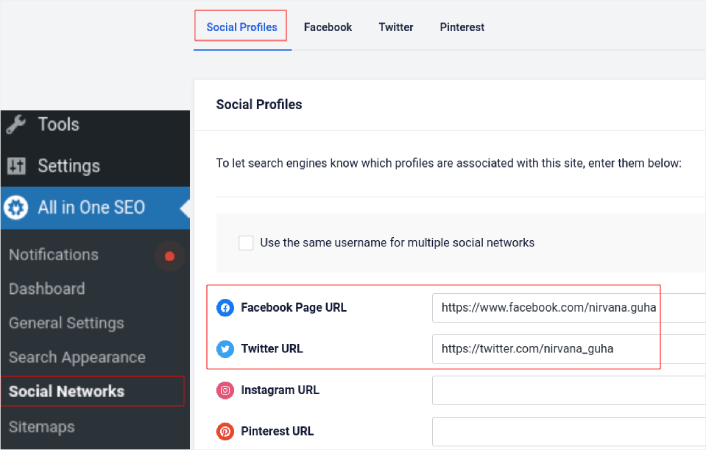
Этот шаг гарантирует, что поисковые системы, такие как Google и Bing, знают, какие профили в социальных сетях связаны с вашим сайтом. В то же время это поможет вам с настройками обмена в социальных сетях. Это следующий шаг.
Шаг № 3: Отредактируйте общие настройки Facebook
Перейдите в раздел All in One SEO » Социальные сети и нажмите на вкладку Facebook. Здесь вы можете настроить общие настройки Facebook:
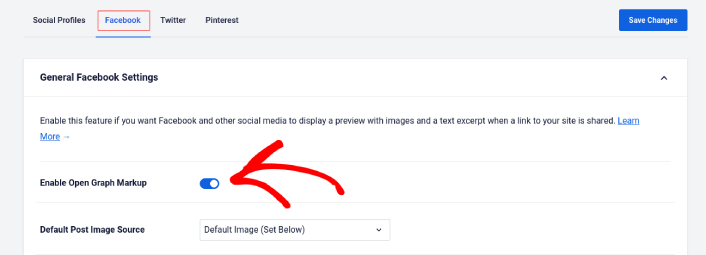
Переключите переключатель Включить разметку Open Graph, чтобы активировать его.
Здесь вы можете установить Источник изображения по умолчанию для записей и Изображение Facebook по умолчанию для записей:

Мы рекомендуем использовать опцию Избранное изображение в качестве источника изображения для ваших записей. Но стоит ознакомиться и с другими вариантами:
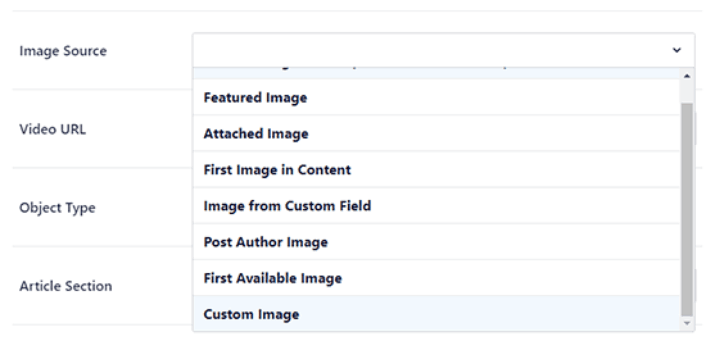
Вы можете установить изображение Facebook по умолчанию в виде вашего логотипа или чего-либо, представляющего ваш бренд. Нажмите кнопку Загрузить или выбрать изображение, чтобы изменить изображение по умолчанию. В нашем примере мы используем личный бренд. Таким образом, изображение Facebook по умолчанию — это фотография автора.
Когда закончите, нажмите кнопку Сохранить.
И это все! Вы закончили. После сохранения изменений вы можете попробовать поделиться публикацией с вашего сайта на вашей странице или профиле в Facebook.
Что делать после добавления метатегов WordPress Open Graph
На этом всё, друзья!
Далее вам следует подумать о различных способах вовлечения и конвертации трафика, который вы привлекаете из своих учетных записей в социальных сетях. Отличный способ сделать это — использовать push-уведомления. Push-уведомления могут быть мощным маркетинговым инструментом для привлечения трафика, повышения вовлеченности и прямых продаж для вашего бизнеса.
Если вы не на 100% убеждены, ознакомьтесь с этими ресурсами о том, как эффективно использовать push-уведомления:
- 7 умных стратегий для повышения вовлеченности клиентов
- Эффективны ли push-уведомления? 7 статистических данных + 3 совета экспертов
- Как настроить push-уведомления о брошенной корзине (простое руководство)
- Как добавить плагин веб-уведомлений WordPress на ваш сайт
Мы рекомендуем использовать PushEngage для создания ваших кампаний push-уведомлений. PushEngage — это программное обеспечение для push-уведомлений №1 в мире. Так что, если вы еще этого не сделали, начните использовать PushEngage сегодня!


